Many people open Adobe Acrobat only to find that extracting pages from a PDF is a paid feature. The good news is — you don’t have to pay for it. Whether you need to keep key pages from a contract or extract a section from a report, this guide will show you three free and easy ways to extract pages from a PDF in just a few clicks.
- Extract Pages from PDF with Google Chrome
- Save One Page of a PDF Quickly with Online Tools
- Extract Pages from a PDF for Free Using Python
- The Conclusion
How to Extract Pages from PDF with Google Chrome
You don’t need any extra software — Google Chrome alone can extract specific pages from a PDF online. Using its built-in Print feature, you can choose to save all pages, only odd or even pages, or any custom page range you like. Simply select the pages you want to keep and save them as a new PDF file. Here’s how to extract pages from a PDF using Google Chrome:
- Locate the PDF file you want to extract pages from and right-click to open it in Google Chrome.
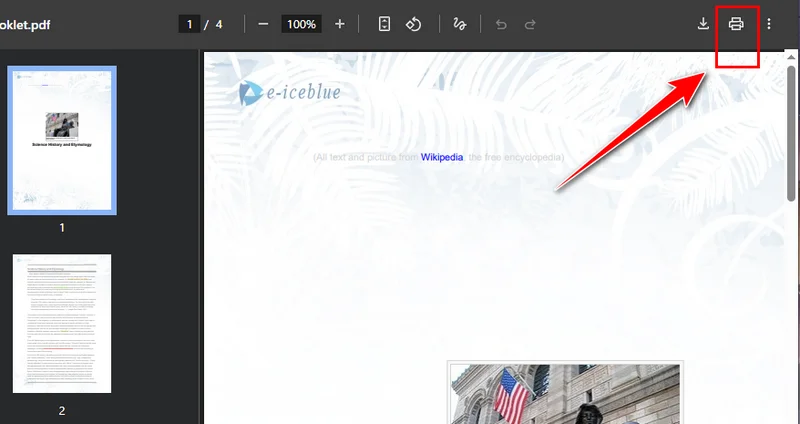
- Click the Print button in the top-right corner and change the destination printer to Save as PDF.
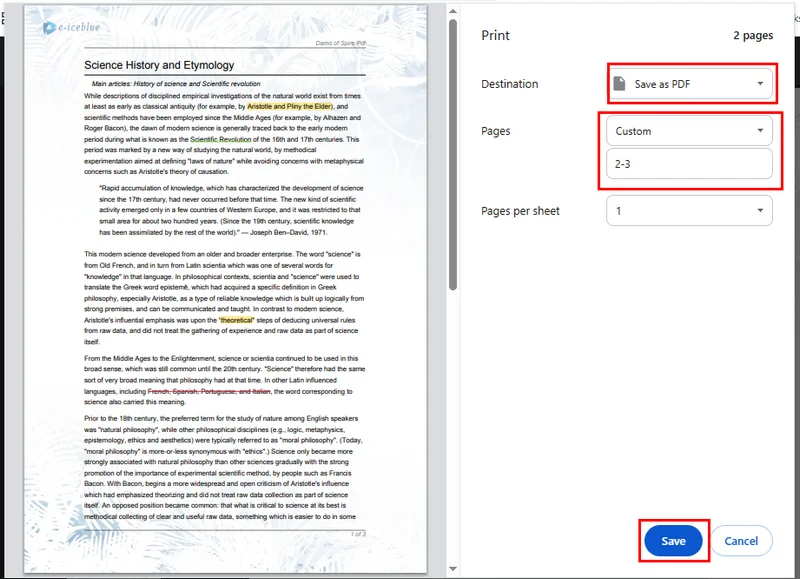
- Select the pages you want to keep, then click Save. Chrome will automatically download the new PDF to your device.
Pros
- No need to install any third-party software.
- Ideal for quickly extracting 1–2 pages.
- Smooth experience and widely accessible (almost all users have Chrome).
Cons
- Not suitable for extracting a large number of non-consecutive pages.
- Output options are quite basic.
How to Save One Page of a PDF Quickly with Online Tools
There are many ways to extract pages from a PDF. Besides using Chrome’s built-in feature, you can also use online tools to split PDF documents and save the pages you need. Since these tools are web-based, they work on both computers and mobile devices, and you don’t need to download anything or sign up. Just search for “how to extract pages from a PDF” in your browser, and you’ll find plenty of options. In this guide, we’ll demonstrate the process using Smallpdf, but don’t worry — most online tools work in a very similar way.
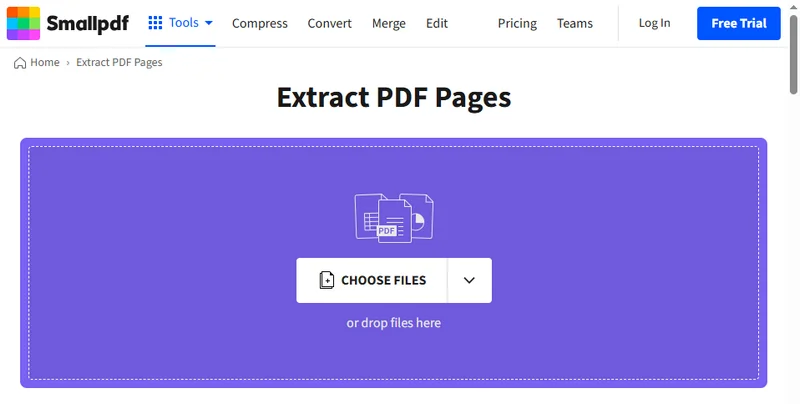
- Go to the PDF Extract page on Smallpdf.
- Drag your PDF file into the tool, which will automatically process it and display all the pages.
- Select the pages you want to extract, then click Finish. You can choose to export the pages as a single PDF or as separate PDF files.
- Once the extraction is complete, click the Download button to save the resulting PDF to your device.
Pros
- Can be used directly in your browser, without any downloads or installations.
- Supports extracting single pages, consecutive pages, or non-consecutive pages.
- Intuitive interface — just drag and drop, easy even for beginners.
- Works on any device with a browser and internet connection, highly compatible.
Cons
- Requires an internet connection; cannot be used offline.
- Some tools limit the file size for free users.
- Files are uploaded to the server, so be cautious with sensitive content.
- Advanced features, such as batch processing or watermark-free downloads, may require payment.
How to Extract Pages from a PDF for Free Using Python
When dealing with PDFs, both Chrome and online tools share one limitation — they can only process one file at a time. If you’re handling multiple PDFs, there’s a faster and more professional solution: Free Spire.PDF for Python.
This powerful library provides a wide range of PDF features, including extracting pages, converting formats, and editing content. With Free Spire.PDF, you can easily extract specific pages by adding them from the source PDF into a new document using the PdfDocument.InsertPage() method.
The sample code below demonstrates how to extract the 2nd and 4th pages from a PDF and merge them into a new file.
from spire.pdf import PdfDocument

# Load a PDF file
source_pdf = PdfDocument()
source_pdf.LoadFromFile("/input/Booklet.pdf")

# Create a new PdfDocument instance
new_pdf = PdfDocument()

# Extract page 2 and page 4
new_pdf.InsertPage(source_pdf, 1)
new_pdf.InsertPage(source_pdf, 3)

# Save the extracted pages
new_pdf.SaveToFile("/output/extracted_pages.pdf")
new_pdf.Close()
Here's the preview of the resulting file: 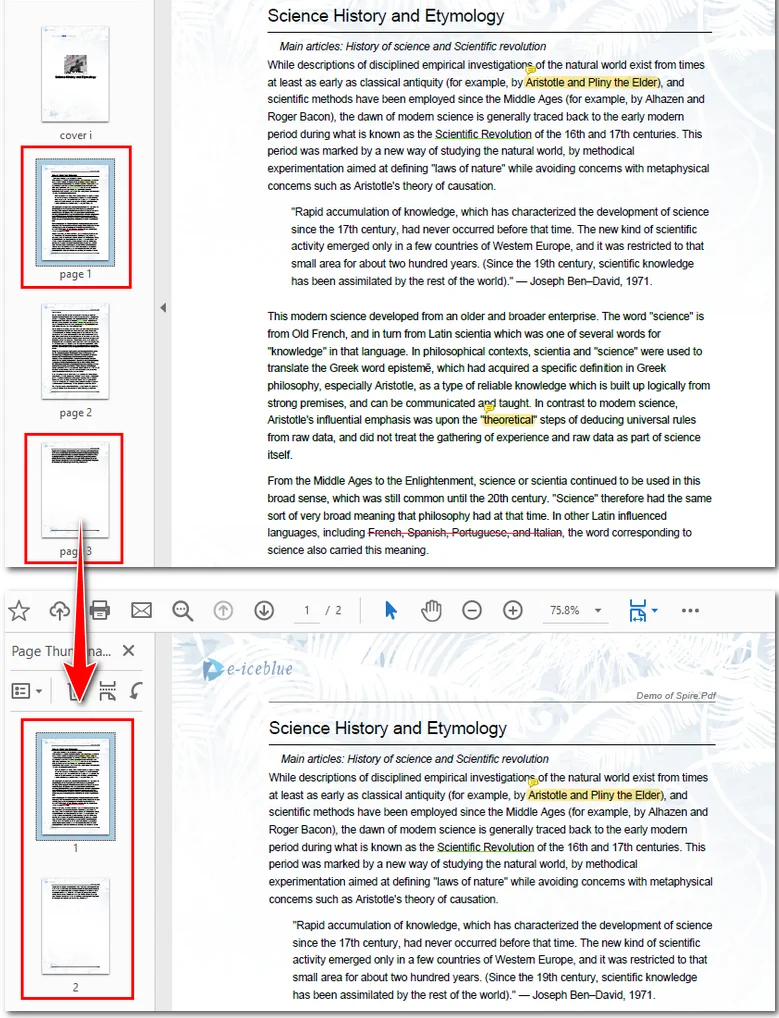
If you need to extract a large number of pages, another option is to delete the unnecessary pages instead. This approach can be just as effective when working with PDFs in Python.
The Conclusion
Whether you’re extracting a single page or managing multiple PDFs, choosing the right tool can save you a lot of time. If you prefer a more flexible and code-based solution, Free Spire.PDF for Python offers a reliable way to extract, edit, or organize PDF files efficiently. You can download it for free and explore more features on the official website.
ALSO READ