While password protection helps keep PDF files secure, entering the password every time can slow down your workflow. For non-confidential documents, removing restrictions makes it easier to access and extract the information you need. This article introduces three ways to unsecure a PDF—whether or not you know the password.
- Unsecure a PDF with Adobe Acrobat Pro DC
- Unsecure a PDF Document Using Code
- Unsecure a PDF without Password Online
- The Conclusion
- FAQs
How to Unsecure a PDF with Adobe Acrobat Pro DC
When it comes to making a PDF unsecured, most people immediately think of Adobe Acrobat Pro DC. The software includes a built-in feature that allows users to unsecure a PDF with a password and remove its restrictions in just a few clicks. If you already have Adobe Acrobat Pro DC installed, here’s how to turn a secured PDF into an unsecured one for easier access and sharing.
Steps to Unsecure a PDF with Adobe Acrobat Pro DC
- Open the secured PDF file in Adobe Acrobat Pro DC.
- Enter the password to access the document.
- Go to the top menu and select File > Properties.
- In the Security tab, choose No Security from the “Security Method” dropdown.
- Click OK and then Save the PDF to apply the changes.
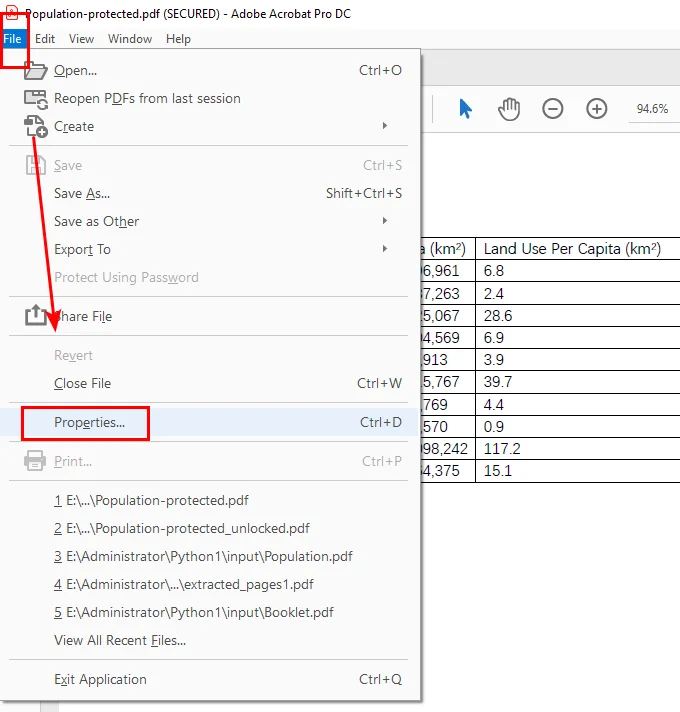
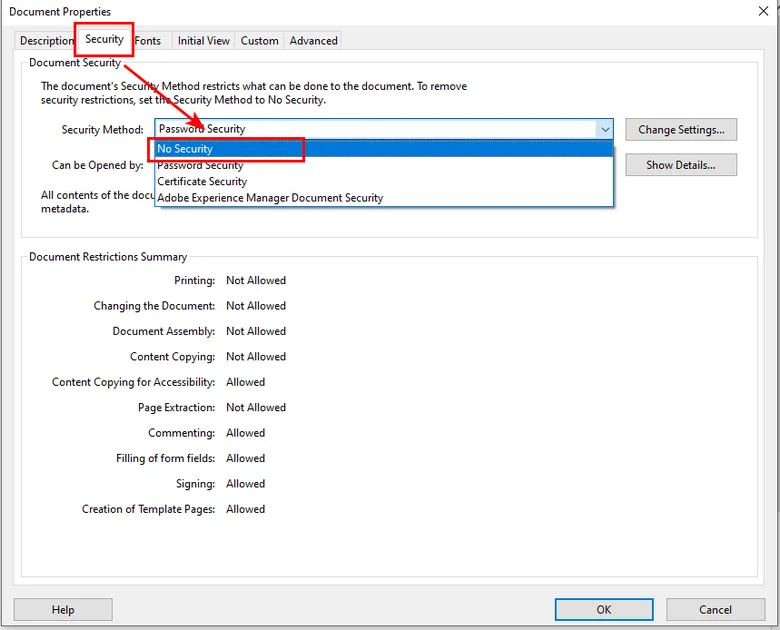
After these steps, your file becomes unsecured, allowing you to open, edit, and share it freely without entering a password each time.
How to Unsecure a PDF Document Free with Code
If you’re looking for a free and efficient way to unsecure a PDF document, Free Spire.PDF for Python is a great alternative to Adobe Acrobat. Unlike Acrobat, which requires a paid subscription, Free Spire.PDF lets you remove password protection directly through code—ideal for users who prefer automation or need to process multiple files at once.

In this part, we’ll walk you through how to use the free Python library to open an encrypted file with a known password, remove its restrictions, and save it as an unsecured version. A clear, step-by-step Python example is also included to help you get started quickly.
Steps to unsecure a PDF File Using Free Spire.PDF
- Install Free Spire.PDF for Python
You can install the library via pip:
pip install Spire.PDF.Free
Alternatively, you can download the package from the official website and install it manually.
- Import the Required Modules
Import the necessary classes from the spire.pdf package.
- Create a PdfDocument Object
Initialize a PdfDocument instance to start working with the PDF file.
- Load the Secured PDF
Use the PdfDocument.LoadFromFile() method and provide the correct open password to load the protected document.
- Remove the Password Protection
Call the PdfDocument.Security.Encrypt() method and set both passwords to empty strings. This will remove all restrictions and make the PDF fully accessible.
- Save the Unsecured PDF
Use the PdfDocument.SaveToFile() method to save the unlocked PDF to a new file.
Here’s the complete code example that shows how to unsecure a PDF protected with both an open password and a permission password.
from spire.pdf import *

# Create a PdfDocument object
doc = PdfDocument()

# Load a password protected PDF file
doc.LoadFromFile("/input/Population-protected.pdf", "password")

# Set the open password and permission password as empty
doc.Security.Encrypt(str(), str(), PdfPermissionsFlags.Default, PdfEncryptionKeySize.Key128Bit, "permissionpassword")

# Save the unsecured PDF file
doc.SaveToFile("/output/Unsecured.pdf", FileFormat.PDF)

doc.Close()
After running this code, you’ll have full access to the PDF — converting, printing, and editing PDFs are no longer restricted.
How to Unsecure a PDF without Password Online
Besides the two options above, if you prefer a simpler, more direct approach, you can also try online unlocking tools. These tools work in your browser as long as you have internet access. Simply search for keywords like “how to unsecure a PDF file,” “unprotect PDF,” or “remove PDF password,” and you’ll find plenty of options.
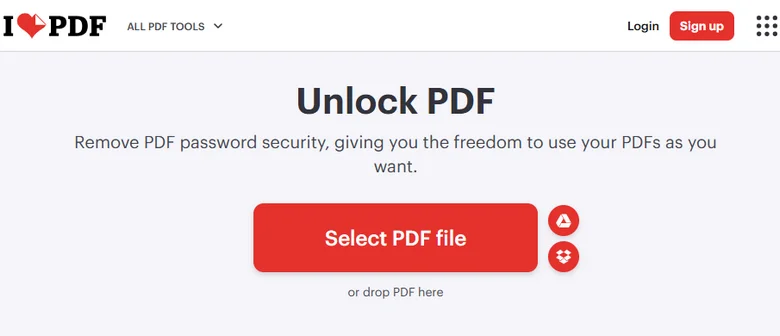
In this tutorial, we’ll take iLovePDF as an example to show how to make a PDF file unsecured online.
Steps to unsecure a PDF document using online tools
- Go to iLovePDF Unlock PDF.
- Click Select PDF File and upload your secured PDF.
- Hit Unlock PDF and wait for the process to finish. The unlocked file will be automatically downloaded to your device.
Although online tools are very convenient — some can even unsecure a secured PDF without a password — their security cannot always be guaranteed. If your document still contains confidential information, it’s safer to use Adobe Acrobat or Free Spire.PDF for Python instead of uploading it to online platforms.
The Conclusion
In short, Adobe Acrobat is ideal for quick offline operations, Free Spire.PDF for Python suits users who prefer to unsecure a PDF through code automation, while online tools are perfect for occasional use without any setup. Choose the option that best fits your needs and workflow.
FAQs about Unsecuring a PDF
1. How can I unsecure a PDF without knowing the password?
You can try online tools like iLovePDF but their success depends on the file’s encryption level. For confidential documents, avoid using online services for security reasons.
2. What’s the best way to unsecure a PDF for free?
Free Spire.PDF for Python lets you unsecure a PDF completely through code — no subscription or manual steps required.
3. How do I remove copy protection from a PDF?
Free Spire.PDF for Python can remove both open passwords and permission restrictions at once, allowing you to copy, edit, and print the file freely.
4. How do I remove password protection using Adobe Acrobat?
Open the PDF in Adobe Acrobat Pro DC, enter the password, go to File > Properties > Security, choose “No Security,” and save the file.
ALSO READ