Merging PDF files has become a common necessity for both personal and professional tasks. Whether you’re combining reports, consolidating documents for a presentation, or simply organizing files, having a reliable method to merge PDFs is essential. Fortunately, there are various ways to achieve this without the need for Adobe Acrobat.
This article explores multiple methods to merge PDFs for free without using Acrobat , including online tools , desktop applications , and automated solutions using Python. Each method caters to different needs, allowing you to choose the one that best fits your workflow.
Method 1: Merge PDFs Online for Free (Using PDF24)
One quick and easy way to merge PDFs without installing anything is via online tools. PDF24 is a popular option.
What is PDF24?
PDF24 offers a suite of free tools in your browser (and also a desktop version). Among those tools is “Merge PDF,” which lets you upload multiple PDF files and combine them.

How to Use PDF24 to Merge PDFs
- Go to the Merge PDF page on PDF24 Tools.
- Upload or drag & drop the PDF files you want to combine.
- (Optional) Rearrange the files by dragging and dropping them into your preferred order.
- Click the “ Merge PDF ” button to start the merging process.
- Download the resulting combined PDF.
Advanced Features
PDF24 offers a Page mode , allowing you to select individual pages from your uploaded PDFs for merging. You can change the order of these pages in the resulting document, providing even greater control over your merged PDF.
Pros & Cons of PDF24
| Pros | Cons |
|---|---|
| No installation required; works in any browser. | Requires internet connection. |
| Free; no account needed. | Uploading files always carries some privacy risk. |
| Supports page selection while merging. | |
| Provides additional useful tools for editing PDF files. |
Method 2: Combine PDFs on Windows with PDFsam Basic
If you’re working on a Windows PC and prefer offline tools, PDFsam Basic is a highly recommended free and open-source desktop application for PDF manipulation.
What is PDFsam Basic?
PDFsam Basic is a dedicated tool focused on reorganizing PDF pages.
- “PDFsam” stands for PDF Split and Merge. Basic is their free edition.
- It allows you to merge entire PDF files, reorder pages, extract pages, rotate pages, etc.
How to Merge Using PDFsam Basic
- Download and install PDFsam Basic from the official site.
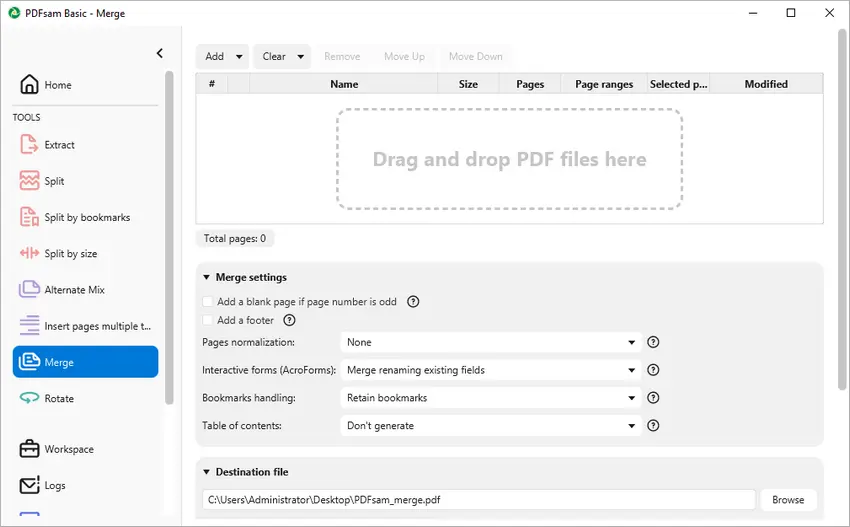
- Launch the app, choose “ Merge ” module from the main menu.
- Add or drag & drop the PDF files you want to combine into the merge queue.
- (Optional) Arrange the files in the desired order.
- Set the resulting PDF file name and path.
- Click “ Run ” to produce the combined PDF.
Advanced Features
PDFsam Basic offers several merge settings to customize your output:
- Page Normalization: Adjusts all page sizes to match the first page.
- Interactive Forms: Choose to merge, discard, or flatten form fields.
- Bookmarks Handling: Decide whether to retain or remove bookmarks.
- Table of Contents: Option to generate a table of contents for the merged document.
- File Compression: Compress output files to reduce size.
- PDF Version Control: Set the output PDF version to 1.5, 1.6, 1.7, or 2.0.
With these features, PDFsam Basic provides a versatile solution for merging PDFs according to your specific needs.
Pros & Cons of PDFsam Basic
| Pros | Cons |
|---|---|
| Works fully offline; no uploads needed. | Requires installation. |
| Free; no account required. | Interface less intuitive for beginners. |
| Flexible options for merging and output. | Cannot merge selective pages across files. |
Method 3: Merge PDFs on Mac with Preview (Built-in Tool)
If you use macOS, the built-in Preview app can merge PDFs without needing any external tools or extra cost.
What is Preview?
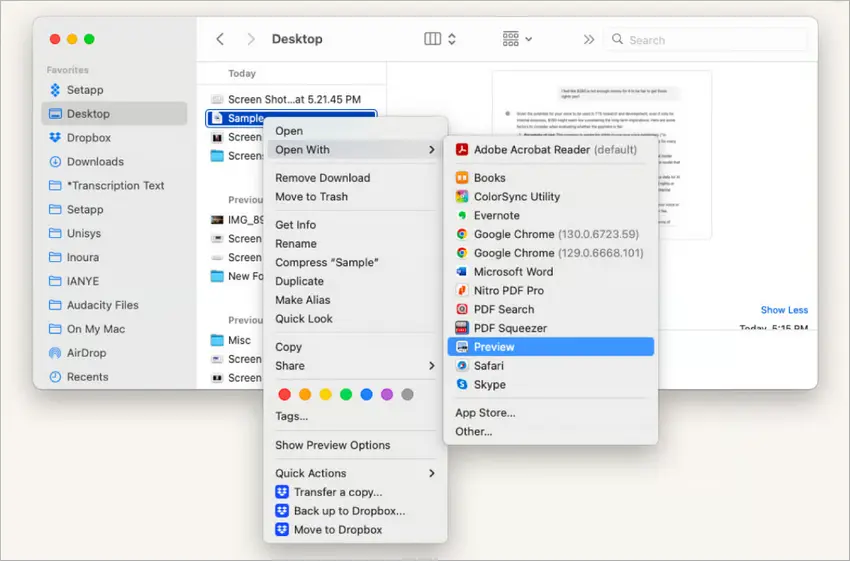
Preview is Apple's built-in, default application on macOS for viewing and making basic edits to images and PDFs. It offers features such as merging PDFs, filling out forms, and image editing, all within a user-friendly interface. As a pre-installed application, Preview provides powerful functionality without the need for additional software.
How to Combine PDFs with Preview
- Open one of the PDFs in Preview .
- Select View > Thumbnails to display the sidebar with all pages.
- Open the second PDF by selecting File > Open or dragging it into the thumbnail sidebar.
- Drag and drop pages from the second PDF to position them within the first PDF.
- Go to File > Export as PDF or File > Save to save the merged document.
Advanced Features
Preview allows users to merge not just entire files, but also individual pages by dragging them between documents in the thumbnail view. You can reorder, rotate, or delete pages before saving, giving you more control over the final PDF.
Pros & Cons of Using Preview
| Pros | Cons |
|---|---|
| Pre-installed on every Mac. | Limited editing features. |
| Simple drag-and-drop interface. | No batch automation without extra tools. |
| Works offline; preserves privacy. | Less convenient for large or many files. |
Method 4: Automate PDF Merging in Python (with Free Spire.PDF)
For coders or anyone who needs to automate workflows (e.g. merging reports overnight, combining many files), using a Python library like Free Spire.PDF is a great option.
What is Free Spire.PDF for Python?
Free Spire.PDF for Python is a powerful library designed for working with PDF files in Python applications. It allows developers to easily manipulate PDF documents, including essential features like splitting and merging files. With its user-friendly API, Free Spire.PDF enables seamless integration into projects, making it an excellent choice for tasks involving document management.
How to Merge PDFs in Python
- Install Free Spire.PDF through pip: pip install spire.pdf.free.
- Import the required spire.pdf modules.
- Prepare a list of PDF file paths to be merged.
- Call PdfDocument.MergeFiles() with the list.
- Save the merged document to a new file.
The following is the sample code snippet for merging multiple PDFs with Free Spire.PDF:
from spire.pdf.common import *
from spire.pdf import *

# List the PDF files you want to combine
input_files = ["report1.pdf", "report2.pdf", "appendix.pdf"]

# Merge the files into one document
merged_doc = PdfDocument.MergeFiles(input_files)

# Save the combined PDF
merged_doc.Save("merged_output.pdf")

# Clean up / free resources
merged_doc.Close()
Advanced Features
- Merge Specific Pages: Extract and merge selected pages from each PDF.
- Batch Merging: Process all PDFs in a folder simultaneously.
- Stream-Based Inputs: Combine PDFs directly from memory or network sources instead of from disk.
- Enhanced Logic: Include features like skipping empty pages, adding page numbers, and encrypting PDFs with a password.
- Versatile Export Options: Export generated documents as Word, HTML, images, and more.
Pros & Cons of Spire.PDF Automation
| Pros | Cons |
|---|---|
| Flexible and fully automatable. | Requires coding knowledge. |
| Works in scripts, cron jobs, and server-side apps. | Errors in scripts may cause wrong output. |
| Efficient for bulk or repeatable tasks. | Free version has page-count limits. |
| Potential for advanced features. |
Important Note
Free version is limited to 10 pages when loading or creating PDFs. To deal with large PDF documents, you may consider using the commercial version of Spire.PDF for Python.
Summary: Choosing the Best Way to Merge PDFs
Merging PDFs without Adobe Acrobat is easier than many people think, but the right method depends on your situation. Online tools like PDF24 are fast and convenient, while PDFsam Basic gives you more control when working offline. Preview is the most straightforward choice for Mac users, and for those who need automation or handle bulk files regularly, **Spire.PDF **is the most powerful option.
| Your Situation | Best Method |
|---|---|
| Need to merge a few files quickly, from any device, no installation | Online (PDF24 or similar) |
| Privacy-sensitive work, large files, want full control offline | Desktop app (PDFsam Basic, or others) |
| Using Mac, want something built-in and simple | Preview on macOS |
| Automating batches or integrating into workflows | Python / Spire.PDF (or other scripts) |
In short, whether you prioritize speed, privacy, convenience, or automation, there’s a free solution that fits your workflow—no Acrobat required.
FAQs:
Q1: Is it safe to merge PDFs online?
Many online tools are safe, especially well-known ones. But you should check that they use secure transfers (HTTPS), and that the service deletes files after use. If your documents are sensitive, prefer offline tools or code you control.
Q2: Do I need to install software to merge PDFs?
Not necessarily. You can merge PDFs online without installation. However, desktop applications often provide more features and better privacy. Choose based on your needs.
Q3: Will merging PDFs reduce quality?
Usually no, as long as merging doesn’t involve conversion or compression.
Q4: Can I batch merge multiple PDFs at once?
Yes, many desktop applications and programming libraries like Spire.PDF allow you to batch merge multiple PDFs simultaneously.
Q5: How to combine and merge PDFs on Mac?
Use the Preview app to open the first PDF, add additional PDFs by dragging them into the sidebar, rearrange pages as needed, and then save the merged document.