
Converting a PDF table to Word sounds simple, but anyone who has tried it knows the process can be surprisingly inconsistent. PDF files are designed primarily for display, not for structured editing, which often leads to corrupted table layouts when converting or copying. Users frequently encounter broken rows, merged columns, lost borders, inconsistent cell spacing, or tables being exported as images rather than editable Word tables.
This complete guide explains reliable methods to convert PDF tables to Word tables. You will learn online tools, manual approaches, and highly accurate programmatic solutions. If you need to convert PDF tables to Word, extract structured data from PDF, or produce fully editable Word tables for professional or automated workflows, this article provides the practical knowledge and technical insights you need.
1. Why Converting PDF Tables to Word Is Difficult
Before exploring conversion methods, it’s important to understand why tables in PDFs are difficult to interpret. This helps you select the right tool depending on layout complexity.
1.1 PDFs Do Not Contain Real Tables
Unlike Word or HTML, PDF files do not store table structures. Instead, they store:
- text using absolute positions
- lines and borders as drawing paths
- rows/columns only as visual alignment, not structured grid data
As a result:
- Rows and columns are not recognized as cells
- Line elements may not correspond to actual table boundaries
- Choosing text or copying often disrupts the layout
This is why simple copy-paste almost always fails.
1.2 Word Requires Structured Table Elements
Microsoft Word expects:
- a defined
<table>element - consistent row/column counts
- true cell boundaries
- adjustable column widths
If the PDF content cannot be interpreted into this structure, Word creates unpredictable results—or exports the table as an image.
Understanding these limitations clarifies why reliable PDF table extraction requires intelligent parsing beyond simple visual detection.
2. Overview of Reliable Methods
This guide covers three practical ways to convert PDF tables into Word tables:
- Online PDF-to-Word converters – fastest, minimal control
- Desktop software – more stable, better accuracy
- Programmatic extraction and table reconstruction – highest precision and fully editable results
Tip: Most non-programmatic solutions convert the entire PDF into a Word file. If you only need the tables, you may need to manually remove the surrounding content afterward.
The most accurate method is extracting table data programmatically and rebuilding the Word table—this avoids formatting losses and ensures fully editable, clean table output.
3. Method 1: Convert PDF Table to Word Using Online Tools (Fastest & Easiest)
Online PDF-to-Word converters are convenient for quick conversions. These tools attempt to detect table structures automatically and export them into a Word document.
Typical Workflow
-
Open an online converter (e.g., Free PDF Converter).

-
Upload your PDF.
-
Wait for automatic conversion.
-
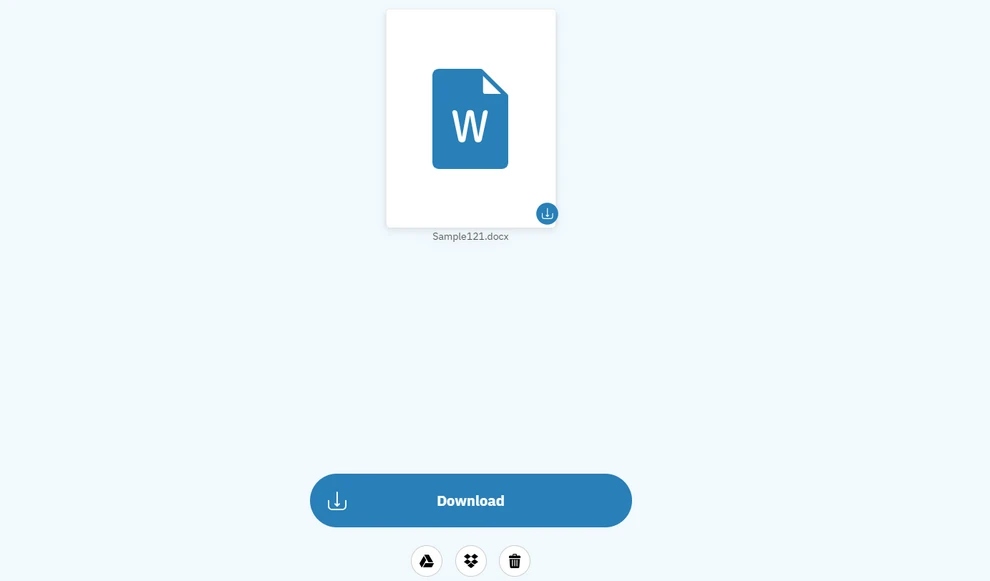
Download the Word file.
-
Adjust the table formatting manually if necessary.
Pros
- No installation
- Works on any device
- Very fast
Cons
- Poor accuracy for complex tables
- Privacy concerns (cloud upload)
- May output tables as images
- Limited customization
Online tools are best for simple, one-time conversions.
4. Method 2: Convert PDF Tables Using Desktop Software (More Stable & Secure)
Desktop applications process files locally, offering better accuracy and privacy. Microsoft Word, Acrobat, and dedicated PDF software often provide acceptable table extraction for standard layouts.
General Workflow
-
Install the software (e.g., Microsoft Word).
-
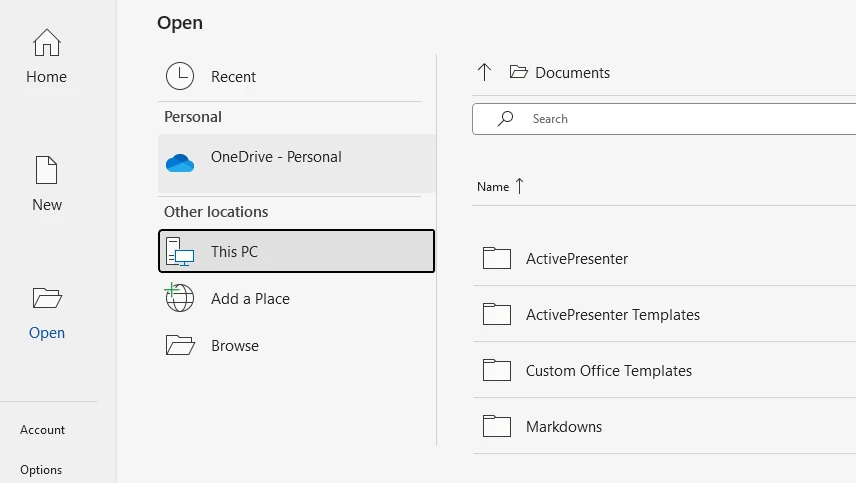
Open the PDF file in the application.
-
Confirm the conversion by clicking .
-
Wait for processing.
-
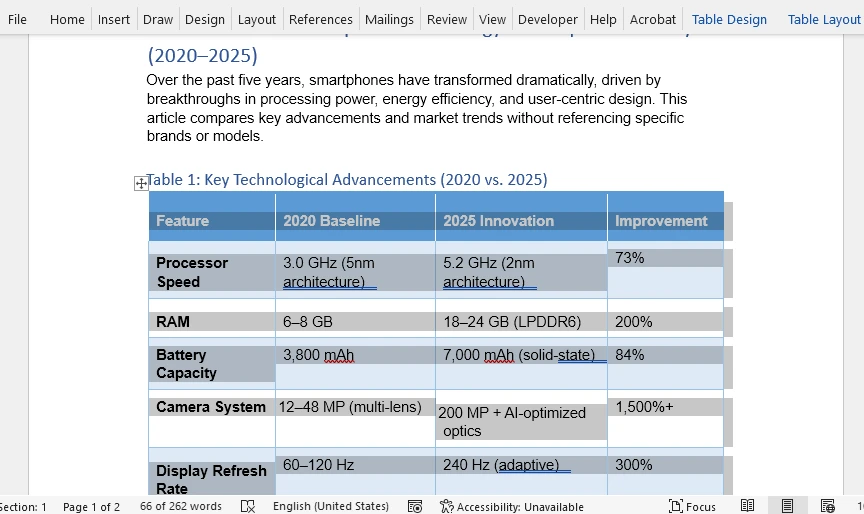
Edit and save the result as a .docx file.
Pros
- Higher detection accuracy
- Supports large and multi-page files
- No upload-related risks
Cons
- Some software is paid
- Still unreliable for irregular tables
- Features differ across tools
Desktop tools work well for moderate complexity—but not for structured data that must remain perfectly editable.
5. Method 3: Extract and Convert PDF Tables Programmatically (Most Accurate Method)
For users needing consistent, automated, and high-fidelity table reconstruction, the programmatic approach is the most reliable. It allows:
- precise extraction of table content
- full control over Word table construction
- batch processing
- consistent formatting
This method can successfully convert even complex or non-standard PDF tables into perfectly editable Word tables.
5.1 Option A: Convert the Entire PDF to Word Automatically
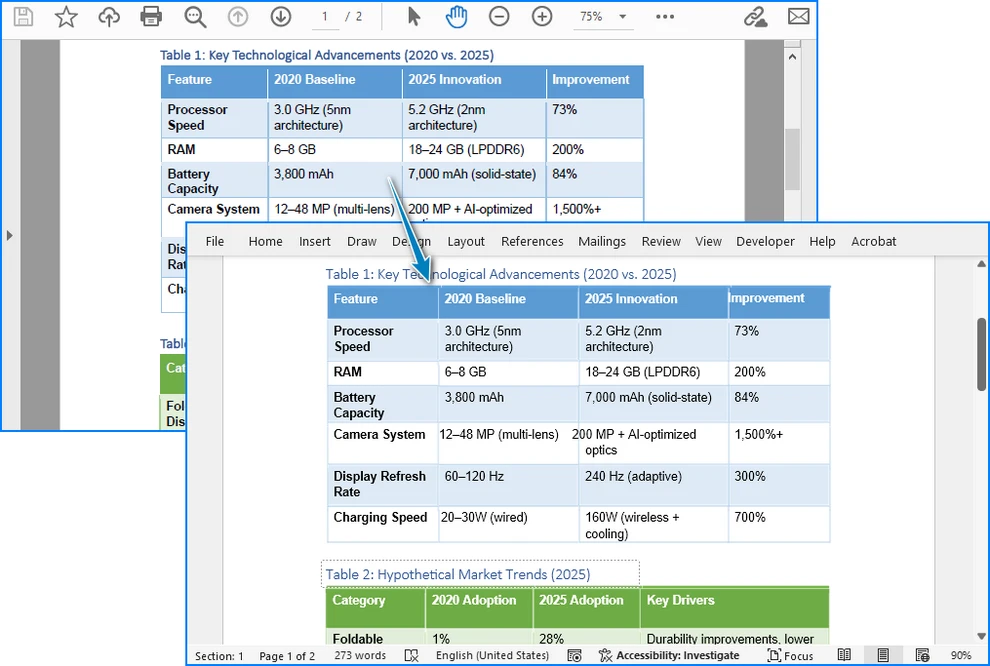
Using Free Spire.PDF for Python, you can convert a PDF directly into a Word document. The library attempts to infer table structures by analyzing line elements, text positioning, and column alignment.
Install Free Spire.PDF for Python using pip:
pip install spire.pdf.free
Python Code Example for PDF to Word Conversion
from spire.pdf import PdfDocument, FileFormat

input_pdf = "sample.pdf"
output_docx = "output/pdf_to_docx.docx"

# Open a PDF document
pdf = PdfDocument()
pdf.LoadFromFile(input_pdf)

# Save the PDF to a Word document
pdf.SaveToFile(output_docx, FileFormat.DOCX)
Below is a preview of the PDF to Word conversion result:
When to Use
- Tables with clear grid lines
- Simple to moderately complex layouts
- When table fidelity does not need to be 100% perfect
Limitations
- Complex or merged cells may not render accurately
- Tables without borders may be misinterpreted
- For more advanced conversion options, please refer to How to Convert PDF to Doc/Docx with Python.
5.2 Option B: Extract Table Data and Rebuild Word Tables Manually (Best Accuracy)
You can also extract table data from PDFs using Free Spire.PDF for Python and build Word tables using Free Spire.Doc for Python. This method is the most reliable and precise method for converting PDF tables into Word documents. It provides:
- Full table editability
- Predictable structure
- Complete formatting control
- Reliable automation
Install Free Spire.Doc for Python:
pip install spire.doc.free
The workflow:
- Extract table data from PDF
- Create a Word document programmatically
- Insert a table using the extracted data
- Apply formatting
Python Code Example for Extracting PDF Tables and Building Word Tables
from spire.pdf import PdfDocument, PdfTableExtractor
from spire.doc import Document, FileFormat, DefaultTableStyle, AutoFitBehaviorType, BreakType

input_pdf = "sample.pdf"
output_docx = "output/pdf_table_to_docx.docx"

# Open a PDF document
pdf = PdfDocument()
pdf.LoadFromFile(input_pdf)

# Create a Word document
doc = Document()
section = doc.AddSection()

# Extract table data from the PDF
table_extractor = PdfTableExtractor(pdf)
for i in range(pdf.Pages.Count):
    tables = table_extractor.ExtractTable(i)
    if tables is not None and len(tables) > 0:
        for i in range(len(tables)):
            table = tables[i]
            # Create a table in the Word document
            word_table = section.AddTable()
            word_table.ApplyStyle(DefaultTableStyle.ColorfulGridAccent4)
            word_table.ResetCells(table.GetRowCount(), table.GetColumnCount())
            for j in range(table.GetRowCount()):
                for k in range(table.GetColumnCount()):
                    cell_text = table.GetText(j, k).replace("\n", " ")
                    # Write the cell text to the corresponding cell in the Word table
                    tr = word_table.Rows[j].Cells[k].AddParagraph().AppendText(cell_text)
                    tr.CharacterFormat.FontName = "Arial"
                    tr.CharacterFormat.FontSize = 11
            # Auto-fit the table
            word_table.AutoFit(AutoFitBehaviorType.AutoFitToContents)
            section.AddParagraph().AppendBreak(BreakType.LineBreak)

# Save the Word document
doc.SaveToFile(output_docx, FileFormat.Docx)
Below is a preview of the rebuilt Word tables:

Why This Method Is Superior
- Output tables are always editable
- Ideal for automation and batch processing
- Works even without visible table lines
- Allows custom formatting, fonts, borders, and styles
This is the recommended solution for professional use cases.
If you need to export PDF tables in other formats, check out How to Extract Tables from PDF Using Python.
6. Accuracy Comparison of All Methods
| Method | Accuracy | Editable | Formatting Control | Best For |
|---|---|---|---|---|
| Online converters | ★★★★☆ | Yes | Low | Quick one-time use |
| Desktop software | ★★★★☆ | Yes | Medium | Standard professional documents |
| Programmatic extraction + reconstruction | ★★★★★ | Yes | Full | Automation, business workflows |
| Full PDF → Word conversion (auto) | ★★★★☆ | Yes | Medium | Clean, well-structured PDFs |
7. Best Practices for High-Quality Conversion
To ensure the best results, follow these best practices:
File Preparation
- Prefer original text-based PDFs (not scanned)
- Run OCR before table extraction if the PDF is scanned
Table Design Tips
- Keep column alignment consistent
- Avoid unnecessary merged cells
- Maintain clear spacing between columns
Technical Recommendations
- Use programmatic extraction for batch workflows
- Reconstruct Word tables for exact formatting
- Always validate extracted data for accuracy
8. Frequently Asked Questions
1. How do I convert a PDF table to an editable Word table without losing formatting?
Use either high-quality desktop converters or a programmatic library like Spire.PDF + Spire.Doc. Programmatic extraction provides the most consistent results.
2. Can I extract just the table (not the whole PDF) to Word?
Yes. Extract only the table data and rebuild the table programmatically. This produces fully editable Word tables.
3. Why did my PDF table appear as an image in Word?
The converter could not interpret the structure and exported the content as an image. Use a tool that supports table reconstruction.
4. What is the most accurate method for complex or irregular tables?
Programmatic extraction combined with manual table construction in Word.
9. Conclusion
Converting PDF tables to Word tables ranges from simple to highly complex depending on the structure of the original PDF. Quick online tools and desktop applications work well for simple layouts, but they often struggle with merged cells, irregular spacing, or multi-row structures.
For users requiring precise, editable, and reliable output, especially in business automation and large-scale document processing, the programmatic approach provides unmatched accuracy. It enables true table reconstruction in Word with full control over formatting, style, and cell structure.
Whether you need a fast online conversion or a deeply accurate automated pipeline, the methods in this guide ensure you can reliably convert PDF tables to fully editable Word tables across all complexity levels.