Converting PDF to PDF/A ensures your documents are preserved for the long term, meet regulatory compliance, and remain accessible across systems. Whether you're working with legal, government, or enterprise documents, PDF/A guarantees readability and consistency. This guide explores four common approaches: using Adobe Acrobat Pro DC, free online converters, Ghostscript, and Python programming.
Quick Navigation
- What Is PDF/A
- Why Convert PDF to PDF/A
- Method 1: Convert PDF to PDF/A Using Adobe Acrobat Pro DC
- Method 2: Convert PDF to PDF/A Using Free Online Converters
- Method 3: Convert PDF to PDF/A Using Ghostscript
- Method 4: Batch Convert PDF Files to PDF/A Using Python
- Troubleshooting Common Issues in PDF to PDF/A Conversion
- Conclusion: How to Choose the Right Method
What Is PDF/A?
PDF/A is an ISO-standardized version of PDF designed specifically for long-term archiving. Unlike regular PDFs, PDF/A restricts the use of features that may compromise document stability in the future.
Key Characteristics of PDF/A
PDF/A enforces strict rules to guarantee longevity and consistency, including:
- All fonts must be embedded (no external font dependencies)
- No audio, video, or multimedia elements
- No encryption or password protection
- Standardized color profiles for consistent rendering
- No external references, ensuring the document is fully self-contained
PDF/A Versions
PDF/A comes in several versions, each designed to meet specific archival and document-preservation needs. The table below summarizes the major PDF/A versions and their ideal use cases:
| PDF/A Version | Key Features | Best Use Case |
|---|---|---|
| PDF/A-1 (ISO 19005-1) | The original and most restrictive standard; ensures maximum stability and broad compatibility | Long-term preservation of legal, governmental, and compliance-related documents |
| PDF/A-2 (ISO 19005-2) | Adds support for transparency, layers, and JPEG2000 images, offering greater flexibility | Modern documents that include graphics, layered content, or complex layouts |
| PDF/A-3 (ISO 19005-3) | Allows embedding non-PDF/A files such as XML, CSV, and Excel | E-invoices, business reports, and workflows that require attaching source files |
Why Convert PDF to PDF/A?
There are several reasons why converting a PDF to PDF/A might be necessary:
- Long-Term Preservation : PDF/A ensures that documents will remain accessible and usable for many years, making it ideal for legal, government, and archival purposes.
- Compliance with Regulations : Certain industries, including law and healthcare, require documents to be stored in PDF/A format for compliance with regulations such as ISO 19005.
- Consistency in Viewing : Since PDF/A embeds all fonts, images, and other resources, the document will display consistently across different systems without dependencies on external files.
Method 1: Convert PDF to PDF/A Using Adobe Acrobat Pro DC
Adobe Acrobat Pro DC remains the industry standard for PDF manipulation. It provides the most stable and accurate way to convert PDF to PDF/A with built-in validation tools.
Steps:
-
Open the PDF you want to convert in Adobe Acrobat Pro DC.
-
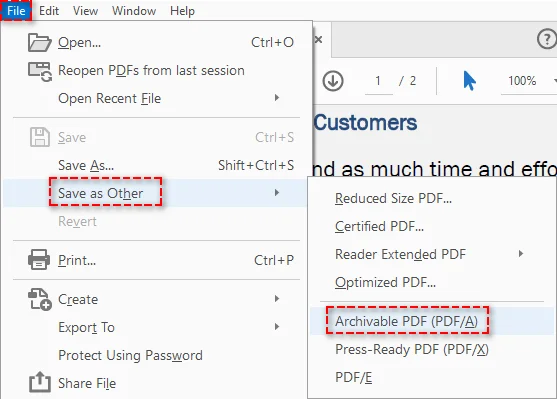
Go to File > Save As Other > Archivable PDF (PDF/A) .
-
Select the desired PDF/A standard (such as PDF/A-1a, PDF/A-1b, PDF/A-2a, or PDF/A-2b).
-
Save the PDF/A file.
Pros:
- Easy to use with a professional-grade tool.
- Supports different PDF/A standards.
- Ensures compliance with PDF/A requirements.
Cons:
- Requires Adobe Acrobat Pro DC, which is a paid software.
Method 2: Convert PDF to PDF/A Using Free Online Converters
If you only need occasional conversions and prefer not to install software, free online converters like PDF2GO and AvePDF provide a fast and accessible solution. These tools run entirely in your browser, making them ideal for non-sensitive documents.
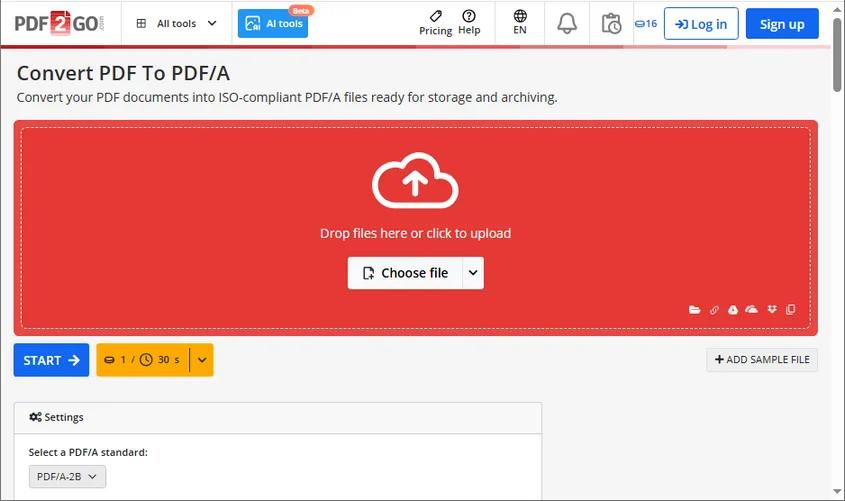
Steps (Using PDF2GO as an Example):
- Visit the PDF2GO’s free online PDF to PDF/A converter.
- Click Choose file to upload your PDF or drag & drop the file to the designated area.
- Choose the desired PDF/A standard as the output format.
- Click Start to begin the conversion process.
- Download the PDF/A version of your document.
Pros:
- Free to use.
- No software installation required.
- Quick and easy for occasional conversions.
Cons:
- Online tools may have file size limitations.
- Not ideal for sensitive or confidential documents due to potential security risks.
Method 3: Convert PDF to PDF/A Using Ghostscript
Ghostscript is a robust, open-source command-line tool widely used for automated PDF processing. It offers a flexible and cost-free way to convert PDFs to PDF/A-compliant documents.
Steps:
-
Download and install Ghostscript from its official website.
-
Open a command prompt or terminal window.
-
Run the following command to convert your PDF file to PDF/A (example for PDF/A-1b):
D:\Applications\Ghostscript\gs10.06.0\bin\gswin64.exe -dPDFA=1 -dBATCH -dNOPAUSE -sProcessColorModel=DeviceRGB -sDEVICE=pdfwrite -sPDFACompatibilityPolicy=1 -sColorConversionStrategy=UseDeviceIndependentColor -sOutputFile="C:/Users/Administrator/Documents/output.pdf" "C:/Users/Administrator/Documents/input.pdf"Important:
- Replace
"D:\Applications\Ghostscript\gs10.06.0\bin\gswin64.exe"with the actual path to your Ghostscript executable (gswin64.exe). - Replace
C:/Users/Administrator/Documents/input.pdfwith the path to your source PDF file, andC:/Users/Administrator/Documents/output.pdfwith the desired name and location for your converted file.
- Replace
Pros:
- Free and open-source.
- Highly customizable.
- Ideal for automation.
Cons:
- Requires command-line knowledge.
- More complex setup compared to graphical tools.
Method 4: Batch Convert PDF Files to PDF/A Using Python
For users who prefer a more programmatic approach, Python is a great choice, especially for batch processing or integrating PDF to PDF/A conversion into applications or backend services. With libraries like Spire.PDF for Python, you can batch convert multiple PDF files to PDF/A effortlessly. Additionally, the library also supports converting PDFs to Word and other formats, making it a versatile tool for document conversion.
Steps:
-
Install Spire.PDF from PyPI using the following command:
pip install spire-pdf -
Write a Python Script to batch convert multiple PDF files to PDF/A-1b format:
import os
from spire.pdf import *

# Define input and output folder paths
inputFolder = "path/to/your/input/folder/"
outputFolder = "path/to/your/output/folder/"

# Get a list of all PDF files in the input folder
pdfFiles = [f for f in os.listdir(inputFolder) if f.endswith('.pdf')]

# Iterate through each PDF file and convert
for pdfFile in pdfFiles:
    # Construct the full input and output file paths
    inputFile = os.path.join(inputFolder, pdfFile)
    outputFile = os.path.join(outputFolder, f"ToPdfA1B_{pdfFile}")

    # Create a PdfStandardsConverter object
    converter = PdfStandardsConverter(inputFile)

    # Perform the PDF to PDF/A-1b conversion
    converter.ToPdfA1B(outputFile)
    print(f"Converted: {inputFile} to {outputFile}")

print("Batch conversion completed.")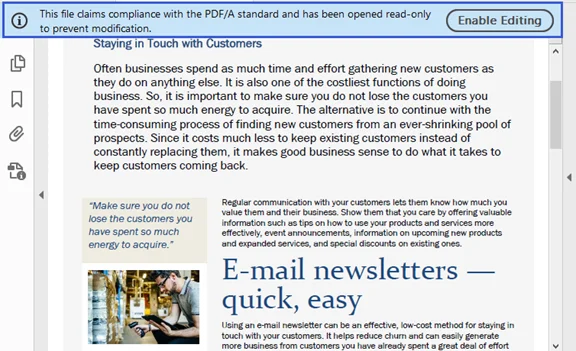
Pros:
- Ideal for batch processing and automation.
- Can be integrated into existing workflows or applications.
Cons:
- Requires Python programming knowledge.
- Need to install the Spire.PDF library.
For more advanced settings regarding this conversion, please visit Spire.PDF’s official guide: Python: Convert PDF to PDF/A and Vice Versa.
Troubleshooting Common Issues in PDF to PDF/A Conversion
When converting a PDF to PDF/A, you may encounter validation errors or failed exports. Below are the most common issues and the quick solutions:
-
Missing or Unembedded Fonts
- Symptoms: "Font not embedded" error or incorrect text display.
- Solution: Embed all fonts or replace unsupported fonts with standard ones (e.g., Arial, Times New Roman).
-
Transparency or Layer Issues
- Symptoms: Conversion fails due to transparency or layers (especially for PDF/A-1).
- Solution: Use PDF/A-2b or PDF/A-3b, or flatten transparency before conversion.
-
External Links, Attachments, or Multimedia
- Symptoms: Conversion blocked due to external content (attachments, JavaScript, multimedia).
- Solution: Remove attachments or convert them to static content, and eliminate scripts or multimedia elements.
-
Incorrect Color Profiles
- Symptoms: Validation errors related to color profiles.
- Solution: Apply a standard color profile (e.g., sRGB) and ensure images use supported color spaces.
-
Validation Failed After Export
- Symptoms: Conversion completes, but the file fails PDF/A compliance.
- Solution: Validate using tools like veraPDF, Adobe Acrobat Preflight, or online PDF/A validators to identify and fix errors.
-
Encrypted or Password-Protected PDFs
- Symptoms: Conversion not allowed due to password protection.
- Solution: Remove security settings or passwords before converting.
Conclusion: How to Choose the Right Method
Converting PDF to PDF/A is crucial for ensuring document longevity, accessibility, and compliance. The best method for converting PDF to PDF/A depends on your specific needs:
- For occasional conversions : free online tools are a quick and easy option.
- For professional and compliant conversions : Adobe Acrobat Pro DC is the most reliable choice.
- For those who prefer open-source tools : Ghostscript offers a robust, though command-line-intensive, solution.
- For automation or batch processing : Python is ideal for integration into larger systems.
Tip : Regardless of your chosen method, always validate converted files for PDF/A compliance and keep backups of original documents.
FAQs: PDF to PDF/A
Q1: What is PDF/A?
A1: PDF/A is an ISO-standardized PDF designed for long-term archiving. It embeds all fonts, metadata, and color profiles to ensure documents render the same way in the future.
Q2: Can I convert PDF to PDF/A for free?
A2: Yes, free tools like PDF2GO and Ghostscript allow PDF/A conversion without any cost.
Q3: Is PDF/A compatible with all PDF readers?
A3: Most modern PDF readers support PDF/A, but some advanced features may not display in older software.
Q4: Which PDF/A version should I use?
A4: For simple archival, PDF/A-1b is sufficient. For modern features like layers and attachments, PDF/A-2 or PDF/A-3 is recommended.
Q5: Can I automate PDF/A conversion for multiple files?
A5: Yes, using programmatic tools like Spire.PDF or Ghostscript scripts, batch conversion is possible.