PDFs are ubiquitous for sharing static, formatted content—but extracting embedded images often feels like a puzzle. Whether you’re repurposing visuals for marketing materials, archiving high-resolution graphics from technical manuals, recovering images from legal documents, or automating workflows for a business, knowing how to efficiently extract PDF images is an essential digital skill.
This guide will break down the most practical PDF image extraction solutions, covering free tools, a code-based method, and expert best practices to preserve quality, stay compliant, and organize your extracted images.
Contents:
- Why You Might Need to Extract Pictures from PDFs
- Method 1: Using Online PDF Image Extractors (Quick & No-Install)
- Method 2: PDF24 Desktop App (Free, All-in-One Solution)
- Method 3: Programmatic Extraction with Free Spire.PDF
- Best Practices for Extracting PDF Images
- Frequently Asked Questions (FAQs)
Why You Might Need to Extract Pictures from PDFs
Common real-world scenarios include:
- Design and Branding: Recovering high-resolution logos or marketing materials from old PDF documents.
- Academic Research: Extracting charts, graphs, and illustrations from research papers.
- Content Creation: Harvesting images for presentations, websites, or social media posts.
- Archival Purposes: Preserving photographs embedded in digital documents.
- Legal & compliance: Isolating visual evidence or signed illustrations from legal documents.
Method 1: Using Online PDF Image Extractors (Quick & No-Install)
For occasional use, e.g., extracting all images from a PDF, online tools offer convenience. They require no software downloads, work on any device, and are free for basic tasks. Here are the top tools, with detailed steps and unique features:
Top Online Tools:
- FreeConvert: User-friendly with a clean interface.
- iLovePDF: Batch processing capabilities for multiple files.
- PDFCandy: Preview images before download.
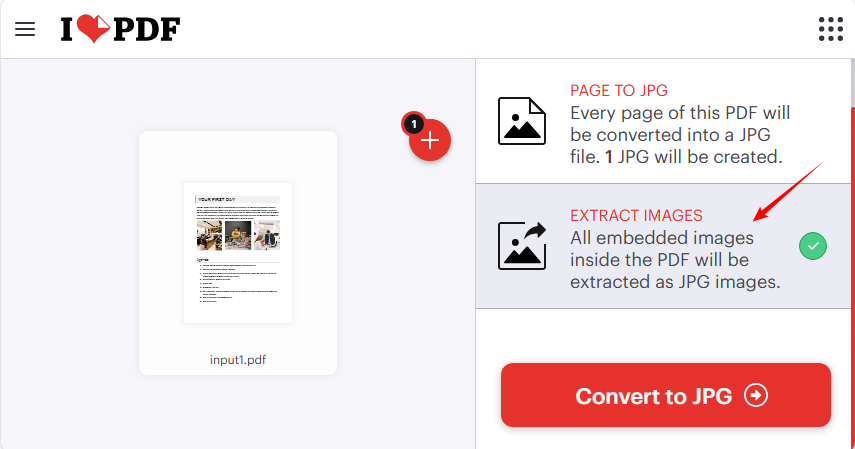
Example: Use iLovePDF to Extract Images from PDF Online
iLovePDF stands out for its simplicity and reliability—perfect for beginners. It supports batch uploads and extracts JPG from PDF by default.
- Go to iLovePDF’s Extract Images Tool (no registration required).
- Upload a PDF or drag and drop the document.
- Select “EXTRACT IMAGES” → click “Convert to JPG”.
- Download the ZIP file containing all extracted images.
Critical Security Note:
Never upload sensitive, confidential, or proprietary documents to untrusted online tools. Many platforms may store your files temporarily (or permanently) for processing. For sensitive data, use offline methods (desktop software or programming) instead.
You may also like: How to Extract Pages from a PDF for Free — No Adobe Needed
Method 2: PDF24 Desktop App (Free, All-in-One Solution)
The PDF24 Creator software stands out for its unlimited free usage, offline functionality, and robust image extraction tools. No ads, file size caps, or task limits. It’s ideal for Windows users who need to batch extract images from PDFs.
Step-by-Step:
- Download from pdf24.org (no registration required).
- Open the PDF24 Desktop App → select the "Extract PDF Images" tool from the dashboard.
- Click “Choose files” (or drag-and-drop your PDF into the app window).
- Click “Extract images” and then choose a folder to save extracted images.

Key Benefits of Desktop Tools:
- ✔ Security: No data leaves your device—ideal for confidential documents.
- ✔ Unlimited Use: No file size or task limits (unlike online tools).
- ✔ Batch Processing: Extract from 10+ PDFs at once, saving hours of manual work.
Method 3: Programmatic Extraction with Free Spire.PDF
For developers building applications that require automated or batch PDF image extraction, programming solutions offer the most power and flexibility. Free Spire.PDF for .NET is a robust, free library perfect for exporting images from PDF without watermarks.
Step-by-Step: Extract Images from PDF Using C#
- Install Free Spire.PDF via NuGet Package Manager:
Install-Package FreeSpire.PDF
- Code to Extract Images from All Pages
using Spire.Pdf;
using Spire.Pdf.Utilities;
using System.Drawing;

namespace ExtractAllImages
{
    class Program
    {
        static void Main(string[] args)
        {
            // Create a PdfDocument object
            PdfDocument pdf = new PdfDocument();

            // Load a PDF document
            pdf.LoadFromFile("Input.pdf");

            // Create a PdfImageHelper object
            PdfImageHelper imageHelper = new PdfImageHelper();

            // Declare an int variable
            int m = 0;

            // Iterate through the pages
            for (int i = 0; i < pdf.Pages.Count; i++)
            {
                // Get a specific page
                PdfPageBase page = pdf.Pages[i];

                // Get all image information from the page
                PdfImageInfo[] imageInfos = imageHelper.GetImagesInfo(page);

                // Iterate through the image information
                for (int j = 0; j < imageInfos.Length; j++)
                {
                    // Get a specific image information
                    PdfImageInfo imageInfo = imageInfos[j];

                    // Get the image
                    Image image = imageInfo.Image;

                    // Save the image to a PNG file
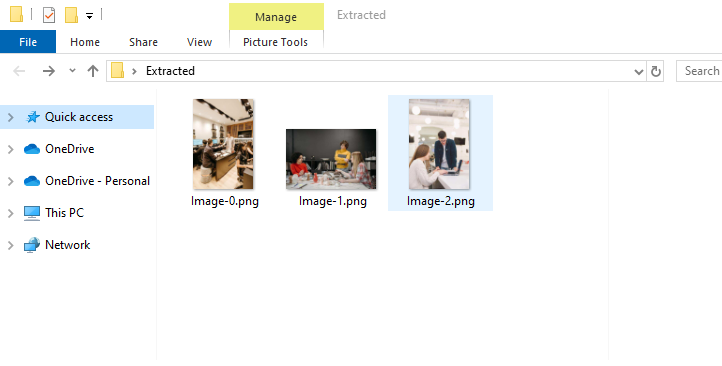
                    image.Save("Extracted/Image-" + m + ".png");
                    m++;
                }

            }

            // Dispose resources
            pdf.Dispose();
        }
    }
}
Key Classes & Methods:
- PdfDocument: Represents a PDF document.
- PdfImageHelper: Utility for getting image info from PDF pages.
- PdfImageHelper.GetImagesInfo(): Returns all image info from a specified PDF page.
- PdfImageInfo: Stores image metadata (e.g., Image property for the actual image).
- Image.Save(): Saves the Image object to a file (supports JPG, PNG).
The extracted images:
To extract text content, refer to: Effortlessly Automate PDF Text Extraction Using C# .NET: A Complete Guide
Use Cases:
- ✔ Automated workflows
- ✔ Server-side processing
- ✔ Integration into .NET applications
- ✔ High-volume batch extraction
Best Practices for Extracting PDF Images
To ensure you can extract images from PDFs with high-quality while avoid legal or technical issues, follow these expert tips:
1. Preserve Image Quality
- Extract at the highest available resolution
- Choose lossless formats (PNG, TIFF) for diagrams and text-heavy images
- Use JPEG for photographs when file size matters
2. Maintain Organization
- Use consistent naming conventions
- Preserve page number references in filenames
- Create logical folder structures for extracted assets
3. Check Copyright and Usage Rights
- Always verify you have permission to extract and reuse images
- Respect intellectual property rights
- Attribute sources when required
Conclusion
Extracting PDF images is a valuable skill with applications across numerous professions and personal projects. Whether you choose a simple online tool for occasional use, robust desktop software for regular work, or programming solutions for automation, the right approach depends on your specific needs, technical comfort, and security requirements.
By following the methods and best practices outlined in this guide, you can efficiently recover valuable visual assets from PDF documents while maintaining quality.
Frequently Asked Questions (FAQs)
Q1: What's the best free tool to extract images from PDF?
A: For most users, iLovePDF offers an excellent free online option. For desktop use, PDF24 App provides robust free extraction capabilities.
Q2: Can I extract images from scanned PDFs?
A: Yes, but they'll be extracted as they appear in the scan (page images). You cannot extract individual elements from within a scanned page image without OCR and advanced processing.
Q3: Why are my extracted images blurry?
A: Blurriness usually stems from:
- The original PDF contains low-resolution preview images.
- The tool downscaled the image during extraction.
- You used a lossy format (JPG) for graphics—switch to PNG/TIFF.
Q4: Is it legal to extract images from PDFs?
A: It depends on the document's copyright, your usage rights, and intended use. Always verify you have appropriate permissions before extracting and reusing images.