
Most users need to hide slides in PowerPoint when preparing a presentation for different audiences or scenarios. This guide covers four practical ways to do it, from quick manual methods for beginners to automated approaches for processing dozens of presentations.
Getting Started: Why Hide a Slide Instead of Deleting It
In Microsoft PowerPoint, hiding a slide allows you to keep content in your file without showing it during a presentation.
This is useful when you want to:
- Keep backup slides for Q&A sessions
- Customize presentations for different audiences
- Avoid deleting content you might reuse later
- Maintain a single master deck instead of multiple versions
Unlike deletion, hidden slides remain fully editable and can be unhidden at any time.
Quick Summary: Best Way to Hide Slides in PowerPoint
If you’re in a hurry, here’s a decision guide:
| Method | Best for | Advantages | Limitations |
|---|---|---|---|
| PowerPoint Desktop App | One-time slide hiding | Fast, built-in | Slow for multiple files |
| PowerPoint for the Web | On-the-go slide editing | Works anywhere, no installation | Limited advanced options |
| VBA Macro | Repetitive slide hiding inside PowerPoint | No external library needed | Needs PowerPoint open |
| Python Automation | Batch processing, enterprise-level automation | No PowerPoint needed, easy integration with other automated workflows | Requires setup and an external library |
Quick recommendation:
- If you only need to do it once → use PowerPoint Desktop or Web version (simplest).
- If you do it repetitively inside PowerPoint → use VBA Macro.
- If you need to process slide hiding at scale or integrate into backend systems → use Python Automation (most flexible).
Method 1: Hide a Slide in PowerPoint Desktop App (Windows & Mac)
This is the simplest method to hide slides if you already have the file open in PowerPoint. It works across almost all desktop versions for both Windows and Mac, including PowerPoint 2016, 2019, 2021, 2024 and Microsoft 365.
Hide a Slide
- Open your presentation and switch to Normal view or Slide Sorter view so you can see the slide thumbnails.
- Right-click the thumbnail of the slide you want to hide.
- Select Hide Slide from the context menu.
Alternatively, you can use the ribbon: select the slide → Go to the Slide Show tab → click Hide Slide.
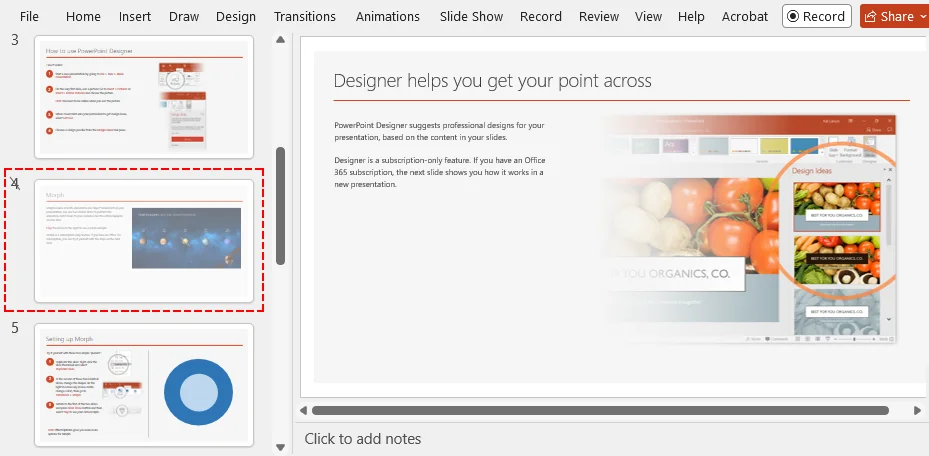
Result:
The hidden slide number becomes crossed out with a slash or "no" symbol, and the slide is skipped during Slide Show mode.
Hide Multiple Slides
- Hold Ctrl (Windows) or Cmd (Mac).
- Click each slide thumbnail you want to hide.
- Right-click any of the selected thumbnails and click Hide Slide.
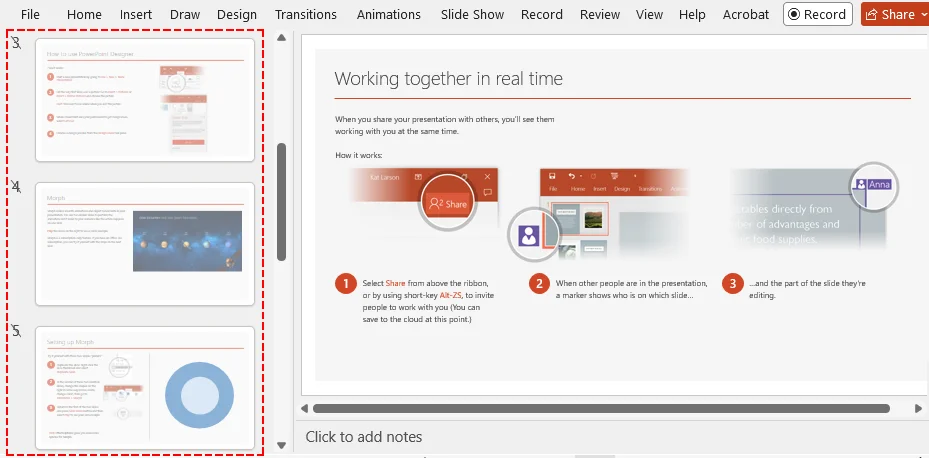
Result:
All selected slides are hidden simultaneously.
Bonus Tip: Reveal Hidden Slide Mid-Show
If you suddenly need to show a hidden slide during a live presentation, you don't have to exit. Just use one of the following methods:
- Shortcut: Press H while on the preceding slide to reveal the hidden slide next.
- Right-clicking: Right-click the screen, select See All Slides, and click the hidden slide from the grid view.
Method 2: Hide a Slide in PowerPoint for the Web
If you are working on a shared or guest device without the desktop app installed, you can easily hide slides directly in your browser using PowerPoint for the Web.
Hide a Slide in PowerPoint Online
- Open your presentation in PowerPoint for the web.
- In the left-hand thumbnail pane (Normal view), find your target slide.
- Right-click the thumbnail and select Hide Slide.
⚠️ Note:
While the web version is great for quick edits, it offers fewer advanced presenter tools and shortcut keys during a live presentation compared to the desktop app.
Method 3: Hide Slides Using a VBA Macro
If you regularly need to hide specific slides or process a large deck based on a pattern, like hiding a specific slide range, a VBA macro lets you automate the process in a single click.
Step-by-Step Setup
-
Open your presentation and press Alt + F11 (Windows) or Option + F11 (Mac) to open the VBA Editor.
-
Click Insert > Module in the top menu to create a new code module.
-
Copy and paste one of the code snippets below into the window:
-
To hide a single specific slide:
Sub HideSingleSlide() Dim sld As Slide ' Change the number 3 to your target slide number Set sld = ActivePresentation.Slides(3) sld.SlideShowTransition.Hidden = msoTrue End Sub -
To hide a range of slides at once:
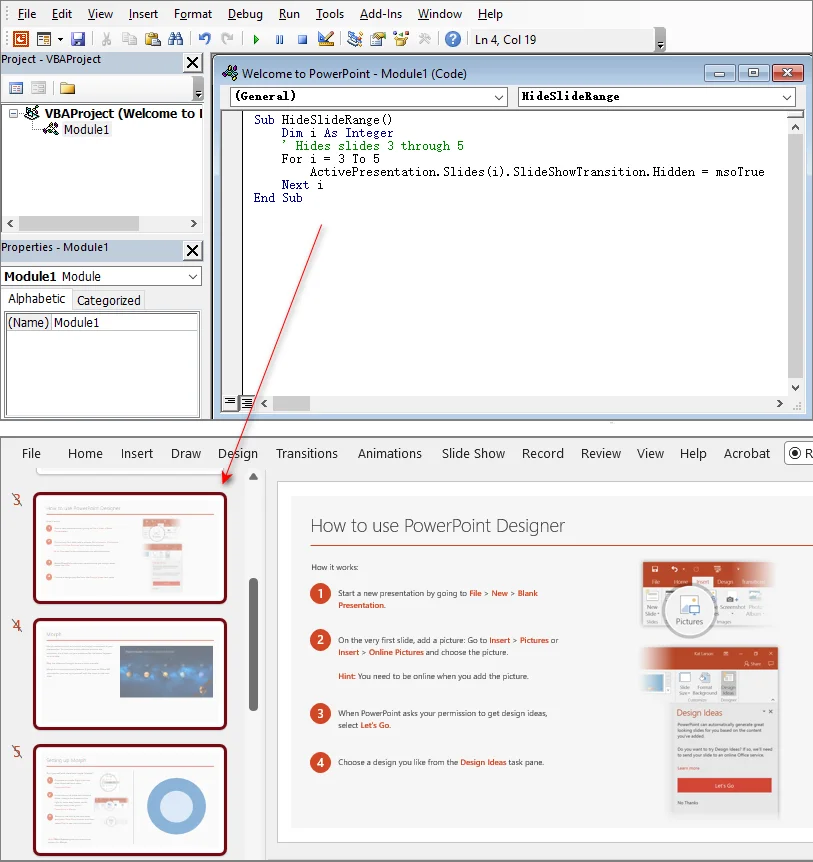
Sub HideSlideRange()
    Dim i As Integer
    ' Hides slides 3 through 5
    For i = 3 To 5
        ActivePresentation.Slides(i).SlideShowTransition.Hidden = msoTrue
    Next i
End Sub
-
-
Press F5 to run the macro immediately, or close the VBA window and run it later via View > Macros.
Result:
The designated slides are instantly hidden.
⚠️ Important Considerations:
- Save Format: You must save your file as a PowerPoint Macro-Enabled Presentation (.pptm), or the macro will be deleted when you close the file.
- Security Settings: Macros may be blocked by default. You can enable them under File > Options > Trust Center > Trust Center Settings > Macro Settings.
Method 4: Hide Slides Across Multiple Presentations with Python
If you need to hide slides across dozens or hundreds of .pptx files, like templated weekly reports, doing it by hand isn't realistic. A better approach is to automate the process with Python and the Spire.Presentation for Python library. It lets you hide slides in PowerPoint presentations programmatically without requiring Microsoft PowerPoint to be installed.
Quick Setup
Run the following command in your terminal to install the library:
pip install Spire.Presentation
For a step-by-step installation guide, see How to Install Spire.Presentation for Python on Windows.
Batch Hide Slides Across Multiple PowerPoint Presentations with Python
The script below loops through an input directory, dynamically targets the last slide of each presentation, regardless of its length, and saves the updated files to an output folder.
import os
from spire.presentation import Presentation, FileFormat

input_folder = "decks_to_process"
output_folder = "decks_processed"

# Ensure the output directory exists
os.makedirs(output_folder, exist_ok=True)

# Process all PPTX files in the input folder
for filename in os.listdir(input_folder):
    if filename.endswith(".pptx") and not filename.startswith("~$"):
        input_path = os.path.join(input_folder, filename)
        output_path = os.path.join(output_folder, filename)

        presentation = Presentation()
        try:
            presentation.LoadFromFile(input_path)

            # Dynamically target the last slide
            last_index = presentation.Slides.Count - 1
            if last_index >= 0:
                presentation.Slides[last_index].Hidden = True

            # Save the processed file
            presentation.SaveToFile(output_path, FileFormat.Pptx2016)
            print(f"Processed: {filename}")

        except Exception as e:
            print(f"Error processing {filename}: {e}")
        finally:
            # Ensure resources are disposed even if an error occurs
            presentation.Dispose()

print("\n Done hiding slides across all files.")
⚠️ Note:
Always run automation scripts on copies of your files.
Troubleshooting: Why Is My Hidden Slide Still Showing?
If a slide you hid keeps appearing during playback, work through these common culprits:
- Not in Slide Show Mode: Hidden slides still look visible in Normal or Slide Sorter view, though grayed out. Start the actual presentation using F5 to test it.
- Active Hyperlinks: If an active slide has a hyperlink or action button pointing directly to the hidden slide, clicking it will force the hidden slide to open. Remove the link or redirect it to a different slide.
- Export Settings: By default, saving to PDF excludes hidden slides. However, double-check your export options to ensure "Include Hidden Slides" is turned off.
- Third-Party Viewers: Some third-party web viewers may ignore hidden slide settings. Stick to Microsoft PowerPoint for standard results.
Quick Reversal: How to Unhide a Slide
Bringing your hidden content back to life takes just a second:
- Manual Apps (Desktop/Web): Right-click the grayed-out slide thumbnail and click Unhide Slide to toggle it back on.
-
VBA Macro: In your code, change SlideShowTransition.Hidden property from
msoTruetomsoFalseand re-run. -
Python Code: Set
ppt.Slides[index].Hidden = Falseand re-save the file.
Frequently Asked Questions
Q1: Is there a keyboard shortcut to hide a slide in PowerPoint?
A1: Yes. On Windows, select the slide thumbnail and press Alt → S → H sequentially. On Mac, there is no direct keyboard shortcut; the fastest way to hide a slide on Mac is to right-click its thumbnail in the left navigation pane and select Hide Slide.
Q2: Does hiding a slide change or break the slide numbers?
A2: No. Slide numbering stays completely static. Hiding a slide tells PowerPoint to skip that index number during presentation playback, but it won't dynamically renumber your actual deck layout.
Q3: Can I hide slides while a PowerPoint presentation is running?
A3: No, hiding operations must be configured while editing the deck. During a live slideshow, you cannot hide slides, but you can jump across slides using the "See All Slides" grid map layout.
Conclusion
There is no one-size-fits-all way to hide slides in PowerPoint. The best method depends on your workflow. In practice, simple built-in tools are enough for most everyday use, while VBA or Python becomes more useful when efficiency and scale matter.
Choose the method that fits your specific situation, and explore automation options when your workflow starts to grow.