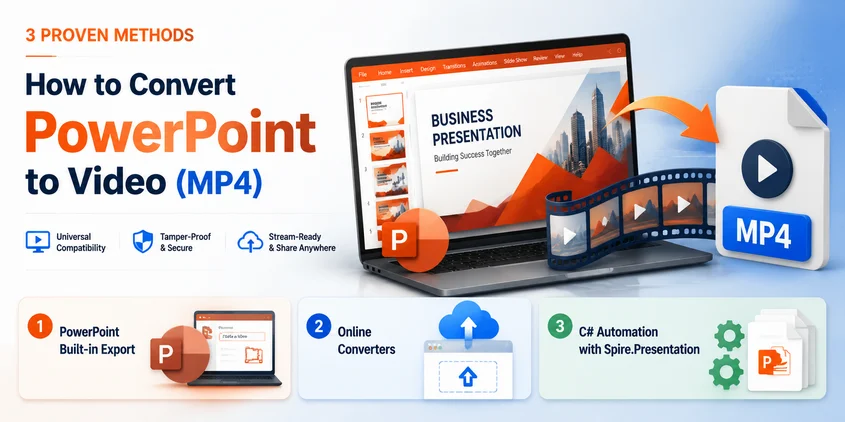
When sharing PowerPoint presentations across platforms such as YouTube, LMS systems, or mobile devices, compatibility issues like missing fonts or broken animations can occur. Converting PowerPoint to MP4 video ensures consistent playback and easier distribution.
This guide explains three practical methods to convert PowerPoint to video, including built-in export tools, online converters, and C# automation for batch processing.
- Method 1: Microsoft PowerPoint Built-in Export Feature (Native Support)
- Method 2: Online PowerPoint to Video Converters (No Installation)
- Method 3: C# automation using Spire.Presentation (Batch Processing)
PowerPoint vs. Video: Why Conversion Matters
Before diving into the methods, it helps to understand the fundamental difference between these two formats.
A PowerPoint file (.pptx) is an editable presentation format, designed for live creation and manual slide navigation. A video file (.mp4), on the other hand, is a fully rendered media format, engineered for seamless playback.
Once converted into a video, your presentation becomes:
- Universally Compatible: Plays on any device without requiring Microsoft PowerPoint or compatible viewers.
- Tamper-Proof: Non-editable, protecting your fonts, layouts, and intellectual property from accidental changes.
- Stream-Ready: Highly optimized for direct upload and smooth distribution across modern platforms.
In short, PowerPoint remains your tool for creation, while video format is your best vehicle for distribution.
Method 1: Microsoft PowerPoint Built-in Export Feature (Native Support)
If you're already working in Microsoft PowerPoint, the built-in export feature is the fastest and most reliable way to convert a presentation into a video without using third-party tools
Step-by-Step Guide:
-
Open your PowerPoint presentation file.
-
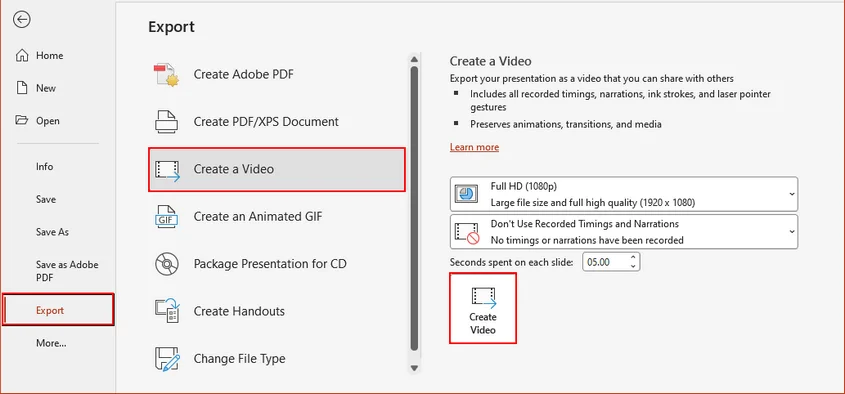
Navigate to the top menu and click File > Export > Create a Video.
-
Choose your desired video quality (e.g., Ultra HD 4K, Full HD 1080p) and configure the recorded timings/narrations if needed.
-
Click the Create Video button, select your output destination, and save it as an MP4 file.
Tip:
If no manual narration is added, make sure slide timings are properly set; otherwise, the video will default to fixed durations.
⚠️ Notes:
This method preserves animations, transitions, and embedded media. However, the export is fully manual, and each file needs to be processed individually.
When to use:
Best for quickly converting a small number of presentations with full feature preservation using PowerPoint only.
Method 2: Online PowerPoint to Video Converters (No Installation)
When you don't have PowerPoint installed or need a quick conversion on any device, online PowerPoint-to-video converters can be a convenient option.
These tools run in the browser and allow you to upload a presentation and download it as a video file.
How to Convert PowerPoint to Video Online
-
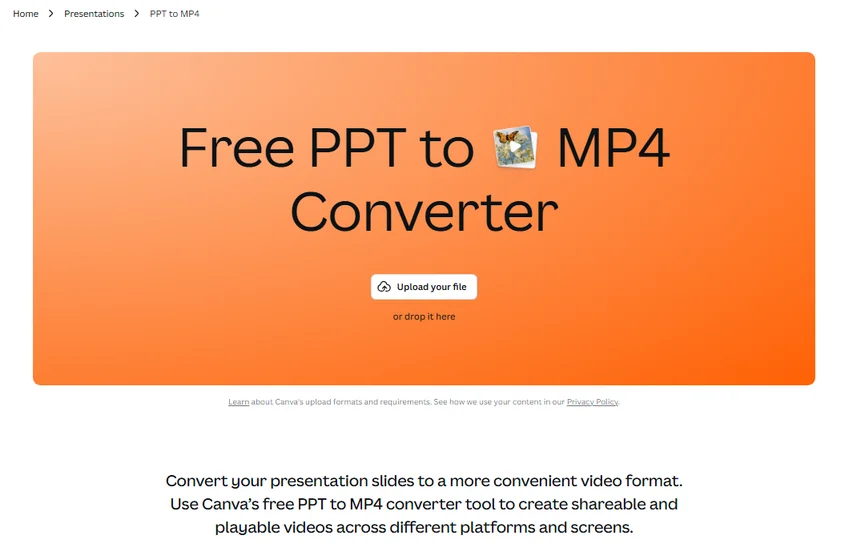
Upload your .ppt or .pptx file to a trusted conversion platform such as Canva.
-
Select MP4 as the target output format.
-
Click Convert and wait for cloud processing to finish.
-
Download the generated video file.
⚠️ Security Notes:
Online converters are convenient, but they are not always suitable for sensitive or large presentations, since files are processed on third-party servers and may have size or feature limitations and potential privacy risks. For confidential information, consider using offline methods such as PowerPoint or C#.
When to use:
Suitable for fast, occasional conversions when you don't have PowerPoint installed and the file is not sensitive.
Method 3: C# automation using Spire.Presentation (Batch Processing)
For developers and enterprise environments handling multiple PowerPoint presentations, automation is the most scalable method. Using C# and Spire.Presentation for .NET, you can programmatically convert PowerPoint files into video format and seamlessly integrate the logic into backend services or batch pipelines.
This method does not require Microsoft Office to be installed on the host machine, making it suitable for server-side processing.
Environment Setup
-
Install the Required Library: Download the library via the official page or install it via the NuGet Package Manager Console:
Install-Package Spire.Presentation -
Install FFmpeg Dependency: This feature relies on FFmpeg for video encoding. Download the FFmpeg package and extract it to a local directory.
C# Script to Batch Convert Multiple PowerPoint Presentations to MP4
The following code example scans an input directory for .pptx files, configures rendering parameters, and exports them to videos.
using System;
using System.IO;
using Spire.Presentation;

namespace PptToVideoAutomation
{
    class Program
    {
        static void Main(string[] args)
        {
            // Define environment paths
            string ffmpegBinPath = @"D:\tools\ffmpeg\bin"; // The path to the bin folder of the FFmpeg package
            string inputFolder   = @"C:\PPT\Input\";
            string outputFolder  = @"C:\PPT\Output\";

            // Ensure the output directory exists
            if (!Directory.Exists(outputFolder))
            {
                Directory.CreateDirectory(outputFolder);
            }

            // Retrieve all PowerPoint files from the input directory
            string[] pptxFiles = Directory.GetFiles(inputFolder, "*.pptx");

            Console.WriteLine($"Found {pptxFiles.Length} files to convert. Starting pipeline...\n");

            foreach (string inputFile in pptxFiles)
            {
                try
                {
                    string fileName = Path.GetFileNameWithoutExtension(inputFile);
                    string outputFile = Path.Combine(outputFolder, $"{fileName}.mp4");

                    // Use the 'using' block to automatically release memory and resources per file
                    using (Presentation presentation = new Presentation())
                    {
                        // Load the PowerPoint file
                        presentation.LoadFromFile(inputFile);

                        // Point to the FFmpeg binary folder
                        presentation.SaveToVideoOption = new SaveToVideoOption(ffmpegBinPath);

                        // Customize video performance settings
                        presentation.SaveToVideoOption.Fps = 30;                  // Frame rate / Smoothness (Max: 60)
                        presentation.SaveToVideoOption.DurationForEachSlide = 4;  // Screen duration per static slide (Seconds)

                        // Save to MP4 (Or use FileFormat.WMV for Windows Media Video)
                        presentation.SaveToFile(outputFile, FileFormat.MP4);

                        Console.WriteLine($"[SUCCESS] Converted: {fileName}.pptx -> {fileName}.mp4");
                    }
                }
                catch (Exception ex)
                {
                    Console.WriteLine($"[ERROR] Failed to convert {Path.GetFileName(inputFile)}: {ex.Message}");
                }
            }

            Console.WriteLine("\nBatch conversion process finished.");
        }
    }
}
Result:
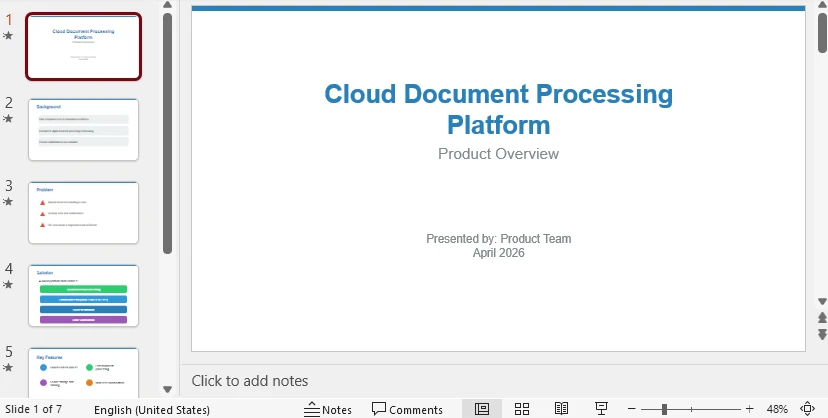
Here is one of the videos converted from PowerPoint, with all formatting and animations preserved:
When to Use:
Best for large-scale, automated batch conversion in developer or enterprise workflows.
If you need to reuse PowerPoint content in different formats, read our guide on converting presentations to PDF or images in C#.
Comparison: Which PowerPoint to Video Method Should You Choose
| Method | Output Quality | Security | Automation | Scalability | Best For |
|---|---|---|---|---|---|
| MS PowerPoint Export | ⭐⭐⭐⭐⭐ | ⭐⭐⭐⭐⭐ | ❌ No | Low | Small number of files, high-fidelity conversion |
| Online Converters | ⭐⭐⭐ | ⭐⭐ | ❌ No | Low | Quick tasks, users without MS Office |
| C# (Spire.Presentation) | ⭐⭐⭐⭐ | ⭐⭐⭐⭐⭐ | ✅ Yes | Very High | Batch processing, Enterprise-level automation |
How to choose the correct conversion method?
- If you need maximum quality + animations preserved → PowerPoint export
- If you need quick one-time conversion → Online tools
- If you need automation or batch processing → C# solution
Common PPT to Video Conversion Issues and Fixes
- Missing Animations: Some web tools fail to render complex animations. Export via Microsoft PowerPoint or a professional library that supports slide transition timelines.
- Bloated Video Size: 4K rendering or large internal media makes the file massive. Run Compress Media in PowerPoint before exporting, or lower the export resolution.
- Conversion Failures: Outdated .ppt formats can crash modern code parsers. Save .ppt files to modern .pptx format before processing.
- No Audio/Narration: Linked external audio gets dropped during export. Embed the audio files directly inside the PPT before converting.
Conclusion
Converting PowerPoint to video is important for modern content distribution. While desktop and online tools are suitable for simple conversions, they lack scalability and automation. For enterprise-level workflows, developers can use C# and libraries such as Spire.Presentation to enable efficient batch processing and automated video generation.
FAQs
Q1: Can PowerPoint convert PPT to video directly?
A1: Yes, Microsoft PowerPoint has a built-in "Export to Video" feature that allows you to save presentations as MP4 files.
Q2: What is the best format for PowerPoint video output?
A2: MP4 is the most recommended format because it offers good compression and is compatible with almost all devices and platforms.
Q3: Can I batch convert PowerPoint files to video?
A3: Yes. Batch conversion can be automated using C# with libraries like Spire.Presentation.
Q4: Does Spire.Presentation preserve animations?
A4: Yes, it supports most slide elements, including transitions and common animations during conversion.
Q5: Do I need Microsoft Office installed for C# PowerPoint to video conversion?
A5: No. Spire.Presentation works independently of Microsoft Office and can run in server or cloud environments.