In modern applications, JSON is one of the most common data formats for APIs, configuration files, and data exchange. However, while JSON is ideal for machines, it’s not always human-readable. Exporting JSON into a PDF table can help present structured information clearly in reports, dashboards, or internal documentation.
In this tutorial, you will learn how to convert JSON to a well-formatted PDF table using Python and Spire.XLS, including:
- Automatically detecting datasets for table export
- Flattening nested JSON fields
- Generating professional-looking PDFs
We’ll also cover manual dataset extraction for deeply nested structures, giving you full control over complex JSON files.
Why Converting JSON to PDF Is Not Always Simple
JSON comes in all shapes and sizes:
- Flat arrays: easy to convert directly to rows
- Nested objects: e.g., a specs dictionary inside each product
- Arrays within arrays: e.g., a list of products inside a department
- Inconsistent keys: some objects have additional or missing fields
For example, consider this structure for a store’s inventory:
{
  "store": {
    "departments": [
      {
        "name": "Computers",
        "products": [{"id": 1, "name": "Laptop", "specs": {"CPU": "i7"}}]
      },
      {
        "name": "Accessories",
        "products": [{"id": 101, "name": "Mouse", "colors": ["Black", "White"]}]
      }
    ]
  }
}
Flattening this into a table is not trivial, because nested fields need to be converted into columns, and arrays may need to be expanded or joined into strings. Our solution provides robust handling for most JSON structures while offering an option for manual extraction for unusually complex cases.
For a quick refresher on JSON syntax and structure, see: Introduction to JSON
Step 1 — Load JSON Data
Before processing, load your JSON file into Python. Using the built-in json module ensures the content is parsed into native Python dictionaries and lists:
import json

file_path = r"C:\Users\Administrator\Desktop\Products.json"

with open(file_path, "r", encoding="utf-8") as f:
    data = json.load(f)
What this step does:
- Reads a JSON file from disk
- Converts it into Python objects (dict and list) for further processing
Tip: Always specify encoding="utf-8" to avoid issues with non-ASCII characters.
Step 2 — Automatically Detect the Dataset to Export
Many JSON files contain multiple nested lists. Often, we need the list of objects that represents the “main table” — usually the largest list of dictionaries. The following function searches for the most table-like dataset automatically:
def find_dataset(obj):
    """Recursively search JSON and return the most table-like dataset."""
    candidates = []

    def search(node):
        if isinstance(node, list):
            if node and all(isinstance(i, dict) for i in node):
                keys = set()
                for item in node:
                    keys.update(item.keys())
                score = len(keys) * len(node)
                candidates.append((score, node))
            for item in node:
                search(item)
        elif isinstance(node, dict):
            for value in node.values():
                search(value)

    search(obj)
    if not candidates:
        raise ValueError("No suitable dataset found.")
    candidates.sort(key=lambda x: x[0], reverse=True)
    return candidates[0][1]

# Usage
dataset = find_dataset(data)
How it works:
- Recursively traverses the JSON structure
- Scores candidate lists based on number of keys × number of items
- Picks the richest dataset as the main table
Limitations:
- Will not automatically merge deeply nested lists (e.g., multiple departments’ products)
- Some fields may require manual extraction for full visibility
Optional — Manual Dataset Extraction
For deeply nested or customized datasets, manually extract the data:
dataset = []
for dept in data["store"]["departments"]:
    for prod in dept["products"]:
        prod["department"] = dept["name"]
        dataset.append(prod)
This approach guarantees you capture the exact fields you need, including adding context such as department for each product.
Step 3 — Flatten and Normalize JSON
To convert JSON to a table, nested structures must be flattened:
def flatten_json(obj, parent_key="", sep="_"):
    items = {}
    if isinstance(obj, dict):
        for key, value in obj.items():
            new_key = f"{parent_key}{sep}{key}" if parent_key else key
            if isinstance(value, dict):
                items.update(flatten_json(value, new_key, sep))
            elif isinstance(value, list):
                if not value:
                    items[new_key] = ""
                elif all(not isinstance(i, (dict, list)) for i in value):
                    items[new_key] = ", ".join(map(str, value))
                else:
                    for index, item in enumerate(value):
                        indexed_key = f"{new_key}{sep}{index}"
                        items.update(flatten_json(item, indexed_key, sep))
            else:
                items[new_key] = value
    elif isinstance(obj, list):
        for index, item in enumerate(obj):
            indexed_key = f"{parent_key}{sep}{index}" if parent_key else str(index)
            items.update(flatten_json(item, indexed_key, sep))
    else:
        items[parent_key] = obj
    return items

def normalize_json(data):
    flattened_rows = [flatten_json(item) for item in data]
    all_keys_ordered, seen_keys = [], set()
    for row in flattened_rows:
        for key in row.keys():
            if key not in seen_keys:
                seen_keys.add(key)
                all_keys_ordered.append(key)
    aligned_rows = [{key: str(row.get(key, "")) for key in all_keys_ordered} for row in flattened_rows]
    return aligned_rows, all_keys_ordered

rows, headers = normalize_json(dataset)
What this step does:
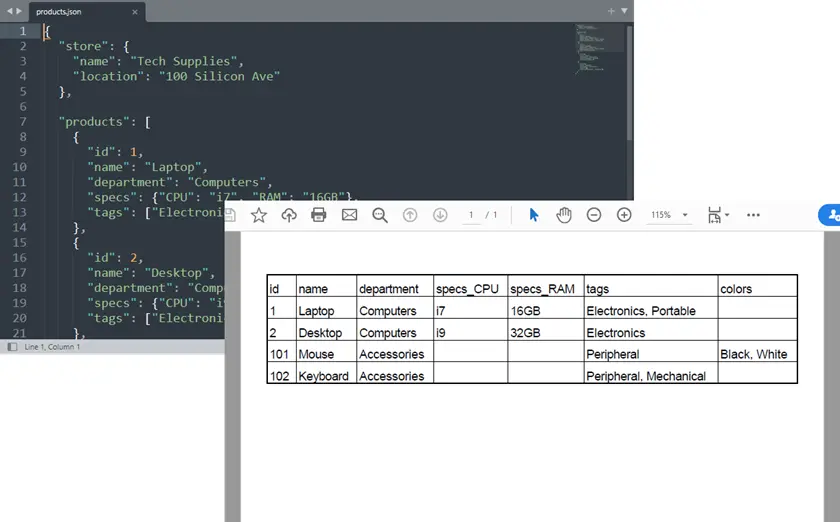
- Converts nested dictionaries into column names like specs_CPU, specs_RAM
- Converts lists of primitives to comma-separated strings
- Preserves first-seen key as the first column
Step 4 — Export to PDF via Excel
Once the data is flattened, export it as a PDF using Spire.XLS for Python. Rather than rendering PDF directly, we use Excel as an intermediate layout layer. This approach provides full control over table structure, formatting, margins, and scaling before exporting to PDF.
Install dependency:
pip install spire.xls
Export JSON to PDF using Spire.XLS:
from spire.xls import Workbook
import os

def export_to_pdf(data_rows, headers, output_path):
    workbook = Workbook()
    sheet = workbook.Worksheets[0]

    # Write headers
    for col, header in enumerate(headers):
        sheet.Range[1, col + 1].Text = header

    # Write data rows
    for row_idx, row in enumerate(data_rows, start=2):
        for col_idx, header in enumerate(headers):
            sheet.Range[row_idx, col_idx + 1].Text = row[header]

    # Formatting
    workbook.ConverterSetting.SheetFitToPageRetainPaperSize = True
    workbook.ConverterSetting.SheetFitToWidth = True
    for i in range(1, sheet.Range.ColumnCount + 1):
        sheet.AutoFitColumn(i)
    sheet.PageSetup.LeftMargin = 0.3
    sheet.PageSetup.RightMargin = 0.3
    sheet.PageSetup.TopMargin = 0.5
    sheet.PageSetup.BottomMargin = 0.5
    sheet.PageSetup.IsPrintGridlines = True
    sheet.DefaultRowHeight = 18

    os.makedirs(os.path.dirname(output_path), exist_ok=True)
    sheet.SaveToPdf(output_path)
    workbook.Dispose()
    print(f"PDF saved: {output_path}")
Tips for PDF formatting:
- Auto-fit columns to content
- Set margins for readability
- Enable gridlines for better table visualization
You May Also Like: Convert Excel to PDF in Python
Step 5 — Example: Export Products from Complex JSON File
Combine the previous steps:
file_path = r"C:\Users\Administrator\Desktop\Products.json"
with open(file_path, "r", encoding="utf-8") as f:
    data = json.load(f)

# Option 1: Automatic detection
dataset = find_dataset(data)
rows, headers = normalize_json(dataset)

# Option 2: Manual extraction for nested structure
# dataset = []
# for dept in data["store"]["departments"]:
#     for prod in dept["products"]:
#         prod["department"] = dept["name"]
#         dataset.append(prod)
# rows, headers = normalize_json(dataset)

export_to_pdf(rows, headers, "output/Products.pdf")
Key points:
- Automatic detection works for most JSON arrays
- Manual extraction ensures control over nested and hierarchical datasets
Output:
Complete Python Example: JSON to PDF
from spire.xls import Workbook
import json
import os

# ---------------------------
# Atoumatically Detect dataset
# ---------------------------
def find_dataset(obj):
    """
    Recursively search JSON and return the most table-like dataset.

    Strategy:
    - Find lists containing dictionaries
    - Score datasets based on number of fields
    - Choose the dataset with the richest structure
    """

    candidates = []

    def search(node):
        if isinstance(node, list):

            if node and all(isinstance(i, dict) for i in node):

                # Count unique keys across objects
                keys = set()
                for item in node:
                    keys.update(item.keys())

                score = len(keys) * len(node)
                candidates.append((score, node))

            for item in node:
                search(item)

        elif isinstance(node, dict):
            for value in node.values():
                search(value)

    search(obj)

    if not candidates:
        raise ValueError("No suitable dataset found.")

    # choose best scored dataset
    candidates.sort(key=lambda x: x[0], reverse=True)

    return candidates[0][1]

# ---------------------------
# Robust Recursive JSON Flattener
# ---------------------------
def flatten_json(obj, parent_key="", sep="_"):
    """
    Recursively flattens nested dictionaries and lists.

    Rules:
    - Nested dict → key_subkey
    - List of primitives → comma-separated string
    - List of dicts → indexed columns (key_0_name, key_1_name)
    - Mixed lists / arrays-of-arrays → recursively indexed (key_0_0, key_0_1)
    """
    items = {}

    if isinstance(obj, dict):
        for key, value in obj.items():
            new_key = f"{parent_key}{sep}{key}" if parent_key else key

            if isinstance(value, dict):
                items.update(flatten_json(value, new_key, sep))

            elif isinstance(value, list):
                # Empty list
                if not value:
                    items[new_key] = ""

                # List of primitives
                elif all(not isinstance(i, (dict, list)) for i in value):
                    items[new_key] = ", ".join(map(str, value))

                # Mixed or nested lists
                else:
                    for index, item in enumerate(value):
                        indexed_key = f"{new_key}{sep}{index}"
                        items.update(flatten_json(item, indexed_key, sep))

            else:
                items[new_key] = value

    # Top-level lists
    elif isinstance(obj, list):
        for index, item in enumerate(obj):
            indexed_key = f"{parent_key}{sep}{index}" if parent_key else str(index)
            items.update(flatten_json(item, indexed_key, sep))

    else:
        items[parent_key] = obj

    return items

# ---------------------------
# Normalize JSON Data (First-Seen Column Order)
# ---------------------------
def normalize_json(data):
    """
    Flatten JSON objects and align headers, preserving the first-seen order.
    The first key in the first JSON object will be the first column.
    """
    if not isinstance(data, list):
        raise ValueError("Data must be a list of objects.")

    flattened_rows = [flatten_json(item) for item in data]

    # Track headers in first-seen order
    all_keys_ordered = []
    seen_keys = set()
    for row in flattened_rows:
        for key in row.keys():
            if key not in seen_keys:
                seen_keys.add(key)
                all_keys_ordered.append(key)

    # Align all rows to include all keys
    aligned_rows = [{key: str(row.get(key, "")) for key in all_keys_ordered} for row in flattened_rows]

    return aligned_rows, all_keys_ordered

# ---------------------------
# Export to PDF via Excel
# ---------------------------
def export_to_pdf(data_rows, headers, output_path):
    workbook = Workbook()
    sheet = workbook.Worksheets[0]

    # Write header
    for col, header in enumerate(headers):
        sheet.Range[1, col + 1].Text = header

    # Write data rows
    for row_idx, row in enumerate(data_rows, start=2):
        for col_idx, header in enumerate(headers):
            sheet.Range[row_idx, col_idx + 1].Text = row[header]

    # Formatting
    workbook.ConverterSetting.SheetFitToPageRetainPaperSize = True
    workbook.ConverterSetting.SheetFitToWidth = True
    for i in range(1, sheet.Range.ColumnCount + 1):
        sheet.AutoFitColumn(i)
    sheet.PageSetup.LeftMargin = 0.3
    sheet.PageSetup.RightMargin = 0.3
    sheet.PageSetup.TopMargin = 0.5
    sheet.PageSetup.BottomMargin = 0.5
    sheet.PageSetup.IsPrintGridlines = True
    sheet.DefaultRowHeight = 18

    os.makedirs(os.path.dirname(output_path), exist_ok=True)
    sheet.SaveToPdf(output_path)
    workbook.Dispose()
    print(f"PDF saved: {output_path}")

# ===========================
# Example: Complex JSON Dataset
# ===========================

# Load JSON from file
with open(r"C:\Users\Administrator\Desktop\Products.json", "r", encoding="utf-8") as f:
    data = json.load(f)

# Option 1. Automatically detect dataset (work for most cases)
dataset = find_dataset(data)

'''
# Option 2. Manually extract dataset (work for complex unusual structures)
dataset = []
for dept in data["store"]["departments"]:
    for prod in dept["products"]:
        prod["department"] = dept["name"]
        dataset.append(prod)
'''

# Normalize (first-seen key becomes first column)
rows, headers = normalize_json(dataset)

# Export to PDF
export_to_pdf(rows, headers, "output/Products.pdf")
Conclusion
Converting JSON to a PDF table can be tricky, especially with nested structures or inconsistent keys. Using Python and Spire.XLS, you can automatically flatten JSON and preserve a logical column order, turning complex datasets into clean, readable tables suitable for reports or documentation.
Automatic dataset detection handles most JSON files, while manual extraction allows capturing specific nested data when needed. This approach offers a flexible and reliable way to convert JSON into professional PDF tables without losing structure or context.
FAQs
Can this handle any JSON file?
Automatic detection works for most, but manual extraction may be needed for deeply nested data.
How is column order determined?
Columns appear in the order of first appearance in the JSON objects.
Can multiple datasets be merged?
Yes, you can concatenate datasets before flattening.
How to handle missing fields?
Missing values are automatically represented as empty cells.
Can I customize PDF layout?
Yes, margins, gridlines, and auto-fit options are fully configurable via Spire.XLS.