Whether you are merging customer lists or importing survey results, redundant columns can lead to errors and confusion. While Excel provides a built-in button to remove duplicate rows, deleting duplicate columns is more challenging because the built-in tools don't search horizontally by default. In this guide, we will explore the 4 most effective ways to delete duplicate columns in Excel, ranging from a simple "Transpose" trick to advanced Python automation. No matter your skill level, these methods will ensure you can find and remove duplicate columns to keep your data accurate.
- Transpose and Delete: The Universal Workaround
- Identify Duplicates Manually Using a Helper Row
- Delete Duplicate Columns Instantly with UNIQUE
- Automate Column Deletion with Python
- Summary: Which Method Should You Choose?
How to Delete Duplicate Columns in Excel with Transpose and Delete
Since Excel's "Remove Duplicates" tool only works on rows, the smartest trick is to rotate your data 90 degrees. This approach transposes columns of the original worksheet to rows, allowing you to delete duplicate columns using the standard "Remove Duplicates" tool.
Steps to use the Transpose method:
-
Copy your data: Select your cell range and press
Ctrl + C. - Paste Transpose: Right-click a blank area and select the Transpose icon (or use Paste Special > Transpose). Your columns are now rows.
- Remove Duplicates: Go to the Data tab and click Remove Duplicates. Excel will now identify and delete the duplicate rows that were originally columns.
- Transpose Back: Copy the cleaned data and use the Transpose paste option again to return it to its original column layout.
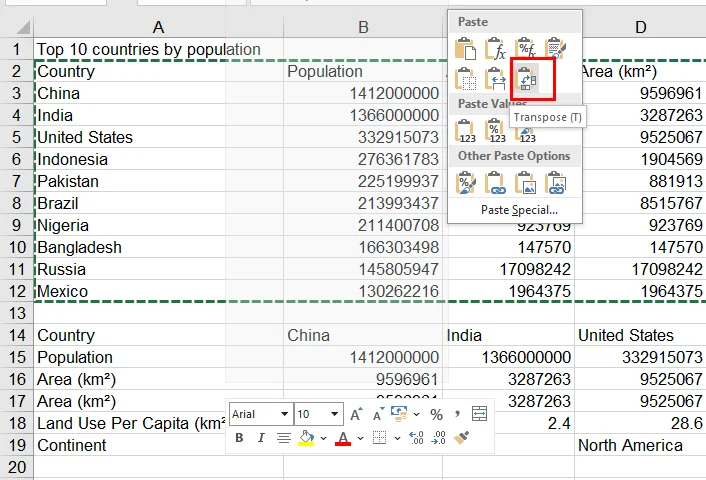

Note: The transpose method is a clever solution best suited for simple data (text and numbers). Since changing the layout can disrupt cell references, using this method may cause formula errors (#REF!) or minor formatting shifts. We strongly recommend saving a backup copy of your workbook before you begin to ensure your original data remains safe.
Identify Duplicate Columns in Excel Using a Helper Row
If you prefer a visual check to prevent errors before deleting anything, you can use a helper row combined with conditional formatting. This approach allows you to find duplicate columns with full manual oversight.
Steps to highlight redundant columns:
-
Create a Helper Row: Insert a new row at the very top (e.g., Row 1).
-
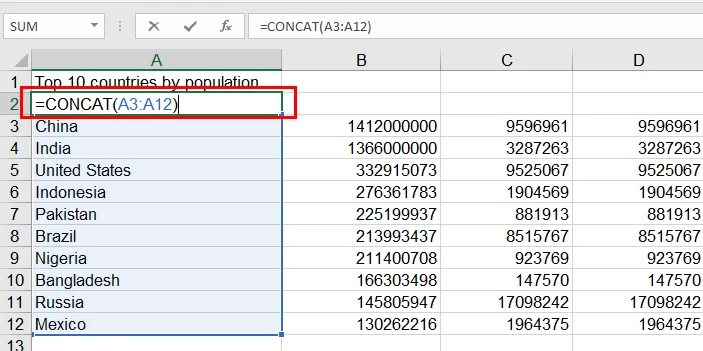
Combine Data: In cell A2, enter a formula like the following and drag it across all columns:
=CONCAT(A3:A12)This merges the entire content of each column into a single text string for comparison.
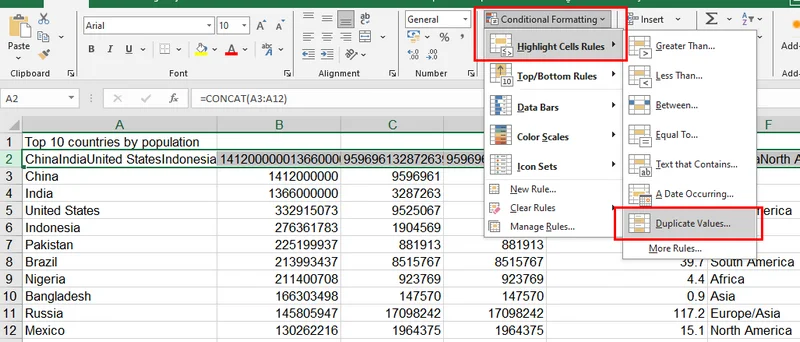
- Highlight: Select Row 2, go to Home > Conditional Formatting > Highlight Cells Rules > Duplicate Values.
- Delete: Any column with a highlighted header is a duplicate. You can now manually review and delete similar columns by hand.
Note: Be sure to replace A3:A12 with your actual data range. If your columns contain massive text that exceeds Excel’s 32,767-character limit per cell, we recommend using the Python solution below instead.
Remove Duplicate Columns from Excel Instantly with UNIQUE Function
For users of Microsoft 365 or Excel 2021, the UNIQUE function can be the fastest and safest method. It can generate a dataset without duplicate columns dynamically without modifying your original data.
How to use it:
-
Click an empty cell where you want the cleaned data to appear.
-
=UNIQUE(A1:F10, TRUE)The second parameter
TRUEtells Excel to compare columns instead of rows. -
Press Enter, and Excel will spill a clean version of your table, effectively removing duplicate columns from the output.
Note: This method also works perfectly in Google Sheets. However, please note that the UNIQUE function is only available in Microsoft 365, Excel 2021, and later versions. If you are using an older version, such as Excel 2019 or 2016, this function will not be available, and we recommend using the transpose or helper row methods instead.
Automate Excel Column Deletion with Python
For data analysts handling massive spreadsheets with hundreds of columns, manual clicking is not an efficient option. It is recommended to delete duplicate columns in Excel files programmatically using Free Spire.XLS for Python.
This professional library allows for high-precision cleaning, such as stripping hidden whitespaces that often cause standard Excel tools to miss duplicates.
Installation: pip install Spire.Xls.Free
The Python Script:
The following script iterates through columns from right to left, identifies columns with identical data, and deletes duplicates automatically.
from spire.xls import *
from spire.xls.common import *

# Create a Workbook object and load the sample file
workbook = Workbook()
workbook.LoadFromFile("/input/Population.xlsx")

# Get the third worksheet
sheet = workbook.Worksheets[2]

# Get the last row and column index
lastRow = sheet.LastRow
lastCol = sheet.LastColumn
seen_columns = set()

# Loop through columns from right to left
for col in range(lastCol, 0, -1):
    column_values = []

    # Get the contents of all cells in the column
    for row in range(1, lastRow + 1):
        cell_text = sheet.Range[row, col].Text
        column_values.append(cell_text.strip() if cell_text else "")

    # Merge the column values into a unique identifier
    column_key = "|".join(column_values)

    if column_key in seen_columns:
        # Delete the duplicate column
        sheet.DeleteColumn(col)
        print(f"Deleted Duplicate Column: {col}")
    else:
        seen_columns.add(column_key)

# Save the modified workbook
workbook.SaveToFile("/output/RemovedDuplicateColumns.xlsx", ExcelVersion.Version2016)
workbook.Dispose()
The preview of the original worksheet and the output file: 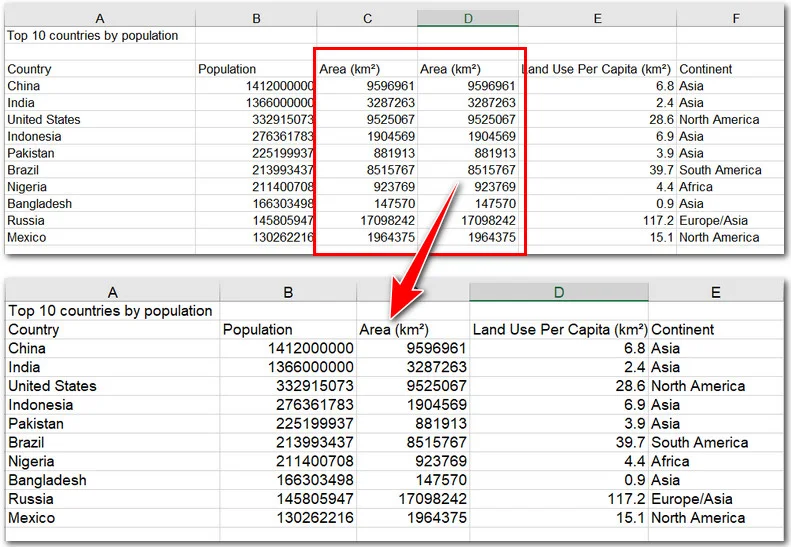
Summary: Which Method Should You Choose?
Choosing how to remove duplicate columns from Excel depends on your dataset size and version. To wrap up, we have compared the four methods across three key dimensions—best use case, primary action, and difficulty level—to help you quickly identify the most suitable solution for your project.
To wrap up, we have compared the four methods above across three key dimensions—Best Use Case, Primary Action, and Difficulty Level—to help you quickly identify the most suitable solution for your project.
| Feature | Transpose Method | Helper Row | UNIQUE Function | Python Script |
|---|---|---|---|---|
| Best For | General Users | Manual Review | Excel 365/2021 Users | Automation/Big Data |
| Action | Physical Deletion | Visual Highlighting | Dynamic List | Programmatic Delete |
| Difficulty | Beginner | Beginner | Intermediate | Advanced |
Conclusion
Whether you use the clever "Transpose" workaround or a professional Python script, mastering these techniques ensures your data remains professional and error-free. Knowing how to delete duplicate columns in Excel is a vital skill for any serious data cleaner. Always remember to save a backup of your file before performing bulk deletions. Ready to streamline your spreadsheets? Try one of these methods today!