Detect if a PDF file is PDF/A in C#
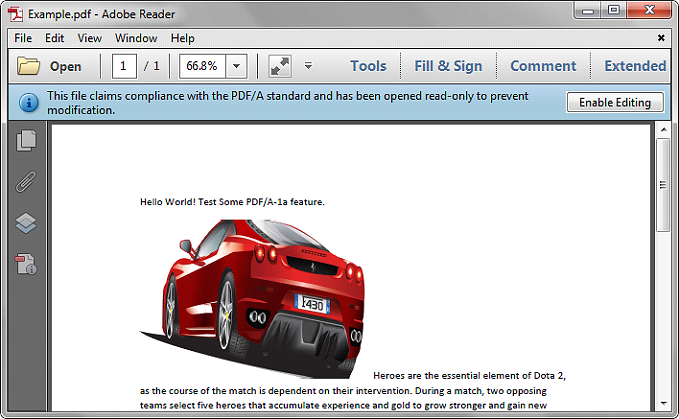
Spire.PDF provides developers two methods to detect if a PDF file is PDF/A. The one is to use PdfDocument.Conformance property, the other is to use PdfDocument.XmpMetaData property. The following examples demonstrate how we can detect if a PDF file is PDF/A using these two methods.
Below is the screenshot of the sample file we used for demonstration:
Using PdfDocument.Conformance
using Spire.Pdf;
using System;

namespace Detect
{
    class Program
    {
        static void Main(string[] args)
        {
            //Initialize a PdfDocument object
            PdfDocument pdf = new PdfDocument();
            //Load the PDF file
            pdf.LoadFromFile("Example.pdf");

            //Get the conformance level of the PDF file
            PdfConformanceLevel conformance = pdf.Conformance;
            Console.WriteLine("This PDF file is " + conformance.ToString());
        }
    }
}
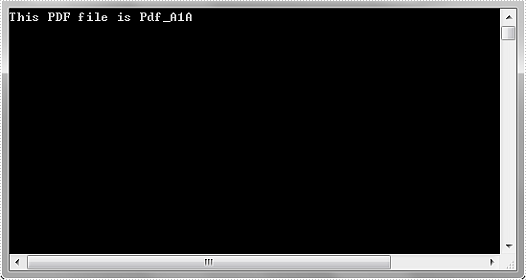
Output:
Detect if a PDF File is a Portfolio in C#/VB.NET
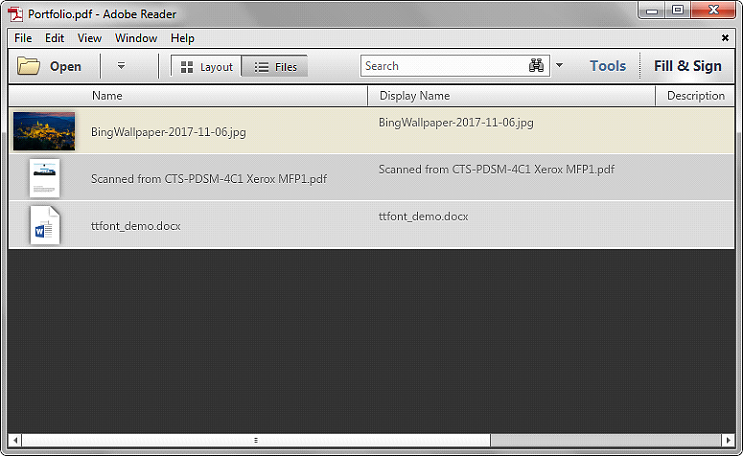
A PDF Portfolio can combine a wide range of file types such as Word, Excel, PDF and Image files, compared with merging files into a single PDF file, PDF Portfolio remains the individual identities of the files, and you can easily open, read, edit, and format each of them independently of the other files in the PDF Portfolio.
Spire.PDF allows developers to detect if a PDF file is a Portfolio programmatically using c# and vb.net. The following example uses a PDF Portfolio consists of an image, a PDF document and a Word file:
Detail steps:
Step 1: Instantiate a PdfDocument object and load the PDF file.
PdfDocument pdf = new PdfDocument();
pdf.LoadFromFile("Portfolio.pdf");
Step 2: Detect if the PDF file is a Portfolio.
bool isPortfolio = pdf.IsPortfolio;
if (isPortfolio)
{
    Console.WriteLine("It's a Portfolio!");
}
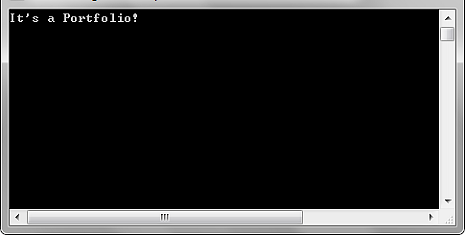
Screenshot:
Full code:
using System;
using Spire.Pdf;

namespace Detect_if_a_PDF_is_a_Portfolio
{
    class Program
    {
        static void Main(string[] args)
        {
            PdfDocument pdf = new PdfDocument();
            pdf.LoadFromFile("Portfolio.pdf");

            bool isPortfolio = pdf.IsPortfolio;
            if (isPortfolio)
            {
                Console.WriteLine("It's a Portfolio!");
            }
            Console.ReadKey();
        }
    }
}
Imports Spire.Pdf

Namespace Detect_if_a_PDF_is_a_Portfolio
	Class Program
		Private Shared Sub Main(args As String())
			Dim pdf As New PdfDocument()
			pdf.LoadFromFile("Portfolio.pdf")

			Dim isPortfolio As Boolean = pdf.IsPortfolio
			If isPortfolio Then
				Console.WriteLine("It's a Portfolio!")
			End If
			Console.ReadKey()
		End Sub
	End Class
End Namespace
Show or Hide PDF Layers in C#
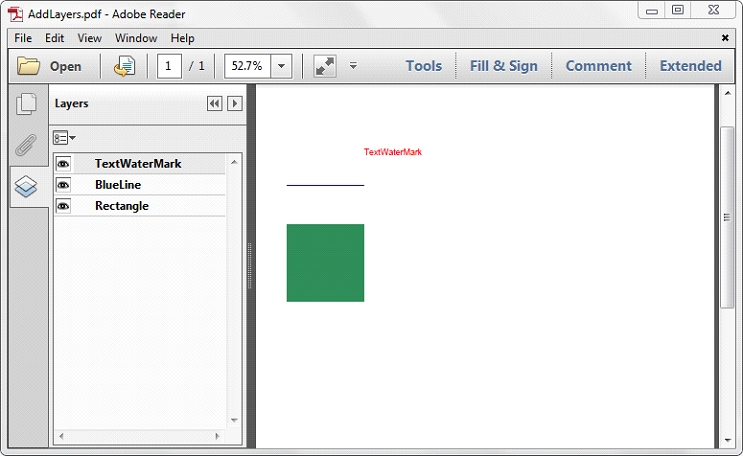
When creating a PDF layer, Spire.PDF allows developers to set an initial visibility state for the layer. While it also supports to change the visibility of existing layers in a PDF document. This article explains how to show or hide the existing layers using Spire.PDF.
PdfLayer.Visibility property is used to change the visibility of a PDF layer. To show a hidden layer, set the PdfLayer.Visibility property to PdfVisibility.On. To hide an existing layer, set the PdfLayer.Visibility to PdfVisibility.Off.
The following example shows how to hide a specific PDF layers:
using Spire.Pdf;
using Spire.Pdf.Graphics.Layer;

namespace HideLayer
{
    class Program
    {
        static void Main(string[] args)
        {
            using (PdfDocument doc = new PdfDocument("AddLayers.pdf"))
            {
                //Hide the layer by index
                doc.Layers[1].Visibility = PdfVisibility.Off;

                //Hide the layer by Name
                //doc.Layers["BlueLine"].Visibility = PdfVisibility.Off;

                //Save the file
                doc.SaveToFile("HideLayer.pdf");
            }
        }
    }
}
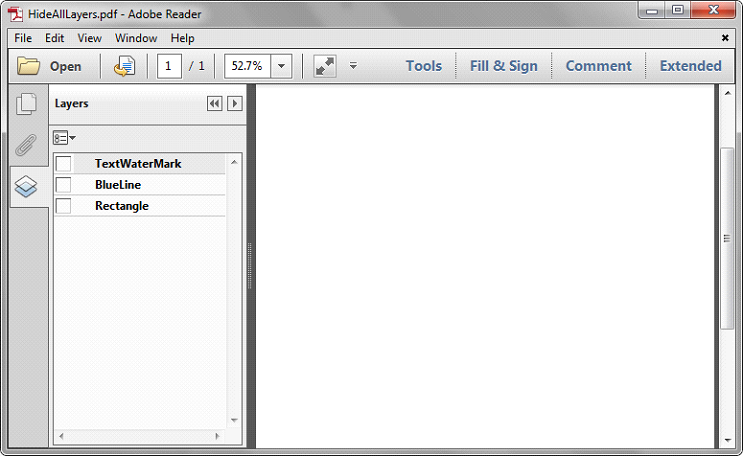
To show or hide all of the layers:
using Spire.Pdf;
using Spire.Pdf.Graphics.Layer;

namespace ShowLayer
{
    class Program
    {
        static void Main(string[] args)
        {
            using (PdfDocument doc = new PdfDocument("AddLayers.pdf"))
            {
                for (int i = 0; i < doc.Layers.Count; i++)
                {
                    //Show all of the layers
                    //doc.Layers[i].Visibility = PdfVisibility.On;

                    //Hide all of the layers
                    doc.Layers[i].Visibility = PdfVisibility.Off;
                }
                //Save the file
                doc.SaveToFile("HideAllLayers.pdf");
            }
        }
    }
}
Screeshot of the sample PDF document:
Screenshot after hiding all of the layers:
C#/VB.NET: Add, Hide or Delete Layers in PDF
PDF layer is a feature that arranges the content of a PDF file in layers, which allows users to selectively set some content to be visible and others to be invisible in the same PDF file. PDF layers are a common element used in layered artwork, maps and CAD drawings. This article will demonstrate how to programmatically add, hide or delete layers in a PDF file using Spire.PDF for .NET.
- Add Layers to a PDF Document in C# and VB.NET
- Set Visibility of Layers in a PDF Document in C# and VB.NET
- Delete Layers in a PDF Document in C# and VB.NET
Install Spire.PDF for .NET
To begin with, you need to add the DLL files included in the Spire.PDF for.NET package as references in your .NET project. The DLLs files can be either downloaded from this link or installed via NuGet.
PM> Install-Package Spire.PDF
Add Layers to a PDF Document in C# and VB.NET
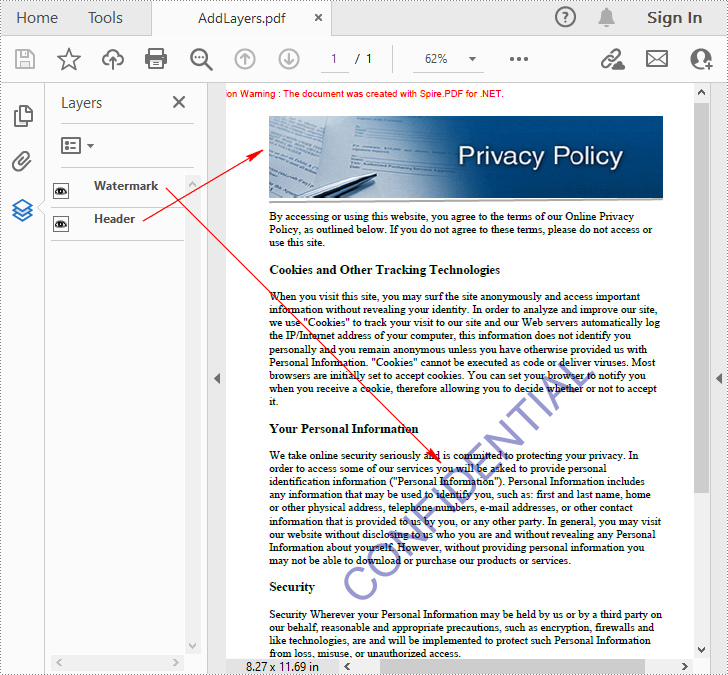
Spire.PDF for .NET provides PdfDocument.Layers.AddLayer() method to add a layer in a PDF document, and you can then draw text, lines, images or shapes on the PDF layer. The detailed steps are as follows.
- Create a PdfDocument instance.
- Load a sample PDF file using PdfDocument.LoadFromFile() method.
- Add a layer with specified name in the PDF using PdfDocument.Layers.AddLayer(String) method. Or you can also set the visibility of the layer while adding it using PdfDocument.Layers.AddLayer(String, PdfVisibility) method.
- Create a canvas for the layer using PdfLayer.CreateGraphics() method.
- Draw text, image or other elements on the canvas.
- Save the result document using PdfDocument.SaveToFile() method.
- C#
- VB.NET
using Spire.Pdf;
using Spire.Pdf.Graphics;
using Spire.Pdf.Graphics.Layer;
using System.Drawing;

namespace AddLayersToPdf
{
    class Program
    {
        static void Main(string[] args)
        {
            //Create a PdfDocument instance and load a sample PDF file
            PdfDocument pdf = new PdfDocument();
            pdf.LoadFromFile(@"C:\Users\Administrator\Desktop\Sample.pdf");

            //Invoke AddLayerWatermark method to add a watermark layer
            AddLayerWatermark(pdf);

            //Invoke AddLayerHeader method to add a header layer
            AddLayerHeader(pdf);

            //Save to file
            pdf.SaveToFile("AddLayers.pdf");
            pdf.Close();
        }

        private static void AddLayerWatermark(PdfDocument doc)
        {
            //Create a layer named "Watermark"
            PdfLayer layer = doc.Layers.AddLayer("Watermark");

            //Create a font
            PdfTrueTypeFont font = new PdfTrueTypeFont(new Font("Arial", 48), true);

            //Specify the watermark text
            string watermarkText = "CONFIDENTIAL";

            //Get text size
            SizeF fontSize = font.MeasureString(watermarkText);

            //Calculate two offsets
            float offset1 = (float)(fontSize.Width * System.Math.Sqrt(2) / 4);
            float offset2 = (float)(fontSize.Height * System.Math.Sqrt(2) / 4);

            //Get page count
            int pageCount = doc.Pages.Count;

            //Declare two variables
            PdfPageBase page;
            PdfCanvas canvas;

            //Loop through the pages
            for (int i = 0; (i < pageCount); i++)
            {
                page = doc.Pages[i];

                //Create a canvas from layer
                canvas = layer.CreateGraphics(page.Canvas);
                canvas.TranslateTransform(page.Canvas.Size.Width / 2 - offset1 - offset2, page.Canvas.Size.Height / 2 + offset1 - offset2);
                canvas.SetTransparency(0.4f);
                canvas.RotateTransform(-45);

                //Draw sting on the canvas of layer
                canvas.DrawString(watermarkText, font, PdfBrushes.DarkBlue, 0, 0);
            }
        }
        private static void AddLayerHeader(PdfDocument doc)
        {
            // Create a layer named "Header"
            PdfLayer layer = doc.Layers.AddLayer("Header");

            //Get page size
            SizeF size = doc.Pages[0].Size;

            //Specify the initial values of X and y
            float x = 90;
            float y = 40;

            //Get page count
            int pageCount = doc.Pages.Count;

            //Declare two variables
            PdfPageBase page;
            PdfCanvas canvas;

            //Loop through the pages
            for (int i = 0; (i < pageCount); i++)
            {
                //Draw an image on the layer
                PdfImage pdfImage = PdfImage.FromFile(@"C:\Users\Administrator\Desktop\img.jpg");
                float width = pdfImage.Width;
                float height = pdfImage.Height;
                page = doc.Pages[i];
                canvas = layer.CreateGraphics(page.Canvas);
                canvas.DrawImage(pdfImage, x, y, width, height);

                //Draw a line on the layer
                PdfPen pen = new PdfPen(PdfBrushes.DarkGray, 2);
                canvas.DrawLine(pen, x, (y + (height + 5)), (size.Width - x), (y + (height + 2)));
            }
        }
    }
}
Set Visibility of Layers in a PDF Document in C# and VB.NET
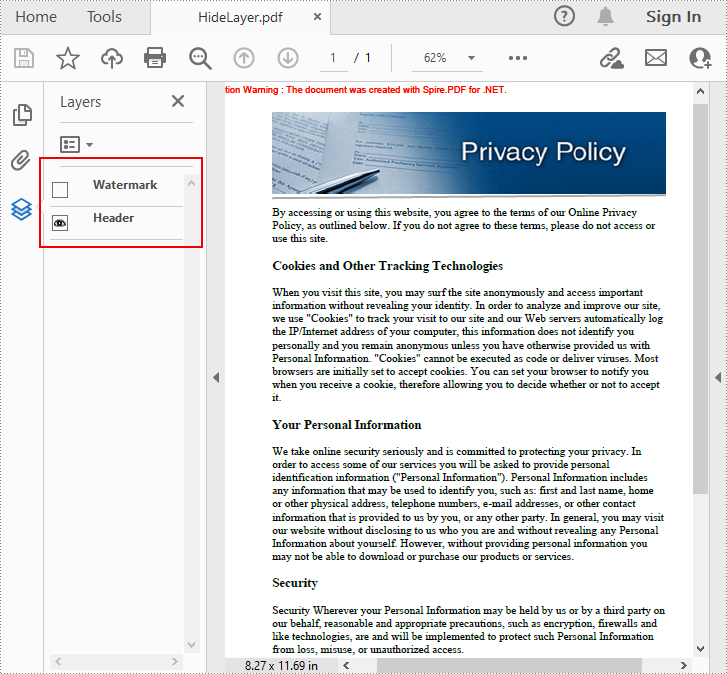
To set the visibility of an existing layer, you'll need to get a specified layer by its index or name using PdfDocument.Layers property, and then show or hide the layer using PdfLayer.Visibility property. The detailed steps are as follows.
- Create a PdfDocument instance.
- Load a sample PDF document using PdfDocument.LoadFromFile() method.
- Set the visibility of a specified layer using PdfDocument.Layers.Visibility property.
- Save the result document using PdfDocument.SaveToFile() method.
- C#
- VB.NET
using Spire.Pdf;
using Spire.Pdf.Graphics.Layer;

namespace HideLayer
{
    class Program
    {
        static void Main(string[] args)
        {
            //Create a PdfDocument instance
            PdfDocument pdf = new PdfDocument();

            //Load a sample PDF document
            pdf.LoadFromFile("AddLayers.pdf");

            //Hide a specified layer by index
            pdf.Layers[0].Visibility = PdfVisibility.Off;

            //Hide a specified layer by name
            //pdf.Layers["Watermark"].Visibility = PdfVisibility.Off;

            //Save the result document
            pdf.SaveToFile("HideLayer.pdf");
        }
    }
}
Delete Layers in a PDF Document in C# and VB.NET
Spire.PDF for .NET also allows you to remove an existing layer by its name using PdfDocument.Layers.RemoveLayer(String) method. But kindly note that the names of PDF layers may not be unique and this method will remove all PDF layers with the same name. The detailed steps are as follows.
- Create a PdfDocument instance.
- Load a sample PDF document using PdfDocument.LoadFromFile() method.
- Delete a specified layer by its name using PdfDocument.Layers.RemoveLayer(String) method.
- Save the result document using PdfDocument.SaveToFile() method.
- C#
- VB.NET
using Spire.Pdf;

namespace DeleteLayer
{
    class Program
    {
        static void Main(string[] args)
        {
            //Create a PdfDocument instance
            PdfDocument pdf = new PdfDocument();

            //Load a sample PDF document
            pdf.LoadFromFile("AddLayers.pdf");

            //Remove a layer by name
            pdf.Layers.RemoveLayer(("Watermark"));

            //Save the result document
            pdf.SaveToFile("DeleteLayer.pdf", FileFormat.PDF);
        }
    }
}
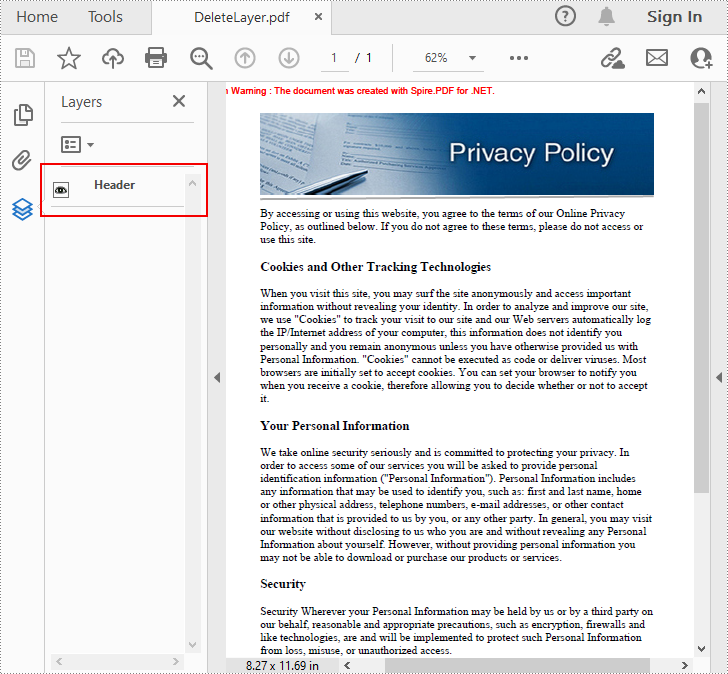
Apply for a Temporary License
If you'd like to remove the evaluation message from the generated documents, or to get rid of the function limitations, please request a 30-day trial license for yourself.
How to Compress PDF in C# .NET (Without Losing Quality)

PDF is one of the most popular formats for distributing, archiving, and presenting digital documents. However, when PDFs include high-resolution images, scanned pages, or embedded fonts, their file sizes can grow considerably. Large PDF files can slow down upload and download speeds, take up unnecessary storage space, and even cause issues with email attachments and website performance.
This complete guide shows you how to compress PDF documents in C# using the Spire.PDF for .NET library. It covers multiple compression strategies—image compression, font optimization, and content compression—with practical, ready-to-use C# code examples to help you streamline PDF size effectively in your .NET applications.
Table of Contents
- Why Compress PDF Files
- Install the Library for PDF Compression in .NET
- How to Optimize PDF File Size in C# (Methods and Code Examples)
- Conclusion
- FAQs
Why Compress PDF Files?
Compressing PDF files can bring significant benefits, especially in professional and enterprise environments:
- Faster upload and download speeds
- Reduced storage consumption
- Easier email sharing with smaller attachments
- Improved performance in web-based PDF viewers
- Better experience on mobile and low-bandwidth environments
Whether you're working with reports, invoices, or scanned documents, PDF compression ensures efficient document handling and delivery.
Install the Library for PDF Compression in .NET
Spire.PDF for .NET is a robust and developer-friendly library that enables developers to create, edit, convert, and compress PDF documents without relying on Adobe Acrobat. It supports various compression options to minimize PDF file sizes effectively.

Installation Steps
You can easily install Spire.PDF for .NET via NuGet using one of the following methods:
Option 1: Using NuGet Package Manager
- Open your project in Visual Studio.
- Right-click on the project → Manage NuGet Packages.
- Search for Spire.PDF.
- Click Install.
Option 2: Using the Package Manager Console
Install-Package Spire.PDF
Once installed, you can start using the built-in compression APIs to optimize PDF file size.
How to Optimize PDF File Size in C# (Methods and Code Examples)
Spire.PDF provides multiple techniques to reduce PDF size. In this section, you'll learn how to implement three key methods: compressing images, optimizing fonts, and compressing overall document content.
Method 1. Compressing Images
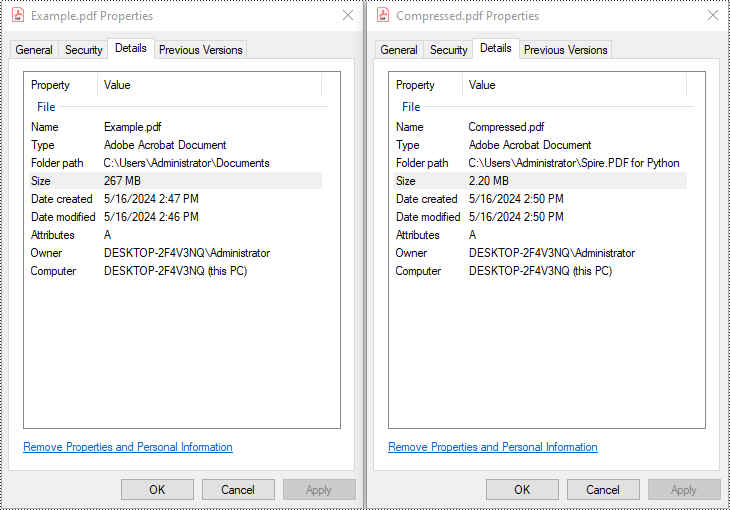
High-resolution images embedded in PDF files often consume the most space. Spire.PDF offers flexible image compression options that allow you to reduce file size by compressing either all images or individual images in the document.
Example 1: Compress All Images with PdfCompressor
You can compress the images in a PDF document by creating a PdfCompressor object, enabling CompressImage and ResizeImages properties, and setting the ImageQuality to a predefined level such as Low, Medium, or High.
using Spire.Pdf.Conversion.Compression;

namespace CompressImages
{
    class Program
    {
        static void Main(string[] args)
        {
            // Create a PdfCompressor object and load the PDF file
            PdfCompressor compressor = new PdfCompressor("C:\\Users\\Administrator\\Documents\\Example.pdf");

            // Get the image compression options
            ImageCompressionOptions imageCompression = compressor.Options.ImageCompressionOptions;

            // Enable Image resizing
            imageCompression.ResizeImages = true;

            // Enable image compression
            imageCompression.CompressImage = true;

            // Set the image quality to Medium (available options: Low, Medium, High)
            imageCompression.ImageQuality = ImageQuality.Medium;


            // Compress the PDF file according to the compression options and save it to a new file
            compressor.CompressToFile("Compressed.pdf");
        }
    }
}
Example 2: Compress Images Individually Using TryCompressImage()
If you need more precise control over image compression, you can use the PdfImageHelper class to access the images on each page and compress them individually using the TryCompressImage() method.
using Spire.Pdf;
using Spire.Pdf.Utilities;

namespace CompressImagesIndividually
{
    internal class Program
    {
        static void Main(string[] args)
        {
            // Create a PdfDocument object
            PdfDocument pdf = new PdfDocument();
            // Load the PDF file
            pdf.LoadFromFile("C:\\Users\\Administrator\\Documents\\Example.pdf");

            // Disable the incremental update
            pdf.FileInfo.IncrementalUpdate = false;

            // Create an instance of PdfImageHelper to work with images
            PdfImageHelper imageHelper = new PdfImageHelper();

            // Iterate through each page in the document
            foreach (PdfPageBase page in pdf.Pages)
            {
                // Retrieve information about the images on the page
                foreach (PdfImageInfo info in imageHelper.GetImagesInfo(page))
                {
                    // Attempt to compress the image
                    info.TryCompressImage();
                }
            }

            // Save the updated file
            pdf.SaveToFile("Compressed.pdf");
            pdf.Close();
        }
    }
}
Method 2. Optimize Fonts
Fonts embedded in a PDF file can contribute significantly to its size, especially when multiple fonts or large font sets are used. You can compress or unembed fonts that aren't essential for document rendering through the TextCompressionOptions property.
using Spire.Pdf.Conversion.Compression;

namespace OptimizeFonts
{
    internal class Program
    {
        static void Main(string[] args)
        {
            // Create a PdfCompressor object and load the PDF file
            PdfCompressor compressor = new PdfCompressor("C:\\Users\\Administrator\\Documents\\Example.pdf");

            // Get the text compression options
            TextCompressionOptions textCompression = compressor.Options.TextCompressionOptions;

            // Compress the fonts
            textCompression.CompressFonts = true;

            // Unembed the fonts
            // textCompression.UnembedFonts = true;

            // Compress the PDF file according to the compression options and save it to a new file
            compressor.CompressToFile("CompressFonts.pdf");
        }
    }
}
Method 3. Optimizing Document Content
Beyond images and fonts, overall document content can be optimized by setting the CompressionLevel property of the document to PdfCompressionLevel.Best.
using Spire.Pdf;
using Spire.Pdf.Conversion.Compression;

namespace OptimizeDocumentContent
{
    internal class Program
    {
        static void Main(string[] args)
        {
            // Create a PdfDocument object
            PdfDocument pdf = new PdfDocument();
            // Load the PDF file
            pdf.LoadFromFile("C:\\Users\\Administrator\\Documents\\Example.pdf");

            // Disable the incremental update
            pdf.FileInfo.IncrementalUpdate = false;

            // Set the compression level to best
            pdf.CompressionLevel = PdfCompressionLevel.Best;

            // Save the updated file
            pdf.SaveToFile("OptimizeDocumentContent.pdf");
            pdf.Close();
        }
    }
}
Conclusion
Compressing PDF files in C# using Spire.PDF for .NET is straightforward, efficient, and highly customizable. Whether your goal is to reduce file size for web uploads, email attachments, or storage management, this library offers flexible solutions such as:
- Compressing images
- Optimizing fonts
- Minimizing document content
By applying one or a combination of these techniques, you can significantly reduce PDF file sizes while preserving readability and document structure—making your files easier to share, store, and distribute.
FAQs
Q1: Is it possible to compress PDF files in bulk?
A1: Yes. You can loop through multiple PDF files in a directory and apply compression using the same logic programmatically.
Q2: Can I compress a PDF and then convert it to PDF/A or other formats?
A2: Absolutely. You can compress the PDF first, then convert it to PDF/A, ensuring long-term archival with optimized size.
Q3: Can I preserve hyperlinks, bookmarks, and metadata during compression?
A3: Yes. Compression will not remove document structure like links, bookmarks, or metadata. Spire.PDF preserves document integrity.
Q4: Does Spire.PDF support other PDF operations besides compression?
A4: Yes. Besides compression, Spire.PDF offers a wide range of PDF features, such as:
- Merging/Splitting PDFs
- Extracting text, images and tables
- Adding watermarks
- Digitally signing and encrypting PDFs
For detailed tutorials and sample projects, you can visit the Spire.PDF tutorial page and explore the GitHub demo repository to see practical code examples.
Get a Free License
To fully experience the capabilities of Spire.PDF for .NET without any evaluation limitations, you can request a free 30-day trial license.
Open a PDF file at a specific zoom factor/percentage in C#/VB.NET
Sometimes, we may need to change the zoom factor when displaying a PDF file to fulfil our requirements. In this article, we will demonstrate how to open a PDF file at a specific zoom factor/percentage (such as default, 100 percent or any other zoom factors as required) by using Spire.PDF for .NET.
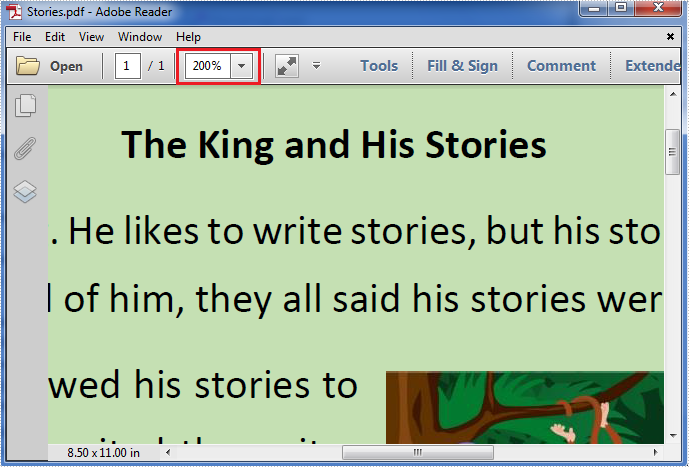
Now, please check the original zoom factor of the PDF file as below picture:
Then refer to the following detail steps:
Step 1: Create a new instance of PdfDocument class, load the original PDF file and get its first page.
PdfDocument pdf = new PdfDocument("Stories.pdf");
PdfPageBase page = pdf.Pages[0];
Step 2: Create a new PdfDestination object using the PdfDestination(PdfPageBase page, PointF location) class which has two parameters: the page and the page display location. Then set the value of its zoom property to the specific zoom factor/percentage.
PdfDestination dest = new PdfDestination(page, new PointF(-40f, -40f));
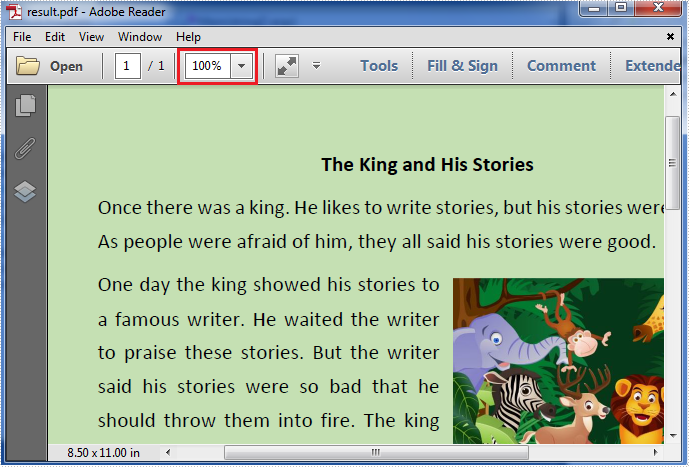
// Here we set its zoom factor to 100%. If you want to set the zoom factor to default, please set the value of zoom property to 0f.
dest.Zoom = 1f;
Step 3: Create a new instance of PdfGoToAction class and enable the zoom factor resetting action to be executed when the PDF file is opened.
PdfGoToAction gotoaction = new PdfGoToAction(dest);
pdf.AfterOpenAction = gotoaction;
Step 4: Save the PDF file.
pdf.SaveToFile("result.pdf");
The result zoom factor of the PDF file:
Full codes:
using Spire.Pdf;
using Spire.Pdf.Actions;
using Spire.Pdf.General;
using System.Drawing;

namespace Set_the_zoom_factor
{
    class Program
    {
        static void Main(string[] args)
        {
            PdfDocument pdf = new PdfDocument("Stories.pdf");
            PdfPageBase page = pdf.Pages[0];
            PdfDestination dest = new PdfDestination(page, new PointF(-40f, -40f));
            dest.Zoom = 1f;
            PdfGoToAction gotoaction = new PdfGoToAction(dest);
            pdf.AfterOpenAction = gotoaction;
            pdf.SaveToFile("result.pdf");
        }
    }
}
Imports Spire.Pdf
Imports Spire.Pdf.Actions
Imports Spire.Pdf.General
Imports System.Drawing

Namespace Set_the_zoom_factor
	Class Program
		Private Shared Sub Main(args As String())
			Dim pdf As New PdfDocument("Stories.pdf")
			Dim page As PdfPageBase = pdf.Pages(0)
			Dim dest As New PdfDestination(page, New PointF(-40F, -40F))
			dest.Zoom = 1F
			Dim gotoaction As New PdfGoToAction(dest)
			pdf.AfterOpenAction = gotoaction
			pdf.SaveToFile("result.pdf")
		End Sub
	End Class
End Namespace
C#/VB.NET: Create a Table of Contents (TOC) in PDF
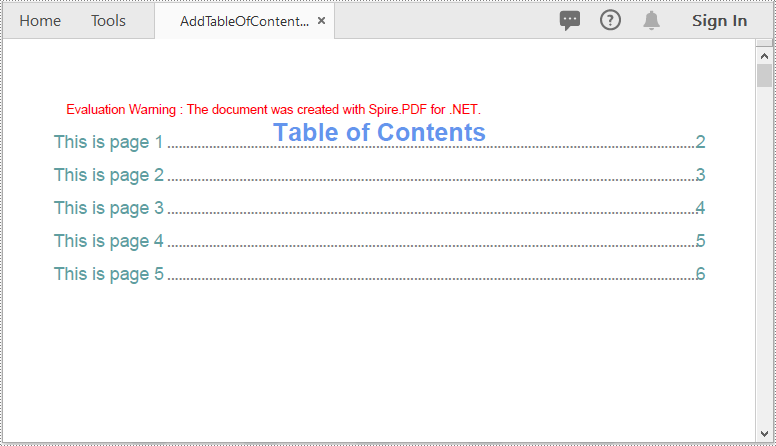
The table of contents plays a critical role in enhancing the readability and navigability of a document. It provides readers with a clear overview of the document's structure and enables them to quickly locate and access specific sections or information they are interested in. This can be especially valuable for longer documents, such as reports, books, or academic papers, where readers may need to refer back to specific sections or chapters multiple times. In this article, we'll explore how to create a table of contents in a PDF document in C# and VB.NET using Spire.PDF for .NET.
Install Spire.PDF for .NET
To begin with, you need to add the DLL files included in the Spire.PDF for.NET package as references in your .NET project. The DLL files can be either downloaded from this link or installed via NuGet.
PM> Install-Package Spire.PDF
Create a Table of Contents in PDF in C# and VB.NET
A table of contents mainly includes the TOC title (e.g. Table of Contents), TOC content, page numbers, and actions that will take you to the target pages when clicked on. To create a table of contents in PDF using Spire.PDF for .NET, you can follow these steps:
- Initialize an instance of the PdfDocument class.
- Load a PDF document using PdfDocument.LoadFromFile() method.
- Get the page count of the document using PdfDocument.Pages.Count property.
- Insert a new page into the PDF document as the first page using PdfDocument.Pages.Insert(0) method.
- Draw the TOC title, TOC content, and page numbers on the page using PdfPageBase.Canvas.DrawString() method.
- Create actions using PdfLinkAnnotation class and add the actions to the page using PdfNewPage.AnnotationsV2.Add() method.
- Save the result document using PdfDocument.SaveToFile() method.
- C#
- VB.NET
using Spire.Pdf;
using Spire.Pdf.Actions;
using Spire.Pdf.Interactive.Annotations;
using Spire.Pdf.Destinations;
using Spire.Pdf.Graphics;
using System;
using System.Drawing;

namespace TableOfContents
{
    internal class Program
    {
        static void Main(string[] args)
        {
            //Initialize an instance of the PdfDocument class
            PdfDocument doc = new PdfDocument();
            //Load a PDF document
            doc.LoadFromFile("Sample.PDF");

            //Get the page count of the document
            int pageCount = doc.Pages.Count;

            //Insert a new page into the pdf document as the first page
            PdfPageBase tocPage = doc.Pages.Insert(0);

            //Draw TOC title on the new page
            string title = "Table of Contents";
            PdfTrueTypeFont titleFont = new PdfTrueTypeFont(new Font("Arial", 20, FontStyle.Bold));
            PdfStringFormat centerAlignment = new PdfStringFormat(PdfTextAlignment.Center, PdfVerticalAlignment.Middle);
            PointF location = new PointF(tocPage.Canvas.ClientSize.Width / 2, titleFont.MeasureString(title).Height + 10);
            tocPage.Canvas.DrawString(title, titleFont, PdfBrushes.CornflowerBlue, location, centerAlignment);

            //Draw TOC content on the new page
            PdfTrueTypeFont titlesFont = new PdfTrueTypeFont(new Font("Arial", 14));
            String[] titles = new String[pageCount];
            for (int i = 0; i < titles.Length; i++)
            {
                titles[i] = string.Format("This is page {0}", i + 1);
            }
            float y = titleFont.MeasureString(title).Height + 10;
            float x = 0;

            //Draw page numbers of the target pages on the new page
            for (int i = 1; i <= pageCount; i++)
            {
                string text = titles[i - 1];
                SizeF titleSize = titlesFont.MeasureString(text);

                PdfPageBase navigatedPage = doc.Pages[i];

                string pageNumText = (i + 1).ToString();
                SizeF pageNumTextSize = titlesFont.MeasureString(pageNumText);
                tocPage.Canvas.DrawString(text, titlesFont, PdfBrushes.CadetBlue, 0, y);
                float dotLocation = titleSize.Width + 2 + x;
                float pageNumlocation = tocPage.Canvas.ClientSize.Width - pageNumTextSize.Width;
                for (float j = dotLocation; j < pageNumlocation; j++)
                {
                    if (dotLocation >= pageNumlocation)
                    {
                        break;
                    }
                    tocPage.Canvas.DrawString(".", titlesFont, PdfBrushes.Gray, dotLocation, y);
                    dotLocation += 3;
                }
                tocPage.Canvas.DrawString(pageNumText, titlesFont, PdfBrushes.CadetBlue, pageNumlocation, y);

                //Add actions that will take you to the target pages when clicked on to the new page
                location = new PointF(0, y);
                RectangleF titleBounds = new RectangleF(location, new SizeF(tocPage.Canvas.ClientSize.Width, titleSize.Height));
                PdfXYZExplicitDestination Dest = new PdfXYZExplicitDestination(navigatedPage, -doc.PageSettings.Margins.Top, -doc.PageSettings.Margins.Left);
                PdfLinkAnnotation action = new PdfLinkAnnotation(tocPage, titleBounds, new PdfGoToAction(Dest));
                action.Border.Width = 0;
                (tocPage as PdfNewPage).AnnotationsV2.Add(action);
                y += titleSize.Height + 10;
            }

            //Save the result pdf document
            doc.SaveToFile("AddTableOfContents.pdf");
            doc.Close();
        }
    }
}
Apply for a Temporary License
If you'd like to remove the evaluation message from the generated documents, or to get rid of the function limitations, please request a 30-day trial license for yourself.
Set XMP Metadata of a PDF Document in C#/VB.NET
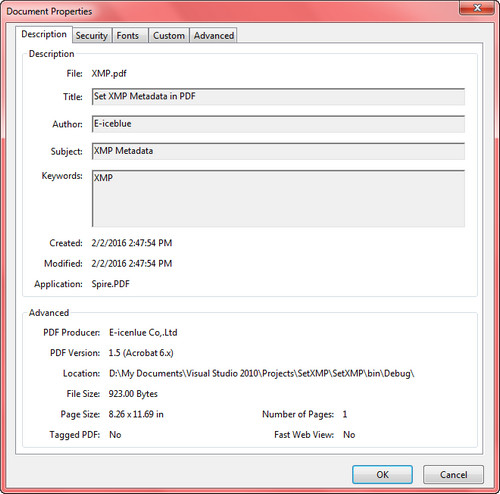
XMP is a file labeling technology that lets you embed metadata into files themselves during the content creation process. With an XMP enabled application, your workgroup can capture meaningful information about a project (such as titles and descriptions, searchable keywords, and up-to-date author and copyright information) in a format that is easily understood by your team as well as by software applications, hardware devices, and even file formats.
In the Spire.PDF Version 3.6.135 and above, we add a new feature to read, set and load an existing XMP data from XML documents. This article presents how to set XMP Metadata while creating a PDF document.
Code Snippet:
Step 1: Initialize a new instance of PdfDocument class.
string input = "..\\..\\..\\..\\..\\..\\Data\\SetXMPMetadata.pdf";

// Open a PDF document.
PdfDocument doc = new PdfDocument();
doc.LoadFromFile(input);

// Set XMP metadata for the document.
doc.DocumentInformation.Author = "E-iceblue";
doc.DocumentInformation.Creator = "Spire.PDF";
doc.DocumentInformation.Keywords = "XMP";
doc.DocumentInformation.Producer = "E-icenlue Co,.Ltd";
doc.DocumentInformation.Subject = "XMP Metadata";
doc.DocumentInformation.Title = "Set XMP Metadata in PDF";

// Specify the output file name for the modified PDF.
string output = "SetXMPMetadata.pdf";

// Save the PDF document with the updated XMP metadata.
doc.SaveToFile(output);
Output:
To view metadata in a PDF document, open it with Acrobat or Acrobat Reader and select ‘Document Properties’ in the File menu.
Full Code:
using Spire.Pdf;
using Spire.Pdf.Xmp;
using System;

namespace SetXMPMetadata
{
    class Program
    {
        static void Main(string[] args)
        {
            string input = "..\\..\\..\\..\\..\\..\\Data\\SetXMPMetadata.pdf";

            // Open a PDF document.
            PdfDocument doc = new PdfDocument();
            doc.LoadFromFile(input);

            // Set XMP metadata for the document.
            doc.DocumentInformation.Author = "E-iceblue";
            doc.DocumentInformation.Creator = "Spire.PDF";
            doc.DocumentInformation.Keywords = "XMP";
            doc.DocumentInformation.Producer = "E-icenlue Co,.Ltd";
            doc.DocumentInformation.Subject = "XMP Metadata";
            doc.DocumentInformation.Title = "Set XMP Metadata in PDF";

            // Specify the output file name for the modified PDF.
            string output = "SetXMPMetadata.pdf";

            // Save the PDF document with the updated XMP metadata.
            doc.SaveToFile(output);
        }
    }
}
Imports Spire.Pdf
Imports Spire.Pdf.Xmp

Namespace SetXMPMetadata
	Class Program
		Private Shared Sub Main(args As String())
            Load the input PDF file
            Dim input As String = "..\..\..\..\..\..\Data\SetXMPMetadata.pdf"

            ' Create a new PdfDocument object
            Dim doc As New PdfDocument()

            ' Load the PDF document from the input file
            doc.LoadFromFile(input)

            ' Set the author information in the document properties
            doc.DocumentInformation.Author = "E-iceblue"

            ' Set the creator information in the document properties
            doc.DocumentInformation.Creator = "Spire.PDF"

            ' Set the keywords information in the document properties
            doc.DocumentInformation.Keywords = "XMP"

            ' Set the producer information in the document properties
            doc.DocumentInformation.Producer = "E-icenlue Co,.Ltd"

            ' Set the subject information in the document properties
            doc.DocumentInformation.Subject = "XMP Metadata"

            ' Set the title information in the document properties
            doc.DocumentInformation.Title = "Set XMP Metadata in PDF"

            ' Specify the output file name
            Dim output As String = "SetXMPMetadata.pdf"

            ' Save the modified document to the output file
            doc.SaveToFile(output)
	   End Sub
	End Class
End Namespace
How to delete layer in PDF
With the help of Spire.PDF, we can add several kinds of layers such as line, image, string, ellipse, rectangle and pie to any page of a new or an existing pdf document. At the same time, it also supports us to delete specific layer from a pdf document.
In this section, we're going to demonstrate how to delete layer in PDF using Spire.PDF for .NET. To add layer to PDF, please check this article: How to add layers to PDF file in C#.
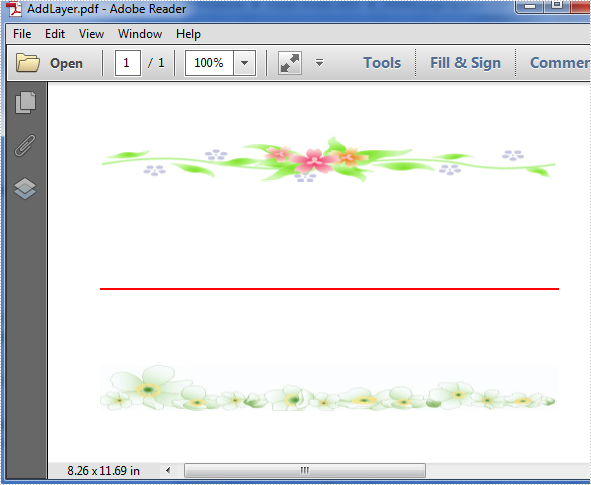
Below is the screenshot of the original PDF document which contains three layers: a red line layer and two image layers.
Before start, download Spire.PDF and install it correctly, next add the corresponding dll file from the installation folder as reference of your project.
Detail steps:
Step 1: Initialize a new instance of PdfDocument class and load the sample document from file.
PdfDocument doc = new PdfDocument();
doc.LoadFromFile("AddLayer.pdf");
Step 2: Get its first page and delete the specific layer by name from page one.
doc.Layers.RemoveLayer("red line");
Step 3: Save and launch the file.
doc.SaveToFile("delete.pdf");
System.Diagnostics.Process.Start("delete.pdf");
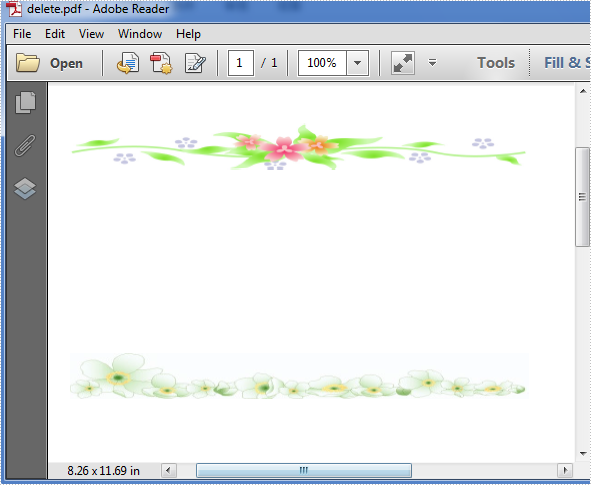
Effective screenshot after deleting:
Full codes:
using Spire.Pdf;

namespace Delete_page_layer_in_PDF
{
    class Program
    {
        static void Main(string[] args)
        {
            // Load the document from disk
            PdfDocument doc = new PdfDocument();
            doc.LoadFromFile(@"..\..\..\..\..\..\Data\DeleteLayer.pdf");

            // Remove the "red line" layer from the document
            doc.Layers.RemoveLayer("red line");

            // Save the modified document to a new file
            doc.SaveToFile("Output.pdf");

            // View the Pdf file
            PDFDocumentViewer("Output.pdf");
        }
    }
}
Insert a new PDF page to an existing PDF at a specified index
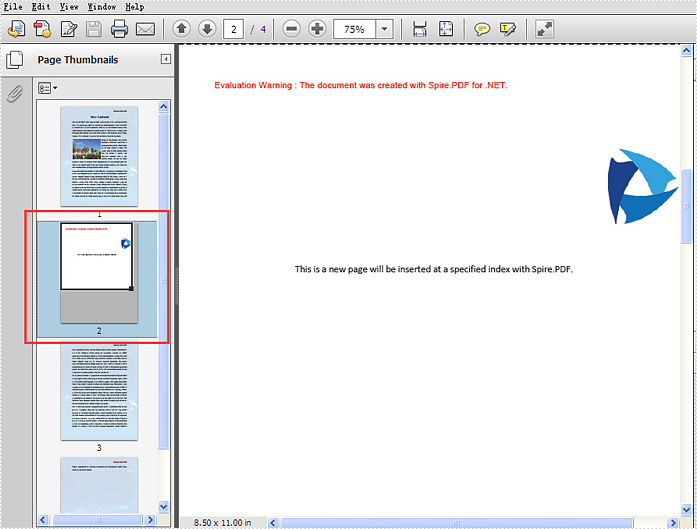
Spire.PDF offers a method of PdfDocument.MergeFiles(); to enable developers to merge PDF files easily and conveniently. This article will show you how to insert a new page from the first PDF into the second PDF file at a specified index by using the method of Pages.Insert(); offered by Spire.PDF.
Note: Before Start, please download the latest version of Spire.PDF and add Spire.PDF.dll in the bin folder as the reference of Visual Studio.
Here comes to the steps of how to insert the page from the first PDF (sample.pdf) into the second PDF (test.pdf) at a specified index:
Step 1: Create the first PDF document and load file.
PdfDocument doc1 = new PdfDocument();
doc1.LoadFromFile("sample.pdf");
Step 2: Create the second PDF document and load file.
PdfDocument doc2 = new PdfDocument();
doc2.LoadFromFile("test.pdf");
Step 3: Get the first page and its size from the first PDF document.
PdfPageBase page = doc1.Pages[0];
SizeF size = page.Size;
Step 4: Inserts a new blank page with the specified size at the specified index into the second PDF.
PdfPageBase newPage = doc2.Pages.Insert(1, size);
Step 5: Copy the contents on the page into the second PDF.
newPage.Canvas.DrawTemplate(page.CreateTemplate(), new PointF(0, 0));
Step 6: Save the document to file.
doc2.SaveToFile("result.pdf");
Effective screenshot of insert a new PDF page to an existing PDF at a specified index:
Full codes:
using Spire.Pdf;
using System.Drawing;

namespace InsertNewPage
{
    class Program
    {
        static void Main(string[] args)
        {
            PdfDocument doc1 = new PdfDocument();
            doc1.LoadFromFile("sample.pdf");
            PdfDocument doc2 = new PdfDocument();
            doc2.LoadFromFile("test.pdf");

            PdfPageBase page = doc1.Pages[0];
            SizeF size = page.Size;

            PdfPageBase newPage = doc2.Pages.Insert(1, size);
            newPage.Canvas.DrawTemplate(page.CreateTemplate(), new PointF(0, 0));

            doc2.SaveToFile("result.pdf");
        }
    }
}