Insert a new PDF page to an existing PDF at a specified index
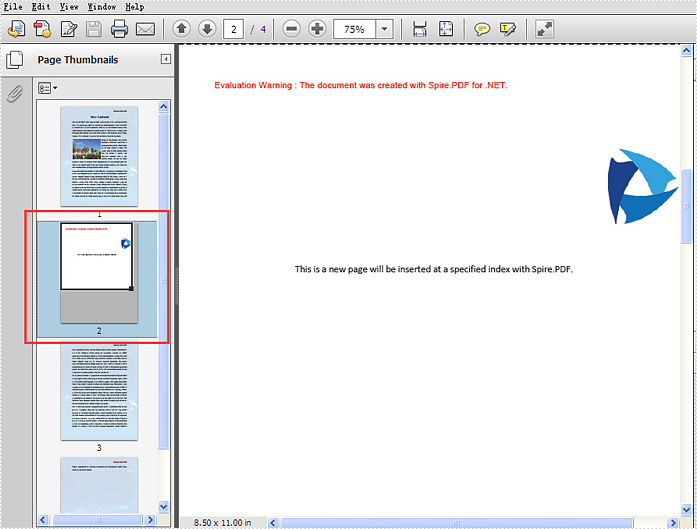
Spire.PDF offers a method of PdfDocument.MergeFiles(); to enable developers to merge PDF files easily and conveniently. This article will show you how to insert a new page from the first PDF into the second PDF file at a specified index by using the method of Pages.Insert(); offered by Spire.PDF.
Note: Before Start, please download the latest version of Spire.PDF and add Spire.PDF.dll in the bin folder as the reference of Visual Studio.
Here comes to the steps of how to insert the page from the first PDF (sample.pdf) into the second PDF (test.pdf) at a specified index:
Step 1: Create the first PDF document and load file.
PdfDocument doc1 = new PdfDocument();
doc1.LoadFromFile("sample.pdf");
Step 2: Create the second PDF document and load file.
PdfDocument doc2 = new PdfDocument();
doc2.LoadFromFile("test.pdf");
Step 3: Get the first page and its size from the first PDF document.
PdfPageBase page = doc1.Pages[0];
SizeF size = page.Size;
Step 4: Inserts a new blank page with the specified size at the specified index into the second PDF.
PdfPageBase newPage = doc2.Pages.Insert(1, size);
Step 5: Copy the contents on the page into the second PDF.
newPage.Canvas.DrawTemplate(page.CreateTemplate(), new PointF(0, 0));
Step 6: Save the document to file.
doc2.SaveToFile("result.pdf");
Effective screenshot of insert a new PDF page to an existing PDF at a specified index:
Full codes:
using Spire.Pdf;
using System.Drawing;

namespace InsertNewPage
{
    class Program
    {
        static void Main(string[] args)
        {
            PdfDocument doc1 = new PdfDocument();
            doc1.LoadFromFile("sample.pdf");
            PdfDocument doc2 = new PdfDocument();
            doc2.LoadFromFile("test.pdf");

            PdfPageBase page = doc1.Pages[0];
            SizeF size = page.Size;

            PdfPageBase newPage = doc2.Pages.Insert(1, size);
            newPage.Canvas.DrawTemplate(page.CreateTemplate(), new PointF(0, 0));

            doc2.SaveToFile("result.pdf");
        }
    }
}
How to add layers to PDF file in C#
Developers can use PDF layer to set some content to be visible and others to be invisible in the same PDF file. It makes the PDF Layer widely be used to deal with related contents within the same PDF. Now developers can easily add page layers by using class PdfPageLayer offered by Spire.PDF. This article will focus on showing how to add layers to a PDF file in C# with the help of Spire.PDF.
Note: Before Start, please download the latest version of Spire.PDF and add Spire.PDF.dll in the bin folder as the reference of Visual Studio.
Here comes to the details:
Step 1: Create a new PDF document
PdfDocument pdfdoc = new PdfDocument();
Step 2: Add a new page to the PDF document.
PdfPageBase page = pdfdoc.Pages.Add();
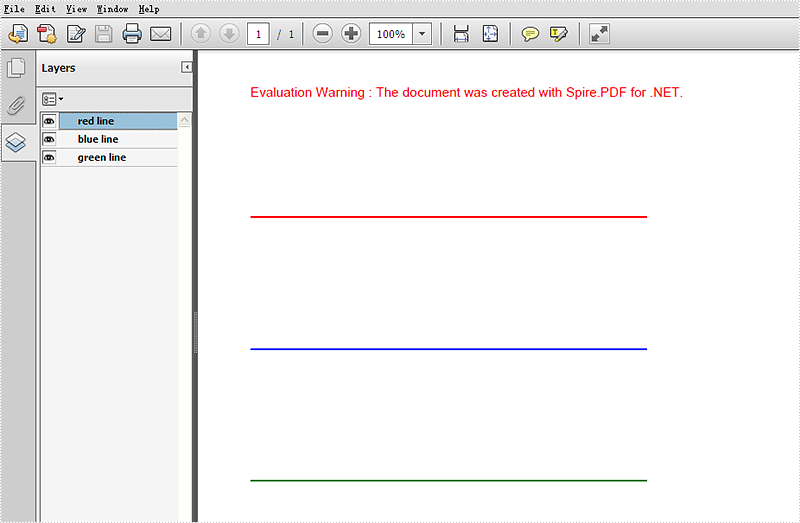
Step 3: Add a layer named "red line" to the PDF page.
PdfLayer layer = doc.Layers.AddLayer("red line", PdfVisibility.On);
Step 4: Draw a red line to the added layer.
// Create a graphics context for drawing on the specified page's canvas using the created layer
 PdfCanvas pcA = layer.CreateGraphics(page.Canvas);

 // Draw a red line on the graphics context using a pen with thickness 2, starting from (100, 350) to (300, 350)
 pcA.DrawLine(new PdfPen(PdfBrushes.Red, 2), new PointF(100, 350), new PointF(300, 350));
Step 5: Use the same method above to add the other two layers to the PDF page.
layer = doc.Layers.AddLayer("blue line");
PdfCanvas pcB = layer.CreateGraphics(doc.Pages[0].Canvas);
pcB.DrawLine(new PdfPen(PdfBrushes.Blue, 2), new PointF(100, 400), new PointF(300, 400));
layer = doc.Layers.AddLayer("green line");
PdfCanvas pcC = layer.CreateGraphics(doc.Pages[0].Canvas);
pcC.DrawLine(new PdfPen(PdfBrushes.Green, 2), new PointF(100, 450), new PointF(300, 450));
Step 6: Save the document to file.
pdfdoc.SaveToFile("AddLayers.pdf", FileFormat.PDF);
Effective screenshot:
Full codes:
using Spire.Pdf;
using Spire.Pdf.Graphics;
using System.Drawing;

namespace AddLayer
{
    class Program
    {
        static void Main(string[] args)
        {
  // Create a new PdfDocument object
  PdfDocument doc = new PdfDocument();

  // Load an existing PDF document from the specified file path
  doc.LoadFromFile(@"..\..\..\..\..\..\Data\AddLayers.pdf");

  // Get the first page of the loaded document
  PdfPageBase page = doc.Pages[0];

  // Create a new layer named "red line" with visibility set to "On"
  PdfLayer layer = doc.Layers.AddLayer("red line", PdfVisibility.On);

  // Create a graphics context for drawing on the specified page's canvas using the created layer
  PdfCanvas pcA = layer.CreateGraphics(page.Canvas);

  // Draw a red line on the graphics context using a pen with thickness 2, starting from (100, 350) to (300, 350)
  pcA.DrawLine(new PdfPen(PdfBrushes.Red, 2), new PointF(100, 350), new PointF(300, 350));

  // Create a new layer named "blue line" without specifying visibility (default is "Off")
  layer = doc.Layers.AddLayer("blue line");

  // Create a graphics context for drawing on the first page's canvas using the newly created layer
  PdfCanvas pcB = layer.CreateGraphics(doc.Pages[0].Canvas);

  // Draw a blue line on the graphics context using a pen with thickness 2, starting from (100, 400) to (300, 400)
  pcB.DrawLine(new PdfPen(PdfBrushes.Blue, 2), new PointF(100, 400), new PointF(300, 400));

  // Create a new layer named "green line" without specifying visibility (default is "Off")
  layer = doc.Layers.AddLayer("green line");

  // Create a graphics context for drawing on the first page's canvas using the newly created layer
  PdfCanvas pcC = layer.CreateGraphics(doc.Pages[0].Canvas);

  // Draw a green line on the graphics context using a pen with thickness 2, starting from (100, 450) to (300, 450)
  pcC.DrawLine(new PdfPen(PdfBrushes.Green, 2), new PointF(100, 450), new PointF(300, 450));

  // Specify the output file name for the modified PDF
  string output = "AddLayers.pdf";

  // Save the modified PDF document to the specified output file
  doc.SaveToFile(output);
        }
    }
}
Split PDF into Multiple PDFs using a Range of Pages in C#/VB.NET
Splitting a multi-page PDF into single pages is perfectly supported by Spire.PDF. However, it's more common that you may want to extract selected range of pages and save as a new PDF document. In this post, you'll learn how to split a PDF file based on a range of pages via Spire.PDF in C#, VB.NET.
Here come the detailed steps:
Step 1: Initialize a new instance of PdfDocument class and load the test file.
PdfDocument pdf = new PdfDocument();
pdf.LoadFromFile("Sample.pdf");
Step 2: Create a new PDF document named as pdf1, initialize a new instance of PdfPageBase class.
PdfDocument pdf1 = new PdfDocument();
PdfPageBase page;
Step 3: Add new page to pdf1 based on the original page size and the specified margins, draw the original page element to the new page using Draw() method. Use for loop to select pages that you want them to be divided.
for (int i = 0; i < 5; i++)
{
    page = pdf1.Pages.Add(pdf.Pages[i].Size, new Spire.Pdf.Graphics.PdfMargins(0));
    pdf.Pages[i].CreateTemplate().Draw(page, new System.Drawing.PointF(0, 0));
}
Step 4: Save the file.
pdf1.SaveToFile("DOC_1.pdf");
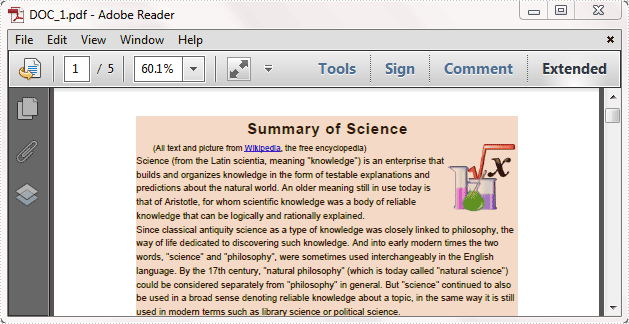
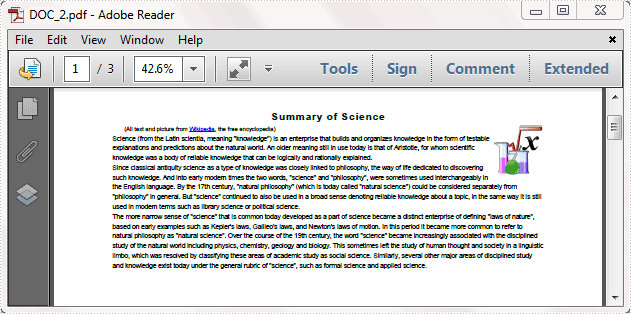
Step 5: Repeat step 2 to step 4 to extract another range of pages to a new PDF file. Change the parameter i to choose the pages.
PdfDocument pdf2 = new PdfDocument();
for (int i = 5; i < 8; i++)
{
    page = pdf2.Pages.Add(pdf.Pages[i].Size, new Spire.Pdf.Graphics.PdfMargins(0));
    pdf.Pages[i].CreateTemplate().Draw(page, new System.Drawing.PointF(0, 0));
}
pdf2.SaveToFile("DOC_2.pdf");
Result:
Full code:
using Spire.Pdf;

namespace SplitPDFFile
{
    class Program
    {
        static void Main(string[] args)
        {
            PdfDocument pdf = new PdfDocument();
            pdf.LoadFromFile("Sample.pdf");

            PdfDocument pdf1 = new PdfDocument();
            PdfPageBase page;
            for (int i = 0; i < 5; i++)
            {
                page = pdf1.Pages.Add(pdf.Pages[i].Size, new Spire.Pdf.Graphics.PdfMargins(0));
                pdf.Pages[i].CreateTemplate().Draw(page, new System.Drawing.PointF(0, 0));
            }
            pdf1.SaveToFile("DOC_1.pdf");

            PdfDocument pdf2 = new PdfDocument();
            for (int i = 5; i < 8; i++)
            {
                page = pdf2.Pages.Add(pdf.Pages[i].Size, new Spire.Pdf.Graphics.PdfMargins(0));
                pdf.Pages[i].CreateTemplate().Draw(page, new System.Drawing.PointF(0, 0));
            }
            pdf2.SaveToFile("DOC_2.pdf");
        }
    }
}
Imports Spire.Pdf

Namespace SplitPDFFile
	Class Program
		Private Shared Sub Main(args As String())
			Dim pdf As New PdfDocument()
pdf.LoadFromFile("Sample.pdf")

Dim pdf1 As New PdfDocument()
Dim page As PdfPageBase
For i As Integer = 0 To 4
	page = pdf1.Pages.Add(pdf.Pages(i).Size, New Spire.Pdf.Graphics.PdfMargins(0))
	pdf.Pages(i).CreateTemplate().Draw(page, New System.Drawing.PointF(0, 0))
Next
pdf1.SaveToFile("DOC_1.pdf")

Dim pdf2 As New PdfDocument()
For i As Integer = 5 To 7
	page = pdf2.Pages.Add(pdf.Pages(i).Size, New Spire.Pdf.Graphics.PdfMargins(0))
	pdf.Pages(i).CreateTemplate().Draw(page, New System.Drawing.PointF(0, 0))
Next
pdf2.SaveToFile("DOC_2.pdf")
		End Sub
	End Class
End Namespace
Merge Multiple File Types into One PDF in C#/VB.NET
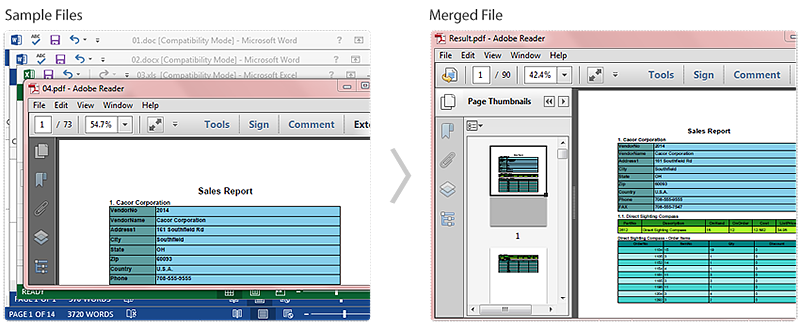
Maybe you have met this case in your work: You receive a lot of files that are in different file types, some are Word, some are PowerPoint slides, or some are Excel, etc, and you need to combine these files to one PDF for easy sharing. In this article, I’ll introduce you how to convert each file type into an Adobe PDF and then simultaneously merge them into a single PDF document using Spire.Office.
In this sample, I get four types of file (.doc, .docx, .xls, .pdf) prepared at first. Within the Spire.Office, it provides SaveToStream() method which allows us to save Word and Excel documents into stream, then these streams can be converted to PDF documents by calling the method of PdfDocument(Stream stream). At last, we could merge these PDF files to one file with the method PdfDocument.AppendPage(). More details would be as follows:
Code Snippet for Merge Multiple File Types to One PDF
Step 1: Create four new PDF documents.
PdfDocument[] documents = new PdfDocument[4];
Step 2: Load the .doc file, save it into stream and generate new PDF document from the stream.
using (MemoryStream ms1 = new MemoryStream())
{
      Document doc = new Document("01.doc", Spire.Doc.FileFormat.Doc);
      doc.SaveToStream(ms1, Spire.Doc.FileFormat.PDF);
      documents[0] = new PdfDocument(ms1);
}
Step 3: Repeat Step 2 to generate two PDF documents from .docx file and .xls file.
using (MemoryStream ms2 = new MemoryStream())
{
      Document docx = new Document("02.docx", Spire.Doc.FileFormat.Docx2010);
      docx.SaveToStream(ms2, Spire.Doc.FileFormat.PDF);
      documents[1] = new PdfDocument(ms2);
}
using (MemoryStream ms3 = new MemoryStream())
{
      Workbook workbook = new Workbook();
      workbook.LoadFromFile("03.xls", ExcelVersion.Version97to2003);
      workbook.SaveToStream(ms3, Spire.Xls.FileFormat.PDF);
      documents[2] = new PdfDocument(ms3);
}
Step 4: Load .pdf file and save it to documents[3].
documents[3] = new PdfDocument("04.pdf");
Step 5: Append the documents[0],[1],[2] to documents[3] and save as a new PDF document.
for (int i = 2; i > -1; i--)
{
      documents[3].AppendPage(documents[i]);
}
documents[3].SaveToFile("Result.pdf");
Screenshot of the Effect:
Full Code:
using Spire.Doc;
using Spire.Xls;
using Spire.Pdf;

namespace MergeMultiTypestoOnePDF
{
    class Program
    {
        static void Main(string[] args)
        {
            PdfDocument[] documents = new PdfDocument[4];
            using (MemoryStream ms1 = new MemoryStream())
            {
                Document doc = new Document("01.doc", Spire.Doc.FileFormat.Doc);
                doc.SaveToStream(ms1, Spire.Doc.FileFormat.PDF);
                documents[0] = new PdfDocument(ms1);
            }
            using (MemoryStream ms2 = new MemoryStream())
            {
                Document docx = new Document("02.docx", Spire.Doc.FileFormat.Docx2010);
                docx.SaveToStream(ms2, Spire.Doc.FileFormat.PDF);
                documents[1] = new PdfDocument(ms2);
            }
            using (MemoryStream ms3 = new MemoryStream())
            {
                Workbook workbook = new Workbook();
                workbook.LoadFromFile("03.xls", ExcelVersion.Version97to2003);
                workbook.SaveToStream(ms3, Spire.Xls.FileFormat.PDF);
                documents[2] = new PdfDocument(ms3);
            }
            documents[3] = new PdfDocument("04.pdf");

            for (int i = 2; i > -1; i--)
            {
                documents[3].AppendPage(documents[i]);
            }

            documents[3].SaveToFile("Result.pdf");

        }
    }
}
Imports Spire.Doc
Imports Spire.Xls
Imports Spire.Pdf

Namespace MergeMultiTypestoOnePDF
	Class Program
		Private Shared Sub Main(args As String())
			Dim documents As PdfDocument() = New PdfDocument(3) {}
			Using ms1 As New MemoryStream()
				Dim doc As New Document("01.doc", Spire.Doc.FileFormat.Doc)
				doc.SaveToStream(ms1, Spire.Doc.FileFormat.PDF)
				documents(0) = New PdfDocument(ms1)
			End Using
			Using ms2 As New MemoryStream()
				Dim docx As New Document("02.docx", Spire.Doc.FileFormat.Docx2010)
				docx.SaveToStream(ms2, Spire.Doc.FileFormat.PDF)
				documents(1) = New PdfDocument(ms2)
			End Using
			Using ms3 As New MemoryStream()
				Dim workbook As New Workbook()
				workbook.LoadFromFile("03.xls", ExcelVersion.Version97to2003)
				workbook.SaveToStream(ms3, Spire.Xls.FileFormat.PDF)
				documents(2) = New PdfDocument(ms3)
			End Using
			documents(3) = New PdfDocument("04.pdf")

			For i As Integer = 2 To -1 + 1 Step -1
				documents(3).AppendPage(documents(i))
			Next

			documents(3).SaveToFile("Result.pdf")

		End Sub
	End Class
End Namespace
Merge Selected Pages from Multiple PDF Files into One in C#/VB.NET
Using Spire.PDF, you can not only merge multiple PDF files into a single file, but also select specific pages from the source files and combine them in one PDF document. The following code snippets demonstrate the same.
Step 1: Get the PDF file paths and store in a string array.
string[] files = { "Sample1.pdf", "Sample2.pdf", "Sample3.pdf" };
Step 2: Load each PDF document to an object of PdfDocument and store all these objects in PdfDocument array.
         PdfDocument[] docs = new PdfDocument[files.Length];

        for (int i = 0; i < files.Length; i++)
        {
            docs[i] = new PdfDocument(files[i]);
        }
Step 3: Create an instance of PdfDocument class.
PdfDocument doc = new PdfDocument();
Step 4: Call InsertPage(PdfDocument doc, int pageIndex) method and InertPageRange(PdfDocument doc, int startIndex, int endIndex) method to insert selected pages to the new PDF document.
       doc.InsertPage(docs[0], 0);
       doc.InsertPage(docs[1], 1);
       doc.InsertPageRange(docs[2], 2, 5);
Step 5: Save and launch the file.
       doc.SaveToFile("Result.pdf");
       Process.Start("Result.pdf");
Screen Shot of Effect:
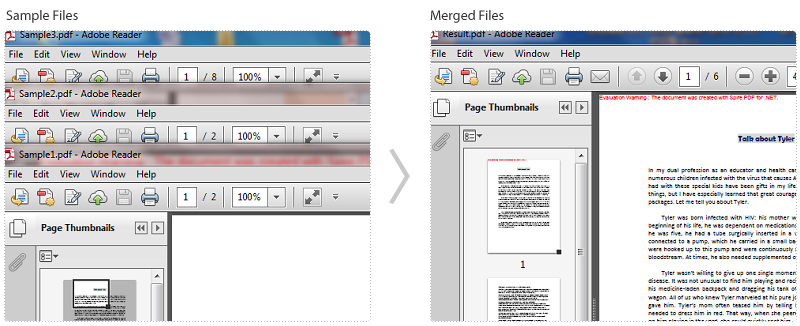
The six pages in the result file are extracted from three sample PDF files.
Full Code:
using Spire.Pdf;
using System.Diagnostics;

namespace MergeSelectedPages
{
    class Program
    {
        static void Main(string[] args)
        {
            string[] files = { "Sample1.pdf", "Sample2.pdf", "Sample3.pdf" };
            PdfDocument[] docs = new PdfDocument[files.Length];

            //open pdf documents
            for (int i = 0; i < files.Length; i++)
            {
                docs[i] = new PdfDocument(files[i]);
            }

            //create a new pdf document and insert selected pages
            PdfDocument doc = new PdfDocument();
            doc.InsertPage(docs[0], 0);
            doc.InsertPage(docs[1], 1);
            doc.InsertPageRange(docs[2], 2, 5);


            doc.SaveToFile("Result.pdf");
            Process.Start("Result.pdf");
        }
    }
}
Imports Spire.Pdf
Imports System.Diagnostics

Namespace MergeSelectedPages
	Class Program
		Private Shared Sub Main(args As String())
			Dim files As String() = {"Sample1.pdf", "Sample2.pdf", "Sample3.pdf"}
Dim docs As PdfDocument() = New PdfDocument(files.Length - 1) {}

'open pdf documents
For i As Integer = 0 To files.Length - 1
	docs(i) = New PdfDocument(files(i))
Next

'create a new pdf document and insert selected pages
Dim doc As New PdfDocument()
doc.InsertPage(docs(0), 0)
doc.InsertPage(docs(1), 1)
doc.InsertPageRange(docs(2), 2, 5)

doc.SaveToFile("Result.pdf")
Process.Start("Result.pdf")
		End Sub
	End Class
End Namespace
How to Load and Save PDF Files in Streams Using C#

PDF documents are ubiquitous in modern applications, and efficient handling of these files is crucial for developers. In C#, working with PDF files using streams offers memory efficiency and flexibility, especially in web applications, cloud services, or when handling dynamic content.
Spire.PDF, a robust PDF processing library, simplifies these operations with its intuitive API. This article explores how to create, load, and save PDF documents using streams in C#, covering the following aspects.
- Why Use Streams for PDF Processing?
- Getting Started with Spire.PDF
- Create a PDF File and Save it to Stream in C#
- Load a PDF from Stream in C#
- Advanced Example: Merge Multiple PDFs by Streams
Why Use Streams for PDF Processing?
Stream-based PDF handling in C# offers significant advantages for modern applications:
- Memory Efficiency: Process large PDFs without loading entire files into memory.
- Scalability: Ideal for web applications and cloud environments.
- Reduced I/O Operations: Minimize disk reads/writes for faster performance.
- Flexibility: Integrate with APIs, databases, and cloud storage seamlessly.
Getting Started with Spire.PDF
Spire.PDF is a feature-rich library that simplifies PDF manipulation in .NET applications. Here’s how to install it:
- Via NuGet Package Manager (Recommended):
In Package Manager Console, run the following command to install:
PM> Install-Package Spire.PDF - 2Manual Installation:
Download the DLL files from the official website and add a reference to your project.
Create a PDF File and Save it to Stream in C#
This task can be divided into three main parts. Follow the steps below to dynamically create a PDF file and save it to the stream.
- Create a PDF document.
- Initialize an instance of the PdfDocument class to represent a PDF file.
- Add a page to the PDF file.
- Add content to the PDF (in this case, a simple text string).
- Use the PdfPageBase.Canvas.DrawString() method to draw a simple text string on the page. (Comprehensive guide: Create a PDF Document in C#)
- Spire.PDF also allows to add various elements to PDF, such as images, tables, form fields, digital signatures, etc.
- 3. Save to a Stream
- Initialize an instance of the FileStream or the MemoryStream class.
- Call the PdfDocument.SaveToStream(Stream stream) method to save the PDF file to stream.
Code Example:
- C#
using Spire.Pdf;
using System.IO;
using Spire.Pdf.Graphics;
using System.Drawing;

namespace SavePdfToStream
{
    class Program
    {
        static void Main(string[] args)
        {

            // Create a PdfDocument instance
            PdfDocument pdf = new PdfDocument();

            // Add a page
            PdfPageBase page = pdf.Pages.Add();

            // Draw text on the page
            page.Canvas.DrawString("Hello, World!",
                                   new PdfFont(PdfFontFamily.Helvetica, 30f),
                                   new PdfSolidBrush(Color.Blue),
                                   100, 100);

            // Save the PDF file to Stream
            FileStream toStream = new FileStream("SavePdfToStream.pdf", FileMode.OpenOrCreate);
            pdf.SaveToStream(toStream);
            toStream.Close();
            pdf.Close();
        }
    }
}
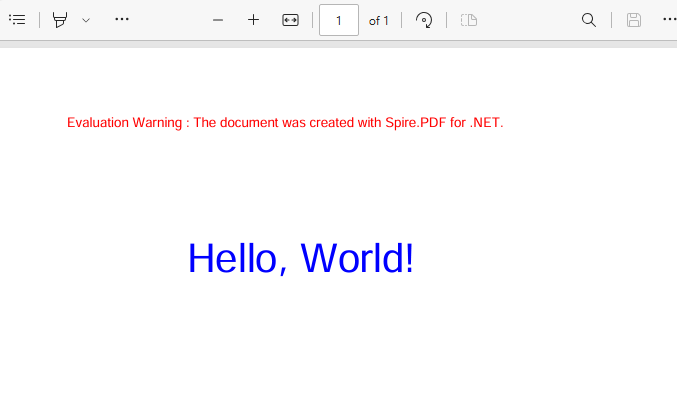
A screenshot of the generated PDF:
Load a PDF from Stream in C#
Streams provide a flexible way to read PDFs from different sources, such as:
- FileStream: represents a stream of data stored in a physical file.
- MemoryStream: represents a stream of data stored in memory (RAM).
Their differences lie in:
| Feature | FileStream | MemoryStream |
| Storage | Disk | Memory (RAM) |
| Performance | Slower (disk I/O) | Faster (no disk access) |
| Use Case | Persistent files, large data | Temporary data, in-memory processing |
| Size Limit | Limited by disk space | Limited by available RAM |
The PdfDocument.LoadFromStream(Stream stream) method of Spire.PDF library supports loading an existing PDF from a stream directly. The code example is shown below:
- C#
using Spire.Pdf;
using System.IO;

namespace LoadPdfFromStream
{
    class Program
    {
        static void Main(string[] args)
        {

            // Create a PdfDocument instance
            PdfDocument pdf = new PdfDocument();

            // Load PDF file from memory stream
            MemoryStream stream = new MemoryStream();
            File.OpenRead("sample.pdf").CopyTo(stream);
            pdf.LoadFromStream(stream);

            // Load PDF file from file stream
            //FileStream stream = File.OpenRead("sample.pdf");
            //pdf.LoadFromStream(stream);

            // Save the PDF file to disk
            pdf.SaveToFile("LoadPdfFromStream.pdf", FileFormat.PDF);
            pdf.Close();
        }
    }
}
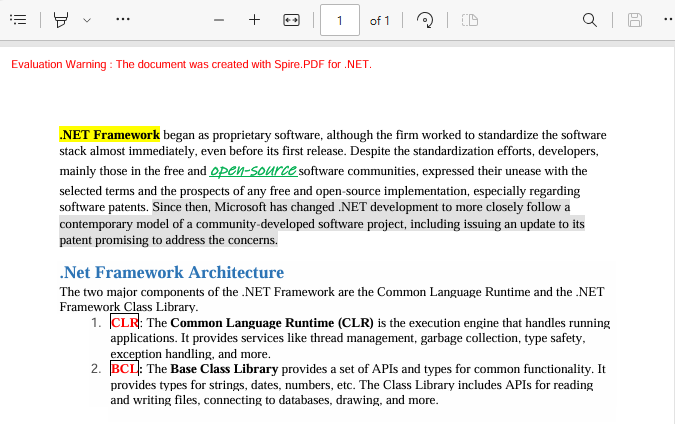
A screenshot of the loaded PDF file:
Advanced Example: Merge Multiple PDFs by Streams
By mastering the skills of loading and saving PDFs using streams, you can combine it with other PDF processing functions to perform advanced PDF stream operations.
Below is an example on how to combine multiple PDFs into a single document using streams:
- C#
using System.IO;
using Spire.Pdf;

namespace MergePDFsByStream
{
    class Program
    {
        static void Main(string[] args)
        {
            // Specify the files to be merged
            string[] pdfFiles = {
                "MergePdfsTemplate_1.pdf",
                "MergePdfsTemplate_2.pdf",
                "MergePdfsTemplate_3.pdf"
            };

            // Initialize FileStreams for input PDF files
            FileStream[] streams = new FileStream[pdfFiles.Length];
            for (int i = 0; i < pdfFiles.Length; i++)
            {
                streams[i] = File.OpenRead(pdfFiles[i]);
            }

            // Merge the PDF files using the streams
            PdfDocumentBase pdf = PdfDocument.MergeFiles(streams);

            // Save the merged PDF file
            pdf.Save("MergePDFByStream.pdf", FileFormat.PDF);

        }
    }
}
Conclusion
Working with PDF files in streams using C# and Spire.PDF provides a flexible and efficient way to handle document processing tasks. Whether you’re loading, modifying existing PDF documents, or saving PDF files, streams offer a memory-efficient alternative to traditional file-based approaches.
To learn more advanced PDF processing features, explore Spire.PDF’s official documentation.
Get a Free License
To fully experience the capabilities of Spire.PDF for .NET without any evaluation limitations, you can request a free 30-day trial license.
C#/VB.NET: Find and Remove Blank Pages from PDF
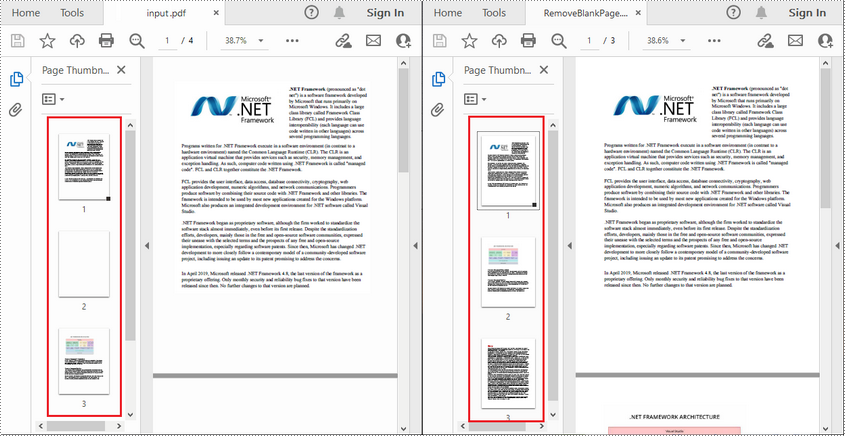
Blank pages in PDFs are not uncommon to find because they may have been left intentionally by the author or added accidentally when manipulating documents. These blank pages can be annoying when you are reading or printing the document, so it may be quite necessary to remove them. In this article you will learn how to programmatically find and remove blank pages from PDF documents using Spire.PDF for .NET.
Install Spire.PDF for .NET
To begin with, you need to add the DLL files included in the Spire.PDF for.NET package as references in your .NET project. The DLLs files can be either downloaded from this link or installed via NuGet.
PM> Install-Package Spire.PDF
Find and Delete Blank Pages from a PDF Document
Spire.PDF for .NET provides a method PdfPageBase.IsBlank() to detect if a PDF page is absolutely blank. But some pages that look blank actually contain white images, these pages won't be deemed as blank using the PdfPageBase.IsBlank() method. Therefore, it is necessary to create a custom method IsImageBlank() to be used in conjunction with PdfPageBase.IsBlank() method to detect these white but non-blank pages.
Note: This solution will convert PDF pages into images and detect if an image is blank. It is necessary to apply a license to remove the evaluation message in the converted images. Otherwise, this method won't work properly. If you do not have a license, contact sales@e-iceblue.com for a temporary one for evaluation purpose.
The detailed steps are as follows:
- Create a PdfDocument instance.
- Load a PDF document using PdfDocument.LoadFromFile() method.
- Loop through the pages in the PDF document to detect if the pages are blank using PdfPageBase.IsBlank() method.
- For absolutely blank pages, delete them using PdfDocument.Pages.RemoveAt() method.
- For pages that are not absolutely blank, save them as images using PdfDocument.SaveAsImage() method. Then detect if the converted images are blank using custom method IsImageBlank() and remove the pages that are "blank" using PdfDocument.Pages.RemoveAt() method.
- Save the result document using PdfDocument.SaveToFile() method.
- C#
- VB.NET
using Spire.Pdf;
using Spire.Pdf.Graphics;
using System.Drawing;

namespace DeleteBlankPage
{
    class Program
    {
        static void Main(string[] args)
        {
            //Apply license by license key
            Spire.Pdf.License.LicenseProvider.SetLicenseKey("your license key");

            //Create a PdfDocument instance
            PdfDocument document = new PdfDocument();

            //Load a sample PDF document
            document.LoadFromFile("input.pdf");

            //Loop through all pages in the PDF
            for (int i = document.Pages.Count - 1; i >= 0; i--)
            {
                //Detect if a page is blank
                if (document.Pages[i].IsBlank())
                {
                    //Remove the absolutely blank page
                    document.Pages.RemoveAt(i);
                }
                else
                {
                    //Save PDF page as image
                    Image image = document.SaveAsImage(i, PdfImageType.Bitmap);

                    //Detect if the converted image is blank
                    if (IsImageBlank(image))
                    {
                        //Remove the page
                        document.Pages.RemoveAt(i);
                    }
                }
            }

            //Save the result document
            document.SaveToFile("RemoveBlankPage.pdf", FileFormat.PDF);
        }

        //Detect if an image is blank
        public static bool IsImageBlank(Image image)
        {
            Bitmap bitmap = new Bitmap(image);
            for (int i = 0; i < bitmap.Width; i++)
            {
                for (int j = 0; j < bitmap.Height; j++)
                {
                    Color pixel = bitmap.GetPixel(i, j);
                    if (pixel.R < 240 || pixel.G < 240 || pixel.B < 240)
                    {
                        return false;
                    }
                }
            }
            return true;
        }
    }
}
Apply for a Temporary License
If you'd like to remove the evaluation message from the generated documents, or to get rid of the function limitations, please request a 30-day trial license for yourself.
Create PDF/A and insert hyperlink to image in C#
PDF/A is widely used for long term archiving for PDF format. By using Spire.PDF, you can create PDF/A file directly. This article mainly shows how to set up PDF/A file; it will also demonstrate how to add image and insert hyperlink to image in C#.
Make sure Spire.PDF for .NET (version 2.9.43 or above) has been installed correctly and then add Spire.Pdf.dll as reference in the downloaded Bin folder though the below path: "..\Spire.Pdf\Bin\NET4.0\ Spire.Pdf.dll".
Here comes to the steps:
Step 1: Create a PDF/A document.
// Create a PdfDocument instance
PdfDocument document = new PdfDocument();
PdfPageBase page = document.Pages.Add();
page.Canvas.DrawString("Hello World", new PdfFont(PdfFontFamily.Helvetica, 30f), new PdfSolidBrush(Color.Black), 10, 10);
Step 2: Load an image from file and insert to the PDF.
//insert an image
PdfImage image = PdfImage.FromFile(@"D:\PDF.png");
Step 3: Add a hyper link to the image.
//Add a link to image
PointF location = new PointF(100, 100);
RectangleF linkBounds = new RectangleF(location, new SizeF(image.Width, image.Height));
PdfURIAction uriAction = new PdfURIAction("http://www.e-iceblue.com/Introduce/pdf-for-net-introduce.html");
PdfLinkAnnotation link = new PdfLinkAnnotation(page, linkBounds, uriAction);
// The Border property is read-only in the new API; set Width to 0 to draw no border (same effect as the old zero-width border setting).
link.Border.Width = 0f;
page.Canvas.DrawImage(image, linkBounds);
PdfAnnotationCollection.Create(page).Add(link);
Step 4: Save the PDF document.
//Save the document to file in PDF format
String output1 = @"..\..\..\..\..\..\Data\ToPDF.pdf";
document.SaveToFile(output1);

// Create an instance of the PdfStandardsConverter class, passing the input PDF file path as a parameter.
PdfStandardsConverter converter = new PdfStandardsConverter(output1);

// Specify the desired file name for the resulting PDFA-1b compliant PDF.
String output2 = @"..\..\..\..\..\..\Data\ToPDFA.pdf";

// Convert the input PDF file to PDFA-1b format and save it using the specified output file name.
converter.ToPdfA1B(output2);
Effective screenshot:

C#/VB.NET: Change PDF Version
When uploading or submitting PDF files on certain platforms, you are sometimes faced with the dilemma that the platforms require a specific version of PDF file. If your PDF files fail to meet the requirements, it is necessary to convert them to a different version for compatibility purposes. This article will demonstrate how to programmatically convert PDF between different versions using Spire.PDF for .NET.
Install Spire.PDF for .NET
To begin with, you need to add the DLL files included in the Spire.PDF for.NET package as references in your .NET project. The DLL files can be either downloaded from this link or installed via NuGet.
PM> Install-Package Spire.PDF
Change PDF Version in C# and VB.NET
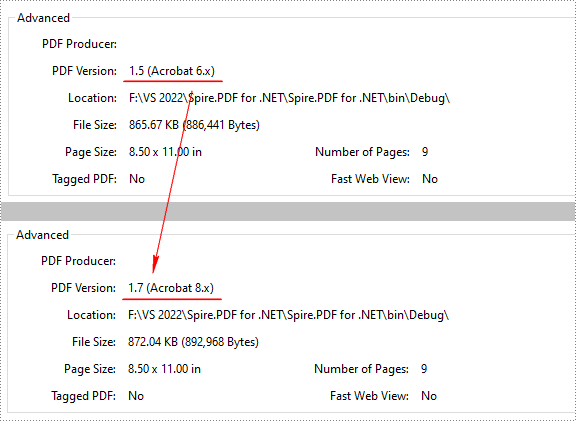
Spire.PDF for .NET supports PDF versions from 1.0 to 1.7. To convert a PDF file to a newer or older version, you can use the PdfDocument.FileInfo.Version property. The following are the detailed steps.
- Create a PdfDocument object.
- Load a sample PDF file using PdfDocument.LoadFromFile() method.
- Change the PDF version to a newer or older version using PdfDocument.FileInfo.Version property.
- Save the result document using PdfDocument.SaveToFile() method.
- C#
- VB.NET
using Spire.Pdf;

namespace ConvertPDFVersion
{
    class Program
    {
        static void Main(string[] args)
        {
            //Create a PdfDocument object
            PdfDocument pdf = new PdfDocument();

            //Load a sample PDF file
            pdf.LoadFromFile("sample.pdf");

            //Change the PDF to version 1.7
            pdf.FileInfo.Version = PdfVersion.Version1_7;

            //Save the result file
            pdf.SaveToFile("PDFVersion.pdf");
        }
    }
}
Apply for a Temporary License
If you'd like to remove the evaluation message from the generated documents, or to get rid of the function limitations, please request a 30-day trial license for yourself.
Merge PDF Files in C# .NET: A Developer's Guide
In document-centric workflows, combining multiple PDF files into a single document is a critical functionality in many .NET applications, ranging from enterprise document management systems to customer-facing invoicing platforms. While many tools exist for this PDF merging task, Spire.PDF for .NET stands out with its balance of simplicity, performance, and cost-effectiveness.
This guide explores how to merge PDF in C# using Spire.PDF, covering basic merging to advanced techniques with practical code examples.
- Why Programmatic PDF Merging Matters
- How to Merge PDFs in C#: Step-by-Step Guide
- Practical Example: Merge Selected Pages from Different PDFs
- Memory Efficient Solution: Merge PDF Files using Streams
- Conclusion
- FAQs
Why Programmatic PDF Merging Matters
In enterprise applications, PDF merging is crucial for:
- Consolidating financial reports
- Combining scanned document batches
- Assembling legal documentation packages
- Automated archiving systems
Spire.PDF for .NET stands out with:
- ✅ Pure .NET solution (no Acrobat dependencies)
- ✅ Cross-platform support (.NET framework, .NET Core, .NET 5+)
- ✅ Flexible page manipulation capabilities
How to Merge PDFs in C#: Step-by-Step Guide
Step 1. Install Spire.PDF
Before diving into the C# code to combine PDF files, it’s necessary to install the .NET PDF library via NuGet Package Manager.
- In Visual Studio, right-click your project in Solution Explorer
- Select Manage NuGet Packages
- Search for Spire.PDF and install
Or in Package Manager Console, run the following:
PM> Install-Package Spire.PDF
Step 2: Basic PDF Merging - C# / ASP.NET Sample
Spire.PDF provides a direct method PdfDocument.MergeFiles() method to merge multiple PDFs into a single file. The below C# code example defines three PDF file paths, merges them, and saves the result as a new PDF.
using Spire.Pdf;

namespace MergePDFs
{
    class Program
    {
        static void Main(string[] args)
        {
            // Specify the PDF files to be merged
            string[] files = new string[] {"sample0.pdf", "sample1.pdf", "sample2.pdf"};

            // Merge PDF files
            PdfDocumentBase pdf = PdfDocument.MergeFiles(files);

            // Save the result file
            pdf.Save("MergePDF.pdf", FileFormat.PDF);
        }
    }
}
Result: Combine three PDF files (total of 7 pages) into one PDF file.

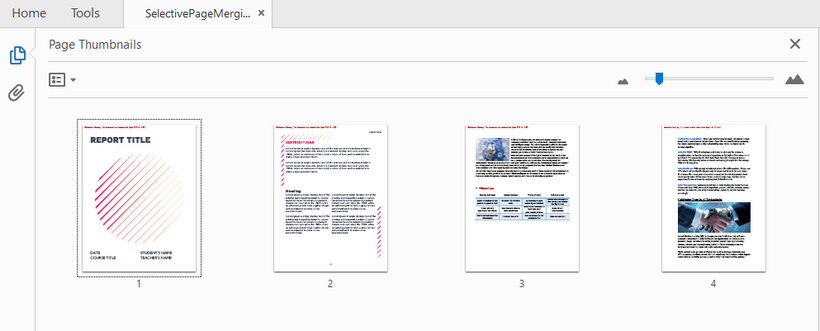
Practical Example: Merge Selected Pages from Different PDFs
Merging selected pages involves combining specific pages from multiple PDFs into a new PDF document. Here’s how to achieve the task:
- Define the PDF files to be merged.
- Load PDFs into an array:
- Create an array of PdfDocument objects.
- Loops through to load each PDF into the array.
- Create a new PDF: Initializes a new PDF document to hold the merged pages.
- Insert specific pages into the new PDF:
- InsertPage(): Insert a specified page to the new PDF (Page index starts at 0).
- InsertPageRange(): Insert a range of pages to the new PDF.
- Save the merged PDF: Save the new document to a PDF file.
Code Example:
using Spire.Pdf;

namespace MergePDFs
{
    class Program
    {
        static void Main(string[] args)
        {
            // Specify the PDF files to be merged
            string[] files = new string[] {"sample0.pdf", "sample1.pdf", "sample2.pdf"};

            // Create an array of PdfDocument
            PdfDocument[] pdfs = new PdfDocument[files.Length];

            // Loop through each PDF file
            for (int i = 0; i < files.Length; i++)
            {
                pdfs[i] = new PdfDocument(files[i]);
            }

            // Create a new PdfDocument object
            PdfDocument newPDF = new PdfDocument();

            // Insert the selected pages from different PDFs to the new PDF file
            newPDF.InsertPageRange(pdfs[0], 1, 2);
            newPDF.InsertPage(pdfs[1], 0);
            newPDF.InsertPage(pdfs[2], 1);

            // Save the new PDF file
            newPDF.SaveToFile("SelectivePageMerging.pdf");
        }
    }
}
Result: Combine selected pages from three separate PDF files into a new PDF.
Memory Efficient Solution: Merge PDF Files using Streams
For stream-based merging, refer to the C# code below:
using System.IO;
using Spire.Pdf;

namespace MergePDFsByStream
{
    class Program
    {
        static void Main(string[] args)
        {
            // Specify the PDF files to be merged
            string[] pdfFiles = {
                "MergePdfsTemplate_1.pdf",
                "MergePdfsTemplate_2.pdf",
                "MergePdfsTemplate_3.pdf"
            };

            // Initialize a MemoryStream array
            MemoryStream[] ms = new MemoryStream[pdfFiles.Length];

            // Read all PDF files to the MemoryStream
            for (int i = 0; i < pdfFiles.Length; i++)
            {
                byte[] fileBytes = File.ReadAllBytes(pdfFiles[i]);
                ms[i] = new MemoryStream(fileBytes);
            }

            // Merge PDF files using streams
            PdfDocumentBase pdf = PdfDocument.MergeFiles(ms);

            // Save the merged PDF file
            pdf.Save("MergePDFByStream.pdf", FileFormat.PDF);
        }
    }
}
Pro Tip: Learn more stream-based PDF handling techniques via the article: Load and Save PDF Files in Streams Using C#
Conclusion
Spire.PDF simplifies PDF merging in C# with its intuitive API and robust feature set. Whether you need to combine entire documents or specific pages, this library provides a reliable solution. By following the steps outlined in this guide, you can efficiently merge PDFs in your .NET applications while maintaining high quality and performance.
FAQs
Q1: Is Spire.PDF free to use?
A: Spire.PDF offers a free Community Edition with limitations (max 10 pages per document). To evaluate the commercial version without any limitations, request a free trial license here.
Q2: Can I merge PDFs from different sources?
A: Yes. Spire.PDF supports merging PDFs from various sources:
- Local Files: Use LoadFromFile() method.
- Streams: Use LoadFromStream() method.
- Base64: Convert Base64 to a byte array first, then use LoadFromBytes() method.
- URLs: Download the PDF to a stream or file first, then load it.
Q3: Can I add page numbers during merging?
A: After merging, you can add page numbers by following this guide: Add Page Numbers to a PDF in C#.
Q4. Where can I get support for Spire.PDF?
A: Check below resources: