C#/VB.NET: Create Lists in PDF Documents
A list is a collection of related values written one after another. Lists are the best tool to make important information stand out on the page, show the steps in a process, or present an overview to the readers. In this article, you will learn how to create ordered or unordered lists in a PDF document in C# and VB.NET using Spire.PDF for .NET.
- Create an Ordered List in PDF
- Create an Unordered List with Symbol Bullets in PDF
- Create an Unordered List with Image Bullets in PDF
- Create a Nested Numbered List in PDF
Spire.PDF provides the PdfSortedList class and the PdfList class to represent the ordered lists and unordered lists, respectively. To set the list's content, indent, font, marker style and other attributes, use the methods, properties, or events under these two classes. The following table lists some of the core items involved in this tutorial.
| Member | Description |
| PdfSortedList class | Represents an ordered list in a PDF document. |
| PdfList class | Represents an unordered list in a PDF document. |
| Brush property | Gets or sets a list's brush. |
| Font property | Gets or sets a list's font. |
| Indent property | Gets or sets a list's indent. |
| TextIndent property | Gets or sets the indent from the marker to the list item text. |
| Items property | Gets items of a list. |
| Marker property | Gets or sets the marker of a list. |
| Draw() method | Draw list on the canvas of a page at the specified location. |
| PdfOrderedMarker class | Represents the marker style of an ordered list, such as numbers, letters, and roman numerals. |
| PdfMarker class | Represents bullet style for an unordered list. |
Install Spire.PDF for .NET
To begin with, you need to add the DLL files included in the Spire.PDF for.NET package as references in your .NET project. The DLL files can be either downloaded from this link or installed via NuGet.
PM> Install-Package Spire.PDF
Create an Ordered List in PDF
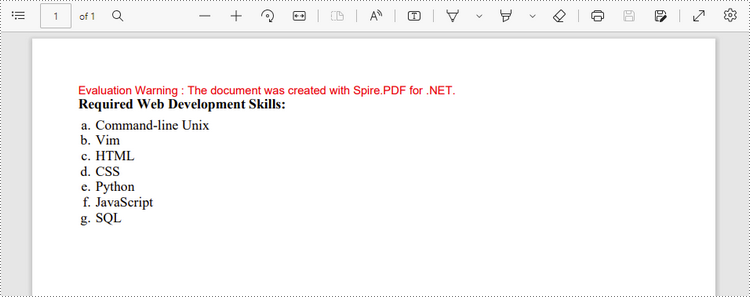
An ordered list is a container which holds a sequence of objects. Each item in the list is marked with a number, a letter, or a roman numeral. The following are the step to create an ordered list in PDF using Spire.PDF for .NET.
- Create a PdfDocument object.
- Add a page to it using PdfDocument.Pages.Add() method.
- Create PdfBrush and PdfFont objects for the list.
- Create a PdfOrderedMarker object, specifying the marker style.
- Specify the list content with a string, and create an object of PdfSortedList class based on the string.
- Set the font, indent, brush and marker of the list though the properties under the PdfSortedList object.
- Draw the list on the page at the specified location using PdfSortedList.Draw() method.
- Save the document to another file using PdfDocument.SaveToFile() method.
- C#
- VB.NET
using System;
using Spire.Pdf;
using Spire.Pdf.Graphics;
using Spire.Pdf.Lists;

namespace CreateOrderedList
{
    class Program
    {
        static void Main(string[] args)
        {
            //Create a PdfDocument object
            PdfDocument doc = new PdfDocument();

            //Set the margins
            PdfMargins margins = new PdfMargins(30);

            //Add a page
            PdfPageBase page = doc.Pages.Add(PdfPageSize.A4, margins);

            //Create a brush
            PdfBrush brush = PdfBrushes.Black;

            //Create fonts
            PdfFont titleFont = new PdfFont(PdfFontFamily.TimesRoman, 12f, PdfFontStyle.Bold);
            PdfFont listFont = new PdfFont(PdfFontFamily.TimesRoman, 12f, PdfFontStyle.Regular);

            //Create a maker for ordered list
            PdfOrderedMarker marker = new PdfOrderedMarker(PdfNumberStyle.LowerLatin, listFont);

            //Specify the initial coordinate
            float x = 10;
            float y = 20;

            //Draw title
            String title = "Required Web Development Skills:";
            page.Canvas.DrawString(title, titleFont, brush, x, y);
            y = y + (float)titleFont.MeasureString(title).Height;
            y = y + 5;


            //Create a numbered list
            String listContent = "Command-line Unix\n"
                + "Vim\n"
                + "HTML\n"
                + "CSS\n"
                + "Python\n"
                + "JavaScript\n"
                + "SQL";
            PdfSortedList list = new PdfSortedList(listContent);

            //Set the font, indent, text indent, brush of the list
            list.Font = listFont;
            list.Indent = 2;
            list.TextIndent = 4;
            list.Brush = brush;
            list.Marker = marker;

            //Draw list on the page at the specified location
            list.Draw(page, x, y);

            //Save to file
            doc.SaveToFile("OrderedList.pdf");
        }
    }
}
Create an Unordered List with Symbol Bullets in PDF
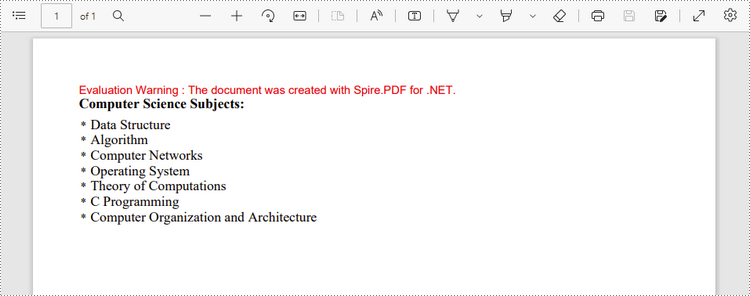
An unordered list, also named bulleted list, is a collection of related items that have no special order or sequence. Each item in the list is marked with a bullet. The following are the step to create an unordered list in PDF using Spire.PDF for .NET.
- Create a PdfDocument object.
- Add a page to it using PdfDocument.Pages.Add() method.
- Create PdfBrush and PdfFont objects for the list.
- Create a PdfMarker object, specifying the marker style.
- Specify the list content with a string, and create an object of PdfList class based on the string.
- Set the font, indent, brush and marker of the list though the properties under the PdfList object.
- Draw the list on the page at the specified location using PdfList.Draw() method.
- Save the document to another file using PdfDocument.SaveToFile() method.
- C#
- VB.NET
using Spire.Pdf;
using Spire.Pdf.Graphics;
using Spire.Pdf.Lists;
using System;

namespace CreateBulletedList
{
    class Program
    {
        static void Main(string[] args)
        {
            //Create a PdfDocument object
            PdfDocument doc = new PdfDocument();

            //Set the margin
            PdfMargins margin = new PdfMargins(30);

            //Add a page
            PdfPageBase page = doc.Pages.Add(PdfPageSize.A4, margin);

            //Create fonts
            PdfFont titleFont = new PdfFont(PdfFontFamily.TimesRoman, 12f, PdfFontStyle.Bold);
            PdfFont listFont = new PdfFont(PdfFontFamily.TimesRoman, 12f, PdfFontStyle.Regular);
            PdfFont markerFont = new PdfFont(PdfFontFamily.TimesRoman, 6f, PdfFontStyle.Regular);

            //Create a brush
            PdfBrush brush = PdfBrushes.Black;

            //Specify the initial coordinate
            float x = 10;
            float y = 20;

            //Draw title
            String title = "Computer Science Subjects:";
            page.Canvas.DrawString(title, titleFont, brush, x, y);
            y = y + (float)titleFont.MeasureString(title).Height;
            y = y + 5;

            //Specify the marker style
            PdfMarker marker = new PdfMarker(PdfUnorderedMarkerStyle.Asterisk);
            marker.Font = markerFont;

            //Create an unordered list
            String listContent = "Data Structure\n"
                    + "Algorithm\n"
                    + "Computer Networks\n"
                    + "Operating System\n"
                    + "Theory of Computations\n"
                    + "C Programming\n"
                    +"Computer Organization and Architecture";

            PdfList list = new PdfList(listContent);

            //Set the font, indent, text indent, brush, maker of the list
            list.Font = listFont;
            list.Indent = 2;
            list.TextIndent = 4;
            list.Brush = brush;
            list.Marker = marker;

            //Draw list on a page at the specified location
            list.Draw(page, x, y);

            //Save to file
            doc.SaveToFile("UnorderedList.pdf");
        }
    }
}
Create an Unordered List with Image Bullets in PDF
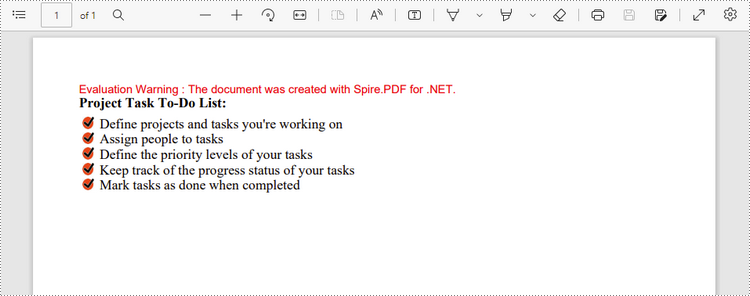
In addition to symbols, the bullet points of an unordered list can be also a picture. The steps to create an unordered list with images bullets are as follows.
- Create a PdfDocument object.
- Add a page to it using PdfDocument.Pages.Add() method.
- Create PdfBrush and PdfFont objects for the list.
- Create a PdfMarker object, setting the marker style as CustomImage.
- Set an image as the mark through PdfMarker.Image property.
- Specify the list content with a string, and create an object of PdfList class based on the string.
- Set the font, indent, brush and marker of the list though the properties under the PdfList object.
- Draw the list on the page at the specified location using PdfList.Draw() method.
- Save the document to another file using PdfDocument.SaveToFile() method.
- C#
- VB.NET
using System;
using Spire.Pdf;
using Spire.Pdf.Graphics;
using Spire.Pdf.Lists;

namespace CustomizeBulletPointsWithImage
{
    class Program
    {
        static void Main(string[] args)
        {
            //Create a PdfDocument object
            PdfDocument doc = new PdfDocument();

            //Set the margin
            PdfMargins margin = new PdfMargins(30);

            //Add a page
            PdfPageBase page = doc.Pages.Add(PdfPageSize.A4, margin);

            //Create fonts
            PdfFont titleFont = new PdfFont(PdfFontFamily.TimesRoman, 12f, PdfFontStyle.Bold);
            PdfFont listFont = new PdfFont(PdfFontFamily.TimesRoman, 12f, PdfFontStyle.Regular);

            //Create a brush
            PdfBrush brush = PdfBrushes.Black;

            //Specify the initial coordinate
            float x = 10;
            float y = 20;

            //Draw title
            String title = "Project Task To-Do List:";
            page.Canvas.DrawString(title, titleFont, brush, x, y);
            y = y + (float)titleFont.MeasureString(title).Height;
            y = y + 5;

            //Specify the marker style to image
            PdfMarker marker = new PdfMarker(PdfUnorderedMarkerStyle.CustomImage);

            //Set the image for the marker
            marker.Image = PdfImage.FromFile(@"C:\Users\Administrator\Desktop\checkmark.jpg");

            //Create an unordered list
            String listContent = "Define projects and tasks you're working on\n"
                    + "Assign people to tasks\n"
                    + "Define the priority levels of your tasks\n"
                    + "Keep track of the progress status of your tasks\n"
                    + "Mark tasks as done when completed";
            PdfList list = new PdfList(listContent);

            //Set the font, indent, text indent, brush, maker of the list
            list.Font = listFont;
            list.Indent = 2;
            list.TextIndent = 4;
            list.Brush = brush;
            list.Marker = marker;

            //Draw list on a page at the specified location
            list.Draw(page, x, y);

            //Save to file
            doc.SaveToFile("ImageBullets.pdf");
        }
    }
}
Create a Nested Numbered List in PDF
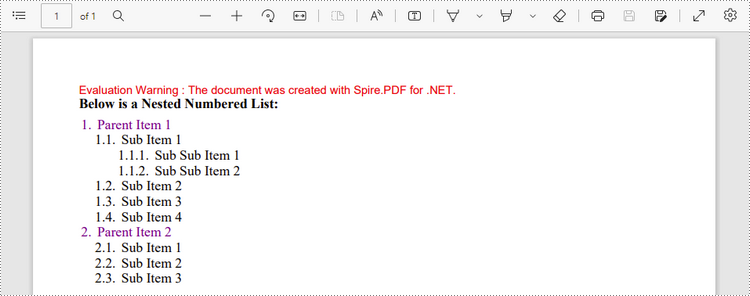
A nested list is a list that contains at least one sub list. Nested lists are used to present data in hierarchical structures. The following are the steps to create a nested numbered list in PDF using Spire.PDF for .NET.
- Create a PdfDocument object.
- Add a page to it using PdfDocument.Pages.Add() method.
- Create a PdfOrderedMarker object, specifying the marker style as Numeric.
- Specify the list content with a string, and create a parent list based on the string. And then set the font, indent, brush and marker of the list though the properties under the PdfSortedList object.
- Repeat the above step to create sub lists and sub-sub lists.
- Get the specific item of the parent list through PdfSortedList.Items[] property, and add a list to it as its sub list through PdfListItem.Sublist property.
- Draw the list on the page at the specified location using PdfSortedList.Draw() method.
- Save the document to another file using PdfDocument.SaveToFile() method.
- C#
- VB.NET
using System;
using Spire.Pdf;
using Spire.Pdf.Graphics;
using Spire.Pdf.Lists;

namespace CreateMultiLevelLists
{
    class Program
    {
        static void Main(string[] args)
        {
            //Create a PdfDocument object
            PdfDocument doc = new PdfDocument();

            //Set the margin
            PdfMargins margin = new PdfMargins(30);

            //Add a page
            PdfPageBase page = doc.Pages.Add(PdfPageSize.A4, margin);

            //Specify the initial coordinate
            float x = 10;
            float y = 20;

            //Create two brushes
            PdfBrush blackBrush = PdfBrushes.Black;
            PdfBrush purpleBrush = PdfBrushes.Purple;

            //Create two fonts
            PdfFont titleFont = new PdfFont(PdfFontFamily.TimesRoman, 12f, PdfFontStyle.Bold);
            PdfFont listFont = new PdfFont(PdfFontFamily.TimesRoman, 12f, PdfFontStyle.Regular);

            //Create a maker for ordered list
            PdfOrderedMarker marker = new PdfOrderedMarker(PdfNumberStyle.Numeric, listFont);

            //Draw title
            String title = "Below is a Nested Numbered List:";
            page.Canvas.DrawString(title, titleFont, blackBrush, x, y);
            y = y + (float)titleFont.MeasureString(title).Height;
            y = y + 5;

            //Create a parent list
            String parentListContent = "Parent Item 1\n"
                    + "Parent Item 2";
            PdfSortedList parentList = new PdfSortedList(parentListContent);
            parentList.Font = listFont;
            parentList.Indent = 2;
            parentList.Brush = purpleBrush;
            parentList.Marker = marker;

            //Create a sub list - "subList_1"
            String subListContent_1 = "Sub Item 1\n"
                    + "Sub Item 2\n"
                    + "Sub Item 3\n"
                    + "Sub Item 4";
            PdfSortedList subList_1 = new PdfSortedList(subListContent_1);
            subList_1.Indent = 12;
            subList_1.Font = listFont;
            subList_1.Brush = blackBrush;
            subList_1.Marker = marker;
            subList_1.MarkerHierarchy = true;

            //Create another sub list -"subList_2"
            String subListContent_2 = "Sub Item 1\n"
                    + "Sub Item 2\n"
                    + "Sub Item 3";
            PdfSortedList subList_2 = new PdfSortedList(subListContent_2);
            subList_2.Indent = 12;
            subList_2.Font = listFont;
            subList_2.Brush = blackBrush;
            subList_2.Marker = marker;
            subList_2.MarkerHierarchy = true;

            //Create a sub-sub list - "subList_1"
            String subSubListContent_1 = "Sub Sub Item 1\n"
                    + "Sub Sub Item 2";
            PdfSortedList subSubList = new PdfSortedList(subSubListContent_1);
            subSubList.Indent = 20;
            subSubList.Font = listFont;
            subSubList.Brush = blackBrush;
            subSubList.Marker = marker;
            subSubList.MarkerHierarchy = true;

            //Set subList_1 as sub list of the first item of parent list
            PdfListItem item_1 = parentList.Items[0];
            item_1.SubList = subList_1;

            //Set subList_2 as sub list of the second item of parent list
            PdfListItem item_2 = parentList.Items[1];
            item_2.SubList = subList_2;

            //Set subSubList as sub list of the first item of subList_1
            PdfListItem item_1_1 = subList_1.Items[0];
            item_1_1.SubList = subSubList;

            //Draw parent list
            parentList.Draw(page, x, y);

            //Save to file
            doc.SaveToFile("MultiLevelList.pdf");
        }
    }
}
Apply for a Temporary License
If you'd like to remove the evaluation message from the generated documents, or to get rid of the function limitations, please request a 30-day trial license for yourself.
C#/VB.NET: Set or Get PDF Properties
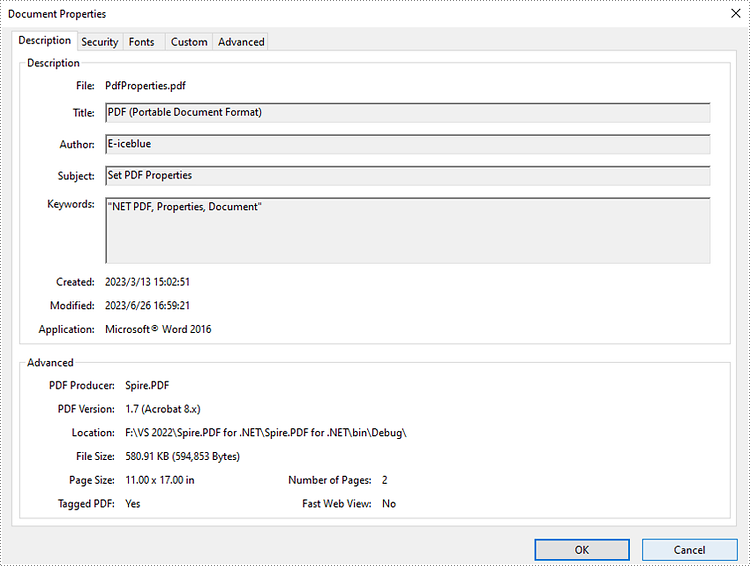
PDF properties are metadata that provide additional information about a PDF file. Typically, these properties include, but are not limited to, the title of the document, the author, keywords, subject and the application that created the document. When there are a large number of PDF files, adding properties is essential as it can make the files easily retrievable. In this article, you will learn how to programmatically set or get PDF properties using Spire.PDF for .NET.
Install Spire.PDF for .NET
To begin with, you need to add the DLL files included in the Spire.PDF for.NET package as references in your .NET project. The DLL files can be either downloaded from this link or installed via NuGet.
PM> Install-Package Spire.PDF
Set the Properties of a PDF File in C# and VB.NET
Basic PDF document properties such as title, author, subject and keywords make it easier for users to search or retrieve specific documents later on. The following are the detailed steps on how to set these properties using Spire.PDF for .NET.
- Create a PdfDocument instance.
- Load a PDF file using PdfDocument.LoadFromFile() method.
- Get PDF properties using PdfDocument.DocumentInformation property, and then set values for specific document properties such as title, subject and author through Title, Subject and Author properties of PdfDocumentInformation class.
- Save the result PDF file using PdfDocument.SaveToFile () method.
- C#
- VB.NET
using Spire.Pdf;

namespace PDFProperties
{
    class Properties
    {
        static void Main(string[] args)
        {
            //Create a PdfDocument instance
            PdfDocument pdf = new PdfDocument();

            //Load a sample PDF document
            pdf.LoadFromFile("input.pdf");

            //Set the title
            pdf.DocumentInformation.Title = "PDF (Portable Document Format)";

            //Set the author
            pdf.DocumentInformation.Author = "E-iceblue";

            //Set the subject
            pdf.DocumentInformation.Subject = "Set PDF Properties";

            //Set the keywords
            pdf.DocumentInformation.Keywords = "NET PDF, Properties, Document";

            //Set the producer name
            pdf.DocumentInformation.Producer = "Spire.PDF";

            //Save the result document
            pdf.SaveToFile("PdfProperties.pdf");
        }
    }
}
Get the Properties of a PDF File in C# and VB.NET
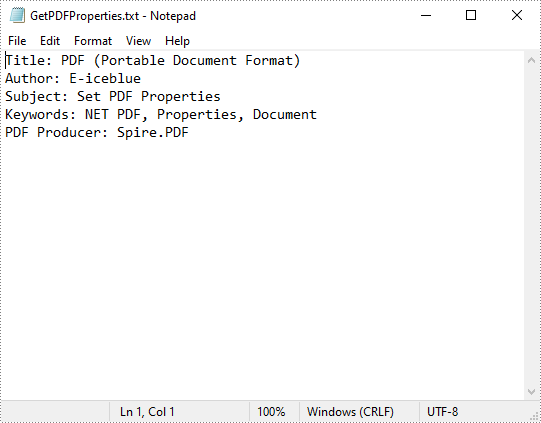
To get specific PDF properties, you can use the corresponding properties under the PdfDocumentInformation class. The following are the detailed steps.
- Create a PdfDocument instance.
- Load a PDF file using PdfDocument.LoadFromFile() method.
- Create a StringBuilder instance.
- Get PDF properties using PdfDocument.DocumentInformation property, and then get specific document properties such as title, author, keyword using properties under PdfDocumentInformation class.
- Append the extracted properties to the StringBuilder instance using StringBuilder.Append() method.
- Write the StringBuilder to a TXT file using File.WriteAllText() method.
- C#
- VB.NET
using Spire.Pdf;
using System.IO;
using System.Text;

namespace GetPdfProperties

{
    class Program
    {
        static void Main(string[] args)
        {
            //Create a PdfDocument instance
            PdfDocument pdf = new PdfDocument();

            //Load a sample PDF document
            pdf.LoadFromFile("PdfProperties.pdf");

            //Create a StringBuilder instance
            StringBuilder content = new StringBuilder();

            //Get the PDF document properties and append them in the StringBuilder
            content.Append("Title: " + pdf.DocumentInformation.Title + "\r\n");
            content.Append("Author: " + pdf.DocumentInformation.Author + "\r\n");
            content.Append("Subject: " + pdf.DocumentInformation.Subject + "\r\n");
            content.Append("Keywords: " + pdf.DocumentInformation.Keywords + "\r\n");
            content.Append("PDF Producer: " + pdf.DocumentInformation.Producer + "\r\n");

            //Write the StringBuilder to a TXT file
            File.WriteAllText("GetPDFProperties.txt", content.ToString());
        }
    }
}
Apply for a Temporary License
If you'd like to remove the evaluation message from the generated documents, or to get rid of the function limitations, please request a 30-day trial license for yourself.
Merge PDF Files and Add Page Number in C#/VB.NET
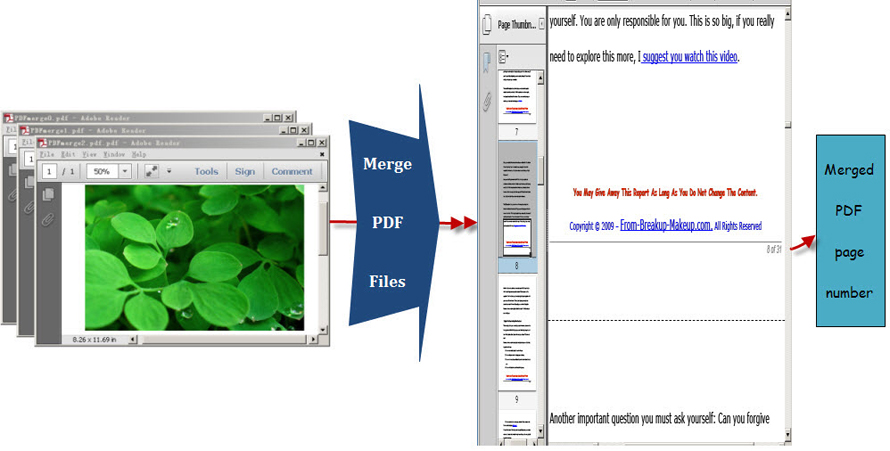
After searching so much information about PDF merge, it is easy to find that whether you merge PDF files online or use C#/VB.NET to realize this task, you never escape worrying some important points such as the safety of your PDF file, so much time it costs or whether the merged file supports to print page number and so on. However, as long as you come here, these troubles will not appear. This section will specifically introduce you a secure solution to merge PDF files into one with C#, VB.NET via a .NET PDF component Spire.PDF for .NET.
Spire.PDF for .NET, built from scratch in C#, enables programmers and developers to create, read, write and manipulate PDF documents in .NET applications without using Adobe Acrobat or any external libraries. Using Spire.PDF for .NET, you not only can quickly merge PDF files but also enables you to print PDF page with page number. Now please preview the effective screenshot below:
Before following below procedure, please download Spire.PDF for .NET and install it on system.
Step1: You can use the String array to save the names of the three PDF files which will be merged into one PDF and demonstrate Spire.Pdf.PdfDocument array. Then, load three PDF files and select the first PdfDocument for the purpose of merging the second and third PDF file to it. In order to import all pages from the second PDF file to the first PDF file, you need to call the method public void AppendPage(PdfDocument doc). Also by calling another method public PdfPageBase InsertPage(PdfDocument doc, int pageIndex),every page of the third PDF file can be imported to the first PDF file.
private void button1_Click(object sender, EventArgs e)
        {
            //pdf document list
            String[] files = new String[]
            {
                @"..\PDFmerge0.pdf",
                @"..\ PDFmerge1.pdf",
                @"..\ PDFmerge2.pdf"
            };
            //open pdf documents
            PdfDocument[] docs = new PdfDocument[files.Length];
            for (int i = 0; i < files.Length; i++)
            {
                docs[i] = new PdfDocument(files[i]);
            }
            //append document
            docs[0].AppendPage(docs[1]);

            //import PDF pages
            for (int i = 0; i < docs[2].Pages.Count; i = i + 2)
            {
                docs[0].InsertPage(docs[2], i);
            }
 Private Sub button1_Click(sender As Object, e As EventArgs)
	'pdf document list
	Dim files As [String]() = New [String]() {"..\PDFmerge0.pdf", "..\ PDFmerge1.pdf", "..\ PDFmerge2.pdf"}
	'open pdf documents
	Dim docs As PdfDocument() = New PdfDocument(files.Length - 1) {}
	For i As Integer = 0 To files.Length - 1
		docs(i) = New PdfDocument(files(i))
	Next

	'append document
	docs(0).AppendPage(docs(1))

	'import PDF pages
	Dim j As Integer = 0
	While j < docs(2).Pages.Count
		docs(0).InsertPage(docs(2), j)
		j = j + 2
	End While"
Step2: Draw page number in the first PDF file. In this step, you can set PDF page number margin by invoking the class Spire.Pdf.Graphics. PdfMargins. Then, Call the custom method DrawPageNumber(PdfPageCollection pages, PdfMargins margin, int startNumber, int pageCount) to add page number in the bottom of every page in the first PDF. Please see the detail code below:
//set PDF margin
            PdfUnitConvertor unitCvtr = new PdfUnitConvertor();
            PdfMargins margin = new PdfMargins();
            margin.Top = unitCvtr.ConvertUnits(2.54f, PdfGraphicsUnit.Centimeter, PdfGraphicsUnit.Point);
            margin.Bottom = margin.Top;
            margin.Left = unitCvtr.ConvertUnits(3.17f, PdfGraphicsUnit.Centimeter, PdfGraphicsUnit.Point);
            margin.Right = margin.Left;
            this.DrawPageNumber(docs[0].Pages, margin, 1, docs[0].Pages.Count);

          private void DrawPageNumber(PdfPageCollection pages, PdfMargins margin, int startNumber, int pageCount)
          {
            foreach (PdfPageBase page in pages)
            {
                page.Canvas.SetTransparency(0.5f);
                PdfBrush brush = PdfBrushes.Black;
                PdfPen pen = new PdfPen(brush, 0.75f);
                PdfTrueTypeFont font = new PdfTrueTypeFont(new Font("Arial", 9f, System.Drawing.FontStyle.Italic), true);
                PdfStringFormat format = new PdfStringFormat(PdfTextAlignment.Right);
                format.MeasureTrailingSpaces = true;
                float space = font.Height * 0.75f;
                float x = margin.Left;
                float width = page.Canvas.ClientSize.Width - margin.Left - margin.Right;
                float y = page.Canvas.ClientSize.Height - margin.Bottom + space;
                page.Canvas.DrawLine(pen, x, y, x + width, y);
                y = y + 1;
                String numberLabel
                    = String.Format("{0} of {1}", startNumber++, pageCount);
                page.Canvas.DrawString(numberLabel, font, brush, x + width, y, format);
                page.Canvas.SetTransparency(1);
            }
        }
       'set PDF margin
	Dim unitCvtr As New PdfUnitConvertor()
	Dim margin As New PdfMargins()
	margin.Top = unitCvtr.ConvertUnits(2.54F, PdfGraphicsUnit.Centimeter, PdfGraphicsUnit.Point)
	margin.Bottom = margin.Top
	 margin.Left = unitCvtr.ConvertUnits(3.17F, PdfGraphicsUnit.Centimeter, PdfGraphicsUnit.Point)
	margin.Right = margin.Left
	Me.DrawPageNumber(docs(0).Pages, margin, 1, docs(0).Pages.Count)

       Private Sub DrawPageNumber(pages As PdfPageCollection, margin As PdfMargins, startNumber As Integer, pageCount As Integer)
	For Each page As PdfPageBase In pages
		page.Canvas.SetTransparency(0.5F)
		Dim brush As PdfBrush = PdfBrushes.Black
		Dim pen As New PdfPen(brush, 0.75F)
		Dim font As New PdfTrueTypeFont(New Font("Arial", 9F, System.Drawing.FontStyle.Italic), True)
		Dim format As New PdfStringFormat(PdfTextAlignment.Right)
		format.MeasureTrailingSpaces = True
		Dim space As Single = font.Height * 0.75F
		Dim x As Single = margin.Left
		Dim width As Single = page.Canvas.ClientSize.Width - margin.Left - margin.Right
		Dim y As Single = page.Canvas.ClientSize.Height - margin.Bottom + space
		page.Canvas.DrawLine(pen, x, y, x + width, y)
		y = y + 1
		Dim numberLabel As [String] = [String].Format("{0} of {1}", System.Math.Max(System.Threading.Interlocked.Increment(startNumber),startNumber - 1), pageCount)
		page.Canvas.DrawString(numberLabel, font, brush, x + width, y, format)
		page.Canvas.SetTransparency(1)
	Next
End Sub
The PDF merge code can be very long when you view it at first sight, actually, if you do not need to add page number in your merged PDF, steps two should be avoided. However, in many cases, page number brings great convenience for users to read PDF as well as print it. Spire.PDF for .NET can satisfy both your requirements of merging PDF files and adding page numbers in the merged PDF file.
How to Split PDF Files in C# .NET (Complete Guide with Code Examples)

Splitting PDF files programmatically is a crucial step for automating document management in many C# and .NET applications. Whether you need to extract specific pages, divide PDFs by defined ranges, or organize large reports, using code to segment PDFs saves time and improves accuracy.
This comprehensive guide shows how to programmatically split or divide PDF files in C# using the Spire.PDF for .NET library, with practical methods and clear code examples to help developers easily integrate PDF splitting into their applications.
Table of Contents
- Why Split a PDF Programmatically in C#?
- What You Need to Get Started
- Installing Spire.PDF for .NET Library
- How to Split PDF Files in C# (Methods and Code Examples)
- Split PDF in VB.NET
- Conclusion
- Frequently Asked Questions (FAQs)
Why Split a PDF Programmatically in C#?
Splitting PDFs through code offers significant advantages over manual processing. It enables:
- Automated report generation
- Faster document preparation in enterprise workflows
- Easy content extraction for archiving or redistribution
- Dynamic document handling based on user or system input
It also reduces the risk of human error and ensures consistency across repetitive tasks.
What You Need to Get Started
Before diving into the code, make sure you have:
- .NET Framework or .NET Core installed
- Visual Studio or another C# IDE
- Spire.PDF for .NET library installed
- Basic familiarity with C# programming
Installing Spire.PDF for .NET Library
Spire.PDF for .NET is a professional .NET library that enables developers to create, read, edit, and manipulate PDF files without Adobe Acrobat. It supports advanced PDF operations like splitting, merging, extracting text, adding annotations, and more.
You can install Spire.PDF for .NET NuGet Package via NuGet Package Manager:
Install-Package Spire.PDF
Or through the NuGet UI in Visual Studio:
- Right-click your project > Manage NuGet Packages
- Search for Spire.PDF
- Click Install
How to Split PDF Files in C# (Methods and Code Examples)
Breaking PDF by Every Page
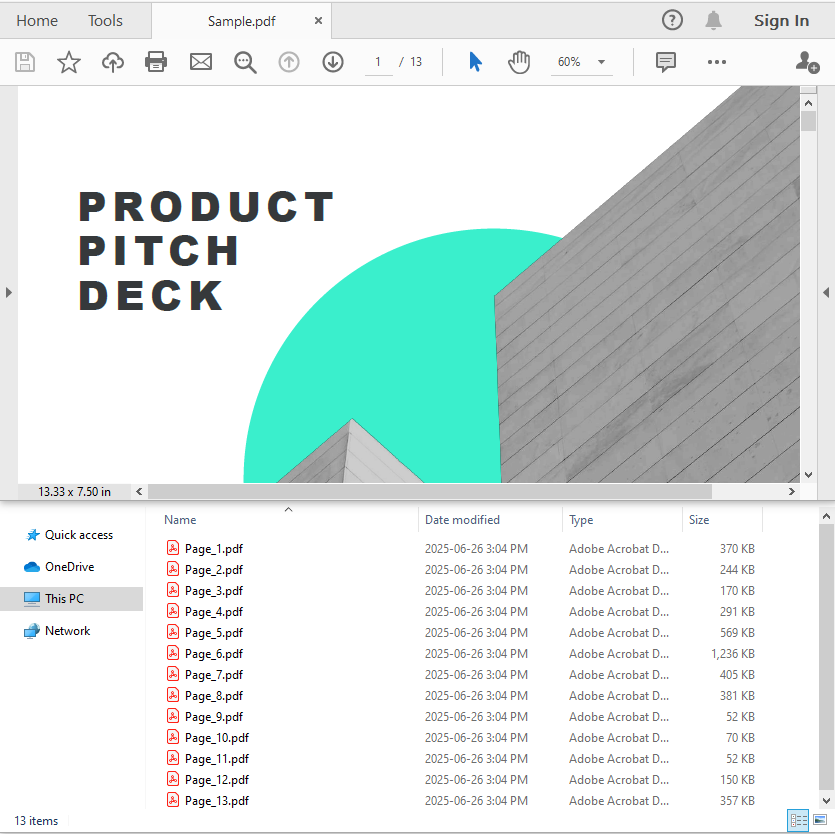
When you want to break a PDF into multiple single-page files, the Split method is the easiest way. By specifying the output file name pattern, you can automatically save each page of the PDF as a separate file. This method simplifies batch processing or distributing pages individually.
using Spire.Pdf;

namespace SplitPDF
{
    internal class Program
    {
        static void Main(string[] args)
        {
            PdfDocument pdf = new PdfDocument();
            pdf.LoadFromFile("Sample.pdf");

            // Split each page into separate PDF files.
            // The first parameter is the output file pattern.
            // {0} will be replaced by the page number starting from 1.
            pdf.Split("Output/Page_{0}.pdf", 1);

            pdf.Close();
        }
    }
}
Dividing PDF by Page Ranges
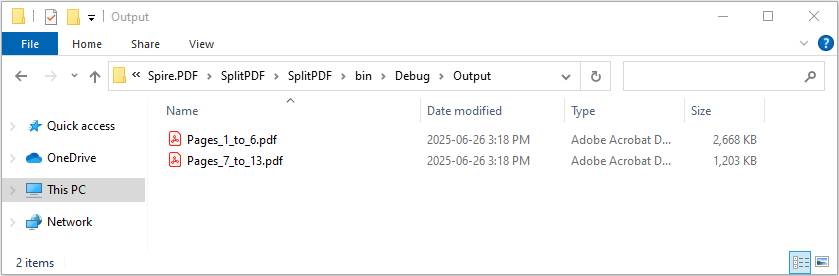
To divide a PDF into multiple sections based on specific page ranges, the InsertPageRange method is ideal. This example shows how to define page ranges using zero-based start and end page indices, and then extract those ranges into separate PDF files efficiently.
using Spire.Pdf;

namespace SplitPDF
{
    internal class Program
    {
        static void Main(string[] args)
        {
            // Load the PDF
            PdfDocument document = new PdfDocument();
            document.LoadFromFile("Sample.pdf");

            // Define two ranges — pages 1–6 and 7–13 (0-based index)
            int[][] ranges = new int[][]
            {
                new int[] { 0, 5 },
                new int[] { 6, 12 }
            };

            // Split the PDF into smaller files by the predefined page ranges
            for (int i = 0; i < ranges.Length; i++)
            {
                int startPage = ranges[i][0];
                int endPage = ranges[i][1];

                PdfDocument rangePdf = new PdfDocument();
                rangePdf.InsertPageRange(document, startPage, endPage);
                rangePdf.SaveToFile($"Output/Pages_{startPage + 1}_to_{endPage + 1}.pdf");
                rangePdf.Close();
            }

            document.Close();
        }
    }
}
Splitting PDF by Text or Keywords
To perform content-based PDF splitting, use the Find method of the PdfTextFinder class to locate pages containing specific keywords. Once identified, you can extract these pages and insert them into new PDF files using the InsertPage method. This approach enables precise page extraction based on document content instead of fixed page numbers.
using Spire.Pdf;
using Spire.Pdf.Texts;
using System.Collections.Generic;

namespace SplitPDF
{
    internal class Program
    {
        static void Main(string[] args)
        {
            // Load the PDF document
            PdfDocument document = new PdfDocument();
            document.LoadFromFile("Sample.pdf");

            // Create a new PDF to hold extracted pages
            PdfDocument resultDoc = new PdfDocument();

            string keyword = "Market";

            // Loop through all pages to find the keyword
            for (int i = 0; i < document.Pages.Count; i++)
            {
                PdfPageBase page = document.Pages[i];
                PdfTextFinder finder = new PdfTextFinder(page);

                // Set search options
                finder.Options.Parameter = TextFindParameter.WholeWord;
                finder.Options.Parameter = TextFindParameter.IgnoreCase;

                // Find keyword on the page
                List<PdfTextFragment> fragments = finder.Find(keyword);

                // If keyword found, append the page to result PDF
                if (fragments.Count > 0)
                {
                    resultDoc.InsertPage(document, page);
                }
            }

            // Save the result PDF
            resultDoc.SaveToFile("Pages_With_Keyword.pdf");

            // Dispose resources
            document.Dispose();
            resultDoc.Dispose();
        }
    }
}

Extracting Specific Pages from PDF
Sometimes you only need to extract one or a few individual pages from a PDF instead of splitting the whole document. This example demonstrates how to use the InsertPage method of the PdfDocument class to extract a specific page and save it as a new PDF. This method is useful for quickly pulling out important pages for review or distribution.
using Spire.Pdf;

namespace SplitPDF
{
    internal class Program
    {
        static void Main(string[] args)
        {
            // Load the PDF file
            PdfDocument pdf = new PdfDocument();
            pdf.LoadFromFile("Sample.pdf");

            // Create a new PDF to hold the extracted page
            PdfDocument newPdf = new PdfDocument();

            // Insert the third page (index 2, zero-based) from the PDF into the new PDF
            newPdf.InsertPage(pdf, pdf.Pages[2]);

            // Save the new PDF
            newPdf.SaveToFile("ExtractPage.pdf");

            newPdf.Close();
            pdf.Close();
        }
    }
}

Split PDF in VB.NET
If you're working with VB.NET instead of C#, you don't need to worry about translating the code manually. You can easily convert the C# code examples in this article to VB.NET using our C# to VB.NET code converter. This tool ensures accurate syntax conversion, saving time and helping you stay focused on development.
Conclusion
Splitting PDF files programmatically in C# using Spire.PDF offers a reliable and flexible solution for automating document processing. Whether you're working with invoices, reports, or dynamic content, Spire.PDF supports various splitting methods—by page, page range, or keyword—allowing you to tailor the logic to fit any business or technical requirement.
Frequently Asked Questions (FAQs)
Q1: Is Spire.PDF free to use?
A1: Spire.PDF offers a free version suitable for small-scale or non-commercial use. For full functionality and advanced features, the commercial version is recommended.
Q2: Can I split encrypted PDFs?
A2: Yes, as long as you provide the correct password when loading the PDF files.
Q3: Does Spire.PDF support .NET Core?
A3: Yes, Spire.PDF is compatible with both .NET Framework and .NET Core.
Q4: Can I split and merge PDFs in the same project?
A4: Absolutely. Spire.PDF provides comprehensive support for both splitting and merging operations.
Get a Free License
To fully experience the capabilities of Spire.PDF for .NET without any evaluation limitations, you can request a free 30-day trial license.