
Java (485)
Tables in PowerPoint are a valuable tool for organizing and presenting data in a clear and concise manner. When creating business presentations or financial reports, you can insert tables to present data effectively and make your presentations more impactful and attractive to your audience. This article will demonstrate how to programmatically add a table to a presentation slide using Spire.Presentation for Java.
Install Spire.Presentation for Java
First of all, you're required to add the Spire.Presentation.jar file as a dependency in your Java program. The JAR file can be downloaded from this link. If you use Maven, you can easily import the JAR file in your application by adding the following code to your project's pom.xml file.
<repositories>
    <repository>
        <id>com.e-iceblue</id>
        <name>e-iceblue</name>
        <url>https://repo.e-iceblue.com/nexus/content/groups/public/</url>
    </repository>
</repositories>
<dependencies>
    <dependency>
        <groupId>e-iceblue</groupId>
        <artifactId>spire.presentation</artifactId>
        <version>11.5.1</version>
    </dependency>
</dependencies>
Insert a Table in PowerPoint in Java
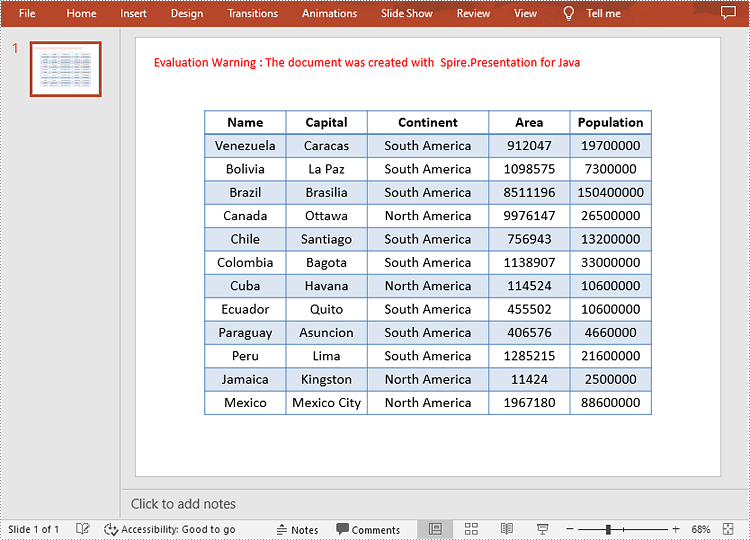
To create a table in a specified PowerPoint slide, you can use the ISlide.getShapes().appendTable() method. With Spire.Presentation for Java, you are also allowed to format the style of the table. The following are the detailed steps.
- Create a Presentation instance.
- Get a specified slide using Presentation.getSlides().get() method.
- Define two double arrays to specify the number and size of rows and columns in the table.
- Add a table with the specified number and size of rows and columns to the slide using ISlide.getShapes().appendTable() method.
- Define some data and then then fill the table with the data using ITable.get().getTextFrame().setText() method.
- Set the text font and alignment of the table.
- Set a built-in table style using ITable.setStylePreset() method.
- Save the result document using Presentation.saveToFile() method.
- Java
import com.spire.presentation.*;

public class AddTable {
    public static void main(String[] args) throws Exception {
        //Create a Presentation instance
        Presentation presentation = new Presentation();

        //Get the first slide
        ISlide slide = presentation.getSlides().get(0);

        //Define two double arrays to specify the number and size of rows and columns in the table
        Double[] widths = new Double[]{100d, 100d, 150d, 100d, 100d};
        Double[] heights = new Double[]{15d, 15d, 15d, 15d, 15d, 15d, 15d, 15d, 15d, 15d, 15d, 15d, 15d};


        //Add a table with the specified number and size of rows and columns to the slide
        ITable table = slide.getShapes().appendTable((float) presentation.getSlideSize().getSize().getWidth() / 2 - 275, 90, widths, heights);

        //Specify table data
        String[][] dataStr = new String[][]
                {
                        {"Name", "Capital", "Continent", "Area", "Population"},
                        {"Venezuela", "Caracas", "South America", "912047", "19700000"},
                        {"Bolivia", "La Paz", "South America", "1098575", "7300000"},
                        {"Brazil", "Brasilia", "South America", "8511196", "150400000"},
                        {"Canada", "Ottawa", "North America", "9976147", "26500000"},
                        {"Chile", "Santiago", "South America", "756943", "13200000"},
                        {"Colombia", "Bagota", "South America", "1138907", "33000000"},
                        {"Cuba", "Havana", "North America", "114524", "10600000"},
                        {"Ecuador", "Quito", "South America", "455502", "10600000"},
                        {"Paraguay", "Asuncion", "South America", "406576", "4660000"},
                        {"Peru", "Lima", "South America", "1285215", "21600000"},
                        {"Jamaica", "Kingston", "North America", "11424", "2500000"},
                        {"Mexico", "Mexico City", "North America", "1967180", "88600000"}
                };

        //Add data to table
        for (int i = 0; i < 13; i++) {
        for (int j = 0; j < 5; j++) {
        //Fill the table with data
        table.get(j, i).getTextFrame().setText(dataStr[i][j]);

        //Set the text font
        table.get(j, i).getTextFrame().getParagraphs().get(0).getTextRanges().get(0).setLatinFont(new TextFont("Calibri"));

        //Set the text alignment of the table
        table.get(j, i).getTextFrame().getParagraphs().get(0).setAlignment(TextAlignmentType.CENTER);
            }
        }

        //Set the table style
        table.setStylePreset(TableStylePreset.LIGHT_STYLE_3_ACCENT_1);

        //Save the result document
        presentation.saveToFile("AddTable.pptx", FileFormat.PPTX_2013);
    }
}
Apply for a Temporary License
If you'd like to remove the evaluation message from the generated documents, or to get rid of the function limitations, please request a 30-day trial license for yourself.
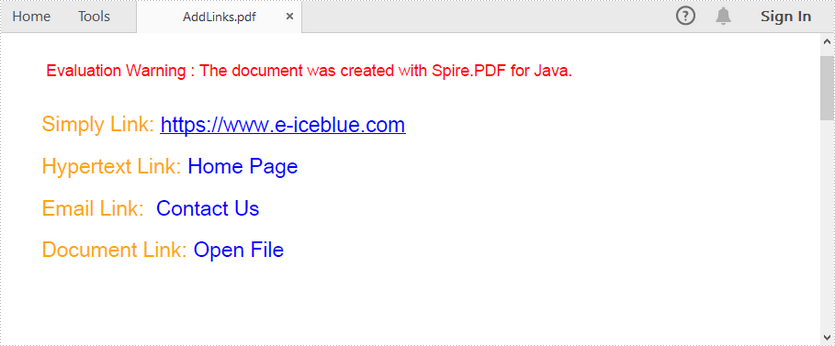
This article demonstrates how to add links, including ordinary link, hypertext link, email link and document link, to a PDF document by using Spire.PDF for Java.
import com.spire.pdf.annotations.*;
import com.spire.pdf.graphics.*;

import java.awt.*;
import java.awt.font.TextAttribute;
import java.awt.geom.Point2D;
import java.awt.geom.Rectangle2D;
import java.util.HashMap;

public class AddLinksToPdf {

    public static void main(String[] args) throws Exception {

        //create a pdf document
        PdfDocument doc = new PdfDocument();
        PdfPageBase page = doc.getPages().add();

        //initialize x, y coordinates
        float y = 30;
        float x = 0;

        //create a plain font
        PdfTrueTypeFont plainFont = new PdfTrueTypeFont(new Font("Arial Unicode MS",Font.PLAIN,13),true);

        //create a underlined font
        HashMap<TextAttribute, Object> hm = new HashMap<TextAttribute, Object>();
        hm.put(TextAttribute.UNDERLINE, TextAttribute.UNDERLINE_ON);
        hm.put(TextAttribute.SIZE, 13);
        hm.put(TextAttribute.FAMILY, "Arial");
        Font font = new Font(hm);
        PdfTrueTypeFont underlineFont = new PdfTrueTypeFont(font);

        //add a simply link to pdf
        String label = "Simply Link: ";
        PdfStringFormat format = new PdfStringFormat();
        format.setMeasureTrailingSpaces(true);
        page.getCanvas().drawString(label, plainFont, PdfBrushes.getOrange(), 0, y,format);
        x = (float)plainFont.measureString(label,format).getWidth();
        page.getCanvas().drawString("https://www.e-iceblue.com", underlineFont, PdfBrushes.getBlue(), x, y+2);
        y = y + 26;

        //add a hyper text link to pdf
        label= "Hypertext Link: ";
        page.getCanvas().drawString(label, plainFont, PdfBrushes.getOrange(), 0, y, format);
        x = (float)plainFont.measureString(label,format).getWidth();
        PdfTextWebLink webLink = new PdfTextWebLink();
        webLink.setText("Home Page");
        webLink.setUrl("https://www.e-iceblue.com");
        webLink.setFont(plainFont);
        webLink.setBrush(PdfBrushes.getBlue());
        webLink.drawTextWebLink(page.getCanvas(), new Point2D.Float(x, y));
        y= y + 26;

        //add an email link to pdf
        label = "Email Link:  ";
        page.getCanvas().drawString(label, plainFont, PdfBrushes.getOrange(), 0, y, format);
        x = (float)plainFont.measureString(label, format).getWidth();
        webLink = new PdfTextWebLink();
        webLink.setText("Contact Us");
        webLink.setUrl("mailto:support@e-iceblue.com");
        webLink.setFont(plainFont);
        webLink.setBrush(PdfBrushes.getBlue());
        webLink.drawTextWebLink(page.getCanvas(), new Point2D.Float(x, y));
        y = y + 26;

        //add a document link to pdf
        label = "Document Link: ";
        page.getCanvas().drawString(label, plainFont, PdfBrushes.getOrange(), 0, y, format);
        x = (float)plainFont.measureString(label, format).getWidth();
        page.getCanvas().drawString("Open File", plainFont, PdfBrushes.getBlue(), x, y, format);
        Rectangle2D rect = new Rectangle2D.Float(x,y+2,60,15);
        PdfFileLinkAnnotation fileLinkAnnotation = new PdfFileLinkAnnotation(rect,"C:\\Users\\Administrator\\Desktop\\Image.png");
        fileLinkAnnotation.setBorder(new PdfAnnotationBorder(0f));
        ((PdfNewPage) ((page instanceof PdfNewPage) ? page : null)).getAnnotations().add(fileLinkAnnotation);

        //save to file
        doc.saveToFile("output/AddLinks.pdf");
        doc.close();
    }
}
Output:
Slides are one of the important elements in a PowerPoint document because they carry the information or ideas you would like to present to your audience. When editing a PowerPoint document, it's inevitable that you will perform operations on presentation slides, such as creating new slides, deleting unwanted slides, or hiding slides temporarily. This article will demonstrate how to programmatically add, hide/unhide or delete a PowerPoint slide using Spire.Presentation for Java.
- Add a New Slide at the End of the PowerPoint Document
- Insert a New Slide Before a Specific Slide in PowerPoint
- Hide or Unhide a Specific Slide in PowerPoint
- Delete a Specific Slide from a PowerPoint Document
Install Spire.Presentation for Java
First of all, you're required to add the Spire.Presentation.jar file as a dependency in your Java program. The JAR file can be downloaded from this link. If you use Maven, you can easily import the JAR file in your application by adding the following code to your project's pom.xml file.
<repositories>
    <repository>
        <id>com.e-iceblue</id>
        <name>e-iceblue</name>
        <url>https://repo.e-iceblue.com/nexus/content/groups/public/</url>
    </repository>
</repositories>
<dependencies>
    <dependency>
        <groupId>e-iceblue</groupId>
        <artifactId>spire.presentation</artifactId>
        <version>11.5.1</version>
    </dependency>
</dependencies>
Add a New Slide at the End of the PowerPoint Document
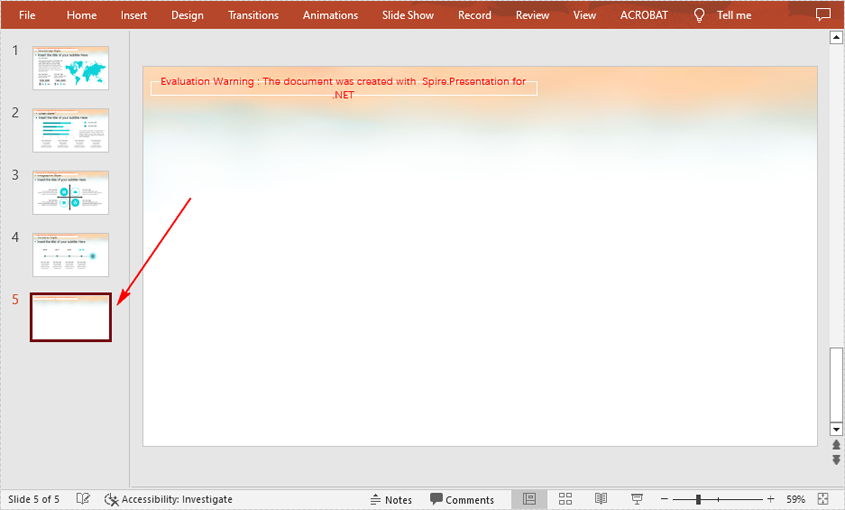
The Presentation.getSlides().append() method provided by Spire.Presentation for Java allows you to append a new slide after the last slide of a PowerPoint document. The detailed steps are as follows.
- Initialize an instance of Presentation class.
- Load a PowerPoint document using Presentation.loadFromFile() method.
- Add a new blank slide at the end of the document using Presentation.getSlides().append() method.
- Save the result document using Presentation.saveToFile() method.
- Java
import com.spire.presentation.*;

public class AddNewSlideinPowerPoint {
    public static void main(String[] args) throws Exception {
        //Initialize an instance of Presentation class
        Presentation presentation = new Presentation();

        //Load a sample PowerPoint document
        presentation.loadFromFile("Sample.pptx");

        //Add a new slide at the end of the document
        presentation.getSlides().append();

        //Save the result document
        presentation.saveToFile("AddSlide.pptx", FileFormat.PPTX_2013);
    }
}
Insert a New Slide Before a Specific Slide in PowerPoint
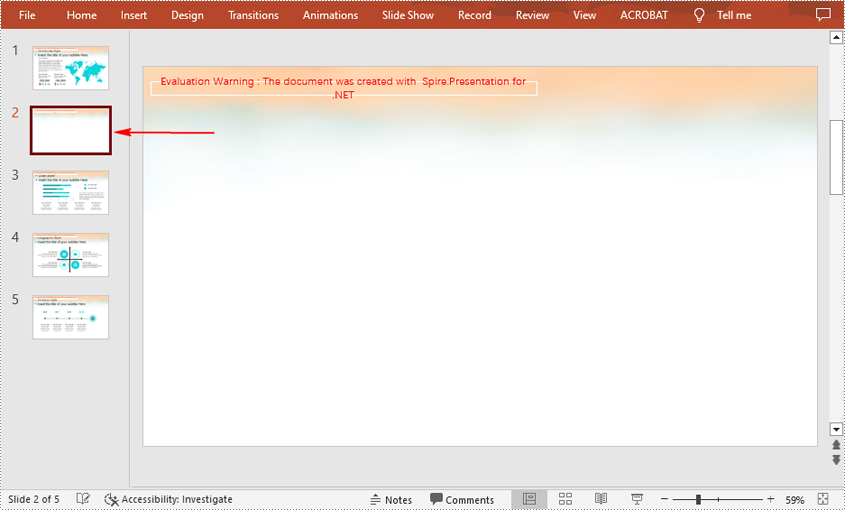
Sometimes you may also need to insert a slide before a specific slide to add additional supporting information, and below are the detailed steps to accomplish the task.
- Initialize an instance of Presentation class.
- Load a PowerPoint document using Presentation.loadFromFile() method.
- Insert a blank slide before a specified slide using Presentation.getSlides().insert() method.
- Save the result document using Presentation.saveToFile() method.
- Java
import com.spire.presentation.*;

public class InsertSlideinPowerPoint {
    public static void main(String[] args) throws Exception {
        //Initialize an instance of Presentation class
        Presentation presentation = new Presentation();

        //Load a sample PowerPoint document
        presentation.loadFromFile("Sample.pptx");

        //Insert a blank slide before the second slide
        presentation.getSlides().insert(1);

        //Save the result document
        presentation.saveToFile("InsertSlide.pptx", FileFormat.PPTX_2013);
    }
}
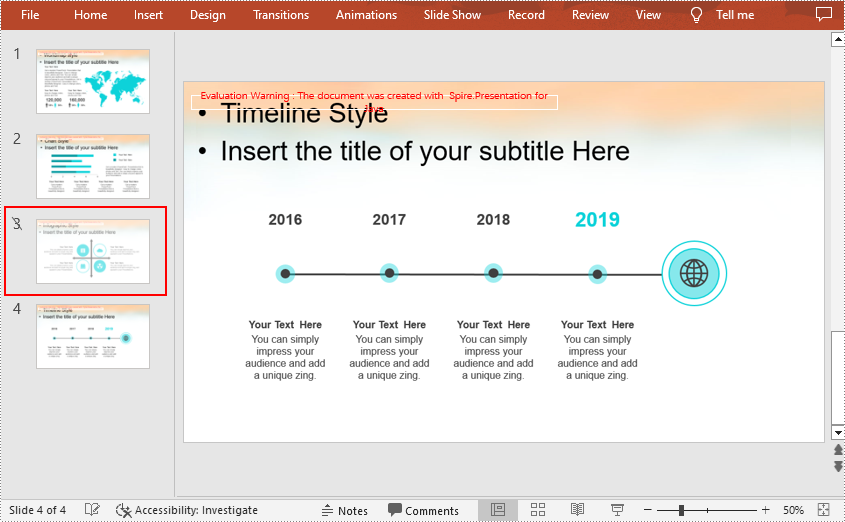
Hide or Unhide a Specific Slide in PowerPoint
For the slides that you temporarily do not want to show during a presentation, you can simply hide the slides without deleting them. Below are the steps to hide or unhide a specific PowerPoint slide.
- Initialize an instance of Presentation class.
- Load a PowerPoint document using Presentation.loadFromFile() method.
- Get a specified slide using Presentation.getSlides().get() method.
- Hide or unhide the slide by setting the value of ISlide.setHidden() method to true or false.
- Save the result document using Presentation.saveToFile() method.
- Java
import com.spire.presentation.*;

public class HideUnhideSlides {
    public static void main(String[] args) throws Exception {
        //Initialize an instance of Presentation class
        Presentation presentation = new Presentation();

        //Load a sample PowerPoint document
        presentation.loadFromFile("Sample.pptx");

        //Get the third slide
        ISlide slide = presentation.getSlides().get(2);

        //Hide the slide
        slide.setHidden(true);

        //Unhide the slide
        //slide.setHidden(false);

        //Save the result document
        presentation.saveToFile("HideSlide.pptx", FileFormat.PPTX_2010);
    }
}
Delete a Specific Slide from a PowerPoint Document
If you want to remove a unnecessary slide from the document, you can use the Presentation.getSlides().removeAt(int index) method. The detailed steps are as follows.
- Initialize an instance of Presentation class.
- Load a PowerPoint document using Presentation.loadFromFile() method.
- Remove a specified slide from the document using Presentation.getSlides().removeAt() method.
- Save the result document using Presentation.saveToFile() method.
- Java
import com.spire.presentation.*;

public class DeletePowerPointSlide {
    public static void main(String[] args) throws Exception {
        //Initialize an instance of Presentation class
        Presentation presentation = new Presentation();

        //Load a sample PowerPoint document
        presentation.loadFromFile("Sample");

        //Remove the first slide
        presentation.getSlides().removeAt(0);

        //Save the document
        presentation.saveToFile("RemoveSlide.pptx", FileFormat.PPTX_2013);
    }
}

Apply for a Temporary License
If you'd like to remove the evaluation message from the generated documents, or to get rid of the function limitations, please request a 30-day trial license for yourself.
