
Java (485)
When presenting a slideshow to an audience, you probably want to explain more than what appears on the slides. Adding speaker notes to your presentation is a great way to help you remember what needs to be said during the slideshow. In this article, you will learn how to add, read or delete speaker notes in PowerPoint in Java using Spire.Presentation for Java.
Install Spire.Presentation for Java
First of all, you're required to add the Spire.Presentation.jar file as a dependency in your Java program. The JAR file can be downloaded from this link. If you use Maven, you can easily import the JAR file in your application by adding the following code to your project's pom.xml file.
<repositories>
    <repository>
        <id>com.e-iceblue</id>
        <name>e-iceblue</name>
        <url>https://repo.e-iceblue.com/nexus/content/groups/public/</url>
    </repository>
</repositories>
<dependencies>
    <dependency>
        <groupId>e-iceblue</groupId>
        <artifactId>spire.presentation</artifactId>
        <version>11.5.1</version>
    </dependency>
</dependencies>
Add Speaker Notes in PowerPoint in Java
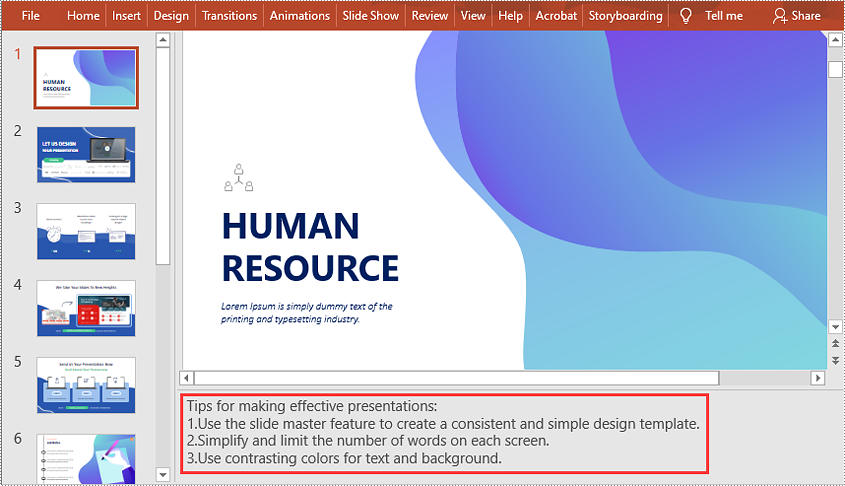
The following are the main steps to add speaker notes to a PowerPoint document:
- Create a Presentation instance and load a PowerPoint document using Presentation.loadFromFile() method.
- Get the slide that you want to add speaker notes to using Presentation.getSlides().get(slideIndex) method.
- Add a notes slide to the slide using ISlide.addNotesSlides() method.
- Create a ParagraphEx instance.
- Set text for the paragraph through ParagraphEx.setText() method, then append the paragraph to the notes slide using NotesSlide.getNotesTextFrame().getParagraphs().append() method.
- Save the result document using Presentation.saveToFile() method.
- Java
import com.spire.presentation.*;

public class AddSpeakerNotes {
    public static void main(String []args) throws Exception {
        //Load a PowerPoint document
        Presentation ppt = new Presentation();
        ppt.loadFromFile("Sample.pptx");

        //Get the first slide
        ISlide slide = ppt.getSlides().get(0);
        //Add a notes slide
        NotesSlide notesSlide = slide.addNotesSlide();

        //Add a paragraph to the notes slide
        ParagraphEx paragraph = new ParagraphEx();
        paragraph.setText("Tips for making effective presentations:");
        notesSlide.getNotesTextFrame().getParagraphs().append(paragraph);

        //Add a paragraph to the notes slide
        paragraph = new ParagraphEx();
        paragraph.setText("Use the slide master feature to create a consistent and simple design template.");
        notesSlide.getNotesTextFrame().getParagraphs().append(paragraph);

        //Add a paragraph to the notes slide
        paragraph = new ParagraphEx();
        paragraph.setText("Simplify and limit the number of words on each screen.");
        notesSlide.getNotesTextFrame().getParagraphs().append(paragraph);

        //Add a paragraph to the notes slide
        paragraph = new ParagraphEx();
        paragraph.setText("Use contrasting colors for text and background.");
        notesSlide.getNotesTextFrame().getParagraphs().append(paragraph);

        //Set the bullet type and bullet style for specific paragraphs on the notes slide
        for (int i = 1; i < notesSlide.getNotesTextFrame().getParagraphs().getCount();i++)
        {
            notesSlide.getNotesTextFrame().getParagraphs().get(i).setBulletType(TextBulletType.NUMBERED);
            notesSlide.getNotesTextFrame().getParagraphs().get(i).setBulletStyle(NumberedBulletStyle.BULLET_ARABIC_PERIOD);
        }

        //Save the result document
        ppt.saveToFile("SpeakerNotes.pptx", FileFormat.PPTX_2013);
    }
}
Read Speaker Notes in PowerPoint in Java
The following are the steps to read the speaker notes on a PowerPoint slide:
- Create a Presentation instance and load the PowerPoint document using Presentation.loadFromFile() method.
- Get the slide that you want to read speaker notes from using Presentation.getSlides().get(slideIndex) method.
- Get the notes slide from the slide using ISlide.getNotesSlide() method.
- Get the speaker notes from the notes slide using NotesSlide.getNotesTextFrame().getText() method.
- Create a StringBuilder instance.
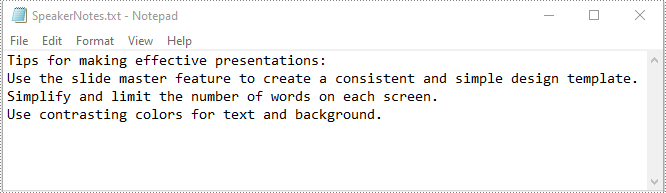
- Append the speaker notes to the string builder, then write them into a .txt file.
- Java
import com.spire.presentation.ISlide;
import com.spire.presentation.NotesSlide;
import com.spire.presentation.Presentation;

import java.io.FileWriter;

public class ReadSpeakerNotes {
    public static void main(String []args) throws Exception {
        //Load the PowerPoint document
        Presentation ppt = new Presentation();
        ppt.loadFromFile("SpeakerNotes.pptx");

        //Get the first slide
        ISlide slide = ppt.getSlides().get(0);

        //Get the notes slide from the first slide
        NotesSlide notesSlide = slide.getNotesSlide();
        //Get the speaker notes from the notes slide
        String notes = notesSlide.getNotesTextFrame().getText();

        //Create a StringBuilder instance
        StringBuilder sb = new StringBuilder();
        //Append the speaker notes to the string builder
        sb.append(notes + "\n");

        //Save the speaker notes to a .txt file
        FileWriter writer = new FileWriter("SpeakerNotes.txt");
        writer.write(sb.toString());
        writer.flush();
        writer.close();
    }
}
Delete Speaker Notes in PowerPoint in Java
The following are the steps to delete speaker notes from a PowerPoint slide:
- Create a Presentation instance and load the PowerPoint document using Presentation.loadFromFile() method.
- Get the slide that you want to delete speaker notes from using Presentation.getSlides().get(slideIndex) method.
- Get the notes slide from the slide using ISlide.getNotesSlide() method.
- Remove a specific speaker note from the notes slide using NotesSlide.getNotesTextFrame().getParagraphs().removeAt(paragraphIndex) method or remove all the speaker notes from the notes slide using NotesSlide.getNotesTextFrame().getParagraphs().clear() method.
- Save the result document using Presentation.saveToFile() method.
- Java
import com.spire.presentation.FileFormat;
import com.spire.presentation.ISlide;
import com.spire.presentation.NotesSlide;
import com.spire.presentation.Presentation;

public class DeleteSpeakerNotes {
    public static void main(String []args) throws Exception {
        //Load the PowerPoint document
        Presentation ppt = new Presentation();
        ppt.loadFromFile("SpeakerNotes.pptx");

        //Get the first slide
        ISlide slide = ppt.getSlides().get(0);
        //Get the notes slide from the slide
        NotesSlide notesSlide = slide.getNotesSlide();

        //Remove a specific speaker note from notes slide
        notesSlide.getNotesTextFrame().getParagraphs().removeAt(1);

        //Remove all the speaker notes from notes slide
        notesSlide.getNotesTextFrame().getParagraphs().clear();

        //Save the result document
        ppt.saveToFile("DeleteSpeakerNotes.pptx", FileFormat.PPTX_2013);
    }
}
Apply for a Temporary License
If you'd like to remove the evaluation message from the generated documents, or to get rid of the function limitations, please request a 30-day trial license for yourself.
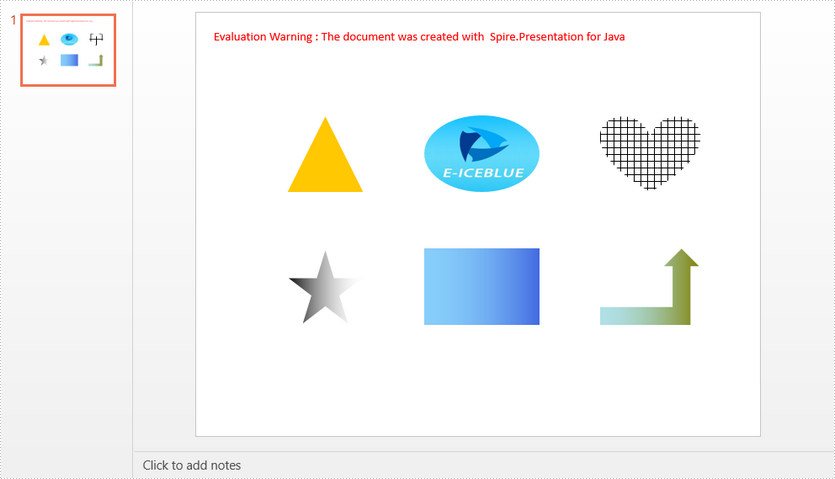
This article demonstrates how to add a variety of shapes to a PowerPoint slide and how to fill the shapes with a solid color, a picture, a pattern or a gradient.
Entire Code
import com.spire.presentation.*;
import com.spire.presentation.drawing.*;

import javax.imageio.ImageIO;
import java.awt.*;
import java.awt.geom.Rectangle2D;
import java.awt.image.BufferedImage;
import java.io.File;

public class AddShapes {

    public static void main(String[] args) throws Exception {

        //create a PowerPoint document
        Presentation presentation = new Presentation();

        //append a Triangle and fill the shape with a solid color
        IAutoShape shape = presentation.getSlides().get(0).getShapes().appendShape(ShapeType.TRIANGLE, new Rectangle2D.Double(115, 130, 100, 100));
        shape.getFill().setFillType(FillFormatType.SOLID);
        shape.getFill().getSolidColor().setColor(Color.orange);
        shape.getShapeStyle().getLineColor().setColor(Color.white);

        //append an Ellipse and fill the shape with a picture
        shape = presentation.getSlides().get(0).getShapes().appendShape(ShapeType.ELLIPSE, new Rectangle2D.Double(290, 130, 150, 100));
        shape.getFill().setFillType(FillFormatType.PICTURE);
        shape.getFill().getPictureFill().setFillType(PictureFillType.STRETCH);
        BufferedImage image = ImageIO.read(new File("C:\\Users\\Administrator\\Desktop\\logo.png"));
        shape.getFill().getPictureFill().getPicture().setEmbedImage(presentation.getImages().append(image));
        shape.getShapeStyle().getLineColor().setColor(Color.white);

        //append a Heart and fill the shape with a pattern
        shape = presentation.getSlides().get(0).getShapes().appendShape(ShapeType.HEART, new Rectangle2D.Double(515, 130, 130, 100));
        shape.getFill().setFillType(FillFormatType.PATTERN);
        shape.getFill().getPattern().setPatternType(PatternFillType.CROSS);
        shape.getShapeStyle().getLineColor().setColor(Color.white);

        //append a Five-Pointed Star and fill the shape with a gradient color
        shape = presentation.getSlides().get(0).getShapes().appendShape(ShapeType.FIVE_POINTED_STAR, new Rectangle2D.Double(115, 300, 100, 100));
        shape.getFill().setFillType(FillFormatType.GRADIENT);
        shape.getFill().getGradient().getGradientStops().append(0, KnownColors.BLACK);
        shape.getShapeStyle().getLineColor().setColor(Color.white);

        //append a Rectangle and fill the shape with gradient colors
        shape = presentation.getSlides().get(0).getShapes().appendShape(ShapeType.RECTANGLE, new Rectangle2D.Double(290, 300, 150, 100));
        shape.getFill().setFillType(FillFormatType.GRADIENT);
        shape.getFill().getGradient().getGradientStops().append(0, KnownColors.LIGHT_SKY_BLUE);
        shape.getFill().getGradient().getGradientStops().append(1, KnownColors.ROYAL_BLUE);
        shape.getShapeStyle().getLineColor().setColor(Color.white);

        //append a Bent Up Arrow and fill the shape with gradient colors
        shape = presentation.getSlides().get(0).getShapes().appendShape(ShapeType.BENT_UP_ARROW, new Rectangle2D.Double(515, 300, 130, 100));
        shape.getFill().setFillType(FillFormatType.GRADIENT);
        shape.getFill().getGradient().getGradientStops().append(1f, KnownColors.OLIVE);
        shape.getFill().getGradient().getGradientStops().append(0, KnownColors.POWDER_BLUE);
        shape.getShapeStyle().getLineColor().setColor(Color.white);

        //save the document
        presentation.saveToFile("output/AddShapes.pptx", FileFormat.PPTX_2010);
    }
}
Output
Making your slides easy to read is vital to creating an effective PowerPoint presentation. One of the most common ways of doing this is to format the text as a bulleted or numbered list. A list can help organize information in a neat manner as well as attract the reader’s attention. In this article, you will learn how to create numbered lists and bulleted lists in a PowerPoint slide in Java using Spire.Presentation for Java.
- Create a Numbered List in PowerPoint
- Create a Bulleted List with Symbol Bullets in PowerPoint
- Create a Bulleted List with Image Bullets in PowerPoint
Install Spire.Presentation for Java
First of all, you're required to add the Spire.Presentation.jar file as a dependency in your Java program. The JAR file can be downloaded from this link. If you use Maven, you can easily import the JAR file in your application by adding the following code to your project's pom.xml file.
<repositories>
    <repository>
        <id>com.e-iceblue</id>
        <name>e-iceblue</name>
        <url>https://repo.e-iceblue.com/nexus/content/groups/public/</url>
    </repository>
</repositories>
<dependencies>
    <dependency>
        <groupId>e-iceblue</groupId>
        <artifactId>spire.presentation</artifactId>
        <version>11.5.1</version>
    </dependency>
</dependencies>
Create a Numbered List in PowerPoint in Java
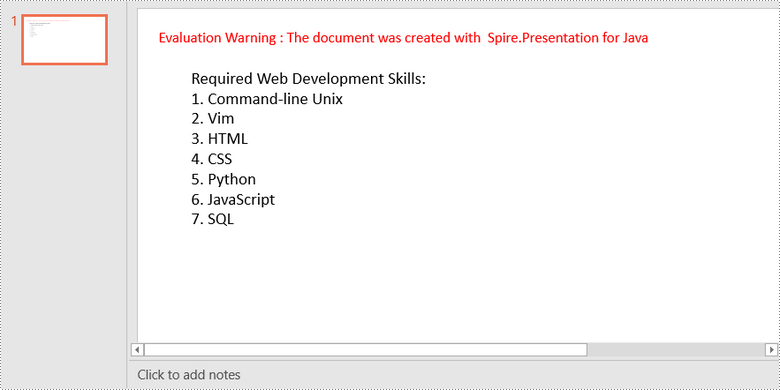
Spire.Presentation supports adding numerals or bullet points in front of paragraphs to create a numbered or bulleted list. To specify the bullet type, use ParagraphEx.setBulletType() method. The following are the steps to create a numbered list in a PowerPoint slide using Spire.Presentation for Java.
- Create a Presentation object.
- Get the first slide using Presentation.getSlides().get() method.
- Append a shape to the slide using ISlide.getShapes().appendShape() method.
- Specify list content inside a String list.
- Create paragraphs based on the list content, and set the bullet type of these paragraphs to NUMBERED using ParagraphEx.setBulletType() method.
- Set the numbered bullet style using ParagraphEx.setBulletStyle() method.
- Save the document to a PowerPoint file using Presentation.saveToFile() method.
- Java
import com.spire.presentation.*;
import com.spire.presentation.drawing.FillFormatType;

import java.awt.*;
import java.awt.geom.Rectangle2D;

public class CreateNumberedList {

    public static void main(String[] args) throws Exception {

        //Create a Presentation object
        Presentation presentation = new Presentation();
        presentation.getSlideSize().setType(SlideSizeType.SCREEN_16_X_9);

        //Get the first slide
        ISlide slide = presentation.getSlides().get(0);

        //Append a shape to the slide and set shape style
        Rectangle2D rect = new Rectangle2D.Double(50, 50, 300, 200);
        IAutoShape shape = slide.getShapes().appendShape(ShapeType.RECTANGLE, rect);
        shape.getLine().setFillType(FillFormatType.NONE);
        shape.getFill().setFillType(FillFormatType.NONE);

        //Add text to the default paragraph
        ParagraphEx titleParagraph = shape.getTextFrame().getParagraphs().get(0);
        titleParagraph.setText("Required Web Development Skills:");
        titleParagraph.getTextRanges().get(0).getFill().setFillType(FillFormatType.SOLID);
        titleParagraph.getTextRanges().get(0).getFill().getSolidColor().setColor(Color.black);
        titleParagraph.setAlignment(TextAlignmentType.LEFT);

        //Specify list content
        String[] listContent = new String[] {
                " Command-line Unix",
                " Vim",
                " HTML",
                " CSS",
                " Python",
                " JavaScript",
                " SQL"
        };

        //Create a numbered list
        for(int i = 0; i < listContent.length; i ++)
        {
            ParagraphEx paragraph = new ParagraphEx();
            shape.getTextFrame().getParagraphs().append(paragraph);
            paragraph.setText(listContent[i]);
            paragraph.getTextRanges().get(0).getFill().setFillType(FillFormatType.SOLID);
            paragraph.getTextRanges().get(0).getFill().getSolidColor().setColor(Color.black);
            paragraph.setBulletType(TextBulletType.NUMBERED);
            paragraph.setBulletStyle(NumberedBulletStyle.BULLET_ARABIC_PERIOD);
        }

        //Save the document
        presentation.saveToFile("NumberedList.pptx", FileFormat.PPTX_2013);
    }
}
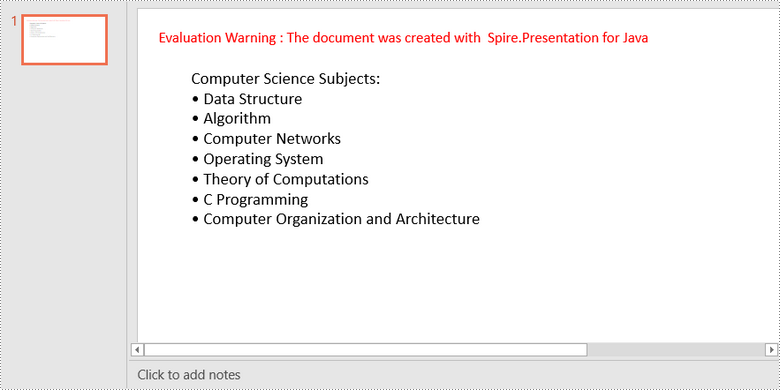
Create a Bulleted List with Symbol Bullets in PowerPoint in Java
The process of creating a bulleted list using symbol bullets is very similar to that of creating a numbered list. The only difference is that you need to set the bullet type to SYMBOL. The following are the steps.
- Create a Presentation object.
- Get the first slide using Presentation.getSlides().get() method.
- Append a shape to the slide using ISlide.getShapes().appendShape() method.
- Specify list content inside a String list.
- Create paragraphs based on the list content, and set the bullet type of these paragraphs to SYMBOL using ParagraphEx.setBulletType() method.
- Save the document to a PowerPoint file using Presentation.saveToFile() method.
- Java
import com.spire.presentation.*;
import com.spire.presentation.drawing.FillFormatType;

import java.awt.*;
import java.awt.geom.Rectangle2D;

public class CreateBulletedListWithSymbol {

    public static void main(String[] args) throws Exception {

        //Create a Presentation object
        Presentation presentation = new Presentation();
        presentation.getSlideSize().setType(SlideSizeType.SCREEN_16_X_9);

        //Get the first slide
        ISlide slide = presentation.getSlides().get(0);

        //Append a shape to the slide and set shape style
        Rectangle2D rect = new Rectangle2D.Double(50, 50, 350, 200);
        IAutoShape shape = slide.getShapes().appendShape(ShapeType.RECTANGLE, rect);
        shape.getLine().setFillType(FillFormatType.NONE);
        shape.getFill().setFillType(FillFormatType.NONE);

        //Add text to the default paragraph
        ParagraphEx titleParagraph = shape.getTextFrame().getParagraphs().get(0);
        titleParagraph.setText("Computer Science Subjects:");
        titleParagraph.getTextRanges().get(0).getFill().setFillType(FillFormatType.SOLID);
        titleParagraph.getTextRanges().get(0).getFill().getSolidColor().setColor(Color.black);
        titleParagraph.setAlignment(TextAlignmentType.LEFT);

        //Specify list content
        String[] listContent = new String[] {
                " Data Structure",
                " Algorithm",
                " Computer Networks",
                " Operating System",
                " Theory of Computations",
                " C Programming",
                " Computer Organization and Architecture"
        };

        //Create a bulleted list with symbol bullets
        for(int i = 0; i < listContent.length; i ++)
        {
            ParagraphEx paragraph = new ParagraphEx();
            shape.getTextFrame().getParagraphs().append(paragraph);
            paragraph.setText(listContent[i]);
            paragraph.getTextRanges().get(0).getFill().setFillType(FillFormatType.SOLID);
            paragraph.getTextRanges().get(0).getFill().getSolidColor().setColor(Color.black);
            paragraph.setBulletType(TextBulletType.SYMBOL);
        }

        //Save the document
        presentation.saveToFile("SymbolBullets.pptx", FileFormat.PPTX_2013);
    }
}
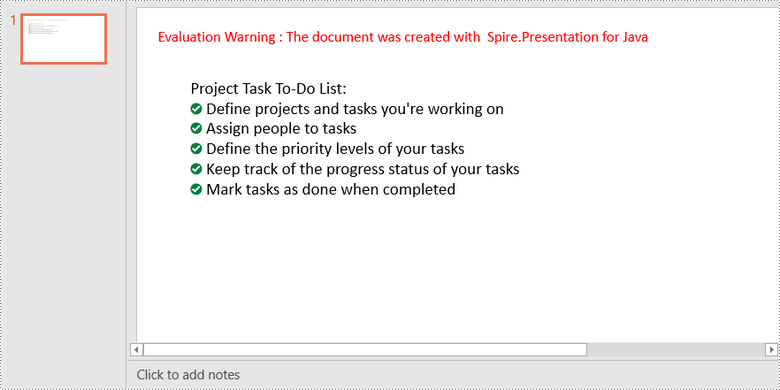
Create a Bulleted List with Image Bullets in PowerPoint in Java
To use an image as bullet points, you need to set the bullet type to PICTURE and specify an image for the BulletPicture object. The following are the detailed steps.
- Create a Presentation object.
- Get the first slide using Presentation.getSlides().get() method.
- Append a shape to the slide using ISlide.getShapes().appendShape() method.
- Specify list content inside a String list.
- Create paragraphs based on the list content, and set the bullet type of these paragraphs to PICTURE using ParagraphEx.setBulletType() method.
- Set the image for the bullets using Paragraph.getBulletPicture().setEmbedImage() method.
- Save the document to a PowerPoint file using Presentation.saveToFile() method.
- Java
import com.spire.presentation.*;
import com.spire.presentation.drawing.FillFormatType;

import javax.imageio.ImageIO;
import java.awt.*;
import java.awt.geom.Rectangle2D;
import java.awt.image.BufferedImage;
import java.io.File;

public class CreateBulletedListWithImage {

    public static void main(String[] args) throws Exception {

        //Create a Presentation object
        Presentation presentation = new Presentation();
        presentation.getSlideSize().setType(SlideSizeType.SCREEN_16_X_9);

        //Get the first slide
        ISlide slide = presentation.getSlides().get(0);

        //Append a shape to the slide and set shape style
        Rectangle2D rect = new Rectangle2D.Double(50, 50, 400, 180);
        IAutoShape shape = slide.getShapes().appendShape(ShapeType.RECTANGLE, rect);
        shape.getLine().setFillType(FillFormatType.NONE);
        shape.getFill().setFillType(FillFormatType.NONE);

        //Add text to the default paragraph
        ParagraphEx titleParagraph = shape.getTextFrame().getParagraphs().get(0);
        titleParagraph.setText("Project Task To-Do List:");
        titleParagraph.getTextRanges().get(0).getFill().setFillType(FillFormatType.SOLID);
        titleParagraph.getTextRanges().get(0).getFill().getSolidColor().setColor(Color.black);
        titleParagraph.setAlignment(TextAlignmentType.LEFT);

        //Specify list content
        String[] listContent = new String[] {
                " Define projects and tasks you're working on",
                " Assign people to tasks",
                " Define the priority levels of your tasks",
                " Keep track of the progress status of your tasks",
                " Mark tasks as done when completed"
        };

        //Create a bulleted list with image bullets
        BufferedImage image = ImageIO.read(new File("C:\\Users\\Administrator\\Desktop\\R-C25.png"));
        for(int i = 0; i < listContent.length; i ++)
        {
            ParagraphEx paragraph = new ParagraphEx();
            shape.getTextFrame().getParagraphs().append(paragraph);
            paragraph.setText(listContent[i]);
            paragraph.getTextRanges().get(0).getFill().setFillType(FillFormatType.SOLID);
            paragraph.getTextRanges().get(0).getFill().getSolidColor().setColor(Color.black);
            paragraph.setBulletType(TextBulletType.PICTURE);
            paragraph.getBulletPicture().setEmbedImage(presentation.getImages().append(image));
        }

        //Save the document
        presentation.saveToFile("ImageBullets.pptx", FileFormat.PPTX_2013);
    }
}
Apply for a Temporary License
If you'd like to remove the evaluation message from the generated documents, or to get rid of the function limitations, please request a 30-day trial license for yourself.
