
Java (485)
Java: Add, Modify, or Remove Footers in PowerPoint Documents
2024-04-12 09:13:00 Written by AdministratorAdding, modifying, and removing footers in PowerPoint documents is crucial as footers can provide additional information and organizational structure to the document. By including page numbers, dates, author information, or custom text in the footer, it can help the audience better understand the presentation content and track document versions. Footers also enhance the professionalism and tidiness of the document, making it more visually appealing and readable. Modifying footers allows for updating information or adjusting formats as needed to ensure the document remains current and consistent. Removing footers can customize the document's appearance based on specific requirements or design preferences. This article will introduce how to use Spire.Presentation for Java to add, modify, and remove footers in PowerPoint documents within a Java project.
- Java Add Footers in PowerPoint Documents
- Java Modify Footers in PowerPoint Documents
- Java Remove Footers in PowerPoint Documents
Install Spire.Presentation for Java
First of all, you're required to add the Spire.Presentation.jar file as a dependency in your Java program. The JAR file can be downloaded from this link. If you use Maven, you can easily import the JAR file in your application by adding the following code to your project's pom.xml file.
<repositories>
    <repository>
        <id>com.e-iceblue</id>
        <name>e-iceblue</name>
        <url>https://repo.e-iceblue.com/nexus/content/groups/public/</url>
    </repository>
</repositories>
<dependencies>
    <dependency>
        <groupId>e-iceblue</groupId>
        <artifactId>spire.presentation</artifactId>
        <version>11.5.1</version>
    </dependency>
</dependencies>
Java Add Footers in PowerPoint Documents
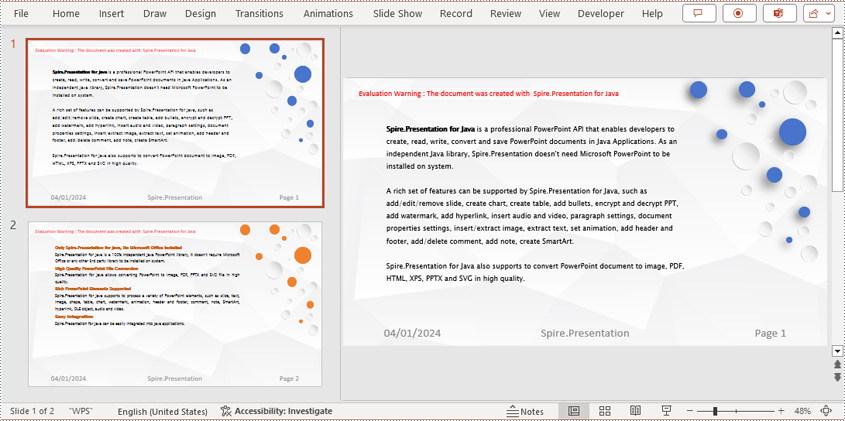
Using Spire.Presentation, you can easily add consistent footer content to the bottom of each page in a PowerPoint document. By adding footer placeholders, page number placeholders, and time placeholders, you can ensure that the footer content on each page remains consistent. Here are the detailed steps:
- Create a lisentation object.
- Load a PowerPoint document using the lisentation.loadFromFile() method.
- Set the footer visible using lisentation.setFooterVisible(true) and set the footer text.
- Set the slide number visible using lisentation.setSlideNumberVisible(true), iterate through each slide, check for the lisence of a page number placeholder, and modify the text to the "Page X" format if found.
- Set the date and time visible using lisentation.setDateTimeVisible(true).
- Set the format of the date using the lisentation.setDateTime() method.
- Save the document to a specified path using the lisentation.saveToFile() method.
- Java
import com.spire.presentation.*;
import java.util.Date;

public class AddFooter {
    public static void main(String[] args) throws Exception {
        // Create a Presentation object
        Presentation presentation = new Presentation();

        // Load the presentation from a file
        presentation.loadFromFile("Sample1.pptx");

        // Set the footer visible
        presentation.setFooterVisible(true);

        // Set the footer text to "Spire.Presentation"
        presentation.setFooterText("Spire.Presentation");

        // Set the slide number visible
        presentation.setSlideNumberVisible(true);

        // Iterate through each slide in the presentation
        for (int i = 0; i < presentation.getSlides().getCount(); i++) {
            ISlide slide = presentation.getSlides().get(i);
            for (int j = 0; j < slide.getShapes().getCount(); j++) {
                IShape shape = slide.getShapes().get(j);
                if (shape.getPlaceholder() != null) {
                    // If it is a slide number placeholder
                    if (shape.getPlaceholder().getType().equals(PlaceholderType.SLIDE_NUMBER)) {
                        IAutoShape shape1 = (IAutoShape) shape;
                        ParagraphEx paragraph = shape1.getTextFrame().getTextRange().getParagraph();
                        String text = paragraph.getText();

                        // Modify the slide number text to "Page X"
                        paragraph.setText("Page " + text);
                    }
                }
            }
        }

        // Set the date time visible
        presentation.setDateTimeVisible(true);

        // Create a Date object to represent the current time
        Date currentDate = new Date();

        // Set the date time format
        presentation.setDateTime(currentDate, "MM/dd/yyyy");

        // Save the modified presentation to a file
        presentation.saveToFile("AddedFooter.pptx", FileFormat.PPTX_2016);

        // Release the resources of the Presentation object
        presentation.dispose();
    }
}
Java Modify Footers in PowerPoint Documents
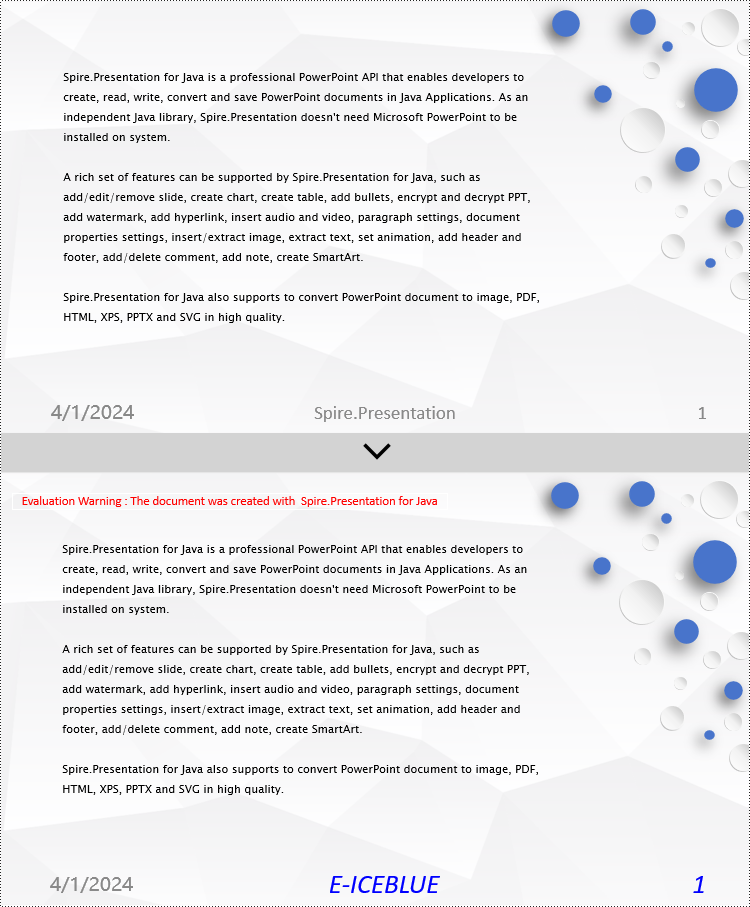
To modify the footer in a PowerPoint document, you need to inspect each shape on every slide to identify footer placeholders, page number placeholders, and so on. By recognizing these placeholders, you can set specific content and formats for each type. Here are the detailed steps:
- Create a Presentation object.
- Load a PowerPoint document using the Presentation.loadFromFile() method.
- Retrieve a slide using the Presentation.getSlides().get(index) method.
- Iterate through the shapes on the slide using a for loop, inspect each shape to determine if it is a placeholder for the footer, page number, etc., and then modify its content or format accordingly.
- Save the document to a specified path using the Presentation.saveToFile() method.
- Java
import com.spire.presentation.*;
import com.spire.presentation.drawing.FillFormatType;
import java.awt.*;

public class ModifyFooter {
    public static void main(String[] args) throws Exception {
        // Create a Presentation object
        Presentation presentation = new Presentation();

        // Load a presentation from a file
        presentation.loadFromFile("Sample2.pptx");

        // Get the first slide
        ISlide slide = presentation.getSlides().get(0);

        // Iterate through shapes on the slide
        for (int i = 0; i < slide.getShapes().getCount(); i++) {
            // Check if the shape is a placeholder
            if (slide.getShapes().get(i).getPlaceholder() != null) {
                // Get the placeholder type
                PlaceholderType type = slide.getShapes().get(i).getPlaceholder().getType();

                // If it's a footer placeholder
                if (type == PlaceholderType.FOOTER) {
                    // Convert the shape to IAutoShape type
                    IAutoShape autoShape = (IAutoShape) slide.getShapes().get(i);

                    // Set the text content to "E-ICEBLUE"
                    autoShape.getTextFrame().setText("E-ICEBLUE");

                    // Modify the font of the text
                    ChangeFont(autoShape.getTextFrame().getParagraphs().get(0));
                }
                // If it's a slide number placeholder
                if (type == PlaceholderType.SLIDE_NUMBER) {
                    // Convert the shape to IAutoShape type
                    IAutoShape autoShape = (IAutoShape) slide.getShapes().get(i);

                    // Modify the font of the text
                    ChangeFont(autoShape.getTextFrame().getParagraphs().get(0));
                }
            }
        }

        // Save the modified presentation to a file
        presentation.saveToFile("ModifiedFooter.pptx", FileFormat.PPTX_2016);

        // Dispose of the Presentation object resources
        presentation.dispose();
    }
    static void ChangeFont(ParagraphEx paragraph)
    {
        // Iterate through each text range in the paragraph
        for (int i = 0; i < paragraph.getTextRanges().getCount(); i++) {
            // Set the text style to italic
            paragraph.getTextRanges().get(i).isItalic(TriState.TRUE);

            // Set the text font
            paragraph.getTextRanges().get(i).setEastAsianFont (new TextFont("Times New Roman"));

            // Set the text font size to 34
            paragraph.getTextRanges().get(i).setFontHeight(34);

            // Set the text color
            paragraph.getTextRanges().get(i).getFill().setFillType(FillFormatType.SOLID);
            paragraph.getTextRanges().get(i).getFill().getSolidColor().setColor(Color.BLUE);
        }
    }
}
Java Remove Footers in PowerPoint Documents
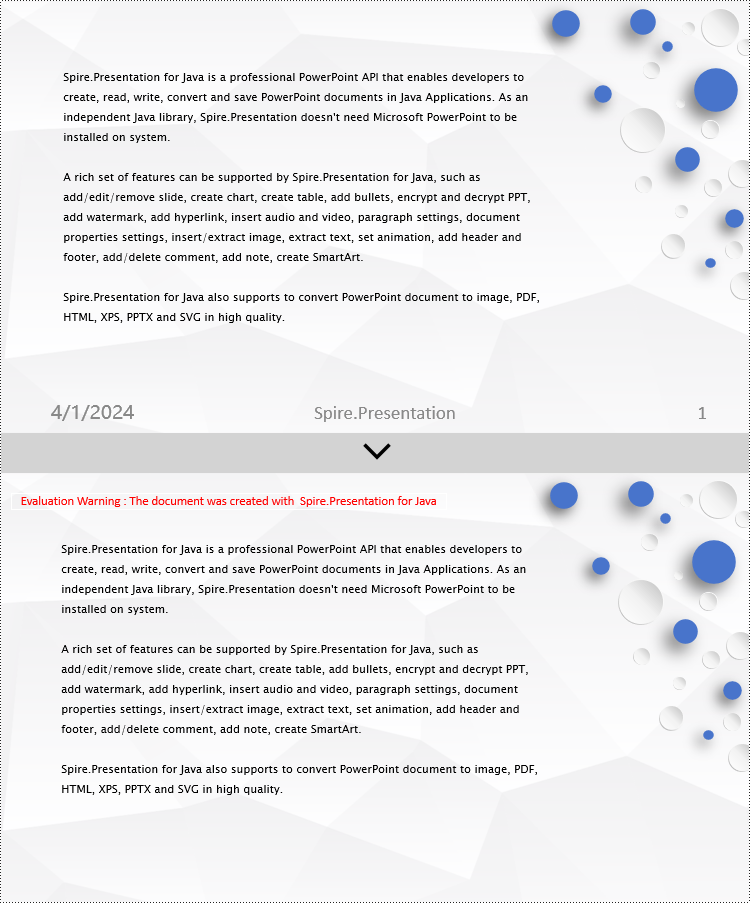
To delete the footer in a PowerPoint document, you first need to retrieve content such as footer placeholders, page number placeholders, time placeholders, etc., within the slides. Once these placeholders are identified, you can locate and remove them from the collection of shapes on the slide. Here are the detailed steps:
- Create a Presentation object.
- Load a PowerPoint document using the Presentation.loadFromFile() method.
- Retrieve a slide using the Presentation.getSlides().get(index) method.
- Iterate through the shapes on the slide using a for loop, check if they are placeholders, and if they are footer placeholders, page number placeholders, time placeholders, remove them from the slide.
- Save the document to a specified path using the Presentation.saveToFile() method.
- Java
import com.spire.presentation.*;
public class RemoveFooter {
    public static void main(String[] args) throws Exception {
        // Create a Presentation object
        Presentation presentation = new Presentation();
        // Load the presentation from a file
        presentation.loadFromFile("Sample2.pptx");
        // Get the first slide
        ISlide slide = presentation.getSlides().get(0);
        // Iterate through the shapes on the slide
        for (int i = slide.getShapes().getCount() - 1; i >= 0; i--) {
            // Check if the shape is a placeholder
            if (slide.getShapes().get(i).getPlaceholder() != null) {
                // Get the placeholder type
                PlaceholderType type = slide.getShapes().get(i).getPlaceholder().getType();
                // If it's a footer placeholder
                if (type == PlaceholderType.FOOTER) {
                    // Remove it from the slide
                    slide.getShapes().removeAt(i);
                }
                // If it's a slide number placeholder
                if (type == PlaceholderType.SLIDE_NUMBER) {
                    // Remove it from the slide
                    slide.getShapes().removeAt(i);
                }
                // If it's a date and time placeholder
                if (type == PlaceholderType.DATE_AND_TIME) {
                    // Remove it from the slide
                    slide.getShapes().removeAt(i);
                }
            }
        }
        // Save the modified presentation to a file
        presentation.saveToFile("RemovedFooter.pptx", FileFormat.PPTX_2016);
        // Dispose of the Presentation object resources
        presentation.dispose();
    }
}
Apply for a Temporary License
If you'd like to remove the evaluation message from the generated documents, or to get rid of the function limitations, please request a 30-day trial license for yourself.
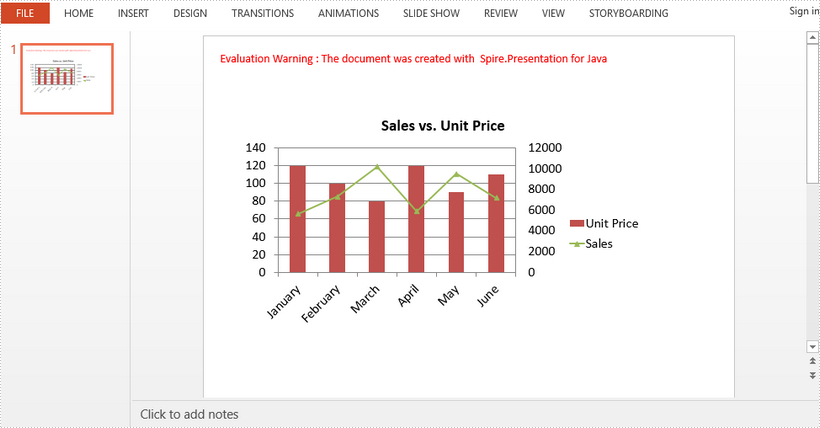
A combination chart is a chart that combines at least two chart types in a single chart. This article introduces how to combine clustered column and line chart in PowerPoint using Spire.Presentation for Java.
import com.spire.presentation.FileFormat;
import com.spire.presentation.Presentation;
import com.spire.presentation.charts.ChartType;
import com.spire.presentation.charts.IChart;
import com.spire.presentation.drawing.FillFormatType;

import java.awt.geom.Rectangle2D;

public class CombinationChart {

    public static void main(String[] args) throws Exception {

        //create a PowerPoint document
        Presentation presentation = new Presentation();

        //insert a column clustered chart
        Rectangle2D.Double rect = new   Rectangle2D.Double(50, 100, 550, 300);
        IChart chart = presentation.getSlides().get(0).getShapes().appendChart(ChartType.COLUMN_CLUSTERED, rect);

        //set chart title
        chart.getChartTitle().getTextProperties().setText("Sales vs. Unit Price");
        chart.getChartTitle().getTextProperties().isCentered(true);
        chart.getChartTitle().setHeight(30);
        chart.hasTitle(true);

        //write data to chart as chart data
        chart.getChartData().get(0,0).setText("Month");
        chart.getChartData().get(0,1).setText("Unit Price");
        chart.getChartData().get(0,2).setText("Sales");
        chart.getChartData().get(1,0).setText("January");
        chart.getChartData().get(1,1).setNumberValue(120);
        chart.getChartData().get(1,2).setNumberValue(5600);
        chart.getChartData().get(2,0).setText("February");
        chart.getChartData().get(2,1).setNumberValue(100);
        chart.getChartData().get(2,2).setNumberValue(7300);
        chart.getChartData().get(3,0).setText("March");
        chart.getChartData().get(3,1).setNumberValue(80);
        chart.getChartData().get(3,2).setNumberValue(10200);
        chart.getChartData().get(4,0).setText("April");
        chart.getChartData().get(4,1).setNumberValue(120);
        chart.getChartData().get(4,2).setNumberValue(5900);
        chart.getChartData().get(5,0).setText("May");
        chart.getChartData().get(5,1).setNumberValue(90);
        chart.getChartData().get(5,2).setNumberValue(9500);
        chart.getChartData().get(6,0).setText("June");
        chart.getChartData().get(6,1).setNumberValue(110);
        chart.getChartData().get(6,2).setNumberValue(7200);

        //set series labels
        chart.getSeries().setSeriesLabel(chart.getChartData().get("B1", "C1"));

        //set categories labels
        chart.getCategories().setCategoryLabels(chart.getChartData().get("A2", "A7"));

        //assign data to series values
        chart.getSeries().get(0).setValues(chart.getChartData().get("B2", "B7"));
        chart.getSeries().get(1).setValues(chart.getChartData().get("C2", "C7"));

        //change the chart type of series 2 to line with markers
        chart.getSeries().get(1).setType(ChartType.LINE_MARKERS);

        //plot data of series 2 on the secondary axis
        chart.getSeries().get(1).setUseSecondAxis(true);

        //hide grid links of secondary axis
        chart.getSecondaryValueAxis().getMajorGridTextLines().setFillType(FillFormatType.NONE);

        //set overlap
        chart.setOverLap(-50);

        //set gap width
        chart.setGapDepth(200);

        //save the document
        presentation.saveToFile("CombinationChart.pptx", FileFormat.PPTX_2010);
    }
}
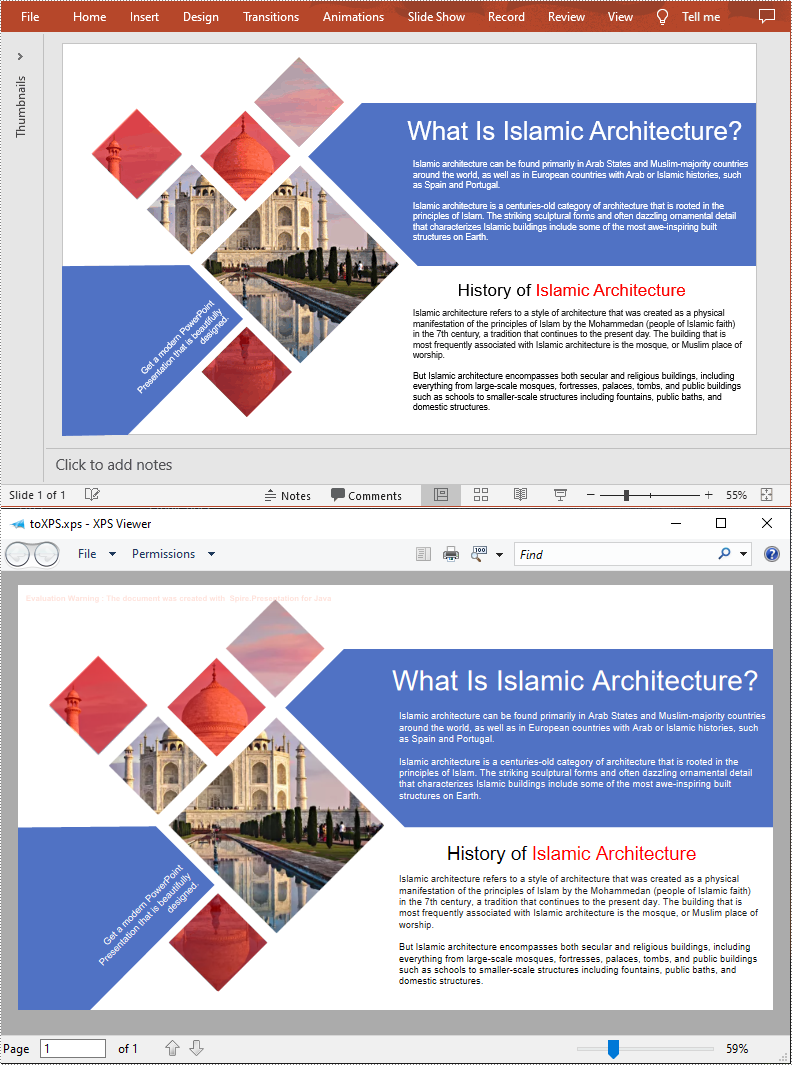
XPS (XML Paper Specification) is a fixed-format document described by an XML-based language. It maintains a consistent appearance for documents, which is an ideal file format for publishing, archiving and transmitting. This article will demonstrate how to programmatically convert PowerPoint to XPS using Spire.Presentation for Java.
Install Spire.Presentation for Java
First of all, you're required to add the Spire.Presentation.jar file as a dependency in your Java program. The JAR file can be downloaded from this link. If you use Maven, you can easily import the JAR file in your application by adding the following code to your project's pom.xml file.
<repositories>
    <repository>
        <id>com.e-iceblue</id>
        <name>e-iceblue</name>
        <url>https://repo.e-iceblue.com/nexus/content/groups/public/</url>
    </repository>
</repositories>
<dependencies>
    <dependency>
        <groupId>e-iceblue</groupId>
        <artifactId>spire.presentation</artifactId>
        <version>11.5.1</version>
    </dependency>
</dependencies>
Convert PowerPoint to XPS
The detailed steps are as follows:
- Create a Presentation instance.
- Load a sample PowerPoint document using Presentation.loadFromFile() method.
- Save the PowerPoint document to XPS using Presentation.saveToFile(java.lang.String file, FileFormat fileFormat) method.
- Java
import com.spire.presentation.*;

public class PowerPointtoXPS {
    public static void main(String[] args) throws Exception{

        //Create a Presentation instance
        Presentation ppt = new Presentation();

        //Load a sample PowerPoint file
        ppt.loadFromFile("E:\\Files\\test.pptx");

        //Save to XPS file
        ppt.saveToFile("toXPS.xps", FileFormat.XPS);
        ppt.dispose();
    }
}
Apply for a Temporary License
If you'd like to remove the evaluation message from the generated documents, or to get rid of the function limitations, please request a 30-day trial license for yourself.
