Once a presentation is finished, the way its pages are organized often changes with the situation: when sending materials out, each slide may need to stand alone; when preparing an excerpt, only a few consecutive pages are needed. Saving extra copies and copying slides by hand takes time and can easily lose charts, speaker notes, or layout details. Handling it on a server means the file must first be uploaded to a third-party environment.
This article uses Spire.Presentation for JavaScript to split PowerPoint slides in the browser. The whole process runs locally on the user's device through WebAssembly, requires no Office installation and no back-end service, and keeps the presentation from leaving the browser.
This article covers two core features:
For installation and project configuration, see Integrating Spire.Presentation for JavaScript in a React Project. The examples below assume that Spire.Presentation is installed and the WebAssembly module has been initialized.
Split a PowerPoint presentation into single slides
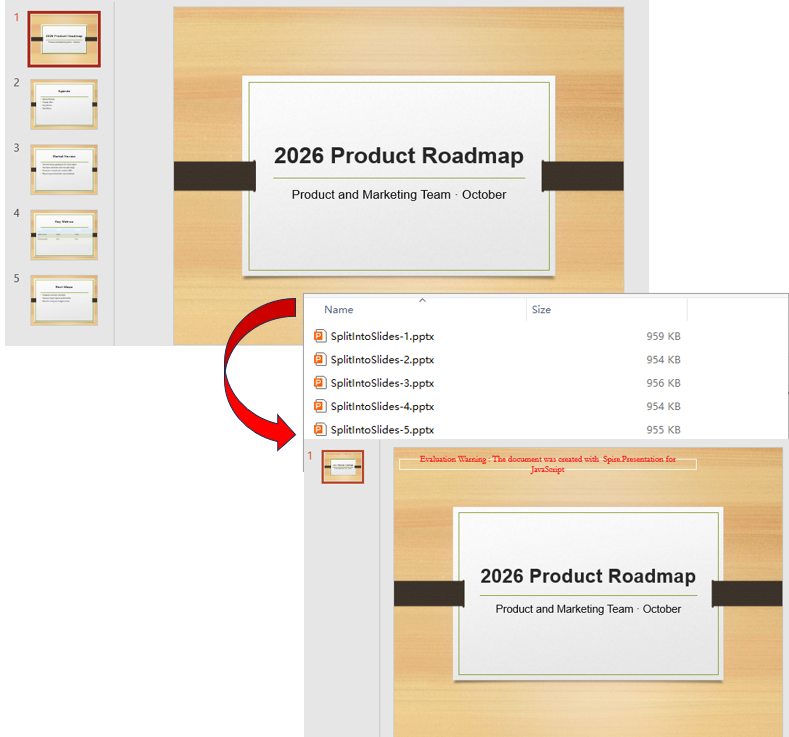
When distributing materials, each slide sometimes needs to stand alone so it can be sent, annotated, or used as image material separately. Splitting a presentation into multiple files means copying the content page by page and creating an independent presentation instance for each slide.
| Code | Result |
|---|---|
new pptModule.Presentation() |
Creates a presentation instance with one blank slide by default |
sourcePpt.Slides.Count |
Total number of slides in the source presentation |
sourcePpt.Slides.get_Item(i) |
The (i+1)-th slide (index starts at 0) |
singlePpt.Slides.RemoveAt(0) |
Removes the blank slide created with the new presentation |
singlePpt.Slides.Append({ slide }) |
Copies the given slide to the end of the current presentation |
singlePpt.SaveToFile({ file, fileFormat }) |
Writes a standalone PPTX file in the specified format |
The steps are:
- Load the font file and the sample presentation
Presentation.pptxinto the VFS withwindow.spire.FetchFileToVFS, then create an instance withnew pptModule.Presentation()and load the source file withLoadFromFile. - Read
sourcePpt.Slides.Countas the loop count and visit each source slide withsourcePpt.Slides.get_Item(i). - In each iteration, create a new
Presentation, callSlides.RemoveAt(0)to remove the default blank page, and copy the current slide withSlides.Append({ slide }). - Save the new presentation as
SplitSlide-<index>.pptxwithSaveToFile, then release the instance withDispose(). - Read every output file through
window.dotnetRuntime.Module.FS.readFile, build aBlob, and trigger the browser download.
function App() {
  const splitIntoSlides = async () => {
    // Get the Spire.Presentation WASM module
    const pptModule = window.wasmModule?.spirepresentation;

    // Check if the module is ready
    if (!pptModule) {
      alert('Spire.Presentation is not ready yet');
      return;
    }

    // Load the font and the sample presentation into the VFS
    await window.spire.FetchFileToVFS('ARIAL.TTF', '/Library/Fonts/', `${process.env.PUBLIC_URL}/font/`);
    const inputFileName = 'Presentation.pptx';
    await window.spire.FetchFileToVFS(inputFileName, '', `${process.env.PUBLIC_URL}data/`);

    // Load the source presentation
    const sourcePpt = new pptModule.Presentation();
    sourcePpt.LoadFromFile(inputFileName);

    const splitFiles = [];

    // Split the slides one by one
    for (let i = 0; i < sourcePpt.Slides.Count; i++) {
      // Create a new presentation and remove its built-in blank slide
      const singlePpt = new pptModule.Presentation();
      singlePpt.Slides.RemoveAt(0);

      // Copy the i-th slide of the source presentation into the new one
      singlePpt.Slides.Append({ slide: sourcePpt.Slides.get_Item(i) });

      // Save it as a standalone PPTX file
      const outputFileName = `SplitSlide-${i + 1}.pptx`;
      singlePpt.SaveToFile({ file: outputFileName, fileFormat: pptModule.FileFormat.Pptx2013 });
      splitFiles.push(outputFileName);

      singlePpt.Dispose();
    }

    sourcePpt.Dispose();

    // Read the split results from the VFS and trigger the downloads
    for (const fileName of splitFiles) {
      const fileArray = window.dotnetRuntime.Module.FS.readFile(fileName);
      const blob = new Blob([fileArray], { type: 'application/vnd.openxmlformats-officedocument.presentationml.presentation' });
      const url = URL.createObjectURL(blob);
      const a = document.createElement('a');
      a.href = url;
      a.download = fileName;
      a.click();
      URL.revokeObjectURL(url);
    }
  };

  return (
    <div style={{ textAlign: 'center', height: '300px' }}>
      <h1>Split PowerPoint Slides</h1>
      <button onClick={splitIntoSlides}>
        Split into Single Slides
      </button>
    </div>
  );
}

export default App;
Presentation files after splitting into single slides:
Split PowerPoint slides by page range
Not every split needs one file per page. A report often only needs one section extracted, for example saving slides 2 to 4 as a separate brief. There is no need to copy the whole presentation and delete pages; determine the start and end indexes and append only the slides inside that range to a new presentation.
The steps are:
- Load the font and
Presentation.pptxwithwindow.spire.FetchFileToVFS, then create aPresentationinstance and load the file withLoadFromFile. - Create a new presentation with
new pptModule.Presentation()and remove the default blank page withSlides.RemoveAt(0). - Set
startIndexandendIndex(indexes start at 0 and the range includes both ends), take each slide withSlides.get_Item(i)in a loop, and append it withSlides.Append({ slide }). - Save the result as
SplitRange.pptxwithSaveToFile, and release both presentation instances withDispose(). - Read the file through
window.dotnetRuntime.Module.FS.readFile, build aBlob, and trigger the download.
function App() {
  const splitByRange = async () => {
    // Get the Spire.Presentation WASM module
    const pptModule = window.wasmModule?.spirepresentation;

    // Check if the module is ready
    if (!pptModule) {
      alert('Spire.Presentation is not ready yet');
      return;
    }

    // Load the font and the sample presentation into the VFS
    await window.spire.FetchFileToVFS('ARIAL.TTF', '/Library/Fonts/', `${process.env.PUBLIC_URL}/font/`);
    const inputFileName = 'Presentation.pptx';
    await window.spire.FetchFileToVFS(inputFileName, '', `${process.env.PUBLIC_URL}data/`);

    // Load the source presentation
    const sourcePpt = new pptModule.Presentation();
    sourcePpt.LoadFromFile(inputFileName);

    // Keep slides 2 to 4 (indexes start from 0)
    const startIndex = 1;
    const endIndex = 3;

    // Create a new presentation and remove its built-in blank slide
    const rangePpt = new pptModule.Presentation();
    rangePpt.Slides.RemoveAt(0);

    // Copy the slides inside the range one by one
    for (let i = startIndex; i <= endIndex; i++) {
      rangePpt.Slides.Append({ slide: sourcePpt.Slides.get_Item(i) });
    }

    const outputFileName = 'SplitRange.pptx';
    rangePpt.SaveToFile({ file: outputFileName, fileFormat: pptModule.FileFormat.Pptx2013 });

    // Release resources
    rangePpt.Dispose();
    sourcePpt.Dispose();

    // Read the result file from the VFS and trigger the download
    const fileArray = window.dotnetRuntime.Module.FS.readFile(outputFileName);
    const blob = new Blob([fileArray], { type: 'application/vnd.openxmlformats-officedocument.presentationml.presentation' });
    const url = URL.createObjectURL(blob);
    const a = document.createElement('a');
    a.href = url;
    a.download = outputFileName;
    a.click();
    URL.revokeObjectURL(url);
  };

  return (
    <div style={{ textAlign: 'center', height: '300px' }}>
      <h1>Split PowerPoint Slides by Page Range</h1>
      <button onClick={splitByRange}>
        Split by Page Range
      </button>
    </div>
  );
}

export default App;
Presentation after splitting slides by page range:

FAQ
Why does a split result contain an extra blank slide
Cause: The presentation created by new pptModule.Presentation() contains one blank slide by default. If the source slides are appended directly, that blank page stays at the beginning of the result.
Solution: Call Slides.RemoveAt(0) before appending slides to remove the default page, for example:
const singlePpt = new pptModule.Presentation();
singlePpt.Slides.RemoveAt(0);
singlePpt.Slides.Append({ slide: sourcePpt.Slides.get_Item(i) });
Why does an index return the wrong slide
Cause: The index of Slides.get_Item(index) starts at 0, so the first slide corresponds to index 0. Using a page number directly shifts the selection by one.
Solution: Use zero-based indexes consistently. To take slides 2 to 4, set startIndex to 1 and endIndex to 3.
Why is the last slide missing after splitting by page range
Cause: If the loop condition is written as i < endIndex, the slide at endIndex is never visited; the index range includes both ends.
Solution: Use i <= endIndex as the loop condition and make sure endIndex does not exceed sourcePpt.Slides.Count - 1.
Get a Free License
Spire.Presentation for JavaScript offers a 30-day full-featured free trial license with no functional limitations. Apply here to evaluate before purchasing.