In enterprise HR scenarios, batch contract generation is one of the most common document processing needs — monthly new employee onboarding, contract renewals, labor agreement changes often involve processing dozens or even hundreds of contracts at once. Each contract needs personalized information such as employee name, position, salary, and contract term.
Comparison with Traditional SDK API Processing
| Traditional Spire.Office for .NET API | Spire.Agent.Office | |
|---|---|---|
| Approach | Write code for traditional API processing: load template → get fields → read data → fill row by row → save, every step requires code control | Describe the goal in natural language, AI automatically orchestrates and completes all processing steps |
| Code Volume | Requires dozens of lines of code for data reading, field mapping, loop writing, and format control | Only configuration code + 1 natural language instruction |
| Field Mapping | Hard-code the mapping between merge fields and Excel columns; data source changes require code updates | AI automatically understands semantic correspondence between column names and template fields; data source changes require no code changes |
| Flexibility | Template field changes require code changes → compilation → redeployment | Just adjust the template or data source; existing instructions are reusable |
| Maintainability | Relies on development team to maintain code | Templates and data sources can be maintained directly by business users |
This article introduces how to use Spire.Agent.Office Word AI capabilities to automatically write Excel employee data into Word templates and generate contracts in PDF format in batches, using both mail merge and placeholder replacement approaches. You are also free to save as DOCX, DOC, HTML, OFD, Markdown, XPS, and other formats to meet different archiving needs.
For product installation and SpireToken configuration, please refer to Integrating Spire.Agent.Office in a .NET Project. The following examples assume Spire.Agent.Office is already installed and SpireToken is configured.
Mail Merge Approach
Mail merge is the standard solution for batch Word document generation and the most commonly used pattern in HR scenarios. The core idea is: a contract template Word document with merge fields and a data source, letting AI complete the data-to-template merge.
using Spire.Agent.Office.AI;
using Spire.Agent.Office.Extensions;
using Spire.Doc;

// Multiple document paths (data source files)
string[] attachmentPaths = new string[] { @"E:\data.xlsx" };

// Word template file path
string inputPath = @"E:\template-mailmerge.docx";
// Result document path (null here — will use the output folder path set below)
string savePath = null;
// Output directory
string OutDir = @"E:\output";
// SpireToken Key
string key = "**************************";
// Natural language instruction
string instruction =
      "Execute mail merge: populate employee data from the attachment 'data.xlsx' into the merge fields of the contract template row by row; " +
      "preserve the original document layout and styling after merging; " +
      "generate one independent contract document per employee and save the output in PDF format";

// Call the Word document processing function
AIResult result = ExecuteDemoWord(instruction, inputPath, savePath, key, OutDir, attachmentPaths);

// Record processing log
WriteLog(result, "word", @"E:\log\");


// Execute Word document AI processing
static AIResult ExecuteDemoWord(string instruction, string inputPath, string savePath, string key, string output, string[] attachmentPaths)
{
    // Create AIOptions configuration object
    AIOptions options = new AIOptions();
    // Set working directory to output directory
    options.WorkDir = output;
    // Set SpireToken Key
    options.SpireToken = key;

    // Use Document object to process Word document
    using (Document doc = new Document())
    {
        // Load Word template from file
        if (!string.IsNullOrEmpty(inputPath) && File.Exists(inputPath))
        {
            doc.LoadFromFile(inputPath);
        }
        // Create AI document processor
        AIDocumentProcessor processor = doc.AI(options);

        // Execute AI instruction
        return processor.ExecuteInstruction(doc, instruction, savePath, attachmentPaths);
    }
}
Original Word template (with mail merge fields) and Excel data 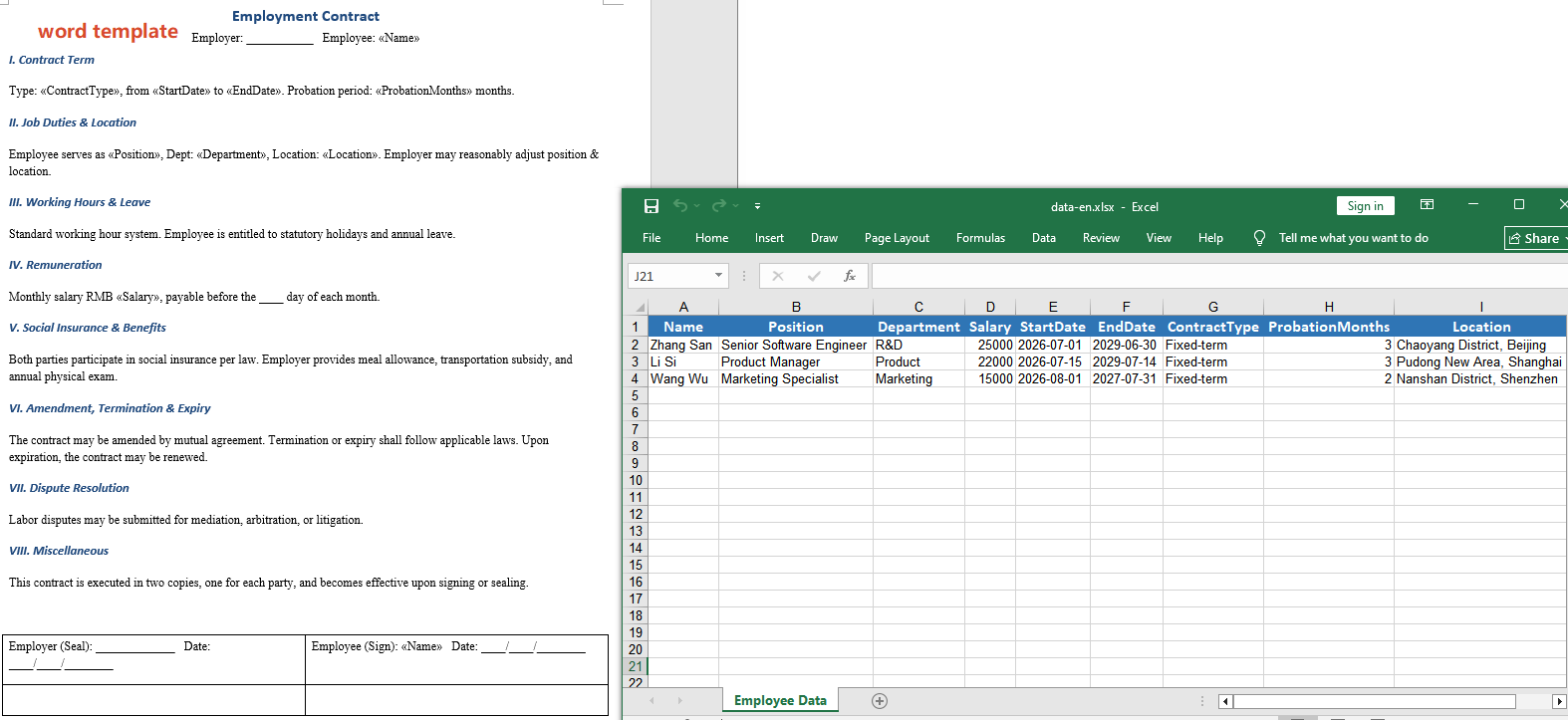 Output generated via mail merge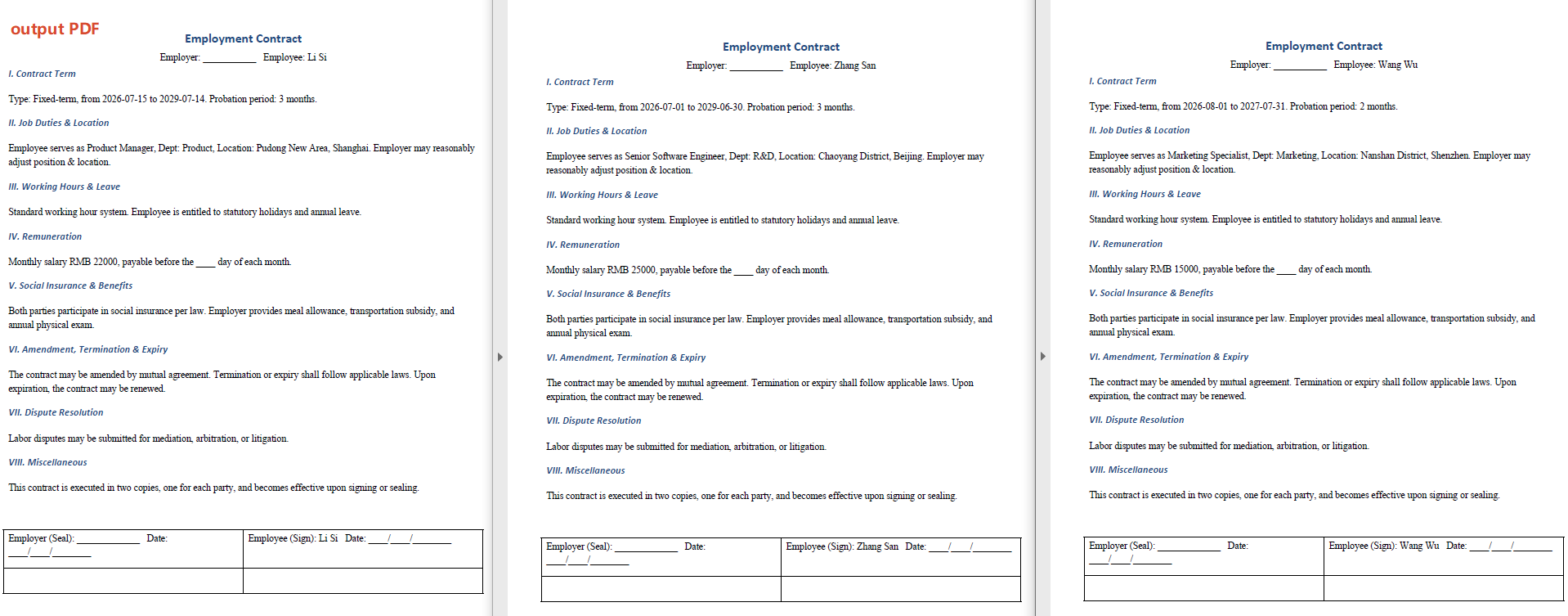
Each generated contract fully preserves the template's formatting, table styles, and font settings, with all merge fields replaced by the corresponding employee data. If 50 new employees are being onboarded, just one template + one Excel file + one instruction is all it takes to generate all contracts.
Placeholder Replacement Approach
The placeholder replacement approach does not require predefining mail merge fields in the template. Instead, it uses custom placeholder markers (such as {{Name}}, {{Salary}}) directly in the document, which the AI agent identifies and replaces.
// Multiple document paths (data source files)
string[] attachmentPaths = new string[] { @"E:\data.xlsx" };

// Contract template file path
string inputPath = @"E:\template.docx";
// Save path (null here — will use the output folder path set below)
string savePath = null;
// Output directory
string OutDir = @"E:\output";
// SpireToken Key
string key = "**************************";

// Natural language instruction
string instruction =
    "Read employee data from 'data.xlsx' and replace the corresponding placeholders in the contract template row by row" +
    "Highlight the replaced field content, preserve the original document layout, styling, and fonts after replacement," +
    "Generate one independent contract document per employee and save the output in PDF format";

// Call the AI Word document processing method
AIResult result = ExecuteDemoWord1(instruction, inputPath, savePath, key, OutDir, attachmentPaths);

// Record processing log
WriteLog(result, "word", @"E:\log\");


// Execute Word document AI processing
static AIResult ExecuteDemoWord(string instruction, string inputPath, string savePath, string key, string output, string[] attachmentPaths)
{
    // Create AIOptions configuration object
    AIOptions options = new AIOptions();
    // Set working directory to output directory
    options.WorkDir = output;
    // Set SpireToken Key
    options.SpireToken = key;

    // Use Document object to process Word document
    using (Document doc = new Document())
    {
        // Load Word template from file
        if (!string.IsNullOrEmpty(inputPath) && File.Exists(inputPath))
        {
            doc.LoadFromFile(inputPath);
        }
        // Create AI document processor
        AIDocumentProcessor processor = doc.AI(options);

        // Execute AI instruction
        return processor.ExecuteInstruction(doc, instruction, savePath, attachmentPaths);
    }
}
Original Word template (with {{}} placeholders) and Excel data 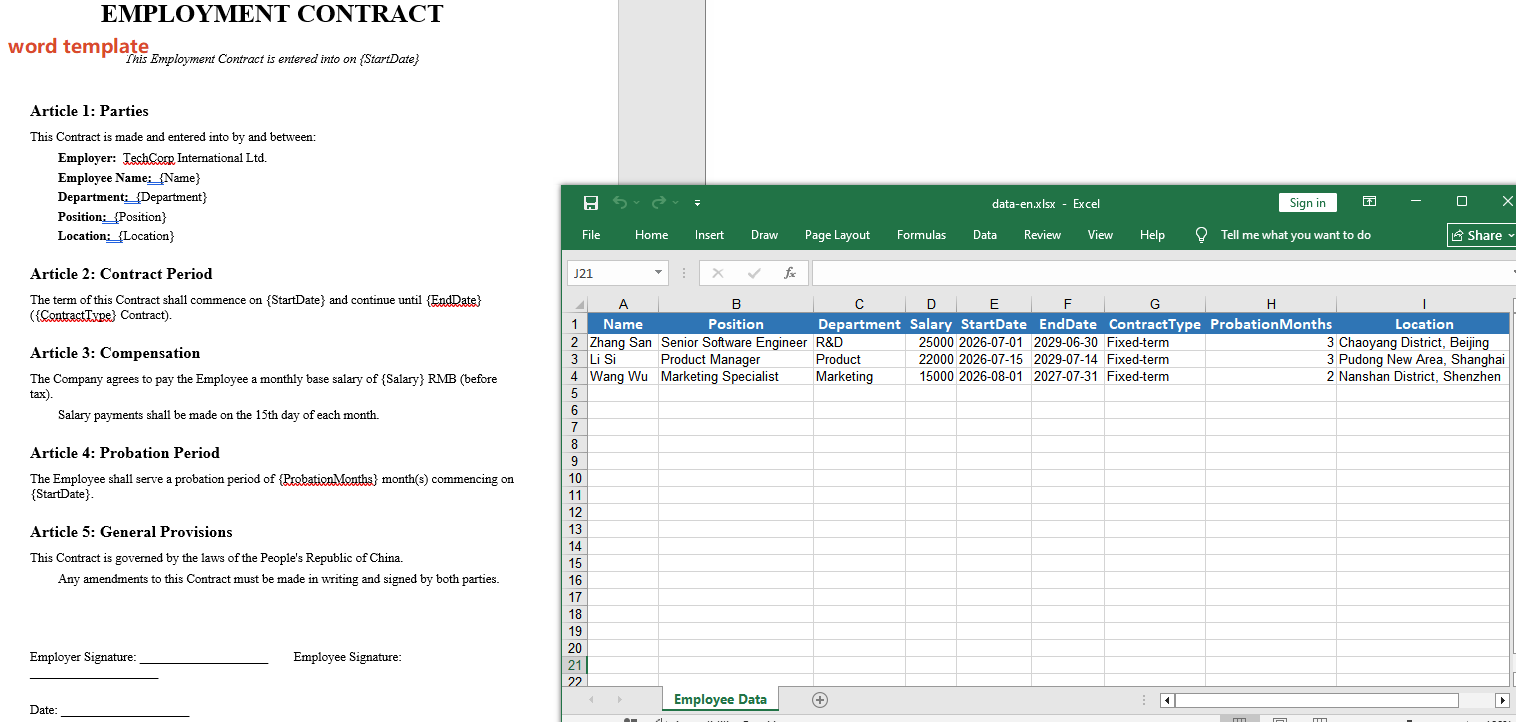 Output generated via placeholder replacement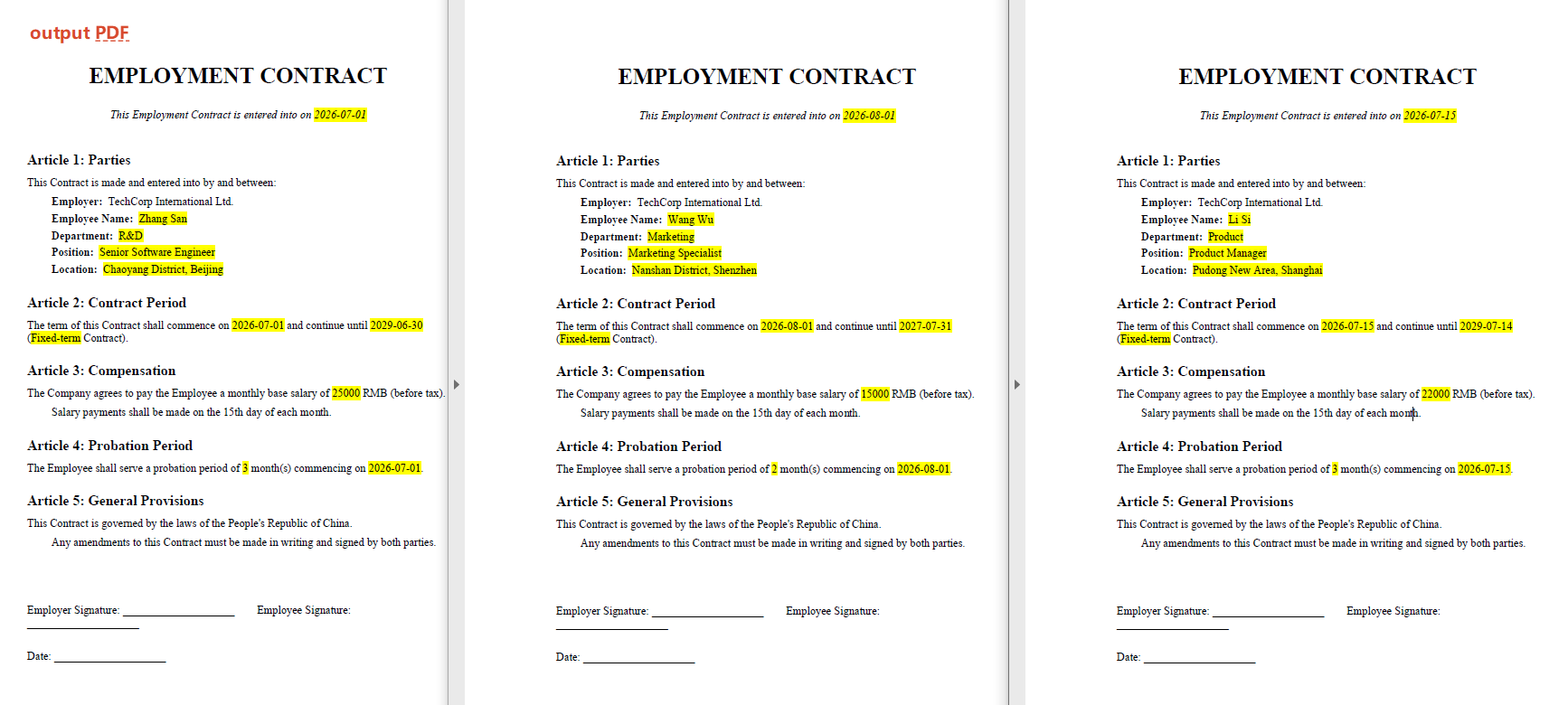
Two Approaches Compared
| Mail Merge Approach | Placeholder Replacement Approach | |
|---|---|---|
| Template Creation | Requires inserting mail merge fields | Directly type {{}} placeholders |
| Learning Curve | Requires knowledge of Word mail merge functionality | Nearly zero learning cost |
| Flexibility | Fixed one-to-one field mapping | Supports dynamic calculation and formatting during replacement |
| Data Source | Requires structured data | Supports structured data, can also be defined in the instruction |
For creating Word templates with Spire.Agent.Office, please refer to the article "Creating Various Word Templates with Spire.Agent.Office".
Frequently Asked Questions
Generated document style changed
Cause: The AI model may modify or add content during processing.
Solution: Add a description like "preserve the original document layout, styling, and fonts" to the instruction.
Number of generated documents does not match the number of data rows after mail merge
Cause: Empty rows or merged cells in the data source Excel file, causing inaccurate row counting.
Solution: Ensure the first row of the data source contains column headers, with each subsequent row corresponding to one employee record and no empty rows in between. If the issue persists, add a sequence number column to the data source for validation.
Obtaining a SpireToken Key
- Contact sales@e-iceblue.com or visit https://www.e-iceblue.com/TemLicense.html to obtain a trial or commercial API key.
Configure it in code:
AIOptions options = new AIOptions();
options.SpireToken = key;
