Efficiently transferring technical knowledge is a core challenge for every enterprise in day-to-day business. A large number of technical specification documents — such as operation manuals, safety and maintenance guides, and supply chain standard documents — are often dozens or even hundreds of pages long. How to quickly turn the core knowledge in these dense technical specifications into easy-to-understand PPT material is a key pain point in enterprise knowledge management.
This article demonstrates how to use the Spire.Agent.Office Presentation AI capability to analyze and summarize data sources in various formats, extract the core points, and generate professional PPT presentations.
- Generate PPT from a Word Document
- Generate PPT from a PDF Document
- Generate PPT from a Markdown Document
- Generate PPT from an Excel Document
Comparing with Traditional SDK/API Processing
| Traditional Spire.Office for .NET API | Spire.Agent.Office | |
|---|---|---|
| Driving approach | Requires calling the APIs of four products — Word, Excel, PDF, PowerPoint — extracting content from each document type via code, then calling the PowerPoint API to create slides page by page, add elements, and manually calculate layouts | Directly describe the requirement in natural language, and the AI understands and generates the PPT automatically |
| Development complexity | You need to be familiar with 4 different API sets, write separate parsing code for each format (.docx/.xlsx/.pdf), and then piece together the PowerPoint generation logic — large amount of code with high coupling | One natural-language instruction completes the entire workflow |
| Document parsing | You must manually specify which data to extract from each type of document; the parsing logic is hard-coded, and any document structure change requires synchronized code modification | AI automatically analyzes the document structure in depth and accurately extracts the key information |
| Versatility & maintainability | Each document format requires its own parsing logic; format changes or new document types require extensive code changes, with poor reusability | The same set of natural-language instructions adapts to different documents |
| Processing cycle | Several days (large documents require senior engineers to spend full time writing/debugging code) | Minutes (upload document + template + one instruction) |
Regarding product installation and SpireToken configuration, please refer to Integrating Spire.Agent.Office in a .NET Project. The examples below assume that Spire.Agent.Office is installed and SpireToken is configured.
Generate PPT from a Word Document
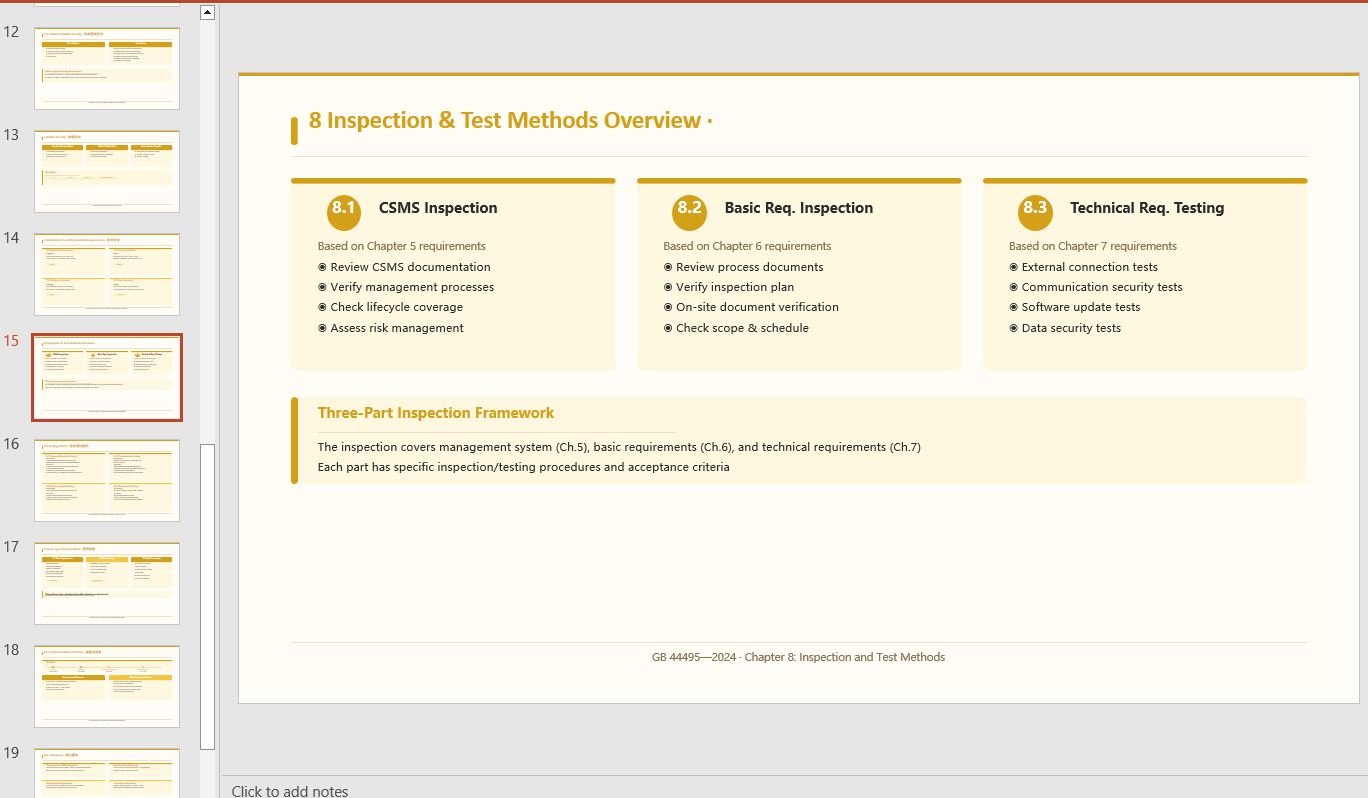
Generate a minimalist-style PPT presentation based on the content of a Word document according to a natural-language instruction.
using Spire.Agent.Office.AI;
using Spire.Agent.Office.Extensions;
using Spire.Presentation;

// Source data document
string inputPath = @"technical_requirements.docx";
// Result document path
string savePath = @"SafetyTechnicalRequirements.pptx";
// SpireToken Key
string key = "sk-TF***************************r";
// Natural language instruction
string instruction = "Extract the core points from 'technical_requirements.docx' to generate a PPT. 1. Ensure proper layout and formatting 2. Use a minimalist style with a light yellow theme 3. Generate 20 slides";
// AI generation
PPTGenerationResult result = GeneratePPT(inputPath, instruction, savePath, key);

// AI-assisted PPT generation
static PPTGenerationResult GeneratePPT(string input, string instruction, string savePath, string key)
{
    AIOptions options = new AIOptions();
    options.SpireToken = key;
    options.TimeoutMs = 1000000;
    using (Presentation ppt = new Presentation())
    {
        AIDocumentProcessor processor = ppt.AI(options);
        return processor.GeneratePresentation(input, instruction, savePath);
    }
}
Generate PPT from a PDF Document
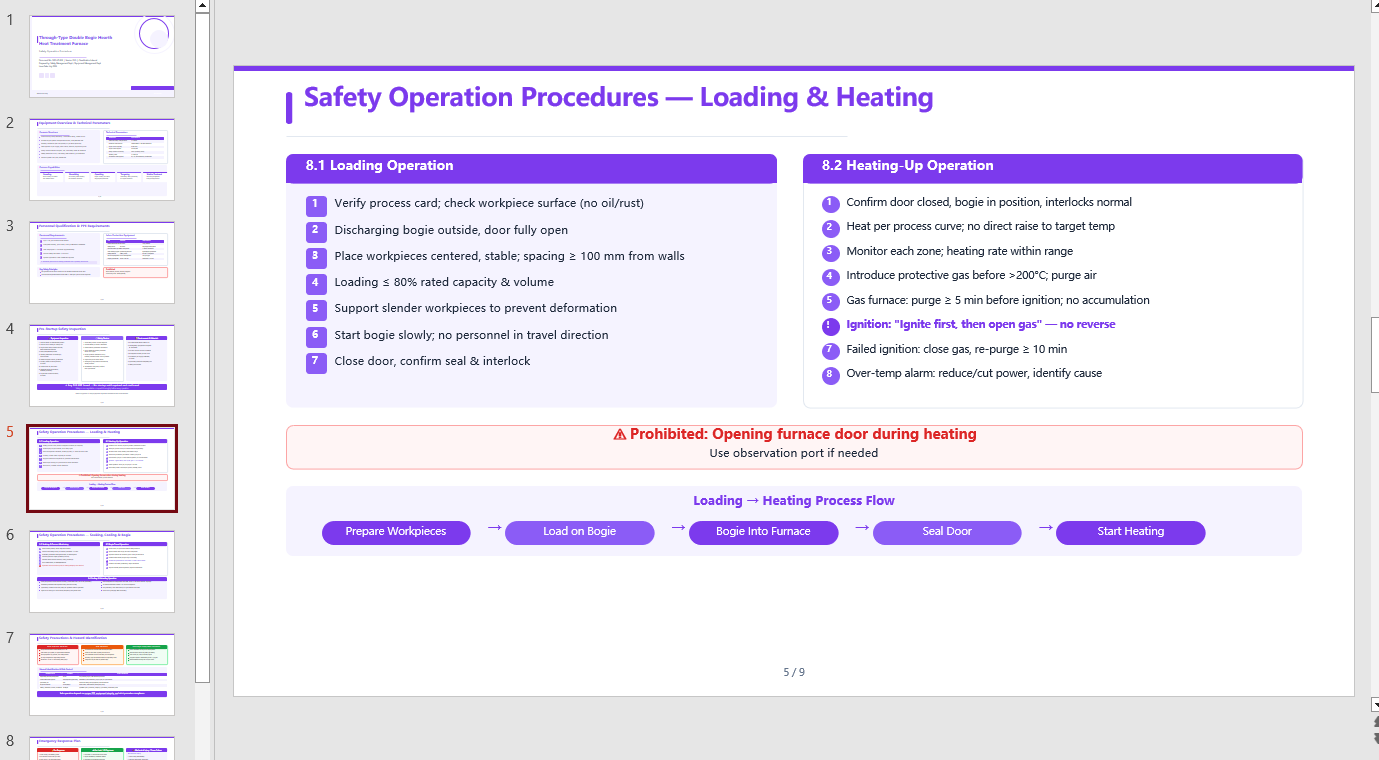
Automatically analyze the internal hierarchy of a PDF document, accurately extract the key information, and generate a retro-green themed PPT presentation according to the instruction.
using Spire.Agent.Office.AI;
using Spire.Agent.Office.Extensions;
using Spire.Presentation;

// Source data document
string inputPath = @"procedures.pdf";
// Result document path
string savePath = @"SafetyOperationProcedures.pptx";
// SpireToken Key
string key = "sk-TF***************************r";
// Natural language instruction
string instruction = "Extract the key points from 'procedures.pdf' and generate a PPT. " +
                     "1. Ensure a well-structured layout and visual appeal; " +
                     "2. Include relevant diagrams and charts; " +
                     "3. Use a simple purple style as the theme; "+
                     "4. 9 pages";
// AI generation
PPTGenerationResult result = GeneratePPT(inputPath, instruction, savePath, key);


// AI-assisted PPT generation
static PPTGenerationResult GeneratePPT(string input, string instruction, string savePath, string key)
{
    AIOptions options = new AIOptions();
    options.SpireToken = key;
    options.TimeoutMs = 1000000;
    using (Presentation ppt = new Presentation())
    {
        AIDocumentProcessor processor = ppt.AI(options);
        return processor.GeneratePresentation(input, instruction, savePath);
    }
}
Generate PPT from a Markdown Document
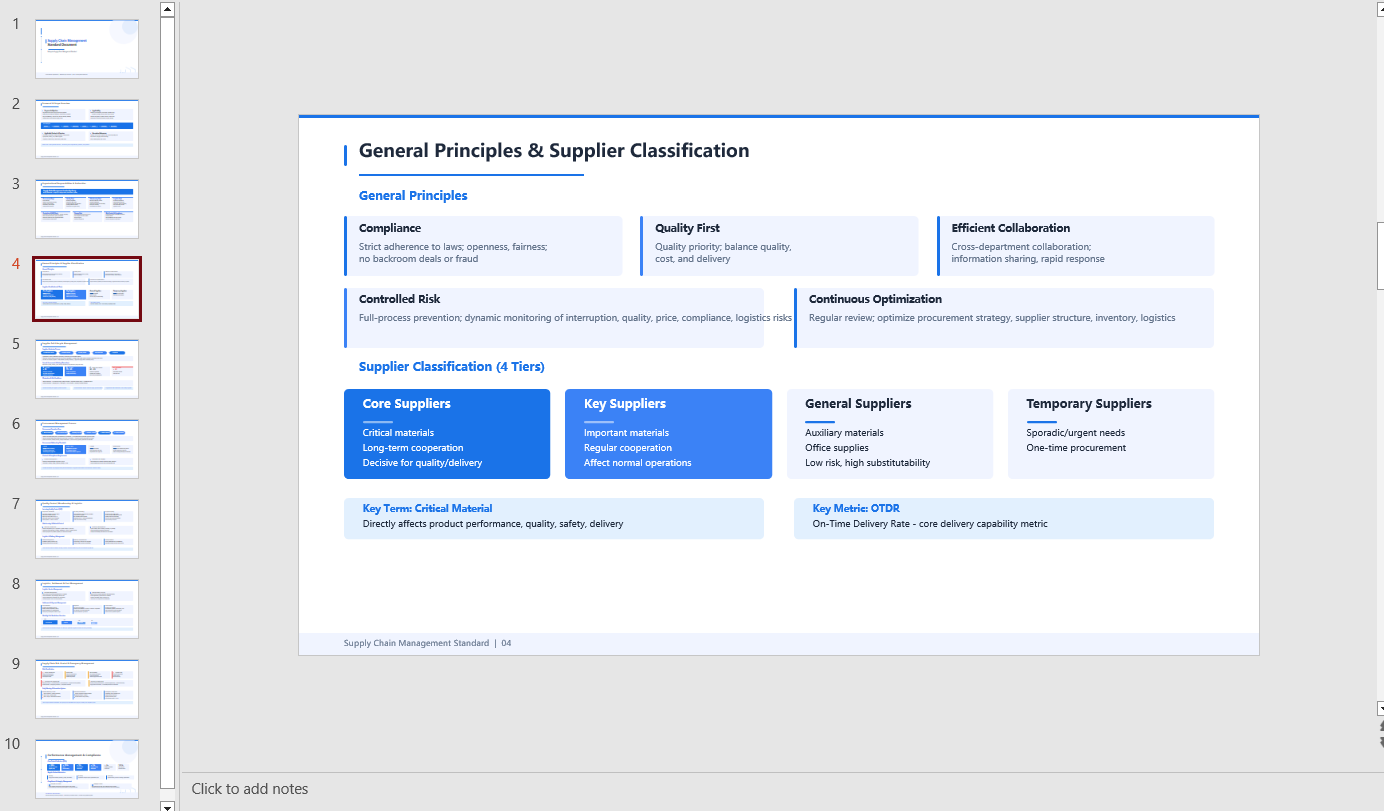
Automatically summarize the content of a Markdown-format data source and generate a tech-style PPT.
using Spire.Agent.Office.AI;
using Spire.Agent.Office.Extensions;
using Spire.Presentation;

// Source data document
string inputPath = @"Management.md";
// Result document path
string savePath = @"SupplyChainManagement.pptx";
// SpireToken Key
string key = "sk-TF***************************r";
// Natural language instruction
string instruction = "Generate a PPT based on 'Management.md'. Requirements: 1. Adopt a tech/style; 2. Use light blue as the primary color scheme; 3. Ensure the core content is complete, with clear hierarchy and neat layout. Key data should be presented visually through charts and graphs.";
// AI generation
PPTGenerationResult result = GeneratePPT(inputPath, instruction, savePath, key);


// AI-assisted PPT generation
static PPTGenerationResult GeneratePPT(string input, string instruction, string savePath, string key)
{
    AIOptions options = new AIOptions();
    options.SpireToken = key;
    options.TimeoutMs = 1000000;
    using (Presentation ppt = new Presentation())
    {
        AIDocumentProcessor processor = ppt.AI(options);
        return processor.GeneratePresentation(input, instruction, savePath);
    }
}
Generate PPT from an Excel Document
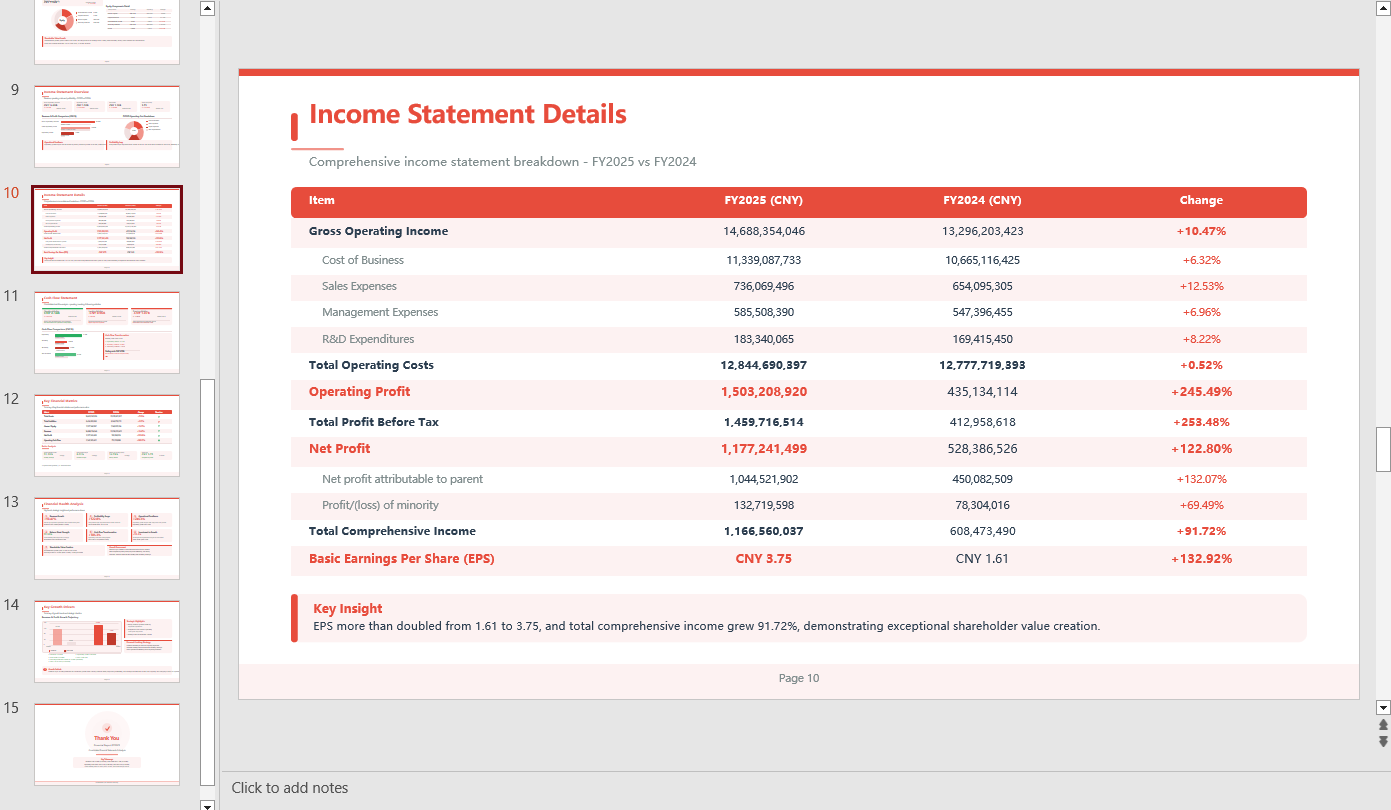
Automatically summarize the content of an Excel-format data source and generate a tech-style PPT.
using Spire.Agent.Office.AI;
using Spire.Agent.Office.Extensions;
using Spire.Presentation;

// Source data document
string inputPath = @"data.xlsx";
// Result document path
string savePath = @"out.pptx";
// SpireToken Key
string key = "sk-TF***************************r";
// Natural language instruction
string instruction = "Generate a PPT based on data
.xlsx, 1. Ensure proper layout and formatting 2. Use a minimalist style with a light red theme 3. Ensure chart visual effects 4.Generate 15 pages";
// AI generation
PPTGenerationResult result = GeneratePPT(inputPath, instruction, savePath, key);


// AI-assisted PPT generation
static PPTGenerationResult GeneratePPT(string input, string instruction, string savePath, string key)
{
    AIOptions options = new AIOptions();
    options.SpireToken = key;
    options.TimeoutMs = 1000000;
    using (Presentation ppt = new Presentation())
    {
        AIDocumentProcessor processor = ppt.AI(options);
        return processor.GeneratePresentation(input, instruction, savePath);
    }
}
FAQ
The number of generated PPT pages does not match the expectation
Cause: If the data source contains a large amount of content, the AI analysis will take more time. The default timeout of AIOptions.TimeoutMs is 5 minutes; if the analysis exceeds it, the AI analysis is interrupted.
Solution: Set AIOptions.TimeoutMs to a sufficiently large value, and also specify a page range in the instruction, e.g. "Keep the final PPT to 8-12 pages".
The key content extracted by AI is not accurate enough
Cause: The source document has a complex structure, and the AI may not have fully understood the hierarchy.
Solution: Explicitly specify the type of content to extract in the instruction, e.g. "Focus on extracting the data from the table in Chapter 2".
Get Your SpireToken Key
- Contact sales@e-iceblue.com or visit https://www.e-iceblue.com/TemLicense.html to obtain a trial/commercial API key
Configure it in code:
AIProcessorOptions options = new AIProcessorOptions();
options.SpireToken = key;
