Converting HTML to images allows you to transform HTML content into static images that can be easily shared on social media, embedded in emails, or used as thumbnails in search engine results. This conversion process ensures that your content is displayed consistently across different devices and browsers, improving the overall user experience. In this article, you will learn how to convert HTML to images in React using Spire.Doc for JavaScript.

Install Spire.Doc for JavaScript

To get started with converting Word documents to PDF in a React application, you can either download Spire.Doc for JavaScript from our website or install it via npm with the following command:

Copy
npm i spire.office

The downloaded product package integrates Spire.Doc for JavaScript, Spire.XLS for JavaScript, Spire.PDF for JavaScript, and Spire.Presentation for JavaScript. To use the features of Spire.Doc for JavaScript, you need to copy the corresponding files (spire.doc.js, Spire.Doc.Wasm.zip, spire.common.js, Spire.Common.Wasm.zip, and the _framework folder) to the public folder of your project. To ensure proper text rendering, you can add relevant font files with a custom path. In the following example, the font is added to the path: public\static\font.

For more details, refer to the documentation: How to Integrate Spire.Doc for JavaScript in a React Project

Convert an HTML File to an Image in JavaScript

Spire.Doc for JavaScript allows you to load an HTML file and convert a specific page to an image stream using the Document.SaveImageToStreams() method. The image streams can then be further saved to a desired image format such as jpg, png, bmp, gif. The following are the main steps.

  • Load the font file to ensure correct text rendering.
  • Create a new document using the new wasmModule.Document() method.
  • Load the HTML file using the Document.LoadFromFile() method.
  • Convert a specific page to an image stream using the Document.SaveImageToStreams() method.
  • Save the image stream to a specified image format.
  • JavaScript
Copy
import React, { useState, useEffect } from 'react';

function App() {
  const [wasmModule, setWasmModule] = useState(null);
  // Load Spire.Doc
  useEffect(() => {
    (async () => {
      try {
        const publicUrl = process.env.PUBLIC_URL || '';
        const spireModule = await import(/* webpackIgnore: true */ `${publicUrl}/spire.doc.js`);
        const rawModule = spireModule.default || spireModule;
        window.wasmModule = typeof rawModule === 'function'
          ? await rawModule({ locateFile: p => p.endsWith('.wasm') ? `${publicUrl}/${p}` : p })
          : rawModule;
        setWasmModule(window.wasmModule);
      } catch (error) {
        console.error('Failed to load spire.doc.js WASM module:', error);
      }
    })();
  }, []);

  // Function to convert an HTML file to an image
  const HtmlToImage = async () => {
    const wasmModule = window.wasmModule.spiredoc;

    if (wasmModule) {
      // Load the font files into the virtual file system (VFS)
      await window.spire.FetchFileToVFS('CALIBRI.ttf', '/Library/Fonts/', `${process.env.PUBLIC_URL}/static/font/`);

      // Specify the input file name 
      const inputFileName = 'sample.html';

      // Fetch the input file and add it to the VFS
      await window.spire.FetchFileToVFS(inputFileName, '', `${process.env.PUBLIC_URL}/static/data/`);

      // Create an instance of the Document class
      const doc = new wasmModule.Document();

      // Load the HTML file
      doc.LoadFromFile({ fileName: inputFileName, fileFormat: wasmModule.FileFormat.Html, validationType: wasmModule.XHTMLValidationType.None });

      // Save the first page as an image stream
      let image = doc.SaveImageToStreams({ pageIndex: 0, type: wasmModule.ImageType.Bitmap });

      // Save the image stream as a PNG file
      const outputFileName = 'HtmlToImage.png';
      image.Save(outputFileName);

      // Read the generated image from VFS
      const modifiedFileArray = window.dotnetRuntime.Module.FS.readFile(outputFileName);

      // Create a Blog object from the image file
      const modifiedFile = new Blob([modifiedFileArray], { type: 'image/png' });

      // Create a URL for the Blob
      const url = URL.createObjectURL(modifiedFile);

      // Create an anchor element to trigger the download
      const a = document.createElement("a");
      a.href = url;
      a.download = outputFileName;
      document.body.appendChild(a);
      a.click();
      document.body.removeChild(a);
      URL.revokeObjectURL(url);

      // Clean up resources
      doc.Dispose();
    }
  };

  return (
    <div style={{ textAlign: 'center', height: '300px' }}>
      <h1>Convert an HTML File to an Image Using JavaScript in React</h1>
      <button onClick={HtmlToImage} disabled={!wasmModule}>
        Convert
      </button>
    </div>
  );
}

export default App;

Run the code to launch the React app at localhost:3000. Once it's running, click on the "Convert" button to download the image converted from an HTML file:

Run the React app at localhost:3000

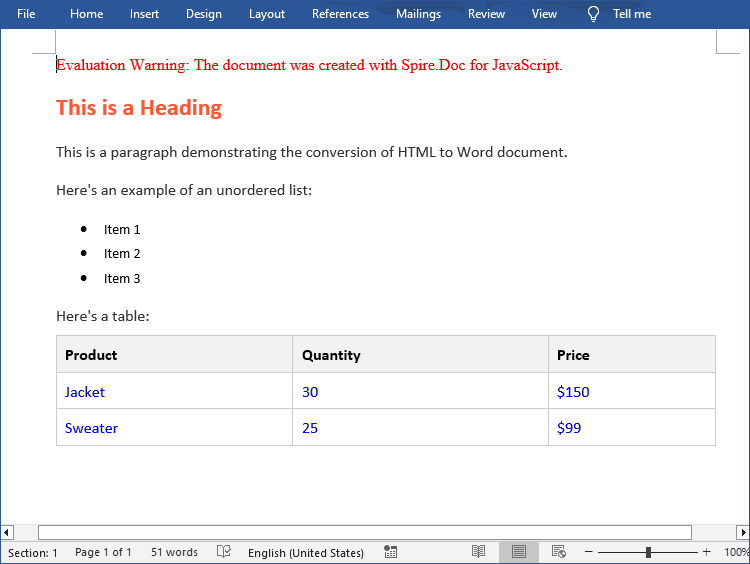
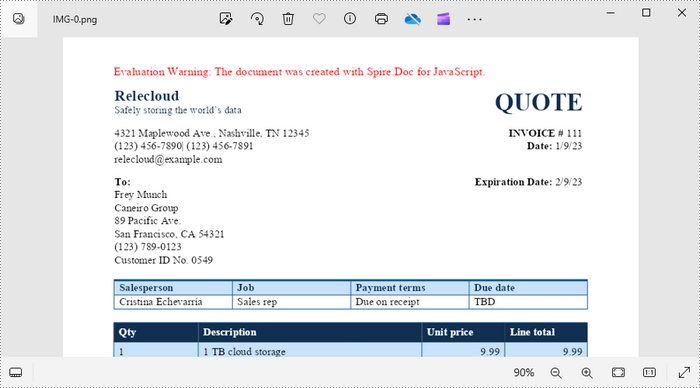
Below is the converted image file:

A PNG image converted from an Html file

Convert an HTML String to an Image in JavaScript

To convert HTML strings to images, you'll need to first add HTML strings to the paragraphs of a Word page through the Paragraph.AppendHTML() method, and then convert the page to an image. The following are the main steps.

  • Load the font file to ensure correct text rendering.
  • Specify the HTML string.
  • Create a new document using the new wasmModule.Document() method.
  • Add a new section using the Document.AddSection() method.
  • Add a paragraph to the section using the Section.AddParagraph() method.
  • Append the HTML string to the paragraph using the Paragraph.AppendHTML() method.
  • Convert a specific page to an image stream using the Document.SaveImageToStreams() method.
  • Save the image stream to a specified image format.
  • JavaScript
Copy
import React, { useState, useEffect } from 'react';

function App() {
  const [wasmModule, setWasmModule] = useState(null);
  // Load Spire.Doc
  useEffect(() => {
    (async () => {
      try {
        const publicUrl = process.env.PUBLIC_URL || '';
        const spireModule = await import(/* webpackIgnore: true */ `${publicUrl}/spire.doc.js`);
        const rawModule = spireModule.default || spireModule;
        window.wasmModule = typeof rawModule === 'function'
          ? await rawModule({ locateFile: p => p.endsWith('.wasm') ? `${publicUrl}/${p}` : p })
          : rawModule;
        setWasmModule(window.wasmModule);
      } catch (error) {
        console.error('Failed to load spire.doc.js WASM module:', error);
      }
    })();
  }, []);

  // Function to convert an HTML string to an image
  const HtmlStringToImage = async () => {
    const wasmModule = window.wasmModule.spiredoc;

    if (wasmModule) {
      // Load the font files into the virtual file system (VFS)
      await window.spire.FetchFileToVFS('CALIBRI.ttf', '/Library/Fonts/', `${process.env.PUBLIC_URL}/static/font/`);

      // Create an instance of the Document class
      const doc = new wasmModule.Document();

      // Specify the output file path
      const outputFileName = 'HtmlStringToImage.png';

      // Specify the HTML string
      let HTML = "<html><head><title>HTML to Word Example</title><style>, body {font-family: 'Calibri';}, h1 {color: #FF5733; font-size: 24px; margin-bottom: 20px;}, p {color: #333333; font-size: 16px; margin-bottom: 10px;}";
      HTML += "ul {list-style-type: disc; margin-left: 20px; margin-bottom: 15px;}, li {font-size: 14px; margin-bottom: 5px;}, table {border-collapse: collapse; width: 100%; margin-bottom: 20px;}";
      HTML += "th, td {border: 1px solid #CCCCCC; padding: 8px; text-align: left;}, th {background-color: #F2F2F2; font-weight: bold;}, td {color: #0000FF;}</style></head>";
      HTML += "<body><h1>This is a Heading</h1><p>This is a paragraph demonstrating the conversion of HTML to Word document.</p><p>Here's an example of an unordered list:</p><ul><li>Item 1</li><li>Item 2</li><li>Item 3</li></ul>";
      HTML += "<p>Here's a table:</p><table><tr><th>Product</th><th>Quantity</th><th>Price</th></tr><tr><td>Jacket</td><td>30</td><td>$150</td></tr><tr><td>Sweater</td><td>25</td><td>$99</td></tr></table></body></html>";

      // Add a section to the document
      let section = doc.AddSection();

      // Add a paragraph to the section
      let paragraph = section.AddParagraph();

      // Append the HTML string to the paragraph
      paragraph.AppendHTML(HTML.toString('utf8', 0, HTML.length));

      // Save the first page as an image stream
      let image = doc.SaveImageToStreams({ pageIndex: 0, type: wasmModule.ImageType.Bitmap });

      // Save the image stream as a PNG file
      image.Save(outputFileName);

      // Read the generated image from VFS
      const modifiedFileArray = window.dotnetRuntime.Module.FS.readFile(outputFileName);

      // Create a Blog object from the image file
      const modifiedFile = new Blob([modifiedFileArray], { type: 'image/png' });

      // Create a URL for the Blob
      const url = URL.createObjectURL(modifiedFile);

      // Create an anchor element to trigger the download
      const a = document.createElement("a");
      a.href = url;
      a.download = outputFileName;
      document.body.appendChild(a);
      a.click();
      document.body.removeChild(a);
      URL.revokeObjectURL(url);

      // Clean up resources
      doc.Dispose();
    }
  };

  return (
    <div style={{ textAlign: 'center', height: '300px' }}>
      <h1>Convert an HTML String to an Image Using JavaScript in React</h1>
      <button onClick={HtmlStringToImage} disabled={!wasmModule}>
        Convert
      </button>
    </div>
  );
}

export default App;

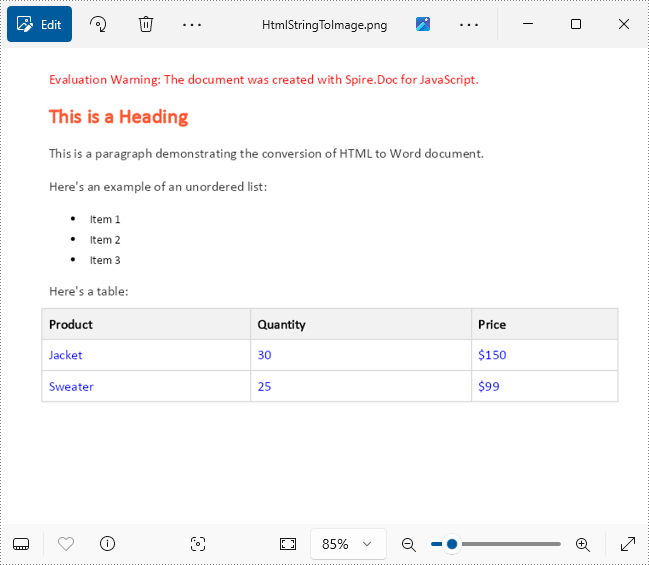
A PNG image converted from an Html string

Get a Free License

To fully experience the capabilities of Spire.Doc for JavaScript without any evaluation limitations, you can request a free 30-day trial license.

The seamless integration of document processing capabilities into web applications has become increasingly vital for enhancing user experience and streamlining workflows. For developers working within the React ecosystem, the ability to extract text from Word documents using JavaScript allows for the dynamic presentation of content, enabling users to easily import, edit, and interact with text data directly within a web interface. In this article, we will explore how to use Spire.Doc for JavaScript to extract text from Word documents in React applications.

Install Spire.Doc for JavaScript

To get started with extracting text from Word documents in a React application, you can either download Spire.Doc for JavaScript from our website or install it via npm with the following command:

Copy
npm i spire.office

The downloaded product package integrates Spire.Doc for JavaScript, Spire.XLS for JavaScript, Spire.PDF for JavaScript, and Spire.Presentation for JavaScript. To use the features of Spire.Doc for JavaScript, you need to copy the corresponding files (spire.doc.js, Spire.Doc.Wasm.zip, spire.common.js, Spire.Common.Wasm.zip, and the _framework folder) to the public folder of your project. To ensure proper text rendering, you can add relevant font files with a custom path. In the following example, the font is added to the path: public\static\font.

For more details, refer to the documentation: How to Integrate Spire.Doc for JavaScript in a React Project

Extract All Text from a Word Document Using JavaScript

To extract the complete text content from a Word document, Spire.Doc for JavaScript offers the Document.GetText() method. This method retrieves all the text in a document and returns it as a string, enabling efficient access to the content. The implementation steps are as follows:

  • Load the spire.doc.js file to initialize the WebAssembly module.
  • Load the Word file into the virtual file system using the window.spire.FetchFileToVFS method.
  • Create a Document instance in the WebAssembly module using the new wasmModule.Document() method.
  • Load the Word document into the Document instance with the Document.LoadFromFile() method.
  • Retrieve the document's text as a string using the Document.GetText() method.
  • Process the extracted text, such as downloading it as a text file or performing additional operations.
  • JavaScript
Copy
import React, { useState, useEffect } from 'react';

function App() {
  const [wasmModule, setWasmModule] = useState(null);
  // Load Spire.Doc
  useEffect(() => {
    (async () => {
      try {
        const publicUrl = process.env.PUBLIC_URL || '';
        const spireModule = await import(/* webpackIgnore: true */ `${publicUrl}/spire.doc.js`);
        const rawModule = spireModule.default || spireModule;
        window.wasmModule = typeof rawModule === 'function'
          ? await rawModule({ locateFile: p => p.endsWith('.wasm') ? `${publicUrl}/${p}` : p })
          : rawModule;
        setWasmModule(window.wasmModule);
      } catch (error) {
        console.error('Failed to load spire.doc.js WASM module:', error);
      }
    })();
  }, []);

  // Function to extract all text from a Word document
  const ExtractAllTextFromWord = async () => {
    const wasmModule = window.wasmModule.spiredoc;

    if (wasmModule) {
      // Load the font files into the virtual file system (VFS)
      await window.spire.FetchFileToVFS('Arial.ttf', '/Library/Fonts/', `${process.env.PUBLIC_URL}/static/font/`);

      // Specify the input file name and the output file name
      const inputFileName = 'Sample.docx';
      const outputFileName = 'ExtractWordText.txt';

      // Fetch the input file and add it to the VFS
      await window.spire.FetchFileToVFS(inputFileName, '', `${process.env.PUBLIC_URL}/static/data/`);

      // Create an instance of the Document class
      const doc = new wasmModule.Document();
      
      // Load the Word document
      doc.LoadFromFile({ fileName: inputFileName });

      // Get all text from the document
      const documentText = doc.GetText();

      // Release resources
      doc.Dispose();

      // Generate a Blob from the extracted text and trigger a download
      const blob = new Blob([documentText], { type: 'text/plain' });
      const url = URL.createObjectURL(blob);
      const a = document.createElement("a");
      a.href = url;
      a.download = outputFileName;
      document.body.appendChild(a);
      a.click();
      document.body.removeChild(a);
      URL.revokeObjectURL(url);
    }
  };

  return (
      <div style={{ textAlign: 'center', height: '300px' }}>
        <h1>Extract All Text from Word Documents Using JavaScript in React</h1>
        <button onClick={ExtractAllTextFromWord} disabled={!wasmModule}>
          Convert and Download
        </button>
      </div>
  );
}

export default App;

Extracting All Text from a Word Document with React

Extract Text from Specific Sections or Paragraphs in a Word Document

When only specific sections or paragraphs of a Word document are needed, Spire.Doc for JavaScript offers the Section.Paragraphs.get_Item(index).Text method to extract text from individual paragraphs. The following steps outline the process:

  • Load the spire.doc.js file to initialize the WebAssembly module.
  • Use the window.spire.FetchFileToVFS method to load the Word file into the virtual file system.
  • Create a Document instance using the new wasmModule.Document() method.
  • Load the Word document into the Document instance with the Document.LoadFromFile() method.
  • Access a specific section using the Document.Sections.get_Item() method.
  • Extract text from a specific paragraph with the Section.Paragraphs.get_Item().Text property.
  • To retrieve all text within a section, iterate through the section's paragraphs and concatenate their text into a single string.
  • Process the extracted text, such as saving it to a file or performing further analysis.
  • JavaScript
Copy
import React, { useState, useEffect } from 'react';

function App() {
  const [wasmModule, setWasmModule] = useState(null);
  // Load Spire.Doc
  useEffect(() => {
    (async () => {
      try {
        const publicUrl = process.env.PUBLIC_URL || '';
        const spireModule = await import(/* webpackIgnore: true */ `${publicUrl}/spire.doc.js`);
        const rawModule = spireModule.default || spireModule;
        window.wasmModule = typeof rawModule === 'function'
          ? await rawModule({ locateFile: p => p.endsWith('.wasm') ? `${publicUrl}/${p}` : p })
          : rawModule;
        setWasmModule(window.wasmModule);
      } catch (error) {
        console.error('Failed to load spire.doc.js WASM module:', error);
      }
    })();
  }, []);

  // Function to extract text from a specific part of a Word document
  const ExtractTextFromWordPart = async () => {
    const wasmModule = window.wasmModule.spiredoc;

    if (wasmModule) {
      // Load the font files into the virtual file system (VFS)
      await window.spire.FetchFileToVFS('Arial.ttf', '/Library/Fonts/', `${process.env.PUBLIC_URL}/static/font/`);

      // Specify the input file name and the output file name
      const inputFileName = 'Sample.docx';
      const outputFileName = 'ExtractWordText.txt';

      // Fetch the input file and add it to the VFS
      await window.spire.FetchFileToVFS(inputFileName, '', `${process.env.PUBLIC_URL}/static/data/`);

      // Create an instance of the Document class
      const doc = new wasmModule.Document();
      
      // Load the Word document
      doc.LoadFromFile({ fileName: inputFileName });

      // Get a specific section from the document
      const section = doc.Sections.get_Item(1);

      // Get the text of a specific paragraph in the section
      //const paragraphText = section.Paragraphs.get_Item(1).Text;

      // Extract all text from the section
      let sectionText = "";
      for (let i = 0; i < section.Paragraphs.Count; i++) {
        // Extract the text from the paragraphs
        const text = section.Paragraphs.get_Item(i).Text;
        sectionText += text + "\n";
      }

      // Release resources
      doc.Dispose();

      // Generate a Blob from the extracted text and trigger a download
      const blob = new Blob([sectionText], { type: 'text/plain' });
      const url = URL.createObjectURL(blob);
      const a = document.createElement("a");
      a.href = url;
      a.download = outputFileName;
      document.body.appendChild(a);
      a.click();
      document.body.removeChild(a);
      URL.revokeObjectURL(url);
    }
  };

  return (
      <div style={{ textAlign: 'center', height: '300px' }}>
        <h1>Extract Text from a Specific Part of a Word Document Using JavaScript in React</h1>
        <button onClick={ExtractTextFromWordPart} disabled={!wasmModule}>
          Convert and Download
        </button>
      </div>
  );
}

export default App;

Extract Text of Specific Word Document Section or Paragraph

Extract Text from a Word Document Based on Paragraph Styles

When extracting text formatted with specific paragraph styles, the Paragraph.StyleName property can be utilized to identify and filter paragraphs by their styles. This approach is beneficial for structured documents with distinct headings or other styled elements. The implementation process is as follows:

  • Load the spire.doc.js file to initialize the WebAssembly module.
  • Load the Word file into the virtual file system using the window.spire.FetchFileToVFS() method.
  • Create a Document instance in the WebAssembly module with the new wasmModule.Document() method.
  • Load the Word document into the Document instance using the Document.LoadFromFile() method.
  • Define the target style name or retrieve one from the document.
  • Iterate through the document's sections and their paragraphs:
    • Use the Paragraph.StyleName property to identify each paragraph's style.
    • Compare the paragraph's style name with the target style. If they match, retrieve the paragraph's text using the Paragraph.Text property.
  • Process the retrieved text, such as saving it to a file or using it for further operations.
  • JavaScript
Copy
import React, { useState, useEffect } from 'react';

function App() {
  const [wasmModule, setWasmModule] = useState(null);
  // Load Spire.Doc
  useEffect(() => {
    (async () => {
      try {
        const publicUrl = process.env.PUBLIC_URL || '';
        const spireModule = await import(/* webpackIgnore: true */ `${publicUrl}/spire.doc.js`);
        const rawModule = spireModule.default || spireModule;
        window.wasmModule = typeof rawModule === 'function'
          ? await rawModule({ locateFile: p => p.endsWith('.wasm') ? `${publicUrl}/${p}` : p })
          : rawModule;
        setWasmModule(window.wasmModule);
      } catch (error) {
        console.error('Failed to load spire.doc.js WASM module:', error);
      }
    })();
  }, []);

  // Function to extract text from a Word document based on paragraph styles
  const ExtractTextByParagraphStyle = async () => {
    const wasmModule = window.wasmModule.spiredoc;

    if (wasmModule) {
      // Load the font files into the virtual file system (VFS)
      await window.spire.FetchFileToVFS('Arial.ttf', '/Library/Fonts/', `${process.env.PUBLIC_URL}/static/font/`);

      // Specify the input file name and the output file name
      const inputFileName = 'Sample.docx';
      const outputFileName = 'ExtractWordText.txt';

      // Fetch the input file and add it to the VFS
      await window.spire.FetchFileToVFS(inputFileName, '', `${process.env.PUBLIC_URL}/static/data/`);

      // Create an instance of the Document class
      const doc = new wasmModule.Document();

      // Load the Word document
      doc.LoadFromFile({ fileName: inputFileName });

      // Define the style name or get the style name of the target paragraph style
      const styleName = 'Heading2';
      // const styleName = doc.Sections.get_Item(2).Paragraphs.get_Item(2).StyleName;

      // Array to store extracted text
      let paragraphStyleText = [];
      // Iterate through the sections in the document
      for (let sectionIndex = 0; sectionIndex < doc.Sections.Count; sectionIndex++) {
        // Get the current section
        const section = doc.Sections.get_Item(sectionIndex);
        // Iterate through the paragraphs in the section
        for (let paragraphIndex = 0; paragraphIndex < section.Paragraphs.Count; paragraphIndex++) {
          // Get the current paragraph
          const paragraph = section.Paragraphs.get_Item(paragraphIndex);
          // Get the style name of the paragraph
          const paraStyleName = paragraph.StyleName;
          // Check if the style name matches the target style
          if (paraStyleName === styleName) {
            // Extract the text from the paragraph
            const paragraphText = paragraph.Text;
            console.log(paragraphText);
            // Append the extracted text to the array
            paragraphStyleText.push(paragraphText);
          }
        }
      }

      // Release resources
      doc.Dispose();

      // Generate a Blob from the extracted text and trigger a download
      const text = paragraphStyleText.join('\n');
      const blob = new Blob([text], { type: 'text/plain' });
      const url = URL.createObjectURL(blob);
      const a = document.createElement("a");
      a.href = url;
      a.download = outputFileName;
      document.body.appendChild(a);
      a.click();
      document.body.removeChild(a);
      URL.revokeObjectURL(url);
    }
  };

  return (
    <div style={{ textAlign: 'center', height: '300px' }}>
      <h1>Extract Text from Word Documents by Paragraph Style Using JavaScript in React</h1>
      <button onClick={ExtractTextByParagraphStyle} disabled={!wasmModule}>
        Convert and Download
      </button>
    </div>
  );
}

export default App;

Extract Text from Word Documents by Paragraph Styles in React

Get a Free License

To fully experience the capabilities of Spire.Doc for JavaScript without any evaluation limitations, you can request a free 30-day trial license.

Applying fonts in a Word document significantly enhances its visual appeal and readability. The choice of font can influence how the content is perceived, allowing you to convey tone and mood effectively. By selecting appropriate fonts, you can emphasize key points, guide the reader's attention, and create a cohesive and polished presentation.

In this article, you will learn how to apply fonts in a Word document in React using Spire.Doc for JavaScript.

Install Spire.Doc for JavaScript

To get started with applying fonts in Word in a React application, you can either download Spire.Doc for JavaScript from our website or install it via npm with the following command:

Copy
npm i spire.office

The downloaded product package integrates Spire.Doc for JavaScript, Spire.XLS for JavaScript, Spire.PDF for JavaScript, and Spire.Presentation for JavaScript. To use the features of Spire.Doc for JavaScript, you need to copy the corresponding files (spire.doc.js, Spire.Doc.Wasm.zip, spire.common.js, Spire.Common.Wasm.zip, and the _framework folder) to the public folder of your project. To ensure proper text rendering, you can add relevant font files with a custom path. In the following example, the font is added to the path: public\static\font.

For more details, refer to the documentation: How to Integrate Spire.Doc for JavaScript in a React Project

Apply a Font Style to a Paragraph in Word

Applying a font style to a paragraph in Microsoft Word is a fundamental skill that enhances the readability and overall appearance of your document.

Spire.Doc for JavaScript provides the ParagraphStyle class, enabling developers to define multiple text attributes, including font name, size, style, and color, all within a single object. After the style object is created, you can easily format a paragraph by using the Paragraph.ApplyStyle() method.

The following are the steps to apply a font style to a paragraph with JavaScript in React:

  • Create a Document object using the new wasmModule.Document() method.
  • Load the Word file using the Document.LoadFromFile() method.
  • Add a paragraph to the document using the Document.LastSection.AddParagraph() method.
  • Create a ParagraphStyle object, specifying the font name, font size, font style, and text color.
  • Add the style to the document using the Document.Styles.Add() method.
  • Apply the style to the paragraph using the Paragraph.ApplyStyle() method.
  • Save the document to a different Word file.
  • JavaScript
Copy
import React, { useState, useEffect } from 'react';

function App() {
  const [wasmModule, setWasmModule] = useState(null);
  // Load Spire.Doc
  useEffect(() => {
    (async () => {
      try {
        const publicUrl = process.env.PUBLIC_URL || '';
        const spireModule = await import(/* webpackIgnore: true */ `${publicUrl}/spire.doc.js`);
        const rawModule = spireModule.default || spireModule;
        window.wasmModule = typeof rawModule === 'function'
          ? await rawModule({ locateFile: p => p.endsWith('.wasm') ? `${publicUrl}/${p}` : p })
          : rawModule;
        setWasmModule(window.wasmModule);
      } catch (error) {
        console.error('Failed to load spire.doc.js WASM module:', error);
      }
    })();
  }, []);

  // Function to set font
  const SetFont = async () => {
    const wasmModule = window.wasmModule.spiredoc;

    if (wasmModule) {
      // Load the font files into the virtual file system (VFS)
      await window.spire.FetchFileToVFS('times.ttf', '/Library/Fonts/', `${process.env.PUBLIC_URL}/static/font/`);
      await window.spire.FetchFileToVFS('timesbd.ttf', '/Library/Fonts/', `${process.env.PUBLIC_URL}/static/font/`);
      await window.spire.FetchFileToVFS('timesbi.ttf', '/Library/Fonts/', `${process.env.PUBLIC_URL}/static/font/`);
      await window.spire.FetchFileToVFS('timesi.ttf', '/Library/Fonts/', `${process.env.PUBLIC_URL}/static/font/`);

      // Specify the input file name and the output file name
      const inputFileName = 'input.docx';
      const outputFileName = 'output.docx';

      // Fetch the input file and add it to the VFS
      await window.spire.FetchFileToVFS(inputFileName, '', `${process.env.PUBLIC_URL}/static/data/`);

      // Create an instance of the Document class
      const doc = new wasmModule.Document();

      // Load the Word file
      doc.LoadFromFile(inputFileName);

      // Add a section
      let section = doc.LastSection;

      // Add a paragraph
      let paragraph = section.AddParagraph();

      // Append text to the paragraph
      paragraph.AppendText('JavaScript is essential for modern web development, offering a rich ecosystem and ' +
        'a wide range of applications. Its ability to create responsive, interactive experiences ' +
        'makes it a favored choice among developers.');

      // Create a paragraph style,specifying font name, font size, and text color
      let paragraphStyle = new wasmModule.ParagraphStyle(doc);
      paragraphStyle.Name = 'newStyle';
      paragraphStyle.CharacterFormat.FontName = 'Times New Roman'
      paragraphStyle.CharacterFormat.FontSize = 13;
      paragraphStyle.CharacterFormat.TextColor = wasmModule.Color.get_Blue();

      // Add the style to the document
      doc.Styles.Add(paragraphStyle);

      // Apply the style to the paragraph
      paragraph.ApplyStyle(paragraphStyle.Name);


      // Save the document to the specified path
      doc.SaveToFile({ fileName: outputFileName, fileFormat: wasmModule.FileFormat.Docx2013 });

      // Read the generated Word file
      const modifiedFileArray = window.dotnetRuntime.Module.FS.readFile(outputFileName);

      // Create a Blob object from the Word file
      const modifiedFile = new Blob([modifiedFileArray], { type: 'application/vnd.openxmlformats-officedocument.wordprocessingml.document' });

      // Create a URL for the Blob
      const url = URL.createObjectURL(modifiedFile);

      // Create an anchor element to trigger the download
      const a = document.createElement('a');
      a.href = url;
      a.download = outputFileName;
      document.body.appendChild(a);
      a.click();
      document.body.removeChild(a);
      URL.revokeObjectURL(url);

      // Clean up resources
      doc.Dispose();
    }
  };

  return (
    <div style={{ textAlign: 'center', height: '300px' }}>
      <h1>Apply Fonts in a Word Document in React</h1>
      <button onClick={SetFont} disabled={!wasmModule}>
        Apply
      </button>
    </div>
  );
}

export default App;

Run the code to launch the React app at localhost:3000. Click "Apply", and a "Save As" window will appear, prompting you to save the output file in your chosen folder.

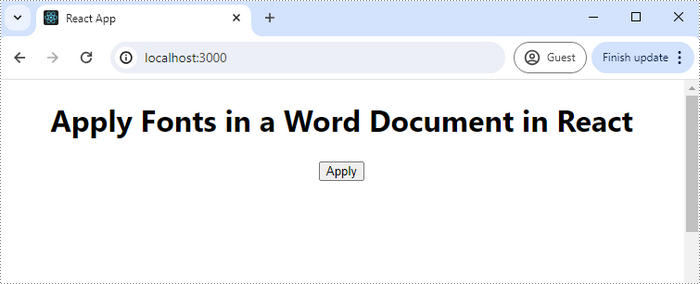
React app runs at localhost:3000

Below is a screenshot of the generated Word document:

Apply a font to a paragraph in Word using JavaScript

Apply Multiple Font Styles to a Paragraph in Word

Applying multiple font styles to different parts of a paragraph allows you to highlight key points or sections, making your content more engaging for readers.

The Paragraph.AppendText() method returns a TextRange object, which offers simple APIs for formatting text within that range. When you call AppendText() multiple times, the paragraph's text is divided into distinct text ranges, allowing for individual styling with different fonts.

The following are the steps to apply multiple font styles to a paragraph using JavaScript in React:

  • Load the font files you plan to use and the input Word file into the virtual file system (VFS).
  • Create a Document object using the new wasmModule.Document() method.
  • Load the Word file using the Document.LoadFromFile() method.
  • Add a paragraph to the document using the Document.LastSection.AddParagraph() method.
  • Append text to the paragraph using the Paragraph.AppendText() method, which returns a TextRange object.
  • Append more text that needs to be styled differently to the paragraph and return different TextRange objects.
  • Create a ParagraphStyle object with the basic font information and apply it to the paragraph.
  • Change the font name, style, size and text color of the specified text range using the properties under the specific TextRange object.
  • Save the document to a different Word file.
  • JavaScript
Copy
import React, { useState, useEffect } from 'react';

function App() {
  const [wasmModule, setWasmModule] = useState(null);
  // Load Spire.Doc
  useEffect(() => {
    (async () => {
      try {
        const publicUrl = process.env.PUBLIC_URL || '';
        const spireModule = await import(/* webpackIgnore: true */ `${publicUrl}/spire.doc.js`);
        const rawModule = spireModule.default || spireModule;
        window.wasmModule = typeof rawModule === 'function'
          ? await rawModule({ locateFile: p => p.endsWith('.wasm') ? `${publicUrl}/${p}` : p })
          : rawModule;
        setWasmModule(window.wasmModule);
      } catch (error) {
        console.error('Failed to load spire.doc.js WASM module:', error);
      }
    })();
  }, []);

  // Function to set font
  const SetFont = async () => {
    const wasmModule = window.wasmModule.spiredoc;

    if (wasmModule) {
      // Load the font files into the virtual file system (VFS)
      await window.spire.FetchFileToVFS('times.ttf', '/Library/Fonts/', `${process.env.PUBLIC_URL}/static/font/`);
      await window.spire.FetchFileToVFS('timesbd.ttf', '/Library/Fonts/', `${process.env.PUBLIC_URL}/static/font/`);
      await window.spire.FetchFileToVFS('timesbi.ttf', '/Library/Fonts/', `${process.env.PUBLIC_URL}/static/font/`);
      await window.spire.FetchFileToVFS('timesi.ttf', '/Library/Fonts/', `${process.env.PUBLIC_URL}/static/font/`);

      // Specify the input file name and the output file name
      const inputFileName = 'input.docx';
      const outputFileName = 'output.docx';

      // Fetch the input file and add it to the VFS
      await window.spire.FetchFileToVFS(inputFileName, '', `${process.env.PUBLIC_URL}/static/data/`);

      // Create an instance of the Document class
      const doc = new wasmModule.Document();

      // Load the Word file
      doc.LoadFromFile(inputFileName);

      // Add a section
      let section = doc.LastSection;

      // Add a paragraph
      let paragraph = section.AddParagraph();

      // Append text to the paragraph
      let range_one = paragraph.AppendText('JavaScript is essential for ');
      let range_two = paragraph.AppendText('modern web development');
      let range_three = paragraph.AppendText(', offering a rich ecosystem and a wide range of applications. Its ability to create ');
      let range_four = paragraph.AppendText('responsive, interactive experiences')
      let range_five = paragraph.AppendText(' makes it a favored choice among developers.')

      // Create a paragraph style
      let paragraphStyle = new wasmModule.ParagraphStyle(doc);
      paragraphStyle.Name = 'newStyle';
      paragraphStyle.CharacterFormat.FontName = 'Times New Roman'
      paragraphStyle.CharacterFormat.FontSize = 13;
      paragraphStyle.CharacterFormat.TextColor = wasmModule.Color.get_Black();

      // Add the style to the document
      doc.Styles.Add(paragraphStyle);

      // Apply the style to the paragraph
      paragraph.ApplyStyle(paragraphStyle.Name);

      // Change the font style of the second text range
      range_two.CharacterFormat.TextColor = wasmModule.Color.get_Blue();
      range_two.CharacterFormat.Bold = true;
      range_two.CharacterFormat.UnderlineStyle = wasmModule.UnderlineStyle.Single;

      // Change the font style of the fourth text range
      range_four.CharacterFormat.TextColor = wasmModule.Color.get_Blue();
      range_four.CharacterFormat.Italic = true;

      // Save the document to the specified path
      doc.SaveToFile({ fileName: outputFileName, fileFormat: wasmModule.FileFormat.Docx2013 });

      // Read the generated Word file
      const modifiedFileArray = window.dotnetRuntime.Module.FS.readFile(outputFileName);

      // Create a Blob object from the Word file
      const modifiedFile = new Blob([modifiedFileArray], { type: 'application/vnd.openxmlformats-officedocument.wordprocessingml.document' });

      // Create a URL for the Blob
      const url = URL.createObjectURL(modifiedFile);

      // Create an anchor element to trigger the download
      const a = document.createElement('a');
      a.href = url;
      a.download = outputFileName;
      document.body.appendChild(a);
      a.click();
      document.body.removeChild(a);
      URL.revokeObjectURL(url);

      // Clean up resources
      doc.Dispose();
    }
  };

  return (
    <div style={{ textAlign: 'center', height: '300px' }}>
      <h1>Set Fonts in a Word Document in React</h1>
      <button onClick={SetFont} disabled={!wasmModule}>
        Apply Multiple Fonts
      </button>
    </div>
  );
}

export default App;

Apply multiple fonts to a paragraph in Word using JavaScript

Apply a Private Font in a Word Document

Using a private font in a Word document can give your project a unique flair and reflect your personal or brand identity.

To apply a private font, use the TextRange.CharacterFormat.FontName property. To maintain a uniform look on various devices, it's advisable to embed the font within the document. You can do this by first loading the font file into the virtual file system using window.spire.FetchFileToVFS.

Then, employ the Document.AddPrivateFont() method to include the font in the document. Additionally, activate font embedding by setting Document.EmbedFontsInFile to true, which ensures the private font is retained in the final document.

The following are the steps to apply a private font in Word using JavaScript:

  • Load the font files you plan to use and the input Word file into the virtual file system (VFS).
  • Create a Document object using the new wasmModule.Document() method.
  • Load the Word file using the Document.LoadFromFile() method.
  • Add a paragraph to the document using the Document.LastSection.AddParagraph() method.
  • Append text to the paragraph using the Paragraph.AppendText() method, which returns a TextRange object.
  • Apply the font to the paragraph using the TextRange.CharacterFormat.FontName property.
  • Add the font to document using the Document.AddPrivateFont() method.
  • Embed the font in the document by setting Document.EmbedFontsInFile to true.
  • Save the document to a different Word file.
  • JavaScript
Copy
import React, { useState, useEffect } from 'react';

function App() {
  const [wasmModule, setWasmModule] = useState(null);
  // Load Spire.Doc
  useEffect(() => {
    (async () => {
      try {
        const publicUrl = process.env.PUBLIC_URL || '';
        const spireModule = await import(/* webpackIgnore: true */ `${publicUrl}/spire.doc.js`);
        const rawModule = spireModule.default || spireModule;
        window.wasmModule = typeof rawModule === 'function'
          ? await rawModule({ locateFile: p => p.endsWith('.wasm') ? `${publicUrl}/${p}` : p })
          : rawModule;
        setWasmModule(window.wasmModule);
      } catch (error) {
        console.error('Failed to load spire.doc.js WASM module:', error);
      }
    })();
  }, []);

  // Function to set font
  const SetFont = async () => {
    const wasmModule = window.wasmModule.spiredoc;

    if (wasmModule) {
      // Load the font files into the virtual file system (VFS)
      await window.spire.FetchFileToVFS('FreebrushScriptPLng.ttf', '/Library/Fonts/', `${process.env.PUBLIC_URL}/static/font/`);

      // Specify the input file name and the output file name
      const inputFileName = 'input.docx';
      const outputFileName = 'output.docx';

      // Fetch the input file and add it to the VFS
      await window.spire.FetchFileToVFS(inputFileName, '', `${process.env.PUBLIC_URL}/static/data/`);

      // Create an instance of the Document class
      const doc = new wasmModule.Document();
      
      // Load the Word file
      doc.LoadFromFile(inputFileName);

      // Add a section
      let section = doc.LastSection;

      // Add a paragraph
      let paragraph = section.AddParagraph();
    
      // Append text to the paragraph
      let textRange = paragraph.AppendText('JavaScript is essential for modern web development, offering a rich ecosystem and '+ 
                          'a wide range of applications. Its ability to create responsive, interactive experiences '+
                          'makes it a favored choice among developers.');

      // Apply the private font to the text range
      textRange.CharacterFormat.FontName = 'Freebrush Script'
      textRange.CharacterFormat.FontSize = 13;
      textRange.CharacterFormat.TextColor = wasmModule.Color.get_Blue();

      // Embed the private font in the document
      doc.AddPrivateFont(new wasmModule.PrivateFontPath("Freebrush Script",  "FreebrushScriptPLng.ttf"))

      // Allow embedding font in document
      doc.EmbedFontsInFile = true;

      // Save the document to the specified path
      doc.SaveToFile({fileName: outputFileName, fileFormat: wasmModule.FileFormat.Docx2013});
 
      // Read the generated Word file
      const modifiedFileArray =window.dotnetRuntime.Module.FS.readFile(outputFileName);

      // Create a Blob object from the Word file
      const modifiedFile = new Blob([modifiedFileArray], { type: 'application/vnd.openxmlformats-officedocument.wordprocessingml.document' });

      // Create a URL for the Blob
      const url = URL.createObjectURL(modifiedFile);

      // Create an anchor element to trigger the download
      const a = document.createElement('a');
      a.href = url;
      a.download = outputFileName;
      document.body.appendChild(a);
      a.click(); 
      document.body.removeChild(a); 
      URL.revokeObjectURL(url); 

      // Clean up resources
      doc.Dispose();
    }
  };

  return (
    <div style={{ textAlign: 'center', height: '300px' }}>
      <h1>Apply Fonts in a Word Document in React</h1>
      <button onClick={SetFont} disabled={!wasmModule}>
        Apply
      </button>
    </div>
  );
}

export default App;

Apply a private font to a paragraph in Word using JavaScript

Get a Free License

To fully experience the capabilities of Spire.Doc for JavaScript without any evaluation limitations, you can request a free 30-day trial license.

RTF files are versatile, containing text, images, and formatting information. Converting these files into PDF and HTML ensures that they are accessible and display consistently across various devices and browsers. Whether you're building a document viewer or integrating document management features into your application, mastering RTF conversion is a valuable skill.

In this article, you will learn how to convert RTF to PDF and RTF to HTML in React using Spire.Doc for JavaScript.

Install Spire.Doc for JavaScript

To get started with converting RTF to PDF and HTML in a React application, you can either download Spire.Doc for JavaScript from our website or install it via npm with the following command:

Copy
npm i spire.office

The downloaded product package integrates Spire.Doc for JavaScript, Spire.XLS for JavaScript, Spire.PDF for JavaScript, and Spire.Presentation for JavaScript. To use the features of Spire.Doc for JavaScript, you need to copy the corresponding files (spire.doc.js, Spire.Doc.Wasm.zip, spire.common.js, Spire.Common.Wasm.zip, and the _framework folder) to the public folder of your project. To ensure proper text rendering, you can add relevant font files with a custom path. In the following example, the font is added to the path: public\static\font.

For more details, refer to the documentation: How to Integrate Spire.Doc for JavaScript in a React Project

Convert RTF to PDF with JavaScript

With Spire.Doc for JavaScript, converting RTF files to PDF is straightforward. Utilize the Document.LoadFromFile() method to load the RTF file, preserving its formatting. Then, save it as a PDF using the Document.SaveToFile() method. This process ensures high-quality output, making file format conversion easy and efficient.

Here are the steps to convert RTF to PDF in React using Spire.Doc for JavaScript:

  • Load the font files used in the RTF document into the virtual file system (VFS).
  • Create a new Document object using the new wasmModule.Document() method.
  • Load the input RTF file using the Document.LoadFromFile() method.
  • Save the document as a PDF file using the Document.SaveToFile() method.
  • Generate a Blob from the PDF file, create a download link, and trigger the download.
  • JavaScript
Copy
import React, { useState, useEffect } from 'react';

function App() {
  const [wasmModule, setWasmModule] = useState(null);
  // Load Spire.Doc
  useEffect(() => {
    (async () => {
      try {
        const publicUrl = process.env.PUBLIC_URL || '';
        const spireModule = await import(/* webpackIgnore: true */ `${publicUrl}/spire.doc.js`);
        const rawModule = spireModule.default || spireModule;
        window.wasmModule = typeof rawModule === 'function'
          ? await rawModule({ locateFile: p => p.endsWith('.wasm') ? `${publicUrl}/${p}` : p })
          : rawModule;
        setWasmModule(window.wasmModule);
      } catch (error) {
        console.error('Failed to load spire.doc.js WASM module:', error);
      }
    })();
  }, []);

  // Function to convert RTF to PDF
  const convertRtfToPdf = async () => {
    const wasmModule = window.wasmModule.spiredoc;

    if (wasmModule) {
      // Load the font files into the virtual file system (VFS)
      await window.spire.FetchFileToVFS('times.ttf', '/Library/Fonts/', `${process.env.PUBLIC_URL}/static/font/`);
      await window.spire.FetchFileToVFS('timesbd.ttf', '/Library/Fonts/', `${process.env.PUBLIC_URL}/static/font/`);
      await window.spire.FetchFileToVFS('timesbi.ttf', '/Library/Fonts/', `${process.env.PUBLIC_URL}/static/font/`);
      await window.spire.FetchFileToVFS('timesi.ttf', '/Library/Fonts/', `${process.env.PUBLIC_URL}/static/font/`);

      // Specify the input file name 
      const inputFileName = 'input.rtf';

      // Fetch the input file and add it to the VFS
      await window.spire.FetchFileToVFS(inputFileName, '', `${process.env.PUBLIC_URL}/static/data/`);

      // Create an instance of the Document class
      const doc = new wasmModule.Document();

      // Load the RTF file
      doc.LoadFromFile(inputFileName);

      // Define the output file name
      const outputFileName = "RtfToPdf.pdf";

      // Save the document to the specified path
      doc.SaveToFile({ fileName: outputFileName, fileFormat: wasmModule.FileFormat.PDF });

      // Read the generated PDF file from VFS
      const modifiedFileArray =window.dotnetRuntime.Module.FS.readFile(outputFileName);

      // Create a Blob object from the PDF file
      const modifiedFile = new Blob([modifiedFileArray], { type: 'application/pdf' });

      // Create a URL for the Blob
      const url = URL.createObjectURL(modifiedFile);

      // Create an anchor element to trigger the download
      const a = document.createElement('a');
      a.href = url;
      a.download = outputFileName;
      document.body.appendChild(a);
      a.click();
      document.body.removeChild(a);
      URL.revokeObjectURL(url);

      // Clean up resources
      doc.Dispose();
    }
  };

  return (
    <div style={{ textAlign: 'center', height: '300px' }}>
      <h1>Convert RTF to PDF in React</h1>
      <button onClick={convertRtfToPdf} disabled={!wasmModule}>
        Convert
      </button>
    </div>
  );
}
export default App;

Run the code to launch the React app at localhost:3000. Click "Convert," and a "Save As" window will appear, prompting you to save the output file in your chosen folder.
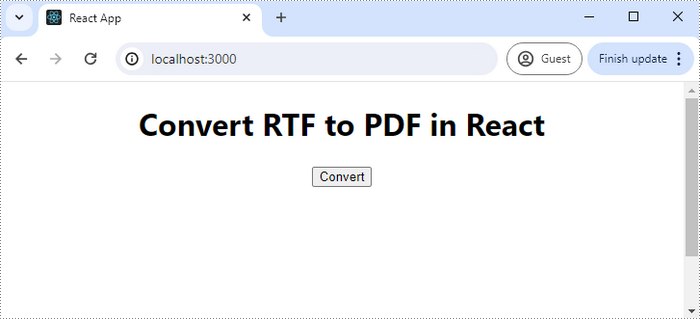
React app runs at localhost:3000

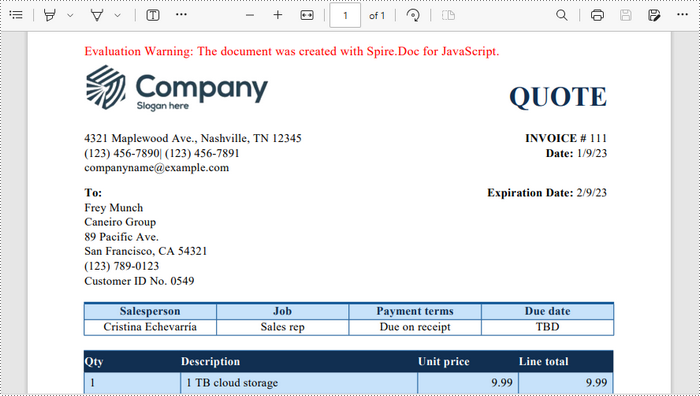
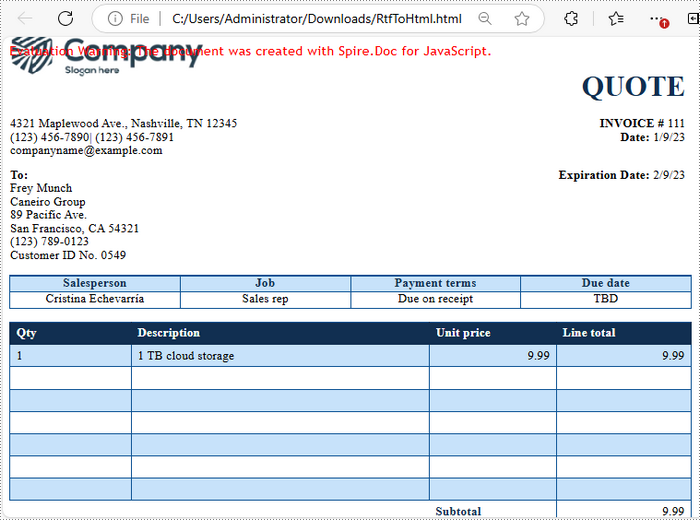
Below is a screenshot of the generated PDF document:
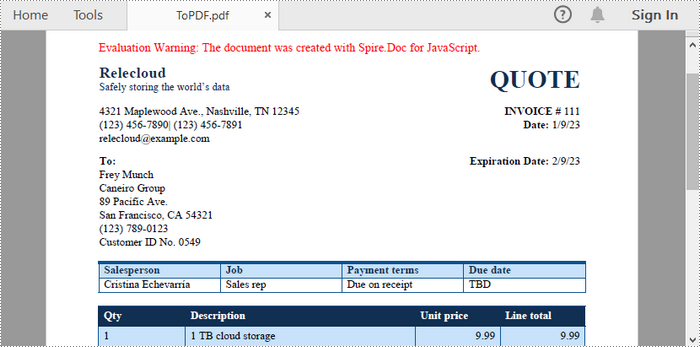
Convert RTF to PDF in React

Convert RTF to HTML with JavaScript

When converting RTF to HTML, it's crucial to decide whether to embed image files and CSS stylesheets as internal resources, as these elements significantly impact the HTML file's display.

With Spire.Doc for JavaScript, you can easily configure these settings using the Document.HtmlExportOptions.CssStyleSheetType and Document.HtmlExportOptions.ImageEmbedded properties.

Here are the steps to convert RTF to HTML with embedded images and CSS stylesheets using Spire.Doc for JavaScript:

  • Load the font files used in the RTF document into the virtual file system (VFS).
  • Create a new Document object using the new wasmModule.Document() method.
  • Load the input RTF file using the Document.LoadFromFile() method.
  • Embed CSS stylesheet in the HTML file by setting the Document.HtmlExportOptions.CssStyleSheetType as Internal.
  • Embed image files in the HTML file by setting the Document.HtmlExportOptions.ImageEmbedded to true.
  • Save the document as an HTML file using the Document.SaveToFile() method.
  • Generate a Blob from the PDF file, create a download link, and trigger the download.
  • JavaScript
Copy
import React, { useState, useEffect } from 'react';

function App() {
  const [wasmModule, setWasmModule] = useState(null);
  // Load Spire.Doc
  useEffect(() => {
    (async () => {
      try {
        const publicUrl = process.env.PUBLIC_URL || '';
        const spireModule = await import(/* webpackIgnore: true */ `${publicUrl}/spire.doc.js`);
        const rawModule = spireModule.default || spireModule;
        window.wasmModule = typeof rawModule === 'function'
          ? await rawModule({ locateFile: p => p.endsWith('.wasm') ? `${publicUrl}/${p}` : p })
          : rawModule;
        setWasmModule(window.wasmModule);
      } catch (error) {
        console.error('Failed to load spire.doc.js WASM module:', error);
      }
    })();
  }, []);

  // Function to convert RTF to HTML
  const convertRtfToHtml = async () => {
    const wasmModule = window.wasmModule.spiredoc;

    if (wasmModule) {
      // Load the font files into the virtual file system (VFS)
      await window.spire.FetchFileToVFS('times.ttf', '/Library/Fonts/', `${process.env.PUBLIC_URL}/static/font/`);
      await window.spire.FetchFileToVFS('timesbd.ttf', '/Library/Fonts/', `${process.env.PUBLIC_URL}/static/font/`);
      await window.spire.FetchFileToVFS('timesbi.ttf', '/Library/Fonts/', `${process.env.PUBLIC_URL}/static/font/`);
      await window.spire.FetchFileToVFS('timesi.ttf', '/Library/Fonts/', `${process.env.PUBLIC_URL}/static/font/`);

      // Specify the input file name 
      const inputFileName = 'input.rtf';

      // Fetch the input file and add it to the VFS
      await window.spire.FetchFileToVFS(inputFileName, '', `${process.env.PUBLIC_URL}/static/data/`);

      // Create an instance of the Document class
      const doc = new wasmModule.Document();

      // Load the RTF file
      doc.LoadFromFile(inputFileName);

      // Embed CSS file in the HTML file      
      doc.HtmlExportOptions.CssStyleSheetType = wasmModule.CssStyleSheetType.Internal;     

      // Embed images in the HTML file      
      doc.HtmlExportOptions.ImageEmbedded = true;

      // Define the output file name
      const outputFileName = "RtfToHtml.html";

      // Save the document to the specified path
      doc.SaveToFile({fileName: outputFileName, fileFormat: wasmModule.FileFormat.Html});
 
      // Read the generated HTML file from VFS
      const modifiedFileArray = window.dotnetRuntime.Module.FS.readFile(outputFileName);

      // Create a Blob object from the HTML file
      const modifiedFile = new Blob([modifiedFileArray], { type: 'text/html'});

      // Create a URL for the Blob
      const url = URL.createObjectURL(modifiedFile);

      // Create an anchor element to trigger the download
      const a = document.createElement('a');
      a.href = url;
      a.download = outputFileName;
      document.body.appendChild(a);
      a.click(); 
      document.body.removeChild(a); 
      URL.revokeObjectURL(url); 

      // Clean up resources
      doc.Dispose();
    }
  };

  return (
    <div style={{ textAlign: 'center', height: '300px' }}>
      <h1>Convert RTF to HTML in React</h1>
      <button onClick={convertRtfToHtml} disabled={!wasmModule}>
        Convert
      </button>
    </div>
  );
}

export default App;

Convert RTF to HTML in React

Get a Free License

To fully experience the capabilities of Spire.Doc for JavaScript without any evaluation limitations, you can request a free 30-day trial license.

In web page development, transforming Word documents into HTML allows content creators to leverage the familiar Word document editing for crafting web-ready content. This approach not only structures the content appropriately for web delivery but also streamlines content management processes. Furthermore, by harnessing the capabilities of React, developers can execute this transformation directly within the browser on the client side, thereby simplifying the development workflow and potentially reducing load times and server costs.

This article demonstrates how to use Spire.Doc for JavaScript to convert Word documents to HTML files within React applications.

Install Spire.Doc for JavaScript

To get started with converting Word documents to HTML in a React application, you can either download Spire.Doc for JavaScript from our website or install it via npm with the following command:

Copy
npm i spire.office

The downloaded product package integrates Spire.Doc for JavaScript, Spire.XLS for JavaScript, Spire.PDF for JavaScript, and Spire.Presentation for JavaScript. To use the features of Spire.Doc for JavaScript, you need to copy the corresponding files (spire.doc.js, Spire.Doc.Wasm.zip, spire.common.js, Spire.Common.Wasm.zip, and the _framework folder) to the public folder of your project. To ensure proper text rendering, you can add relevant font files with a custom path. In the following example, the font is added to the path: public\static\font.

For more details, refer to the documentation: How to Integrate Spire.Doc for JavaScript in a React Project

Convert Word Documents to HTML Using JavaScript

With Spire.Doc for JavaScript, you can load Word documents into the WASM environment using the Document.LoadFromFile() method and convert them to HTML files with the Document.SaveToFile() method. This approach converts Word documents into HTML format with CSS files and images separated from the main HTML file, allowing developers to easily customize the HTML page.

Follow these steps to convert a Word document to HTML format using Spire.Doc for JavaScript in React:

  • Load the spire.doc.js file to initialize the WebAssembly module.
  • Load the Word file into the virtual file system using the window.spire.FetchFileToVFS method.
  • Create a Document instance in the WASM module using the new wasmModule.Document() method.
  • Load the Word document into the Document instance using the Document.LoadFromFile() method.
  • Convert the Word document to HTML format using the Document.SaveToFile({ fileName: string, fileFormat: wasmModule.FileFormat.Html }) method.
  • Pack and download the result files or take further actions as needed.
  • JavaScript
Copy
import React, { useState, useEffect } from 'react';
import JSZip from 'jszip';

function App() {
  const [wasmModule, setWasmModule] = useState(null);
  // Load Spire.Doc
  useEffect(() => {
    (async () => {
      try {
        const publicUrl = process.env.PUBLIC_URL || '';
        const spireModule = await import(/* webpackIgnore: true */ `${publicUrl}/spire.doc.js`);
        const rawModule = spireModule.default || spireModule;
        window.wasmModule = typeof rawModule === 'function'
          ? await rawModule({ locateFile: p => p.endsWith('.wasm') ? `${publicUrl}/${p}` : p })
          : rawModule;
        setWasmModule(window.wasmModule);
      } catch (error) {
        console.error('Failed to load spire.doc.js WASM module:', error);
      }
    })();
  }, []);

  // Function to convert the Word document to HTML format
  const WordToHTMLAndZip = async () => {
    const wasmModule = window.wasmModule.spiredoc;

    if (wasmModule) {
      // Load the font files into the virtual file system (VFS)
      await window.spire.FetchFileToVFS('CALIBRI.ttf', '/Library/Fonts/', `${process.env.PUBLIC_URL}/static/font/`);

      // Specify the input file name and the output folder name
      const inputFileName = 'input.docx';
      const outputFolderName = 'WordToHTMLOutput';

      // Fetch the input file and add it to the VFS
      await window.spire.FetchFileToVFS(inputFileName, '', `${process.env.PUBLIC_URL}/static/data/`);

      // Create an instance of the Document class
      const doc = new wasmModule.Document();
      // Load the Word document
      doc.LoadFromFile({ fileName: inputFileName });

      // Save the Word document to HTML format in the output folder
      doc.SaveToFile({ fileName: `${outputFolderName}/document.html`, fileFormat: wasmModule.FileFormat.Html });

      // Release resources
      doc.Dispose();

      // Create a new JSZip object
      const zip = new JSZip();

      // Recursive function to add a directory and its contents to the ZIP
      const addFilesToZip = (folderPath, zipFolder) => {
        const items = window.dotnetRuntime.Module.FS.readdir(folderPath);
        items.filter(item => item !== "." && item !== "..").forEach((item) => {
          const itemPath = `${folderPath}/${item}`;

          try {
            // Attempt to read file data
            const fileData = window.dotnetRuntime.Module.FS.readFile(itemPath);
            zipFolder.file(item, fileData);
          } catch (error) {
            if (error.code === 'EISDIR') {
              // If it's a directory, create a new folder in the ZIP and recurse into it
              const zipSubFolder = zipFolder.folder(item);
              addFilesToZip(itemPath, zipSubFolder);
            } else {
              // Handle other errors
              console.error(`Error processing ${itemPath}:`, error);
            }
          }
        });
      };

      // Add all files in the output folder to the ZIP
      addFilesToZip(outputFolderName, zip);

      // Generate and download the ZIP file
      zip.generateAsync({ type: 'blob' }).then((content) => {
        const url = URL.createObjectURL(content);
        const a = document.createElement('a');
        a.href = url;
        a.download = `${outputFolderName}.zip`;
        document.body.appendChild(a);
        a.click();
        document.body.removeChild(a);
        URL.revokeObjectURL(url);
      });
    }
  };

  return (
      <div style={{ textAlign: 'center', height: '300px' }}>
        <h1>Convert Word File to HTML and Download as ZIP Using JavaScript in React</h1>
        <button onClick={WordToHTMLAndZip} disabled={!wasmModule}>
          Convert and Download
        </button>
      </div>
  );
}

export default App;

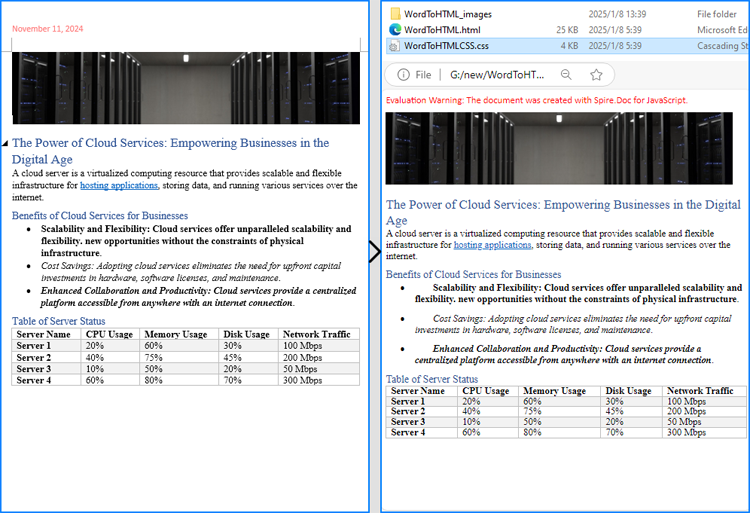
Word to HTML Conversion Effect with JavaScript

Convert Word to HTML with Embedded CSS and Images

In addition to converting Word documents to HTML with separated files, CSS and images can be embedded into a single HTML file by configuring the Document.HtmlExportOptions.CssStyleSheetType property and the Document.HtmlExportOptions.ImageEmbedded property. The steps to achieve this are as follows:

  • Load the spire.doc.js file to initialize the WebAssembly module.
  • Load the Word file into the virtual file system using the window.spire.FetchFileToVFS() method.
  • Create a Document instance in the WASM module using the new wasmModule.Document() method.
  • Load the Word document into the Document instance using the Document.LoadFromFile() method.
  • Set the Document.HtmlExportOptions.CssStyleSheetType property to wasmModule.CssStyleSheetType.Internal to embed CSS styles in the resulting HTML file.
  • Set the Document.HtmlExportOptions.ImageEmbedded property to true to embed images in the resulting HTML file.
  • Convert the Word document to an HTML file with CSS styles and images embedded using the Document.SaveToFile({ fileName: string, fileFormat: wasmModule.FileFormat.Html }) method.
  • Download the resulting HTML file or take further actions as needed.
  • JavaScript
Copy
import React, { useState, useEffect } from 'react';

function App() {
  const [wasmModule, setWasmModule] = useState(null);
  // Load Spire.Doc
  useEffect(() => {
    (async () => {
      try {
        const publicUrl = process.env.PUBLIC_URL || '';
        const spireModule = await import(/* webpackIgnore: true */ `${publicUrl}/spire.doc.js`);
        const rawModule = spireModule.default || spireModule;
        window.wasmModule = typeof rawModule === 'function'
          ? await rawModule({ locateFile: p => p.endsWith('.wasm') ? `${publicUrl}/${p}` : p })
          : rawModule;
        setWasmModule(window.wasmModule);
      } catch (error) {
        console.error('Failed to load spire.doc.js WASM module:', error);
      }
    })();
  }, []);

  // Function to convert the Word document to HTML format
  const WordToHTMLAndZip = async () => {
    const wasmModule = window.wasmModule.spiredoc;

    if (wasmModule) {
      // Load the font files into the virtual file system (VFS)
      await window.spire.FetchFileToVFS('CALIBRI.ttf', '/Library/Fonts/', `${process.env.PUBLIC_URL}/static/font/`);

      // Specify the input file name and the output file name
      const inputFileName = 'input.docx';
      const outputFileName = 'ConvertedDocument.html';

      // Fetch the input file and add it to the VFS
      await window.spire.FetchFileToVFS(inputFileName, '', `${process.env.PUBLIC_URL}/static/data/`);

      // Create an instance of the Document class
      const doc = new wasmModule.Document();

      // Load the Word document
      doc.LoadFromFile({ fileName: inputFileName });

      // Embed CSS file in the HTML file
      doc.HtmlExportOptions.CssStyleSheetType = wasmModule.CssStyleSheetType.Internal;

      // Embed images in the HTML file
      doc.HtmlExportOptions.ImageEmbedded = true;

      // Save the Word document to HTML format
      doc.SaveToFile({ fileName: outputFileName, fileFormat: wasmModule.FileFormat.Html });

      // Release resources
      doc.Dispose();

      // Read the HTML file from the VFS
      const htmlFileArray = window.dotnetRuntime.Module.FS.readFile(outputFileName);

      // Generate a Blob from the HTML file array and trigger download
      const blob = new Blob([new Uint8Array(htmlFileArray)], { type: 'text/html' });
      const url = URL.createObjectURL(blob);
      const a = document.createElement("a");
      a.href = url;
      a.download = outputFileName;
      document.body.appendChild(a);
      a.click();
      document.body.removeChild(a);
      URL.revokeObjectURL(url);
    }
  };

  return (
      <div style={{ textAlign: 'center', height: '300px' }}>
        <h1>Convert Word to HTML Using JavaScript in React</h1>
        <button onClick={WordToHTMLAndZip} disabled={!wasmModule}>
          Convert and Download
        </button>
      </div>
  );
}
export default App;

Word to HTML Conversion Result with CSS and Images Embedded

Convert Word to HTML with Customized Options

Spire.Doc for JavaScript also supports customizing many other HTML export options, such as CSS file name, header and footer, form field, etc., through the Document.HtmlExportOptions property. The table below lists the properties available under Document.HtmlExportOptions, which can be used to tailor the Word-to-HTML conversion:

Property Description
CssStyleSheetType Specifies the type of the HTML CSS style sheet (External or Internal).
CssStyleSheetFileName Specifies the name of the HTML CSS style sheet file.
ImageEmbedded Specifies whether to embed images in the HTML code using the Data URI scheme.
ImagesPath Specifies the folder for images in the exported HTML.
UseSaveFileRelativePath Specifies whether the image file path is relative to the HTML file path.
HasHeadersFooters Specifies whether headers and footers should be included in the exported HTML.
IsTextInputFormFieldAsText Specifies whether text-input form fields should be exported as text in HTML.
IsExportDocumentStyles Specifies whether to export document styles to the HTML <head>.

Follow these steps to customize options when converting Word documents to HTML format:

  • Load the Spire.doc.js file to initialize the WebAssembly module.
  • Load the Word file into the virtual file system using the wasmModule.FetchFileToVFS() method.
  • Create a Document instance in the WASM module using the new wasmModule.Document() method.
  • Load the Word document into the Document instance using the Document.LoadFromFile() method.
  • Customize the conversion options through properties under Document.HtmlExportOptions.
  • Convert the Word document to HTML format using the Document.SaveToFile({ fileName: string, fileFormat: wasmModule.FileFormat.Html }) method.
  • Pack and download the result files or take further actions as needed.
  • JavaScript
Copy
import React, { useState, useEffect } from 'react';
import JSZip from 'jszip';

function App() {

  // State to hold the loaded WASM module
  const [wasmModule, setWasmModule] = useState(null);

  // useEffect hook to load the WASM module when the component mounts
  useEffect(() => {
    const loadWasm = async () => {
      try {

        // Access the Module and spiredoc from the global window object
        const { Module, spiredoc } = window;

        // Set the wasmModule state when the runtime is initialized
        Module.onRuntimeInitialized = () => {
          setWasmModule(spiredoc);
        };
      } catch (err) {

        // Log any errors that occur during loading
        console.error('Failed to load WASM module:', err);
      }
    };

    // Create a script element to load the WASM JavaScript file
    const script = document.createElement('script');
    script.src = `${process.env.PUBLIC_URL}/Spire.Doc.Base.js`;
    script.onload = loadWasm;

    // Append the script to the document body
    document.body.appendChild(script);

    // Cleanup function to remove the script when the component unmounts
    return () => {
      document.body.removeChild(script);
    };
  }, []);

  // Function to convert the Word document to HTML format
  const WordToHTMLAndZip = async () => {
    if (wasmModule) {
      // Specify the input file name and the base output file name
      const inputFileName = 'Sample.docx';
      const baseOutputFileName = 'WordToHTML';
      const outputFolderName = 'WordToHTMLOutput';

      // Fetch the input file and add it to the VFS
      await wasmModule.FetchFileToVFS(inputFileName, '', `${process.env.PUBLIC_URL}/`);

      // Create an instance of the Document class
      const doc = wasmModule.Document.Create();

      // Load the Word document
      doc.LoadFromFile({ fileName: inputFileName });

      // Un-embed the CSS file and set its name
      doc.HtmlExportOptions.CssStyleSheetType = wasmModule.CssStyleSheetType.External;
      doc.HtmlExportOptions.CssStyleSheetFileName = `${baseOutputFileName}CSS.css`;

      // Un-embed the image files and set their path
      doc.HtmlExportOptions.ImageEmbedded = false;
      doc.HtmlExportOptions.ImagesPath = `/Images`;
      doc.HtmlExportOptions.UseSaveFileRelativePath = true;

      // Set to ignore headers and footers
      doc.HtmlExportOptions.HasHeadersFooters = false;

      // Set form fields flattened as text
      doc.HtmlExportOptions.IsTextInputFormFieldAsText = true;

      // Set exporting document styles in the head section
      doc.HtmlExportOptions.IsExportDocumentStyles = true;

      // Save the Word document to HTML format
      doc.SaveToFile({
        fileName: `${outputFolderName}/${baseOutputFileName}.html`,
        fileFormat: wasmModule.FileFormat.Html
      });

      // Release resources
      doc.Dispose();

      // Create a new JSZip object
      const zip = new JSZip();

      // Recursive function to add a directory and its contents to the ZIP
      const addFilesToZip = (folderPath, zipFolder) => {
        const items = wasmModule.FS.readdir(folderPath);
        items.filter(item => item !== "." && item !== "..").forEach((item) => {
          const itemPath = `${folderPath}/${item}`;

          try {
            // Attempt to read file data. If it's a directory, this will throw an error.
            const fileData = wasmModule.FS.readFile(itemPath);
            zipFolder.file(item, fileData);
          } catch (error) {
            if (error.code === 'EISDIR') {
              // If it's a directory, create a new folder in the ZIP and recurse into it
              const zipSubFolder = zipFolder.folder(item);
              addFilesToZip(itemPath, zipSubFolder);
            } else {
              // Handle other errors
              console.error(`Error processing ${itemPath}:`, error);
            }
          }
        });
      };

      // Add the contents of the output folder to the ZIP
      addFilesToZip(`${outputFolderName}`, zip);

      // Generate and download the ZIP file
      zip.generateAsync({ type: 'blob' }).then((content) => {
        const url = URL.createObjectURL(content);
        const a = document.createElement("a");
        a.href = url;
        a.download = `${baseOutputFileName}.zip`;
        document.body.appendChild(a);
        a.click();
        document.body.removeChild(a);
        URL.revokeObjectURL(url);
      });
    }
  };

  return (
      <div style={{ textAlign: 'center', height: '300px' }}>
        <h1>Convert Word File to HTML and Download as ZIP Using JavaScript in React</h1>
        <button onClick={WordToHTMLAndZip} disabled={!wasmModule}>
          Convert and Download
        </button>
      </div>
  );
}

export default App;

Convert Word to HTML and Customize Conversion Options

Get a Free License

To fully experience the capabilities of Spire.Doc for JavaScript without any evaluation limitations, you can request a free 30-day trial license.

Convert HTML to Word with JavaScript in React

HTML, the backbone of web development, is widely used to build and present content on the web. While HTML is great for creating dynamic and interactive web pages, it is not well suited for creating professional-looking documents. When faced with such requirements, converting HTML to Word format is an ideal solution.

By implementing the Html to Word conversion, you can preserve the structure and content of the HTML while applying appropriate formatting and styles in Word to ensure the document look more professional. In this article, you will learn how to convert HTML to Word in React using Spire.Doc for JavaScript.

Install Spire.Doc for JavaScript

To get started with converting Word documents to PDF in a React application, you can either download Spire.Doc for JavaScript from our website or install it via npm with the following command:

Copy
npm i spire.office

The downloaded product package integrates Spire.Doc for JavaScript, Spire.XLS for JavaScript, Spire.PDF for JavaScript, and Spire.Presentation for JavaScript. To use the features of Spire.Doc for JavaScript, you need to copy the corresponding files (spire.doc.js, Spire.Doc.Wasm.zip, spire.common.js, Spire.Common.Wasm.zip, and the _framework folder) to the public folder of your project. To ensure proper text rendering, you can add relevant font files with a custom path. In the following example, the font is added to the path: public\static\font.

For more details, refer to the documentation: How to Integrate Spire.Doc for JavaScript in a React Project

Convert an HTML File to Word with JavaScript in React

With Spire.Doc for JavaScript, you can simply load an HTML file and then save it as a Word Doc or Docx format through the Document.SaveToFile() function. The following are the main steps to convert an HTML file to Word in JavaScript.

  • Load the font file to ensure correct text rendering.
  • Create a new document using the new wasmModule.Document() function.
  • Load the HTML file using the Document.LoadFromFile() function.
  • Save the HTML file to a Word file using the Document.SaveToFile() function.
  • JavaScript
Copy
import React, { useState, useEffect } from 'react';

function App() {
  const [wasmModule, setWasmModule] = useState(null);
  // Load Spire.Doc
  useEffect(() => {
    (async () => {
      try {
        const publicUrl = process.env.PUBLIC_URL || '';
        const spireModule = await import(/* webpackIgnore: true */ `${publicUrl}/spire.doc.js`);
        const rawModule = spireModule.default || spireModule;
        window.wasmModule = typeof rawModule === 'function'
          ? await rawModule({ locateFile: p => p.endsWith('.wasm') ? `${publicUrl}/${p}` : p })
          : rawModule;
        setWasmModule(window.wasmModule);
      } catch (error) {
        console.error('Failed to load spire.doc.js WASM module:', error);
      }
    })();
  }, []);

  // Function to convert HTML file to Word
  const HtmlToWord = async () => {
    const wasmModule = window.wasmModule.spiredoc;
    if (wasmModule) {
      // Load the font files into the virtual file system (VFS)
      await window.spire.FetchFileToVFS('CALIBRI.ttf', '/Library/Fonts/', `${process.env.PUBLIC_URL}/static/font/`);

      // Fetch the input file and add it to the VFS
      const inputFileName = 'sample1.html';
      await window.spire.FetchFileToVFS(inputFileName, '', `${process.env.PUBLIC_URL}/static/data/`);

      // Create a new document
      const doc = new wasmModule.Document();

      // Load the word file
      doc.LoadFromFile({ fileName: inputFileName, fileFormat: wasmModule.FileFormat.Html, validationType: wasmModule.XHTMLValidationType.None });

      // Save the HTML file to a Word file
      const outputFileName = 'HtmlToWord.docx';
      doc.SaveToFile({ fileName: outputFileName, fileFormat: wasmModule.FileFormat.Docx });

      const modifiedFileArray = window.dotnetRuntime.Module.FS.readFile(outputFileName);
      const modifiedFile = new Blob([modifiedFileArray], { type: "application/vnd.openxmlformats-officedocument.wordprocessingml.document" });

      // Create download link
      const url = URL.createObjectURL(modifiedFile);
      const a = document.createElement('a');
      a.href = url;
      a.download = outputFileName;
      document.body.appendChild(a);
      a.click();
      document.body.removeChild(a);
      URL.revokeObjectURL(url);

      // dispose 
      doc.Dispose();

    }

  };

  return (
    <div style={{ textAlign: 'center', height: '300px' }}>
      <h1>Convert HTML File to Word Using JavaScript in React</h1>
      <button onClick={HtmlToWord} disabled={!wasmModule}>
        Convert
      </button>
    </div>
  );
}

export default App;

Run the code to launch the React app at localhost:3000. Once it's running, click on the "Convert" button to download the Word file generated from an HTML file:

Run the React app at localhost:3000

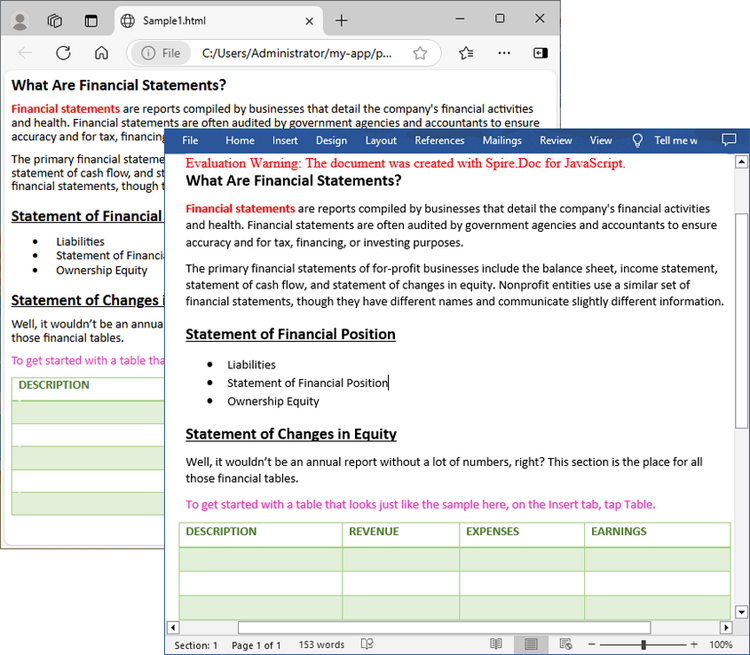
Below is the input HTML file and the converted Word file:

Convert an Html file to a Word document with JavaScript in React

Convert an HTML String to Word with JavaScript in React

You can also convert an HTML string to Word by calling the Paragraph.AppendHTML() function to add the HTML string to a paragraph in Word and then save the Word document. The following are the main steps to convert an HTML string to a Word file in JavaScript.

  • Load the font file to ensure correct text rendering.
  • Specify the HTML string
  • Create a new document using the new wasmModule.Document() function.
  • Add a new section using the Document.AddSection() function.
  • Add a paragraph to the section using the Section.AddParagraph() function.
  • Append the HTML string to the paragraph using the Paragraph.AppendHTML() function.
  • Save the Word document using the Document.SaveToFile() function.
  • JavaScript
Copy
import React, { useState, useEffect } from 'react';

function App() {
  const [wasmModule, setWasmModule] = useState(null);
  // Load Spire.Doc
  useEffect(() => {
    (async () => {
      try {
        const publicUrl = process.env.PUBLIC_URL || '';
        const spireModule = await import(/* webpackIgnore: true */ `${publicUrl}/spire.doc.js`);
        const rawModule = spireModule.default || spireModule;
        window.wasmModule = typeof rawModule === 'function'
          ? await rawModule({ locateFile: p => p.endsWith('.wasm') ? `${publicUrl}/${p}` : p })
          : rawModule;
        setWasmModule(window.wasmModule);
      } catch (error) {
        console.error('Failed to load spire.doc.js WASM module:', error);
      }
    })();
  }, []);

  // Function to convert HTML string to Word
  const HtmlStringToWord = async () => {
    const wasmModule = window.wasmModule.spiredoc;
    if (wasmModule) {
      // Load the font files into the virtual file system (VFS)
      await window.spire.FetchFileToVFS('CALIBRI.ttf', '/Library/Fonts/', `${process.env.PUBLIC_URL}/static/font/`);

      // Specify the HTML string
      let HTML = "<html><head><title>HTML to Word Example</title><style>, body {font-family: 'Calibri';}, h1 {color: #FF5733; font-size: 24px; margin-bottom: 20px;}, p {color: #333333; font-size: 16px; margin-bottom: 10px;}";
      HTML += "ul {list-style-type: disc; margin-left: 20px; margin-bottom: 15px;}, li {font-size: 14px; margin-bottom: 5px;}, table {border-collapse: collapse; width: 100%; margin-bottom: 20px;}";
      HTML += "th, td {border: 1px solid #CCCCCC; padding: 8px; text-align: left;}, th {background-color: #F2F2F2; font-weight: bold;}, td {color: #0000FF;}</style></head>";
      HTML += "<body><h1>This is a Heading</h1><p>This is a paragraph demonstrating the conversion of HTML to Word document.</p><p>Here's an example of an unordered list:</p><ul><li>Item 1</li><li>Item 2</li><li>Item 3</li></ul>";
      HTML += "<p>Here's a table:</p><table><tr><th>Product</th><th>Quantity</th><th>Price</th></tr><tr><td>Jacket</td><td>30</td><td>$150</td></tr><tr><td>Sweater</td><td>25</td><td>$99</td></tr></table></body></html>";

      // Create a new document
      const doc = new wasmModule.Document();

      // Add a section to the document
      let section = doc.AddSection();

      // Add a paragraph to the section
      let paragraph = section.AddParagraph();

      // Append the HTML string to the paragraph
      paragraph.AppendHTML(HTML.toString('utf8', 0, HTML.length));

      // Specify the output file path
      const outputFileName = 'HtmlStringToWord.docx';

      // Save the Word file
      doc.SaveToFile({ fileName: outputFileName, fileFormat: wasmModule.FileFormat.Docx2016 });

      const modifiedFileArray = window.dotnetRuntime.Module.FS.readFile(outputFileName);
      const modifiedFile = new Blob([modifiedFileArray], { type: "application/vnd.openxmlformats-officedocument.wordprocessingml.document" });

      // Create download link
      const url = URL.createObjectURL(modifiedFile);
      const a = document.createElement('a');
      a.href = url;
      a.download = outputFileName;
      document.body.appendChild(a);
      a.click();
      document.body.removeChild(a);
      URL.revokeObjectURL(url);

      // dispose 
      doc.Dispose();

    }

  };

  return (
    <div style={{ textAlign: 'center', height: '300px' }}>
      <h1>Convert HTML String to Word Using JavaScript in React</h1>
      <button onClick={HtmlStringToWord} disabled={!wasmModule}>
        Convert
      </button>
    </div>
  );
}

export default App;

Convert an HTML string to a Word document with JavaScript in React

Get a Free License

To fully experience the capabilities of Spire.Doc for JavaScript without any evaluation limitations, you can request a free 30-day trial license.

Convert Word to JPG and PNG with JavaScript in React

Converting Word documents to JPG or PNG formats is a practical solution for sharing visual content. This transformation preserves the layout and design, making it ideal for presentations, websites, or social media. Whether for professional or personal use, converting Word files to images simplifies accessibility and enhances visual appeal, allowing for easy integration into various digital platforms.

In this article, you will learn how to convert Word to JPG and PNG in React using Spire.Doc for JavaScript.

Install Spire.Doc for JavaScript

To get started with converting Word documents to image files in a React application, you can either download Spire.Doc for JavaScript from our website or install it via npm with the following command:

Copy
npm i spire.office

The downloaded product package integrates Spire.Doc for JavaScript, Spire.XLS for JavaScript, Spire.PDF for JavaScript, and Spire.Presentation for JavaScript. To use the features of Spire.Doc for JavaScript, you need to copy the corresponding files (spire.doc.js, Spire.Doc.Wasm.zip, spire.common.js, Spire.Common.Wasm.zip, and the _framework folder) to the public folder of your project. To ensure proper text rendering, you can add relevant font files with a custom path. In the following example, the font is added to the path: public\static\font.

For more details, refer to the documentation: How to Integrate Spire.Doc for JavaScript in a React Project

Convert Word to JPG with JavaScript

Spire.Doc for JavaScript includes the Document.SaveImageToStreams() method, which enables users to convert a specific page of a Word document into an image stream. This stream can then be saved in various formats such as JPG, PNG, or BMP using the Save() method of the image stream object.

The following are the detailed steps to convert a Word document to JPG files with JavaScript in React:

  • Load required font files into the virtual file system (VFS).
  • Instantiate a new document using the new wasmModule.Document() method
  • Load the Word document using the Document.LoadFromFile() method.
  • Loop through the pages in the document:
    • Convert a specific page into image stream using the Document.SaveImageToStreams() method.
    • Save the image stream to a JPG file using the Save() method of the image stream object.
    • Read the generated image file from the VFS.
    • Create a Blob object from the image data.
    • Trigger the download of the JPG file.
  • JavaScript
Copy
import React, { useState, useEffect } from 'react';

function App() {
  const [wasmModule, setWasmModule] = useState(null);
  // Load Spire.Doc
  useEffect(() => {
    (async () => {
      try {
        const publicUrl = process.env.PUBLIC_URL || '';
        const spireModule = await import(/* webpackIgnore: true */ `${publicUrl}/spire.doc.js`);
        const rawModule = spireModule.default || spireModule;
        window.wasmModule = typeof rawModule === 'function'
          ? await rawModule({ locateFile: p => p.endsWith('.wasm') ? `${publicUrl}/${p}` : p })
          : rawModule;
        setWasmModule(window.wasmModule);
      } catch (error) {
        console.error('Failed to load spire.doc.js WASM module:', error);
      }
    })();
  }, []);

  // Function to convert Word to JPG
  const convertWord = async () => {
    const wasmModule = window.wasmModule.spiredoc;
    if (wasmModule) {
      // Load the font files into the virtual file system (VFS)
      await window.spire.FetchFileToVFS('times.ttf', '/Library/Fonts/', `${process.env.PUBLIC_URL}/static/font/`);
      await window.spire.FetchFileToVFS('timesbd.ttf', '/Library/Fonts/', `${process.env.PUBLIC_URL}/static/font/`);
      await window.spire.FetchFileToVFS('timesbi.ttf', '/Library/Fonts/', `${process.env.PUBLIC_URL}/static/font/`);
      await window.spire.FetchFileToVFS('timesi.ttf', '/Library/Fonts/', `${process.env.PUBLIC_URL}/static/font/`);

      // Fetch the input file and add it to the VFS
      const inputFileName = 'input.docx';
      await window.spire.FetchFileToVFS(inputFileName, '', `${process.env.PUBLIC_URL}/static/data/`);

      // Create a new document
      const doc = new wasmModule.Document();

      // Load the word file
      doc.LoadFromFile(inputFileName);

      // Get the total number of pages in the document
      const totalPages = doc.GetPageCount();

      // Loop through each page and convert it to an image
      for (let pageIndex = 0; pageIndex < totalPages; pageIndex++) {

        // Convert the specific page to an image stream
        let img = doc.SaveImageToStreams({ pageIndex, type: wasmModule.ImageType.Bitmap });

        // Specify output file name based on page index
        const outputFileName = `IMG-${pageIndex}.jpg`;

        // Save the image stream to a JPG file
        img.Save(outputFileName);

        const modifiedFileArray = window.dotnetRuntime.Module.FS.readFile(outputFileName);
        const modifiedFile = new Blob([modifiedFileArray], { type: 'image/jpeg' });

        // Create download link
        const url = URL.createObjectURL(modifiedFile);
        const a = document.createElement('a');
        a.href = url;
        a.download = outputFileName;
        document.body.appendChild(a);
        a.click();
        document.body.removeChild(a);
        URL.revokeObjectURL(url);
      }
      // dispose 
      doc.Dispose();

    }

  };

  return (
    <div style={{ textAlign: 'center', height: '300px' }}>
      <h1>Convert Word to JPG in React</h1>
      <button onClick={convertWord} disabled={!wasmModule}>
        Convert
      </button>
    </div>
  );
}

export default App;

Run the code to launch the React app at localhost:3000. Click "Convert," and a "Save As" window will appear, prompting you to save the output file in your chosen folder.

React app runs at localhost:3000

Below is a screenshot of one of the generated JPG files:

Convert Word to JPG

Convert Word to PNG with JavaScript

The example above illustrates how to convert Word documents to JPG images. To convert to PNG, you only need to change the image format to PNG in the code.

The following are the detailed steps to convert a Word document to PNG files with JavaScript in React:

  • Load required font files into the virtual file system (VFS).
  • Instantiate a new document using the new wasmModule.Document() method
  • Load the Word document using the Document.LoadFromFile() method.
  • Loop through the pages in the document:
    • Convert a specific page into image stream using the Document.SaveImageToStreams() method.
    • Save the image stream to a PNG file using the Save() method of the image stream object.
    • Read the generated image file from the VFS.
    • Create a Blob object from the image data.
    • Trigger the download of the PNG file.
  • JavaScript
Copy
import React, { useState, useEffect } from 'react';

function App() {
  const [wasmModule, setWasmModule] = useState(null);
  // Load Spire.Doc
  useEffect(() => {
    (async () => {
      try {
        const publicUrl = process.env.PUBLIC_URL || '';
        const spireModule = await import(/* webpackIgnore: true */ `${publicUrl}/spire.doc.js`);
        const rawModule = spireModule.default || spireModule;
        window.wasmModule = typeof rawModule === 'function'
          ? await rawModule({ locateFile: p => p.endsWith('.wasm') ? `${publicUrl}/${p}` : p })
          : rawModule;
        setWasmModule(window.wasmModule);
      } catch (error) {
        console.error('Failed to load spire.doc.js WASM module:', error);
      }
    })();
  }, []);

  // Function to convert Word to JPG
  const convertWord = async () => {
    const wasmModule = window.wasmModule.spiredoc;
    if (wasmModule) {
      // Load the font files into the virtual file system (VFS)
      await window.spire.FetchFileToVFS('times.ttf', '/Library/Fonts/', `${process.env.PUBLIC_URL}/static/font/`);
      await window.spire.FetchFileToVFS('timesbd.ttf', '/Library/Fonts/', `${process.env.PUBLIC_URL}/static/font/`);
      await window.spire.FetchFileToVFS('timesbi.ttf', '/Library/Fonts/', `${process.env.PUBLIC_URL}/static/font/`);
      await window.spire.FetchFileToVFS('timesi.ttf', '/Library/Fonts/', `${process.env.PUBLIC_URL}/static/font/`);

      // Fetch the input file and add it to the VFS
      const inputFileName = 'input.docx';
      await window.spire.FetchFileToVFS(inputFileName, '', `${process.env.PUBLIC_URL}/static/data/`);

      // Create a new document
      const doc = new wasmModule.Document();

      // Load the word file
      doc.LoadFromFile(inputFileName);

      // Get the total number of pages in the document
      const totalPages = doc.GetPageCount();

      // Loop through each page and convert it to an image
      for (let pageIndex = 0; pageIndex < totalPages; pageIndex++) {

        // Convert the specific page to an image stream
        let img = doc.SaveImageToStreams({ pageIndex, type: wasmModule.ImageType.Bitmap });

        // Specify output file name based on page index
        const outputFileName = `IMG-${pageIndex}.png`;

        // Save the image stream to a JPG file
        img.Save(outputFileName);

        const modifiedFileArray = window.dotnetRuntime.Module.FS.readFile(outputFileName);
        const modifiedFile = new Blob([modifiedFileArray], { type: 'image/png' });

        // Create download link
        const url = URL.createObjectURL(modifiedFile);
        const a = document.createElement('a');
        a.href = url;
        a.download = outputFileName;
        document.body.appendChild(a);
        a.click();
        document.body.removeChild(a);
        URL.revokeObjectURL(url);
      }
      // dispose 
      doc.Dispose();

    }

  };

  return (
    <div style={{ textAlign: 'center', height: '300px' }}>
      <h1>Convert Word to PNG in React</h1>
      <button onClick={convertWord} disabled={!wasmModule}>
        Convert
      </button>
    </div>
  );
}

export default App;

Convert Word to PNG

Get a Free License

To fully experience the capabilities of Spire.Doc for JavaScript without any evaluation limitations, you can request a free 30-day trial license.

Converting Word documents to PDF is crucial for maintaining formatting and ensuring consistent viewing across various devices. This conversion process protects the content and layout, making PDFs a preferred choice for sharing official documents such as contracts and reports. PDFs not only preserve the original design but also enhance security, as they are less susceptible to unauthorized edits.

This article demonstrates how to convert Word documents to PDF in React using Spire.Doc for JavaScript. It covers the installation process and provides practical examples to help you configure different conversion options efficiently.

Install Spire.Doc for JavaScript

To get started with converting Word documents to PDF in a React application, you can either download Spire.Doc for JavaScript from our website or install it via npm with the following command:

Copy
npm i spire.office

The downloaded product package integrates Spire.Doc for JavaScript, Spire.XLS for JavaScript, Spire.PDF for JavaScript, and Spire.Presentation for JavaScript. To use the features of Spire.Doc for JavaScript, you need to copy the corresponding files (spire.doc.js, Spire.Doc.Wasm.zip, spire.common.js, Spire.Common.Wasm.zip, and the _framework folder) to the public folder of your project. To ensure proper text rendering, you can add relevant font files with a custom path. In the following example, the font is added to the path: public\static\font.

For more details, refer to the documentation: How to Integrate Spire.Doc for JavaScript in a React Project

General Steps to Convert Word to PDF in React

Converting Word documents to PDF in React using Spire.Doc for JavaScript involves several key steps. Here's a step-by-step guide to help you get started:

  1. Load Fonts: Load necessary font files into the virtual file system (VFS) for accurate rendering.
  2. Prepare Document: Fetch the input Word file, create a new document, and load the file into it.
  3. Set PDF Conversion Parameters: Configure any necessary conversion options, such as embedding fonts or preserving bookmarks.
  4. Convert to PDF: Convert the document to PDF with the specified options.
  5. Download PDF: Read the generated PDF from the VFS, create a Blob object, and trigger the download for the user.

Convert Word to PDF with Installed Fonts Embedded

When converting documents, you may want to ensure that all fonts used in the Word document are embedded into the PDF. This is especially important for maintaining the document's layout.

Spire.Doc for JavaScript offer the ToPdfParameterList class to customize the conversion options. The key parameter set here is IsEmbeddedAllFonts, which guarantees that all fonts are included in the final PDF.

The following code snippet demonstrates how to embed installed fonts when converting Word to PDF using JavaScript.

  • JavaScript
Copy
import React, { useState, useEffect } from 'react';

function App() {
  const [wasmModule, setWasmModule] = useState(null);
  // Load Spire.Doc
  useEffect(() => {
    (async () => {
      try {
        const publicUrl = process.env.PUBLIC_URL || '';
        const spireModule = await import(/* webpackIgnore: true */ `${publicUrl}/spire.doc.js`);
        const rawModule = spireModule.default || spireModule;
        window.wasmModule = typeof rawModule === 'function'
          ? await rawModule({ locateFile: p => p.endsWith('.wasm') ? `${publicUrl}/${p}` : p })
          : rawModule;
        setWasmModule(window.wasmModule);
      } catch (error) {
        console.error('Failed to load spire.doc.js WASM module:', error);
      }
    })();
  }, []);

  // Function to convert Word to PDF
  const convertWordToPdf = async () => {
    const wasmModule = window.wasmModule.spiredoc;
    if (wasmModule) {
      // Load the font files into the virtual file system (VFS)
      await window.spire.FetchFileToVFS('times.ttf', '/Library/Fonts/', `${process.env.PUBLIC_URL}/static/font/`);
      await window.spire.FetchFileToVFS('timesbd.ttf', '/Library/Fonts/', `${process.env.PUBLIC_URL}/static/font/`);
      await window.spire.FetchFileToVFS('timesbi.ttf', '/Library/Fonts/', `${process.env.PUBLIC_URL}/static/font/`);
      await window.spire.FetchFileToVFS('timesi.ttf', '/Library/Fonts/', `${process.env.PUBLIC_URL}/static/font/`);

      // Fetch the input file and add it to the VFS
      const inputFileName = 'input.docx';
      await window.spire.FetchFileToVFS(inputFileName, '', `${process.env.PUBLIC_URL}/static/data/`);

      // Create a new document
      const doc = new wasmModule.Document();

      // Load the word file
      doc.LoadFromFile(inputFileName);

      // Create a parameter list for the PDF conversion
      let parameters = new wasmModule.ToPdfParameterList();

      // Set the parameter to embed all fonts in the PDF
      parameters.IsEmbeddedAllFonts = true;

      // Specify the input and output file paths
      const outputFileName = 'ToPDF.pdf';

      // Save the document as a PDF file
      doc.SaveToFile({ fileName: outputFileName, paramList: parameters });

      const modifiedFileArray = window.dotnetRuntime.Module.FS.readFile(outputFileName);
      const modifiedFile = new Blob([modifiedFileArray], { type: 'application/pdf' });

      // Create download link
      const url = URL.createObjectURL(modifiedFile);
      const a = document.createElement('a');
      a.href = url;
      a.download = outputFileName;
      document.body.appendChild(a);
      a.click();
      document.body.removeChild(a);
      URL.revokeObjectURL(url);

      // dispose 
      doc.Dispose();

    }

  };

  return (
    <div style={{ textAlign: 'center', height: '300px' }}>
      <h1>Convert Word to PDF Using JavaScript in React</h1>
      <button onClick={convertWordToPdf} disabled={!wasmModule}>
        Generate
      </button>
    </div>
  );
}

export default App;

Run the code, and the React app will launch at localhost:3000. Click "Generate," and a "Save As" window will appear, prompting you to save the output file in your chosen folder.

React app that allows users to convert word to pdf

Below is a screenshot of the generated PDF document:

The PDF generated from Word with all used fonts embedded

Convert Word to PDF with Non-Installed Fonts Embedded

For fonts that are not installed on your machine but applied in the Word document, you can also embed these fonts directly into the PDF. This ensures that the document looks consistent across different devices.

To embed non-installed fonts, start by creating a ToPdfParameterList object to customize the conversion process. Next, define a list of custom fonts for the PDF output. Finally, assign the custom font paths to the parameters using the ToPdfParameterList.PrivateFontPaths property.

The following code snippet demonstrates how to embed non-installed fonts when converting Word to PDF using JavaScript.

  • JavaScript
Copy
import React, { useState, useEffect } from 'react';

function App() {
  const [wasmModule, setWasmModule] = useState(null);
  // Load Spire.Doc
  useEffect(() => {
    (async () => {
      try {
        const publicUrl = process.env.PUBLIC_URL || '';
        const spireModule = await import(/* webpackIgnore: true */ `${publicUrl}/spire.doc.js`);
        const rawModule = spireModule.default || spireModule;
        window.wasmModule = typeof rawModule === 'function'
          ? await rawModule({ locateFile: p => p.endsWith('.wasm') ? `${publicUrl}/${p}` : p })
          : rawModule;
        setWasmModule(window.wasmModule);
      } catch (error) {
        console.error('Failed to load spire.doc.js WASM module:', error);
      }
    })();
  }, []);

  // Function to convert Word to PDF
  const convertWordToPdf = async () => {
    const wasmModule = window.wasmModule.spiredoc;
    if (wasmModule) {
      // Load the font files into the virtual file system (VFS)
      await window.spire.FetchFileToVFS('FreebrushScriptPLng.ttf', '/Library/Fonts/', `${process.env.PUBLIC_URL}/static/font/`);

      // Fetch the input file and add it to the VFS
      const inputFileName = 'input.docx';
      await window.spire.FetchFileToVFS(inputFileName, '', `${process.env.PUBLIC_URL}/static/data/`);

      // Create a new document
      const doc = new wasmModule.Document();

      // Load the word file
      doc.LoadFromFile(inputFileName);

      // Create a parameter list for the PDF conversion
      let parameters = new wasmModule.ToPdfParameterList();

      // Define a list of custom fonts to be used in the PDF
      let fonts = new wasmModule.PrivateFontPath('Freebrush Script', 'FreebrushScriptPLng.ttf');

      // Assign the custom font paths to the parameters for the PDF conversion
      parameters.PrivateFontPaths = fonts;

      // Save the document as a PDF file
      const outputFileName = 'ToPDF.pdf';
      doc.SaveToFile({ fileName: outputFileName, paramList: parameters });

      const modifiedFileArray = window.dotnetRuntime.Module.FS.readFile(outputFileName);
      const modifiedFile = new Blob([modifiedFileArray], { type: 'application/pdf' });

      // Create download link
      const url = URL.createObjectURL(modifiedFile);
      const a = document.createElement('a');
      a.href = url;
      a.download = outputFileName;
      document.body.appendChild(a);
      a.click();
      document.body.removeChild(a);
      URL.revokeObjectURL(url);

      // dispose 
      doc.Dispose();

    }

  };

  return (
    <div style={{ textAlign: 'center', height: '300px' }}>
      <h1>Convert Word to PDF Using JavaScript in React</h1>
      <button onClick={convertWordToPdf} disabled={!wasmModule}>
        Generate
      </button>
    
); } export default App;
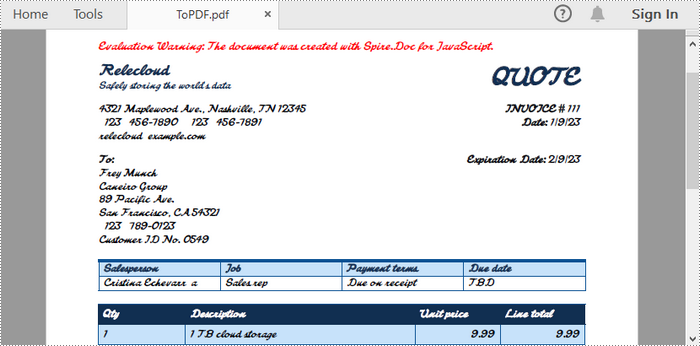
The PDF file generated from Word with non-installed fonts embedded

Convert Word to Password-Protected PDF

To enhance security, you can convert a Word document to a password-protected PDF. This feature is essential when sharing sensitive information.

Spire.Doc for JavaScript provides the ToPdfParameterList.PdfSecurity.Encrypt() method, enabling users to protect the generated PDF with an open password, a permission password, and specific document permissions.

The following code illustrates how to convert Word to password-protected PDF using JavaScript.

  • JavaScript
Copy
import React, { useState, useEffect } from 'react';

function App() {
  const [wasmModule, setWasmModule] = useState(null);
  // Load Spire.Doc
  useEffect(() => {
    (async () => {
      try {
        const publicUrl = process.env.PUBLIC_URL || '';
        const spireModule = await import(/* webpackIgnore: true */ `${publicUrl}/spire.doc.js`);
        const rawModule = spireModule.default || spireModule;
        window.wasmModule = typeof rawModule === 'function'
          ? await rawModule({ locateFile: p => p.endsWith('.wasm') ? `${publicUrl}/${p}` : p })
          : rawModule;
        setWasmModule(window.wasmModule);
      } catch (error) {
        console.error('Failed to load spire.doc.js WASM module:', error);
      }
    })();
  }, []);

  // Function to convert Word to PDF
  const convertWordToPdf = async () => {
    const wasmModule = window.wasmModule.spiredoc;
    if (wasmModule) {
      // Load the font files into the virtual file system (VFS)
      await window.spire.FetchFileToVFS('times.ttf', '/Library/Fonts/', `${process.env.PUBLIC_URL}/static/font/`);
      await window.spire.FetchFileToVFS('timesbd.ttf', '/Library/Fonts/', `${process.env.PUBLIC_URL}/static/font/`);
      await window.spire.FetchFileToVFS('timesbi.ttf', '/Library/Fonts/', `${process.env.PUBLIC_URL}/static/font/`);
      await window.spire.FetchFileToVFS('timesi.ttf', '/Library/Fonts/', `${process.env.PUBLIC_URL}/static/font/`);

      // Fetch the input file and add it to the VFS
      const inputFileName = 'input.docx';
      await window.spire.FetchFileToVFS(inputFileName, '', `${process.env.PUBLIC_URL}/static/data/`);

      // Create a new document
      const doc = new wasmModule.Document();

      // Load the word file
      doc.LoadFromFile(inputFileName);

      // Create a parameter list for the PDF conversion
      let parameters = new wasmModule.ToPdfParameterList();

      // Set the parameter to encrypt the generated PDF file
      parameters.PdfSecurity.Encrypt('open-psd', 'permission-psd', wasmModule.PdfPermissionsFlags.Default, wasmModule.PdfEncryptionKeySize.Key128Bit);

      // Save the document as a PDF file
      const outputFileName = 'Encrypted.pdf';
      doc.SaveToFile({ fileName: outputFileName, paramList: parameters });

      const modifiedFileArray = window.dotnetRuntime.Module.FS.readFile(outputFileName);
      const modifiedFile = new Blob([modifiedFileArray], { type: 'application/pdf' });

      // Create download link
      const url = URL.createObjectURL(modifiedFile);
      const a = document.createElement('a');
      a.href = url;
      a.download = outputFileName;
      document.body.appendChild(a);
      a.click();
      document.body.removeChild(a);
      URL.revokeObjectURL(url);

      // dispose 
      doc.Dispose();

    }

  };

  return (
    <div style={{ textAlign: 'center', height: '300px' }}>
      <h1>Convert Word to PDF Using JavaScript in React</h1>
      <button onClick={convertWordToPdf} disabled={!wasmModule}>
        Generate
      </button>
    </div>
  );
}

export default App;
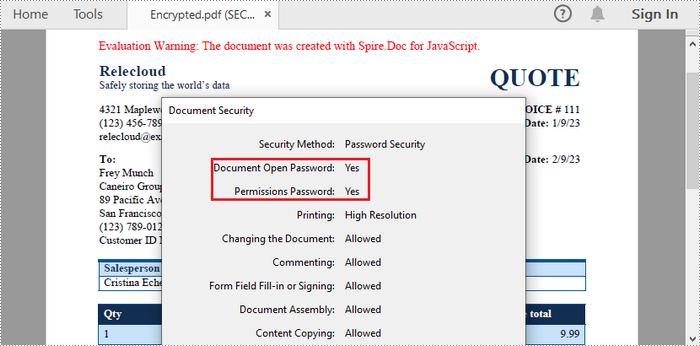
Convert Word to password-protected PDF

Convert Word to PDF with Hyperlinks Disabled

Disabling hyperlinks when converting a Word document to PDF enhances readability and maintains a clean, distraction-free format. This adjustment can be particularly useful for print materials, presentations, and documents requiring a focus on content without external links.

By setting the ToPdfParameterList.DisableLink property to true, you can ensure that any clickable links in the original document are rendered as plain text in the PDF output.

The following code snippet demonstrates how to disable hyperlinks when converting Word to PDF using JavaScript.

  • JavaScript
Copy
import React, { useState, useEffect } from 'react';

function App() {
  const [wasmModule, setWasmModule] = useState(null);
  // Load Spire.Doc
  useEffect(() => {
    (async () => {
      try {
        const publicUrl = process.env.PUBLIC_URL || '';
        const spireModule = await import(/* webpackIgnore: true */ `${publicUrl}/spire.doc.js`);
        const rawModule = spireModule.default || spireModule;
        window.wasmModule = typeof rawModule === 'function'
          ? await rawModule({ locateFile: p => p.endsWith('.wasm') ? `${publicUrl}/${p}` : p })
          : rawModule;
        setWasmModule(window.wasmModule);
      } catch (error) {
        console.error('Failed to load spire.doc.js WASM module:', error);
      }
    })();
  }, []);

  // Function to convert Word to PDF
  const convertWordToPdf = async () => {
    const wasmModule = window.wasmModule.spiredoc;
    if (wasmModule) {
      // Load the font files into the virtual file system (VFS)
      await window.spire.FetchFileToVFS('times.ttf', '/Library/Fonts/', `${process.env.PUBLIC_URL}/static/font/`);
      await window.spire.FetchFileToVFS('timesbd.ttf', '/Library/Fonts/', `${process.env.PUBLIC_URL}/static/font/`);
      await window.spire.FetchFileToVFS('timesbi.ttf', '/Library/Fonts/', `${process.env.PUBLIC_URL}/static/font/`);
      await window.spire.FetchFileToVFS('timesi.ttf', '/Library/Fonts/', `${process.env.PUBLIC_URL}/static/font/`);

      // Fetch the input file and add it to the VFS
      const inputFileName = 'input.docx';
      await window.spire.FetchFileToVFS(inputFileName, '', `${process.env.PUBLIC_URL}/static/data/`);

      // Create a new document
      const doc = new wasmModule.Document();

      // Load the word file
      doc.LoadFromFile(inputFileName);

      // Create a parameter list for the PDF conversion
      let parameters = new wasmModule.ToPdfParameterList();

      // Set the parameter to disable hyperlinks
      parameters.DisableLink = true;

      // Save the document as a PDF file
      const outputFileName = 'DisableHyperlinks.pdf';
      doc.SaveToFile({ fileName: outputFileName, paramList: parameters });

      const modifiedFileArray = window.dotnetRuntime.Module.FS.readFile(outputFileName);
      const modifiedFile = new Blob([modifiedFileArray], { type: 'application/pdf' });

      // Create download link
      const url = URL.createObjectURL(modifiedFile);
      const a = document.createElement('a');
      a.href = url;
      a.download = outputFileName;
      document.body.appendChild(a);
      a.click();
      document.body.removeChild(a);
      URL.revokeObjectURL(url);

      // dispose 
      doc.Dispose();

    }

  };

  return (
    <div style={{ textAlign: 'center', height: '300px' }}>
      <h1>Convert Word to PDF Using JavaScript in React</h1>
      <button onClick={convertWordToPdf} disabled={!wasmModule}>
        Generate
      </button>
    </div>
  );
}

export default App;
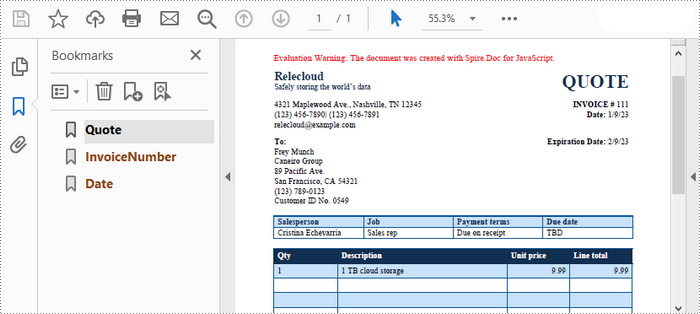
Convert Word to PDF with Bookmarks Preserved

Preserving bookmarks when converting a Word document to PDF enhances navigation in lengthy documents, allowing readers to quickly access specific sections. This feature improves usability and the overall experience of the PDF.

To create bookmarks in the output PDF document from the existing Word bookmarks, set the ToPdfParameterList.CreateWordBookmarks property to true.

The following is an example of preserving bookmarks when converting Word to PDF using JavaScript.

  • JavaScript
Copy
import React, { useState, useEffect } from 'react';

function App() {
  const [wasmModule, setWasmModule] = useState(null);
  // Load Spire.Doc
  useEffect(() => {
    (async () => {
      try {
        const publicUrl = process.env.PUBLIC_URL || '';
        const spireModule = await import(/* webpackIgnore: true */ `${publicUrl}/spire.doc.js`);
        const rawModule = spireModule.default || spireModule;
        window.wasmModule = typeof rawModule === 'function'
          ? await rawModule({ locateFile: p => p.endsWith('.wasm') ? `${publicUrl}/${p}` : p })
          : rawModule;
        setWasmModule(window.wasmModule);
      } catch (error) {
        console.error('Failed to load spire.doc.js WASM module:', error);
      }
    })();
  }, []);

  // Function to convert Word to PDF
  const convertWordToPdf = async () => {
    const wasmModule = window.wasmModule.spiredoc;
    if (wasmModule) {
      // Load the font files into the virtual file system (VFS)
      await window.spire.FetchFileToVFS('times.ttf', '/Library/Fonts/', `${process.env.PUBLIC_URL}/static/font/`);
      await window.spire.FetchFileToVFS('timesbd.ttf', '/Library/Fonts/', `${process.env.PUBLIC_URL}/static/font/`);
      await window.spire.FetchFileToVFS('timesbi.ttf', '/Library/Fonts/', `${process.env.PUBLIC_URL}/static/font/`);
      await window.spire.FetchFileToVFS('timesi.ttf', '/Library/Fonts/', `${process.env.PUBLIC_URL}/static/font/`);

      // Fetch the input file and add it to the VFS
      const inputFileName = 'input.docx';
      await window.spire.FetchFileToVFS(inputFileName, '', `${process.env.PUBLIC_URL}/static/data/`);

      // Create a new document
      const doc = new wasmModule.Document();

      // Load the word file
      doc.LoadFromFile(inputFileName);

      // Create a parameter list for the PDF conversion
      let parameters = new wasmModule.ToPdfParameterList();

      // Set the parameter to create bookmarks in the PDF from existing bookmarks in Word
      parameters.CreateWordBookmarks = true;

      // Save the document as a PDF file
      const outputFileName = 'CreateBookmarks.pdf';
      doc.SaveToFile({ fileName: outputFileName, paramList: parameters });

      const modifiedFileArray = window.dotnetRuntime.Module.FS.readFile(outputFileName);
      const modifiedFile = new Blob([modifiedFileArray], { type: 'application/pdf' });

      // Create download link
      const url = URL.createObjectURL(modifiedFile);
      const a = document.createElement('a');
      a.href = url;
      a.download = outputFileName;
      document.body.appendChild(a);
      a.click();
      document.body.removeChild(a);
      URL.revokeObjectURL(url);

      // dispose 
      doc.Dispose();

    }

  };

  return (
    <div style={{ textAlign: 'center', height: '300px' }}>
      <h1>Convert Word to PDF Using JavaScript in React</h1>
      <button onClick={convertWordToPdf} disabled={!wasmModule}>
        Generate
      </button>
    </div>
  );
}

export default App;

Preserve bookmarks when converting Word to PDF

Convert Word to PDF with Custom Image Quality

If your Word document contains images, you may want to control the quality of these images in the PDF. This can help balance file size and quality.

Spire.Doc for JavaScript includes the Document.JPEGQuality property, which allows developers to set image compression quality on a scale from 1 to 100.

The following is an example of customizing image quality when converting Word to PDF using JavaScript.

  • JavaScript
Copy
import React, { useState, useEffect } from 'react';

function App() {
  const [wasmModule, setWasmModule] = useState(null);
  // Load Spire.Doc
  useEffect(() => {
    (async () => {
      try {
        const publicUrl = process.env.PUBLIC_URL || '';
        const spireModule = await import(/* webpackIgnore: true */ `${publicUrl}/spire.doc.js`);
        const rawModule = spireModule.default || spireModule;
        window.wasmModule = typeof rawModule === 'function'
          ? await rawModule({ locateFile: p => p.endsWith('.wasm') ? `${publicUrl}/${p}` : p })
          : rawModule;
        setWasmModule(window.wasmModule);
      } catch (error) {
        console.error('Failed to load spire.doc.js WASM module:', error);
      }
    })();
  }, []);

  // Function to convert Word to PDF
  const convertWordToPdf = async () => {
    const wasmModule = window.wasmModule.spiredoc;
    if (wasmModule) {
      // Load the font files into the virtual file system (VFS)
      await window.spire.FetchFileToVFS('times.ttf', '/Library/Fonts/', `${process.env.PUBLIC_URL}/static/font/`);
      await window.spire.FetchFileToVFS('timesbd.ttf', '/Library/Fonts/', `${process.env.PUBLIC_URL}/static/font/`);
      await window.spire.FetchFileToVFS('timesbi.ttf', '/Library/Fonts/', `${process.env.PUBLIC_URL}/static/font/`);
      await window.spire.FetchFileToVFS('timesi.ttf', '/Library/Fonts/', `${process.env.PUBLIC_URL}/static/font/`);

      // Fetch the input file and add it to the VFS
      const inputFileName = 'input.docx';
      await window.spire.FetchFileToVFS(inputFileName, '', `${process.env.PUBLIC_URL}/static/data/`);

      // Create a new document
      const doc = new wasmModule.Document();

      // Load the word file
      doc.LoadFromFile(inputFileName);

      // Set the output image quality to be 40% of the original image
      doc.JPEGQuality = 40;

      // Save the document as a PDF file
      const outputFileName = 'CustomImageQuality.pdf';
      doc.SaveToFile({ fileName: outputFileName, fileFormat: wasmModule.FileFormat.PDF });

      const modifiedFileArray = window.dotnetRuntime.Module.FS.readFile(outputFileName);
      const modifiedFile = new Blob([modifiedFileArray], { type: 'application/pdf' });

      // Create download link
      const url = URL.createObjectURL(modifiedFile);
      const a = document.createElement('a');
      a.href = url;
      a.download = outputFileName;
      document.body.appendChild(a);
      a.click();
      document.body.removeChild(a);
      URL.revokeObjectURL(url);

      // dispose 
      doc.Dispose();

    }

  };

  return (
    <div style={{ textAlign: 'center', height: '300px' }}>
      <h1>Convert Word to PDF Using JavaScript in React</h1>
      <button onClick={convertWordToPdf} disabled={!wasmModule}>
        Generate
      </button>
    </div>
  );
}

export default App;

Get a Free License

To fully experience the capabilities of Spire.Doc for JavaScript without any evaluation limitations, you can request a free 30-day trial license.

Spire.Doc for JavaScript is an independent Word API that allows developers to integrate Microsoft Word document creation capabilities into their JavaScript applications, without installing Microsoft Word on either development or target systems.

It is a trustworthy MS Word API for JavaScript that can apply multiple Word document processing tasks. Spire.Doc for JavaScript supports Word 97-2003 /2007/2010/2013/2016/2019, and it has the capability of converting them to other common formats, like XML, RTF, TXT, EMF, HTML, ODT, Markdown, and vice versa. Moreover, it supports converting Word Doc/Docx to PDF, images (PNG, JPEG), PostScript, OFD, XPS, EPUB, PCL (Printer Command Language), and RTF to PDF/HTML, HTML to PDF/Image, Markdown to PDF in high quality.

Integrating document processing capabilities is crucial for enhancing user experience in many web applications, allowing for efficient report generation and data handling. React, with its component-based architecture, is an excellent choice for frontend development. By integrating Spire.Doc for JavaScript, you can effortlessly create and manage Word documents within your React application.

This guide will walk you through the steps to integrate Spire.Doc for JavaScript into your React projects, covering both setup and a usage example.

Benefits of Using Spire.Doc for JavaScript in React

React, a popular JavaScript library for building user interfaces, has become a cornerstone in modern web development. On the other hand, Spire.Doc for JavaScript is a powerful library designed to simplify document processing in web applications.

By integrating Spire.Doc for JavaScript into your React project, you can add advanced Word document processing capabilities to your application. Here are some of the key advantages:

  • Seamless Document Creation: Spire.Doc for JavaScript enables document creation and editing directly in React, streamlining management without external tools.
  • Cross-Platform Compatibility: Spire.Doc for JavaScript allows document creation compatible with multiple platforms, enabling users to access and edit documents from anywhere.
  • Rich Features: Spire.Doc for JavaScript offers extensive capabilities like text formatting, table creation, and image insertion, ideal for applications needing document manipulation.
  • Seamless Integration: Compatible with various JavaScript frameworks, including React, Spire.Doc for JavaScript integrates easily into existing projects without disrupting your workflow.

Set Up Your Environment

Step 1. Install React and npm

Download and install Node.js from the official website. Make sure to choose the version that matches your operating system.

After the installation is complete, you can verify that Node.js and npm are working correctly by running the following commands in your terminal:

Check the versions of node.js and npm

Step 2. Create a New React Project

Create a new React project named my-app using Create React App from terminal:

npx create-react-app my-app

Create a react project

If your React project is compiled successfully, the app will be served at http://localhost:3000, allowing you to view and test your application in a browser.

React app opens at localhost 3000

To visually browse and manage the files in your project, you can open the project using VS Code.

Open React project in VS Code

Integrate Spire.Doc for JavaScript in Your Project

Download Spire.Doc for JavaScript from our website and unzip it to a location on your disk. The downloaded product package integrates Spire.Doc for JavaScript, Spire.XLS for JavaScript, Spire.PDF for JavaScript, and Spire.Presentation for JavaScript. To use the features of Spire.Doc for JavaScript, you need to copy the corresponding files (spire.doc.js, Spire.Doc.Wasm.zip, spire.common.js, Spire.Common.Wasm.zip, and the _framework folder) to the public folder of your project.

Download Spire.Doc for JavaScript library

You can also install using npm. In the terminal within VS Code, run the following command:

npm i spire.office

Once the installation is complete, the product package files will be saved in the node_modules/spire.office path of your project. Copy the 5 files mentioned above into the "public" folder in your React project.

To ensure proper text rendering, you can add relevant font files with a custom path. In the following example, the font is added to the path: public\.

The library files installed via npm

Create and Save Word Files Using JavaScript

Modify the code in the "App.js" file to generate a Word file using the WebAssembly (WASM) module. Specifically, utilize the Spire.Doc for JavaScript library for Word file manipulation.

Modify app.js file

Here is the entire code:

  • JavaScript
import React, { useState, useEffect } from 'react';

function App() {
  const [wasmModule, setWasmModule] = useState(null);
  // Load Spire.Doc
  useEffect(() => {
    (async () => {
      try {
        const publicUrl = process.env.PUBLIC_URL || '';
        const spireModule = await import(/* webpackIgnore: true */ `${publicUrl}/spire.doc.js`);
        const rawModule = spireModule.default || spireModule;
        window.wasmModule = typeof rawModule === 'function'
          ? await rawModule({ locateFile: p => p.endsWith('.wasm') ? `${publicUrl}/${p}` : p })
          : rawModule;
        setWasmModule(window.wasmModule);
      } catch (error) {
        console.error('Failed to load spire.doc.js WASM module:', error);
      }
    })();
  }, []);

  // Function to generate word file
  const createWord = async () => {
    const wasmModule = window.wasmModule.spiredoc;
    if (wasmModule) {

      // Load the arial.ttf font file into the virtual file system (VFS)
      await window.spire.FetchFileToVFS('arial.ttf', '/Library/Fonts/', `${process.env.PUBLIC_URL}/`);

      // Specify output file name
      const outputFileName = 'HelloWorld.docx';

      // Create a new document
      const doc = new wasmModule.Document();

      // Add a section
      let section = doc.AddSection();

      // Add a paragraph
      let paragraph = section.AddParagraph();

      // Append text to the paragraph
      paragraph.AppendText('Hello, World!');

      // Save the document to a Word file
      doc.SaveToFile({ fileName: outputFileName, fileFormat: wasmModule.FileFormat.Docx2013 });

      // Read the saved file and convert it to a Blob object
      const modifiedFileArray = window.dotnetRuntime.Module.FS.readFile(outputFileName);
      const modifiedFile = new Blob([modifiedFileArray], { type: 'application/vnd.openxmlformats-officedocument.wordprocessingml.document' });

      // Create a URL for the Blob and initiate the download
      const url = URL.createObjectURL(modifiedFile);
      const a = document.createElement('a');
      a.href = url;
      a.download = outputFileName;
      document.body.appendChild(a);
      a.click();
      document.body.removeChild(a);
      URL.revokeObjectURL(url);

      // Clean up resources
      doc.Dispose();
    }
  };

  return (
    <div style={{ textAlign: 'center', height: '300px' }}>
      <h1>Create a Word File Using JavaScript in React</h1>
      <button onClick={createWord} disabled={!wasmModule}>
        Generate
      </button>
    </div>
  );
}

export default App;

Start the development server by entering the following command in the terminal within VS Code:

npm start

Once the React app is successfully compiled, it will open in your default web browser, typically at http://localhost:3000.Click "Generate" to create the 'HelloWorld.docx'.

 React app opens at local host 3000

Click "Generate" and a "Save As" window will prompt you to save the output file in the designated folder.

Save the generated Word at the specified folder

Apply for a Temporary License

If you'd like to remove the evaluation message from the generated documents, or to get rid of the function limitations, please request a 30-day trial license for yourself.

Page 3 of 3
page 3