Printing documents is a common requirement in desktop applications, background services, and server-side systems. In practical development and business scenarios, developers often need to print files silently, route jobs to specific printers, or control printing behavior programmatically—without relying on user interaction.
This guide demonstrates how to use Spire.Printing to implement flexible, automated printing of PDF and Office documents in C# across Windows, Linux, and macOS. You will learn how to handle printable streams, select printers programmatically, and apply advanced print settings, enabling reliable cross-platform printing in modern .NET applications.
Table of Contents
- Installing Spire.Printing
- The Core Printing Workflow and Printing Settings
- Printing Word, Excel, PowerPoint, PDF, and Other Documents
- Advanced Print Settings and Operations
- Licensing Notes
Installing Spire.Printing
Spire.Printing is distributed as a NuGet package and can be added to your project in the standard way:
Install-Package Spire.Printing
Platform Compatibility
Spire.Printing is a cross-platform printing library for modern .NET applications. When used together with Spire.Office libraries (with .NET Standard support), it enables printing Word, Excel, PowerPoint, PDF, and other document formats across Windows, Linux, and macOS—without relying on MS Office Interop.
It supports recent .NET runtimes, including .NET 5.0, .NET 6.0, .NET 9.0, and .NET 10.0, and runs on the following platforms:
- Windows (x64, x86)
- Linux (x64, ARM)
- macOS (x64, ARM)
The Core Printing Workflow and Printing Settings
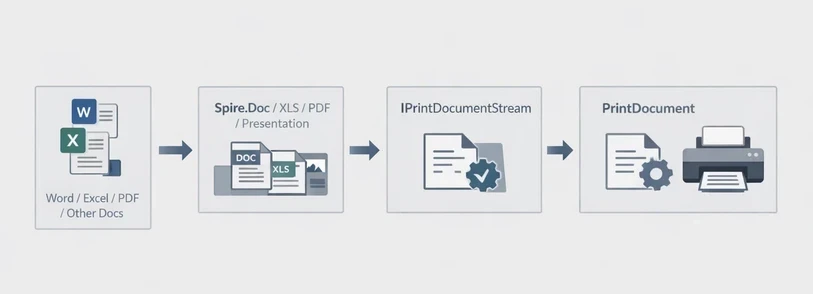
Spire.Printing is designed to send print-ready document streams directly to the printer. On Windows, the printable stream is typically an XPS document, while on Linux and macOS it is a PDF document. It is commonly used with Spire.Office for .NET to implement the printing workflow in .NET applications.
The general process is:
- Create an IPrintDocumentStream instance from the document.
- Create a PrintDocument instance.
- Configure print settings through the PrintSettings property.
- Send the job to the printer.
Code Example
using Spire.Printing;

IPrintDocumentStream documentStream;
if (System.Runtime.InteropServices.RuntimeInformation.IsOSPlatform(System.Runtime.InteropServices.OSPlatform.Windows))
{
    // Windows
    documentStream = new XpsPrintDocument("test.xps");
}
else
{
    // Non-Windows(Linux, MacOS)
    documentStream = new PdfPrintDocument("test.pdf");
}
//new PrintDocument
PrintDocument printDocument = new PrintDocument(documentStream);

//Set paper size
printDocument.PrintSettings.PaperSize = PaperSize.A4;

//Set the number of copies to be printed
printDocument.PrintSettings.Copies = 2;

//Select a page range
printDocument.PrintSettings.SelectPageRange(2, 5);

//Duplex Printing
if (printDocument.PrintSettings.CanDuplex)
{
    //Print in duplex
    printDocument.PrintSettings.Duplex = Duplex.Vertical;
}

//Collated vs. uncollated output:
printDocument.PrintSettings.Collate = true;

//Printing a file to a specific printer, if not set, print to the default printer
printDocument.PrintSettings.PrinterName = "Your Printer Name";

// Print to the specified file
printDocument.PrintSettings.PrintToFile("toXps.xps");

//Record printing logs
printDocument.PrintSettings.PrintLogger = new DefaultPrintLogger("log.txt");

//Print
printDocument.Print();

//Dispose
printDocument.Dispose();
This stream-based model keeps the printing workflow consistent across platforms, while allowing all printer behavior to be customized through the PrintSettings API.
Printing Word, Excel, PowerPoint, PDF, and Other Documents
To print Word, Excel, PowerPoint, PDF, and other document types, Spire.Printing is used together with the corresponding Spire.Office document libraries—Spire.Doc, Spire.XLS, Spire.Presentation, and Spire.PDF (especially the .NET Standard version)—to load the source files, save them into IPrintDocumentStream, and send them to the printer.
Printing Word Documents in C#
Library Installation
Install-Package Spire.Printing
Install-Package Spire.Docfor.NETStandard
Code Example
using Spire.Doc;
using Spire.Printing;

//Check the system
bool isWindows = System.Runtime.InteropServices.RuntimeInformation.IsOSPlatform(System.Runtime.InteropServices.OSPlatform.Windows);

using (Document document = new Document())
{
    //Use Spire.Doc to save documents as. xps or. pdf document streams
    document.LoadFromFile(@"test.docx");
    Spire.Doc.FileFormat fileFormat = !isWindows ? Spire.Doc.FileFormat.PDF : Spire.Doc.FileFormat.XPS;
    MemoryStream stream = new MemoryStream();
    document.SaveToStream(stream, fileFormat);

    //Save to IPrintDocumentStream according to the system
    IPrintDocumentStream docStream = !isWindows ? new PdfPrintDocument(stream) : new XpsPrintDocument(stream);

    //Print
    PrintDocument printDoc = new PrintDocument(docStream);
    printDoc.PrintSettings.SelectPageRange(1, 1);
    printDoc.Print();

    //Dispose
    printDoc.Dispose();
}
Printing Excel Files in C#
Library Installation
Install-Package Spire.Printing
Install-Package Spire.XLSfor.NETStandard
Code Example
using Spire.Printing;
using Spire.Xls;

//Check the system
bool isWindows = System.Runtime.InteropServices.RuntimeInformation.IsOSPlatform(System.Runtime.InteropServices.OSPlatform.Windows);
using (Workbook wb = new Workbook())
{
    //Use Spire.Xls to save documents as. xps or. pdf document streams
    wb.LoadFromFile("test.xlsx");
    Spire.Xls.FileFormat fileFormat = !isWindows ? Spire.Xls.FileFormat.PDF : Spire.Xls.FileFormat.XPS;
    MemoryStream stream = new MemoryStream();
    wb.SaveToStream(stream, fileFormat);

    //Save to IPrintDocumentStream according to the system
    IPrintDocumentStream xlsStream = !isWindows ? new PdfPrintDocument(stream) : new XpsPrintDocument(stream);

    //Print
    PrintDocument printxls = new PrintDocument(xlsStream);
    printxls.PrintSettings.SelectPageRange(1, 1);
    printxls.Print();

    //Dispose
    printxls.Dispose();
}
Printing PDF Files in C#
Library Installation
Install-Package Spire.Printing
Install-Package Spire.PDFfor.NETStandard
Code Example
using Spire.Pdf;
using Spire.Printing;

//Check the system
bool isWindows = System.Runtime.InteropServices.RuntimeInformation.IsOSPlatform(System.Runtime.InteropServices.OSPlatform.Windows);
using (PdfDocument pdfDocument = new PdfDocument())
{
    //Use Spire.PDF to save documents as. xps or. pdf document streams
    pdfDocument.LoadFromFile("test.pdf");
    Spire.Pdf.FileFormat fileFormat = !isWindows ? Spire.Pdf.FileFormat.PDF : Spire.Pdf.FileFormat.XPS;
    MemoryStream stream = new MemoryStream();
    pdfDocument.SaveToStream(stream, fileFormat);

    //Save to IPrintDocumentStream according to the system
    IPrintDocumentStream pdfStream = !isWindows ? new PdfPrintDocument(stream) : new XpsPrintDocument(stream);

    //Print
    PrintDocument printPdf = new PrintDocument(pdfStream);
    printPdf.PrintSettings.SelectPageRange(1, 1);
    printPdf.Print();

    //Dispose
    printPdf.Dispose();
}
Printing PowerPoint Presentations in C#
Library Installation
Install-Package Spire.Printing
Install-Package Spire.Presentationfor.NETStandard
Code Example
using Spire.Presentation;
using Spire.Printing;

//Check the system
bool isWindows = System.Runtime.InteropServices.RuntimeInformation.IsOSPlatform(System.Runtime.InteropServices.OSPlatform.Windows);
using (Presentation ppt = new Presentation())
{
    //Use Spire.Presentation to save documents as. xps or. pdf document streams
    ppt.LoadFromFile("test.pptx");
    Spire.Presentation.FileFormat fileFormat = !isWindows ? Spire.Presentation.FileFormat.PDF : Spire.Presentation.FileFormat.XPS;
    MemoryStream stream = new MemoryStream();
    ppt.SaveToFile(stream, fileFormat);

    //Save to IPrintDocumentStream according to the system
    IPrintDocumentStream pptStream = !isWindows ? new PdfPrintDocument(stream) : new XpsPrintDocument(stream);

    //Print
    PrintDocument printPpt = new PrintDocument(pptStream);
    printPpt.PrintSettings.SelectPageRange(1, 1);
    printPpt.Print();

    //Dispose
    printPpt.Dispose();
}
Advanced Print Settings and Operations
For automated and cross-platform printing scenarios, Spire.Printing provides additional control over printer selection, paper handling, and page output through the PrintSettings API. These options are commonly used in unattended services and batch-printing workflows.
Discovering and Selecting a Printer
Instead of using the system default, you can enumerate available printers and route the print job to a specific device:
IEnumerable<string> printers = printDocument.PrintSettings.Printers;

// Select the first printer or choose based on your logic
string selectedPrinterName = printers.First();
printDocument.PrintSettings.PrinterName = selectedPrinterName;
This is useful when multiple printers are installed or when deterministic printer routing is required.
Choosing a Supported Paper Size
To ensure compatibility with the selected printer, you can query and apply one of its supported paper sizes:
IEnumerable<PaperSize> paperSizes = printDocument.PrintSettings.PaperSizes;

// Select the first available size or apply custom logic
PaperSize selectedPaperSize = paperSizes.First();
printDocument.PrintSettings.PaperSize = selectedPaperSize;
This guarantees the selected paper size is compatible with the target printer.
Selecting Specific Pages
You can restrict printing to certain pages, either as a continuous range or a specific set:
// Print pages 2 to 5
printDocument.PrintSettings.SelectPageRange(2, 5);

// Print specific pages: 1, 3, 5, 7
int[] pages = { 1, 3, 5, 7 };
printDocument.PrintSettings.SelectSomePages(pages);
Only one of these methods should be used per print job.
These advanced operations allow precise control over print output, making it suitable for automated workflows, batch processing, or scenarios where consistent print settings are required across multiple documents and printers.
Licensing Notes
Without a valid license, Spire.Printing prints only the first 10 pages. This limitation can be removed by applying a license for Spire.Office for .NET or the corresponding document libraries, such as Spire.Doc, Spire.XLS, Spire.PDF, or Spire.Presentation.
Spire.Pdf.License.LicenseProvider.SetLicenseKey(string key);
Spire.Doc.License.LicenseProvider.SetLicenseKey(string key);
Spire.Xls.License.LicenseProvider.SetLicenseKey(string key);
Spire.Presentation.License.LicenseProvider.SetLicenseKey(string key);
For details on how to apply a license key, see the licensing guide.
Conclusion
Spire.Printing provides a flexible and reliable way to implement professional printing in C# applications. It supports stream-based printing of PDF, Word, Excel, and PowerPoint documents across Windows, Linux, and macOS, and works seamlessly with Spire.Office for .NET libraries—especially for .NET Standard—to handle Office and PDF files in modern .NET applications.
With the core printing workflow understood, developers can easily apply advanced print settings, such as selecting printers, paper sizes, or specific pages, to meet real-world business requirements and automated workflows.
For evaluation or short-term testing scenarios, a temporary license can be requested to remove trial limitations during development.