
Spire.Doc for .NET (338)
Children categories
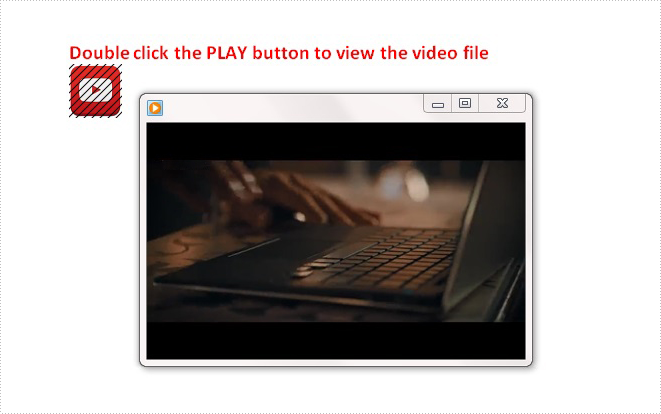
Spire.Doc supports to insert any type of file such as Excel, PDF, PowerPoint and etc, as OLE object into a Word document. In this article, you'll learn how to add a media file (audio or video) to a Word document using Spire.Doc in C#, VB.NET.
In the class of DocOleObject, a method named AppendOleObject(Stream oleStream, DocPicture olePicture, string fileExtension) is available for users to insert media file with the extension of mp3, mp4, avi or any other format into a Word document. The three parameters in this method represent:
- oleStream: The OLE file stream.
- olePicture: The image (icon) that is displayed in Word to show the OLE object.
- fileExtension: The file extension.
Code Snippet:
Step 1: Initialize a new instance of Document class and add a new section.
Document doc = new Document();
Section section = doc.AddSection();
Step 2: Add a new paragraph, append some formatted text into the paragraph.
Paragraph para1 = section.AddParagraph();
para1.AppendText("Double click the PLAY button to view the video file");
ParagraphStyle style1 = new ParagraphStyle(doc);
style1.Name = "Style";
style1.CharacterFormat.FontName = "Calibri";
style1.CharacterFormat.FontSize = 15;
style1.CharacterFormat.Bold = true;
style1.CharacterFormat.TextColor = Color.Red;
doc.Styles.Add(style1);
para1.ApplyStyle(style1.Name);
Step 3: Add another paragraph, append a video file as OLE object into the paragraph.
Paragraph para2 = section.AddParagraph();
Stream s = File.OpenRead("media.mp4");
DocPicture pic = new DocPicture(doc);
pic.LoadImage(Image.FromFile("button.png"));
para2.AppendOleObject(s, pic, "mp4");
Step 4: Save the view the file.
doc.SaveToFile("Result.docx", FileFormat.Docx2010);
System.Diagnostics.Process.Start("Result.docx");
Output:
Full Code:
using Spire.Doc;
using Spire.Doc.Documents;
using Spire.Doc.Fields;
using System.Drawing;
using System.IO;
namespace EmbedMediaFile
{
    class Program
    {

        static void Main(string[] args)
        {
            //create a new Word document and insert section
            Document doc = new Document();
            Section section = doc.AddSection();
            //add a paragraph and append some text
            Paragraph para1 = section.AddParagraph();
            para1.AppendText("Double click the PLAY button to view the video file");
            ParagraphStyle style1 = new ParagraphStyle(doc);
            style1.Name = "Style";
            style1.CharacterFormat.FontName = "Calibri";
            style1.CharacterFormat.FontSize = 15;
            style1.CharacterFormat.Bold = true;
            style1.CharacterFormat.TextColor = Color.Red;
            doc.Styles.Add(style1);
            para1.ApplyStyle(style1.Name);
            //add another paragraph, append video file as OLE object in Word
            Paragraph para2 = section.AddParagraph();
            Stream s = File.OpenRead("media.mp4");
            DocPicture pic = new DocPicture(doc);
            pic.LoadImage(Image.FromFile("button.png"));
            para2.AppendOleObject(s, pic, "mp4");
            //save and view the file
            doc.SaveToFile("Result.docx", FileFormat.Docx2010);
            System.Diagnostics.Process.Start("Result.docx");

        }
    }
}
Imports Spire.Doc
Imports Spire.Doc.Documents
Imports Spire.Doc.Fields
Imports System.Drawing
Imports System.IO
Namespace EmbedMediaFile
	Class Program

		Private Shared Sub Main(args As String())
			'create a new Word document and insert section
			Dim doc As New Document()
			Dim section As Section = doc.AddSection()
			'add a paragraph and append some text
			Dim para1 As Paragraph = section.AddParagraph()
			para1.AppendText("Double click the PLAY button to view the video file")
			Dim style1 As New ParagraphStyle(doc)
			style1.Name = "Style"
			style1.CharacterFormat.FontName = "Calibri"
			style1.CharacterFormat.FontSize = 15
			style1.CharacterFormat.Bold = True
			style1.CharacterFormat.TextColor = Color.Red
			doc.Styles.Add(style1)
			para1.ApplyStyle(style1.Name)
			'add another paragraph, append video file as OLE object in Word
			Dim para2 As Paragraph = section.AddParagraph()
			Dim s As Stream = File.OpenRead("media.mp4")
			Dim pic As New DocPicture(doc)
			pic.LoadImage(Image.FromFile("button.png"))
			para2.AppendOleObject(s, pic, "mp4")
			'save and view the file
			doc.SaveToFile("Result.docx", FileFormat.Docx2010)
			System.Diagnostics.Process.Start("Result.docx")

		End Sub
	End Class
End Namespace
Inserting paragraphs in Word is a fundamental skill for creating well-structured and organized documents. Paragraphs can break down large blocks of text, making it easier for readers to follow the flow of ideas and find specific information. In Word, you can add new paragraphs to represent new ideas or add additional information. This article will demonstrate how to insert a new paragraph in Word in C# using Spire.Doc for .NET.
- Add a Paragraph at the End of a Word Document in C#
- Insert a Paragraph at a Specified Location in Word in C#
Install Spire.Doc for .NET
To begin with, you need to add the DLL files included in the Spire.Doc for .NET package as references in your .NET project. The DLL files can be either downloaded from this link or installed via NuGet.
PM> Install-Package Spire.Doc
Add a Paragraph at the End of a Word Document in C#
To add a new paragraph at the end, you need to get the last section of the Word document through the Document.LastSection property, and then add a paragraph at the end of the section through the Section.AddParagraph() method. The following are the detailed steps:
- Create a Document instance.
- Load a Word document using Document.LoadFromFile() method.
- Get the last section of the document using Document.LastSection property.
- Add a paragraph at the end of the section using Section.AddParagraph() method, and then add text to it using Paragraph.AppendText() method.
- Create a ParagraphStyle object and set the font name, size, style of the paragraph text.
- Apply the paragraph style using Paragraph.ApplyStyle() method
- Save the result document using Document.SaveToFile() method.
- C#
using Spire.Doc;
using Spire.Doc.Documents;
using System.Drawing;

namespace AddParagraph
{
    class Program
    {
        static void Main(string[] args)
        {
            //Create a Document object
            Document doc = new Document();

            //Load a Word document
            doc.LoadFromFile("Test.docx");

            //Get the last section
            Section section = doc.LastSection;

            //Add a paragraph at the end and set its text content
            Paragraph para = section.AddParagraph();
            para.AppendText("Add a paragraph to the end of the document.");

            //Set the paragraph style
            ParagraphStyle style = new ParagraphStyle(doc);
            style.Name = "Style1";
            style.CharacterFormat.FontName = "Times New Roman";
            style.CharacterFormat.FontSize = 12;
            style.CharacterFormat.TextColor = Color.Blue;
            style.CharacterFormat.Bold = true;
            doc.Styles.Add(style);
            para.ApplyStyle("Style1");
            para.Format.BeforeSpacing = 10;

            //Save the result file
            doc.SaveToFile("AddParagraph.docx", FileFormat.Docx2016);
        }
    }
}

Insert a Paragraph at a Specified Location in Word in C#
You can also add a paragraph and then insert it to a specified position through the Section.Paragraphs.Insert(int index, IParagraph paragraph) method. The following are the detailed steps:
- Create a Document instance.
- Load a Word document using Document.LoadFromFile() method.
- Get a specified section using Document.Sections[] property.
- Add a paragraph using Section.AddParagraph() method, and then add text to it using Paragraph.AppendText() method.
- Set the font name, size, style of the paragraph text.
- Insert the newly added paragraph at a specified index using Section.Paragraphs.Insert(int index, IParagraph paragraph) method.
- Save the result document using Document.SaveToFile() method.
- C#
using Spire.Doc;
using Spire.Doc.Documents;
using Spire.Doc.Fields;
using System.Drawing;

namespace InsertParagraph
{
    class Program
    {
        static void Main(string[] args)
        {
            //Create a Document object
            Document doc = new Document();

            //Load a Word document
            doc.LoadFromFile("Test.docx");


            //Get the first section
            Section section = doc.Sections[0];

            //Add a paragraph and set its text content
            Paragraph para = section.AddParagraph();
            TextRange textRange = para.AppendText("Insert a paragraph at a specified location in the Word document.");

            //Set the font name, size, color and style
            textRange.CharacterFormat.TextColor = Color.Blue;
            textRange.CharacterFormat.FontName = "Times New Roman";
            textRange.CharacterFormat.FontSize = 14;
            textRange.CharacterFormat.UnderlineStyle = UnderlineStyle.Single;

            //Insert the paragraph as the third paragraph
            section.Paragraphs.Insert(2, para);

            //Set spacing after the paragraph
            para.Format.AfterSpacing = 10;

            //Save the result file
            doc.SaveToFile("InsertParagraph.docx", FileFormat.Docx2016);
        }
    }
}

Apply for a Temporary License
If you'd like to remove the evaluation message from the generated documents, or to get rid of the function limitations, please request a 30-day trial license for yourself.
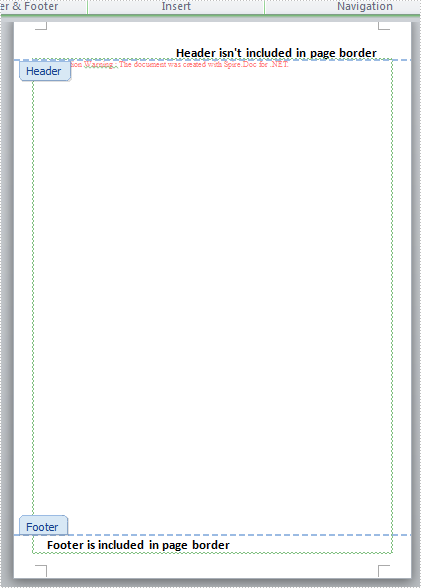
In MS Word page border options, there are checkboxes to choose whether page border surrounds header/footer or not. This feature is very important for which can be used to manage the positional relation between page border and header/footer. Spire.Doc supports to set the two frequently-used features: page border and header/footer, and it supports to manage their spatial relations, too. This article is going to introduce the method to set whether page border surrounds header/footer or not.
Note: before start, please download the latest version of Spire.Doc and add the .dll in the bin folder as the reference of Visual Studio.
Step 1: Create a Word document and add a section.
            Document document = new Document();
            Section section = document.AddSection();
Step 2: Add a sample page border to the document using Spire.Doc library.
            section.PageSetup.Borders.BorderType = BorderStyle.Wave;
            section.PageSetup.Borders.Color = Color.Green;
            section.PageSetup.Borders.Left.Space = 20;
            section.PageSetup.Borders.Right.Space = 20;
Step 3: Add sample header and footer to the document using Spire.Doc library.
            //add a header and set its format
            Paragraph paragraph1 = section.HeadersFooters.Header.AddParagraph();
            paragraph1.Format.HorizontalAlignment = HorizontalAlignment.Right;
            TextRange headerText = paragraph1.AppendText("Header isn't included in page border");
            headerText.CharacterFormat.FontName = "Calibri";
            headerText.CharacterFormat.FontSize = 20;
            headerText.CharacterFormat.Bold = true;

            //add a footer and set its format
            Paragraph paragraph2 = section.HeadersFooters.Footer.AddParagraph();
            paragraph2.Format.HorizontalAlignment = HorizontalAlignment.Left;
            TextRange footerText = paragraph2.AppendText("Footer is included in page border");
            footerText.CharacterFormat.FontName = "Calibri";
            footerText.CharacterFormat.FontSize = 20;
            footerText.CharacterFormat.Bold = true;
Step 4: Set the header not included in the page border while the footer included.
            section.PageSetup.PageBorderIncludeHeader = false;
            section.PageSetup.HeaderDistance = 40;
            section.PageSetup.PageBorderIncludeFooter = true;
            section.PageSetup.FooterDistance = 40;
Step 5: Save the document and launch to see effect.
            document.SaveToFile("result.docx", FileFormat.Docx2013);
            System.Diagnostics.Process.Start("result.docx");
Effects:
Full Codes:
using System;
using System.Collections.Generic;
using System.Linq;
using System.Text;
using Spire.Doc;
using Spire.Doc.Documents;
using Spire.Doc.Fields;
using System.Drawing;

namespace Mirror_Margin
{
    class Program
    {
        static void Main(string[] args)
        {
            Document document = new Document();
            Section section = document.AddSection();

            section.PageSetup.Borders.BorderType = BorderStyle.Wave;
            section.PageSetup.Borders.Color = Color.Green;
            section.PageSetup.Borders.Left.Space = 20;
            section.PageSetup.Borders.Right.Space = 20;

            Paragraph paragraph1 = section.HeadersFooters.Header.AddParagraph();
            paragraph1.Format.HorizontalAlignment = HorizontalAlignment.Right;
            TextRange headerText = paragraph1.AppendText("Header isn't included in page border");
            headerText.CharacterFormat.FontName = "Calibri";
            headerText.CharacterFormat.FontSize = 20;
            headerText.CharacterFormat.Bold = true;

            Paragraph paragraph2 = section.HeadersFooters.Footer.AddParagraph();
            paragraph2.Format.HorizontalAlignment = HorizontalAlignment.Left;
            TextRange footerText = paragraph2.AppendText("Footer is included in page border");
            footerText.CharacterFormat.FontName = "Calibri";
            footerText.CharacterFormat.FontSize = 20;
            footerText.CharacterFormat.Bold = true;

            section.PageSetup.PageBorderIncludeHeader = false;
            section.PageSetup.HeaderDistance = 40;
            section.PageSetup.PageBorderIncludeFooter = true;
            section.PageSetup.FooterDistance = 40;

            document.SaveToFile("result.docx", FileFormat.Docx2013);
            System.Diagnostics.Process.Start("result.docx");
        }
    }
}
