
Spire.Doc for .NET (338)
Children categories

Spire.Doc, specially designed for developers/programmers to manipulate word proceeding tasks, from Word version 97-2003 to 2010 and 2013 in .NET, Silverlight and WPF Platform, always welcomes any kind of evaluation or test from either organizations or individuals with no charges.
This professional word component enables users to perform a large range of tasks on Word, as document operation (create, open, edit and save), mail merge, security, format (font, paragraph and page settings), objects (text, image, hyperlink, comment, table, bookmark, header/footer, footnote/endnote etc.). The conversion feature stands out of the peers, which enables developers to realize conversion between most popular formats with high fidelity, including Word to PDF, HTML, RTF, XML, Image formats, TEXT and RTF, XML and HTML files also can be converted to Word back. The following sections have been well-organized to show you how these functions work in detail.


Document Operation |
|
Image and Shape |
|
Bookmark |
|
Header and Footer |
Footnote |
Simple introduction about Word XML
Word XML is a special XML format, which makes Word be able to manipulate the Word documents stored in XML format. It can be divided into two types: WordML(supported by Word 2003) and WordXML(supported by Word 2007). If external applications support Word XML and the generated data follow the Word XML structure, then the data can be processed by Word. In this way, Word XML has become the bridge between Word and other external applications, any XML- formatted document based on Word XML structure can be opened, edited and saved in Word.
Using C#/VB.NET to convert Word to Word XML via Spire.Doc
Spire.Doc enables users to convert word document to Word XML format easily by using the doc.SaveToFile() method. Now, please follow the detail steps below:
Note: Before start, please download Spire.Doc and install it correctly, then add Spire.Doc.dll file from Bin folder as the reference of your project.
This is the screenshot of the original word document:

Step 1: Create a new document instance.
Document doc = new Document();
Step 2: Load the sample word document from file.
doc.LoadFromFile("Spire.Doc for .NET.docx");
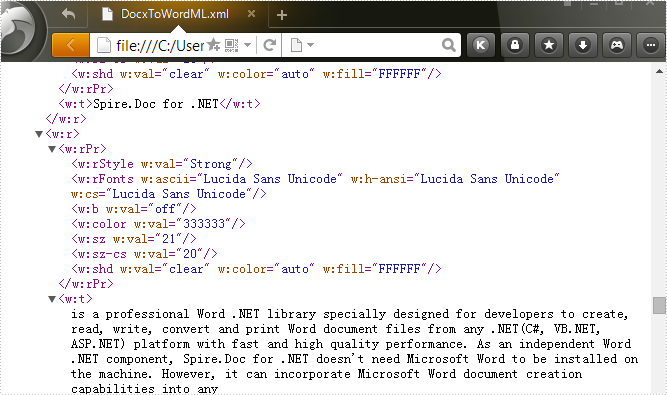
Step 3: Save the word document as Word XML format.
For word 2003:
doc.SaveToFile("DocxToWordML.xml", FileFormat.WordML);

For word 2007:
doc.SaveToFile("DocxToWordXML.xml", FileFormat.WordXml);
Effective screenshot:
Full codes:
using Spire.Doc;

namespace Convert_Word_to_Word_XML
{
    class Program
    {
        static void Main(string[] args)
        {
            Document doc = new Document();
            doc.LoadFromFile("Spire.Doc for .NET.docx");
            doc.SaveToFile("DocxToWordML.xml", FileFormat.WordML);
            //doc.SaveToFile("DocxToWordXML.xml", FileFormat.WordXml);
        }
    }
}
Imports Spire.Doc
Namespace Convert_Word_to_Word_XML
	Class Program
		Private Shared Sub Main(args As String())
			Dim doc As New Document()
			doc.LoadFromFile("Spire.Doc for .NET.docx")
			doc.SaveToFile("DocxToWordML.xml", FileFormat.WordML)
			'doc.SaveToFile("DocxToWordXML.xml", FileFormat.WordXml);
		End Sub
	End Class
End Namespace
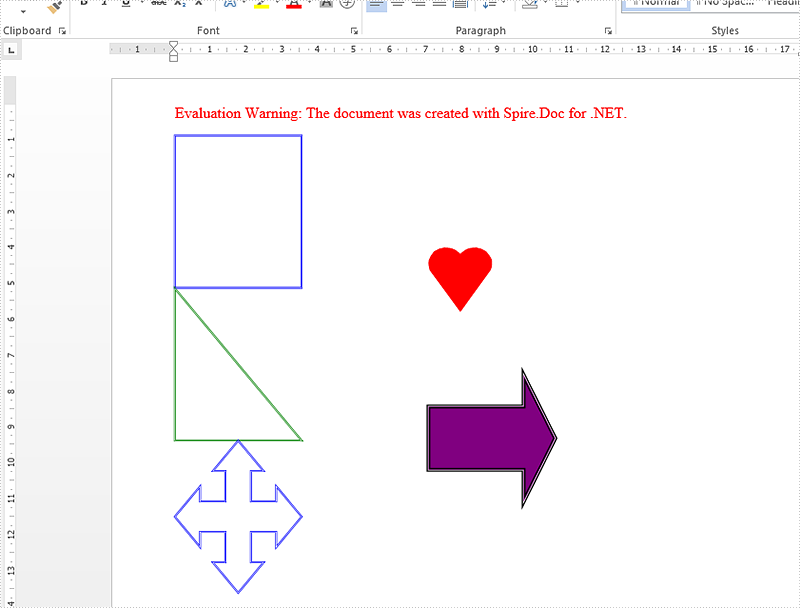
MS Word allows users to select a shape from shapes menu, drag and place it to any desired location on the page. From Spire.Doc Version 6.0 or above, we added a new feature to work with shape using code. The following section will present how to insert shapes and shape group in a Word document at the specified locations using Spire.Doc.
Code Snippets:
Step 1: Initialize a new instance of Document class.
Document doc = new Document();
Step 2: Add a new section to Word document, and add a paragraph to the section.
Section sec = doc.AddSection();
Paragraph para1 =sec.AddParagraph();
Step 3: Add shapes to the paragraph by calling AppendShape() method. In order to locate where the shape will be placed, you can just set the HorizontalPosition and VerticalPosition properties of ShapeObject class. We can also format the shape by set the FillColor,StrokeColor and LineStyle properties.
ShapeObject shape1 = para1.AppendShape(50, 50, ShapeType.Heart);

shape1.FillColor = Color.Red;
shape1.StrokeColor = Color.Red;
shape1.HorizontalPosition = 200;
shape1.VerticalPosition = 100;

ShapeObject shape2 = para1.AppendShape(100, 100, ShapeType.Arrow);

shape2.FillColor = Color.Purple;
shape2.StrokeColor = Color.Black;
shape2.LineStyle = ShapeLineStyle.Double;
shape2.StrokeWeight = 3;
shape2.HorizontalPosition = 200;
shape2.VerticalPosition = 200;
Step 4: Add a new paragraph and insert a shape group to the paragraph by calling AppendShapeGroup() method.
Paragraph para2 = sec.AddParagraph();
ShapeGroup shapegr = para2.AppendShapeGroup(200, 400);

shapegr.ChildObjects.Add(new ShapeObject(doc, ShapeType.Rectangle)
{
    Width = 500,
    Height = 300,
    LineStyle = ShapeLineStyle.ThickThin,
    StrokeColor = System.Drawing.Color.Blue,

    StrokeWeight = 1.5,
});
shapegr.ChildObjects.Add(new ShapeObject(doc, ShapeType.RightTriangle)
{
    Width = 500,
    Height = 300,
    VerticalPosition = 301,
    LineStyle = ShapeLineStyle.ThickThin,
    StrokeColor = System.Drawing.Color.Green,
    StrokeWeight = 1.5,
});
shapegr.ChildObjects.Add(new ShapeObject(doc, ShapeType.QuadArrow)
{
    Width = 500,
    Height = 300,
    VerticalPosition = 601,
    LineStyle = ShapeLineStyle.ThickThin,
    StrokeColor = System.Drawing.Color.Blue,
    StrokeWeight = 1.5,
});
Step 5: Save the document to file.
doc.SaveToFile("InsertShapes.docx", FileFormat.Docx2010);
Result:
Full code:
using Spire.Doc;
using Spire.Doc.Documents;
using Spire.Doc.Fields;
using System.Drawing;
namespace InsertShape
{
    class Program
    {
        static void Main(string[] args)
        {
            Document doc = new Document();
            Section sec = doc.AddSection();
            Paragraph para1 = sec.AddParagraph();

            ShapeObject shape1 = para1.AppendShape(50, 50, ShapeType.Heart);

            shape1.FillColor = Color.Red;
            shape1.StrokeColor = Color.Red;
            shape1.HorizontalPosition = 200;
            shape1.VerticalPosition = 100;

            ShapeObject shape2 = para1.AppendShape(100, 100, ShapeType.Arrow);

            shape2.FillColor = Color.Purple;
            shape2.StrokeColor = Color.Black;
            shape2.LineStyle = ShapeLineStyle.Double;
            shape2.StrokeWeight = 3;
            shape2.HorizontalPosition = 200;
            shape2.VerticalPosition = 200;

            Paragraph para2 = sec.AddParagraph();
            ShapeGroup shapegr = para2.AppendShapeGroup(200, 400);

            shapegr.ChildObjects.Add(new ShapeObject(doc, ShapeType.Rectangle)
            {
                Width = 500,
                Height = 300,
                LineStyle = ShapeLineStyle.ThickThin,
                StrokeColor = System.Drawing.Color.Blue,

                StrokeWeight = 1.5,
            });
            shapegr.ChildObjects.Add(new ShapeObject(doc, ShapeType.RightTriangle)
            {
                Width = 500,
                Height = 300,
                VerticalPosition = 301,
                LineStyle = ShapeLineStyle.ThickThin,
                StrokeColor = System.Drawing.Color.Green,
                StrokeWeight = 1.5,
            });
            shapegr.ChildObjects.Add(new ShapeObject(doc, ShapeType.QuadArrow)
            {
                Width = 500,
                Height = 300,
                VerticalPosition = 601,
                LineStyle = ShapeLineStyle.ThickThin,
                StrokeColor = System.Drawing.Color.Blue,
                StrokeWeight = 1.5,
            });

            doc.SaveToFile("InsertShapes.docx", FileFormat.Docx2010);
        }
    }
}
Imports Spire.Doc
Imports Spire.Doc.Documents
Imports Spire.Doc.Fields
Imports System.Drawing
Namespace InsertShape
	Class Program
		Private Shared Sub Main(args As String())
			Dim doc As New Document()
			Dim sec As Section = doc.AddSection()
			Dim para1 As Paragraph = sec.AddParagraph()

			Dim shape1 As ShapeObject = para1.AppendShape(50, 50, ShapeType.Heart)

			shape1.FillColor = Color.Red
			shape1.StrokeColor = Color.Red
			shape1.HorizontalPosition = 200
			shape1.VerticalPosition = 100

			Dim shape2 As ShapeObject = para1.AppendShape(100, 100, ShapeType.Arrow)

			shape2.FillColor = Color.Purple
			shape2.StrokeColor = Color.Black
			shape2.LineStyle = ShapeLineStyle.[Double]
			shape2.StrokeWeight = 3
			shape2.HorizontalPosition = 200
			shape2.VerticalPosition = 200

			Dim para2 As Paragraph = sec.AddParagraph()
			Dim shapegr As ShapeGroup = para2.AppendShapeGroup(200, 400)


			shapegr.ChildObjects.Add(New ShapeObject(doc, ShapeType.Rectangle) With { _
				Key .Width = 500, _
				Key .Height = 300, _
				Key .LineStyle = ShapeLineStyle.ThickThin, _
				Key .StrokeColor = System.Drawing.Color.Blue, _
				Key .StrokeWeight = 1.5 _
			})
			shapegr.ChildObjects.Add(New ShapeObject(doc, ShapeType.RightTriangle) With { _
				Key .Width = 500, _
				Key .Height = 300, _
				Key .VerticalPosition = 301, _
				Key .LineStyle = ShapeLineStyle.ThickThin, _
				Key .StrokeColor = System.Drawing.Color.Green, _
				Key .StrokeWeight = 1.5 _
			})
			shapegr.ChildObjects.Add(New ShapeObject(doc, ShapeType.QuadArrow) With { _
				Key .Width = 500, _
				Key .Height = 300, _
				Key .VerticalPosition = 601, _
				Key .LineStyle = ShapeLineStyle.ThickThin, _
				Key .StrokeColor = System.Drawing.Color.Blue, _
				Key .StrokeWeight = 1.5 _
			})

			doc.SaveToFile("InsertShapes.docx", FileFormat.Docx2010)
		End Sub
	End Class
End Namespace
