
Spire.Doc for .NET (338)
Children categories
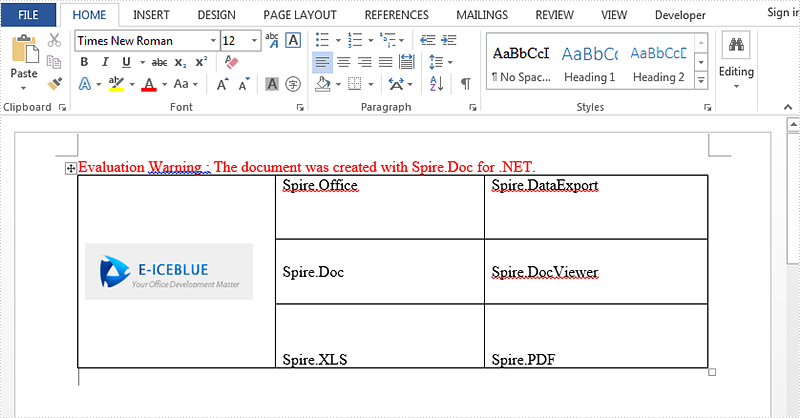
Set vertical alignment for table can show contents in different positions. There are three options including Top, Bottom, Middle. Default is Middle. This article talk about how to set vertical alignment for tables via Spire.Doc, the following is the detailed steps:
Step 1: Create a new Word document and add a new section.
Document document = new Document();
Section section = document.AddSection();
Step 2: Add a table with 3 columns and 3 rows. You can set showBoder property as true when you creating the table. Merge the first column as one cell.
Table table = section.AddTable(true);
table.ResetCells(3, 3);
table.ApplyVerticalMerge(0, 0, 2);
Step 3: Set the vertical alignment for each cell, default is top. Here we set the first row as Top, second row as Middle, third row as Bottom.
table.Rows[0].Cells[0].CellFormat.VerticalAlignment = VerticalAlignment.Middle;
table.Rows[0].Cells[1].CellFormat.VerticalAlignment = VerticalAlignment.Top;
table.Rows[0].Cells[2].CellFormat.VerticalAlignment = VerticalAlignment.Top;
table.Rows[1].Cells[1].CellFormat.VerticalAlignment = VerticalAlignment.Middle;
table.Rows[1].Cells[2].CellFormat.VerticalAlignment = VerticalAlignment.Middle;
table.Rows[2].Cells[1].CellFormat.VerticalAlignment = VerticalAlignment.Bottom;
table.Rows[2].Cells[2].CellFormat.VerticalAlignment = VerticalAlignment.Bottom;
Step 4: Append data to table.
Paragraph paraPic = table.Rows[0].Cells[0].AddParagraph();
DocPicture pic = paraPic.AppendPicture(Image.FromFile("1.png"));

String[][] data = {
                       new string[] {"","Spire.Office","Spire.DataExport"},
                       new string[] {"","Spire.Doc","Spire.DocViewer"},
                       new string[] {"","Spire.XLS","Spire.PDF"}
                            };

      for (int r = 0; r < 3; r++)
      {
        TableRow dataRow = table.Rows[r];
        dataRow.Height = 50;
        for (int c = 0; c < 3; c++)
           {
             if (c == 1)
               {
                  Paragraph par = dataRow.Cells[c].AddParagraph();
                  par.AppendText(data[r][c]);
                  dataRow.Cells[c].Width = (section.PageSetup.ClientWidth) / 2;
                }
             if (c == 2)
                {
                  Paragraph par = dataRow.Cells[c].AddParagraph();
                  par.AppendText(data[r][c]);
                  dataRow.Cells[c].Width = (section.PageSetup.ClientWidth) / 2;
                 }
              }
         }
Step 5: Save and review.
document.SaveToFile(@"result.docx", FileFormat.Docx2013);
System.Diagnostics.Process.Start(@"result.docx");
Result screenshot:
Full code:
using Spire.Doc;
using Spire.Doc.Documents;
using Spire.Doc.Fields;
using System;
using System.Drawing;
namespace SetVerticalAlignment
{
    class Program
    {

        static void Main(string[] args)
        {

            Document document = new Document();
            Section section = document.AddSection();

            Table table = section.AddTable(true);
            table.ResetCells(3, 3);

            table.ApplyVerticalMerge(0, 0, 2);

            table.Rows[0].Cells[0].CellFormat.VerticalAlignment = VerticalAlignment.Middle;
            table.Rows[0].Cells[1].CellFormat.VerticalAlignment = VerticalAlignment.Top;
            table.Rows[0].Cells[2].CellFormat.VerticalAlignment = VerticalAlignment.Top;
            table.Rows[1].Cells[1].CellFormat.VerticalAlignment = VerticalAlignment.Middle;
            table.Rows[1].Cells[2].CellFormat.VerticalAlignment = VerticalAlignment.Middle;
            table.Rows[2].Cells[1].CellFormat.VerticalAlignment = VerticalAlignment.Bottom;
            table.Rows[2].Cells[2].CellFormat.VerticalAlignment = VerticalAlignment.Bottom;

            Paragraph paraPic = table.Rows[0].Cells[0].AddParagraph();
            DocPicture pic = paraPic.AppendPicture(Image.FromFile("1.png"));

            String[][] data = {
                       new string[] {"","Spire.Office","Spire.DataExport"},
                       new string[] {"","Spire.Doc","Spire.DocViewer"},
                       new string[] {"","Spire.XLS","Spire.PDF"}
                            };

            for (int r = 0; r < 3; r++)
            {
                TableRow dataRow = table.Rows[r];
                dataRow.Height = 50;
                for (int c = 0; c < 3; c++)
                {
                    if (c == 1)
                    {
                        Paragraph par = dataRow.Cells[c].AddParagraph();
                        par.AppendText(data[r][c]);
                        dataRow.Cells[c].Width = (section.PageSetup.ClientWidth) / 2;
                    }
                    if (c == 2)
                    {
                        Paragraph par = dataRow.Cells[c].AddParagraph();
                        par.AppendText(data[r][c]);
                        dataRow.Cells[c].Width = (section.PageSetup.ClientWidth) / 2;
                    }
                }
            }
            document.SaveToFile(@"result.docx", FileFormat.Docx2013);
            System.Diagnostics.Process.Start(@"result.docx");
        }
    }
}
Line numbers is used to display the number of lines counted automatically by Word next to each line of text. It's very useful when we need to refer to specific lines in a document such as contract or legal papers. Line numbers function in word allows us to set the start value, the number interval, the distance from text and the numbering mode of line numbers. Using Spire.Doc, we could achieve all of features mentioned above. This article is going to introduce how to add line numbers in C# using Spire.Doc.
Note: Before start, please download the latest version of Spire.Doc and add Spire.Doc .dll in the bin folder as the reference of visual studio.
Step 1: Load the sample document which only has text.
Document document = new Document();
document.LoadFromFile("T.docx");
Step 2: Set the start value of the line numbers.
document.Sections[0].PageSetup.LineNumberingStartValue = 1;
Step 3: Set the interval between displayed numbers.
document.Sections[0].PageSetup.LineNumberingStep = 6;
Step 4: Set the distance between line numbers and text.
document.Sections[0].PageSetup.LineNumberingDistanceFromText = 40f;
Step 5: Set the numbering mode of line numbers. Here we have four choices: None, Continuous, RestartPage and RestartSection.
document.Sections[0].PageSetup.LineNumberingRestartMode = LineNumberingRestartMode.Continuous;
Step 6: Save the document and launch to see effects.
 document.SaveToFile("result.docx",FileFormat.Docx2013);
System.Diagnostics.Process.Start("result.docx");
Effects:
Single Page:

Continuous Page:

Full Codes:
using System;
using System.Collections.Generic;
using System.Linq;
using System.Text;
using Spire.Doc;

namespace How_to_add_line_numbering
{
    class Program
    {
        static void Main(string[] args)
        {
            Document document = new Document();
            document.LoadFromFile("T.docx");

            document.Sections[0].PageSetup.LineNumberingStartValue = 1;
            document.Sections[0].PageSetup.LineNumberingStep = 6;
            document.Sections[0].PageSetup.LineNumberingDistanceFromText = 40f;
            document.Sections[0].PageSetup.LineNumberingRestartMode = LineNumberingRestartMode.Continuous;

             document.SaveToFile("result.docx",FileFormat.Docx2013);
            System.Diagnostics.Process.Start("result.docx");
        }
    }
}
New method get alias, tag and id of content controls in a Word document in C#
2015-06-05 03:59:58 Written by KoohjiContent controls provide a way for you to design documents. When you add a content control to a document, the control is identified by a border, a title, and temporary text that can provide instructions to the user, and can prevent users from editing or deleting protected sections of a document.
Bind parts of a document or template to data. You can bind content controls to database fields, managed objects in the .NET Framework, XML elements that are stored in the document, and other data sources.
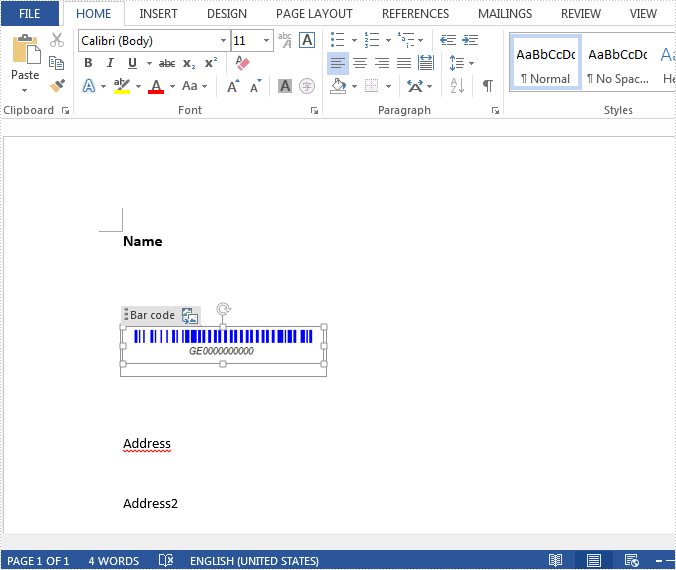
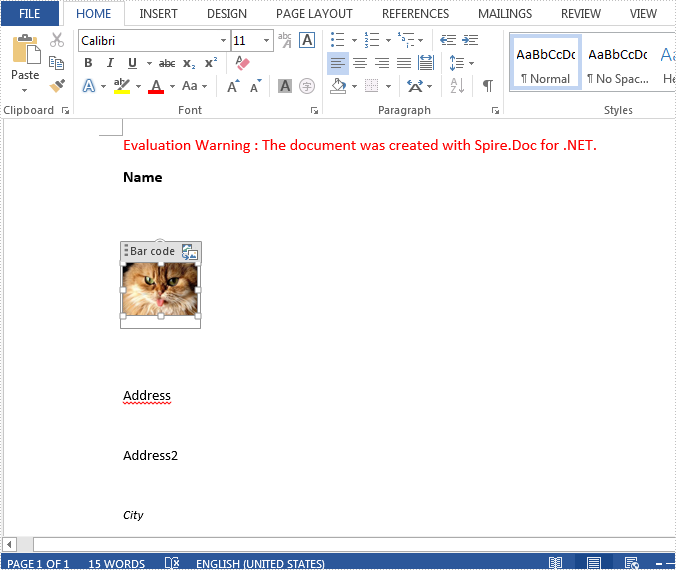
This article illustrates how to get all controls and their properties including alias, id and tag via Spire.Doc with new method and replace the Barcode with another image.
Refer this article to check old method: Get alias, tag and id of content controls in a Word document in C#
The following is test file new.docx.
Here are the steps:
Step 1: Create a new Word document and load the test file.
Document doc = new Document(@"new.docx");
Step 2: Create a list StructureDocument to store tags. Here, each content control will be identified by tag.
public class StructureTags
        {
            List m_structureDocumnt;
            public List StructureDocument
            {
                get
                {
                    if (m_structureDocumnt == null)
                        m_structureDocumnt = new List();

                    return m_structureDocumnt;
                }
            }

        }
Step 3: Use foreach sentence to get all tags in the Word document.
foreach (Section section in doc.Sections)
            {
                foreach (Body body in section.ChildObjects)
                {
                    ModifyBody(body);
                }
            }
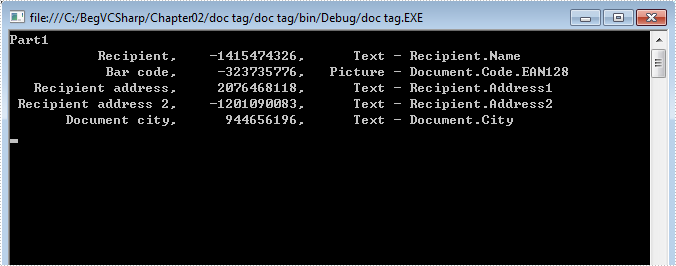
Step 4: Show the properties of all controls.
List tagInlines = structureTags.StructureDocument;
            Console.WriteLine("Part1");
            for (int i = 0; i < tagInlines.Count; i++)
            {
                string alias = tagInlines[i].SDTProperties.Alias;   // Can be null or empty
                decimal id = tagInlines[i].SDTProperties.Id;
                string tag = tagInlines[i].SDTProperties.Tag;
                string STDType = tagInlines[i].SDTProperties.SDTType.ToString();

                Console.WriteLine("{0,20},{1,15},{2, 10} - {3}", alias, id, STDType, tag);
                Console.ReadKey();
             }
Step 5: Replace image inside of Picture Content Control.
doc.SaveToFile("replace1.docx", FileFormat.Docx2013);
System.Diagnostics.Process.Start("replace1.docx");
Result Screenshot:
Full code:
using Spire.Doc;
using Spire.Doc.Documents;
using Spire.Doc.Fields;
using System;
using System.Drawing;
namespace GetAlias
{

    class Program
    {

           static StructureTags structureTags = new StructureTags();
        static void Main(string[] args)
        {
            Document doc = new Document(@"new.docx");

            foreach (Section section in doc.Sections)
            {
                foreach (Body body in section.ChildObjects)
                {
                    ModifyBody(body);
                }
            }

            List tagInlines = structureTags.StructureDocument;
            Console.WriteLine("Part1");
            for (int i = 0; i < tagInlines.Count; i++)
            {
                string alias = tagInlines[i].SDTProperties.Alias;
                decimal id = tagInlines[i].SDTProperties.Id;
                string tag = tagInlines[i].SDTProperties.Tag;
                string STDType = tagInlines[i].SDTProperties.SDTType.ToString();

                Console.WriteLine("{0,20},{1,15},{2, 10} - {3}", alias, id, STDType, tag);
                Console.ReadKey();

                if (tagInlines[i].SDTProperties.SDTType == SdtType.Picture)
                {
                    DocPicture picture = tagInlines[i].ChildObjects.FirstItem as DocPicture;
                    if (picture == null)
                    {
                        picture = new DocPicture(doc);
                        picture.LoadImage(Image.FromFile(@"cat.jpg"));
                        tagInlines[i].ChildObjects.Add(picture);
                    }
                    else
                    {
                        picture.LoadImage(Image.FromFile(@"cat.jpg"));
                    }
                }
            }

            doc.SaveToFile("replace1.docx", FileFormat.Docx2013);
            System.Diagnostics.Process.Start("replace1.docx");
        }

        static void ModifyBody(Body body)
        {
            if (body == null)
                return;

            foreach (DocumentObject docObj in body.ChildObjects)
            {
                if (docObj is StructureDocumentTag)
                {
                    structureTags.StructureDocument.Add(docObj as StructureDocumentTag);

                }
                else if (docObj is Table)
                {
                    ModifyTable(docObj as Table);
                }
                else if (docObj is Paragraph)
                {
                    ModifyParagraph(docObj as Paragraph);
                }
            }
        }

        static void ModifyTable(Table table)
        {
            if (table == null)
                return;

            foreach (TableRow row in table.Rows)
            {
                foreach (TableCell cell in row.Cells)
                {
                    if (cell is StructureDocumentTagCell)
                    {
                        structureTags.StructureDocument.Add(cell as StructureDocumentTagCell);
                    }
                    else
                    {
                        ModifyBody(cell);
                    }
                }
            }
        }

        static void ModifyParagraph(Paragraph para)
        {
            if (para == null)
                return;

            foreach (DocumentObject docObj in para.ChildObjects)
            {
                if (docObj is StructureDocumentTagInline)
                {

                    structureTags.StructureDocument.Add(docObj as StructureDocumentTagInline);
                }
            }
        }

        public class StructureTags
        {
            List m_structureDocumnt;
            public List StructureDocument
            {
                get
                {
                    if (m_structureDocumnt == null)
                        m_structureDocumnt = new List();

                    return m_structureDocumnt;
                }
            }
        }

        }
    }
