
Spire.Doc for .NET (338)
Children categories
In MS Word, you can split a document by manually cutting the content from the original document and pasting it into a new document. Although the task is simple, it can also be quite tedious and time-consuming especially when dealing with a long document. This article will demonstrate how to programmatically split a Word document into multiple files using Spire.Doc for .NET .
Install Spire.Doc for .NET
To begin with, you need to add the DLL files included in the Spire.Doc for.NET package as references in your .NET project. The DLL files can be either downloaded from this link or installed via NuGet.
PM> Install-Package Spire.Doc
Split a Word Document by Page Break
A Word document can contain multiple pages separated by page breaks. To split a Word document by page break, you can refer to the below steps and code.
- Create a Document instance.
- Load a sample Word document using Document.LoadFromFile() method.
- Create a new Word document and add a section to it.
- Traverse through all body child objects of each section in the original document and determine whether the child object is a paragraph or a table.
- If the child object of the section is a table, directly add it to the section of new document using Section.Body.ChildObjects.Add() method.
- If the child object of the section is a paragraph, first add the paragraph object to the section of the new document. Then traverse through all child objects of the paragraph and determine whether the child object is a page break.
- If the child object of the paragraph is a page break, get its index and then remove the page break from its paragraph by index.
- Save the new Word document and then repeat the above processes.
- C#
- VB.NET
using System;
using Spire.Doc;
using Spire.Doc.Documents;

namespace SplitByPageBreak
{
    class Program
    {
        static void Main(string[] args)
        {
            //Create a Document instance
            Document original = new Document();

            //Load a sample Word document
            original.LoadFromFile(@"E:\Files\SplitByPageBreak.docx");

            //Create a new Word document and add a section to it
            Document newWord = new Document();
            Section section = newWord.AddSection();
            int index = 0;

            //Traverse through all sections of the original document
            foreach (Section sec in original.Sections)
            {
                //Traverse through all body child objects of each section
                foreach (DocumentObject obj in sec.Body.ChildObjects)
                {
                    if (obj is Paragraph)
                    {
                        Paragraph para = obj as Paragraph;
                        sec.CloneSectionPropertiesTo(section);

                        //Add paragraph object in the section of original document into section of new document
                        section.Body.ChildObjects.Add(para.Clone());

                        //Traverse through all child objects of each paragraph and determine whether the object is a page break
                        foreach (DocumentObject parobj in para.ChildObjects)
                        {
                            if (parobj is Break && (parobj as Break).BreakType == BreakType.PageBreak)
                            {
                                //Get the index of page break in paragraph
                                int i = para.ChildObjects.IndexOf(parobj);

                                //Remove the page break from its paragraph
                                section.Body.LastParagraph.ChildObjects.RemoveAt(i);

                                //Save the new Word document
                                newWord.SaveToFile(String.Format("result\out-{0}.docx", index), FileFormat.Docx);
                                index++;

                                //Create a new document and add a section
                                newWord = new Document();
                                section = newWord.AddSection();

                                //Add paragraph object in original section into section of new document
                                section.Body.ChildObjects.Add(para.Clone());
                                if (section.Paragraphs[0].ChildObjects.Count == 0)
                                {
                                    //Remove the first blank paragraph
                                    section.Body.ChildObjects.RemoveAt(0);
                                }
                                else
                                {
                                    //Remove the child objects before the page break
                                    while (i >= 0)
                                    {
                                        section.Paragraphs[0].ChildObjects.RemoveAt(i);
                                        i--;
                                    }
                                }
                            }
                        }
                    }
                    if (obj is Table)
                    {
                        //Add table object in original section into section of new document
                        section.Body.ChildObjects.Add(obj.Clone());
                    }
                }
            }

            //Save to file
            newWord.SaveToFile(String.Format("result/out-{0}.docx", index), FileFormat.Docx);

        }
    }
}

Split a Word Document by Section Break
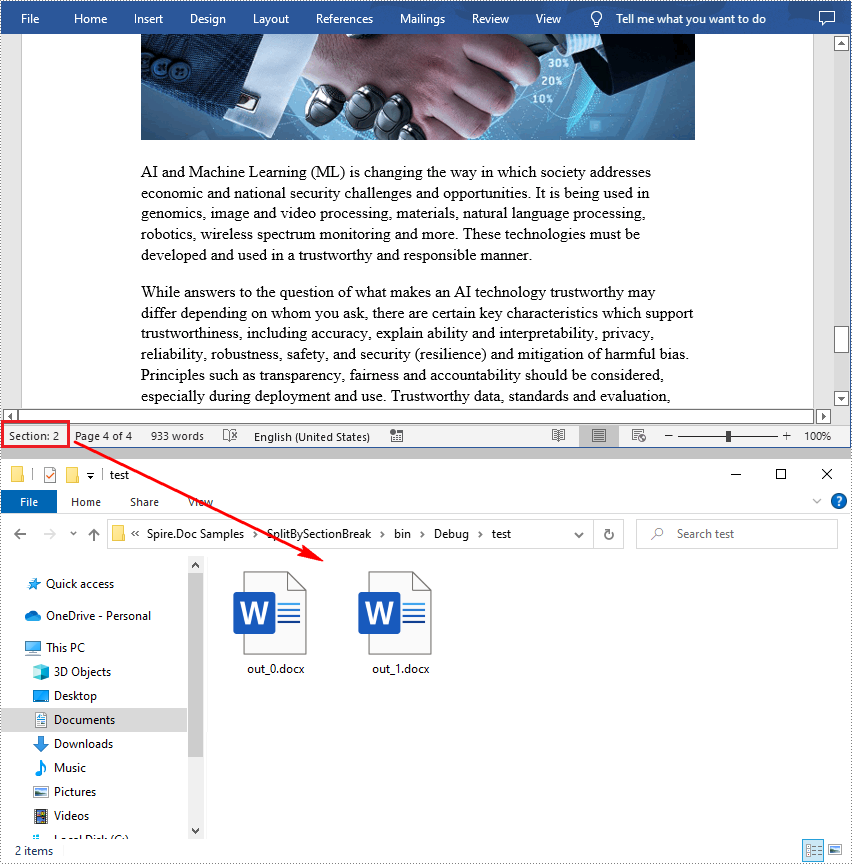
In Word, a section is a part of a document that contains its own page formatting. For documents that contain multiple sections, Spire.Doc for .NET also supports splitting documents by section breaks. The detailed steps are as follows.
- Create a Document instance.
- Load a sample Word document using Document.LoadFromFile() method.
- Define a new Word document object.
- Traverse through all sections of the original Word document.
- Clone each section of the original document using Document.Sections.Clone() method.
- Add the cloned section to the new document as a new section using Document.Sections.Add() method.
- Save the result document using Document.SaveToFile() method.
- C#
- VB.NET
using System;
using Spire.Doc;

namespace SplitBySectionBreak
{
    class Program
    {
        static void Main(string[] args)
        {
            //Create a Document instance
            Document document = new Document();

            //Load a sample Word document
            document.LoadFromFile(@"E:\Files\SplitBySectionBreak.docx");

            //Define a new Word document object
            Document newWord;

            //Traverse through all sections of the original Word document
            for (int i = 0; i < document.Sections.Count; i++)
            {
                newWord = new Document();

                //Clone each section of the original document and add it to the new document as new section
                newWord.Sections.Add(document.Sections[i].Clone());

                //Save the result document
                newWord.SaveToFile(String.Format(@"test\out_{0}.docx", i));
            }
        }
    }
}
Apply for a Temporary License
If you'd like to remove the evaluation message from the generated documents, or to get rid of the function limitations, please request a 30-day trial license for yourself.
Split a Word document into multiple documents by section break in C#
2016-07-25 08:45:33 Written by KoohjiIn Word, we can split a word document in an easiest way - open a copy of the original document, delete the sections that we don’t want and then save the remains to local drive. But doing this section by section is rather cumbersome and boring. This article will explain how we can use Spire.Doc for .NET to programmatically split a Word document into multiple documents by section break instead of copying and deleting manually.
Detail steps and code snippets:
Step 1: Initialize a new word document object and load the original word document which has two sections.
Document document = new Document();
document.LoadFromFile("Test.docx");
Step 2: Define another new word document object.
Document newWord;
Step 3: Traverse through all sections of the original word document, clone each section and add it to a new word document as new section, then save the document to specific path.
for (int i = 0; i < document.Sections.Count; i++)
{
    newWord = new Document();
    newWord.Sections.Add(document.Sections[i].Clone());
    newWord.SaveToFile(String.Format(@"test\out_{0}.docx", i));
}
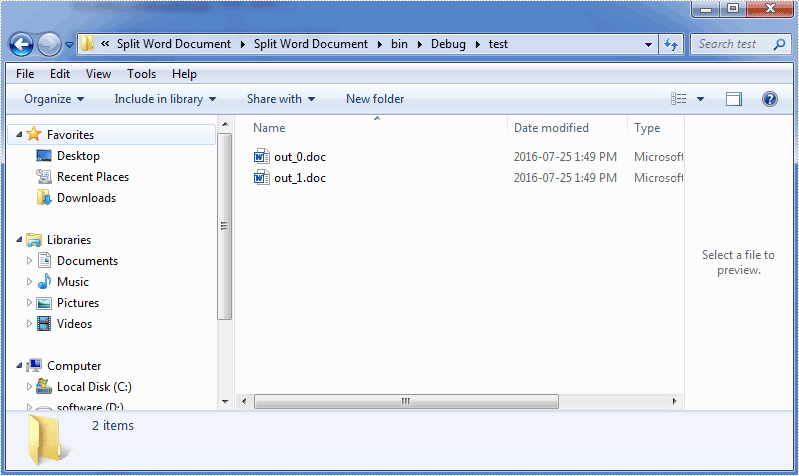
Run the project and we'll get the following output:
Full codes:
using System;
using Spire.Doc;

namespace Split_Word_Document
{
    class Program
    {
        static void Main(string[] args)
        {
            Document document = new Document();
            document.LoadFromFile("Test.doc");
            Document newWord;
            for (int i = 0; i < document.Sections.Count; i++)
            {
                newWord = new Document();
                newWord.Sections.Add(document.Sections[i].Clone());
                newWord.SaveToFile(String.Format(@"test\out_{0}.docx", i));
            }
        }
    }
}
When we want to manage the pagination for the paragraphs, we can insert a page break directly. But later we may find that it is hard to add or remove text above the page break and then we have to remove the whole page break. With Microsoft word, we can also use the Paragraph dialog to manage the pagination flexible for the word paragraph as below:
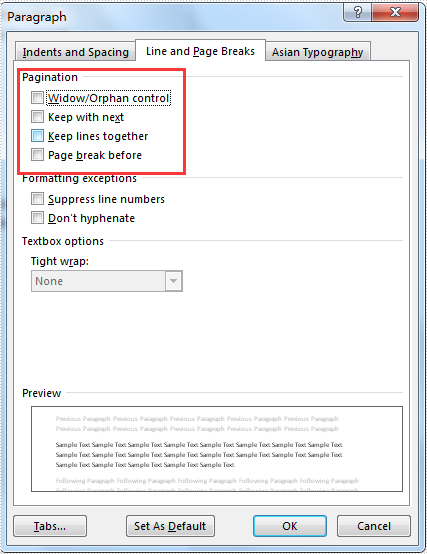
We have already shown you how to insert page break to the word document, this article we will show you how to manage the pagination by using the Paragraph.Format offered by Spire.Doc. Here comes to the steps of how to manage the pagination for the word document paragraph in C#:
Step 1: Create a new word document and load the document from file.
Document doc = new Document();
doc.LoadFromFile("sample.docx");
Step 2: Get the first section and the paragraph we want to manage the pagination
Section sec = doc.Sections[0];
Paragraph para = sec.Paragraphs[4];
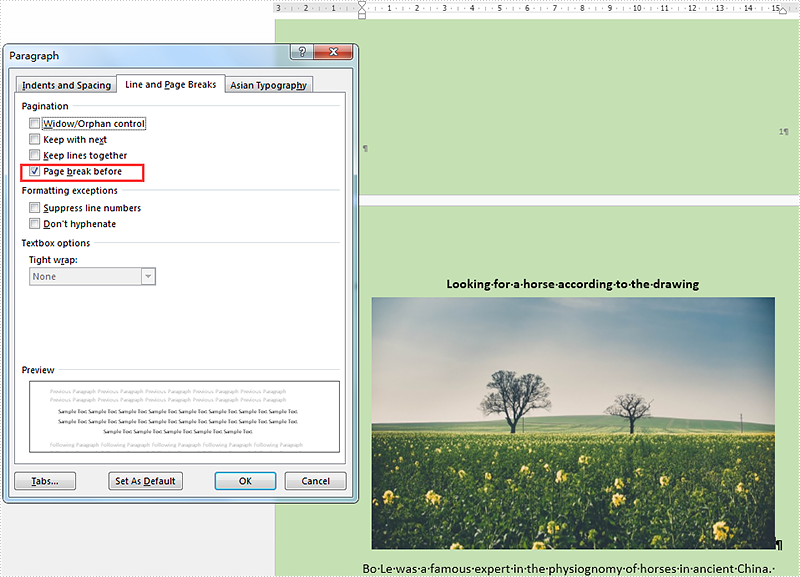
Step 3: Set the pagination format as Format.PageBreakBefore for the checked paragraph.
para.Format.PageBreakBefore = true;
Step 4: Save the document to file.
doc.SaveToFile("result.docx",FileFormat.Docx2010);
Effective screenshot after managing the pagination for the word document:
Full codes:
using Spire.Doc;
using Spire.Doc.Documents;
namespace ManagePage
{
 class Program
    {

     static void Main(string[] args)
     {
         Document doc = new Document();
         doc.LoadFromFile("sample.docx");

         Section sec = doc.Sections[0];
         Paragraph para = sec.Paragraphs[4];
         para.Format.PageBreakBefore = true;

         doc.SaveToFile("result.docx", FileFormat.Docx2010);

     }

    }
}
