
Spire.Doc for .NET (338)
Children categories
When you create several Word documents that are closely related, you may want the header or footer of one document to be used as the header or footer of other documents. For example, you're creating internal documents with your company logo or name or other material been placed in header, you only have to create the header once and copy the header to other places.
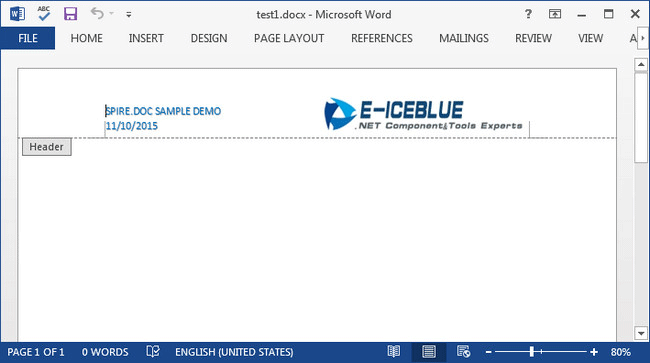
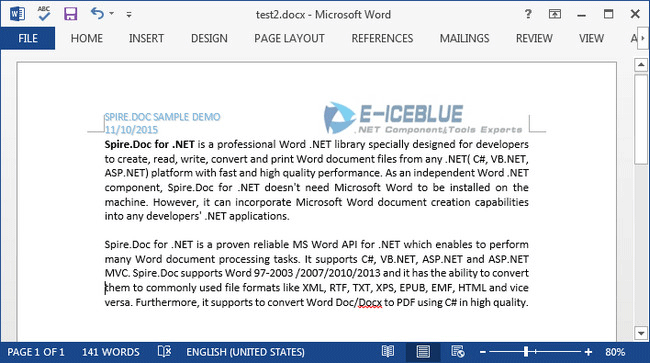
In this article, I'll introduce you a simple and efficient solution to copy the entire header (including text and graphic) from one Word document and insert it to another.
Source Document:
Detail Steps:
Step 1: Create a new instance of Document class and load the source file.
Document doc1 = new Document();
doc1.LoadFromFile("test1.docx");
Step 2: Get the header section from the source document.
HeaderFooter header = doc1.Sections[0].HeadersFooters.Header;
Step 3: Initialize a new instance of Document and load another file that you want to insert header.
Document doc2 = new Document("test2.docx");
Step 4: Call DocuentObject.Clone() method to copy each object in the header of source file, then call DocumentObjectCollection.Add() method to insert copied object into the header of destination file.
foreach (Section section in doc2.Sections)
{
    foreach (DocumentObject obj in header.ChildObjects)
    {
        section.HeadersFooters.Header.ChildObjects.Add(obj.Clone());
    }
}
Step 5: Save the changes and launch the file.
doc2.SaveToFile("test2.docx", FileFormat.Docx2013);
System.Diagnostics.Process.Start("test2.docx");
Destination Document:
Full Code:
Document doc1 = new Document();
doc1.LoadFromFile("test1.docx");
HeaderFooter header = doc1.Sections[0].HeadersFooters.Header;
Document doc2 = new Document("test2.docx");
foreach (Section section in doc2.Sections)
{
    foreach (DocumentObject obj in header.ChildObjects)
    {
        section.HeadersFooters.Header.ChildObjects.Add(obj.Clone());
    }
}
doc2.SaveToFile("test2.docx", FileFormat.Docx2013);
System.Diagnostics.Process.Start("test2.docx");
Dim doc1 As New Document()
doc1.LoadFromFile("test1.docx")
Dim header As HeaderFooter = doc1.Sections(0).HeadersFooters.Header
Dim doc2 As New Document("test2.docx")
For Each section As Section In doc2.Sections
	For Each obj As DocumentObject In header.ChildObjects
		section.HeadersFooters.Header.ChildObjects.Add(obj.Clone())
	Next
Next
doc2.SaveToFile("test2.docx", FileFormat.Docx2013)
System.Diagnostics.Process.Start("test2.docx")
In certain cases, you may need to adjust the page size of a Word document to ensure that it fits your specific needs or preferences. For instance, if you are creating a document that will be printed on a small paper size, such as a brochure or flyer, you may want to decrease the page size of the document to avoid any cropping or scaling issues during printing. In this article, we will explain how to adjust the page size of a Word document in C# and VB.NET using Spire.Doc for .NET.
- Adjust the Page Size of a Word Document to a Standard Page Size in C# and VB.NET
- Adjust the Page Size of a Word Document to a Custom Page Size in C# and VB.NET
Install Spire.Doc for .NET
To begin with, you need to add the DLL files included in the Spire.Doc for.NET package as references in your .NET project. The DLL files can be either downloaded from this link or installed via NuGet.
PM> Install-Package Spire.Doc
Adjust the Page Size of a Word Document to a Standard Page Size in C# and VB.NET
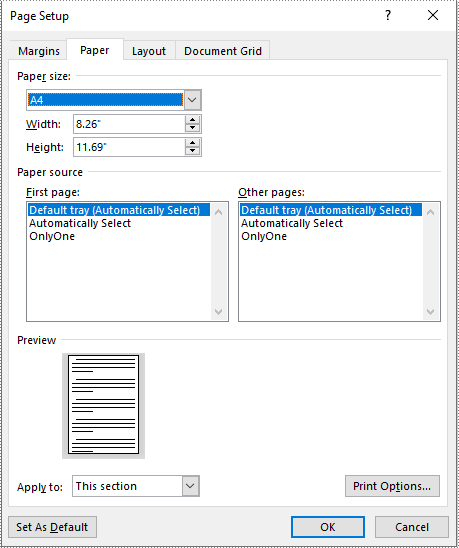
With Spire.Doc for .NET, you can easily adjust the page sizes of Word documents to a variety of standard page sizes, such as A3, A4, A5, A6, B4, B5, B6, letter, legal, and tabloid. The following steps explain how to change the page size of a Word document to a standard page size using Spire.Doc for .NET:
- Initialize an instance of the Document class.
- Load a Word document using the Document.LoadFromFile() method.
- Iterate through the sections in the document.
- Adjust the page size of each section to a standard page size by setting the value of the Section.PageSetup.PageSize property to a constant value of the PageSize enum.
- Save the result document using the Document.SaveToFile() method.
- C#
- VB.NET
using Spire.Doc;
using Spire.Doc.Documents;

namespace ChangePageSizeToStandardSize
{
    internal class Program
    {
        static void Main(string[] args)
        {
            //Initialize an instance of the Document class
            Document doc = new Document();
            //Load a Word document
            doc.LoadFromFile("Input.docx");

            //Iterate through the sections in the document
            foreach (Section section in doc.Sections)
            {
                //Change the page size of each section to A4
                section.PageSetup.PageSize = PageSize.A4;
            }

            //Save the result document
            doc.SaveToFile("StandardSize.docx", FileFormat.Docx2016);
        }
    }
}
Adjust the Page Size of a Word Document to a Custom Page Size in C# and VB.NET
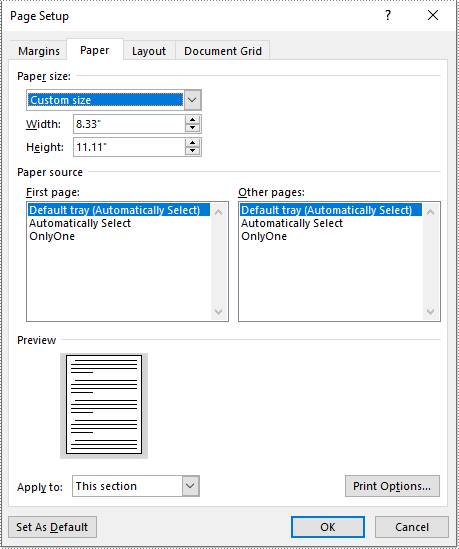
If you plan to print your document on paper with dimensions that don't match any standard paper size, you can change the page size of your document to a custom page size that matches the exact dimensions of the paper. The following steps explain how to change the page size of a Word document to a custom page size using Spire.Doc for .NET:
- Initialize an instance of the Document class.
- Load a Word document using the Document.LoadFromFile() method.
- Initialize an instance of the SizeF structure from specified dimensions.
- Iterate through the sections in the document.
- Adjust the page size of each section to the specified dimensions by assigning the SizeF instance to the Section.PageSetup.PageSize property.
- Save the result document using the Document.SaveToFile() method.
- C#
- VB.NET
using Spire.Doc;
using System.Drawing;

namespace ChangePageSizeToCustomSize
{
    internal class Program
    {
        static void Main(string[] args)
        {
            //Initialize an instance of the Document class
            Document doc = new Document();
            //Load a Word document
            doc.LoadFromFile("Input.docx");

            //Initialize an instance of the SizeF structure from specified dimensions
            SizeF customSize = new SizeF(600, 800);

            //Iterate through the sections in the document
            foreach (Section section in doc.Sections)
            {
                //Change the page size of each section to the specified dimensions
                section.PageSetup.PageSize = customSize;
            }

            //Save the result document
            doc.SaveToFile("CustomSize.docx", FileFormat.Docx2016);
        }
    }
}
Apply for a Temporary License
If you'd like to remove the evaluation message from the generated documents, or to get rid of the function limitations, please request a 30-day trial license for yourself.
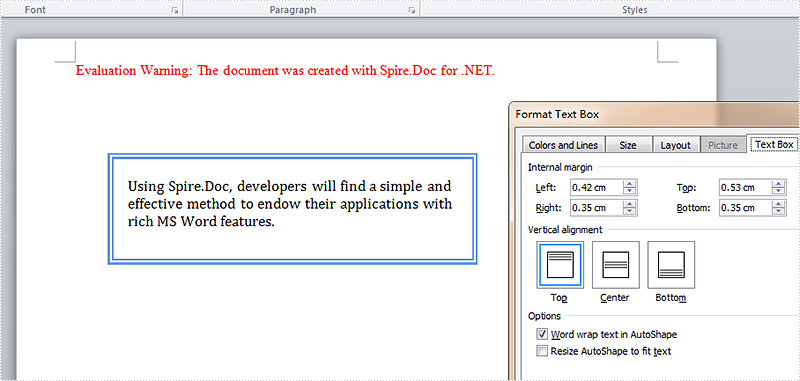
In our tutorials, there are articles introducing the method to insert, remove, position text box and extract text from text box. This article is going to give the documentation of how to set the internal margin for textbox with the position and line style settings included using Spire.Doc.
Note: before start, please download the latest version of Spire.Doc and add the .dll in the bin folder as the reference of Visual Studio.
Step 1: Create a Word document and add a section.
Document document = new Document();
Section sec = document.AddSection();
Step 2: Add a text box and append sample text.
TextBox TB = document.Sections[0].AddParagraph().AppendTextBox(310, 90);
Paragraph para = TB.Body.AddParagraph();
TextRange TR = para.AppendText("Using Spire.Doc, developers will find a simple and effective method to endow their applications with rich MS Word features. ");
TR.CharacterFormat.FontName = "Cambria ";
TR.CharacterFormat.FontSize = 13;
Step 3: Set exact position for the text box.
TB.Format.HorizontalOrigin = HorizontalOrigin.Page;
TB.Format.HorizontalPosition = 80;
TB.Format.VerticalOrigin = VerticalOrigin.Page;
TB.Format.VerticalPosition = 100;
Step 4: Set line style for the text box.
TB.Format.LineStyle = TextBoxLineStyle.Double;
TB.Format.LineColor = Color.CornflowerBlue;
TB.Format.LineDashing = LineDashing.DashDotDot;
TB.Format.LineWidth = 5;
Step 5: Set internal margin for the text box:
TB.Format.InternalMargin.Top = 15;
TB.Format.InternalMargin.Bottom = 10;
TB.Format.InternalMargin.Left = 12;
TB.Format.InternalMargin.Right = 10;
Step 6: Save the document and launch to see effects.
document.SaveToFile("result.docx", FileFormat.Docx2013);
System.Diagnostics.Process.Start("result.docx");
Effects:
Full Codes:
using System;
using System.Collections.Generic;
using System.Linq;
using System.Text;
using Spire.Doc;
using Spire.Doc.Documents;
using Spire.Doc.Fields;
using System.Drawing;

namespace Demo
{
    class Program
    {
        static void Main(string[] args)
        {

            Document document = new Document();
            Section sec = document.AddSection();

            TextBox TB = document.Sections[0].AddParagraph().AppendTextBox(310, 90);
            Paragraph para = TB.Body.AddParagraph();
            TextRange TR = para.AppendText("Using Spire.Doc, developers will find a simple and effective method to endow their applications with rich MS Word features. ");
            TR.CharacterFormat.FontName = "Cambria ";
            TR.CharacterFormat.FontSize = 13;

            TB.Format.HorizontalOrigin = HorizontalOrigin.Page;
            TB.Format.HorizontalPosition = 80;
            TB.Format.VerticalOrigin = VerticalOrigin.Page;
            TB.Format.VerticalPosition = 100;

            TB.Format.LineStyle = TextBoxLineStyle.Double;
            TB.Format.LineColor = Color.CornflowerBlue;
            TB.Format.LineDashing = LineDashing.DashDotDot;
            TB.Format.LineWidth = 5;

            TB.Format.InternalMargin.Top = 15;
            TB.Format.InternalMargin.Bottom = 10;
            TB.Format.InternalMargin.Left = 12;
            TB.Format.InternalMargin.Right = 10;

            document.SaveToFile("result.docx", FileFormat.Docx2013);
            System.Diagnostics.Process.Start("result.docx");
        }
    }
}
