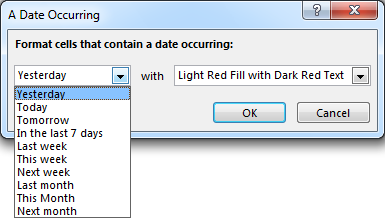
Microsoft Excel provides 10 date options, ranging from yesterday to next month (see below image) to format selected cells based on the current date. Spire.XLS supports all of these options, in this article, we’re going to show you how to conditionally format dates in Excel using Spire.XLS. If you want to highlight cells based on a date in another cell, or create rules for other dates (i.e., more than a month from the current date), you will have to create your own conditional formatting rule based on a formula.
Detail steps:
Step 1: Initialize an object of Workbook class and load the Excel file.
Workbook workbook = new Workbook();
workbook.LoadFromFile("Input.xlsx");
Step 2: Get the first worksheet.
Worksheet sheet = workbook.Worksheets[0];
Step 3: Add a condition to the used range in the worksheet.
XlsConditionalFormats xcfs1 = sheet.ConditionalFormats.Add();
xcfs1.AddRange(sheet.AllocatedRange);
Step 4: Specify the format type of the condition as time period and set the time period as last 7 days.
IConditionalFormat format1 = xcfs1.AddTimePeriodCondition(TimePeriodType.Last7Days);
Step 5:Set the highlight color.
conditionalFormat.BackColor = Color.Orange;
Step 6:Save the file.
workbook.SaveToFile("ConditionallyFormatDates.xlsx", ExcelVersion.Version2013);
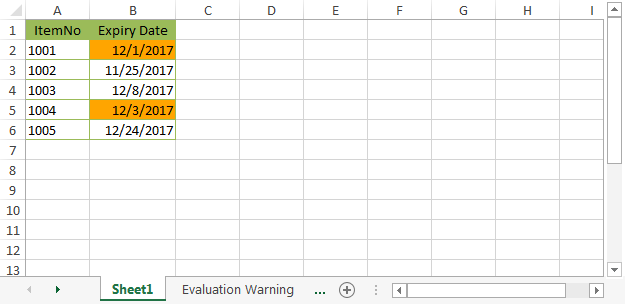
Screenshot::
Full Code:
using Spire.Xls;
using Spire.Xls.Core;
using Spire.Xls.Core.Spreadsheet.Collections;
using Spire.Xls.Core.Spreadsheet.ConditionalFormatting;
using System.Drawing;

namespace ConditionallyFormatDates
{
    class Program
    {
        static void Main(string[] args)
        {
            //Initialize an object of Workbook class
            Workbook workbook = new Workbook();

            //Load the Excel file
            workbook.LoadFromFile("Input.xlsx");

            //Get the first worksheet
            Worksheet sheet = workbook.Worksheets[0];

            //Highlight cells that contain a date occurring in the last 7 days
            XlsConditionalFormats xcfs1 = sheet.ConditionalFormats.Add();
            xcfs1.AddRange(sheet.AllocatedRange);

            IConditionalFormat conditionalFormat = xcfs1.AddTimePeriodCondition(TimePeriodType.Last7Days);
            conditionalFormat.BackColor = Color.Orange;

            //Save the file
            workbook.SaveToFile("ConditionallyFormatDates.xlsx", ExcelVersion.Version2013);
        }
    }
}