Images are one of the most intuitive forms of content presentation and distribution, while PDF documents preserve the original layout and are widely used for the storage and transmission of formal files. When displaying PDF content on web pages, mini programs, social platforms, or emails, distributing PDF files directly is often inconvenient — converting them to image formats such as PNG or JPEG first enables quick preview and sharing. Conversely, consolidating scanned documents or image assets into PDF makes batch archiving and cross-platform distribution easier. Real-world business often requires flexible switching between the two forms: converting PDF contracts to images for online preview and quick sharing, or converting scanned image assets to PDF for unified archiving and circulation.
Spire.PDF for JavaScript performs bidirectional conversion between PDF and images entirely in the browser via WebAssembly, managing input and output files through a virtual file system (VFS) with no backend server required.
This article covers two core features:
For installation and project setup, refer to Integrating Spire.PDF for JavaScript in a React Project. The examples below assume Spire.PDF is installed and the WebAssembly module is initialized.
Convert PDF to Image
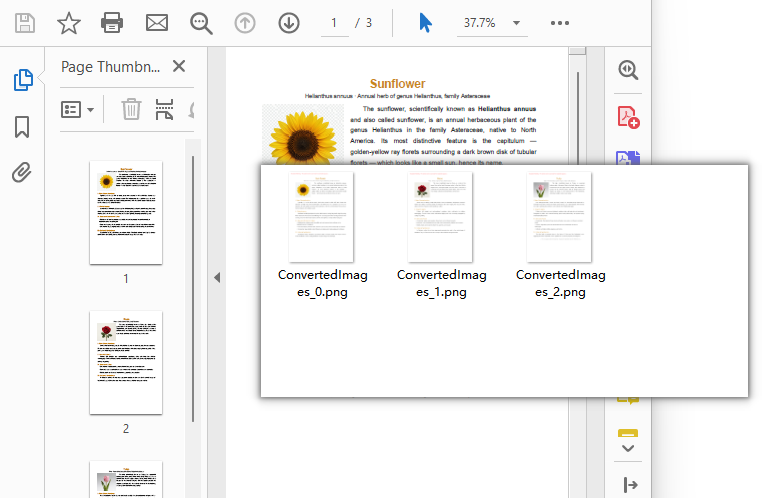
The core of PDF-to-image conversion is to render the content, fonts, and graphics elements of every page in a PDF document into independent bitmap data. Spire.PDF for JavaScript generates an image stream for each page through the PdfDocument object's SaveAsImage method, loops through all Pages.Count pages and saves each page as a PNG image with stream.Save, then bundles the images into a ZIP file with JSZip for a one-click download, without needing to handle pixel and page coordinate mapping manually.
import JSZip from "jszip";

function App() {
  const convertToImage = async () => {
    // Get the Spire.PDF WASM module
    const pdfModule = window.wasmModule?.spirepdf;

    // Check if the WASM module is ready
    if (!pdfModule) {
      alert('Spire.PDF is not ready yet');
      return;
    }

    // Load the PDF file and fonts into VFS
    await window.spire.FetchFileToVFS('ARIAL.TTF', '/Library/Fonts/', `${process.env.PUBLIC_URL}/font/`);
    const inputFileName = 'Flowers.pdf';
    await window.spire.FetchFileToVFS(inputFileName, "", `${process.env.PUBLIC_URL}/data/`);

    // Create PdfDocument object and load the PDF document
    let doc = new pdfModule.PdfDocument();
    doc.LoadFromFile(inputFileName);

    // Create an output directory to hold the converted images
    let outputDirectoryName = "ImagesFolders/";
    window.dotnetRuntime.Module.FS.mkdirTree(outputDirectoryName);

    // Loop through each page and save it as an image
    for (let i = 0; i < doc.Pages.Count; i++) {
      const outputFileName = outputDirectoryName + "ConvertedImages_" + i + ".png";
      let stream = doc.SaveAsImage({ pageIndex: i });
      stream.Save(outputFileName);
      stream.Dispose();
    }

    doc.Dispose();

    // Read the converted files from VFS and trigger download
    const zip = new JSZip();
    let items = await window.dotnetRuntime.Module.FS.readdir(outputDirectoryName);
    items = items.filter((item) => item !== "."

      && item !== "..");
    for (const item of items) {
      const itemPath = `${outputDirectoryName}/${item}`;
      const fileData = await window.dotnetRuntime.Module.FS.readFile(itemPath);
      zip.file(item, fileData);
    }

    // Convert the ZIP to a Blob and trigger the browser download
    const zipBlob = await zip.generateAsync({ type: "blob" });
    const url = URL.createObjectURL(zipBlob);
    const a = document.createElement('a');
    a.href = url;
    a.download = 'ImagesFolders';
    a.click();
    URL.revokeObjectURL(url);
  };

  return (
    <div style={{ textAlign: 'center', height: '300px' }}>
      <h1>Convert PDF To Image</h1>
      <button onClick={convertToImage}>
        Generate
      </button>
    </div>
  );
}

export default App;
Each page of the PDF exported as a PNG image via SaveAsImage and bundled into a ZIP file for download
Adjust the DPI Resolution of Exported Images
When exporting images with the
SaveAsImagemethod, the default resolution is 96 DPI, which is suitable for screen preview, but text and lines may appear jagged or blurry when zoomed in. For sharper images, specify the resolution via thedpiXanddpiYparameters ofSaveAsImage, for example set it to 150 DPI:
// Export each page as an image at 150 DPI
for (let i = 0; i < doc.Pages.Count; i++) {
  let stream = doc.SaveAsImage({ pageIndex: i, dpiX: 150, dpiY: 150 });
  stream.Save(outputDirectoryName + "highres_" + i + ".png");
  stream.Dispose();
}
The higher the DPI value, the sharper the exported image, but the larger the file size. Choose a balance between clarity and file size based on your actual use case.
Convert Image to PDF
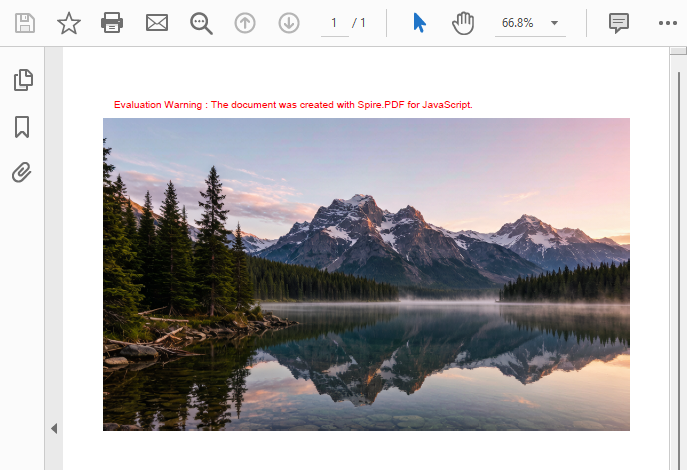
Image-to-PDF conversion is commonly used to consolidate scanned documents or design assets into PDF for archiving. Spire.PDF for JavaScript creates a new document with the PdfDocument object, loads the image with the PdfImage.FromFile method, adds a page via Pages.Add, draws the image onto the page at its original size with the Canvas.DrawImage method, and finally saves it as a standard PDF with the SaveToFile method using the FileFormat.PDF enum value.
function App() {
  const convertImageToPDF = async () => {
    // Get the Spire.PDF WASM module
    const pdfModule = window.wasmModule?.spirepdf;

    // Check if the WASM module is ready
    if (!pdfModule) {
      alert('Spire.PDF is not ready yet');
      return;
    }

    // Load the image file into VFS
    const inputFileName = 'Scenery.png';
    await window.spire.FetchFileToVFS(inputFileName, "", `${process.env.PUBLIC_URL}/data/`);

    // Create a PdfDocument object
    let doc = new pdfModule.PdfDocument();

    // Add a page
    let page = doc.Pages.Add();

    // Load the image
    let image = pdfModule.PdfImage.FromFile(inputFileName);

    // Calculate the scale ratio so the image fits the page completely
    let widthFitRate = image.PhysicalDimension.Width / page.Canvas.ClientSize.Width;
    let heightFitRate = image.PhysicalDimension.Height / page.Canvas.ClientSize.Height;
    let fitRate = Math.max(widthFitRate, heightFitRate);

    // Calculate the scaled dimensions of the image
    let fitWidth = image.PhysicalDimension.Width / fitRate;
    let fitHeight = image.PhysicalDimension.Height / fitRate;

    // Draw the image onto the page
    page.Canvas.DrawImage({ image: image, x: 0, y: 30, width: fitWidth, height: fitHeight });

    const outputFileName = 'ImageToPDF.pdf';

    // Save as PDF format
    doc.SaveToFile({ fileName: outputFileName, fileFormat: pdfModule.FileFormat.PDF });
    doc.Close();

    // Read the converted file from VFS and trigger download
    const fileArray = window.dotnetRuntime.Module.FS.readFile(outputFileName);
    const blob = new Blob([fileArray], { type: 'application/pdf' });
    const url = URL.createObjectURL(blob);
    const a = document.createElement('a');
    a.href = url;
    a.download = outputFileName;
    a.click();
    URL.revokeObjectURL(url);
  };

  return (
    <div style={{ textAlign: 'center', height: '300px' }}>
      <h1>Convert Image To PDF</h1>
      <button onClick={convertImageToPDF}>
        Generate
      </button>
    </div>
  );
}

export default App;
PDF document generated after loading an image via PdfImage.FromFile and drawing it with Canvas.DrawImage
Load Images from a Memory Stream
Besides loading directly from a file with
PdfImage.FromFile, images can also be loaded from a memory stream via thePdfImage.FromStreammethod. This approach suits scenarios where the image data comes from an API response or a database field, or where bytes need to be read before processing. See the code below:
// Read image bytes from VFS and build a memory stream
let bytes = window.dotnetRuntime.Module.FS.readFile(inputFileName);
let stream = new pdfModule.Stream(bytes);

// Load the image from the memory stream
let image = pdfModule.PdfImage.FromStream(stream);
The image can then be drawn onto a PDF page with the page.Canvas.DrawImage method and saved as a standard PDF using SaveToFile.
FAQ
Garbled text in the converted image
Reason: PDF relies on font embedding to ensure consistent cross-platform rendering. If the input PDF uses non-embedded fonts and the corresponding font files are not loaded in the VFS, text may appear garbled after conversion.
Solution: Make sure the required TrueType font files (e.g., ARIALUNI.TTF) are loaded into the /Library/Fonts/ directory in VFS before calling the conversion. ARIALUNI.TTF covers common CJK characters and is the recommended font for ensuring conversion quality.
Which image formats are supported for conversion?
Reason: Different business scenarios require different bitmap formats. For example, PNG is commonly used for web preview and JPEG for photos.
Solution: Spire.PDF for JavaScript can render PDF pages to common bitmap formats such as PNG, JPEG, and BMP. After generating the image stream with SaveAsImage, simply replace the file extension of the output file name with the target format (e.g., .jpg, .bmp, .png) in stream.Save to output the corresponding image format.
Get a Free License
If you want to remove the evaluation messages in the resulting documents or get rid of functional limitations, contact sales to obtain a 30-day temporary license.
