CSV (Comma-Separated Values) and XML (Extensible Markup Language) are two mainstream data exchange formats in modern software development. CSV excels at lightweight storage and transmission of tabular data, while XML is widely used for cross-system data interaction due to its hierarchical structure and strict validation rules. Converting CSV to XML is a common demand in scenarios such as configuration file generation, database record export, and third-party API integration.
Manual CSV parsing and XML generation are error-prone, inefficient, and difficult to maintain for large datasets. For C# developers, Spire.XLS for .NET provides a lightweight, high-performance solution for CSV-to-XML conversion.
This article will guide you through two core methods to convert CSV to XML in C# using Spire.XLS, covering basic conversion and customized XML output with complete code examples.
- Understanding the Two XML Output Types
- Method 1: Convert CSV to Excel XML in C#
- Method 2: Convert CSV to Custom XML in C#
- Handling Real World CSV Scenarios
- FAQs About CSV to XML Conversion
Prerequisites
Install Spire.XLS via NuGet
The quickest way to add Spire.XLS to your project is through the NuGet Package Manager. In Visual Studio, run the following command in the Package Manager Console:
Install-Package Spire.XLS
Alternatively, search for “Spire.XLS” in the NuGet UI and install the latest version.
Prepare a Sample CSV Data (For Testing)
Create a Products.csv file in your project’s output folder with this sample tabular data (includes headers and rows):
ID,ProductName,Category,Price,StockQuantity,ReleaseDate
1,Laptop,Electronics,999.99,50,2023-01-15
2,Wireless Mouse,Electronics,25.50,200,2023-02-20
3,Cotton T-Shirt,Apparel,19.99,150,2022-11-05
4,Coffee Mug,Home Goods,12.99,300,2022-09-10
5,Desk Chair,Furniture,150.00,75,2023-03-01
Understanding the Two XML Output Types
When converting CSV file to XML using Spire.XLS for .NET, you can produce two distinct types of XML output:
1. Excel XML (SpreadsheetML)
A standardized XML format based on Microsoft's Open XML specification. It retains the original table layout, cell formatting and overall structure of the CSV file. This is an ideal choice if you need to open, edit or process the generated XML with Excel and other spreadsheet-compatible tools.
2. Custom XML Structure
A user-defined XML schema enables free mapping of CSV columns to custom element tags, nested hierarchies, and adjustable presentation rules. This is ideal for integrating with third-party APIs, legacy systems, and business platforms that require specific fixed XML node structures.
Both approaches are covered in detail with C# code examples in the following sections. For developers working in Python, refer to our separate guide: Convert CSV to XML in Python
Method 1: Convert CSV to Excel XML in C#
This is the simplest approach that requires only a few lines of code. The CSV is loaded into a Workbook, then saved directly as Excel XML (SpreadsheetML) format. Suitable for cases where the target system accepts Excel's native XML format.
CSV to XML C# Code Example:
using Spire.Xls;

namespace CsvToExcelXmlConverter
{
    class Program
    {
        static void Main(string[] args)
        {
            // Create a Workbook instance
            Workbook workbook = new Workbook();

            // Load CSV into the first worksheet
            workbook.LoadFromFile("Products.csv", ",", 1, 1);

            // Save as Excel SpreadsheetML format
            workbook.SaveAsXml("output.xml");

            // Clean up resources
            workbook.Dispose();
        }
    }
}
Core Methods:
- LoadFromFile() – Spire.XLS automatically parses the CSV content into the first worksheet of the workbook.
- SaveAsXml() – Export the loaded CSV data as an Excel XML file.
The core data parts looks like:
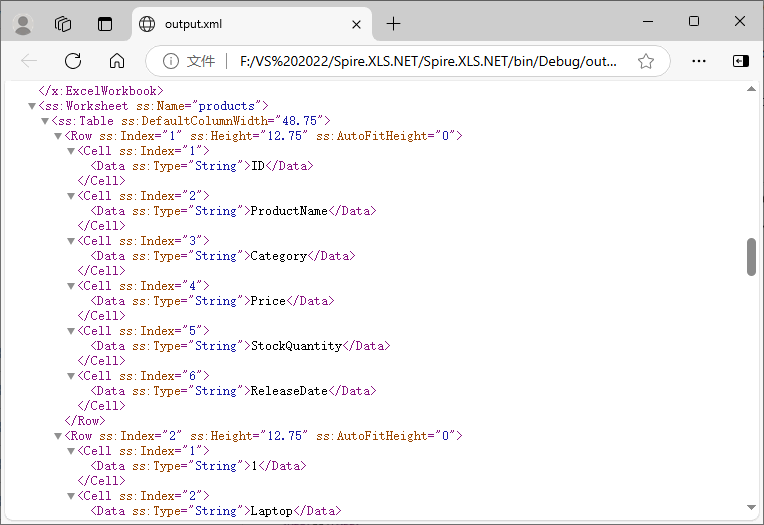
Beyond converting CSV files, Spire.XLS for .NET also enables seamless conversion of Excel (XLS / XLSX) to XML using the same robust Workbook.SaveAsXml() method.
Method 2: Convert CSV to Custom XML in C#
When the target system expects a specific XML schema, you’ll need to build a custom XML document. Spire.XLS, together with the built-in .NET XmlWriter class, makes this straightforward: simply iterate over worksheet rows and columns, then generate well-structured XML efficiently.
Custom XML Code Example:
using Spire.Xls;
using System.Xml;

namespace CSVtoXMLConverter
{
    class program
    {
        static void Main(string[] args)
        {

            // Initialize workbook and load CSV
            Workbook workbook = new Workbook();
            workbook.LoadFromFile("Products.csv", ",", 1, 1);
            Worksheet worksheet = workbook.Worksheets[0];

            // Create custom XML settings (indentation for readability)
            XmlWriterSettings settings = new XmlWriterSettings
            {
                Indent = true,
                IndentChars = "\t",
                OmitXmlDeclaration = false,
                Encoding = System.Text.Encoding.UTF8
            };

            // Save CSV to XML with CUSTOM ROOT NODE and FORMATTING
            XmlWriter writer = XmlWriter.Create("Custom_Output.xml", settings);

            writer.WriteStartDocument();
            // Custom root element: <ProductInventory>
            writer.WriteStartElement("ProductInventory");


            // Loop through CSV rows (skip header row: start at 2)
            for (int row = 2; row <= worksheet.LastRow; row++)
            {
                // Custom data node: <Product>
                writer.WriteStartElement("Product");

                // Loop through CSV columns and write custom elements
                for (int col = 1; col <= worksheet.LastColumn; col++)
                {
                    string header = worksheet.Range[1, col].Text;
                    string value = worksheet.Range[row, col].Text;
                    writer.WriteElementString(header, value);
                }

                writer.WriteEndElement(); // Close <Product>
            }

            writer.WriteEndElement(); // Close <ProductInventory>
            writer.WriteEndDocument();

            writer.Close();
            workbook.Dispose();
        }

    }
}
How the code works:
- Load the CSV file into a Workbook.
- Access the worksheet – Retrieve the first worksheet containing the imported data.
- Create an XmlWriter – Configure it with indentation, encoding, and other formatting preferences.
- Write the XML document – Start the document, write the custom root element, then loop through rows (skipping the header row) and columns, writing an element per column using the header text as the tag name.
- Close resources – Close the XmlWriter and dispose of the Workbook.
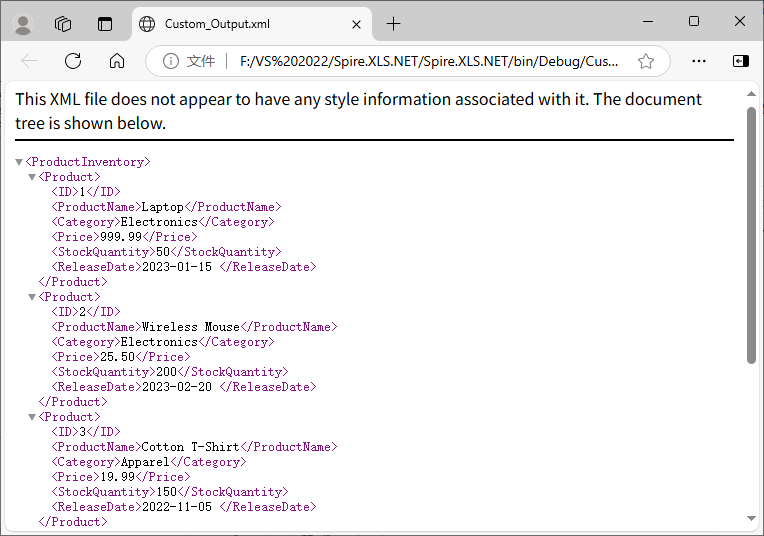
Output:
The generated XML uses <ProductInventory> as the root node and <Product> as the data node, with child nodes named after CSV headers, fully matching custom business requirements.
Bonus Tip: For scenarios requiring formal document delivery, you can also use Spire.XLS for .NET to convert XML files to PDF in C# effortlessly.
Handling Real‑World CSV Scenarios
Real-world CSV files often have non-standard delimiters, empty values, redundant rows/columns, or missing headers. The following solutions solve these common problems:
Different Delimiters
CSV files may use tabs (\t), semicolons (;), or pipes (|). Spire.XLS supports specifying custom delimiters when loading CSV files:
// Tab-separated
workbook.LoadFromFile("data.tsv", "\t", 1, 1);

// Semicolon-separated (common in European locales)
workbook.LoadFromFile("data.csv", ";", 1, 1);

// Pipe-separated
workbook.LoadFromFile("data.psv", "|", 1, 1);
Skipping Rows and Columns
If the CSV contains metadata rows or empty columns, adjust your loop bounds:
// start from row 3
for (int row = 3; row <= worksheet.LastRow; row++)
//start from column 3
for (int col = 3; col <= worksheet.LastColumn; col++)
Handling Missing Values and Empty Cells
Empty cells in CSV files appear as empty strings. You can handle them by writing a default value or omitting the elements:
// Option 1: Fill empty values with "N/A"
string value = worksheet.Range[row, col].Text;
if (string.IsNullOrEmpty(value))
    value = "N/A";
writer.WriteElementString(header, value);

// Option 2: Omit empty nodes
string value = worksheet.Range[row, col].Text;
if (!string.IsNullOrEmpty(value))
    writer.WriteElementString(header, value);
Missing Header Row
If your CSV has no header row, you can pass an array of custom names, or generate generic column names such as:
for (int col = 1; col <= worksheet.LastColumn; col++)
{
    string header = $"Column{col}";
    string value = worksheet.Range[row, col].Text;
    writer.WriteElementString(header, value);
}
Conclusion
Converting CSV to XML in C# with Spire.XLS for .NET eliminates manual parsing and reduces code complexity. Whether you need a simple one-line conversion to Excel XML or a fully customized XML structure, the code examples in this guide let you seamlessly integrate CSV-to-XML conversion into your C# applications.
For more Excel or CSV-related tasks in .NET development, visit the online documentation.
FAQs About CSV to XML Conversion
Q1: Can I convert only a specific range of cells (e.g., A1:C10)?
Yes. Instead of looping to worksheet.LastRow and LastColumn, set custom bounds (e.g., loop rows 2 to 11 for A1:C10) or directly access a range via worksheet.Range.
Q2: Does Spire.XLS require Microsoft Excel to be installed?
No, it is an independent .NET component and does not rely on Microsoft Excel, Office interop, or any third-party Office software.
Q3: Can I batch convert multiple CSV files to XML at once?
Yes. You can loop through all CSV files in a folder, load each one with Spire.XLS, and export them to corresponding XML files in batches with the same logic in the tutorial.
Q4: Can I add custom attributes and namespaces to generated XML elements?
Absolutely. Use XmlWriter.WriteAttributeString() to add custom attributes to nodes, and WriteStartElement with namespace parameters to define XML namespaces for enterprise-standard XML schemas.
