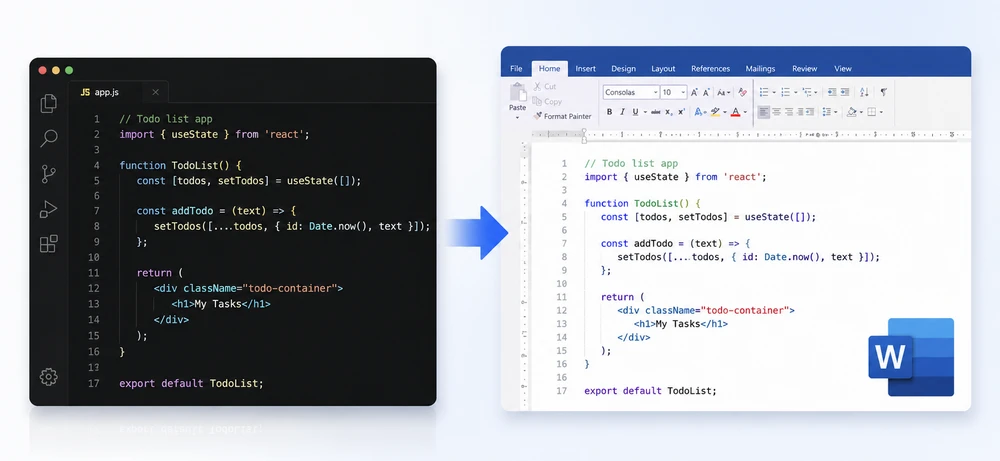
Modern development teams often need to share JavaScript or JSX source code with project managers, clients, auditors, or educators who don't use code editors. However, raw .js and .jsx files are difficult to review outside tools like VS Code or WebStorm, while manually copying code into Word documents frequently breaks indentation, formatting, and readability.
Using Spire.Doc for Python together with Pygments, developers can convert JavaScript to Word in Python with syntax highlighting and customizable document formatting. This automated approach is useful for technical documentation, compliance archiving, educational materials, code reviews, and client deliverables.
In this article, you'll learn how to convert JavaScript and JSX files to Word documents in Python using Spire.Doc for Python, including basic conversion, advanced formatting techniques, batch processing, and PDF export.
Quick Navigation
- Understanding the Conversion Workflow
- Prerequisites
- Basic Implementation of JavaScript to Word Conversion
- Advanced Scenarios
- Common Pitfalls
- Conclusion
- FAQ
1. Understanding the Conversion Workflow
The conversion process uses Pygments to generate syntax-highlighted HTML, then imports this HTML into a Word document using Spire.Doc's HTML import functionality:
- Read source code from
.jsor.jsxfiles - Generate syntax-highlighted HTML using Pygments'
highlight()function - Import the HTML into Word using
AppendHTML()
This approach provides syntax coloring through Pygments' built-in styles, while Spire.Doc handles document structure including margins, headers, footers, and multi-format export. It provides a simple and flexible API for automating the conversion process.
2. Prerequisites
Before converting JavaScript files to Word documents in Python, you need to install Spire.Doc for Python and Pygments:
pip install spire.doc
pip install pygments
Verify the packages are available:
import spire.doc
from pygments import highlight
from pygments.formatters import HtmlFormatter
Alternatively, you can download Spire.Doc for Python and add it to your project.
3. Basic Implementation
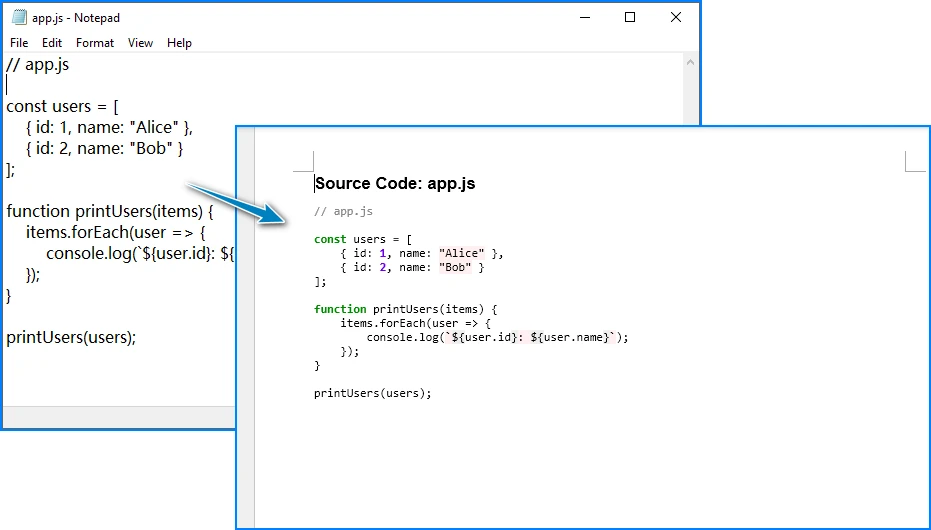
The following example converts a JavaScript file to a Word document with syntax highlighting:
from spire.doc import *
from pygments import highlight
from pygments.lexers import JavascriptLexer
from pygments.formatters import HtmlFormatter

def convert_js_to_word(input_file: str, output_file: str) -> None:
    """Convert JavaScript file to Word document with syntax highlighting."""

    with open(input_file, "r", encoding="utf-8") as file:
        js_code = file.read()

    document = Document()
    section = document.AddSection()
    section.PageSetup.Margins.All = 50

    title_paragraph = section.AddParagraph()
    title_text = title_paragraph.AppendText(f"Source Code: {input_file}")
    title_text.CharacterFormat.FontName = "Arial"
    title_text.CharacterFormat.FontSize = 14
    title_text.CharacterFormat.Bold = True
    title_paragraph.Format.AfterSpacing = 10

    html_formatter = HtmlFormatter(
        nowrap=True,
        style='colorful',
        noclasses=True
    )

    highlighted_html = highlight(js_code, JavascriptLexer(), html_formatter)

    code_paragraph = section.AddParagraph()
    code_paragraph.AppendHTML(f'<pre style="font-family: Consolas; font-size: 10pt;">{highlighted_html}</pre>')

    document.SaveToFile(output_file, FileFormat.Docx)
    document.Close()

    print(f"Converted {input_file} to {output_file}")

convert_js_to_word("app.js", "JavaScriptCode.docx")
Key Components
- Document – Word document container for sections, paragraphs, and content
- Section – Document section with page setup properties (margins, orientation)
- Paragraph – Text container with formatting options
- AppendHTML() – Imports HTML content into the paragraph, including inline styles for colors and fonts
- highlight() – Pygments function that generates syntax-highlighted output
- HtmlFormatter – Pygments formatter producing HTML with inline styles (use
noclasses=True) - JavascriptLexer – Pygments lexer that identifies JavaScript syntax elements
Spire.Doc can import syntax-highlighted HTML generated by Pygments, allowing JavaScript code formatting and colors to be preserved in Word documents.
4. Advanced Scenarios
Convert JSX Files
For JSX files, it's recommended to use JsxLexer instead of JavascriptLexer to achieve more accurate syntax highlighting for component tags and embedded JSX expressions.
Example JSX input (App.jsx):
``jsx import React, { useState } from 'react';
const TodoList = () => { const [todos, setTodos] = useState([]);
return (
    <div className="todo-container">
        <h1>My Tasks</h1>
    </div>
);
};
export default TodoList;
Use `JsxLexer` when generating syntax-highlighted HTML:

```python
from pygments.lexers import JsxLexer

highlighted_html = highlight(
    jsx_code,
    JsxLexer(),
    html_formatter
)
Then convert the highlighted JSX content to Word using the same AppendHTML() workflow:
convert_js_to_word("App.jsx", "ReactComponent.docx")
The conversion result looks like this:
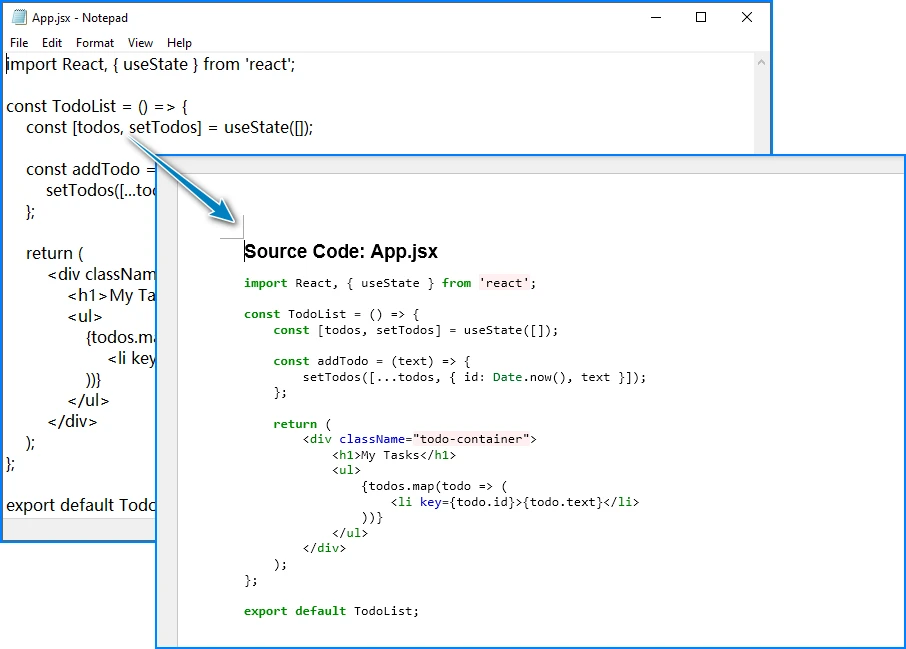
JsxLexer provides improved recognition for JSX tags, attributes, and embedded expressions compared to the standard JavaScript lexer, resulting in more accurate syntax coloring in the generated Word document.
Batch Convert Multiple Files
If you need to convert large numbers of JavaScript or JSX files, you can automate the process by scanning a folder and generating Word documents in batches.
import os
from pathlib import Path

def batch_convert_js_files(source_folder: str, output_folder: str) -> None:
    """Convert all JavaScript files in a folder to Word documents."""

    Path(output_folder).mkdir(parents=True, exist_ok=True)

    js_extensions = ('.js', '.jsx', '.mjs')

    converted_count = 0
    error_count = 0

    for filename in os.listdir(source_folder):
        if filename.lower().endswith(js_extensions):
            input_path = os.path.join(source_folder, filename)

            base_name = os.path.splitext(filename)[0]
            output_path = os.path.join(output_folder, f"{base_name}.docx")

            try:
                convert_js_to_word(input_path, output_path)
                converted_count += 1
            except Exception as e:
                print(f"Error converting {filename}: {str(e)}")
                error_count += 1

    print(f"\nBatch conversion complete:")
    print(f"  Converted: {converted_count} files")
    print(f"  Errors: {error_count} files")

batch_convert_js_files("src/scripts", "output/docs")
Add Line Numbers
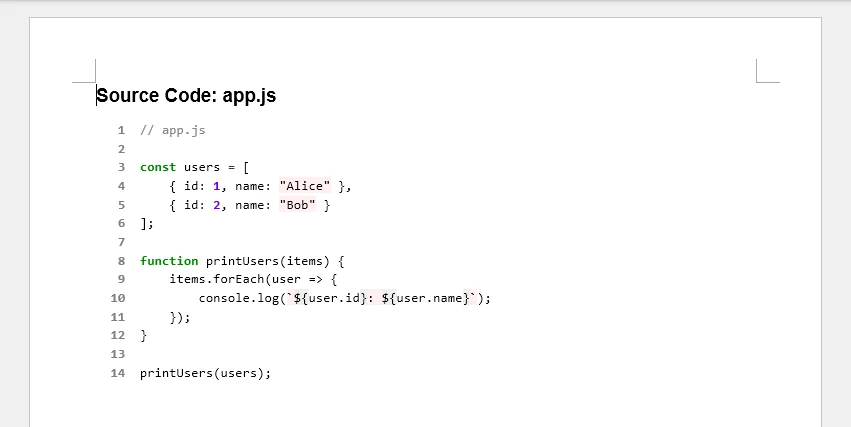
Line numbers can improve readability during code reviews, audits, or technical documentation. Since Word HTML rendering may not fully support Pygments' built-in line number layouts, a practical approach is to prepend custom line numbers after syntax highlighting.
html_formatter = HtmlFormatter(
    nowrap=True,
    noclasses=True,
    style="colorful"
)

highlighted_html = highlight(
    js_code,
    JavascriptLexer(),
    html_formatter
)

highlighted_lines = highlighted_html.splitlines()

numbered_lines = []

for index, line in enumerate(highlighted_lines, start=1):

    numbered_line = (
        f'<span style="color: gray; font-weight: bold;">'
        f'{index:4d}  '
        f'</span>{line}'
    )

    numbered_lines.append(numbered_line)

combined_html = (
    '<pre style="font-family: Consolas; '
    'font-size: 10pt; line-height: 1.4;">'
    + '\n'.join(numbered_lines) +
    '</pre>'
)

paragraph.AppendHTML(combined_html)
The generated Word document with line numbers looks like this:
Add Headers and Footers
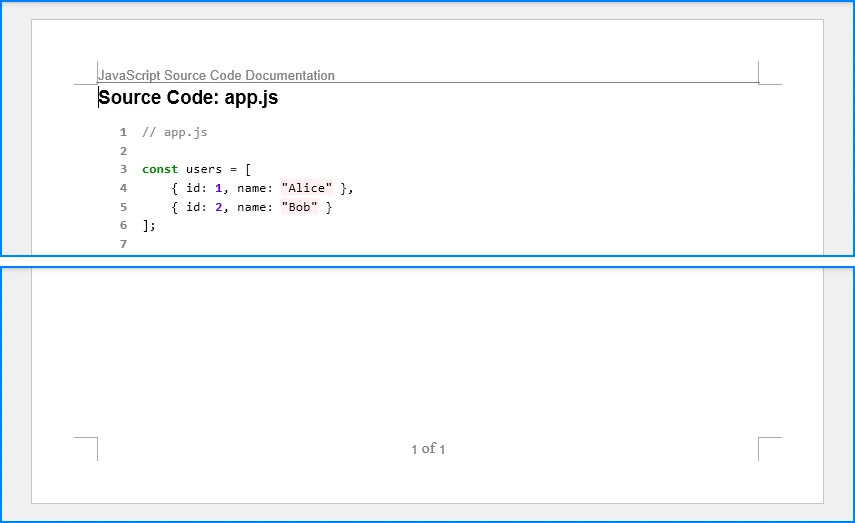
Headers and footers help organize generated Word documents by adding titles, page numbers, and document metadata. This is especially useful for formal reports or exported technical documentation.
def add_document_metadata(section: Section, document_title: str) -> None:
    """Add header and footer to document section."""

    header = section.HeadersFooters.Header.AddParagraph()
    header_text = header.AppendText(document_title)
    header_text.CharacterFormat.FontName = "Arial"
    header_text.CharacterFormat.FontSize = 10
    header_text.CharacterFormat.TextColor = Color.get_Black()
    header.Format.HorizontalAlignment = HorizontalAlignment.Left
    header.Format.TextAlignment = TextAlignment.Top

    header.Format.Borders.Bottom.BorderType = BorderStyle.Single
    header.Format.Borders.Bottom.Color = Color.get_Black()

    footer = section.HeadersFooters.Footer.AddParagraph()
    footer.Format.HorizontalAlignment = HorizontalAlignment.Center
    footer.Format.TextAlignment = TextAlignment.Bottom

    page_field = footer.AppendField("page", FieldType.FieldPage)
    page_field.CharacterFormat.FontName = "Arial"
    page_field.CharacterFormat.FontSize = 9

    footer.AppendText(" of ")
    total_pages_field = footer.AppendField("numPages", FieldType.FieldNumPages)
    total_pages_field.CharacterFormat.FontName = "Arial"
    total_pages_field.CharacterFormat.FontSize = 9

document = Document()
document.LoadFromFile("CodeWithLines.docx")
section = document.Sections[0]
add_document_metadata(section, "JavaScript Source Code Documentation")
document.SaveToFile("CodeWithHeadersFooters.docx", FileFormat.Docx)
The generated Word document with headers and footers looks like this:
For more advanced customization options, refer to our guide on how to add headers and footers to Word documents in Python.
Export to PDF Format
In addition to DOCX output, Spire.Doc can export syntax-highlighted JavaScript code directly to PDF format. This is useful when distributing read-only documentation or sharing code outside Microsoft Word environments.
def convert_js_to_pdf(input_file: str, output_file: str) -> None:
    """Convert JavaScript file directly to PDF."""

    with open(input_file, "r", encoding="utf-8") as file:
        js_code = file.read()

    document = Document()
    section = document.AddSection()
    section.PageSetup.Margins.All = 50

    html_formatter = HtmlFormatter(noclasses=True, style='colorful')
    highlighted_html = highlight(js_code, JavascriptLexer(), html_formatter)

    paragraph = section.AddParagraph()
    paragraph.AppendHTML(f'<pre style="font-family: Consolas; font-size: 10pt;">{highlighted_html}</pre>')

    document.SaveToFile(output_file, FileFormat.PDF)
    document.Close()

convert_js_to_pdf("app.js", "JavaScriptCode.pdf")
For more advanced PDF conversion techniques, including layout control and document formatting, see our detailed guide on converting Word documents to PDF in Python.
Customize Syntax Highlighting Style
Pygments provides multiple built-in color schemes:
def convert_with_custom_style(input_file: str, output_file: str, style_name: str = 'monokai') -> None:
    """Convert JavaScript to Word with custom highlighting style."""

    with open(input_file, "r", encoding="utf-8") as file:
        js_code = file.read()

    document = Document()
    section = document.AddSection()
    section.PageSetup.Margins.All = 50

    html_formatter = HtmlFormatter(
        noclasses=True,
        style=style_name,
        nowrap=True
    )

    highlighted_html = highlight(js_code, JavascriptLexer(), html_formatter)

    paragraph = section.AddParagraph()
    paragraph.AppendHTML(f'<pre style="font-family: Consolas; font-size: 10pt;">{highlighted_html}</pre>')

    document.SaveToFile(output_file, FileFormat.Docx)
    document.Close()

convert_with_custom_style("app.js", "CodeMonokai.docx", style_name='monokai')
Available styles include: 'monokai', 'colorful', 'vim', 'vs', 'tango', 'friendly', 'default'
5. Common Pitfalls
Missing HtmlFormatter Configuration
Problem: Default HtmlFormatter generates CSS classes instead of inline styles, which Word cannot process without external stylesheets.
Solution: Always use noclasses=True:
html_formatter = HtmlFormatter(noclasses=True, style='colorful')
highlighted_html = highlight(js_code, JavascriptLexer(), html_formatter)
Encoding Errors with Special Characters
Problem: Reading files without UTF-8 encoding causes character corruption on some platforms.
Solution: Explicitly specify UTF-8 encoding:
with open(input_file, "r", encoding="utf-8") as file:
    js_code = file.read()
For files with BOM (Byte Order Mark), use utf-8-sig:
with open(input_file, "r", encoding="utf-8-sig") as file:
    js_code = file.read()
Indentation Loss
Problem: Not wrapping highlighted code in <pre> tags causes indentation to disappear.
Solution: Wrap syntax-highlighted HTML in <pre> tags:
highlighted_html = highlight(js_code, JavascriptLexer(), html_formatter)
paragraph.AppendHTML(f'<pre style="font-family: Consolas;">{highlighted_html}</pre>')
ModuleNotFoundError
Problem: Package not installed in current Python environment.
Solution:
pip install spire.doc
For virtual environments, ensure activation before installation:
source venv/bin/activate  # Linux/Mac
venv\Scripts\activate     # Windows
pip install spire.doc
Performance with Large Files
Problem: Very large JavaScript files (10,000+ lines) may cause slow conversion.
Solution: Process files in chunks:
def convert_large_file(input_file: str, output_file: str, chunk_size: int = 500) -> None:
    """Convert large JavaScript file in chunks."""

    with open(input_file, "r", encoding="utf-8") as file:
        lines = file.readlines()

    document = Document()
    section = document.AddSection()
    section.PageSetup.Margins.All = 50

    html_formatter = HtmlFormatter(noclasses=True, style='colorful')

    for i in range(0, len(lines), chunk_size):
        chunk = ''.join(lines[i:i + chunk_size])
        highlighted_html = highlight(chunk, JavascriptLexer(), html_formatter)

        paragraph = section.AddParagraph()
        paragraph.AppendHTML(f'<pre style="font-family: Consolas; font-size: 10pt;">{highlighted_html}</pre>')

    document.SaveToFile(output_file, FileFormat.Docx)
    document.Close()
Conclusion
This article demonstrated how to convert JavaScript and JSX files to Word documents in Python using Spire.Doc for Python and Pygments. By leveraging the highlight() function with HtmlFormatter and Spire.Doc's AppendHTML() method, developers can automate code documentation workflows with syntax highlighting.
Spire.Doc for Python provides document generation capabilities including table creation, image insertion, header/footer management, and multi-format export.
You can apply for a 30-day free license to evaluate all features.
7. FAQ
Can Spire.Doc convert JSX files to Word documents?
Yes. Pygments can highlight many JSX constructs using the JavaScript lexer, including component tags, props, and embedded expressions. However, JSX-specific syntax may not receive dedicated highlighting categories.
Does this solution require Microsoft Word installation?
No. Spire.Doc for Python operates independently without requiring Microsoft Word. The library generates DOCX files directly, making it suitable for server environments and CI/CD pipelines.
Can I convert JavaScript to formats other than DOCX?
Yes. Spire.Doc supports multiple export formats:
document.SaveToFile("output.pdf", FileFormat.PDF)
document.SaveToFile("output.html", FileFormat.Html)
document.SaveToFile("output.rtf", FileFormat.Rtf)
How do I handle TypeScript files (.ts, .tsx)?
Use TypescriptLexer:
from pygments.lexers import TypescriptLexer

highlighted_html = highlight(ts_code, TypescriptLexer(), html_formatter)
Is this approach suitable for enterprise-scale projects?
Yes. Python automation integrates with CI/CD pipelines and batch processing workflows. Local execution avoids security risks from uploading source code to online converters. Consider implementing logging, progress reporting, and error tracking for large deployments.
Can I customize syntax highlighting colors?
Yes. Pygments offers numerous built-in styles:
html_formatter = HtmlFormatter(noclasses=True, style='monokai')
Available styles: 'monokai', 'colorful', 'vim', 'vs', 'tango', 'friendly', 'default'
