In corporate legal and compliance management scenarios, contract review is one of the most time-consuming and error-prone tasks. Every contract involves a large number of rights and obligations clauses — liquidated damages, payment terms, disclaimer clauses, breach liability, dispute resolution, and more. Any clause that is unfavorable to your side or ambiguously worded may lead to legal disputes or financial losses in the future. Traditional approaches rely on legal professionals reading and annotating each clause manually; a single contract of dozens of pages often takes hours, and review standards vary from person to person.
Comparison with Traditional SDK API Processing
| Traditional Spire.Office for .NET API | Spire.Agent.Office | |
|---|---|---|
| Driving approach | Write code to parse clauses one by one: load document → iterate paragraphs → regex match keywords → judge risk → highlight and annotate; every step requires code control | Describe the review goal in natural language, and AI automatically identifies and annotates risk clauses |
| Code volume | Requires a large amount of code to maintain the clause risk rule library, keyword matching, and annotation logic | Only configuration code + 1 natural language instruction |
| Risk rules | Risk judgment relies on hard-coded keywords; new risk types require code changes | AI understands clauses semantically and can identify new risks not covered by the rules |
| Review stance | Review logic for each contract type must be developed separately | A single phrase like "review from our side" in the instruction switches the review stance |
| Maintainability | The risk rule library requires continuous manual maintenance | Review scope and rules can be adjusted at any time in natural language |
This article explains how to use the Word AI capability of Spire.Agent.Office to review contract clauses and annotate risks. You can choose to highlight risk clauses on the original contract and add comments, or batch review and output a structured risk review report, meeting contract review needs of different scales and scenarios.
For product installation and SpireToken configuration, refer to Integrating Spire.Agent.Office in a .NET Project. The examples below assume Spire.Agent.Office is installed and SpireToken is configured.
Risk Clause Highlighting and Annotation
Risk clause highlighting and annotation suits in-depth review of important contracts. The core idea is: let AI review contract clauses one by one, identify clauses that are unfavorable to your side or carry legal risks, highlight them in yellow in place and add comments, so legal professionals can view the risk points directly on the contract.
using Spire.Agent.Office.AI;
using Spire.Agent.Office.Extensions;
using Spire.Doc;

// Path of the contract file to be reviewed
string inputPath = "E:\\Input\\Software_Contract.docx";
// Save path
string savePath = "E:\\Output\\Review.docx";
// Output directory
string OutDir = "E:\\Output";
// SpireToken Key
string key = "xxxxx";
// Natural language instruction
string instruction =
    "Review all clauses in the current contract document and identify clauses that are unfavorable to the purchaser or carry legal risks, including but not limited to: " +
    "excessively high liquidated damages, stringent payment terms, overly broad disclaimer clauses, missing breach liability provisions, unfavorable court jurisdiction agreements, unclear intellectual property ownership, etc. " +
    "For each risk clause, perform the following operations: 1. Highlight the risk clause text in yellow; 2. Add a comment in place, noting the risk point, risk level (high/medium/low), and modification suggestions. " +
    "After processing, keep the same layout, styles, and fonts as the original document, and finally save and output in DOCX format";

// Call the Word document processing function
AIResult result = ExecuteDemoWord(instruction, inputPath, savePath, key, OutDir, null);

// Execute Word document AI processing
static AIResult ExecuteDemoWord(string instruction, string inputPath, string savePath, string key, string output, string[] attachmentPaths)
{
    // Create an AIOptions configuration object
    AIOptions options = new AIOptions();
    // Set the working directory to the output directory
    options.WorkDir = output;
    // Set the SpireToken Key
    options.SpireToken = key;

    // Use the Document object to process the Word document
    using (Document doc = new Document())
    {
        // Load the contract document from file
        if (!string.IsNullOrEmpty(inputPath) && File.Exists(inputPath))
        {
            doc.LoadFromFile(inputPath);
        }
        // Create the AI document processor
        AIDocumentProcessor processor = doc.AI(options);

        // Execute the AI instruction
        return processor.ExecuteInstruction(doc, instruction, savePath, attachmentPaths);
    }
}
Contract after AI highlighting and annotation 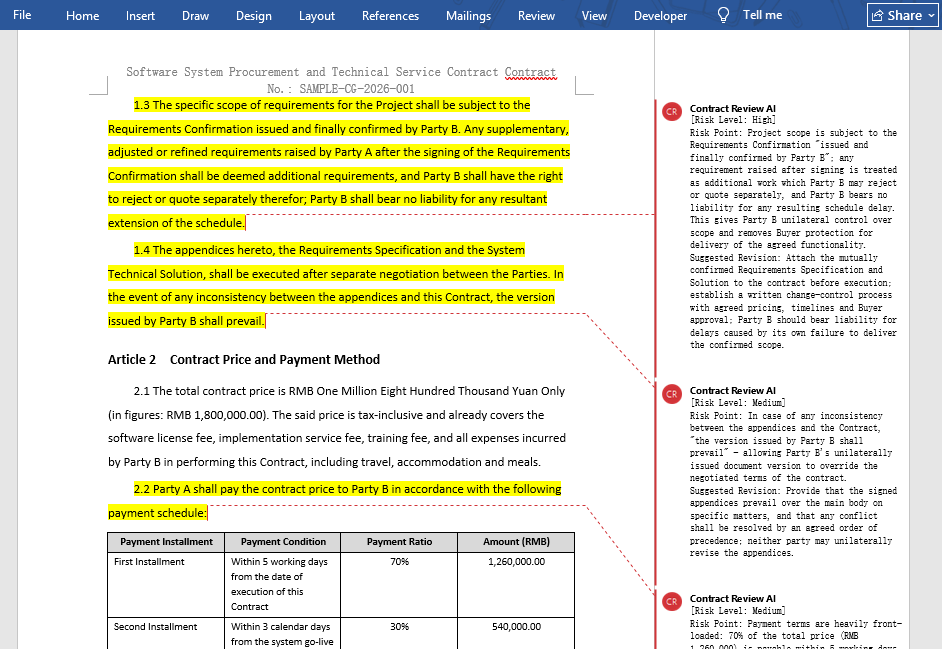
In the reviewed contract, risk clauses are highlighted in yellow, and the comments clearly state the risk points and modification suggestions. Legal professionals can quickly locate the highlighted positions without reading the original text line by line, and can directly discuss modification plans with the business side based on the comments.
Batch Review and Review Report
For quick screening of large batches of contracts (such as contract renewal or supplier qualification review), batch review with a structured review report is more suitable. The core idea is: let AI review multiple contracts one by one, consolidate the risk clauses of each contract into a risk list, and output it as an MD report for statistics, tracking, and tiered processing.
using Spire.Agent.Office.AI;
using Spire.Agent.Office.Extensions;
using Spire.Doc;

// Paths of multiple contract files to be reviewed
string[] attachments = new string[] {
    "E:\\Input\\Purchase_Contract_EN.docx",   // Purchase contract
    "E:\\Input\\Sales_Contract_EN.docx",   // Sales contract
    "E:\\Input\\Labor_Contract_EN.docx"    // Labor contract
};
// Save path (null here; the output folder path set below will be used)
string savePath = "E:\\Output\\Structural_Review_Output.md";
// Output directory
string OutDir = "E:\\Output";
// SpireToken Key
string key = "xxxxx";
// Natural language instruction
string instruction =
    "Review the contract documents in the attachments one by one, extract risk clauses, and output a Markdown review report: " +
    "The report contains a table with fixed columns: Contract Name | Clause Number | Clause Original Text | Risk Level (High/Medium/Low) | Risk Type | Risk Description | Modification Suggestion. " +
    "Sort by risk level from high to low; the clause original text must be quoted from the contract, truncated with … after 20 characters, and must not be fabricated.";

// Call the Word document processing function
AIResult result = ExecuteDemoWord(instruction, savePath, key, OutDir, attachments);

// Execute Word document AI processing
static AIResult ExecuteDemoWord(string instruction, string savePath, string key, string output, string[] attachments)
{
    // Create an AIOptions configuration object
    AIOptions options = new AIOptions();
    // Set the working directory to the output directory
    options.WorkDir = output;
    // Set the SpireToken Key
    options.SpireToken = key;

    // Use the Document object to process the Word document
    using (Document doc = new Document())
    {
        // Create the AI document processor
        AIDocumentProcessor processor = doc.AI(options);

        // Execute the AI instruction
        return processor.ExecuteInstruction(doc, instruction, savePath, attachments);
    }
}
Contract risk review report output by AI 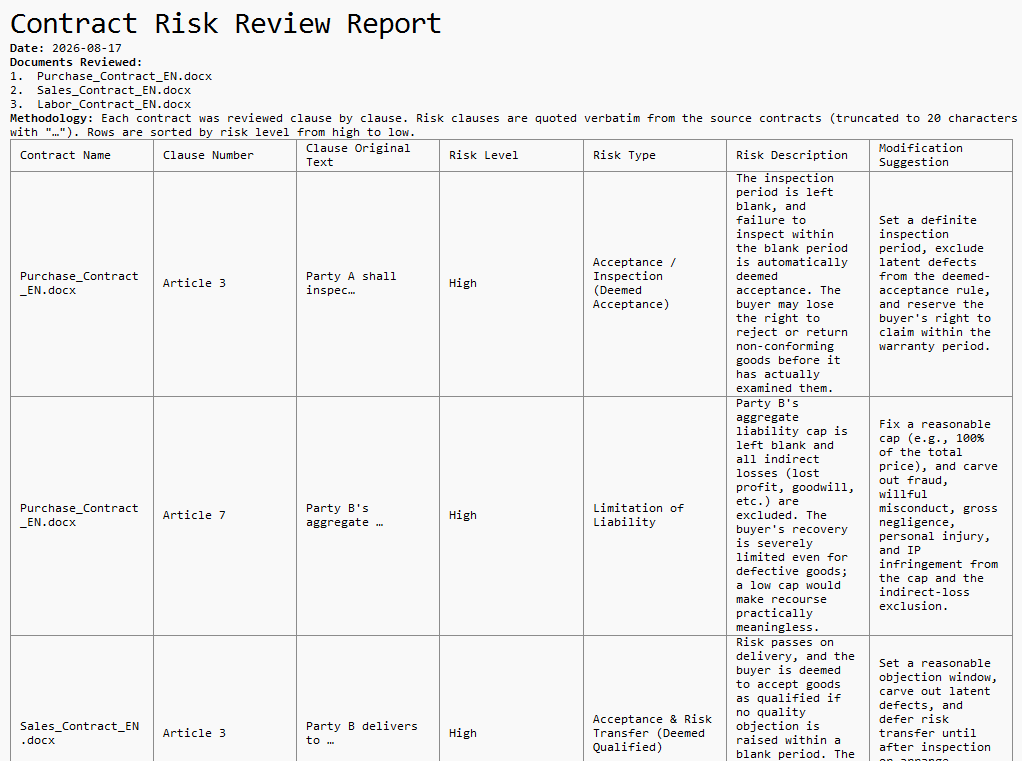
Each row in the review report corresponds to a risk clause and contains the clause original text, risk level, risk type, and modification suggestion. Legal professionals can sort by risk level to prioritize high-risk clauses, or export the report for risk ledger tracking in a contract management system.
FAQ
Risk clauses identified inaccurately
Reason: AI's judgment of "unfavorable clauses" depends on the review stance. From your side's perspective versus the counterparty's perspective, the risk judgment for the same clause may be completely opposite.
Solution: Specify the review stance clearly in the instruction, such as "review from the purchaser's perspective", and add a list of risk types to focus on. AI will strictly follow this stance and scope.
Document style changes after highlighting
Reason: The AI model automatically modified or added content during processing.
Solution: Add a description such as "keep the same layout, styles, and fonts as the original document" to the instruction.
Review report does not accurately correspond to contract clauses
Reason: Clause numbers are inconsistent, or the same clause is scattered across multiple places in the contract, causing the clause original text in the report to not match the contract.
Solution: In the instruction, require AI to quote the clause original text and note the source of the clause number, for easy manual verification and location.
Get the SpireToken Key
- Contact sales@e-iceblue.com or visit https://www.e-iceblue.com/TemLicense.html to obtain a trial/commercial API key
Configure it in your code:
AIOptions options = new AIOptions();
options.SpireToken = key;
