Word templates are the foundation of enterprise business workflows. HR needs standard employment contracts and offer letters, sales teams need professional quotation and report templates, and administration needs unified meeting notices and certification documents. With the Word AI capabilities of Spire.Agent.Office, you simply describe the desired template style and content structure in natural language — for example, "Create a contract template with mail merge fields for 'Name, Position, Department, Salary, Start Date, End Date, Contract Type, Probation Period (months), Location'" and AI delivers the template directly.
Comparison with Traditional SDK API Approach
| Traditional Spire.Office for .NET API | Spire.Agent.Office | |
|---|---|---|
| Development Approach | Call APIs to build document structure line by line, paragraph by paragraph | Describe template style and structure in natural language; AI automatically composes and generates the complete template document |
| Code Volume | Hundreds of lines of document-building code per template | Just 1 natural language instruction |
| Style Adjustment | Font, color, border, and other styles require complex code-based formatting | Simply describe in natural language |
| Template Flexibility | Template structure changes require rewriting underlying document-building logic — high maintenance cost | Adjust the instruction description, AI regenerates — flexibly responds to changing requirements |
Several typical business scenario Word template examples:
- Word Employment Contract Template
- Word Quotation Template
- Word Certificate Template
- Budget Report Template
For product installation and SpireToken configuration, please refer to Integrating Spire.Agent.Office in a .NET Project. The examples below assume Spire.Agent.Office is already installed and SpireToken is configured.
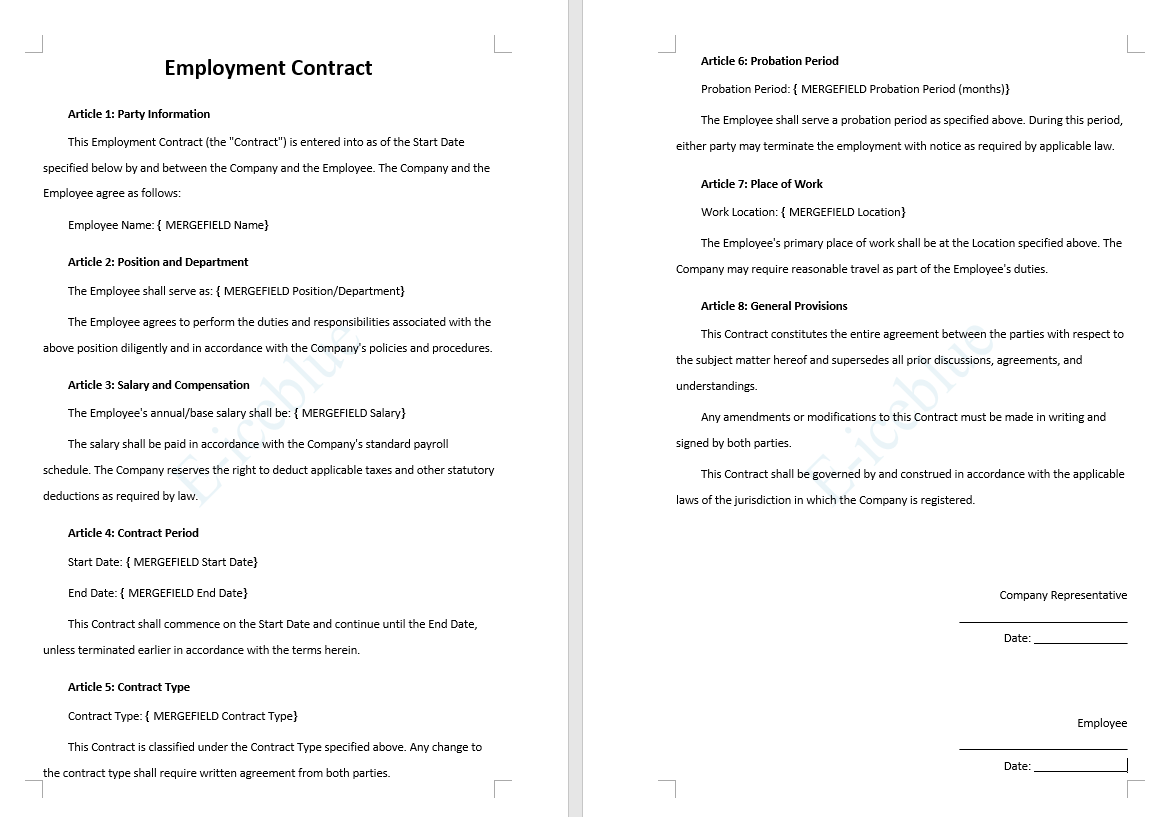
Word Employment Contract Template
The most commonly used employment contracts in HR departments all share a relatively fixed structure: title, party information, main body clauses, signature section, etc.
using Spire.Agent.Office.AI;
using Spire.Agent.Office.Extensions;
using Spire.Doc;

string inputPath = @"";
// Result document path
string savePath = @"employmentContract.docx"; ;
// SpireToken Key
string key = "s******************************r";
// Natural language instruction
string instruction =
    "Generate a Word employment contract template. " +
    "The main title is 'Employment Contract', in No. 2 font size, bold, and centered. " +
    "The body text uses Arial font throughout, in Small No. 4 font size (12pt), with a first-line indent of 2 characters per paragraph. " +
    "Add a light blue watermark with the text 'E-iceblue' throughout the entire document. " +
    "Include the following fields as mail merge fields: Name, Position/Department, Salary, Start Date, End Date, Contract Type, Probation Period (months), and Location. " +
    "The overall style should be formal and professional, suitable for legal document scenarios.";
// AI generation
AIResult result = ExecuteAIWord(instruction, inputPath, savePath, key);

// Word AI processing
static AIResult ExecuteAIWord(string instruction, string inputPath, string savePath, string key)
{
    // Create AI processor options instance
    AIOptions options = new AIOptions();
    options.SpireToken = key;
    // Create Word document object
    using (Document doc = new Document())
    {
        if (!string.IsNullOrEmpty(inputPath) && File.Exists(inputPath))
        {
            doc.LoadFromFile(inputPath);
        }
        // Create AI document processor instance
         AIDocumentProcessor processor = doc.AI(options);

        // Process the document according to the instruction and save the result to the specified path
        return processor.ExecuteInstruction(doc, instruction, savePath);
    }
}
Word Quotation Template
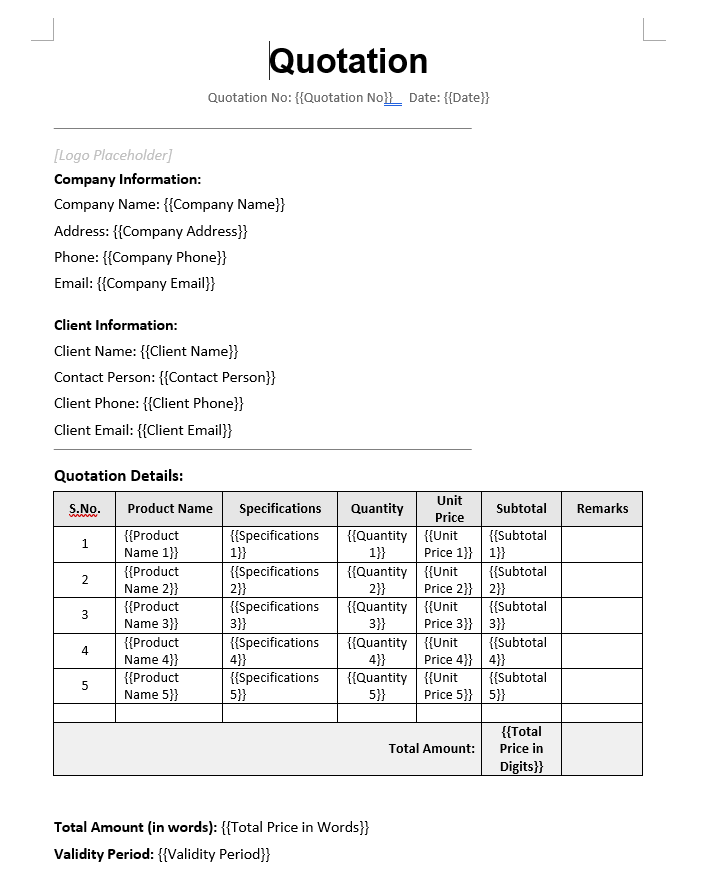
The most commonly used quotation templates in sales and business departments all share a relatively fixed structure: title, company information, client information, product quotation table, amount summary, quotation terms, signature section, etc.
using Spire.Agent.Office.AI;
using Spire.Agent.Office.Extensions;
using Spire.Doc;

string inputPath = @"";
// Result document path
string savePath = @"QuotationTemplate.docx"; ;
// SpireToken Key
string key = "s******************************r";
// Natural language instruction
string instruction =
    "Generate a professional quotation template with the following styling requirements: " +
    "Main title: 'Quotation' , font size equivalent to  26pt, bold, centered, using 'Arial' font. " +
    "Body text: Calibri font, size 12pt , with 1.5× line spacing. " +
    "Template structure must include: Company logo placeholder area, company information (address, phone number, email), client information (client name, contact person), product quotation table (including Serial Number, Product Name, Specifications, Quantity, Unit Price, Subtotal, Remarks), total price (in words + in digits), quotation validity period, company stamp/seal area. \n" +
    "Use {{ }} as placeholder markers throughout the template, for example: {{Company Name}}, {{Client Name}}, {{Product Name}}, {{Unit Price}}, {{Quantity}}, {{Subtotal}}, {{Total Price in Words}}, {{Total Price in Digits}}.";

// AI generation
AIResult result = ExecuteAIWord(instruction, inputPath, savePath, key);

// Word AI processing
static AIResult ExecuteAIWord(string instruction, string inputPath, string savePath, string key)
{
    // Create AI processor options instance
    AIOptions options = new AIOptions();
    options.SpireToken = key;
    // Create Word document object
    using (Document doc = new Document())
    {
        if (!string.IsNullOrEmpty(inputPath) && File.Exists(inputPath))
        {
            doc.LoadFromFile(inputPath);
        }
        // Create AI document processor instance
         AIDocumentProcessor processor = doc.AI(options);

        // Process the document according to the instruction and save the result to the specified path
        return processor.ExecuteInstruction(doc, instruction, savePath);
    }
}
Word Certificate Template
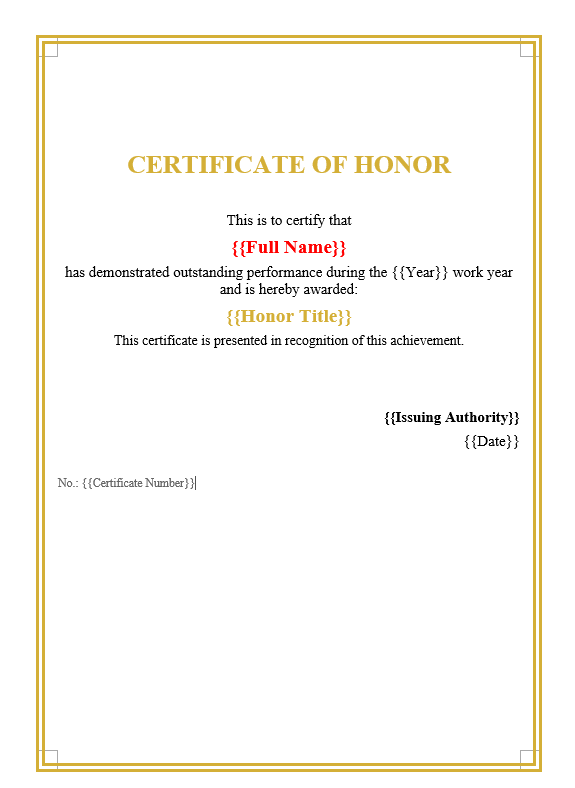
Certificate templates are widely used in scenarios such as training certification, commendation and awards, event participation, etc. Their core structure typically includes: certificate title (e.g., "Certificate of Honor", "Certificate of Completion"), certificate number, etc.
using Spire.Agent.Office.AI;
using Spire.Agent.Office.Extensions;
using Spire.Doc;

string inputPath = @"";
// Result document path
string savePath = @"WordCertificateTemplate.docx"; ;
// SpireToken Key
string key = "s******************************r";
// Natural language instruction
string instruction =
"Generate a one-page honor certificate template with the following style requirements: " +
"Overall classical and solemn style, with a gold double-line border, using Times New Roman font." +
"Centered at the top: certificate title 'CERTIFICATE OF HONOR' — 24pt, bold, gold color." +
"Center-aligned body layout with the following structure:" +
"  Line 1: 'This is to certify that';" +
"  Line 2: '{{Full Name}}' — bold, red color;" +
"  Line 3: 'has demonstrated outstanding performance during the {{Year}} work year and is hereby awarded:';" +
"  Line 4: '{{Honor Title}}' — bold, gold color;" +
"  Line 5: 'This certificate is presented in recognition of this achievement.'." +
"Signatory area: bottom right, two lines right-aligned: '{{Issuing Authority}}' and '{{Date}}'." +
"Bottom left: certificate number displayed as 'No.: {{Certificate Number}}'." +
"Overall style: formal, solemn, and dignified, suitable for government or corporate honorary certificate presentations.";

// AI generation
AIResult result = ExecuteAIWord(instruction, inputPath, savePath, key);

// Word AI processing
static AIResult ExecuteAIWord(string instruction, string inputPath, string savePath, string key)
{
    // Create AI processor options instance
    AIOptions options = new AIOptions();
    options.SpireToken = key;
    // Create Word document object
    using (Document doc = new Document())
    {
        if (!string.IsNullOrEmpty(inputPath) && File.Exists(inputPath))
        {
            doc.LoadFromFile(inputPath);
        }
        // Create AI document processor instance
         AIDocumentProcessor processor = doc.AI(options);

        // Process the document according to the instruction and save the result to the specified path
        return processor.ExecuteInstruction(doc, instruction, savePath);
    }
}
Budget Report Template
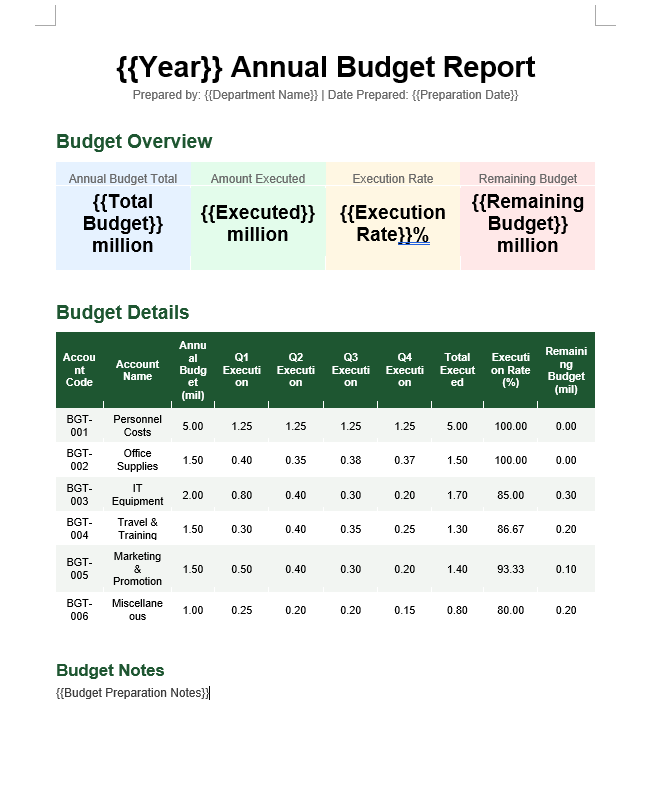
Budget report templates are commonly used document tools in enterprises or organizations for financial planning, project proposals, and annual planning. Their core structure typically includes: report title (e.g., "XX Annual Budget Report", "XX Project Budget Plan"), preparing unit and date, budget preparation notes, etc.
using Spire.Agent.Office.AI;
using Spire.Agent.Office.Extensions;
using Spire.Doc;

string inputPath = @"";
// Result document path
string savePath = @"BudgetReportTemplate.docx"; ;
// SpireToken Key
string key = "s******************************r";
// Natural language instruction
string instruction =
"Generate a professional budget report template with the following style requirements:" +
"Main title: '{{Year}} Annual Budget Report' — font size No.1 (approx. 26pt), bold, centered, using Arial." +
"Add a subtitle below the title: 'Prepared by: {{Department Name}} | Date: {{Preparation Date}}', font size No.4 small (approx. 12pt), centered." +
"The body is divided into four sections:\n" +
"  Section 1 (Budget Overview): At the top, display four key metrics in a card-style horizontal layout with light background shading — 'Annual Budget Total: {{Total Budget}} ten-thousand yuan', 'Amount Executed: {{Executed Amount}} ten-thousand yuan', 'Execution Rate: {{Execution Rate}}%', 'Remaining Budget: {{Remaining Budget}} ten-thousand yuan'. The four data cards are placed side by side with numeric values bolded and enlarged.\n" +
"  Section 2 (Detailed Budget Table): A detailed budget table with columns — Account Code, Account Name, Annual Budget (ten-thousand yuan), Q1 Execution, Q2 Execution, Q3 Execution, Q4 Execution, Total Executed, Execution Rate (%), Remaining Budget (ten-thousand yuan). Table header: dark green background (#1E5631), white bold font; all numeric columns: retain two decimal places; data rows: alternating row colors.\n" +
"  Section 4 (Budget Notes): At the bottom of the page, add a 'Budget Notes' section — '{{Budget Preparation Notes}}'." +
"Overall style: formal, professional, and elegant — suitable for a formal budget report presented to management.";

// AI generation
AIResult result = ExecuteAIWord(instruction, inputPath, savePath, key);

// Word AI processing
static AIResult ExecuteAIWord(string instruction, string inputPath, string savePath, string key)
{
    // Create AI processor options instance
    AIOptions options = new AIOptions();
    options.SpireToken = key;
    // Create Word document object
    using (Document doc = new Document())
    {
        if (!string.IsNullOrEmpty(inputPath) && File.Exists(inputPath))
        {
            doc.LoadFromFile(inputPath);
        }
        // Create AI document processor instance
         AIDocumentProcessor processor = doc.AI(options);

        // Process the document according to the instruction and save the result to the specified path
        return processor.ExecuteInstruction(doc, instruction, savePath);
    }
}
Frequently Asked Questions
Generated template style does not fully match expectations
Cause: The style description in the instruction is not specific enough.
Solution: Specify details such as font name explicitly in the instruction.
Already generated template needs modification
Cause: Business requirements have changed, requiring template adjustments.
Solution: Directly describe the modifications in the instruction and regenerate, or use the current document as input for AI secondary processing.
Generated template shows garbled Chinese characters or incorrect fonts
Cause: The font specified in the instruction is not installed on the system.
Solution: Ensure the font mentioned in the instruction is installed on the system, or use common system fonts in the instruction.
Getting a SpireToken Key
- Contact sales@e-iceblue.com or visit https://www.e-iceblue.com/TemLicense.html to obtain a trial/commercial API key
Configure in code:
AIOptions options = new AIOptions();
options.SpireToken = key;
