Traditional Spire.Office for .NET workflows often require developers to have in-depth API knowledge and write extensive boilerplate code for tasks like formatting, extraction, and conversion. Spire.Agent.Office introduces an AI layer that abstracts this complexity, enabling you to accomplish these tasks using plain natural language instructions.
This tutorial walks you through integrating Spire.Agent.Office into a .NET 10 project(The product is based on NET Standard 2.1, compatible .NET 5/6/7/8 and other platforms, not limited to NET 10), enabling natural-language-powered document processing with minimal code.
- Why Choose Spire.Agent.Office
- Project Setup and Library Reference
- AI-Powered Document Processing
- Frequently Asked Questions
- Apply for SpireToken Key
Why Choose Spire.Agent.Office
Spire.Agent.Office is an AI agent built on top of the traditional Spire.Office for .NET document engine. The core differences are:
| Traditional Spire.Office for .NET | Spire.Agent.Office | |
|---|---|---|
| Operation | Manual coding (calling APIs, iterating document data, processing, saving results) | Natural language instructions (e.g., "Review this contract") |
| Low Learning Curve | Requires detailed API knowledge and object structure | Simply describe the requirements, AI executes automatically |
| Flexibility | API code may not suit all documents | Universal AI instructions handle all documents |
How It Works
Natural Language Instruction → Spire.Agent.Office AI Layer → Spire.Office Document Engine → Output File
Spire.Agent.Office parses your natural language instructions, converts them into internal calls to the Spire.Office document engine for processing, and ultimately generates the desired document. It supports processing and conversion of Word, Excel, PowerPoint, PDF, and other document formats.
Core Advantages
| Advantage | Description |
|---|---|
| AI-Native Experience | Replace complex API call chains with natural language for direct document processing |
| Stability and Reliability | Built on the mature Spire.Office document engine, ensuring reliable document processing |
| Seamless Integration | Cross-platform support, easy integration, flexible adaptation to business logic |
| Flexible AI Model Support | Compatible with mainstream AI infrastructure, ensuring accurate AI code generation |
| Accelerated Delivery | Reduces development time for document processing tasks |
Typical Use Cases
- Automated internal report generation and formatting
- Batch contract processing and data extraction
- Intelligent multi-format document conversion and distribution
- Automated meeting slide layout and export
Project Setup and Library Reference
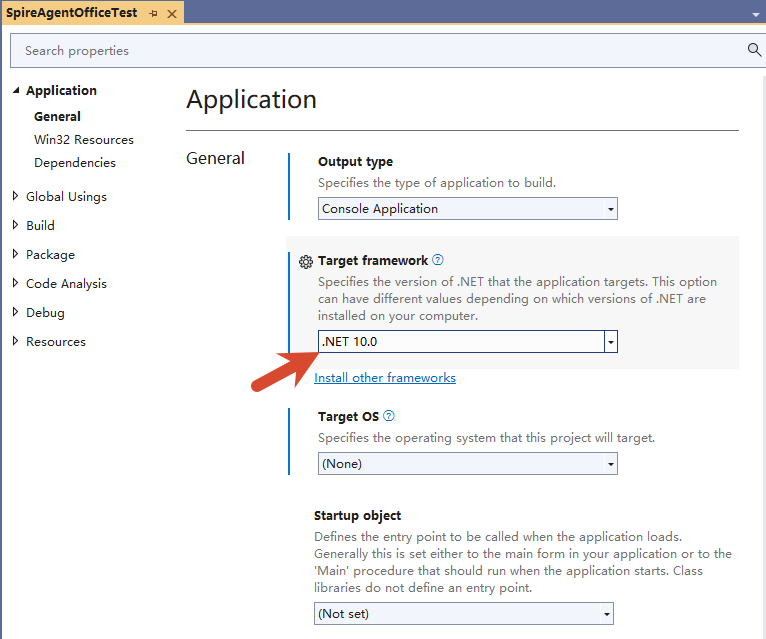
Creating a .NET 10 Project
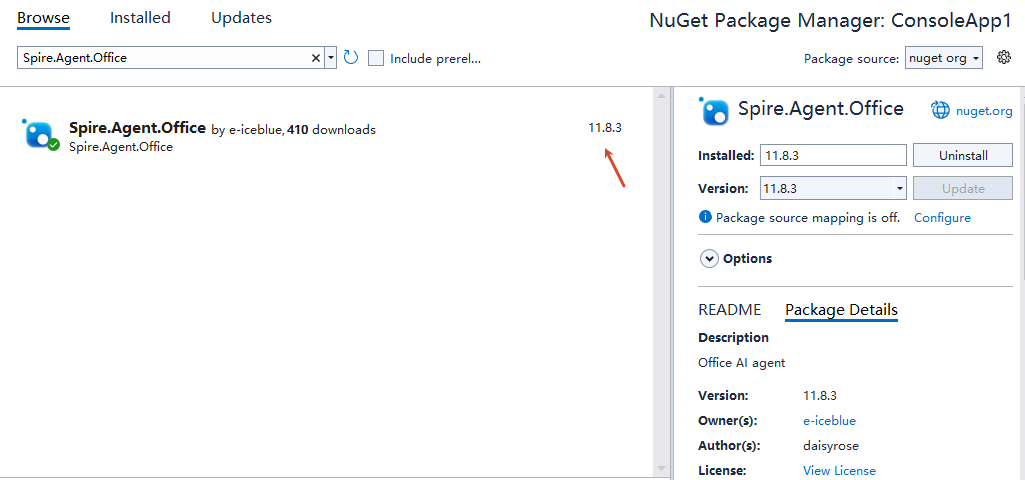
Installing Spire.Agent.Office via NuGet
After installing Spire.Agent.Office via NuGet, dependencies are installed automatically.
Importing Spire.Agent.Office Assemblies Locally
Download Spire.Agent.Office from the website, extract it to a local directory, and import it into the project.
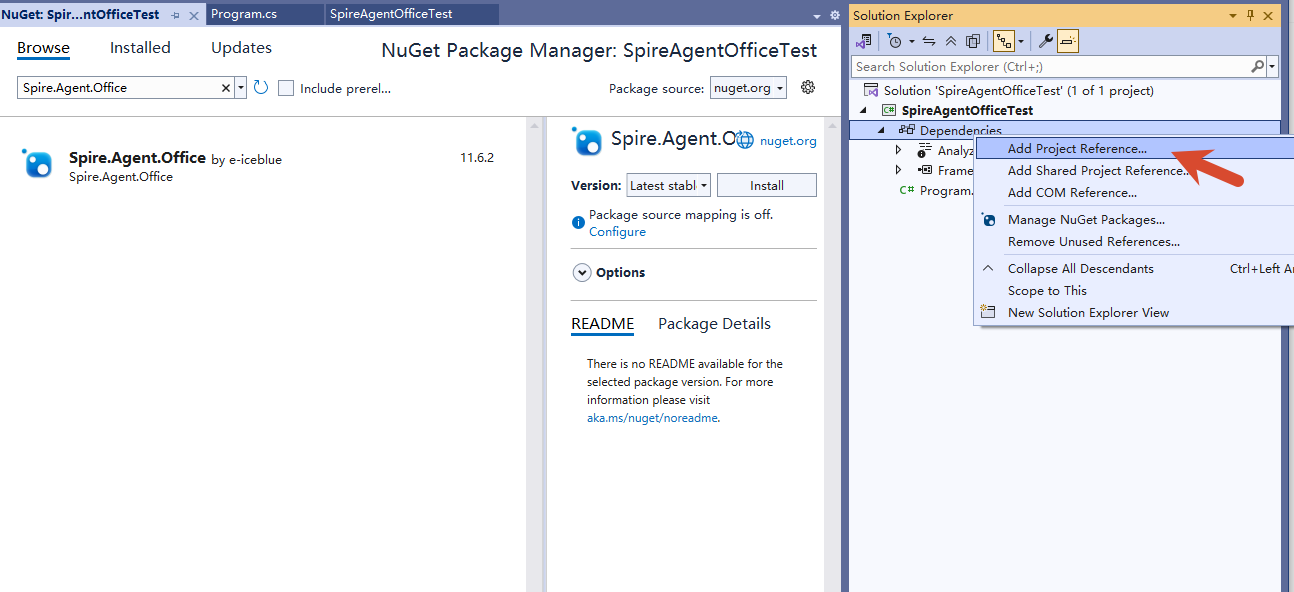
When adding via local DLLs, the following dependencies are also required for optimal performance:
| Dependency Package | Minimum Version |
|---|---|
| coverlet.collector | >= 6.0.4 |
| Microsoft.CodeAnalysis | >= 4.5.0 |
| Microsoft.Data.Sqlite | >= 8.0.0 |
| Microsoft.Extensions.Caching.Memory | >= 8.0.0 |
| Microsoft.Extensions.Configuration | >= 8.0.0 |
| Microsoft.Extensions.Configuration.Abstractions | >= 8.0.0 |
| Microsoft.Extensions.Configuration.EnvironmentVariables | >= 8.0.0 |
| Microsoft.Extensions.Configuration.Json | >= 8.0.0 |
| Microsoft.Extensions.DependencyInjection | >= 8.0.0 |
| Microsoft.Extensions.Hosting.Abstractions | >= 8.0.0 |
| Microsoft.Extensions.Http | >= 8.0.0 |
| Microsoft.Extensions.Http.Polly | >= 8.0.0 |
| Microsoft.Extensions.Logging | >= 8.0.0 |
| Microsoft.Extensions.Logging.Abstractions | >= 8.0.0 |
| Microsoft.Extensions.Logging.Console | >= 8.0.0 |
| Microsoft.Extensions.Options | >= 8.0.0 |
| Microsoft.ML.OnnxRuntime | >= 1.16.1 |
| Microsoft.NET.Test.Sdk | >= 17.12.0 |
| Polly | >= 8.0.0 |
| Polly.Extensions.Http | >= 3.0.0 |
| PolySharp | >= 1.4.0 |
| Serilog | >= 4.3.0 |
| Serilog.Extensions.Logging | >= 7.0.0 |
| Serilog.Sinks.File | >= 6.0.0 |
| SkiaSharp | >= 3.116.1 |
| Spire.Docfor.NETStandard | >= 14.8.0 |
| Spire.PDFfor.NETStandard | >= 12.8.3 |
| Spire.Presentationfor.NETStandard | >= 11.8.2 |
| Spire.XLSfor.NETStandard | >= 16.8.2 |
| System.Text.Json | >= 10.0.10 |
| xunit | >= 2.9.2 |
| xunit.runner.visualstudio | >= 2.8.2 |
AI-Powered Document Processing
Core Workflow
Document AI processing follows this pattern:
- Create a document object (Workbook / Document / PdfDocument / Presentation)
- Load a preset document (optional; can start with an empty document)
- Configure AIOptions (set SpireToken)
- Call
.AI(options)to obtain an AIDocumentProcessor - Execute AI instructions and monitor execution status:
- Processing existing documents: Call
AIDocumentProcessor.ExecuteInstruction(), returnsAIResult - Generating PPT documents: Call
AIDocumentProcessor.GeneratePresentation(), returnsGenerationResult
- Processing existing documents: Call
Core Code
using Spire.Agent.Office.AI;
using Spire.Agent.Office.Extensions;
using Spire.Pdf;
using Spire.Doc;
using Spire.Presentation;
using Spire.Xls;

// Excel Processing
static AIResult ExecuteDemoXls(string instruction, string inputPath, string savePath, string key, string[] attachmentPaths)
{
    AIOptions options = new AIOptions();
    options.SpireToken = key;

    using (Workbook workbook = new Workbook())
    {
        // Load the document if the input path exists and the file is accessible
        if (!string.IsNullOrEmpty(inputPath) && File.Exists(inputPath))
        {
            workbook.LoadFromFile(inputPath);
        }
        // Otherwise, use an empty Workbook
        AIDocumentProcessor processor = workbook.AI(options);
        return processor.ExecuteInstruction(workbook, instruction, savePath, attachmentPaths);
    }
}

// Word Processing
static AIResult ExecuteDemoWord(string instruction, string inputPath, string savePath, string key, string[] attachmentPaths)
{
    AIOptions options = new AIOptions();
    options.SpireToken = key;

    using (Document doc = new Document())
    {
        // Load the document if the input path exists and the file is accessible
        if (!string.IsNullOrEmpty(inputPath) && File.Exists(inputPath))
        {
            doc.LoadFromFile(inputPath);
        }
        // Otherwise, use an empty Document
        AIDocumentProcessor processor = doc.AI(options);
        return processor.ExecuteInstruction(doc, instruction, savePath, attachmentPaths);
    }
}

// PDF Processing
static AIResult ExecuteDemoPDF(string instruction, string inputPath, string savePath, string key, string[] attachmentPaths)
{
    AIOptions options = new AIOptions();
    options.SpireToken = key;

    using (PdfDocument pdf = new PdfDocument())
    {
        // Load the document if the input path exists and the file is accessible
        if (!string.IsNullOrEmpty(inputPath) && File.Exists(inputPath))
        {
            pdf.LoadFromFile(inputPath);
        }
        // Otherwise, use an empty PdfDocument
        AIDocumentProcessor processor = pdf.AI(options);
        return processor.ExecuteInstruction(pdf, instruction, savePath, attachmentPaths);
    }
}

// PPT Generation
static PPTGenerationResult GeneratPPT(string input, string instruction, string savePath, string key)
{
    AIOptions options = new AIOptions();
    options.SpireToken = key;

    using (Presentation ppt = new Presentation())
    {
        AIDocumentProcessor processor = ppt.AI(options);
        return processor.GeneratePresentation(input, instruction, savePath);
    }
}

// Based on existing PPT processing
static AIResult ExecuteDemoPPT(string inputPath, string instruction, string savePath, string key, string[] attachmentPaths)
{
    AIOptions options = new AIOptions();
    options.SpireToken = key;

    using (Presentation ppt = new Presentation())
    {
        // Load the document if the input path exists and the file is accessible
        if (!string.IsNullOrEmpty(inputPath) && File.Exists(inputPath))
        {
            ppt.LoadFromFile(inputPath);
        }
        // Otherwise, use an empty Presentation
        AIDocumentProcessor processor = ppt.AI(options);
        return processor.ExecuteInstruction(ppt, instruction, savePath, attachmentPaths);
    }
}

// Write execution log
static void WriteLog(dynamic? aiResult, string taskName, string basePath)
{
    string logFilePath = Path.Combine(basePath, $"{taskName}.txt");
    string? logDir = Path.GetDirectoryName(logFilePath);
    if (!string.IsNullOrEmpty(logDir) && !Directory.Exists(logDir))
        Directory.CreateDirectory(logDir);

    var logBuilder = new System.Text.StringBuilder();

    // Determine execution status: Success/Failure/Skipped
    string status = aiResult == null ? "SKIPPED" :
        aiResult.Success ? "SUCCESS" : $"FAILED: {aiResult.ErrorMessage}";

    logBuilder.AppendLine($"[{DateTime.Now:yyyy-MM-dd HH:mm:ss}] [{taskName}] {status}");

    if (aiResult != null)
    {
        // Log execution duration
        logBuilder.AppendLine($" | Duration: {aiResult.Duration.TotalSeconds:F2}s");

        // Log token usage statistics
        var tu = aiResult.TokenUsage;
        if (tu != null)
        {
            logBuilder.Append($" | In: {tu.InputTokens:N0}");           // Input tokens
            logBuilder.Append($" | Out: {tu.OutputTokens:N0}");         // Output tokens
            logBuilder.Append($" | CacheR: {tu.CacheReadTokens:N0}");   // Cache read tokens
            logBuilder.Append($" | CacheW: {tu.CacheWriteTokens:N0}");  // Cache write tokens
            logBuilder.Append($" | CacheT: {tu.TotalCacheTokens:N0}");  // Total cache tokens
            logBuilder.Append($" | Total: {tu.TotalTokens:N0}");        // Total tokens
        }
    }

    logBuilder.AppendLine();
    File.AppendAllText(logFilePath, logBuilder.ToString());
}
Calling AI Processing
The following examples demonstrate using natural language interaction to leverage the system's powerful document processing capabilities for various complex document tasks.
// Multiple document paths
string[] attachmentPaths = new string[] { };

// Word Processing
string inputPath = @"in.docx";
string savePath = @"out.pdf";
string key = "SpireToken key";
string instruction = "Find '****' and highlight it, save result to PDF";
AIResult result = ExecuteDemoWord(instruction, inputPath, savePath, key, attachmentPaths);
WriteLog(result, "word", @"log\");

// PPT Processing
string inputPath = @"in.pptx";
string savePath = @"out.pptx";
string key = "SpireToken key";
string instruction = "Add notes description to each slide";
AIResult result = ExecuteDemoPPT(instruction, inputPath, savePath, key, attachmentPaths);
WriteLog(result, "ppt", @"log\");

// PPT Generation
string inputPath = @"AI.md";
string savePath = @"out.pptx";
string key = "SpireToken key";
string instruction = "Generate a PPT based on AI.md";
PPTGenerationResult result = GeneratPPT(inputPath, instruction, savePath, key);
WriteLog(result, "ppt", @"log\");

// PDF Processing
string inputPath = @"in.pdf";
string savePath = @"out.md";
string key = "SpireToken key";
string instruction = "Extract table data and save as standard markdown format";
AIResult result = ExecuteDemoPDF(instruction, inputPath, savePath, key, attachmentPaths);
WriteLog(result, "pdf", @"log\");

// Excel Processing
string inputPath = @"in.xlsx";
string savePath = @"out.pdf";
string key = "SpireToken key";
string instruction = "Delete empty rows in the document";
AIResult result = ExecuteDemoXls(instruction, inputPath, savePath, key, attachmentPaths);
WriteLog(result, "xls", @"log\");
Frequently Asked Questions
SpireToken Key Not Configured Properly
If the SpireToken Key is not configured, is incorrect, or has expired, Spire.Agent.Office will throw an exception and the program will abort. Ensure the SpireToken Key is valid before proceeding.
AI Instruction Execution Failed
The AIResult returned by ExecuteInstruction may contain failure information. Check the Success property.
AIResult result = processor.ExecuteInstruction(doc, instruction, outputPath);

if (result == null || !result.Success)
{
    throw new InvalidOperationException(
        $"AI instruction failed: {result?.ErrorMessage ?? "Unknown error"}");
}
Incorrect Document Path
If processing an existing document, an incorrect file path will cause document loading to fail:
- Ensure the document path is correct
- For multi-document operations (e.g., document merging), additional documents can be defined in
attachmentPaths
Apply for SpireToken Key
Spire.Agent.Office requires a valid SpireToken Key to experience full functionality:
- Contact sales@e-iceblue.com or visit https://www.e-iceblue.com/TemLicense.html to obtain a trial or commercial API key
Configure it in your code:
AIOptions options = new AIOptions();
options.SpireToken = key;
