Set PDF Image Transparency with JavaScript in React
When a contract or report needs a supporting image or a logo, a fully opaque image covers the body text, so it gets pushed into a corner. If an image has already been placed and needs to be faded, the usual fix is to go back to the source file and redo the layout, and without that file you are stuck with what is on the page. Both tasks are manual in desktop software and hard to fit into a batch Web workflow; handled on a server, the file has to leave the user's device first.
This article uses Spire.PDF for JavaScript to do the work in the browser. A new image is drawn at a given alpha with PdfCanvas.SetTransparency(); images already on the page are located with PdfImageHelper, deleted, and redrawn semi-transparent inside their original bounds. The library runs on WebAssembly and reads and writes PDF files through a virtual file system (VFS), so no backend is required.
This article covers two core features:
- Add an image with transparency to a PDF document
- Adjust the transparency of existing images on a PDF page
For installation and project setup, see How to Integrate Spire.PDF for JavaScript in a React Project. The examples below assume Spire.PDF is installed and the WebAssembly module has been initialized.
Add an Image with Transparency to a PDF Document
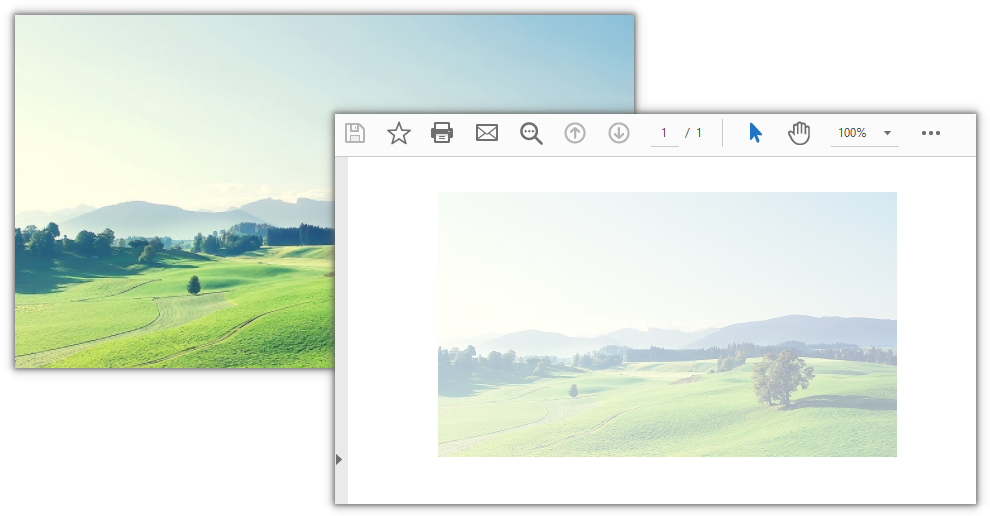
Spire.PDF for JavaScript provides the PdfCanvas.SetTransparency() method to set transparency on the canvas. When only alpha is passed, fill and stroke share that value. It ranges from 0 to 1: 0 is fully transparent and 1 is fully opaque. The setting applies to all drawing that follows the call, so wrap it in Save() and Restore() to keep other page content from fading as well.
Follow these steps:
- Get the Spire.PDF WebAssembly module and confirm it is ready.
- Load the PDF file and the image into the VFS.
- Create a
PdfDocumentobject, load the PDF, take the first page, and load the image withPdfImage.FromFile(). - Save the canvas state with
PdfCanvas.Save(), callSetTransparency(), and draw the image withDrawImage(). - Restore the canvas state with
Restore(), save the result withSaveToFile(), and trigger the download.
The code for adding a semi-transparent image:
function App() {
  const addTransparentImage = async () => {
    // Get the Spire.PDF WebAssembly module
    const pdfModule = window.wasmModule?.spirepdf;

    // Check that the module is ready
    if (!pdfModule) {
      alert('Spire.PDF is not ready yet');
      return;
    }

    // Load the PDF and the image into the VFS
    const inputFileName = 'Business_Data_Overview.pdf';
    const imageFileName = 'scenery.jpg';
    await window.spire.FetchFileToVFS(inputFileName, "", `${process.env.PUBLIC_URL}/data/`);
    await window.spire.FetchFileToVFS(imageFileName, "", `${process.env.PUBLIC_URL}/data/`);

    // Create a PdfDocument object and load the PDF
    let doc = new pdfModule.PdfDocument();
    doc.LoadFromFile(inputFileName);

    // Take the first page and load the image to draw
    let page = doc.Pages.get_Item(0);
    let image = pdfModule.PdfImage.FromFile(imageFileName);

    // Save the canvas state so the transparency applies only to this block
    const state = page.Canvas.Save();

    // An alpha of 0.35 makes the image semi-transparent while the content below stays visible
    page.Canvas.SetTransparency({ alpha: 0.35 });
    page.Canvas.DrawImage({ image: image, x: 145, y: 400, width: 300, height: 173 });

    // Restore the canvas state so later drawing is not affected
    page.Canvas.Restore({ state: state });

    // Save the result file
    const outputFileName = 'TransparentImage.pdf';
    doc.SaveToFile(outputFileName);
    doc.Close();

    // Read the generated file from the VFS and trigger the download
    const fileArray = window.dotnetRuntime.Module.FS.readFile(outputFileName);
    const blob = new Blob([fileArray], { type: 'application/pdf' });
    const url = URL.createObjectURL(blob);
    const a = document.createElement('a');
    a.href = url;
    a.download = outputFileName;
    a.click();
    URL.revokeObjectURL(url);
  };

  return (
    <div style={{ textAlign: 'center', height: '300px' }}>
      <h1>Add a Semi-Transparent Image</h1>
      <button onClick={addTransparentImage}>
        Add Image
      </button>
    </div>
  );
}

export default App;
With the image drawn at 35% opacity, the content underneath still shows through:
Adjust the Transparency of Existing Images on a PDF Page
Spire.PDF for JavaScript also provides the PdfImageHelper class to read, delete, and replace images on a page. GetImagesInfo() returns the bounds and image stream of each image. Recreate a PdfImage from each stream, delete the original with DeleteImage(), and redraw it at the specified transparency inside its Bounds.
Follow these steps:
- Get the Spire.PDF WebAssembly module and confirm it is ready.
- Load the PDF file into the VFS.
- Create a
PdfDocumentobject, load the PDF, get the page, and read all images on it withPdfImageHelper.GetImagesInfo(). - Recreate each image from
PdfImageInfo.ImagewithPdfImage.FromStream()and record itsBounds. - Delete all original images with
DeleteImage(), redraw them at the specified transparency inside their original bounds, then save withSaveToFile()and trigger the download.
The code for adjusting the transparency of existing images:
function App() {
  const adjustImageTransparency = async () => {
    // Get the Spire.PDF WebAssembly module
    const pdfModule = window.wasmModule?.spirepdf;

    // Check that the module is ready
    if (!pdfModule) {
      alert('Spire.PDF is not ready yet');
      return;
    }

    // Load the PDF into the VFS
    const inputFileName = 'Business_Data_Overview.pdf';
    await window.spire.FetchFileToVFS(inputFileName, "", `${process.env.PUBLIC_URL}/data/`);

    // Create a PdfDocument object and load the PDF
    let doc = new pdfModule.PdfDocument();
    doc.LoadFromFile(inputFileName);

    // Take the first page and read the image information on it
    let page = doc.Pages.get_Item(0);
    let helper = new pdfModule.PdfImageHelper();
    let images = helper.GetImagesInfo(page);

    // Collect each image stream and bounds first, for redrawing after deletion
    let items = [];
    for (let i = 0; i < images.length; i++) {
      items.push({
        info: images[i],
        image: pdfModule.PdfImage.FromStream(images[i].Image),
        bounds: images[i].Bounds
      });
    }

    // Delete all original images first, then redraw them together; redrawing right after each delete gets overwritten by the next delete
    for (let i = 0; i < items.length; i++) {
      helper.DeleteImage({ imageInfo: items[i].info });
    }

    // Redraw each image at 40% opacity inside its original bounds
    for (let i = 0; i < items.length; i++) {
      const { image, bounds } = items[i];
      const state = page.Canvas.Save();
      page.Canvas.SetTransparency({ alpha: 0.4 });
      page.Canvas.DrawImage({
        image: image,
        x: bounds.X,
        y: bounds.Y,
        width: bounds.Width,
        height: bounds.Height
      });
      page.Canvas.Restore({ state: state });
    }

    // Save the result file
    const outputFileName = 'ExistingImageTransparency.pdf';
    doc.SaveToFile(outputFileName);
    doc.Close();

    // Read the generated file from the VFS and trigger the download
    const fileArray = window.dotnetRuntime.Module.FS.readFile(outputFileName);
    const blob = new Blob([fileArray], { type: 'application/pdf' });
    const url = URL.createObjectURL(blob);
    const a = document.createElement('a');
    a.href = url;
    a.download = outputFileName;
    a.click();
    URL.revokeObjectURL(url);
  };

  return (
    <div style={{ textAlign: 'center', height: '300px' }}>
      <h1>Adjust Existing Image Transparency</h1>
      <button onClick={adjustImageTransparency}>
        Adjust Transparency
      </button>
    </div>
  );
}

export default App;
The three images on the page are redrawn at their original positions with 40% opacity, while the body text is unaffected:

FAQ
Why does content drawn after the image also become semi-transparent?
Cause: Transparency is part of the canvas state. Every drawing call after SetTransparency() keeps using that value until the state is restored or set again.
Solution: Wrap the setting in Save() and Restore() so the transparency applies only to the drawing in between:
const state = page.Canvas.Save();
page.Canvas.SetTransparency({ alpha: 0.35 });
page.Canvas.DrawImage({ image: image, x: 145, y: 400, width: 300, height: 173 });
page.Canvas.Restore({ state: state });
When adjusting existing images, why does only the last image become transparent?
Cause: DeleteImage() rewrites the page content stream. If you redraw right after each delete, the next delete overwrites the previous drawing, and often only the last image remains.
Solution: Split the work into three passes: read every image stream and bounds, delete all original images, then redraw them all.
// Delete all original images first
for (let i = 0; i < items.length; i++) {
  helper.DeleteImage({ imageInfo: items[i].info });
}

// Then redraw all of them
for (let i = 0; i < items.length; i++) {
  const { image, bounds } = items[i];
  const state = page.Canvas.Save();
  page.Canvas.SetTransparency({ alpha: 0.4 });
  page.Canvas.DrawImage({
    image: image,
    x: bounds.X,
    y: bounds.Y,
    width: bounds.Width,
    height: bounds.Height
  });
  page.Canvas.Restore({ state: state });
}
How do I adjust only one image on the page?
Cause: GetImagesInfo() returns all images on the page in order, each as a PdfImageInfo whose bounds are available from Bounds.
Solution: Skip the loop and process only the item you need. The following adjusts just the first image:
let images = helper.GetImagesInfo(page);
let info = images[0];
let image = pdfModule.PdfImage.FromStream(info.Image);
let bounds = info.Bounds;

helper.DeleteImage({ imageInfo: info });

const state = page.Canvas.Save();
page.Canvas.SetTransparency({ alpha: 0.4 });
page.Canvas.DrawImage({ image: image, x: bounds.X, y: bounds.Y, width: bounds.Width, height: bounds.Height });
page.Canvas.Restore({ state: state });
What do alpha values of 0 and 1 do?
Cause: alpha represents opacity and takes a linear value from 0 to 1.
Solution: At 0 the image is fully transparent and invisible on the page; at 1 it is fully opaque and looks exactly like a direct draw. For a faded effect, 0.2 to 0.5 is the usual range.
Get a Free License
If you want to remove the evaluation message from result documents or lift feature limits, contact sales for a temporary 30-day license.
Convert PowerPoint to Markdown in Python

PowerPoint locks content inside slides. Each page is a canvas, and titles and body text sit in separate shape frames. To move that content into documents, a knowledge base, or a large language model, you first need to turn it back into editable plain text. Markdown works well for that layer, and in a Git repository it also shows line-by-line diffs.
This article uses Spire.Presentation for Python to convert PowerPoint presentations to Markdown. You can also export only one slide, or export several slides in a loop. The process runs without Microsoft PowerPoint installed.
This article covers:
- Install the Python PowerPoint to Markdown library
- Convert a whole PowerPoint presentation to Markdown
- Export a specific slide to Markdown
- Summary
- FAQ
Install the Python PowerPoint to Markdown Library
Install Command
Before converting, install the library with pip:
pip install Spire.Presentation
For installation help, see How to Install Spire.Presentation for Python in VS Code.
Convert a Whole PowerPoint Presentation to Markdown
Presentation.SaveToFile with FileFormat.Markdown converts a whole PowerPoint presentation to Markdown in one call. Titles, paragraphs and tables keep their original hierarchy, and slides are separated by ==== Page N ==== page markers.
Steps:
- Create a
Presentationobject. - Load the PPT/PPTX file with
Presentation.LoadFromFile. - Save the whole presentation as Markdown with
Presentation.SaveToFileandFileFormat.Markdown. - Release resources.
from spire.presentation import *

# Create a Presentation object
presentation = Presentation()

# Load the PowerPoint file
presentation.LoadFromFile("DataBriefing.pptx")

# Save the whole presentation as a Markdown file
presentation.SaveToFile("DataBriefing.md", FileFormat.Markdown)

# Release resources
presentation.Dispose()
The Markdown file produced by converting the whole PowerPoint presentation:

Export a Specific Slide to Markdown
When you need just one page, there is no need to export the whole deck and trim it afterward. ISlide.SaveToFile exports a specific slide to Markdown: get the target page with Slides[index], then save it as Markdown on its own.
Steps:
- Create a
Presentationobject. - Load the PPT/PPTX file with
Presentation.LoadFromFile. - Get the target slide with
Presentation.Slides[index]. - Save that slide as Markdown with
ISlide.SaveToFileandFileFormat.Markdown. - Release resources.
from spire.presentation import *

# Create a Presentation object
presentation = Presentation()

# Load the PowerPoint file
presentation.LoadFromFile("DataBriefing.pptx")

# Get the second slide (index starts at 0)
slide = presentation.Slides[1]

# Save the specified slide as a Markdown file
slide.SaveToFile("Slide-2.md", FileFormat.Markdown)

# Release resources
presentation.Dispose()
The Markdown file produced by exporting a specific slide:

Export Multiple Slides to Markdown at Once
When you need more than one page, put the slide indexes in a loop and call Slides[index].SaveToFile page by page. Each slide is saved as its own Markdown file:
from spire.presentation import *

# Create a Presentation object
presentation = Presentation()

# Load the PowerPoint file
presentation.LoadFromFile("DataBriefing.pptx")

# Export the first and second slides in order
for index in (0, 1):
    slide = presentation.Slides[index]
    slide.SaveToFile(f"Slide-{index + 1}.md", FileFormat.Markdown)

# Release resources
presentation.Dispose()
Each slide is exported separately, so page numbers in the Markdown restart from Page 1.
Summary
Whole-deck conversion and single-slide export both work on the same Presentation object. LoadFromFile reads the file, FileFormat.Markdown sets the output format, and SaveToFile writes it out. Export the whole deck directly when that is what you need. To take only a few pages, pull out the target slides and save them individually, or put them in a loop.
FAQ
Do I need Microsoft PowerPoint installed to convert
Reason: Spire.Presentation for Python parses the PPT/PPTX file structure itself and does not call Office components.
Solution: No. Install the Python library and the conversion runs.
Can I convert multiple PowerPoint files at once
Reason: One Presentation object maps to one presentation, so it handles one file at a time.
Solution: Put the conversion logic in a loop and process each PPT/PPTX in a directory:
import os
from spire.presentation import *

for name in os.listdir("presentations"):
    if name.endswith(".pptx"):
        presentation = Presentation()
        presentation.LoadFromFile(os.path.join("presentations", name))
        base = os.path.splitext(name)[0]
        presentation.SaveToFile(os.path.join("markdown", base + ".md"), FileFormat.Markdown)
        presentation.Dispose()
Why does each page in the exported Markdown start with a warning line
Reason: Without a license applied, Spire.Presentation for Python inserts an Evaluation Warning line into the exported content.
Solution: Apply a temporary license and the line no longer appears. See "Get a Free License" below.
Get a Free License
If you want to remove the evaluation message from the result document or lift the feature limits, contact sales for a temporary license valid for 30 days.
Add or Delete PowerPoint Slides Using JavaScript in React
The same deck often needs more or fewer slides for different occasions: add two case-study pages for a client meeting, then drop the outdated ones after the previous version has been used. Doing this by hand in desktop software means someone babysitting the file, and it is hard to fold into a batch Web workflow; doing it server-side means uploading the file first, which takes it off the user's device.
This article shows how to add and delete PowerPoint slides directly in the browser with Spire.Presentation for JavaScript. Everything runs in the browser on WebAssembly — no Office install, no backend, and the file stays on the user's device.
The article covers three features:
- Add PowerPoint slides at the end
- Insert PowerPoint slides at a specific position
- Delete PowerPoint slides
For installation and project setup, see How to Integrate Spire.Presentation for JavaScript in a React Project. The examples below assume Spire.Presentation is installed and the WebAssembly module is initialized.
Add PowerPoint Slides at the End
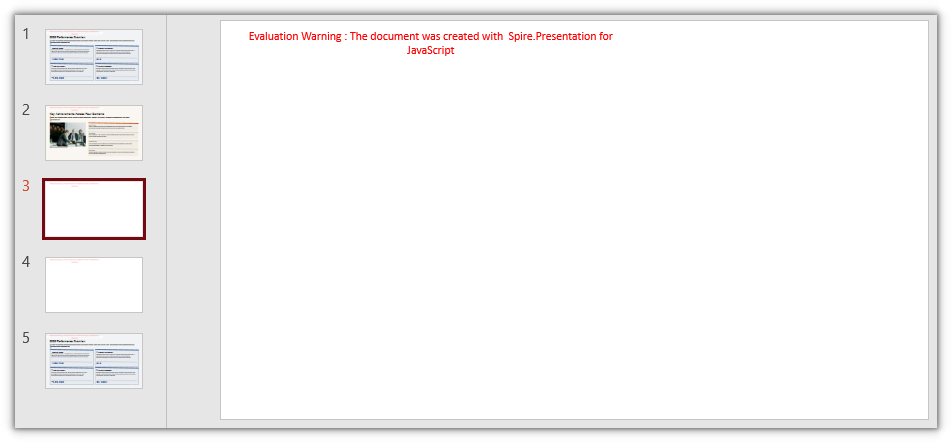
Spire.Presentation for JavaScript adds a new slide at the end of a presentation with the Slides.Append() method. What gets added depends on the arguments:
| Call | What it appends |
|---|---|
Slides.Append() |
A new slide with the default (blank) layout |
Slides.Append({ template: <layout object> }) |
A new slide built from the given layout |
Slides.Append({ slide }) |
A copy of an existing slide |
To build a slide from a specific layout, get the layout object first: ppt.Masters.get_Item(0).Layouts.get_Item(i) — the i-th layout under the first slide master (i is 0-based).
The steps are as follows:
- Get the Spire.Presentation WASM module and confirm it is ready.
- Read the sample presentation and the font into the VFS, create a
Presentationobject, and load the file. - Add slides at the end with
Presentation.Slides.Append()(passtemplateorslideto choose the content). - Save the result with
Presentation.SaveToFile(). - Read the result back from the VFS and trigger a browser download.
The code for adding PowerPoint slides:
function App() {
  const addSlides = async () => {
    // Get the Spire.Presentation WASM module
    const pptModule = window.wasmModule?.spirepresentation;

    // Check whether the module is ready
    if (!pptModule) {
      alert('Spire.Presentation is not ready yet');
      return;
    }

    // Load the sample presentation and the font
    await window.spire.FetchFileToVFS('SamplePresentation.pptx', "", `${process.env.PUBLIC_URL}/data/`);
    await window.spire.FetchFileToVFS('ARIALUNI.TTF', "/Library/Fonts/", `${process.env.PUBLIC_URL}/font/`);

    // Create a Presentation instance and load the presentation
    const ppt = new pptModule.Presentation();
    ppt.LoadFromFile('SamplePresentation.pptx');

    // Append in turn: default layout, a chosen layout, a clone of the first slide
    ppt.Slides.Append();
    ppt.Slides.Append({ template: ppt.Masters.get_Item(0).Layouts.get_Item(1) });
    ppt.Slides.Append({ slide: ppt.Slides.get_Item(0) });

    // Save the result
    const outputFileName = 'SlidesAdded.pptx';
    ppt.SaveToFile({ file: outputFileName, fileFormat: pptModule.FileFormat.Pptx2013 });
    ppt.Dispose();

    // Read the generated file from the VFS and trigger a download
    const fileArray = window.dotnetRuntime.Module.FS.readFile(outputFileName);
    const blob = new Blob([fileArray], { type: 'application/vnd.openxmlformats-officedocument.presentationml.presentation' });
    const url = URL.createObjectURL(blob);
    const a = document.createElement('a');
    a.href = url;
    a.download = outputFileName;
    a.click();
    URL.revokeObjectURL(url);
  };

  return (
    <div style={{ textAlign: 'center', height: '300px' }}>
      <h1>Add PowerPoint Slides</h1>
      <button onClick={addSlides}>
        Add Slides
      </button>
    </div>
  );
}

export default App;
After appending three slides to the end:
Insert PowerPoint Slides at a Specific Position
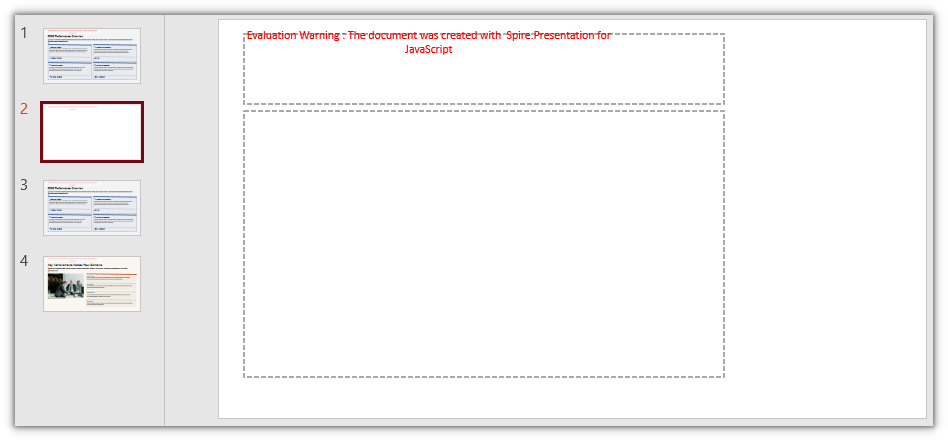
Slides.Insert() takes an index that sets where the slide goes: it is inserted at that index and the slides after it shift back. The content is again decided by the arguments:
| Call | What it inserts |
|---|---|
Slides.Insert({ index, template: <layout object> }) |
A new slide built from the given layout, inserted at index |
Slides.Insert({ index, slide }) |
A copy of an existing slide inserted at index |
The layout object is obtained the same way as for Slides.Append().
The steps are as follows:
- Get the Spire.Presentation WASM module and confirm it is ready.
- Read the sample presentation and the font into the VFS, create a
Presentationobject, and load the file. - Insert slides at the given positions with
Presentation.Slides.Insert(). - Save the result with
Presentation.SaveToFile(). - Read the result back from the VFS and trigger a browser download.
The code for inserting PowerPoint slides:
function App() {
  const insertSlides = async () => {
    // Get the Spire.Presentation WASM module
    const pptModule = window.wasmModule?.spirepresentation;

    // Check whether the module is ready
    if (!pptModule) {
      alert('Spire.Presentation is not ready yet');
      return;
    }

    // Load the sample presentation and the font
    await window.spire.FetchFileToVFS('SamplePresentation.pptx', "", `${process.env.PUBLIC_URL}/data/`);
    await window.spire.FetchFileToVFS('ARIALUNI.TTF', "/Library/Fonts/", `${process.env.PUBLIC_URL}/font/`);

    // Create a Presentation instance and load the presentation
    const ppt = new pptModule.Presentation();
    ppt.LoadFromFile('SamplePresentation.pptx');

    // Insert in turn: a chosen layout, a clone of the first slide
    ppt.Slides.Insert({ index: 1, template: ppt.Masters.get_Item(0).Layouts.get_Item(1) });
    ppt.Slides.Insert({ index: 2, slide: ppt.Slides.get_Item(0) });

    // Save the result
    const outputFileName = 'SlidesInserted.pptx';
    ppt.SaveToFile({ file: outputFileName, fileFormat: pptModule.FileFormat.Pptx2013 });
    ppt.Dispose();

    // Read the generated file from the VFS and trigger a download
    const fileArray = window.dotnetRuntime.Module.FS.readFile(outputFileName);
    const blob = new Blob([fileArray], { type: 'application/vnd.openxmlformats-officedocument.presentationml.presentation' });
    const url = URL.createObjectURL(blob);
    const a = document.createElement('a');
    a.href = url;
    a.download = outputFileName;
    a.click();
    URL.revokeObjectURL(url);
  };

  return (
    <div style={{ textAlign: 'center', height: '300px' }}>
      <h1>Insert PowerPoint Slides</h1>
      <button onClick={insertSlides}>
        Insert Slides
      </button>
    </div>
  );
}

export default App;
After inserting two slides in the middle:
Delete PowerPoint Slides
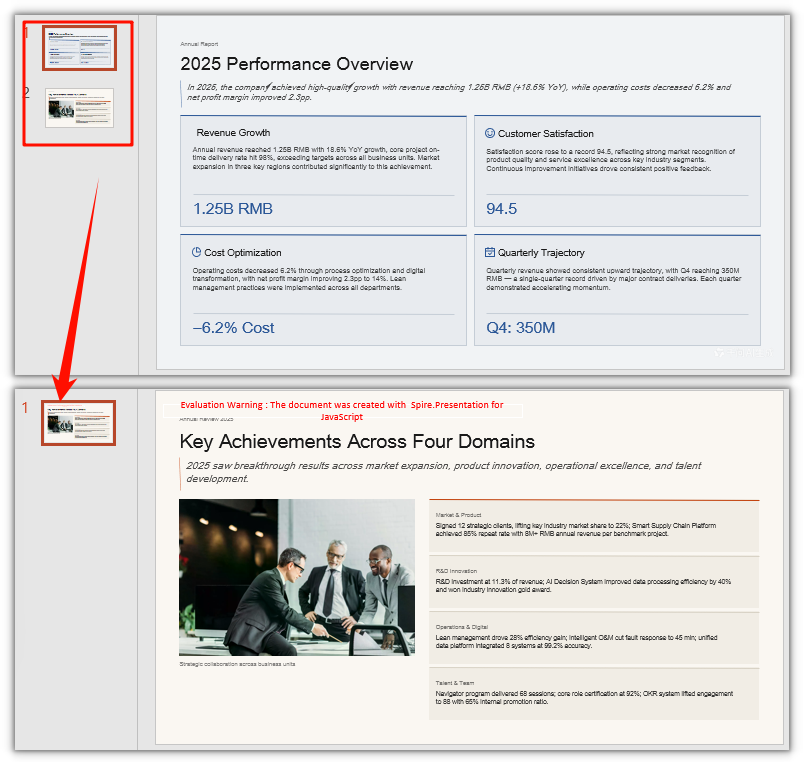
Spire.Presentation for JavaScript can delete slides too, with Slides.RemoveAt() or Slides.Remove(). They target a slide differently:
| Method | Based on |
|---|---|
Slides.RemoveAt(index) |
The position of the slide (0-based index) |
Slides.Remove(slide) |
The slide object itself |
Each removal shifts the index of every later slide back by one.
The steps are as follows:
- Get the Spire.Presentation WASM module and confirm it is ready.
- Read the sample presentation and the font into the VFS, create a
Presentationobject, and load the file. - Delete a slide by index with
Presentation.Slides.RemoveAt(). - Save the result with
Presentation.SaveToFile(). - Read the result back from the VFS and trigger a browser download.
The code for deleting PowerPoint slides:
function App() {
  const removeSlides = async () => {
    // Get the Spire.Presentation WASM module
    const pptModule = window.wasmModule?.spirepresentation;

    // Check whether the module is ready
    if (!pptModule) {
      alert('Spire.Presentation is not ready yet');
      return;
    }

    // Load the sample presentation and the font
    await window.spire.FetchFileToVFS('SamplePresentation.pptx', "", `${process.env.PUBLIC_URL}/data/`);
    await window.spire.FetchFileToVFS('ARIALUNI.TTF', "/Library/Fonts/", `${process.env.PUBLIC_URL}/font/`);

    // Create a Presentation instance and load the presentation
    const ppt = new pptModule.Presentation();
    ppt.LoadFromFile('SamplePresentation.pptx');

    // RemoveAt deletes by index: once the first slide is gone, the slides after it shift back
    ppt.Slides.RemoveAt(0);

    // Save the result
    const outputFileName = 'SlidesRemoved.pptx';
    ppt.SaveToFile({ file: outputFileName, fileFormat: pptModule.FileFormat.Pptx2013 });
    ppt.Dispose();

    // Read the generated file from the VFS and trigger a download
    const fileArray = window.dotnetRuntime.Module.FS.readFile(outputFileName);
    const blob = new Blob([fileArray], { type: 'application/vnd.openxmlformats-officedocument.presentationml.presentation' });
    const url = URL.createObjectURL(blob);
    const a = document.createElement('a');
    a.href = url;
    a.download = outputFileName;
    a.click();
    URL.revokeObjectURL(url);
  };

  return (
    <div style={{ textAlign: 'center', height: '300px' }}>
      <h1>Delete PowerPoint Slides</h1>
      <button onClick={removeSlides}>
        Remove Slides
      </button>
    </div>
  );
}

export default App;
After deleting a slide:
Delete a Slide by Object
Slides.RemoveAt() above deletes by index; Slides.Remove() takes a slide object instead. To point at a page, fetch it with Slides.get_Item(index) and hand it to Slides.Remove():
// Delete by object: fetch the second slide, then remove it
ppt.Slides.Remove(ppt.Slides.get_Item(1));
FAQ
Do the files need to be uploaded to a server
Not with the usage in this article. Spire.Presentation for JavaScript runs in the browser on WebAssembly, and presentations are read and written locally through a virtual file system (VFS) — adding, deleting, and saving all happen locally, and the library itself does not send files to a server. Whether a file leaves the device in the end depends on the other code you add to the page.
Can I add or delete several slides at once
Yes, just call in a loop: call Slides.Append() / Slides.Insert() several times to add or insert; when deleting several slides, handle the indices in order, or it is easy to delete the wrong slide or go out of range (see the last question).
Why does a new Presentation already contain a blank slide
Cause: A presentation created with new Presentation() already contains one blank slide; Append() only adds to the end and does not replace it.
Fix: To start from empty, remove it first, then append the slides you need:
let ppt = new pptModule.Presentation();

// Remove the blank slide it comes with
ppt.Slides.RemoveAt(0);

// Then append as needed
ppt.Slides.Append({ template: ppt.Masters.get_Item(0).Layouts.get_Item(1) });
Why is Append() without arguments a blank page
Cause: With no arguments it creates a slide with the default (blank) layout, so there are no ready-made title or body placeholders and it looks like an empty page.
Fix: To get ready-made placeholders, pass a layout that has them, or clone an existing slide; you can also add content yourself on the new page with Shapes.AppendShape():
// Build from a layout, so the page comes with title and content placeholders
ppt.Slides.Append({ template: ppt.Masters.get_Item(0).Layouts.get_Item(1) });

// Clone the first slide, and its content comes along
ppt.Slides.Append({ slide: ppt.Slides.get_Item(0) });
Why do I delete the wrong slide, or hit an index-out-of-range error, when removing several slides
Cause: Slides is indexed by position, and every removal shifts the index of the slides after it back by one. When you delete "front to back" with fixed indices (RemoveAt(0), RemoveAt(1), …), the second step no longer deletes the slides you meant; and once an index goes past the current count (Slides.Count - 1), RemoveAt throws.
Fix: Do not use increasing fixed indices for several deletions; delete the current first slide (index 0) every time — the slides after it fill in automatically:
// Delete the first three slides: always remove index 0 and the following slides shift up
for (let i = 0; i < 3; i++) {
  ppt.Slides.RemoveAt(0);
}
Get a Free License
If you want to remove the evaluation message from the result document or lift the feature limits, contact sales for a temporary license valid for 30 days.
Convert SVG to PDF in React with JavaScript
The charts, flow diagrams, and logos exported on the web are mostly SVG, yet printing, archiving, or an approval workflow usually asks for PDF. Saving them one by one in office software takes a person sitting through it, and batch-converting on a server means uploading the files first.
This article uses Spire.PDF for JavaScript to bridge SVG and PDF. It is built on WebAssembly, loading and saving documents in the browser, and it reads and writes files through a virtual file system (VFS), with no backend involved. There are two paths: turn an SVG into a PDF file on its own, or draw the SVG as vector graphics onto a chosen page of an existing PDF.
This article covers two core features:
For installation and project configuration, refer to Integrate Spire.PDF for JavaScript in a React Project. The examples below assume Spire.PDF is already installed and the WebAssembly module is initialized.
Convert an SVG to PDF
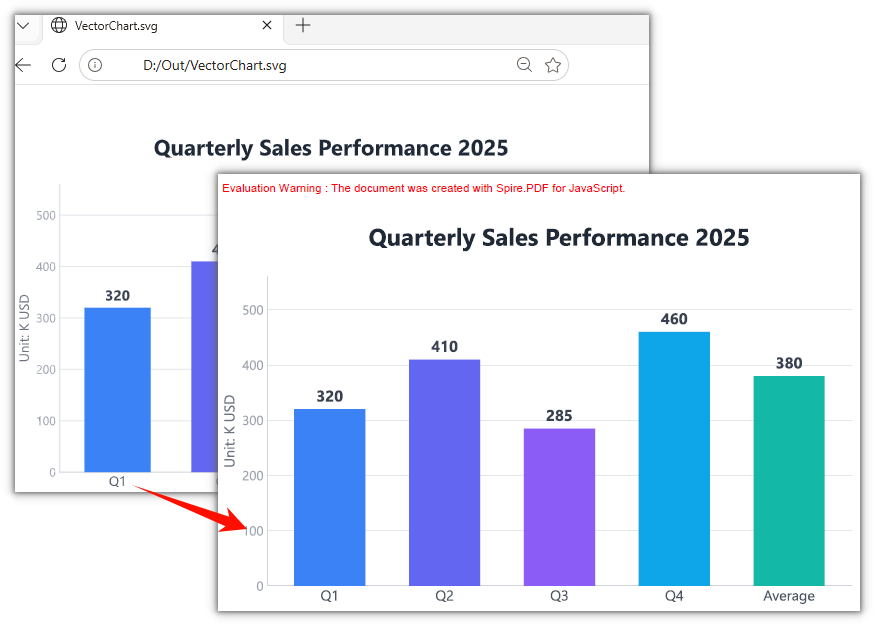
Spire.PDF for JavaScript provides the PdfDocument.LoadFromSvg method, which loads an SVG as a PDF document. The loaded document has a single page, and the page size is taken from the width/height on the SVG root element.
The steps are as follows:
- Get the Spire.PDF WASM module and make sure it is ready.
- Read the SVG file into the virtual file system (VFS).
- Create a
PdfDocumentobject and load the SVG with theLoadFromSvg()method. - Use the
PdfDocument.SaveToFile()method to save the result file. - Read the result file from the VFS and trigger a browser download.
The code to convert an SVG to PDF is as follows:
function App() {
  const convertSvgToPdf = async () => {
    // Get the Spire.PDF WASM module
    const pdfModule = window.wasmModule?.spirepdf;

    // Check if the module is ready
    if (!pdfModule) {
      alert('Spire.PDF is not ready yet');
      return;
    }

    // Load the SVG to convert into the VFS
    const inputFileName = 'VectorChart.svg';
    await window.spire.FetchFileToVFS(inputFileName, '', `${process.env.PUBLIC_URL}/data/`);

    // Load the SVG: the document has a single page, the size of the SVG
    let doc = new pdfModule.PdfDocument();
    doc.LoadFromSvg({ fileName: inputFileName });

    // Save the result file
    const outputFileName = 'VectorChart.pdf';
    doc.SaveToFile(outputFileName);
    doc.Close();

    // Read the generated file from the VFS and trigger the download
    const fileArray = window.dotnetRuntime.Module.FS.readFile(outputFileName);
    const blob = new Blob([fileArray], { type: 'application/pdf' });
    const url = URL.createObjectURL(blob);
    const a = document.createElement('a');
    a.href = url;
    a.download = outputFileName;
    a.click();
    URL.revokeObjectURL(url);
  };

  return (
    <div style={{ textAlign: 'center', height: '300px' }}>
      <h1>Convert SVG to PDF</h1>
      <button onClick={convertSvgToPdf}>
        Convert to PDF
      </button>
    </div>
  );
}

export default App;
The result is a single-page PDF whose page size matches the SVG:
Draw an SVG onto an Existing PDF
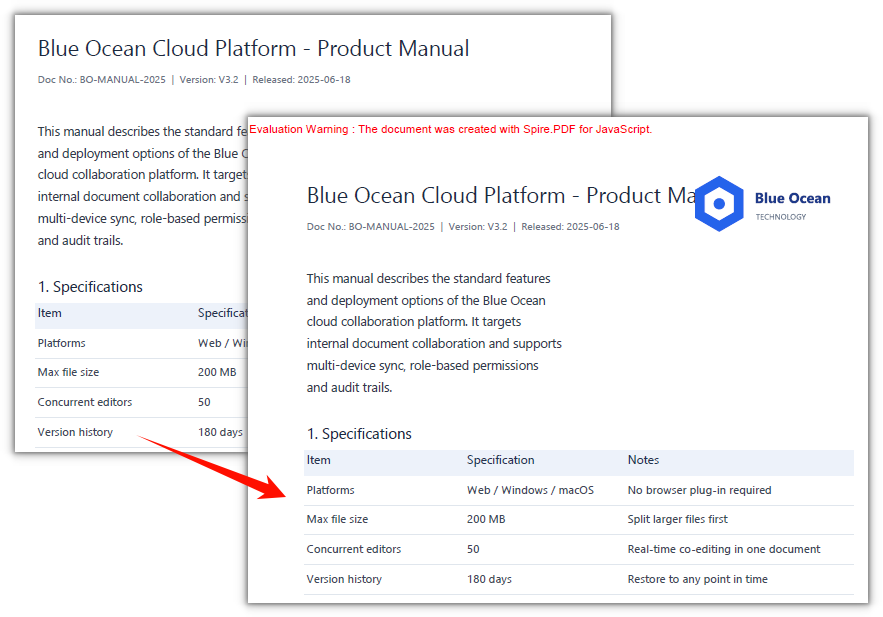
Spire.PDF for JavaScript also provides the PdfPageBase.CreateTemplate method and the PdfCanvas.DrawTemplate method, which overlay an SVG onto an already laid-out PDF. Load the SVG, turn its single page into a template, then draw it onto the target page at a chosen position and size — the original document's page count, page size, and existing content are untouched.
The steps are as follows:
- Get the Spire.PDF WASM module and make sure it is ready.
- Read the existing PDF and the SVG logo into the virtual file system (VFS).
- Create a
PdfDocumentobject for each and load the existing PDF and the SVG. - Use the
CreateTemplate()method to turn the SVG's first page into a template, then draw it onto the target page with theCanvas.DrawTemplate()method, at a given position and size. - Use the
SaveToFile()method to save the PDF that was drawn on, then read the result file from the VFS and trigger a browser download.
The code to draw an SVG onto an existing PDF is as follows:
function App() {
  const drawSvgOnPdf = async () => {
    // Get the Spire.PDF WASM module
    const pdfModule = window.wasmModule?.spirepdf;

    // Check if the module is ready
    if (!pdfModule) {
      alert('Spire.PDF is not ready yet');
      return;
    }

    // Load both the existing PDF and the SVG logo into the VFS
    const pdfFileName = 'ProductManual.pdf';
    const svgFileName = 'VectorLogo.svg';
    await window.spire.FetchFileToVFS(pdfFileName, '', `${process.env.PUBLIC_URL}/data/`);
    await window.spire.FetchFileToVFS(svgFileName, '', `${process.env.PUBLIC_URL}/data/`);

    // Load the existing PDF
    let existingPdf = new pdfModule.PdfDocument();
    existingPdf.LoadFromFile(pdfFileName);

    // Load the SVG and turn its single page into a template
    let svgDoc = new pdfModule.PdfDocument();
    svgDoc.LoadFromSvg({ fileName: svgFileName });
    const template = svgDoc.Pages.get_Item(0).CreateTemplate();

    // Draw the template on page 1: position and size are in points, origin at the top-left of the page
    const location = new pdfModule.PointF(390, 50);
    const size = new pdfModule.SizeF(130, 60);
    existingPdf.Pages.get_Item(0).Canvas.DrawTemplate({ template, location, size });

    // Save the PDF that was drawn on
    const outputFileName = 'ProductManual_WithLogo.pdf';
    existingPdf.SaveToFile(outputFileName);
    svgDoc.Close();
    existingPdf.Close();

    // Read the generated file from the VFS and trigger the download
    const fileArray = window.dotnetRuntime.Module.FS.readFile(outputFileName);
    const blob = new Blob([fileArray], { type: 'application/pdf' });
    const url = URL.createObjectURL(blob);
    const a = document.createElement('a');
    a.href = url;
    a.download = outputFileName;
    a.click();
    URL.revokeObjectURL(url);
  };

  return (
    <div style={{ textAlign: 'center', height: '300px' }}>
      <h1>Draw SVG on Existing PDF</h1>
      <button onClick={drawSvgOnPdf}>
        Insert SVG
      </button>
    </div>
  );
}

export default App;
The original manual content is unchanged, with a vector logo added at the top right:
Frequently Asked Questions
Why isn't the output PDF A4-sized
Cause: When LoadFromSvg creates the page it takes the width/height from the SVG root element, converting pixels to points at 75%. In the example, a 760 × 520 SVG becomes a single page of 570 × 390 points — nothing to do with A4.
Solution: To use another size, change the width, height, or viewBox on the SVG root element and convert again.
How do I draw the SVG on another page or at another position
Cause: Which page DrawTemplate draws on is decided by how the page is fetched, and which corner it lands in is decided by location; both are passed in explicitly by the caller.
Solution: Switch pages with Pages.get_Item(index) (0-based), change the position via PointF, and the size via SizeF — all in points, with the origin at the top-left of the page:
// Draw on page 2, bottom left, at a size of 100 × 46 points
existingPdf.Pages.get_Item(1).Canvas.DrawTemplate({
  template: template,
  location: new pdfModule.PointF(40, 760),
  size: new pdfModule.SizeF(100, 46),
});
Is the inserted SVG vector or a bitmap
Cause: What CreateTemplate returns is a PDF template corresponding to the SVG content, and DrawTemplate draws it into the page as vectors, without going through a bitmap.
Solution: Nothing extra to set. Zoom in on the page afterwards and the logo's edges stay crisp; it prints without blurring either.
Get a Free License
If you would like to remove the evaluation message from the result document or lift feature restrictions, please contact sales for a 30-day temporary license.
Convert PDF to SVG in React with JavaScript
When charts and diagrams inside a PDF are reused on the web, the usual approach is to render them to PNG first — a bitmap blurs when scaled up, and a different resolution means taking a new screenshot. Web illustrations, vector icons, and print layouts that need to scale to any size really call for SVG.
This article uses Spire.PDF for JavaScript to convert PDF to SVG. It loads and saves PDF documents in the browser on top of WebAssembly, and the whole conversion runs locally: files are read and written through a virtual file system (VFS), with no backend involved. Output has two forms — the whole document merged into one SVG, or one SVG per page.
This article covers two core features:
For installation and project configuration, refer to Integrate Spire.PDF for JavaScript in a React Project. The examples below assume Spire.PDF is already installed and the WebAssembly module is initialized.
Convert the Whole PDF to a Single SVG
Spire.PDF for JavaScript provides the PdfDocument.ConvertOptions.OutputToOneSvg property, which decides whether the whole document is written to one SVG or to one file per page. It defaults to false, so each page becomes its own file; set it to true and the pages are stacked vertically on a single canvas in their original order, then written out by SaveToFile with FileFormat.SVG.
The steps are as follows:
- Get the Spire.PDF WASM module and make sure it is ready.
- Load the sample PDF and the Arial font, create a
PdfDocumentobject, and load the file. - Set
PdfDocument.ConvertOptions.OutputToOneSvgtotrueso all pages go into one SVG. - Use the
PdfDocument.SaveToFile()method to save the result file. - Read the result file from the VFS and trigger a browser download.
The code to convert the whole PDF to a single SVG is as follows:
function App() {
  const convertPdfToOneSvg = async () => {
    // Get the Spire.PDF WASM module
    const pdfModule = window.wasmModule?.spirepdf;

    // Check if the module is ready
    if (!pdfModule) {
      alert('Spire.PDF is not ready yet');
      return;
    }

    // Converting to SVG restores the page text, so put the Arial font into the VFS font directory first
    await window.spire.FetchFileToVFS('ARIAL.TTF', '/Library/Fonts/', `${process.env.PUBLIC_URL}/font/`);

    // Load the PDF to convert into the VFS
    const inputFileName = 'Chapter_Document.pdf';
    await window.spire.FetchFileToVFS(inputFileName, '', `${process.env.PUBLIC_URL}/data/`);

    // Output file name: the whole document merged into one SVG
    const outputFileName = 'Chapter_Document.svg';

    // Load the PDF and send all pages into a single SVG
    let doc = new pdfModule.PdfDocument();
    doc.LoadFromFile(inputFileName);
    doc.ConvertOptions.OutputToOneSvg = true;
    doc.SaveToFile(outputFileName, pdfModule.FileFormat.SVG);
    doc.Close();

    // Read the generated file from the VFS and trigger download
    const fileArray = window.dotnetRuntime.Module.FS.readFile(outputFileName);
    const blob = new Blob([fileArray], { type: 'image/svg+xml' });
    const url = URL.createObjectURL(blob);
    const a = document.createElement('a');
    a.href = url;
    a.download = outputFileName;
    a.click();
    URL.revokeObjectURL(url);
  };

  return (
    <div style={{ textAlign: 'center', height: '300px' }}>
      <h1>Convert PDF to SVG</h1>
      <button onClick={convertPdfToOneSvg}>
        Convert to a single SVG
      </button>
    </div>
  );
}

export default App;
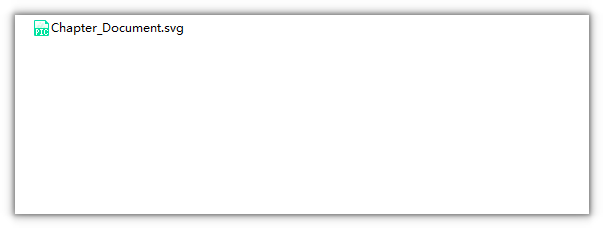
The result is a single SVG file with the five pages joined top to bottom:
Convert Each PDF Page to a Separate SVG
Spire.PDF for JavaScript also provides the PdfToSvgConverter class, which converts a document to SVG page by page. It is a second, equivalent entry point to PdfDocument, and SvgOptions carries OutputToOneSvg as well. This section keeps the default per-page output and downloads the files one by one.
The steps are as follows:
- Get the Spire.PDF WASM module and make sure it is ready.
- Load the sample PDF and the Arial font.
- Create a
PdfToSvgConverterobject, passing the path of the PDF to convert. - Use the
PdfToSvgConverter.Convert()method to convert page by page, one SVG per page. - Read each page's file from the VFS and trigger a download for each.
The code to convert each PDF page to a separate SVG is as follows:
function App() {
  const convertPdfPagesToSvg = async () => {
    // Get the Spire.PDF WASM module
    const pdfModule = window.wasmModule?.spirepdf;

    // Check if the module is ready
    if (!pdfModule) {
      alert('Spire.PDF is not ready yet');
      return;
    }

    // Converting to SVG restores the page text, so put the Arial font into the VFS font directory first
    await window.spire.FetchFileToVFS('ARIAL.TTF', '/Library/Fonts/', `${process.env.PUBLIC_URL}/font/`);

    // Load the PDF to convert into the VFS
    const inputFileName = 'Chapter_Document.pdf';
    await window.spire.FetchFileToVFS(inputFileName, '', `${process.env.PUBLIC_URL}/data/`);

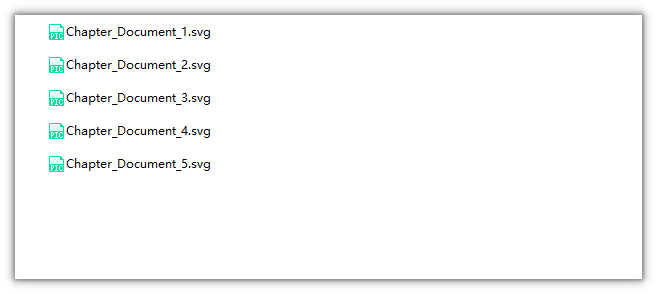
    // Output file name prefix: pages are written as Chapter_Document_1.svg, Chapter_Document_2.svg, ...
    const outputFileName = 'Chapter_Document.svg';

    // Convert page by page with the converter
    const converter = new pdfModule.PdfToSvgConverter(inputFileName);
    converter.Convert(outputFileName);

    // Read each page's file from the VFS and trigger a download for each
    const fs = window.dotnetRuntime.Module.FS;
    const prefix = outputFileName.replace(/\.svg$/i, '_');
    const pageFiles = fs.readdir('/').filter((name) => name.startsWith(prefix) && name.endsWith('.svg'));

    for (const pageFile of pageFiles) {
      const blob = new Blob([fs.readFile(pageFile)], { type: 'image/svg+xml' });
      const url = URL.createObjectURL(blob);
      const a = document.createElement('a');
      a.href = url;
      a.download = pageFile;
      a.click();
      URL.revokeObjectURL(url);
    }
  };

  return (
    <div style={{ textAlign: 'center', height: '300px' }}>
      <h1>Convert PDF to SVG</h1>
      <button onClick={convertPdfPagesToSvg}>
        Convert page by page
      </button>
    </div>
  );
}

export default App;
Each page becomes its own SVG file, named with the page number:
Set the SVG Size
The converter also exposes the SvgOptions.ScaleX and ScaleY properties, which scale the output size by a factor; both default to 1. Setting them to 2 doubles the size. The SVG content is vector, so — unlike a bitmap — it stays sharp when scaled.
// Scale the output size up by 2x
const converter = new pdfModule.PdfToSvgConverter('Chapter_Document.pdf');
converter.SvgOptions.ScaleX = 2;
converter.SvgOptions.ScaleY = 2;
converter.Convert('Chapter_Document.svg');
Frequently Asked Questions
Why do I get a bunch of xxx_1.svg, xxx_2.svg files instead of one .svg
Cause: When PdfDocument.SaveToFile converts to SVG it writes page by page, and ConvertOptions.OutputToOneSvg defaults to false, so the file name becomes "prefix_page.svg". A single-page PDF hides the difference; with more pages it shows up.
Solution: To get a single file, turn the property on before saving:
doc.ConvertOptions.OutputToOneSvg = true;
doc.SaveToFile('Chapter_Document.svg', pdfModule.FileFormat.SVG);
With PdfToSvgConverter, the matching switch is converter.SvgOptions.OutputToOneSvg — the two entry points use an equivalent switch and produce identical output.
How do I fix the error Cannot found font(Arial) installed on the system.
Cause: Converting to SVG restores page text as <text> elements, and the converter looks the font up by name in /Library/Fonts/ of the virtual file system. If that directory is empty, it throws this error.
Solution: Put the font into the VFS before LoadFromFile:
await window.spire.FetchFileToVFS('ARIAL.TTF', '/Library/Fonts/', `${process.env.PUBLIC_URL}/font/`);
Arial and Arial Unicode MS are two different files; supplying only the latter still raises the same error.
Is the text in the converted SVG still selectable
Cause: <text> and stroked paths are different things. The converter keeps page text as <text> elements and turns only graphics and lines into vector paths (<path>), so the text stays selectable and searchable.
Solution: No extra settings. Open the generated SVG in an editor and you will see <text> nodes; zoom it in a browser and neither the text nor the lines blur.
What if I only want to convert a few pages
Cause: SaveToFile also has an overload that takes a page range, working on the same per-page files that are saved in the VFS.
Solution: Pass the start and end page indexes; the index is 0-based and inclusive:
// Write only pages 1 and 2, producing first_two_pages_1.svg and first_two_pages_2.svg
doc.SaveToFile('first_two_pages.svg', 0, 1, pdfModule.FileFormat.SVG);
Get a Free License
If you would like to remove the evaluation message from the result document or lift feature restrictions, please contact sales for a 30-day temporary license.
Set an Expiry Date for a PDF Document Using JavaScript in React
Once a contract, quote, or trial document goes out as a PDF, the content is essentially in the recipient's hands, and when it stops being valid is left to their discretion. To make a document announce its expiry automatically after a set date, desktop software means opening each file and setting it by hand, which is hard to fit into a batch Web workflow; doing it server-side means uploading the files first, taking them off the user's device.
This article shows how to set an expiry date for a PDF document with Spire.PDF for JavaScript. Built on WebAssembly, it loads, modifies, and saves PDF documents directly in the browser. Everything runs locally, reading and writing files through a virtual file system (VFS), with no backend involved.
For installation and project setup, see How to Integrate Spire.PDF for JavaScript in a React Project. The examples below assume Spire.PDF is installed and the WebAssembly module is initialized.
Set an Expiry Date for a PDF Document
Spire.PDF for JavaScript provides the PdfJavaScriptAction class, which wraps a JavaScript snippet as a PDF action. Assign it to PdfDocument.AfterOpenAction and the reader runs the snippet every time the document is opened — the snippet compares the current time with the configured date and, once past it, shows an alert and closes the document.
Step 1: Load the PDF to Process
First get the Spire.PDF WASM module and confirm it is ready, then read the PDF into the virtual file system (VFS) and hand it to PdfDocument to load.
// Get the Spire.PDF WASM module
const pdfModule = window.wasmModule?.spirepdf;

// Check whether the module is ready
if (!pdfModule) {
  alert('Spire.PDF is not ready yet');
  return;
}

// Load the PDF into the VFS
const inputFileName = 'ContractTemplate.pdf';
await window.spire.FetchFileToVFS(inputFileName, "", `${process.env.PUBLIC_URL}/data/`);

// Create a PdfDocument object and load the document
const doc = new pdfModule.PdfDocument();
doc.LoadFromFile(inputFileName);
Step 2: Write the Expiry Check Script
The expiry date lives in the script itself: new Date() captures the system time at the moment of opening and compares it with the configured deadline; if it is later, the two actions — alert and close — run. Both the alert text and the deadline are strings in this snippet, so changing the date or the wording happens here.
// Expiry check: alert and close the document once the current time is past the set date
const script =
  "var rightNow = new Date();" +
  "var endDate = new Date('January 1, 2026 23:59:59');" +
  "if (rightNow.getTime() > endDate.getTime()) {" +
  "app.alert('This document has expired, please contact us for a new one.', 1);" +
  "this.closeDoc();" +
  "}";
Step 3: Attach It to the Document's After-Open Action
The script does not run on its own; wrap it in a PdfJavaScriptAction and assign it to PdfDocument.AfterOpenAction. This is a document-level action that the reader runs when the document is opened, and it is written to disk along with the document on save.
// Wrap the script as a JavaScript action and attach it to the document's after-open action
doc.AfterOpenAction = new pdfModule.PdfJavaScriptAction(script);

// Save the document
const outputFileName = 'SetExpiryDate.pdf';
doc.SaveToFile(outputFileName);
doc.Close();
Step 4: Read the Result and Trigger the Download
The saved file is still in the VFS; read its bytes out, wrap them in a Blob, and hand a temporary link to the browser to download.
// Read the generated file from the VFS and trigger a download
const fileArray = window.dotnetRuntime.Module.FS.readFile(outputFileName);
const blob = new Blob([fileArray], { type: 'application/pdf' });
const url = URL.createObjectURL(blob);
const a = document.createElement('a');
a.href = url;
a.download = outputFileName;
a.click();
URL.revokeObjectURL(url);
Complete Code
Put the four steps back into a single App component and you have a complete, runnable example.
function App() {
  const setExpiryDate = async () => {
    // Get the Spire.PDF WASM module
    const pdfModule = window.wasmModule?.spirepdf;

    // Check whether the module is ready
    if (!pdfModule) {
      alert('Spire.PDF is not ready yet');
      return;
    }

    // Load the PDF into the VFS
    const inputFileName = 'ContractTemplate.pdf';
    await window.spire.FetchFileToVFS(inputFileName, "", `${process.env.PUBLIC_URL}/data/`);

    // Create a PdfDocument object and load the document
    const doc = new pdfModule.PdfDocument();
    doc.LoadFromFile(inputFileName);

    // Expiry check: alert and close the document once the current time is past the set date
    const script =
      "var rightNow = new Date();" +
      "var endDate = new Date('January 1, 2026 23:59:59');" +
      "if (rightNow.getTime() > endDate.getTime()) {" +
      "app.alert('This document has expired, please contact us for a new one.', 1);" +
      "this.closeDoc();" +
      "}";

    // Wrap the script as a JavaScript action and attach it to the document's after-open action
    doc.AfterOpenAction = new pdfModule.PdfJavaScriptAction(script);

    // Save the document
    const outputFileName = 'SetExpiryDate.pdf';
    doc.SaveToFile(outputFileName);
    doc.Close();

    // Read the generated file from the VFS and trigger a download
    const fileArray = window.dotnetRuntime.Module.FS.readFile(outputFileName);
    const blob = new Blob([fileArray], { type: 'application/pdf' });
    const url = URL.createObjectURL(blob);
    const a = document.createElement('a');
    a.href = url;
    a.download = outputFileName;
    a.click();
    URL.revokeObjectURL(url);
  };

  return (
    <div style={{ textAlign: 'center', height: '300px' }}>
      <h1>Set an Expiry Date for a PDF Document</h1>
      <button onClick={setExpiryDate}>
        Set Expiry Date
      </button>
    </div>
  );
}

export default App;
After setting an expiry date on the contract template, opening it in a JavaScript-capable reader shows an alert and then closes the expired document:
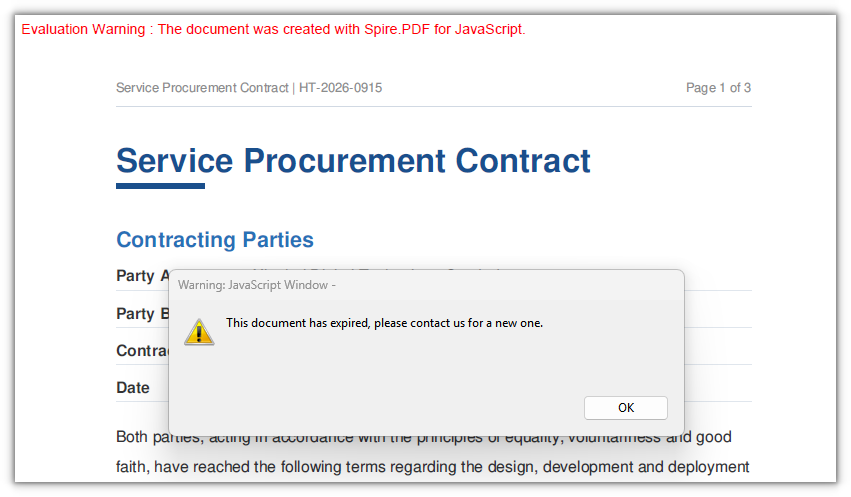
FAQ
Why doesn't the alert appear when I open the document after setting the date
Cause: The expiry check depends on the reader running the JavaScript action embedded in the document. Built-in browser PDF viewers and most system preview tools do not execute embedded scripts; only JavaScript-capable readers such as Adobe Acrobat or Acrobat Reader run it when the document opens.
Fix: Open the generated PDF in a JavaScript-capable reader. The script is already written into the document, so switching readers is enough to see it — there is no need to regenerate the file.
Does the content become completely inaccessible once the document expires
Cause: The script shows an alert and closes the current reading session; it does not alter the document's content or encrypt it. The file is still an ordinary PDF and can be opened and text-extracted by any tool that does not run scripts.
Fix: To actually block access, encrypt the document and set an open password or permission restrictions. The expiry script is a reminder and a deterrent, not access control.
How do I change the expiry date or the alert text
Cause: The date and the alert are string literals in the script — the date inside new Date('…') and the text inside app.alert('…'). They are written into the document's open action together with the script, so changing document properties afterward does not affect them.
Fix: Edit these two strings in the script and generate the document again:
const script =
  "var rightNow = new Date();" +
  "var endDate = new Date('December 31, 2026 23:59:59');" +   // new expiry moment
  "if (rightNow.getTime() > endDate.getTime()) {" +
  "app.alert('Your trial has expired. Please purchase the full version.', 1);" +   // new alert text
  "this.closeDoc();" +
  "}";
How do I make the document expire 30 days after it is opened
Cause: The script runs every time the document is opened, and new Date() returns the system time at that moment. If the date is also derived from the opening time — for example new Date() plus 30 days — the computed deadline keeps moving forward on every open and the document never actually expires.
Fix: Write the expiry date as a fixed value: work out the moment 30 days out at generation time and put that in, leaving the script to only compare the current time against it:
// Compute a fixed moment at generation time and put it in the script; do not leave it to be calculated at open time
"var endDate = new Date('October 15, 2026 23:59:59');" +
Get a Free License
If you want to remove the evaluation message from the result document or lift the feature limits, contact sales for a temporary license valid for 30 days.
Modify and Delete Hyperlinks in PDF with JavaScript in React
PDF hyperlinks are supposed to be the easiest part of a document — one click and you are there, with no copying and no typing. But once they have to be maintained in bulk, the situation flips: a product document changes domain and every URL has to be fixed one by one; an old manual is about to be published and its external links have to be cleared first. In desktop software these jobs mean clicking through by hand, or cannot be done in bulk at all.
This article shows how to modify and delete hyperlinks with Spire.PDF for JavaScript. It is built on WebAssembly and loads, modifies and saves PDF documents directly in the browser; the whole process runs locally through a virtual file system (VFS), with no backend required.
This article covers two key operations:
For installation and project setup, refer to How to Integrate Spire.PDF for JavaScript in a React Project. The examples below assume Spire.PDF is installed and the WebAssembly module has been initialized.
Modify Hyperlinks
When a document's URLs change domain, resetting them one by one is tedious. An existing link annotation can be read and written through PdfUriAnnotationWidget, whose Uri property is the link's target address. Walking the annotation collection page by page and rewriting the matches changes links in bulk.
function App() {
  const updateHyperlinks = async () => {
    // Get the Spire.PDF WASM module
    const pdfModule = window.wasmModule?.spirepdf;

    // Check whether the module is ready
    if (!pdfModule) {
      alert('Spire.PDF is not ready yet');
      return;
    }

    // Load the PDF to be processed into the VFS
    const inputFileName = 'ProductManual.pdf';
    await window.spire.FetchFileToVFS(inputFileName, "", `${process.env.PUBLIC_URL}/data/`);

    // Create a PdfDocument object and load the PDF document
    let doc = new pdfModule.PdfDocument();
    doc.LoadFromFile(inputFileName);

    // The new link address
    const newUrl = 'https://www.e-iceblue.com/Introduce/pdf-for-javascript.html';

    // Walk the annotations page by page and rewrite the URI links
    for (let i = 0; i < doc.Pages.Count; i++) {
      const page = doc.Pages.get_Item(i);
      for (let j = 0; j < page.Annotations.Count; j++) {
        const annotation = page.Annotations.get_Item(j);
        // Handle only link annotations; leave other annotation types as they are
        if (annotation instanceof pdfModule.PdfUriAnnotationWidget) {
          annotation.Uri = newUrl;
        }
      }
    }

    // Save the resulting document
    const outputFileName = 'HyperlinksUpdated.pdf';
    doc.SaveToFile(outputFileName);
    doc.Close();

    // Read the generated file from the VFS and trigger a download
    const fileArray = window.dotnetRuntime.Module.FS.readFile(outputFileName);
    const blob = new Blob([fileArray], { type: 'application/pdf' });
    const downloadUrl = URL.createObjectURL(blob);
    const a = document.createElement('a');
    a.href = downloadUrl;
    a.download = outputFileName;
    a.click();
    URL.revokeObjectURL(downloadUrl);
  };

  return (
    <div style={{ textAlign: 'center', height: '300px' }}>
      <h1>Modify Hyperlinks</h1>
      <button onClick={updateHyperlinks}>
        Update Hyperlinks
      </button>
    </div>
  );
}

export default App;
The three hyperlinks already in the document now point to the new address:
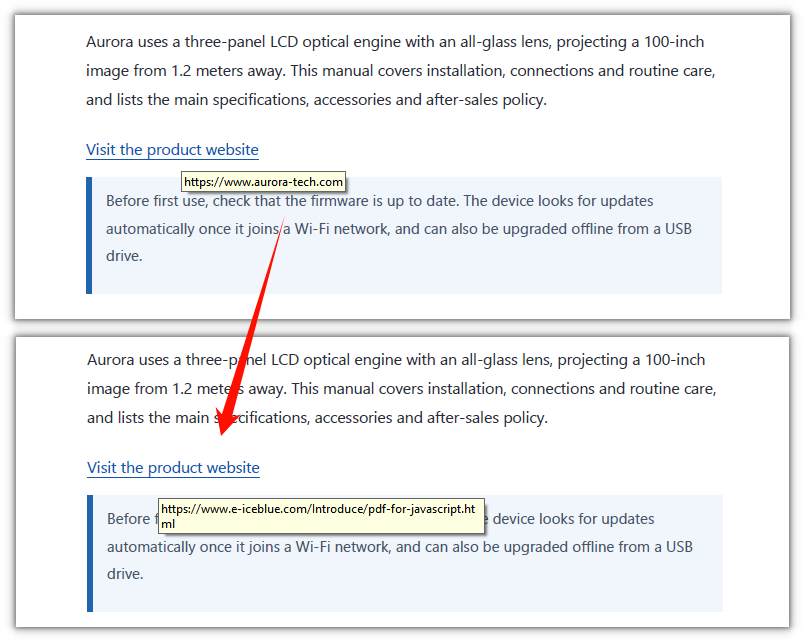
Delete Hyperlinks
Deleting hyperlinks is likewise a walk over the annotation collection, calling Remove on the matches. The difference is collecting first and deleting after: removing during the walk shifts the collection forward, and the loop then skips the entry right after the removed one.
function App() {
  const deleteHyperlinks = async () => {
    // Get the Spire.PDF WASM module
    const pdfModule = window.wasmModule?.spirepdf;

    // Check whether the module is ready
    if (!pdfModule) {
      alert('Spire.PDF is not ready yet');
      return;
    }

    // Load the PDF to be processed into the VFS
    const inputFileName = 'ProductManual.pdf';
    await window.spire.FetchFileToVFS(inputFileName, "", `${process.env.PUBLIC_URL}/data/`);

    // Create a PdfDocument object and load the PDF document
    let doc = new pdfModule.PdfDocument();
    doc.LoadFromFile(inputFileName);

    // Collect all link annotations first
    const links = [];
    for (let i = 0; i < doc.Pages.Count; i++) {
      const page = doc.Pages.get_Item(i);
      for (let j = 0; j < page.Annotations.Count; j++) {
        const annotation = page.Annotations.get_Item(j);
        if (annotation instanceof pdfModule.PdfUriAnnotationWidget) {
          links.push({ page, annotation });
        }
      }
    }

    // Remove them all after the collection is complete
    for (const link of links) {
      link.page.Annotations.Remove(link.annotation);
    }

    // Save the resulting document
    const outputFileName = 'HyperlinksRemoved.pdf';
    doc.SaveToFile(outputFileName);
    doc.Close();

    // Read the generated file from the VFS and trigger a download
    const fileArray = window.dotnetRuntime.Module.FS.readFile(outputFileName);
    const blob = new Blob([fileArray], { type: 'application/pdf' });
    const downloadUrl = URL.createObjectURL(blob);
    const a = document.createElement('a');
    a.href = downloadUrl;
    a.download = outputFileName;
    a.click();
    URL.revokeObjectURL(downloadUrl);
  };

  return (
    <div style={{ textAlign: 'center', height: '300px' }}>
      <h1>Delete Hyperlinks</h1>
      <button onClick={deleteHyperlinks}>
        Delete Hyperlinks
      </button>
    </div>
  );
}

export default App;
All hyperlinks in the document have been removed:
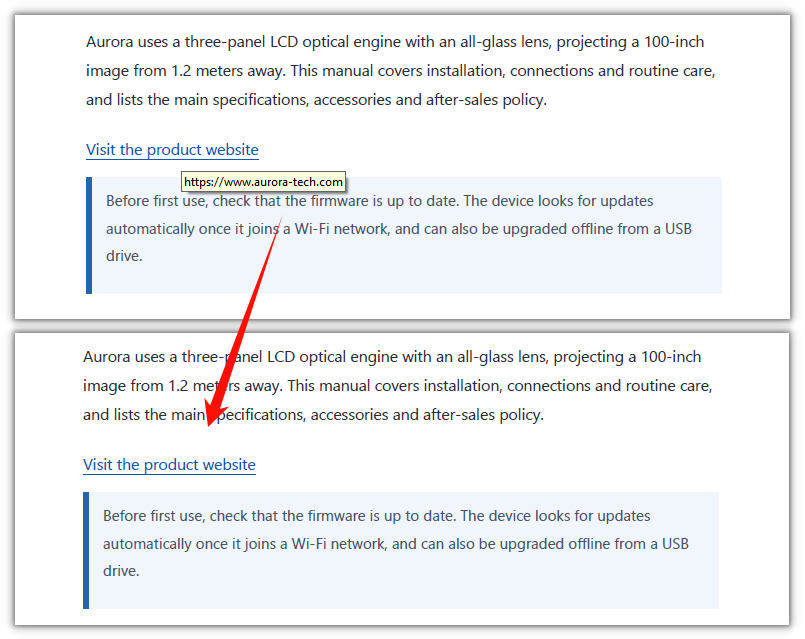
FAQ
I changed Uri, but the address is unchanged after saving
Cause: link annotations are not a single class. The Uri property exists only on PdfUriAnnotationWidget. A hyperlink exported from Word, or produced by Spire's PdfTextWebLink, is another class, PdfTextWebLinkAnnotationWidget, whose address property is called Url. Code that tests only one class skips the other entirely.
Solution: test both classes and set the matching property:
if (annotation instanceof pdfModule.PdfUriAnnotationWidget) {
  annotation.Uri = newUrl;
} else if (annotation instanceof pdfModule.PdfTextWebLinkAnnotationWidget) {
  annotation.Url = newUrl;
}
Why does deleting while iterating remove only some of the links?
Cause: page.Annotations is a mutable annotation collection. After item i is removed, the annotations behind it shift up by one, while the loop's i still increments as usual, so the entry immediately after the removed one is skipped. With several links on a page, several are missed.
Solution: collect the annotations to delete into an array first, then remove them all after the loop:
const links = [];
// ...collect while iterating...

// remove after the collection is complete
for (const link of links) {
  link.page.Annotations.Remove(link.annotation);
}
Does deleting hyperlinks also delete comments?
Cause: page.Annotations holds more than links — text box annotations, popups, form fields and so on all live in the same collection. Calling Clear(), or deleting everything without checking, wipes those out too.
Solution: delete only link annotations and leave the rest untouched:
if (annotation instanceof pdfModule.PdfUriAnnotationWidget) {
  page.Annotations.Remove(annotation);
}
Get a Free License
To remove the evaluation message from the generated documents, or to get rid of the function limitations, please contact sales for a temporary license valid for 30 days.
Add Hyperlinks to a PDF in React Using JavaScript
Hyperlinks in a PDF are meant to save work: one click and you are there, no copying an address, no retyping it. The catch is that they are rarely there when you need them. A brand-new document should come with its download page, a contact address and a product link already in place. An older, already laid-out document should send the product name recurring in its body to the same introduction page. Doing it by hand means dragging a selection and pasting an address at every spot — and on a long document that never ends.
Moving the job into the browser is what Spire.PDF for JavaScript is for: it loads, modifies and saves PDF documents directly on WebAssembly, with PdfTextWebLink drawing visible link text in one step and PdfFileLinkAnnotation attaching a document link. Everything runs locally, reading and writing files through a virtual file system (VFS) with no backend involved.
This article covers two core tasks:
For installation and project setup, see Integrate Spire.PDF for JavaScript in a React project. The example below assumes Spire.PDF is installed and the WebAssembly module is initialized.
Add Hyperlinks to a PDF
When you build a document from scratch, everything on the page is decided by code, and links fall into a few kinds:
- Simple text link: the URL drawn as ordinary text, with no annotation attached; whether it is clickable is up to the viewer — Chrome and others auto-detect the URL and make it clickable — so it is here only for contrast with the explicitly linked ones.
- Hypertext link:
PdfTextWebLinkwithText,Url,FontandBrushset;DrawTextWebLink()draws the underlined link text in one step. - Document link:
PdfFileLinkAnnotation(hotspot rectangle, target file), with the rectangle defined by you.
function App() {
  const addLinksToNewPdf = async () => {
    // Get the Spire.PDF WASM module
    const pdfModule = window.wasmModule?.spirepdf;

    // Check that the module is ready
    if (!pdfModule) {
      alert('Spire.PDF is not ready yet');
      return;
    }

    // Drawing text needs a font; load it into the VFS first
    const fontVfs = '/Library/Fonts/ARIAL UNICODE MS.TTF';
    await window.spire.FetchFileToVFS('ARIAL UNICODE MS.TTF', '/Library/Fonts/', `${process.env.PUBLIC_URL}/font/`);

    // Create a blank document
    const doc = new pdfModule.PdfDocument();

    // Add a section and set its margins to 0: coordinates then equal page coordinates
    const section = doc.Sections.Add();
    section.PageSettings.Size = pdfModule.PdfPageSize.A4();
    const margins = new pdfModule.PdfMargins();
    margins.Top = 0;
    margins.Bottom = 0;
    margins.Left = 0;
    margins.Right = 0;
    section.PageSettings.Margins = margins;

    const page = section.Pages.Add();

    const font = new pdfModule.PdfTrueTypeFont({ fontFile: fontVfs, size: 13 });
    const linkFont = new pdfModule.PdfTrueTypeFont({ fontFile: fontVfs, size: 13, style: pdfModule.PdfFontStyle.Underline });
    const format = new pdfModule.PdfStringFormat({ alignment: pdfModule.PdfTextAlignment.Left });

    // Draw a plain line of text as a label
    const drawLabel = (text, y) => {
      page.Canvas.DrawString({
        s: text, font: font, brush: pdfModule.PdfBrushes.get_Black(), x: 60, y: y, format: format,
      });
    };

    // Draw a line of underlined text and hand back its rectangle as the hotspot
    const drawLinkText = (text, y) => {
      const size = linkFont.MeasureString({ text: text });
      page.Canvas.DrawString({
        s: text, font: linkFont, brush: pdfModule.PdfBrushes.get_Blue(), x: 160, y: y, format: format,
      });
      return new pdfModule.RectangleF({ x: 160, y: y, width: size.Width, height: size.Height });
    };

    const url = 'https://www.e-iceblue.com/Introduce/pdf-for-javascript.html';

    // 1) Simple text link: just the URL drawn as ordinary text, with no annotation attached (clickability depends on the viewer)
    let y = 80;
    drawLabel('Simple text link:', y);
    drawLinkText(url, y);

    // 2) Hypertext link: DrawTextWebLink draws the text and attaches the link in one step
    y += 34;
    drawLabel('Hypertext link:', y);
    const webLink = new pdfModule.PdfTextWebLink();
    webLink.Text = 'Visit our site';
    webLink.Url = url;
    webLink.Font = linkFont;
    webLink.Brush = pdfModule.PdfBrushes.get_Blue();
    webLink.DrawTextWebLink({ graphics: page.Canvas, location: new pdfModule.PointF(160, y) });

    // 3) Email link: same class, with a mailto: URL
    y += 34;
    drawLabel('Email link:', y);
    const mailLink = new pdfModule.PdfTextWebLink();
    mailLink.Text = 'Contact support';
    mailLink.Url = 'mailto:support@e-iceblue.com';
    mailLink.Font = linkFont;
    mailLink.Brush = pdfModule.PdfBrushes.get_Blue();
    mailLink.DrawTextWebLink({ graphics: page.Canvas, location: new pdfModule.PointF(160, y) });

    // 4) Document link: hotspot rectangle + target file
    y += 34;
    drawLabel('Document link:', y);
    const fileName = 'Report.xlsx';
    const fileBounds = drawLinkText('Open file', y);
    page.Annotations.Add(new pdfModule.PdfFileLinkAnnotation(fileBounds, fileName));

    // Save the result document
    const outputFileName = 'HyperlinkSample.pdf';
    doc.SaveToFile(outputFileName);
    doc.Close();

    // Read the generated file from the VFS and trigger the download
    const fileArray = window.dotnetRuntime.Module.FS.readFile(outputFileName);
    const blob = new Blob([fileArray], { type: 'application/pdf' });
    const downloadUrl = URL.createObjectURL(blob);
    const a = document.createElement('a');
    a.href = downloadUrl;
    a.download = outputFileName;
    a.click();
    URL.revokeObjectURL(downloadUrl);
  };

  return (
    <div style={{ textAlign: 'center', height: '300px' }}>
      <h1>Add Hyperlinks</h1>
      <button onClick={addLinksToNewPdf}>
        Start Creating
      </button>
    </div>
  );
}

export default App;
All four links — simple text, hypertext, email and document — are in place in the new document:
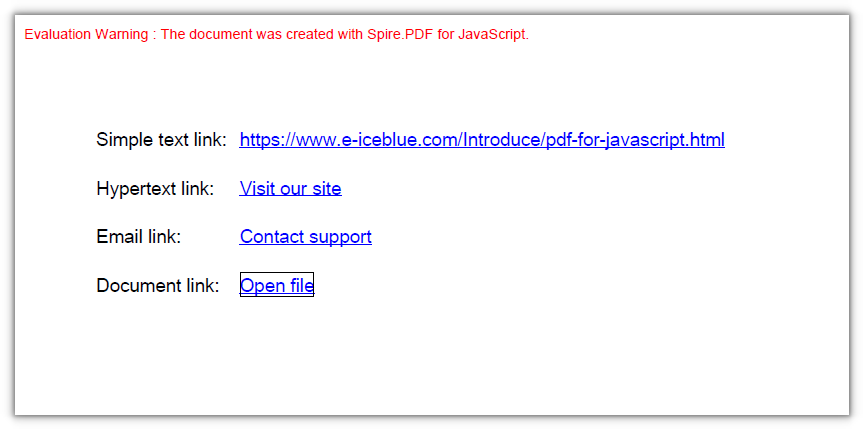
Add Hyperlinks to Text
To add links to an existing document, work the other way round: find the position in the document first, then lay the link over it. PdfTextFinder searches the text of a given page by keyword, and each match carries a bounding rectangle. Build a PdfUriAnnotation from it and add it to the page annotation collection, and the link lands exactly on the original text instead of you doing the measuring.
function App() {
  const addHyperlinksToText = async () => {
    // Get the Spire.PDF WASM module
    const pdfModule = window.wasmModule?.spirepdf;

    // Check that the module is ready
    if (!pdfModule) {
      alert('Spire.PDF is not ready yet');
      return;
    }

    // Load the PDF to be processed into the VFS
    const inputFileName = 'ProductManual.pdf';
    await window.spire.FetchFileToVFS(inputFileName, "", `${process.env.PUBLIC_URL}/data/`);

    // Create a PdfDocument object and load the PDF
    let doc = new pdfModule.PdfDocument();
    doc.LoadFromFile(inputFileName);

    // Take the first page
    const page = doc.Pages.get_Item(0);

    // Search the page for the keyword; Parameter is case-sensitive by default, so switch to IgnoreCase
    const finder = new pdfModule.PdfTextFinder(page);
    finder.Options.Parameter = pdfModule.TextFindParameter.IgnoreCase;
    const finds = finder.Find('Aurora');

    // Create one link annotation for each match
    const linkUrl = 'https://www.e-iceblue.com/Introduce/pdf-for-javascript.html';
    for (let i = 0; i < finds.length; i++) {
      // The bounding rectangle of a match is the link hotspot
      const annotation = new pdfModule.PdfUriAnnotation({ rectangle: finds.get(i).Bounds[0] });
      annotation.Uri = linkUrl;

      // Attach the annotation to the page annotation collection
      page.Annotations.Add(annotation);
    }

    // Save the result document
    const outputFileName = 'HyperlinksAdded.pdf';
    doc.SaveToFile(outputFileName);
    doc.Close();

    // Read the generated file from the VFS and trigger the download
    const fileArray = window.dotnetRuntime.Module.FS.readFile(outputFileName);
    const blob = new Blob([fileArray], { type: 'application/pdf' });
    const downloadUrl = URL.createObjectURL(blob);
    const a = document.createElement('a');
    a.href = downloadUrl;
    a.download = outputFileName;
    a.click();
    URL.revokeObjectURL(downloadUrl);
  };

  return (
    <div style={{ textAlign: 'center', height: '300px' }}>
      <h1>Add Hyperlinks to Text</h1>
      <button onClick={addHyperlinksToText}>
        Start Adding
      </button>
    </div>
  );
}

export default App;
All three occurrences of Aurora now carry a hyperlink:

FAQ
Find() returns nothing even though the word is right there in the text
Cause: Options.Parameter defaults to TextFindParameter.None, which is case-sensitive, so searching for aurora will not match the capitalised Aurora; and the finder searches only the single page it was constructed with.
Fix: set it to IgnoreCase; to search the whole document, build one finder per page:
finder.Options.Parameter = pdfModule.TextFindParameter.IgnoreCase;
Measured: Aurora appears three times on page 1, and a case-sensitive search returns 0.
The link is there, but nothing shows up when the file is opened
Cause: this kind of link annotation is only a click hotspot — Spire generates no appearance stream (/AP) for it, and neither Chrome (PDFium) nor PyMuPDF (mupdf) draws a border for it; setting Border/Color only writes into the annotation dictionary (/Border [0 0 1], /C [0 0 1]) and stays invisible on the page.
Fix: the link is still clickable. In task 1 the hypertext, email, simple-text and document links all have their text drawn by the code, so they are visible to begin with; for a hotspot laid over existing text in task 2, do not rely on the annotation border — draw an underline at the link position with page.Canvas.DrawString().
Get a Free License
If you want to remove the evaluation message from the result document, or get past the feature limits, contact our sales team for a temporary 30-day license.
Adjust PDF Page Margins with JavaScript in React
Page margins decide how much blank space sits between the body and the edge of the paper. Too little and the content crowds the edge and looks cramped; too much and a page holds very little. Existing PDFs usually have their layout fixed already — adding a ring of white space, or trimming the excess away, used to mean re-laying out page after page in desktop software; and once documents are processed in bulk by a program, the margins have to follow the layout.
This article shows how to increase or decrease PDF page margins with Spire.PDF for JavaScript. It is built on WebAssembly and loads, modifies and saves PDF documents directly in the browser, all locally, reading and writing files through a virtual file system (VFS) with no backend involved.
This article covers two core features:
For installation and project setup, see How to Integrate Spire.PDF for JavaScript in a React Project. The examples below assume Spire.PDF is installed and the WebAssembly module is initialized.
Increase PDF Page Margins
Increasing the margins is like giving the document a larger sheet of paper: use CreateTemplate() to capture each page's content as a template and draw it onto a new page with a larger size, where PdfMargins reserves the blank space on all four sides — the content keeps its size, and a ring of white space appears around it.
function App() {
  const increasePdfMargins = async () => {
    // Get the Spire.PDF WASM module
    const pdfModule = window.wasmModule?.spirepdf;

    // Check whether the module is ready
    if (!pdfModule) {
      alert('Spire.PDF is not ready yet');
      return;
    }

    // Load the PDF to be adjusted into the VFS
    const inputFileName = 'SampleDocument.pdf';
    await window.spire.FetchFileToVFS(inputFileName, "", `${process.env.PUBLIC_URL}/data/`);

    // Load the original document and take its first page to compute the new page size
    const originalPdf = new pdfModule.PdfDocument();
    originalPdf.LoadFromFile(inputFileName);
    const firstPage = originalPdf.Pages.get_Item(0);

    // Add 40 points of padding on every side
    const marginsToAdd = new pdfModule.PdfMargins();
    marginsToAdd.Top = 40;
    marginsToAdd.Bottom = 40;
    marginsToAdd.Left = 40;
    marginsToAdd.Right = 40;

    // New page size = original size + the four margins, so the content area keeps its original size
    const newSize = new pdfModule.SizeF({
      width: firstPage.Size.Width + marginsToAdd.Left + marginsToAdd.Right,
      height: firstPage.Size.Height + marginsToAdd.Top + marginsToAdd.Bottom,
    });

    // Capture each page's content as a template and draw it onto a new page with margins
    const newPdf = new pdfModule.PdfDocument();
    for (let i = 0; i < originalPdf.Pages.Count; i++) {
      const template = originalPdf.Pages.get_Item(i).CreateTemplate();
      const page = newPdf.Pages.Add({ size: newSize, margins: marginsToAdd });
      page.Canvas.DrawTemplate({ template: template, location: new pdfModule.PointF(0, 0) });
    }

    const outputFileName = 'IncreaseMargins.pdf';
    newPdf.SaveToFile(outputFileName);
    newPdf.Close();
    originalPdf.Close();

    // Read the generated file from the VFS and trigger the download
    const fileArray = window.dotnetRuntime.Module.FS.readFile(outputFileName);
    const blob = new Blob([fileArray], { type: 'application/pdf' });
    const url = URL.createObjectURL(blob);
    const a = document.createElement('a');
    a.href = url;
    a.download = outputFileName;
    a.click();
    URL.revokeObjectURL(url);
  };

  return (
    <div style={{ textAlign: 'center', height: '300px' }}>
      <h1>Increase PDF Page Margins</h1>
      <button onClick={increasePdfMargins}>
        Start
      </button>
    </div>
  );
}

export default App;
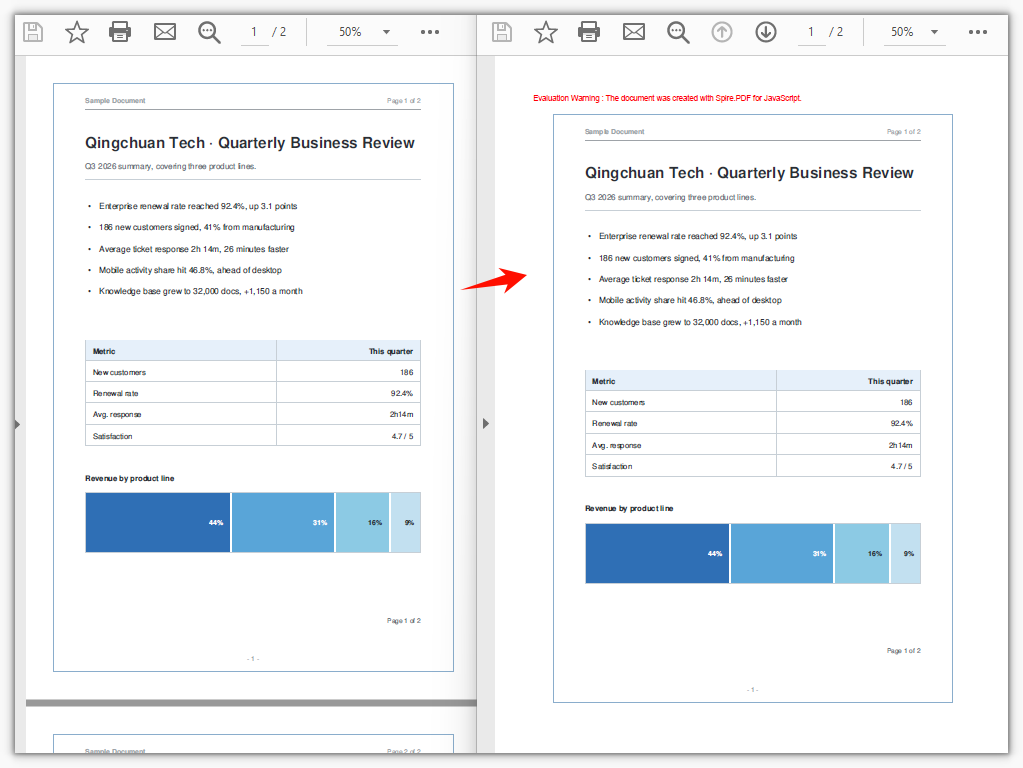
Each side is padded by 40 points, so the page grows and a ring of white space appears around the original content:
Decrease PDF Page Margins
Decreasing the margins is the reverse: the new page is smaller than the original, and the template is drawn shifted toward the top-left, trimming the excess white space on all four sides. Note that the amount trimmed per side must not exceed the blank space already present on that side of the original document, or the content will be cut off at the page boundary.
function App() {
  const decreasePdfMargins = async () => {
    // Get the Spire.PDF WASM module
    const pdfModule = window.wasmModule?.spirepdf;

    // Check whether the module is ready
    if (!pdfModule) {
      alert('Spire.PDF is not ready yet');
      return;
    }

    // Load the PDF to be adjusted into the VFS
    const inputFileName = 'SampleDocument.pdf';
    await window.spire.FetchFileToVFS(inputFileName, "", `${process.env.PUBLIC_URL}/data/`);

    // Load the original document and take its first page to compute the new page size
    const originalPdf = new pdfModule.PdfDocument();
    originalPdf.LoadFromFile(inputFileName);
    const firstPage = originalPdf.Pages.get_Item(0);

    // Trim 20 points of white space off every side; the value must not exceed the blank already on that side
    const trim = 20;

    // New page size = original size − the four trimmed values
    const newSize = new pdfModule.SizeF({
      width: firstPage.Size.Width - trim * 2,
      height: firstPage.Size.Height - trim * 2,
    });

    // The new page reserves no extra margins of its own
    const noMargins = new pdfModule.PdfMargins();
    noMargins.Top = 0;
    noMargins.Bottom = 0;
    noMargins.Left = 0;
    noMargins.Right = 0;

    // Capture each page as a template and draw it shifted toward the top-left, trimming the white space on all four sides
    const newPdf = new pdfModule.PdfDocument();
    for (let i = 0; i < originalPdf.Pages.Count; i++) {
      const template = originalPdf.Pages.get_Item(i).CreateTemplate();
      const page = newPdf.Pages.Add({ size: newSize, margins: noMargins });
      page.Canvas.DrawTemplate({ template: template, location: new pdfModule.PointF(-trim, -trim) });
    }

    const outputFileName = 'DecreaseMargins.pdf';
    newPdf.SaveToFile(outputFileName);
    newPdf.Close();
    originalPdf.Close();

    // Read the generated file from the VFS and trigger the download
    const fileArray = window.dotnetRuntime.Module.FS.readFile(outputFileName);
    const blob = new Blob([fileArray], { type: 'application/pdf' });
    const url = URL.createObjectURL(blob);
    const a = document.createElement('a');
    a.href = url;
    a.download = outputFileName;
    a.click();
    URL.revokeObjectURL(url);
  };

  return (
    <div style={{ textAlign: 'center', height: '300px' }}>
      <h1>Decrease PDF Page Margins</h1>
      <button onClick={decreasePdfMargins}>
        Start
      </button>
    </div>
  );
}

export default App;
Each side is trimmed by 20 points of white space, so the page shrinks and the content moves closer to the paper's edge:
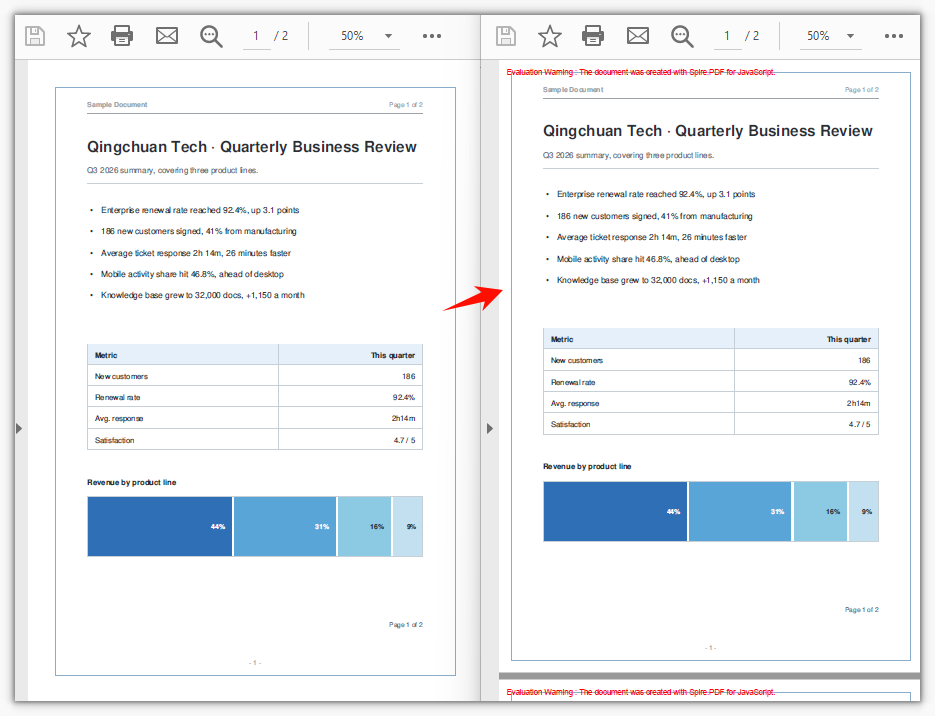
FAQ
Why not just change the page margins of the original document
Cause: Margins only decide where the content area begins, positioning content drawn afterward; content already drawn in the original document is fixed at absolute coordinates, and reassigning PageSettings.Margins does not move it.
Solution: Capture the original page's content as a template with CreateTemplate() and draw it onto a new page with margins — both examples above follow this approach.
The content gets cut off when decreasing the margins
Cause: The template is drawn starting at (-trim, -trim) while the page also shrinks by 2 × trim; once the amount trimmed exceeds the blank space already present on that side of the original document, the content crosses the page boundary and is clipped.
Solution: Set trim to no more than the blank space already present on that side. When the original document sits flush against the edge, widen it first with the increase approach, then consider narrowing it.
Why does the new page size have to include the margins
Cause: PdfMargins is the distance by which the canvas origin is inset; if the page size does not grow along with it, the content area ends up smaller than the original content and falls outside the page.
Solution: Compute the new page size as "original page size + the left and right (or top and bottom) margin sum" (when increasing), or "original page size − the left and right (or top and bottom) sum" (when decreasing), so the content area exactly fits the original content:
const newSize = new pdfModule.SizeF({
  width: firstPage.Size.Width + marginsToAdd.Left + marginsToAdd.Right,
  height: firstPage.Size.Height + marginsToAdd.Top + marginsToAdd.Bottom,
});
Get a Free License
If you want to remove the evaluation message from the result document, or lift the feature limitations, contact sales for a temporary license valid for 30 days.
Add Annotations to a PDF Document in React with JavaScript
Once a PDF reaches the review stage it becomes a file that gets passed back and forth: one page needs its key points marked, another needs a note on what to change, and the final copy needs an "Approved" stamp. Adding these marks by hand in a reader one at a time does not scale once there are many documents, and the next revision means doing it all over again. Build the marks into the generation flow and annotations come out together with the document.
Spire.PDF for JavaScript loads, modifies, and saves PDF documents in the browser with WebAssembly. Annotations are generated locally and files are read and written through a virtual file system (VFS), with no backend involved. This article uses PdfPage.Annotations to carry eight kinds of annotations: text markup, free text, popup, stamps, lines and polygons, plus web links, file links, and in-document jump links.
This article covers eight core features:
- Add a Text Markup Annotation
- Add a Free Text Annotation
- Add a Popup Annotation
- Add a Stamp Annotation
- Add a Shape Annotation
- Add a Web Link Annotation
- Add a File Link Annotation
- Add a Document Link Annotation
For installation and project setup, see How to Integrate Spire.PDF for JavaScript in a React Project. The examples below assume Spire.PDF is installed and the WebAssembly module is initialized.
Add a Text Markup Annotation
PdfTextMarkupAnnotation overlays a mark on existing text without changing the text itself. Set TextMarkupAnnotationType to Highlight and pick a color with TextMarkupColor to get the most common effect, a highlight that leaves the body text color untouched. The marked area is bounded by four corner points (QuadPoints) in absolute page coordinates, so clear the page margins first to make the canvas and the corner points line up. title and text are written into the annotation as its author and note; they are not drawn on the page and show up in the reader's comment panel.
function App() {
  const addTextMarkupAnnotation = async () => {
    // Get the Spire.PDF WASM module
    const pdfModule = window.wasmModule?.spirepdf;

    // Check that the module is ready
    if (!pdfModule) {
      alert('Spire.PDF is not ready yet');
      return;
    }

    // The sample text on the page needs a font; load it into the VFS first
    await window.spire.FetchFileToVFS('ARIALUNI.TTF', '/Library/Fonts/', `${process.env.PUBLIC_URL}/font/`);

    const doc = new pdfModule.PdfDocument();

    // Zero the page margins so the canvas coordinates line up with the annotation's corner points
    const margins = new pdfModule.PdfMargins();
    margins.Top = 0;
    margins.Bottom = 0;
    margins.Left = 0;
    margins.Right = 0;
    doc.PageSettings.Margins = margins;

    const page = doc.Pages.Add();

    const font = new pdfModule.PdfTrueTypeFont({
      fontFamily: 'Arial Unicode MS',
      size: 14,
      style: pdfModule.PdfFontStyle.Regular,
      unicode: true,
    });
    const brush = pdfModule.PdfBrushes.get_Black();

    const text = 'Highlight markup';

    // Draw the target text on the page first
    page.Canvas.DrawString({ s: text, font, brush, x: 80, y: 120 });

    // Measure the text so the markup covers it exactly
    const size = font.MeasureString({ text });
    const rect = new pdfModule.RectangleF({ x: 80, y: 120, width: size.Width, height: size.Height });

    const annotation = new pdfModule.PdfTextMarkupAnnotation({ title: 'Proofread', text: 'Needs review', rect, font });

    // Marked area: the four corner points of the text rectangle
    annotation.QuadPoints = [
      new pdfModule.PointF(rect.Left, rect.Top),
      new pdfModule.PointF(rect.Right, rect.Top),
      new pdfModule.PointF(rect.Left, rect.Bottom),
      new pdfModule.PointF(rect.Right, rect.Bottom),
    ];
    annotation.TextMarkupAnnotationType = pdfModule.PdfTextMarkupAnnotationType.Highlight;
    annotation.TextMarkupColor = new pdfModule.PdfRGBColor({ color: pdfModule.Color.get_LightSkyBlue() });

    page.Annotations.Add(annotation);

    const outputFileName = 'TextMarkupAnnotation.pdf';
    doc.SaveToFile(outputFileName);
    doc.Close();

    // Read the generated file from the VFS and trigger the download
    const fileArray = window.dotnetRuntime.Module.FS.readFile(outputFileName);
    const blob = new Blob([fileArray], { type: 'application/pdf' });
    const url = URL.createObjectURL(blob);
    const a = document.createElement('a');
    a.href = url;
    a.download = outputFileName;
    a.click();
    URL.revokeObjectURL(url);
  };

  return (
    <div style={{ textAlign: 'center', height: '300px' }}>
      <h1>Add a Text Markup Annotation</h1>
      <button onClick={addTextMarkupAnnotation}>Add Annotation</button>
    </div>
  );
}

export default App;
A piece of text on the page covered by a highlight markup:
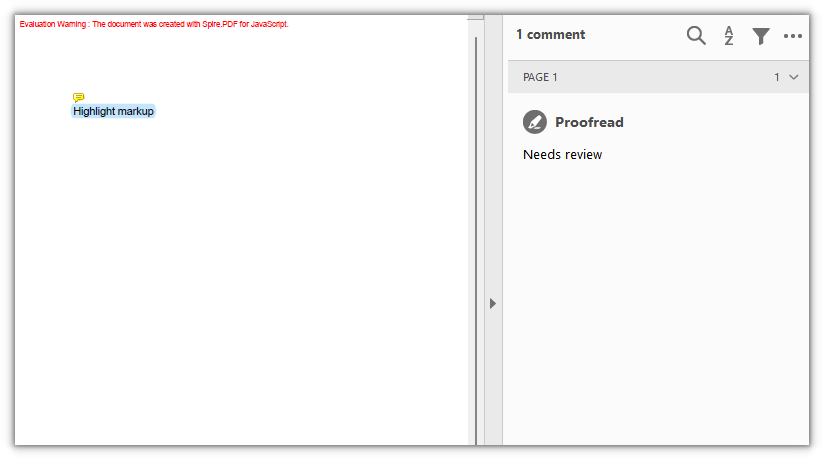
Add a Free Text Annotation
PdfFreeTextAnnotation draws a block of text directly on the page as a text box, which is common for notes, comments, or fill-in fields. The box position and size come from the rectangle passed to the constructor, and the font, border, background, and opacity can all be set afterward.
function App() {
  const addFreeTextAnnotation = async () => {
    // Get the Spire.PDF WASM module
    const pdfModule = window.wasmModule?.spirepdf;

    // Check that the module is ready
    if (!pdfModule) {
      alert('Spire.PDF is not ready yet');
      return;
    }

    // The text box needs a font; load it into the VFS first
    await window.spire.FetchFileToVFS('ARIALUNI.TTF', '/Library/Fonts/', `${process.env.PUBLIC_URL}/font/`);

    const doc = new pdfModule.PdfDocument();
    const page = doc.Pages.Add();

    const rect = new pdfModule.RectangleF({ x: 80, y: 120, width: 220, height: 60 });

    // The rectangle is passed to the constructor, so it decides the annotation's position and size
    const annotation = new pdfModule.PdfFreeTextAnnotation(rect);
    annotation.Text = 'This is a free text annotation';
    annotation.Font = new pdfModule.PdfTrueTypeFont({
      fontFamily: 'Arial Unicode MS',
      size: 14,
      style: pdfModule.PdfFontStyle.Regular,
      unicode: true,
    });
    annotation.Border = new pdfModule.PdfAnnotationBorder({ borderWidth: 1 });
    annotation.BorderColor = new pdfModule.PdfRGBColor({ color: pdfModule.Color.get_Gray() });
    annotation.Color = new pdfModule.PdfRGBColor({ color: pdfModule.Color.get_LightGoldenrodYellow() });
    annotation.Opacity = 0.8;

    page.Annotations.Add(annotation);

    const outputFileName = 'FreeTextAnnotation.pdf';
    doc.SaveToFile(outputFileName);
    doc.Close();

    // Read the generated file from the VFS and trigger the download
    const fileArray = window.dotnetRuntime.Module.FS.readFile(outputFileName);
    const blob = new Blob([fileArray], { type: 'application/pdf' });
    const url = URL.createObjectURL(blob);
    const a = document.createElement('a');
    a.href = url;
    a.download = outputFileName;
    a.click();
    URL.revokeObjectURL(url);
  };

  return (
    <div style={{ textAlign: 'center', height: '300px' }}>
      <h1>Add a Free Text Annotation</h1>
      <button onClick={addFreeTextAnnotation}>Add Annotation</button>
    </div>
  );
}

export default App;
A block of free text with a border and a background on the page:
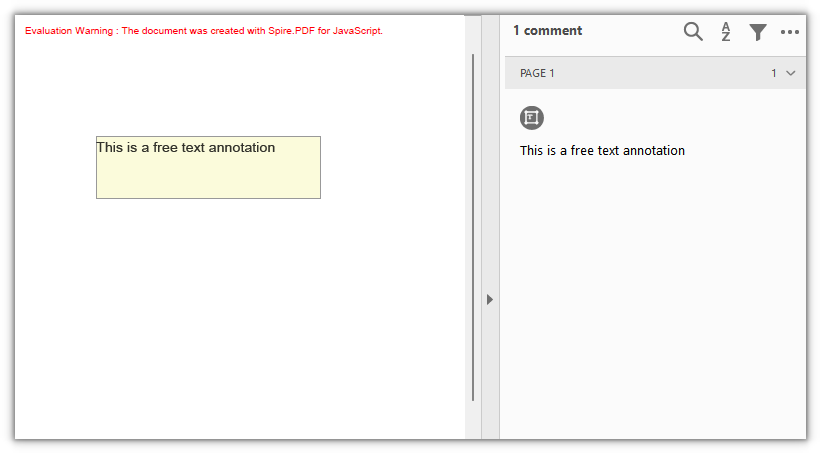
Add a Popup Annotation
PdfPopupAnnotation places an expandable popup window that leaves only an icon when collapsed, which suits a longer note that should not take up page space. The icon style is set with Icon, whose values include Note, Comment, Help, Insert, Key, NewParagraph, and Paragraph.
function App() {
  const addPopupAnnotation = async () => {
    // Get the Spire.PDF WASM module
    const pdfModule = window.wasmModule?.spirepdf;

    // Check that the module is ready
    if (!pdfModule) {
      alert('Spire.PDF is not ready yet');
      return;
    }

    const doc = new pdfModule.PdfDocument();
    const page = doc.Pages.Add();

    // A collapsed popup annotation is just an icon, so a zero-size rectangle marks its spot
    const rect = new pdfModule.RectangleF({ x: 120, y: 160, width: 0, height: 0 });

    const annotation = new pdfModule.PdfPopupAnnotation({ rectangle: rect, text: 'This is the popup annotation content' });
    annotation.Icon = pdfModule.PdfPopupIcon.Note;
    annotation.Open = true;
    annotation.Color = new pdfModule.PdfRGBColor({ color: pdfModule.Color.get_Yellow() });

    page.Annotations.Add(annotation);

    const outputFileName = 'PopupAnnotation.pdf';
    doc.SaveToFile(outputFileName);
    doc.Close();

    // Read the generated file from the VFS and trigger the download
    const fileArray = window.dotnetRuntime.Module.FS.readFile(outputFileName);
    const blob = new Blob([fileArray], { type: 'application/pdf' });
    const url = URL.createObjectURL(blob);
    const a = document.createElement('a');
    a.href = url;
    a.download = outputFileName;
    a.click();
    URL.revokeObjectURL(url);
  };

  return (
    <div style={{ textAlign: 'center', height: '300px' }}>
      <h1>Add a Popup Annotation</h1>
      <button onClick={addPopupAnnotation}>Add Annotation</button>
    </div>
  );
}

export default App;
A popup annotation on the page, with its content expanded next to the icon:
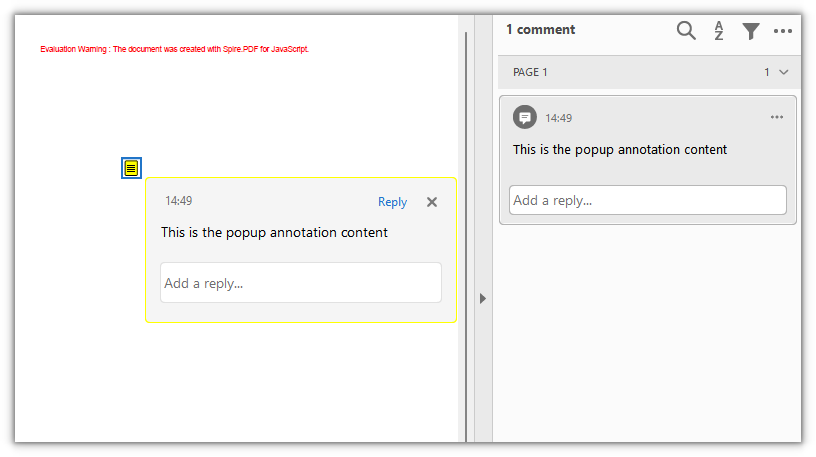
Add a Stamp Annotation
PdfRubberStampAnnotation is used to place a stamp. It ships with a set of ready-made icons, so setting Icon produces a stamped frame with text and no need to draw the appearance yourself. The available icons include Approved, Confidential, Draft, Final, Expired, Sold, TopSecret, NotForPublicRelease, and a dozen or so more.
function App() {
  const addStampAnnotations = async () => {
    // Get the Spire.PDF WASM module
    const pdfModule = window.wasmModule?.spirepdf;

    // Check that the module is ready
    if (!pdfModule) {
      alert('Spire.PDF is not ready yet');
      return;
    }

    const doc = new pdfModule.PdfDocument();
    const page = doc.Pages.Add();

    // Place three common stamps with built-in icons
    const stamps = [
      { icon: pdfModule.PdfRubberStampAnnotationIcon.Approved, y: 200, color: pdfModule.Color.get_LightGreen() },
      { icon: pdfModule.PdfRubberStampAnnotationIcon.Confidential, y: 300, color: pdfModule.Color.get_LightPink() },
      { icon: pdfModule.PdfRubberStampAnnotationIcon.Draft, y: 400, color: pdfModule.Color.get_LightBlue() },
    ];

    for (const stamp of stamps) {
      const rect = new pdfModule.RectangleF({ x: 100, y: stamp.y, width: 150, height: 60 });

      const annotation = new pdfModule.PdfRubberStampAnnotation({ rectangle: rect, text: 'Stamp annotation' });
      annotation.Icon = stamp.icon;
      annotation.Color = new pdfModule.PdfRGBColor({ color: stamp.color });

      page.Annotations.Add(annotation);
    }

    const outputFileName = 'StampAnnotation.pdf';
    doc.SaveToFile(outputFileName);
    doc.Close();

    // Read the generated file from the VFS and trigger the download
    const fileArray = window.dotnetRuntime.Module.FS.readFile(outputFileName);
    const blob = new Blob([fileArray], { type: 'application/pdf' });
    const url = URL.createObjectURL(blob);
    const a = document.createElement('a');
    a.href = url;
    a.download = outputFileName;
    a.click();
    URL.revokeObjectURL(url);
  };

  return (
    <div style={{ textAlign: 'center', height: '300px' }}>
      <h1>Add a Stamp Annotation</h1>
      <button onClick={addStampAnnotations}>Add Stamp</button>
    </div>
  );
}

export default App;
Three built-in icon stamps:
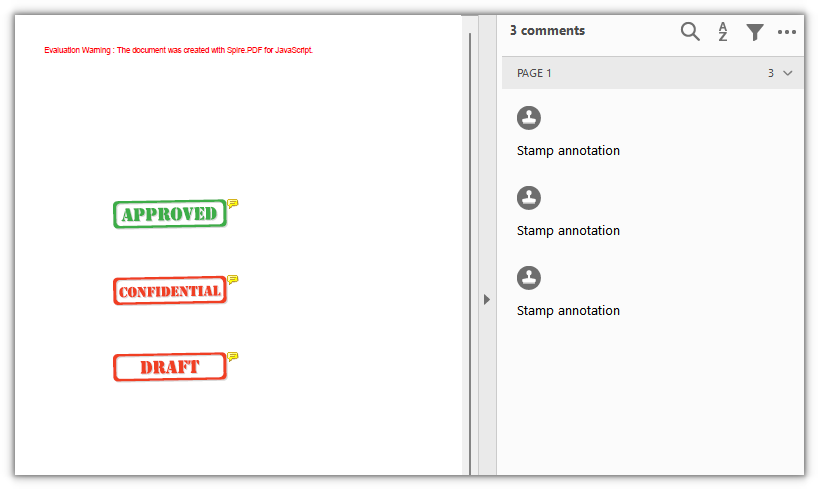
Add a Shape Annotation
Shape annotations attach geometric figures to the page as independent objects, unlike drawing directly on the canvas: they carry their own properties and notes, and readers can recognize and select them individually. The three classes cover lines, polygons, and polylines:
| Class | Description |
|---|---|
PdfLineAnnotation |
A straight line, with configurable line endings and arrows |
PdfPolygonAnnotation |
A closed polygon bounded by several vertices |
PdfPolyLineAnnotation |
An open polyline connected by several vertices |
A polygon regenerates its appearance before it is added to the page, so set Author and Subject first; otherwise Add fails on a null reference.
function App() {
  const addShapeAnnotations = async () => {
    // Get the Spire.PDF WASM module
    const pdfModule = window.wasmModule?.spirepdf;

    // Check that the module is ready
    if (!pdfModule) {
      alert('Spire.PDF is not ready yet');
      return;
    }

    const doc = new pdfModule.PdfDocument();
    const page = doc.Pages.Add();

    // Line: given a start and an end point, with arrows at both ends
    const line = new pdfModule.PdfLineAnnotation({ linePoints: [80, 120, 300, 200], text: 'This is a line annotation' });
    line.lineBorder.BorderStyle = pdfModule.PdfLineBorderStyle.Solid;
    line.lineBorder.BorderWidth = 2;
    line.BeginLineStyle = pdfModule.PdfLineEndingStyle.Circle;
    line.EndLineStyle = pdfModule.PdfLineEndingStyle.ClosedArrow;
    line.BackColor = new pdfModule.PdfRGBColor({ color: pdfModule.Color.get_Blue() });
    page.Annotations.Add(line);

    // Polygon: vertices joined head to tail into a closed region
    const polygonPoints = [
      new pdfModule.PointF(80, 300),
      new pdfModule.PointF(160, 260),
      new pdfModule.PointF(240, 300),
      new pdfModule.PointF(200, 380),
      new pdfModule.PointF(120, 380),
      new pdfModule.PointF(80, 300),
    ];
    const polygon = new pdfModule.PdfPolygonAnnotation(page, polygonPoints);
    polygon.Color = new pdfModule.PdfRGBColor({ color: pdfModule.Color.get_PaleVioletRed() });
    polygon.Text = 'This is a polygon annotation';
    polygon.Author = 'E-ICEBLUE';
    polygon.Subject = 'polygon annotation demo';
    polygon.BorderEffect = pdfModule.PdfBorderEffect.BigCloud;
    polygon.ModifiedDate = new Date();
    page.Annotations.Add(polygon);

    // Polyline: vertices connected in order, not closed
    const polylinePoints = [
      new pdfModule.PointF(320, 300),
      new pdfModule.PointF(400, 260),
      new pdfModule.PointF(480, 340),
      new pdfModule.PointF(540, 300),
    ];
    const polyline = new pdfModule.PdfPolyLineAnnotation(page, polylinePoints);
    polyline.Color = new pdfModule.PdfRGBColor({ color: pdfModule.Color.get_Green() });
    polyline.Text = 'This is a polyline annotation';
    polyline.Border = new pdfModule.PdfAnnotationBorder({ borderWidth: 2 });
    page.Annotations.Add(polyline);

    const outputFileName = 'ShapeAnnotation.pdf';
    doc.SaveToFile(outputFileName);
    doc.Close();

    // Read the generated file from the VFS and trigger the download
    const fileArray = window.dotnetRuntime.Module.FS.readFile(outputFileName);
    const blob = new Blob([fileArray], { type: 'application/pdf' });
    const url = URL.createObjectURL(blob);
    const a = document.createElement('a');
    a.href = url;
    a.download = outputFileName;
    a.click();
    URL.revokeObjectURL(url);
  };

  return (
    <div style={{ textAlign: 'center', height: '300px' }}>
      <h1>Add a Shape Annotation</h1>
      <button onClick={addShapeAnnotations}>Add Shape</button>
    </div>
  );
}

export default App;
Line, polygon, and polyline annotations on the same page:
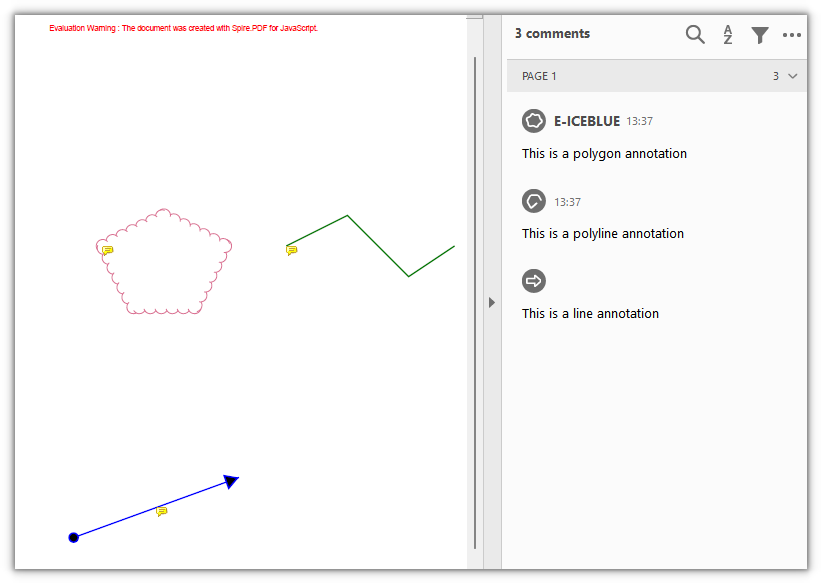
Add a Web Link Annotation
PdfUriAnnotation turns a rectangular area into a link to a URL; when clicked, the reader hands it to the browser to open.
function App() {
  const addWebLinkAnnotation = async () => {
    // Get the Spire.PDF WASM module
    const pdfModule = window.wasmModule?.spirepdf;

    // Check that the module is ready
    if (!pdfModule) {
      alert('Spire.PDF is not ready yet');
      return;
    }

    // The page needs a font; load it into the VFS first
    await window.spire.FetchFileToVFS('ARIALUNI.TTF', '/Library/Fonts/', `${process.env.PUBLIC_URL}/font/`);

    const doc = new pdfModule.PdfDocument();
    const page = doc.Pages.Add();

    const font = new pdfModule.PdfTrueTypeFont({ fontFamily: 'Arial Unicode MS', size: 14, style: pdfModule.PdfFontStyle.Regular, unicode: true });
    const text = 'Visit the Spire.PDF product page';

    // A link area is invisible, so draw some text first as the clickable entry
    page.Canvas.DrawString({ s: text, font, brush: pdfModule.PdfBrushes.get_DodgerBlue(), x: 80, y: 120 });
    const size = font.MeasureString({ text });

    const rect = new pdfModule.RectangleF({ x: 80, y: 120, width: size.Width, height: size.Height });
    const link = new pdfModule.PdfUriAnnotation({ rectangle: rect });
    link.Uri = 'https://www.e-iceblue.com/Introduce/Spire-PDF-Javascript.html';

    page.Annotations.Add(link);

    const outputFileName = 'WebLinkAnnotation.pdf';
    doc.SaveToFile(outputFileName);
    doc.Close();

    // Read the generated file from the VFS and trigger the download
    const fileArray = window.dotnetRuntime.Module.FS.readFile(outputFileName);
    const blob = new Blob([fileArray], { type: 'application/pdf' });
    const url = URL.createObjectURL(blob);
    const a = document.createElement('a');
    a.href = url;
    a.download = outputFileName;
    a.click();
    URL.revokeObjectURL(url);
  };

  return (
    <div style={{ textAlign: 'center', height: '300px' }}>
      <h1>Add a Web Link Annotation</h1>
      <button onClick={addWebLinkAnnotation}>Add Link</button>
    </div>
  );
}

export default App;
A web link annotation pointing to the product page, with the link area covering the text:
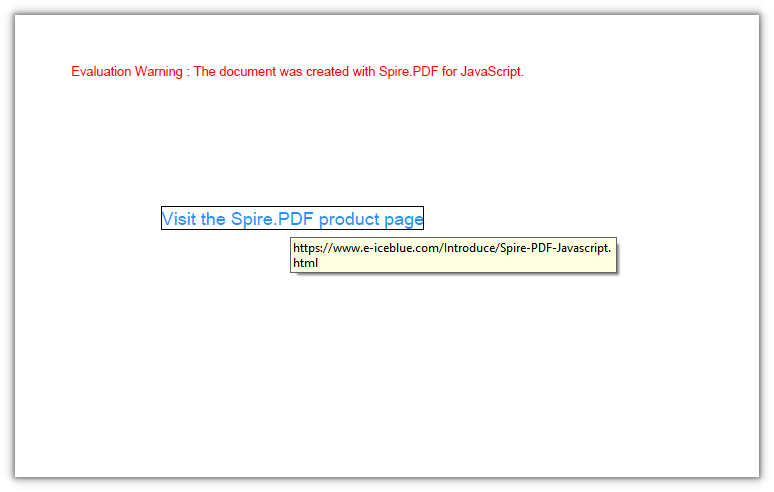
Add a File Link Annotation
PdfFileLinkAnnotation turns an area into a file link; when clicked, the reader opens the specified file through its system association.
function App() {
  const addFileLinkAnnotation = async () => {
    // Get the Spire.PDF WASM module
    const pdfModule = window.wasmModule?.spirepdf;

    // Check that the module is ready
    if (!pdfModule) {
      alert('Spire.PDF is not ready yet');
      return;
    }

    // The page needs a font; load it into the VFS first
    await window.spire.FetchFileToVFS('ARIALUNI.TTF', '/Library/Fonts/', `${process.env.PUBLIC_URL}/font/`);

    const doc = new pdfModule.PdfDocument();
    const page = doc.Pages.Add();

    const font = new pdfModule.PdfTrueTypeFont({ fontFamily: 'Arial Unicode MS', size: 14, style: pdfModule.PdfFontStyle.Regular, unicode: true });
    const text = 'Open Notepad';

    // Draw some text first as the clickable entry for the file link
    page.Canvas.DrawString({ s: text, font, brush: pdfModule.PdfBrushes.get_DodgerBlue(), x: 80, y: 120 });
    const size = font.MeasureString({ text });

    const rect = new pdfModule.RectangleF({ x: 80, y: 120, width: size.Width, height: size.Height });
    const link = new pdfModule.PdfFileLinkAnnotation(rect, 'C:\\Windows\\System32\\notepad.exe');

    page.Annotations.Add(link);

    const outputFileName = 'FileLinkAnnotation.pdf';
    doc.SaveToFile(outputFileName);
    doc.Close();

    // Read the generated file from the VFS and trigger the download
    const fileArray = window.dotnetRuntime.Module.FS.readFile(outputFileName);
    const blob = new Blob([fileArray], { type: 'application/pdf' });
    const url = URL.createObjectURL(blob);
    const a = document.createElement('a');
    a.href = url;
    a.download = outputFileName;
    a.click();
    URL.revokeObjectURL(url);
  };

  return (
    <div style={{ textAlign: 'center', height: '300px' }}>
      <h1>Add a File Link Annotation</h1>
      <button onClick={addFileLinkAnnotation}>Add Link</button>
    </div>
  );
}

export default App;
A file link annotation that opens the specified file through its system association when clicked:
Add a Document Link Annotation
PdfDocumentLinkAnnotation handles in-document jumps: when clicked, it moves to the page and position given by a PdfDestination.
function App() {
  const addDocumentLinkAnnotation = async () => {
    // Get the Spire.PDF WASM module
    const pdfModule = window.wasmModule?.spirepdf;

    // Check that the module is ready
    if (!pdfModule) {
      alert('Spire.PDF is not ready yet');
      return;
    }

    // The page needs a font; load it into the VFS first
    await window.spire.FetchFileToVFS('ARIALUNI.TTF', '/Library/Fonts/', `${process.env.PUBLIC_URL}/font/`);

    const doc = new pdfModule.PdfDocument();
    const page = doc.Pages.Add();

    // Append a second page as the jump target
    const target = doc.Pages.Add();

    const font = new pdfModule.PdfTrueTypeFont({ fontFamily: 'Arial Unicode MS', size: 14, style: pdfModule.PdfFontStyle.Regular, unicode: true });
    target.Canvas.DrawString({ s: 'This is the destination page', font, brush: pdfModule.PdfBrushes.get_Black(), x: 80, y: 120 });

    const text = 'Go to page 2';
    page.Canvas.DrawString({ s: text, font, brush: pdfModule.PdfBrushes.get_DodgerBlue(), x: 80, y: 120 });
    const size = font.MeasureString({ text });

    // Destination: 80 points down from the top of page 2, at 100% zoom
    const destination = new pdfModule.PdfDestination({ page: target });
    destination.Mode = pdfModule.PdfDestinationMode.Location;
    destination.Location = new pdfModule.PointF(0, 80);
    destination.Zoom = 1;

    const rect = new pdfModule.RectangleF({ x: 80, y: 120, width: size.Width, height: size.Height });
    const link = new pdfModule.PdfDocumentLinkAnnotation({ rectangle: rect, destination });

    page.Annotations.Add(link);

    const outputFileName = 'DocumentLinkAnnotation.pdf';
    doc.SaveToFile(outputFileName);
    doc.Close();

    // Read the generated file from the VFS and trigger the download
    const fileArray = window.dotnetRuntime.Module.FS.readFile(outputFileName);
    const blob = new Blob([fileArray], { type: 'application/pdf' });
    const url = URL.createObjectURL(blob);
    const a = document.createElement('a');
    a.href = url;
    a.download = outputFileName;
    a.click();
    URL.revokeObjectURL(url);
  };

  return (
    <div style={{ textAlign: 'center', height: '300px' }}>
      <h1>Add a Document Link Annotation</h1>
      <button onClick={addDocumentLinkAnnotation}>Add Link</button>
    </div>
  );
}

export default App;
A link on page 1 pointing to a position on page 2:
FAQ
Text on the page renders as boxes or blank
Cause: The body text and the annotation text both need a Unicode TrueType font. If the font is not loaded into the VFS, or PdfTrueTypeFont is used without unicode: true, the glyphs cannot be resolved and the saved file shows boxes or nothing at all.
Solution: Load the font file into /Library/Fonts/ in the VFS first, then reference the same font name with unicode enabled:
// Load the font into the VFS
await window.spire.FetchFileToVFS('ARIALUNI.TTF', '/Library/Fonts/', `${process.env.PUBLIC_URL}/font/`);

// Use the same font name and enable unicode
const font = new pdfModule.PdfTrueTypeFont({ fontFamily: 'Arial Unicode MS', size: 14, style: pdfModule.PdfFontStyle.Regular, unicode: true });
Link annotations leave no visible trace on the page
Cause: Link annotations only define a clickable area and an action; they draw no appearance of their own. Most readers do not draw a border around links, so the page looks unchanged after saving — which does not mean the annotation was not written.
Solution: To make it visible, draw text or a shape at the same rectangle and lay the link on top:
// Draw visible text first, then build the link from a rectangle of the same size
page.Canvas.DrawString({ s: text, font, brush: pdfModule.PdfBrushes.get_DodgerBlue(), x: 80, y: 120 });
const size = font.MeasureString({ text });
const rect = new pdfModule.RectangleF({ x: 80, y: 120, width: size.Width, height: size.Height });
const link = new pdfModule.PdfUriAnnotation({ rectangle: rect });
link.Uri = 'https://www.e-iceblue.com/';
The text markup annotation does not cover the text
Cause: The marked area is decided by QuadPoints, which uses absolute page coordinates and does not follow the text and align itself, while the canvas origin is pushed aside by the page margins. When the two are out of step, the mark lands beside the text or over empty space.
Solution: Zero the page margins first so the canvas and the corner points share one coordinate system, then measure the text with MeasureString and derive the four corner points from it:
const margins = new pdfModule.PdfMargins();
margins.Top = 0; margins.Bottom = 0; margins.Left = 0; margins.Right = 0;
doc.PageSettings.Margins = margins;

const size = font.MeasureString({ text: 'Highlight markup' });
const rect = new pdfModule.RectangleF({ x: 80, y: 120, width: size.Width, height: size.Height });
annotation.QuadPoints = [
  new pdfModule.PointF(rect.Left, rect.Top),
  new pdfModule.PointF(rect.Right, rect.Top),
  new pdfModule.PointF(rect.Left, rect.Bottom),
  new pdfModule.PointF(rect.Right, rect.Bottom),
];
Get a Free License
If you want to remove the evaluation message from the resulting documents, or to get rid of the functional limitations, please contact sales for a temporary license valid for 30 days.