
Bookmarks are invisible positioning markers in Word documents that act as coordinates, precisely marking a location or a range of text. But the true value of bookmarks goes beyond positioning—by programmatically retrieving content within a bookmark range, replacing placeholder text, removing unwanted content, or inserting text, paragraphs, tables, and images at bookmark positions, developers can implement advanced document processing workflows such as automatic contract template filling, dynamic report data injection, and batch form content cleanup. The combination of "read, write, delete, and insert" operations around bookmark content forms the core of Word automation.
Spire.Doc for JavaScript runs entirely in the browser via WebAssembly, handling bookmark content retrieval, replacement, deletion, and element insertion directly — all managed through a virtual file system (VFS) with no backend server required.
This article covers four core features:
- Get Bookmark Content
- Replace Bookmark Content
- Delete Bookmark Content
- Insert Text, Paragraphs, Tables, and Images at a Bookmark
For installation and project setup, refer to Integrating Spire.Doc for JavaScript in a React Project. The examples below assume Spire.Doc is installed and the WebAssembly module is initialized.
Get Bookmark Content
Getting bookmark content is the prerequisite for any bookmark operation. After locating a bookmark with BookmarksNavigator, the GetBookmarkContent method returns the content within the bookmark range as a TextBodyPart object, which developers can iterate through its BodyItems collection to retrieve elements.
function App() {
  const bookmarkContent = async () => {
    // Get the Spire.Doc WASM module
    const docModule = window.wasmModule?.spiredoc;

    // Check if the WASM module is ready
    if (!docModule) {
      alert('Spire.Doc is not ready yet');
      return;
    }

    // Load the Word file into VFS
    const inputFileName = 'ContractTemplate_en.docx';
    await window.spire.FetchFileToVFS(inputFileName, '', `${process.env.PUBLIC_URL}/data/`);

    // Load the Word document
    const doc = new docModule.Document();
    doc.LoadFromFile(inputFileName);

    // Create a BookmarksNavigator and move to the bookmark
    let navigator = new docModule.BookmarksNavigator(doc);
    navigator.MoveToBookmark("myBookmark");
    let textBodyPart = navigator.GetBookmarkContent();

    // Iterate through elements in the bookmark content and extract text
    let text = "";
    for (let i = 0; i < textBodyPart.BodyItems.Count; i++) {
      let item = textBodyPart.BodyItems.get_Item(i);
      if (item instanceof docModule.Paragraph) {
        for (let j = 0; j < item.ChildObjects.Count; j++) {
          let childObject = item.ChildObjects.get_Item(j);
          if (childObject instanceof docModule.TextRange) {
            text += childObject.Text;
          }
        }
      }
    }

    // Save as a .txt file
    const outputFileName = "GetBookmarkContent.txt";

    // Write the text file to VFS and trigger download
    window.dotnetRuntime.Module.FS.writeFile(outputFileName, text);

    const fileArray = window.dotnetRuntime.Module.FS.readFile(outputFileName);
    const blob = new Blob([fileArray], { type: 'text/plain' });
    const url = URL.createObjectURL(blob);
    const a = document.createElement('a');
    a.href = url;
    a.download = outputFileName;
    a.click();
    URL.revokeObjectURL(url);

    // Release resources
    doc.Dispose();
  };

  return (
    <div style={{ textAlign: 'center', height: '300px' }}>
      <h1>Get Bookmark Content from Word Document</h1>
      <button onClick={bookmarkContent}>
        Generate
      </button>
    </div>
  );
}

export default App;
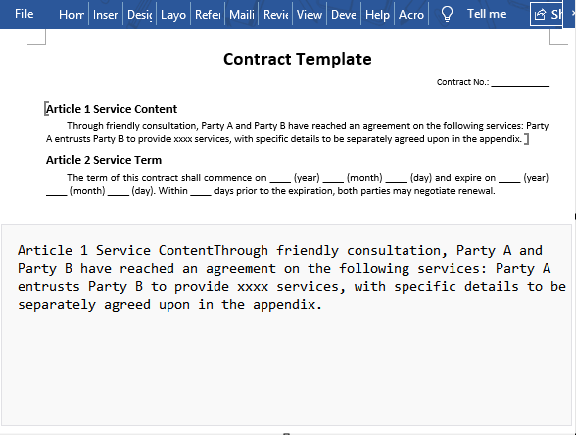
Executing the code above extracts the text content from the bookmark "myBookmark" and saves it as a separate .txt file:
Replace Bookmark Content
Replacing bookmark content is the most common operation in document template filling. After locating a bookmark with BookmarksNavigator, the ReplaceBookmarkContent method supports replacement with both plain text and complex elements like tables, making it ideal for placeholder replacement in contract generation, report filling, and similar scenarios.
function App() {
  const replaceBookmarkContent = async () => {
    // Get the Spire.Doc WASM module
    const docModule = window.wasmModule?.spiredoc;

    // Check if the WASM module is ready
    if (!docModule) {
      alert('Spire.Doc is not ready yet');
      return;
    }

    // Load fonts and Word file into VFS
    await window.spire.FetchFileToVFS('ARIAL.TTF', '/Library/Fonts/', `${process.env.PUBLIC_URL}/font/`);
    const inputFileName = 'BookmarkSample.docx';
    await window.spire.FetchFileToVFS(inputFileName, '', `${process.env.PUBLIC_URL}/data/`);

    // Load the Word document
    const doc = new docModule.Document();
    doc.LoadFromFile(inputFileName);

    // Create a BookmarksNavigator and move to the bookmark
    let navigator = new docModule.BookmarksNavigator(doc);
    navigator.MoveToBookmark("Bookmark1");

    // Replace the content of "书签1" — with text
    navigator.ReplaceBookmarkContent({ text: "This is the text that will replace the bookmark.", saveFormatting: true });

    // Continue to replace "书签2" — with a table
    navigator.MoveToBookmark("Bookmark2");

    // Create a table
    let table = new docModule.Table(doc, true);
    table.ResetCells(4, 5);

    // Create data and fill it into the table
    let dt = [
      ["City", "Province", "Population", "Area (km²)", "Abbrev."],
      ["Beijing", "Beijing", "21.89M", "16410", "BJ"],
      ["Shanghai", "Shanghai", "24.75M", "6340", "SH"],
      ["Guangzhou", "Guangdong", "18.67M", "7434", "GZ"]];
    for (let i = 0; i < 4; i++) {
      for (let j = 0; j < 5; j++) {
        table.Rows.get_Item(i).Cells.get_Item(j).AddParagraph().AppendText(dt[i][j]);
      }
    }

    // Create a TextBodyPart instance and add the table to it
    let part = new docModule.TextBodyPart({ doc: doc });
    part.BodyItems.Add(table);

    // Replace the current bookmark content with the TextBodyPart
    navigator.ReplaceBookmarkContent({ bodyPart: part });

    // Save as a new .docx file
    const outputFileName = "ReplaceBookmark.docx";
    doc.SaveToFile({ fileName: outputFileName, fileFormat: docModule.FileFormat.Docx2013 });

    // Read the generated file from VFS and trigger download
    const fileArray = window.dotnetRuntime.Module.FS.readFile(outputFileName);
    const blob = new Blob([fileArray], { type: 'application/vnd.openxmlformats-officedocument.wordprocessingml.document' });
    const url = URL.createObjectURL(blob);
    const a = document.createElement('a');
    a.href = url;
    a.download = outputFileName;
    a.click();
    URL.revokeObjectURL(url);

    // Release resources
    doc.Dispose();
  };

  return (
    <div style={{ textAlign: 'center', height: '300px' }}>
      <h1>Replace Bookmark Content in Word</h1>
      <button onClick={replaceBookmarkContent}>
        Generate
      </button>
    </div>
  );
}

export default App;
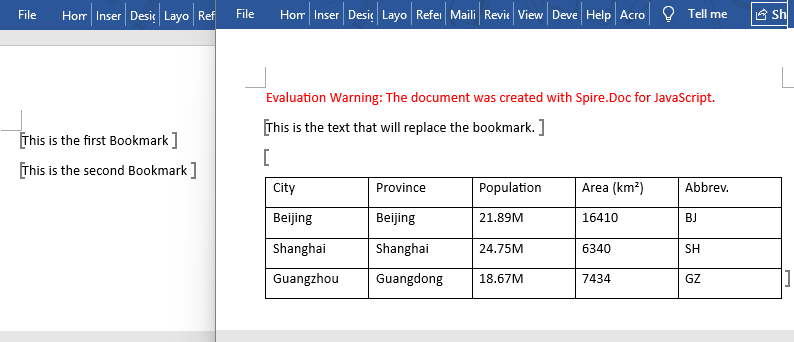
This method supports replacing bookmark content with plain text or complex elements like tables. The bookmark marker itself is preserved after replacement, making it easy to locate again later. The figure below shows the result:
Delete Bookmark Content
Deleting bookmark content and removing a bookmark marker are two different operations. After locating a bookmark with BookmarksNavigator, calling DeleteBookmarkContent removes the text content within the bookmark range while preserving the bookmark marker itself for later refilling. If you only need to clear the content while keeping the positioning marker, this method is the preferred choice.
function App() {
  const deleteBookmarkContent = async () => {
    // Get the Spire.Doc WASM module
    const docModule = window.wasmModule?.spiredoc;

    // Check if the WASM module is ready
    if (!docModule) {
      alert('Spire.Doc is not ready yet');
      return;
    }

    // Load the Word file into VFS
    const inputFileName = 'ContractTemplate_en.docx';
    await window.spire.FetchFileToVFS(inputFileName, '', `${process.env.PUBLIC_URL}/data/`);

    // Load the Word document
    const doc = new docModule.Document();
    doc.LoadFromFile(inputFileName);

    // Create a BookmarksNavigator and move to the bookmark
    let navigator = new docModule.BookmarksNavigator(doc);
    navigator.MoveToBookmark("myBookmark");

    // Delete bookmark content, keep the bookmark marker
    navigator.DeleteBookmarkContent(true);

    // Save as a new .docx file
    const outputFileName = "RemoveBookmark.docx";

    doc.SaveToFile({ fileName: outputFileName, fileFormat: docModule.FileFormat.Docx2013 });

    // Read the generated file from VFS and trigger download
    const fileArray = window.dotnetRuntime.Module.FS.readFile(outputFileName);
    const blob = new Blob([fileArray], { type: 'application/vnd.openxmlformats-officedocument.wordprocessingml.document' });
    const url = URL.createObjectURL(blob);
    const a = document.createElement('a');
    a.href = url;
    a.download = outputFileName;
    a.click();
    URL.revokeObjectURL(url);

    // Release resources
    doc.Dispose();
  };

  return (
    <div style={{ textAlign: 'center', height: '300px' }}>
      <h1>Delete Bookmark Content in Word</h1>
      <button onClick={deleteBookmarkContent}>
        Generate
      </button>
    </div>
  );
}

export default App;
DeleteBookmarkContentremoves only the text content within the bookmark range — the bookmark marker itself remains.Bookmarks.Remove, on the other hand, removes the bookmark marker, leaving the text within the range unaffected.
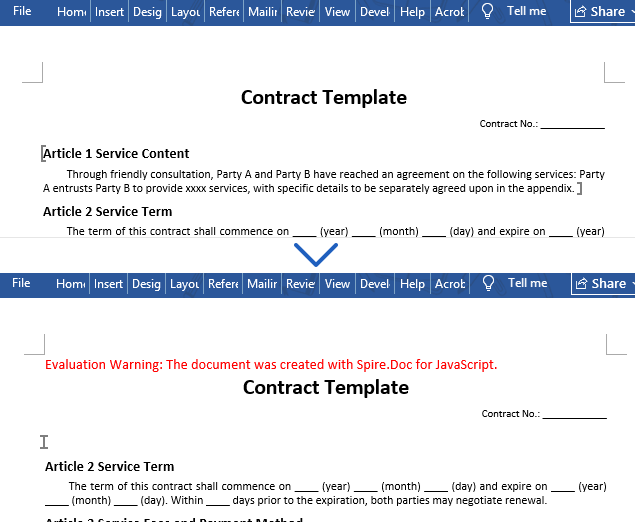
After execution, the text within the bookmark "myBookmark" is removed, but the bookmark marker stays in the document:
Insert Text, Paragraphs, Tables, and Images at a Bookmark
Spire.Doc supports flexibly inserting various types of document elements at bookmark positions. It provides InsertText, InsertParagraph, and InsertTable methods for inserting text, paragraphs, and tables. Elements can also be inserted based on the index of the bookmark start node within the paragraph's ChildObjects collection.
function App() {
  const insertElementsAtBookmark = async () => {
    // Get the Spire.Doc WASM module
    const docModule = window.wasmModule?.spiredoc;

    // Check if the WASM module is ready
    if (!docModule) {
      alert('Spire.Doc is not ready yet');
      return;
    }

    // Load fonts and Word file into VFS
    await window.spire.FetchFileToVFS('ARIAL.TTF', '/Library/Fonts/', `${process.env.PUBLIC_URL}/font/`);
    const inputFileName = 'BookmarkSample1.docx';
    await window.spire.FetchFileToVFS(inputFileName, '', `${process.env.PUBLIC_URL}/data/`);

    // Create a Document object and load the file
    const doc = new docModule.Document();
    doc.LoadFromFile(inputFileName);

    // Move to the bookmark position
    let navigator = new docModule.BookmarksNavigator(doc);
    navigator.MoveToBookmark("Bookmark1");

    // 1. Insert text
    navigator.InsertText("This is the inserted text content.", true);

    // 2. Insert paragraph
    let newParagraph = new docModule.Paragraph(doc);
    newParagraph.AppendText("This is the inserted paragraph content.")
    navigator.MoveToBookmark("Bookmark2");
    navigator.InsertParagraph(newParagraph);

    // 3. Insert table — 2 rows, 3 columns
    let table = new docModule.Table(doc, true);
    table.ResetCells(2, 3);
    table.Rows.get_Item(0).Cells.get_Item(0).AddParagraph().AppendText("Name");
    table.Rows.get_Item(0).Cells.get_Item(1).AddParagraph().AppendText("Quantity");
    table.Rows.get_Item(0).Cells.get_Item(2).AddParagraph().AppendText("Note");
    table.Rows.get_Item(1).Cells.get_Item(0).AddParagraph().AppendText("Product A");
    table.Rows.get_Item(1).Cells.get_Item(1).AddParagraph().AppendText("100");
    table.Rows.get_Item(1).Cells.get_Item(2).AddParagraph().AppendText("In Stock");

    navigator.MoveToBookmark("Bookmark3");
    navigator.InsertTable(table);

    // 4. Insert image
    const imageFileName = 'pic.png';
    await window.spire.FetchFileToVFS(imageFileName, '', `${process.env.PUBLIC_URL}/data/`);
    let picture = new docModule.DocPicture(doc);
    picture.LoadImage(imageFileName);
    picture.Width = 100;
    picture.Height = 200;

    navigator.MoveToBookmark("Bookmark4");
    // Get the bookmark start node
    let start = navigator.CurrentBookmark.BookmarkStart;
    // Get the paragraph containing the bookmark
    let bookmarkPara = start.OwnerParagraph;
    // Get the index of the bookmark start node in the paragraph
    let startIndex = bookmarkPara.ChildObjects.IndexOf(start);
    // Insert the image after the bookmark start node
    bookmarkPara.ChildObjects.Insert(startIndex + 1, picture);

    // Save as a .docx file
    const outputFileName = "InsertToBookmark.docx";

    doc.SaveToFile({ fileName: outputFileName, fileFormat: docModule.FileFormat.Docx2013 });

    // Read the generated file from VFS and trigger download
    const fileArray = window.dotnetRuntime.Module.FS.readFile(outputFileName);
    const blob = new Blob([fileArray], { type: 'application/vnd.openxmlformats-officedocument.wordprocessingml.document' });
    const url = URL.createObjectURL(blob);
    const a = document.createElement('a');
    a.href = url;
    a.download = outputFileName;
    a.click();
    URL.revokeObjectURL(url);

    // Release Document resources
    doc.Dispose();
  };

  return (
    <div style={{ textAlign: 'center', height: '300px' }}>
      <h1>Insert Elements at Bookmark Position</h1>
      <button onClick={insertElementsAtBookmark}>
        Generate
      </button>
    </div>
  );
}

export default App;
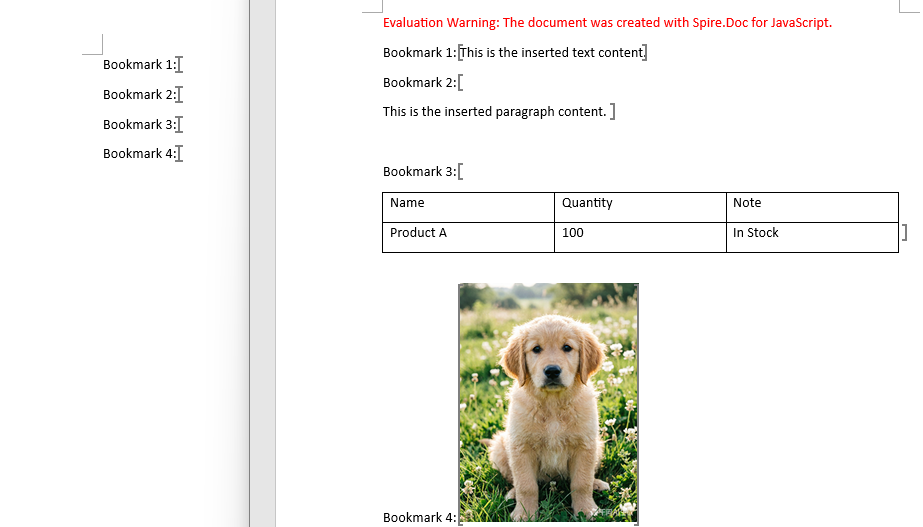
The figure below shows the generated document with text, paragraph, table, and image inserted at bookmark positions:
FAQ
Formatting (font, size, color) is lost after replacing bookmark content — how to keep it?
ReplaceBookmarkContent replaces with plain text by default, discarding the original formatting. To preserve the bookmark's existing formatting, pass saveFormatting: true:
navigator.ReplaceBookmarkContent({ text: "New content", saveFormatting: true });
The replacement text will then inherit the original font, size, color, and other formatting from the bookmark.
How to batch process multiple bookmarks in a document?
Iterate through the doc.Bookmarks collection, locating and operating on each bookmark one by one:
for (let i = 0; i < doc.Bookmarks.Count; i++) {
    let bookmark = doc.Bookmarks.get_Item(i);
    navigator.MoveToBookmark(bookmark.Name);
    // Perform replace, delete, or insert operations
}
What's the difference between DeleteBookmarkContent and removing a bookmark marker?
DeleteBookmarkContent: Clears only the content within the bookmark range. The bookmark marker stays in the document, so you can still locate it by name and fill in new content later.Bookmarks.Remove: Removes the bookmark marker itself. The content within the bookmark range is unaffected, but the bookmark name disappears and can no longer be located.
Choose the appropriate operation based on your needs: use DeleteBookmarkContent if you need to keep the "placeholder" capability, or remove the marker if the bookmark is no longer needed.
When inserting multiple elements at the same bookmark, why does only the last one take effect?
Methods like InsertText, InsertParagraph, and InsertTable insert based on the bookmark's current position. When inserting multiple times at the same bookmark, subsequent insertions may overwrite or shift previously inserted content. It is recommended to use separate bookmarks for each insertion, or re-locate the bookmark after each insert before proceeding with the next operation.
Get a Free License
Spire.Doc for JavaScript offers a 30-day full-featured free trial license with no functional limitations. Apply here to evaluate before purchasing.

