Content Preview:
- Method 1. Use Microsoft Word’s Built-in Compare Tool
- Method 2. Compare Word Documents Using Online Tools
- Method 3. Compare Word Documents Automatically with C# Code
- FAQs
When working with Word documents—whether contracts, reports, or collaborative drafts—one question comes up again and again: what actually changed? Manually comparing two versions line by line is not only time-consuming but also prone to errors. Whether you're reviewing a colleague's edits, preparing content for publication, or checking revisions for compliance, you need a more efficient and reliable way to spot differences.
This guide introduces three practical methods to compare Word documents, each suited to different scenarios and skill levels. By the end, you'll have a clear understanding of which approach fits your workflow best and how to use it effectively to save time and improve accuracy.
Method 1. Use Microsoft Word's Built-in Compare Tool
Pros
- Highly accurate
- Built specifically for document comparison
- Great for collaborative editing
Cons
- Can feel overwhelming for beginners
- Limited customization for advanced workflows
- Requires Microsoft Word installed
When you're working with detailed revisions, tracked changes, or formal documents, a simple visual check is no longer enough—you need a more accurate and structured approach. In these situations, Microsoft Word’s built-in comparison tool becomes a much more effective solution.
Microsoft Word provides a dedicated feature for document comparison that can automatically detect differences and present them in a clear, organized format, making the review process easier and more efficient.
Steps to compare two documents using Microsoft Word's built-in Compare tool:
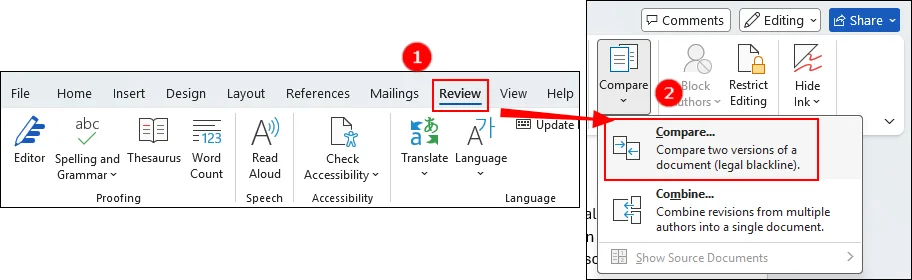
Step 1. Open Microsoft Word and go to "Review" tab. Find the "Compare" section and choose "Compare".
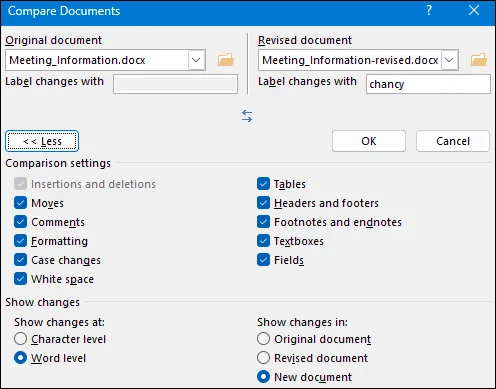
Step 2. Browse to choose the two documents you’d like to compare. Then, click "OK", and Microsoft Word will generate a new document with the differences clearly marked.
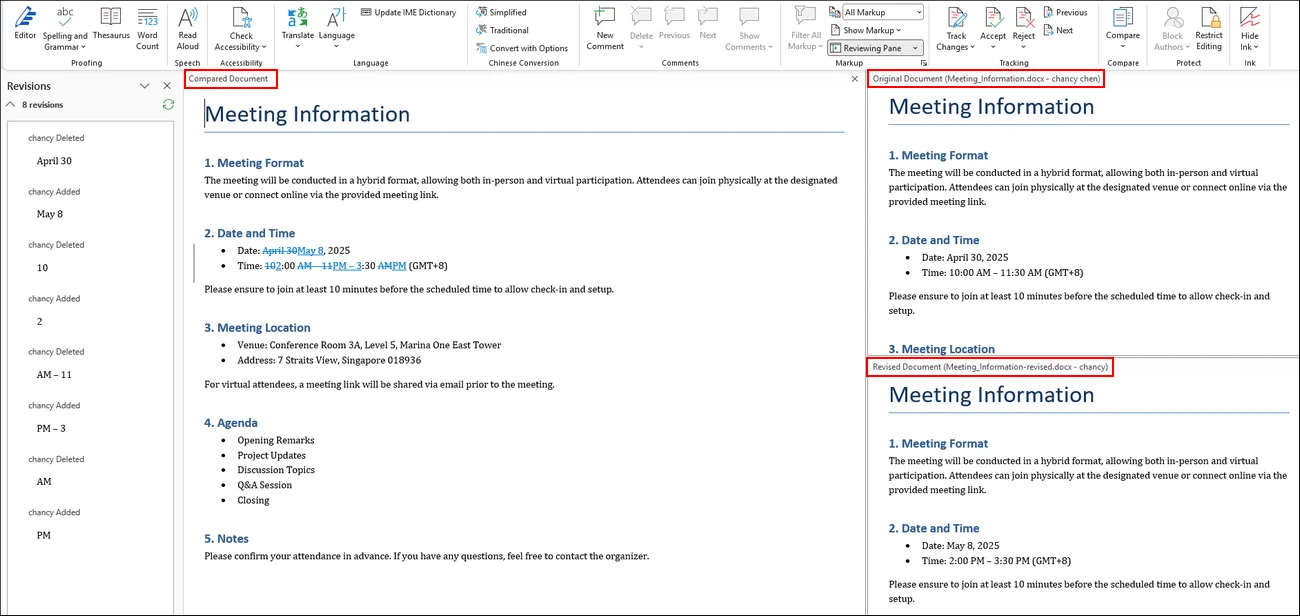
Step 3. After a few seconds, the comparison result will be generated.
Method 2. Compare Word Documents Using Online Tools
Pros
- No installation required
- Works on any device
- Fast and easy to use
Cons
- Privacy concerns (sensitive documents)
- File size limitations
- Internet dependency
Although Word's built-in tool is powerful, it’s not always convenient, especially if you don't have access to Word or need a quick comparison on another device. In those cases, online tools offer a fast and accessible alternative without requiring software installation.
Online document comparison tools provide a quick way to compare files directly in your browser. These tools are especially useful when you're working across devices or need a fast, no-installation solution.
How can you compare two Word documents with an online tool:
Step 1. Open a browser on your computer and search for an online compare tool on Google.
Step 2. Go to the official site of the tool and upload the two Word documents you'd like to compare with.
Step 3. Wait for the comparison to complete, then download the result file.
Method 3. Compare Word Documents Automatically with C# Code
Pros
- Fully automated
- Scalable for large workflows
- Customizable for specific needs
Cons
- Requires programming knowledge
- Setup and integration effort
- Not ideal for non-technical users
Online tools are convenient, but they fall short when you need automation, integration, or large-scale document processing. If you're a developer—or working in a system that handles documents programmatically—you'll need a more flexible solution. That's where code-based comparison comes in.
One option for developers is to use a .NET document processing library to automate comparisons. For example, you can use Spire.Doc for .NET, a document processing API that allows developers to create, read, edit, and analyze Word files without requiring Microsoft Word to be installed.
Full steps to compare two Word documents automatically with C# code:
Step 1. Install the DLL file. You can add the dependency by downloading it from the official website or install with NuGet directly with code below:
PM> Install-Package Spire.Doc
Step 2. Copy the sample code below and adjust according to your own situation:
Sample Code:
using Spire.Doc;

namespace CompareDocuments
{
    class Program
    {
        static void Main(string[] args)
        {
            //Load one Word document
            Document doc1 = new Document("C:\\Users\\Administrator\\Desktop\\Meeting_Information.docx");

            //Load the other Word document
            Document doc2 = new Document("C:\\Users\\Administrator\\Desktop\\Meeting_Information-revised.docx");

            //Compare two documents
            doc1.Compare(doc2, "Chancy");

            //Save the differences in a third document
            doc1.SaveToFile("Differences.docx", FileFormat.Docx2013);
            doc1.Dispose();
        }
    }
}
Result:
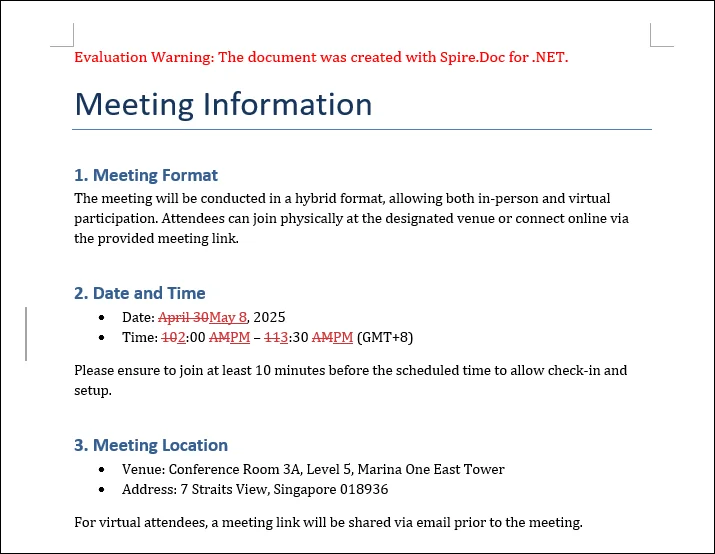
Tip: You can request a free trial license from the sales team to remove evaluation limitations.
FAQs
Q1. Can I compare two Word documents and highlight differences?
Yes. Microsoft Word's built-in Compare tool automatically highlights differences including text, formatting, and comments.
Q2. Is it safe to use online Word comparison tools?
It depends. For sensitive documents, it's better to avoid online tools due to potential privacy risks.
Q3. How do I compare multiple Word documents at once?
Manual and built-in tools are limited. For batch comparison, using code-based solutions is the most efficient approach.
Conclusion
Each method we've covered serves a different purpose—from built-in tools to advanced automated solutions. The right choice depends on your workflow, technical skills, and the level of accuracy you need.
Choosing the right approach is key to improving efficiency and accuracy. Once you do, document comparison becomes faster, easier, and far more reliable, saving you time and helping you focus on what matters: the content itself.
Read Also: