Have you ever opened a Word document only to find unexpected blank pages or awkward gaps? These issues are usually caused by hidden or misplaced page breaks. Whether they were added manually or triggered by specific paragraph settings, knowing how to remove page breaks in Word is an essential skill for keeping your formatting clean and professional.
This guide covers four practical ways to remove page breaks in Word, ranging from simple manual clicks to automated solutions.
- Remove Page Breaks Using Show/Hide Feature
- Remove Page Breaks with Find and Replace
- Remove Page Breaks by Adjusting Automatic Breaks
- Remove Page Breaks Using Code (Free Spire.Doc)
- FAQs
Remove a Page Break in Microsoft Word with the Show/Hide Feature
If you only have one or two breaks to fix, the most direct way to remove a page break in Word documents is to find the hidden marker and delete it. Word keeps these markers invisible by default to keep the interface clean, so you first need to make them visible. Here are the steps you can follow:
- Step 1: Go to the Home tab and click the Show/Hide ¶ icon (or press Ctrl + Shift + 8). It will reveal all hidden formatting marks.
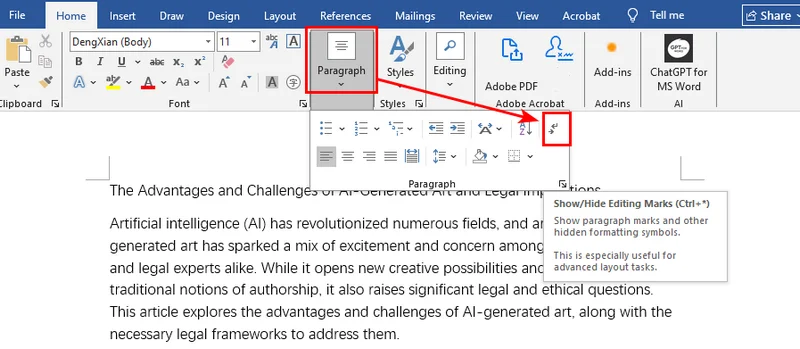
- Step 2: Find page breaks in the document. They look like a dotted line labeled "Page Break."
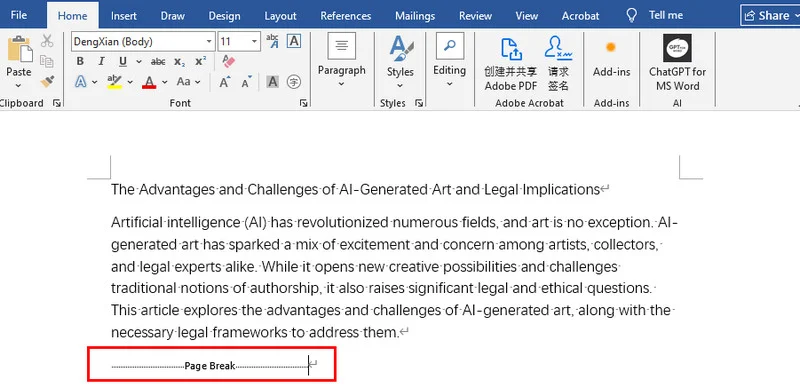
- Step 3: Click on that line and press the Delete or Backspace key on your keyboard.
Pro Tip: Sometimes, unwanted gaps are caused by a series of empty paragraphs rather than a page break. If you see multiple ¶ symbols with no text, you may also need to remove blank lines to fully tidy up your document layout.
Remove a Page Break in Microsoft Word with Find and Replace
When working with long or messy documents, you may need to remove all page breaks at once. Removing them one by one can be time-consuming. Instead, you can use the Find and Replace tool to clear the entire document in seconds. Beyond just finding and replacing normal text, this feature allows you to target special characters and formatting markers, providing a professional level of control over the layout.
- Step 1: Press Ctrl + H to open the Find and Replace dialog box.
-
Step 2: In the Find what box, type
^m(the special code for a manual page break).
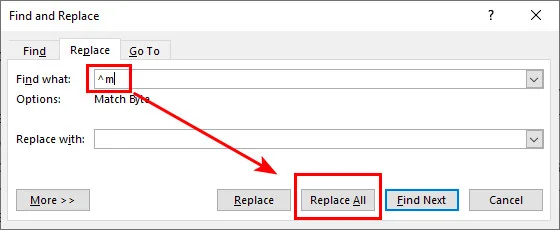
- Step 3: Leave the Replace with box empty and click Replace All.
This is the fastest way to remove all page breaks in Word files when you want to reset the flow of your text completely.
Remove a Page Break in Word Documents by Adjusting Automatic Breaks
Sometimes, you might try to remove a page break in Microsoft Word only to find there is no marker to delete. These breaks won’t appear as a visible Page Break line, even when formatting marks are enabled. This happens because the break is a paragraph rule rather than a character. Even so, there are still effective ways to find and remove them by adjusting your paragraph formatting.
- Step 1: Select the paragraph that is jumping to a new page unexpectedly.
- Step 2: Right-click the text and choose Paragraph, then navigate to the Line and Page Breaks tab.
- Step 3: Uncheck the box for Page break before.
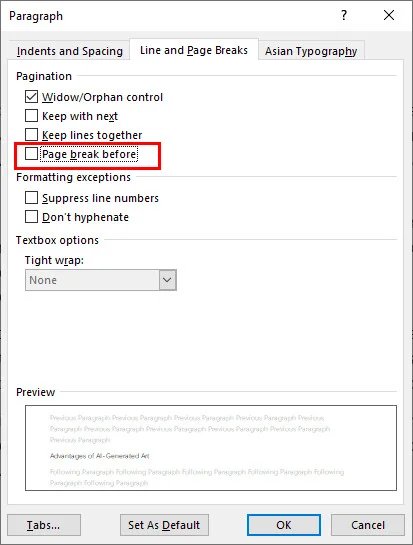
Using this method is the most effective way of removing page breaks in Word that feel stuck or unmovable. It addresses the underlying formatting logic of the document rather than looking for a character to delete, ensuring your text flows naturally without forced interruptions.
Remove Page Breaks in a Word Document Using Code (Free Spire.Doc)
For those managing high volumes of documents, manually removing page breaks in Word isn't practical. Developers often use libraries like Free Spire.Doc for Python to automate the process.
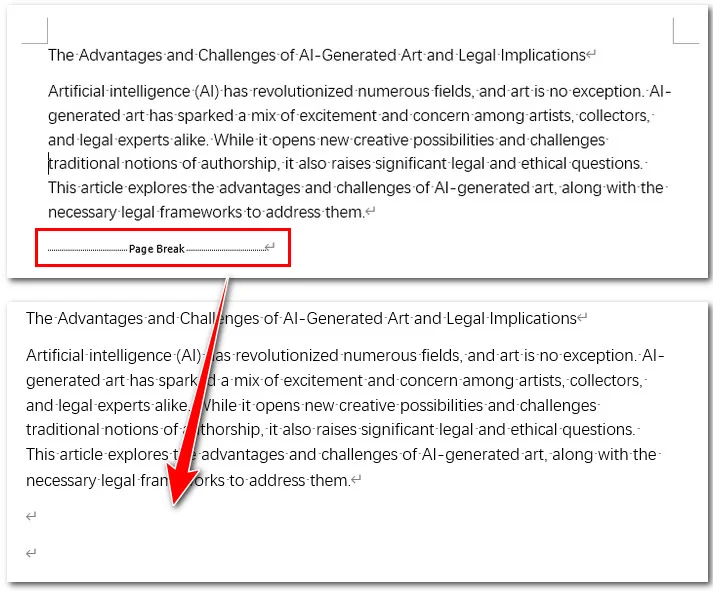
The script will scan every section and paragraph of a document to identify specific Break objects. Once a page break is detected within the document's structure, Free Spire.Doc will remove it directly from the object collection.
This method ensures consistency across hundreds of files without opening them one by one. Below is a Python example of how to remove all page breaks in a Word file using the Free Spire.Doc library:
from spire.doc import *
from spire.doc.common import *

inputFile = "/input/sample.docx"
outputFile = "/output/RemovePageBreaks.docx"

# Create a Document object
document = Document()

# Load a Word document
document.LoadFromFile(inputFile)

# Iterate through all sections in the document
for i in range(document.Sections.Count):
    section = document.Sections.get_Item(i)
    # Iterate through all paragraphs in each section
    for j in range(section.Paragraphs.Count):
        paragraph = section.Paragraphs.get_Item(j)

        # Iterate through child objects in reverse to avoid index errors during removal
        for k in range(paragraph.ChildObjects.Count - 1, -1, -1):
            child = paragraph.ChildObjects.get_Item(k)

            # Check if the object is a break
            if isinstance(child, Break):
                break_obj = child
                # Remove the object if it is a page break
                if break_obj.BreakType == BreakType.PageBreak:
                    paragraph.ChildObjects.Remove(break_obj)

# Save the result file
document.SaveToFile(outputFile, FileFormat.Docx2016)
document.Close()
Here's the preview of the original Word document and the output file:
Conclusion
Managing document flow becomes much easier once you understand how page breaks work. Whether you prefer the Show/Hide button, the Find and Replace way, or adjusting paragraph settings, you now have the tools to remove page breaks in Word documents effectively. For even more efficiency, using code with Free Spire.Doc allows you to handle complex tasks across multiple files. By mastering these four techniques, you can ensure your documents always look exactly the way you intended, without any unexpected interruptions.
FAQs about Removing Page Breaks
Q1: How do I remove all page breaks in Word at once?
A: The fastest way is using the Find and Replace tool. Press Ctrl + H, enter ^m in the Find what box, and click Replace All. This will instantly clear every manual page break in your document.
Q2: Why can’t I delete certain page breaks in my document?
A: If a break won't budge, it is usually due to one of two things: either Track Changes is enabled or you are dealing with a Page break before paragraph setting. Additionally, make sure you aren't confusing a page break with a section break; to remove a section break, you would need to search for ^b instead.
Q3: How to remove page breaks in Word without deleting text?
A: Removing a page break does not delete your words. Simply turn on formatting marks (¶), place your cursor directly on the Page Break dotted line, and press Delete. Your text will stay intact but will simply move up to fill the previous page.
Q4: Is there a difference when removing page breaks in Word on Mac?
A: The logic remains the same. You can use Cmd + 8 to toggle formatting marks or navigate to Edit > Find > Advanced Find & Replace to perform batch removals. The main difference is simply using the Command (⌘) key instead of Control (Ctrl) for your shortcuts.