In business reports, academic lectures, and project proposals, Microsoft Word and PowerPoint are two of the most frequently used tools. While Word documents are excellent for drafting detailed information and reports, PowerPoint presentations are far more effective for summarizing and visualizing those insights.
Converting Word to PowerPoint is a common need for users who want to quickly transform their text-heavy content into engaging slides. Whether you're looking to convert a Word document to a PowerPoint presentation manually or automate the process, this guide covers a range of practical methods, from using Microsoft 365's built-in features to online converters, AI tools, and Python automation.
By the end of this article, you'll be equipped with the knowledge to choose the most suitable method for your needs, saving time and ensuring your presentations look professional and polished.
Word to PowerPoint Conversion Methods Overview:
- Using Microsoft 365 (Official Method)
- Using Online Tools (Quick and Free)
- Using AI Models (Flexible but Slower)
- Converting Automatically with Python
Why Convert Word to PowerPoint
A Word document is perfect for drafting detailed content, but PowerPoint excels at summarizing ideas visually. Converting a Word document into a PowerPoint presentation offers several benefits:
- Improved visual communication: Transform text-heavy content into clear, structured slides.
- Time-saving: Reuse existing materials instead of designing slides from scratch.
- Consistency: Maintain the same structure and tone between written and visual materials.
- Flexibility: Ideal for meetings, lectures, and public presentations.
If you regularly prepare reports or proposals, learning how to convert Word documents to PowerPoint presentations can significantly streamline your work.
Before converting, ensure your document is well-formatted for a smoother conversion process—use Heading styles, change page orientation to Landscape, and remove unnecessary information.
Method 1 – Convert Word to PowerPoint Using Microsoft 365 (Official Method)
The easiest and most reliable way to turn a Word document into a PowerPoint presentation is through Microsoft 365’s built-in Word to PowerPoint Export feature.
This official feature directly converts a well-structured Word document into a ready-to-use .pptx file, making it the most seamless option for Microsoft 365 users. You don’t need to install any external tools or reformat content manually — Word handles the slide generation and layout design automatically.
Step 1 – Prepare Your Word Document
Before exporting, make sure your document is properly structured using Heading 1, Heading 2, and Heading 3 styles.
These heading levels determine how your PowerPoint slides will be organized. For example, Heading 1 will become the slide title, and Heading 2 will appear as bullet points on the slide.
Step 2 – Export to PowerPoint Presentation
- Open your Word document.
- Go to File → Export → Export to PowerPoint Presentation.
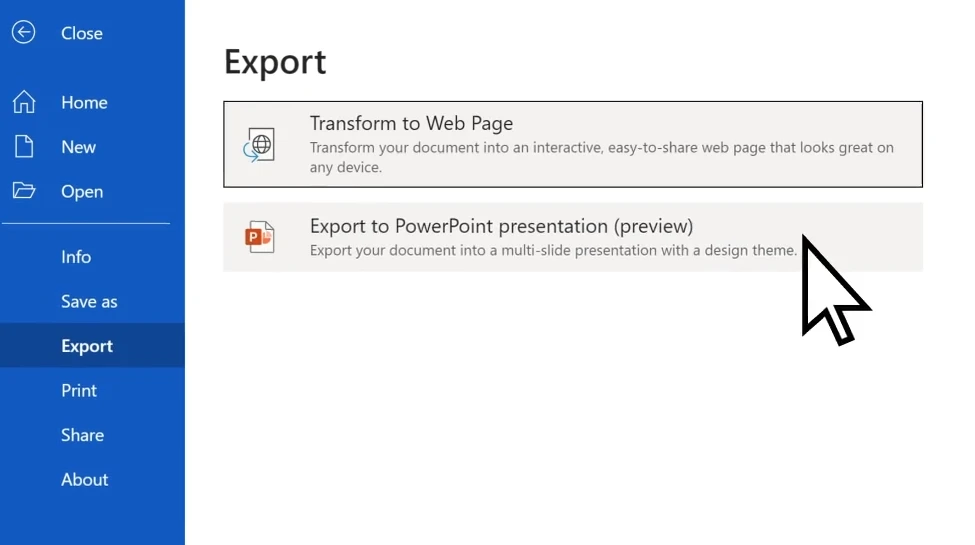
- Choose a theme (PowerPoint will suggest design templates).
- Click Export and let Word automatically create a
.pptxfile.
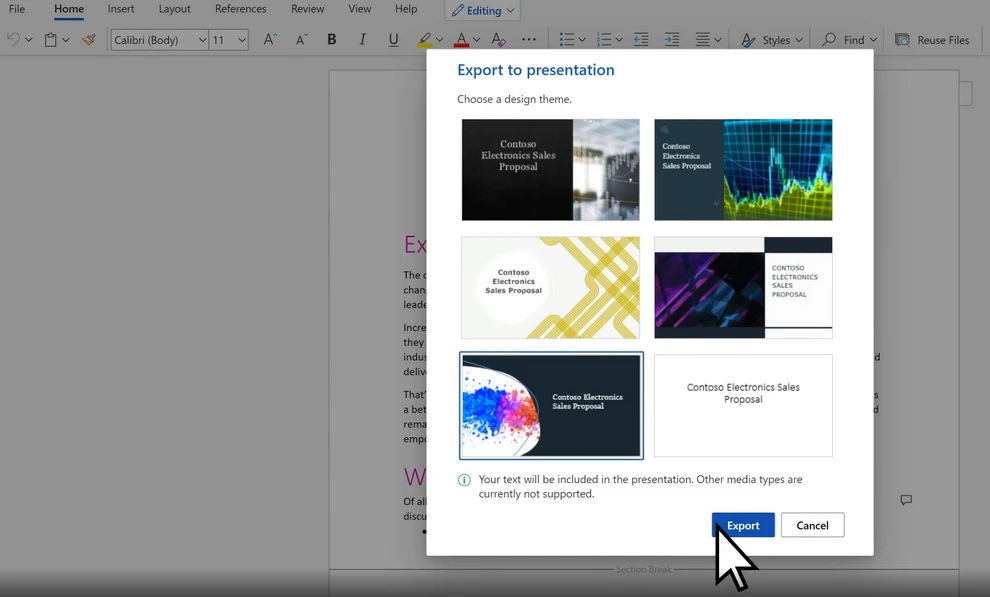
Microsoft’s AI-powered design feature even suggests layouts that match your document’s tone and style.
Step 3 – Refine the Generated Slides
After exporting, review your presentation:
- Adjust images and layouts if needed.
- Add animations and transitions.
- Use PowerPoint Designer to enhance slide appearance.
This method is best for Microsoft 365 users seeking simplicity and consistency. If you want to convert your Word document to PowerPoint for free, you can check out the alternative methods below.
Method 2 – Convert Word to PowerPoint Online (Quick and Free)
If you don’t have Microsoft 365 or prefer a browser-based solution, online conversion tools offer a convenient and free alternative.
These tools are ideal for users who need a quick conversion without installing software. With just a few clicks, you can upload a Word file and download a PowerPoint presentation, making it suitable for occasional use or lightweight documents.
Recommended Online Tools
- Word.to - Free and easy-to-use Word converter.
- Convertio – Works directly from your browser, supports drag-and-drop.
- Online2PDF – Free and flexible, but with file size upload limits.
How to Use an Online Converter
Here we take Word.to as an example.
- Go to Word.to Word to PowerPoint converter.
- Upload your Word document.
- Click Convert Files to start the conversion.
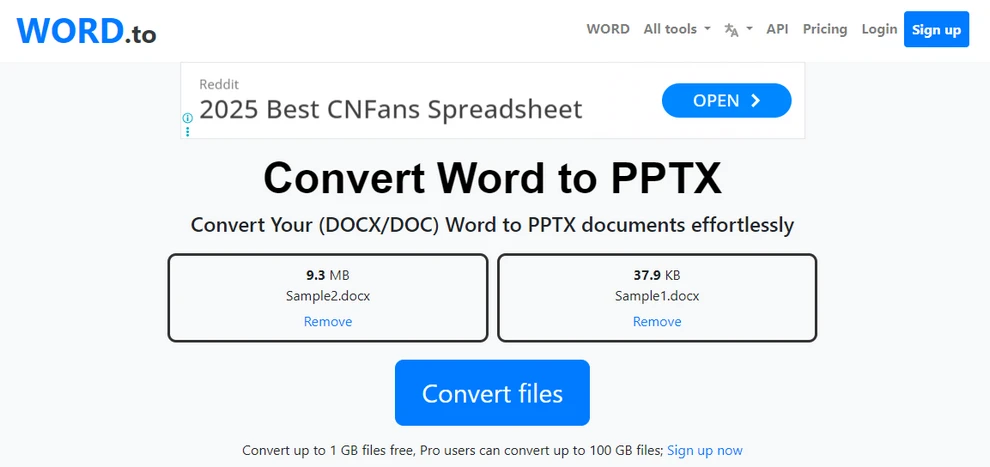
- Wait for the conversion to finish and download your PowerPoint file.
Pros and Cons
| Advantages | Disadvantages |
|---|---|
| Free and fast | Possible layout loss |
| No installation needed | Limited file size and conversion time |
| Works on any OS | Privacy concerns for sensitive files |
Online converters are ideal for occasional, lightweight conversions. However, for larger files, complex documents, or those requiring perfect formatting, a more robust method may be necessary.
Tip: Explore more free online converters at CLOUDXDOCS Online Converters.
Method 3 – Convert Word to PowerPoint with AI (Flexible but Slower)
For users looking for a more creative or personalized presentation, AI-powered tools such as ChatGPT, Microsoft Copilot, or dedicated AI slide generators can provide flexible and intelligent conversion results.
Instead of a one-to-one conversion, these tools analyze the document’s meaning and structure, then create slides that summarize and visualize the content — ideal for storytelling and conceptual presentations.
How It Works
-
Upload your Word document (or paste the content).
-
Use a prompt like:
Convert this document into a PowerPoint presentation. Keep one main idea per slide. -
Alternatively, if you're using dedicated AI tools, follow their instructions to customize the presentation.
-
Download and review the generated PowerPoint presentation.
Pros and Cons
Advantages:
- Highly customizable outputs.
- Can summarize or rephrase text creatively.
- Great for presentation storytelling.
Limitations:
- Layout accuracy may be lower than Microsoft’s method.
- Requires manual formatting if using general AI tools.
- Processing large files may be slow.
- Most dedicated AI tools offer paid services only.
This AI-based approach suits users who prefer creativity over speed or precision. However, online conversion services typically have limitations on file number and size, while using Python automation can help with precise batch conversion of large volumes of documents.
You may also like: How to Create and Edit Documents Online
Method 4 – Convert Word to PowerPoint Automatically with Python
For professionals or teams who frequently handle document processing, automation can greatly improve efficiency. Using Python scripts and the Free Spire.Office for Python library, you can batch-convert Word documents into PowerPoint presentations with minimal effort. This approach is particularly suited for enterprises, educators, or developers who want to integrate the conversion into larger automated workflows or reporting systems.
Simple Automation Workflow Using Spire.Office
The easiest way is to use the Free Spire.Office for Python suite. It involves two short steps:
- Load the Word document and save it as a temporary PDF file.
- Convert the temporary PDF to a PowerPoint presentation.
Before starting the process, make sure you have installed the Spire.Office library.
pip install spire.office.free
After installation, you can use the following Python code to convert Word to PowerPoint.
Python Example: Convert Word Documents to PowerPoint Presentations
from spire.doc import Document, FileFormat
from spire.pdf import PdfDocument, FileFormat as PdfFileFormat
import os

inputFile = "Sample.docx"
tempPdfFile = "output/temp.pdf"
outputFile = "output/DocxPptx.pptx"

# Load the Word document and save it as a temporary PDF file
doc = Document()
doc.LoadFromFile(inputFile)
doc.SaveToFile(tempPdfFile, FileFormat.PDF)

# Load the temporary PDF file and save it as a PowerPoint presentation
pdfDoc = PdfDocument()
pdfDoc.LoadFromFile(tempPdfFile)
pdfDoc.SaveToFile(outputFile, PdfFileFormat.PPTX)

# Check if the temporary PDF file exists and delete it
if os.path.exists(tempPdfFile):
   os.remove(tempPdfFile)
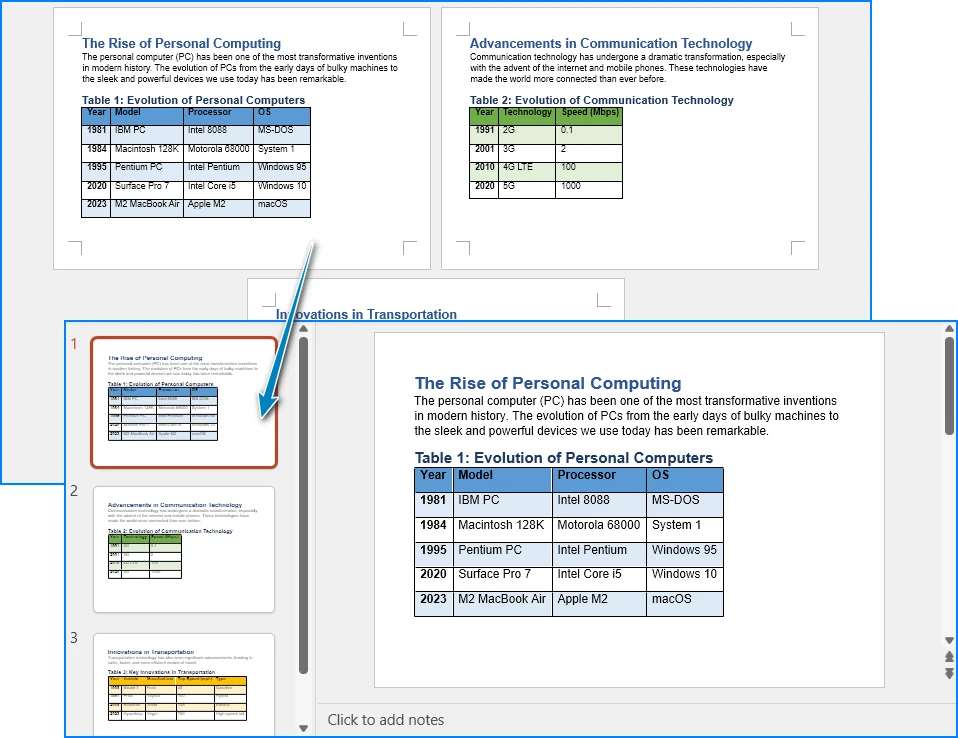
Below is a preview of the conversion result:
Benefits of the Python Method
- Ideal for batch conversion and automated workflows.
- Works offline, precisely preserving document layout.
- Generates highly editable PowerPoint presentations.
- Easily integrated into enterprise report generation systems.
This approach keeps the process short and simple, avoiding manual operations while maintaining flexibility.
After converting the Word document to PowerPoint, you can also use Free Spire.Presentation for Python to perform batch editing on the PowerPoint presentations.
Tips for a Better PowerPoint After Conversion
Once your slides are generated, fine-tuning them makes a big difference. Even though the conversion process saves a lot of time, a few design adjustments can significantly improve the visual appeal and readability of your slides. These refinements help ensure your presentation looks professional and well-structured.
- Ensure consistent fonts and colors.
- Adjust paragraph spacing for better readability.
- Replace low-resolution images if necessary.
- Add transitions or animations sparingly to maintain professionalism.
- Use PowerPoint themes to unify the presentation design.
Conclusion
Converting a Word document to a PowerPoint presentation can be easy and efficient, and the method you choose depends on your specific needs. Whether you use Microsoft’s built-in export function for simplicity, online converters for quick access, AI tools for creativity, or Python automation for scalability — each approach offers its own advantages. By choosing the right workflow, you can transform written content into a professional PowerPoint presentation effortlessly and effectively.
Frequently Asked Questions
How do I import a DOCX file into PowerPoint?
If you just want to import content, you can simply copy and paste it into PowerPoint. However, if you want to generate a PowerPoint presentation from your Word document, you can use the Export feature in Microsoft 365, online converters, AI tools, or Python scripts, which will convert the entire Word document into a PowerPoint presentation.
Why can't I export my Word doc to PowerPoint?
Issues with exporting could be caused by unsupported document features, file corruption, or using an outdated version of Word. Make sure your document is structured using proper headings and that your Word version is up to date.
How do I change a file to PPTX?
To change a file to PPTX, you can use Microsoft PowerPoint's File → Open feature to open various document types and then save them as a PowerPoint file. Alternatively, you can use online converters or Python scripts.
Is there a Word to PowerPoint converter?
Yes, there are several converters available, including Microsoft 365's built-in tool, online converters like Word.to, and automation methods using Python (e.g., using Spire.Office for Python).