In today’s digital world, PDFs are the universal standard for sharing documents. However, large PDF files can be a major hassle—they clog email inboxes, exceed upload limits, and are slow to transfer. Learning how to compress a PDF is an essential digital skill, whether you’re a student, professional, or casual user.
This comprehensive guide will walk you through the easiest and most effective methods to compress PDF files, including using free online tools, desktop software, and C# programming, plus pro tips to keep quality high while reducing PDF file size.
- Why Should You Compress a PDF File?
- Quick Solution: Compress PDF Files Online
- Offline Tools: Compress PDF with Desktop Software
- Batch Automation: Compress PDF Programmatically with C#
- Pro Tips to Compress PDF Without Losing Quality
- FAQs About Reducing PDF Size
Why Should You Compress a PDF File?
Reducing PDF size offers several key benefits:
- Easy Email Attachments: Stay within the common 25MB email limits.
- Faster Uploads & Downloads: Ideal for portals, job applications, or cloud storage.
- Save Storage Space: Free up space on your hard drive and mobile devices.
- Professional Sharing: Send files quickly and efficiently to clients or colleagues.
- Website Optimization: Smaller files load faster on web pages, improving user experience and SEO.
Quick Solution: Compress PDF Files Online
Many online PDF compressors allow you to reduce PDF size for free. They require no software installation and work on any device with a browser.
Recommended Tools:
- Smallpdf: A user-friendly all-in-one suite for PDF tasks.
- iLovePDF: A reliable alternative with batch processing options.
- PDF2Go: Offers precise control over compression level.
Steps to Decrease PDF Size:
- Go to your chosen compressor website (e.g. SmallPDF’s Free PDF Compression Tool).
- Click “CHOOSE FILES” or drag-and-drop your file into the browser window.
- Choose your compression level (e.g., “Basic” for medium file size, standard resolution).
- Click the “Compress” or “Shrink PDF” button.
- Download your new, smaller PDF file to your device.
The compression result:
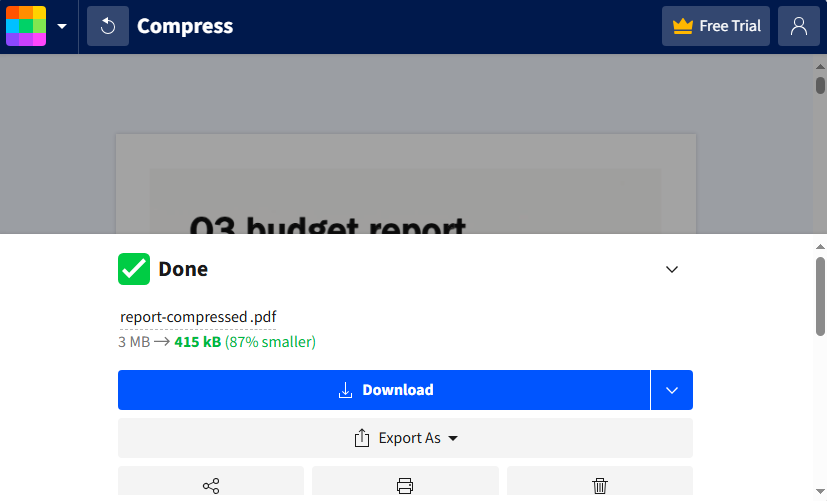
Pro Tip: For sensitive documents, check the tool’s privacy policy. Most reputable sites delete your files from their servers after a short period.
Offline Tools: Compress PDF with Desktop Software
If you need to compress PDFs offline (no internet) or handle large batches regularly, desktop software is better. Here are the best PDF compressors to shrink PDF file size:
Adobe Acrobat Pro DC (Industry standard)
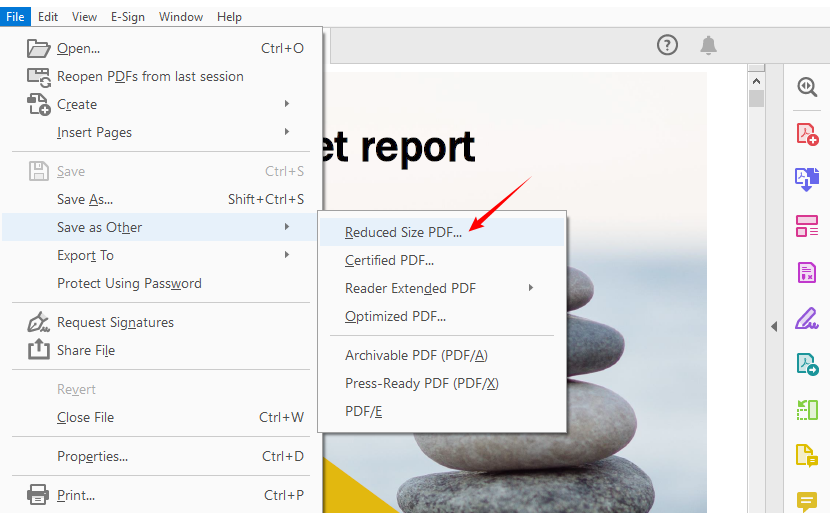
Adobe’s native tool offers the most advanced optimization settings to make a PDF smaller.
- Open your PDF in Acrobat Pro DC.
- Go to “File” > “Save As Other” and choose "Reduce File Size”.
- Select a compatibility level and save the compressed PDF file.
PDF24 Creator Desktop Tool (Free alternative)
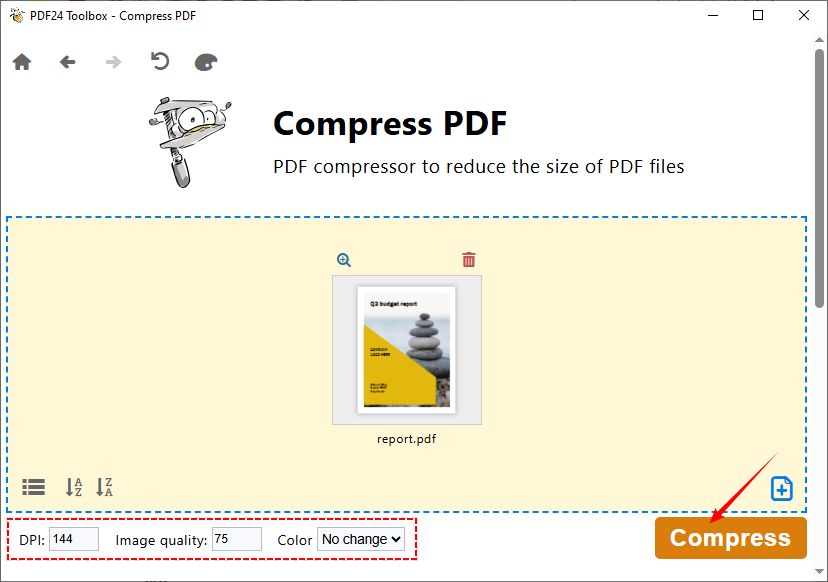
A top-rate free desktop tool works entirely offline. It offers over 40 built-in PDF tools and supports batch compression.
- Open the PDF24 Toolbox, and select the Compress PDF tool.
- Click “Choose files” or drop your PDF file into the window.
- Set “DPI”, “Image quality”, and “Color” options.
- Click the “Compress” button and save the file.
ALSO READ: How to Delete Pages from PDF without Acrobat (Free Methods)
Batch Automation: Compress PDF Programmatically with C#
For developers building automation tools, batch processing systems, or custom PDF workflows, a library like Spire.PDF for .NET is an excellent choice. Spire.PDF offers several compression methods, and we’ll cover the most common use cases to reduce PDF size.
C# Code to Compress Images in PDF
Images are the primary cause of large PDF sizes. This example reduces image size and quality while maintaining readability.
using Spire.Pdf.Conversion.Compression;

namespace CompressImages
{
    class Program
    {
        static void Main(string[] args)
        {
            // Create a PdfCompressor object and load the PDF file
            PdfCompressor compressor = new PdfCompressor("Example.pdf");

            // Get the image compression options
            ImageCompressionOptions imageCompression = compressor.Options.ImageCompressionOptions;

            // Enable Image resizing
            imageCompression.ResizeImages = true;

            // Enable image compression
            imageCompression.CompressImage = true;

            // Set the image quality (available options: Low, Medium, High)
            imageCompression.ImageQuality = ImageQuality.Medium;


            // Compress the PDF file according to the compression options and save it to a new file
            compressor.CompressToFile("Compressed.pdf");
        }
    }
}
In this code, the ImageCompressionOptions class acts as a "settings panel" for how embedded images in a PDF are optimized. Its core properties are listed below:
- CompressImage: The master switch for image compression. If set to false, all other image compression settings are completely ignored.
- ResizeImages: Sets whether to shrink image dimensions automatically.
-
ImageQuality: Sets the quality level of compressed images (three options):
- Low: Minimum quality, smallest file size (significant loss of image clarity).
- Medium: Balanced quality and file size (recommended for most scenarios).
- High: Highest quality, minimal compression (only slight reduction in file size).
C# Code to Optimize Fonts in PDF
Font management can significantly impact file size, particularly in text-heavy documents. This example compresses or unembeds fonts in the PDF to reduce file size without quality loss:
using Spire.Pdf.Conversion.Compression;

namespace OptimizeFonts
{
    internal class Program
    {
        static void Main(string[] args)
        {
            // Create a PdfCompressor object and load the PDF file
            PdfCompressor compressor = new PdfCompressor("Example.pdf");

            // Get the text compression options
            TextCompressionOptions textCompression = compressor.Options.TextCompressionOptions;

            // Compress the fonts
            textCompression.CompressFonts = true;

            // Unembed the fonts
            // textCompression.UnembedFonts = true;

            // Compress the PDF file according to the compression options and save it to a new file
            compressor.CompressToFile("CompressFonts.pdf");
        }
    }
}
The TextCompressionOptions class controls optimization for text/fonts in a PDF (it does NOT affect images). Core properties:
- CompressFonts: Master switch for font compression. 100% safe to shrink font data (text looks identical, file size smaller).
- UnembedFonts: Sets whether to remove embedded fonts (Risky: text may look garbled/unreadable if the device opening the PDF lacks the font).
Pro Tip: For the redundant or unused data in a PDF, use Spire.PDF to remove them before compression (e.g., cleaning up metadata, removing embedded attachments).
Pro Tips to Compress PDF Without Losing Quality
Compressing a PDF doesn’t mean sacrificing quality.Follow these tips to get the smallest file size possible while keeping your document usable:
- Remove unnecessary elements: Delete redundant pages, images, or comments before compressing.
- Optimize images: PDFs with large images are often the biggest culprits. Resize images to 72–150 DPI (sufficient for digital use) before adding them to the PDF.
- Avoid embedding fonts: Embedded fonts increase file size. Use standard fonts (Arial, Times New Roman) that most devices already have.
- Choose the right compression level: For text-only PDFs (e.g., resumes, reports), use “High Compression” (little to no quality loss). For image-heavy PDFs (e.g., brochures, photos), use “Balanced” to avoid blurriness.
- Test before sharing: Always open the compressed PDF to check for readability (e.g., text clarity, image sharpness) before sending or uploading.
Conclusion
Knowing how to compress a PDF is a crucial skill that streamlines your digital workflow. Whether you need a quick online fix, the advanced control of desktop software, or the power of automation with C# and Spire.PDF, there’s a perfect tool for every scenario.
For most users, online compressors offer simplicity, while developers can build robust, integrated solutions with programmable libraries. Evaluate your specific needs for security, volume, and quality to choose the best method, and never let bulky files slow you down again.
FAQs About Reducing PDF Size
Q1. Does compressing a PDF reduce quality?
Yes, if not done carefully—especially for image-heavy PDFs. Use lossless compression settings or moderate image quality reduction to balance size and clarity.
Q2. Is it safe to use online PDF compressors?
Most reputable sites encrypt transfers and delete files after processing. Avoid uploading sensitive documents to unknown websites.
Q3. How much can I reduce a PDF file size?
It depends on the content. Text-based PDFs can shrink by 50–90%, while image-heavy files may reduce by 20–50%.
Q4. Can I batch compress multiple PDFs at once?
Yes, many tools support batch processing. Desktop applications like Adobe Acrobat Pro offer robust batch capabilities. For automated batch compressing, use the Spire.PDF for .NET library.