PDF metadata contains descriptive information about a document, such as its title, author, subject, and keywords. Although this data is not visible within the PDF pages themselves, it is embedded in the file structure and can be accessed by PDF readers, search engines, and document management systems.
In this article, we’ll explore four practical and effective ways to edit PDF metadata, covering desktop tools, online editors, and developer-oriented solutions. Whether you need to update a single file or automate metadata editing for large PDF collections, this guide will help you choose the right approach.
Method overview:
- Method 1: Edit PDF Metadata Using Adobe Acrobat
- Method 2: Edit PDF Metadata Using Sejda (Online)
- Method 3: Edit PDF Metadata Using Command-Line Tools
- Method 4: Edit PDF Metadata Programmatically Using Spire.PDF
What Is PDF Metadata?
PDF metadata is a set of properties stored within a PDF file that describes the document rather than its visible content. These properties help software identify, categorize, and manage PDF files more efficiently. Common PDF metadata fields include:
- Title – The document title shown in PDF viewers
- Author – The document’s creator or owner
- Subject – A brief description of the document
- Keywords – Searchable tags or phrases
- Creator – The application that created the PDF
- Producer – The software used to generate the final PDF
- Creation Date / Modification Date
Because metadata is separate from the document’s layout and text, it can be edited safely without affecting the visual content.
Method 1: Edit PDF Metadata Using Adobe Acrobat
Adobe Acrobat offers a reliable and intuitive interface for editing PDF metadata, making it a popular choice for everyday users. It provides full access to standard metadata fields through a familiar graphical workflow. To update metadata using Adobe Acrobat, follow these steps:
- Open the PDF file in Adobe Acrobat.
- Click File → Properties to open the document properties dialog.

- Edit fields such as Title, Author, Subject, and Keywords under the Description tab.
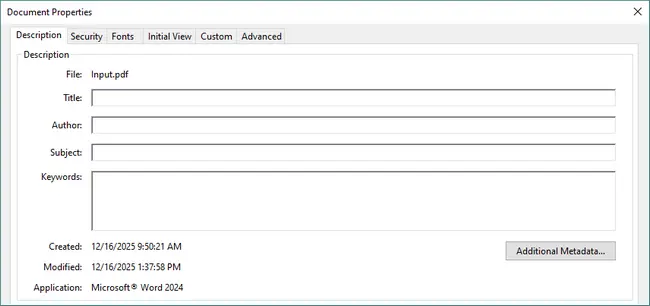
- Click OK and save the PDF to apply the changes.
Pros
- User-friendly graphical interface.
- Full support for standard PDF metadata fields.
- Reliable and widely recognized PDF solution.
Cons
- Requires a paid license.
- Not suitable for batch or automated processing.
Method 2: Edit PDF Metadata Using Sejda (Online)
Sejda is a well-known online tool that allows you to edit PDF metadata directly in your browser. This method is ideal for quick, one-time edits when you don’t want to install desktop software. The editing process is simple and requires only a few steps:
- Open Sejda’s Edit PDF Metadata tool.
- Upload your PDF file from your computer or cloud storage.

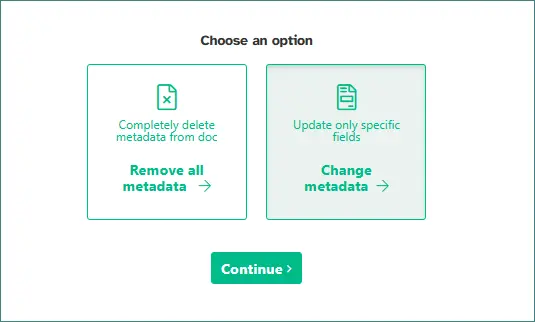
- Choose Change metadata, then click Continue.
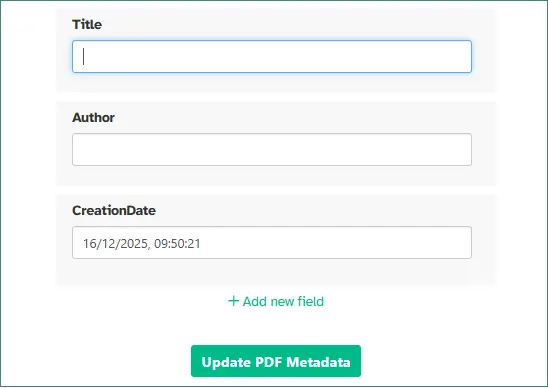
- Modify the required metadata fields, and click Update PDF Metadata to save the changes.
- Download the updated PDF file.
Pros
- No software installation required.
- Very easy to use for quick, one-off edits.
- Accessible from any modern browser.
Cons
- File size and daily usage limitations.
- Privacy concerns due to file uploads.
Method 3: Edit PDF Metadata Using Command-Line Tools
Command-line tools provide a reliable and scriptable way to edit PDF metadata across different operating systems. This method is ideal for users who prefer terminal-based workflows or need to process multiple PDF files efficiently. One of the most widely used tools for this purpose is ExifTool, which supports both reading and writing PDF metadata.
Steps to edit PDF metadata with ExifTool (on Windows):
-
Install ExifTool on your system.
- Download ExifTool for Windows
- Extract exiftool(-k).exe
- Rename it to exiftool.exe
- Copy the .exe and the "exiftool_files" folder to C:\Windows
-
Open a terminal or command prompt, and check if ExifTool is available.
exiftool -ver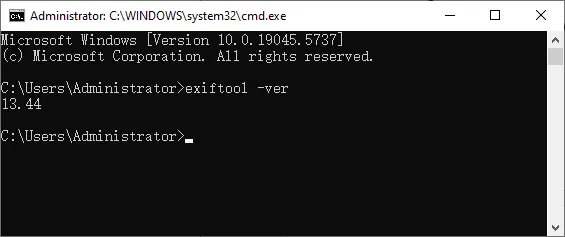
-
Navigate to the directory containing your PDF file. For example, if it’s in D:\Documents, type:
D:
cd Documents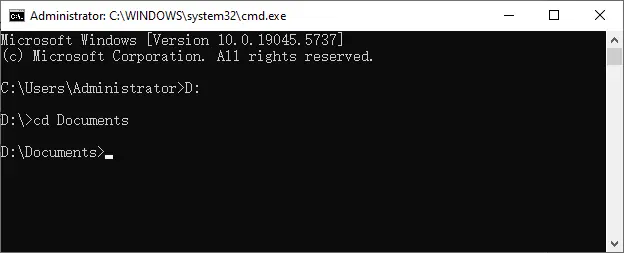
-
Run a command to modify the required metadata fields.
exiftool -Title="Cloud Computing Overview" -Author="Tim Taylor" -Subject="Introduction to cloud services" -Keywords="cloud; business; server" Input.pdf
-
Verify the changes by reading the metadata.
exiftool Input.pdf
Pros
- Works reliably on Windows, macOS, and Linux.
- Excellent for batch and automated updates.
- No graphical interface required.
Cons
- Requires command-line knowledge.
- Risk of accidental overwrites if misused.
Note: Installation steps vary by operating system. Linux and macOS users should install ExifTool using a package manager.
Method 4: Edit PDF Metadata Programmatically Using Spire.PDF
When working with large numbers of PDF files or automated workflows, programmatic metadata editing is the most efficient solution. Spire.PDF for Python provides a powerful and developer-friendly API that allows you to modify both built-in and custom PDF metadata with minimal code.
This approach is especially useful for backend services, document pipelines, and scenarios where metadata needs to be standardized across many files.
Below is an example demonstrating how to edit PDF metadata using Spire.PDF for Python:
from spire.pdf import *
from spire.pdf.common import *

# Create an object of PdfDocument class and load a PDF document
pdf = PdfDocument()
pdf.LoadFromFile("Input.pdf")

# Get the properties of the document
properties = pdf.DocumentInformation

# Set built-in properties
properties.Author = "Tim Taylor"
properties.Creator = "Spire.PDF"
properties.Keywords = "cloud service; digital business"
properties.Subject = "The introduction of cloud service and its advantages"
properties.Title = "The Power of Cloud Services: Empowering Businesses in the Digital Age"
properties.Producer = "Spire.PDF for Python"

# Set custom properties
properties.SetCustomProperty("Company", "E-iceblue")
properties.SetCustomProperty("Tags", "Cloud; Business; Server")

# Save the document
pdf.SaveToFile("output/EditPDFMetadata.pdf")
pdf.Close()
Read further: Set and Retrieve PDF Properties Using Python
Pros
- Supports both built-in and custom PDF metadata.
- Ideal for batch processing and automation workflows.
Cons
- Requires basic Python programming knowledge.
- Initial library setup is required.
- Less convenient for single, manual edits.
In addition to metadata editing, Spire.PDF for Python provides APIs for batch processing, PDF generation, and content modification, which can be combined for more complex document automation tasks.
Comparison of Different Methods
| Method | Ease of Use | Batch Editing | Automation | Privacy |
|---|---|---|---|---|
| Adobe Acrobat | High | No | No | High |
| Sejda (Online) | Very High | No | No | Low |
| Command-Line Tools | Low | Yes | Yes | High |
| Spire.PDF for Python | Medium | Yes | Yes | High |
Final Thoughts
Editing PDF metadata is a practical way to keep documents well-organized, searchable, and consistent across different workflows. Depending on your technical background and usage scenario, there are multiple effective ways to update PDF properties without modifying the document’s visible content.
For users who prefer a graphical interface, Adobe Acrobat provides a reliable desktop solution, while Sejda PDF Editor is convenient for quick, browser-based edits. If you need greater control or want to process multiple files efficiently, command-line tools such as ExifTool offer a powerful and cross-platform approach. For developers and automated systems, Spire.PDF for Python stands out as the most flexible option, supporting both built-in and custom metadata with minimal code.
By choosing the method that best fits your workflow—manual, online, command-line, or programmatic—you can ensure your PDF metadata remains accurate, standardized, and easy to manage at any scale.
FAQs
Q1. Can PDF metadata be edited without changing the document content?
Yes. Metadata updates do not affect the visible text or layout of a PDF.
Q2. Is PDF metadata visible to readers?
Metadata is hidden by default but can be viewed in document properties.
Q3. Can I batch edit metadata for multiple PDFs?
Yes. Programmatic and command-line methods are best for batch operations.
Q4. Does editing metadata affect digital signatures?
Yes. Any modification, including metadata changes, may invalidate a digital signature.