
In today’s fast-paced digital world, repurposing content efficiently is a critical skill for students, educators, business professionals, and content creators alike. PDFs excel at preserving document formatting for sharing, but they lack the editability and slide-based structure needed for dynamic presentations. Many users search for free solutions to transform static PDF documents into dynamic presentations without expensive software. In this comprehensive guide, we'll explore several reliable tools to convert PDF to PowerPoint for free, provide step-by-step instructions, and offer expert tips to ensure seamless conversions tailored to different needs.
- What to Look for in a Free PDF to PPT Converter
- Free Online PDF to PPT Converter
- Free Offline Tool to Convert PDF to PPT
- Convert PDF to PowerPoint with Python
- Tips for Successful PDF to PowerPoint Conversion
- Frequently Asked Questions (FAQs)
What to Look for in a Free PDF to PPT Converter
PDFs are great for sharing and preserving documents, but they’re not designed for editing or presenting. Converting a PDF to PowerPoint lets you tweak text, images, layouts, and add animations—critical for creating engaging slideshows. When choosing a free PDF to PPT converter tool, keep these factors in mind:
- Formatting Preservation: The tool should retain fonts, images, tables, and spacing.
- No Watermarks: Avoid converters that add logos or watermarks to your slides.
- File Security: For sensitive documents, choose tools that process files offline or delete them after conversion.
- Editability: Output should be fully editable in PowerPoint, not just image-based slides.
Now, let’s explore the best free ways to turn PDF into PowerPoint.
Free Online PDF to PPT Converter
Online converters are ideal if you don’t want to install software and need a fast conversion. Here are 3 top free online tools that deliver high-quality results:
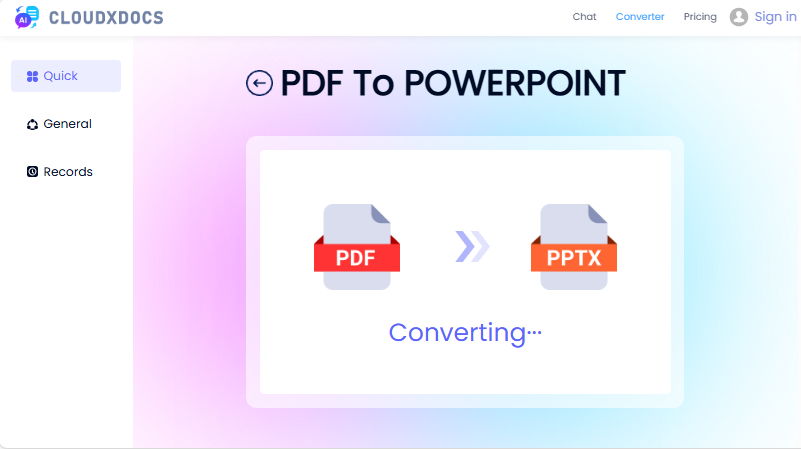
- CLOUDXDOCS: A user-friendly online tool to convert PDF to PPTX. NO ads, no watermark.
- Smallpdf: A trusted platform with reliable PDF-to-PPT conversion and high formatting accuracy.
- ILovePDF: Another robust option with a clean interface. Supports batch conversion and handles text and layout recognition effectively.
How to export PDF to PowerPoint online:
- Navigate to the tool’s website (e.g., CLOUDXDOCS PDF to PowerPoint page).
- Choose or drag-and-drop your PDF file.
- Wait for the upload and conversion process to complete.
- Download your new PowerPoint (.PPTX) file.
Note: Online tools are convenient, but avoid using them for confidential documents.
Free Offline Tool to Convert PDF to PPT
For sensitive files (e.g., company reports, personal records), offline tools eliminate the risk of data exposure. LibreOffice — a free, open-source office suite that includes Impress (its PowerPoint alternative) and can transform PDF to PPT files effectively. It works on Windows, Mac, and Linux.
How to convert PDF to slides offline:
- Download and install LibreOffice (it’s 100% free, no hidden costs).
- Open LibreOffice Impress (the presentation app) and then go to “File > Open”.
- At the bottom of the file selection dialog box, open the “File Type” drop-down menu and manually select "PDF - Portable Document Format (Impress) (*.pdf)".
- LibreOffice will convert the PDF to a presentation. You can edit the slides as needed.
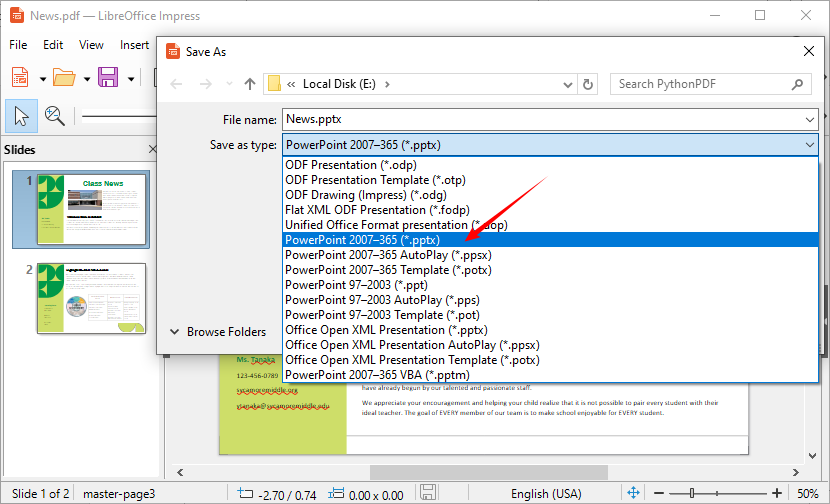
- Go to “File > Save As” and select “PowerPoint 2007–365 (*.pptx)” format to save PDF as a PowerPoint file.
Pro tip: LibreOffice works best with PDFs that have selectable text. For scanned PDFs, you can refer to this guide: How to Convert Images to Text: Best OCR Tools for Beginners
Convert PDF to PowerPoint with Python
If you’re familiar with Python or want to automate PDF-to-PPT conversions (e.g., batch processing), Free Spire.PDF for Python is an excellent choice. It’s a lightweight, free library that supports converting PDF files to editable PowerPoint (PPT/PPTX) formats without losing formatting.
Installation
First, you need to install the library via pip. Open your command prompt (Windows) or terminal (Mac/Linux) and run the following command:
pip install Spire.Pdf.Free
Write the Conversion Code
Create a new Python file and paste the following code. This code loads a PDF file, converts it to a PPTX file, and saves it to your desired folder:
from spire.pdf.common import *
from spire.pdf import *

# Create an object of the PdfDocument class
pdf = PdfDocument()
# Load a sample PDF document
pdf.LoadFromFile("News.pdf")

# Save the PDF document as a PowerPoint PPTX file
pdf.SaveToFile("PdfToPowerPoint.pptx", FileFormat.PPTX)
pdf.Close()
Benefits of This Method:
- Automation: Convert multiple PDFs in batch
- Integration: Embed conversion in larger workflows
- Consistency: Uniform results across conversions
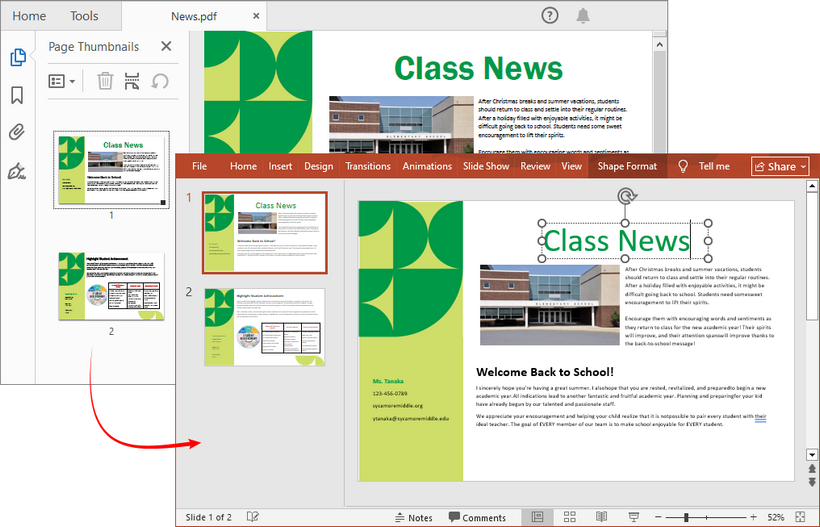
The conversion result:
Pro Tip: For batch conversion (converting multiple PDFs at once), add a loop to iterate over all PDF files in a folder. To make the generated presentation files more professional, you can use Free Spire.PDF for Python to adjust page margins or reorder PDF pages before conversion.
Tips for Successful PDF to PowerPoint Conversion
- Start with a High-Quality PDF: The cleaner the source (text-based, not scanned), the better the output.
- Check formatting: After conversion, review the PPT file—adjust fonts, image sizes, and spacing to fix any issues.
- Avoid large files: Online tools may struggle with PDFs over 100MB. Compress your PDF first if needed.
- Use offline tools for sensitive data: Never upload confidential files to online converters—use offline tools like LibreOffice instead.
- Test with a sample page: If you’re converting a long PDF, test with one page first to ensure the tool preserves formatting.
Conclusion
Converting PDF to PowerPoint for free is not only possible but also offers multiple approaches suitable for different needs. For occasional conversions, online tools provide convenience. For regular users concerned about privacy, free desktop software offers a good balance. For developers and professionals needing automation and batch processing, Python with Free Spire.PDF presents the most powerful and flexible solution.
While each method has its strengths, the key is choosing the approach that best matches your specific requirements for frequency, volume, privacy, and automation needs. Always remember to review the final presentation to ensure it meets your standards for clarity and design.
Frequently Asked Questions (FAQs)
Q1: Can I convert a scanned PDF to PowerPoint?
Yes, but you’ll need an OCR (Optical Character Recognition) tool first to make the text selectable.
Q2: Are free converters safe to use with sensitive documents?
For confidential files, use offline tools like LibreOffice or programmatic methods to avoid uploading data to the cloud.
Q3: Why does my converted PowerPoint look different from the PDF?
Complex layouts, custom fonts, or embedded images may not always transfer perfectly. Some manual adjustment in PowerPoint may be needed.
Q4: Can I convert multiple PDFs at once for free?
Yes, using Python with Free Spire.PDF or offline tools that offer a batch conversion feature.
Q5: Is the Python method suitable for beginners?
Yes, basic conversion requires only 5–10 lines of code. No advanced Python knowledge is needed, and the library is well-documented.