Blank pages are a common issue in PDF documents. They often appear when exporting files from Word or Excel, scanning paper documents, or generating reports programmatically. Although blank pages may seem harmless, they can negatively affect document quality, increase file size, waste printing resources, and make documents look unprofessional.
Depending on your situation, removing blank pages from a PDF can be done either manually or automatically. Manual methods are suitable for small documents and one-time tasks, while automated solutions are more efficient for batch processing, recurring workflows, or system-level integrations.
In this article, we’ll explore both approaches in detail. First, we’ll walk through three manual methods for deleting blank pages from PDFs. Then, we’ll demonstrate how to automatically detect and remove blank pages using Python, with a complete and practical solution based on Spire.PDF for Python.
What Is a “Blank Page” in a PDF?
A “blank page” in a PDF is not always truly empty from a technical standpoint. While it may look blank visually, it can still contain invisible objects, empty containers, or white images.
In practice, a blank PDF page may:
- Contain no text objects
- Contain no images
- Appear visually blank but still include invisible elements
- Include layout artifacts created during conversion
This distinction is especially important when automating the removal process, as simple text-based checks are often insufficient.
Part 1: Manually Delete Blank Pages from a PDF
Manual methods are best suited for small files where accuracy and visual confirmation are important. They require no programming knowledge and allow users to selectively remove pages after reviewing the document.
Method 1: Delete Blank Pages Using Adobe Acrobat
Adobe Acrobat provides a professional and highly accurate way to manage PDF pages. Its thumbnail-based interface allows users to visually inspect all pages and remove blank ones precisely.
Steps
-
Open the PDF file in Adobe Acrobat.
-
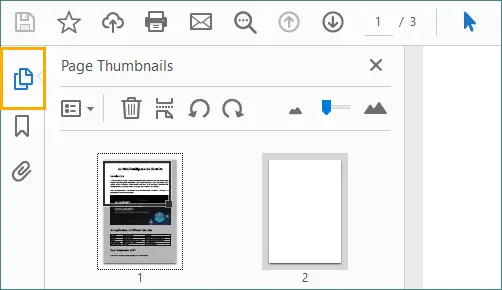
Open Page Thumbnails panel.
-
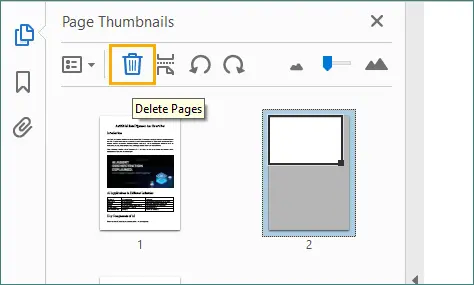
Select the blank page you want to remove, then click the “Trash” icon.
 Alternatively, right-click the selected page and choose “Delete Pages…” , which allows you to delete the current page or a range of consecutive pages.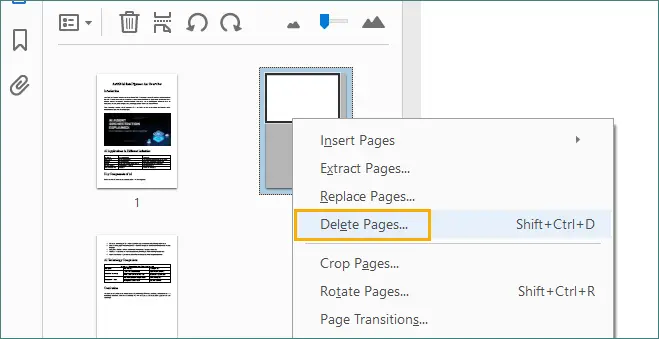
-
Save the updated PDF.
Pros
- High accuracy with visual confirmation.
- Handles complex layouts and large PDFs well.
- Suitable for professional and client-facing documents.
Cons
- Requires a paid Adobe Acrobat license.
- Time-consuming for large numbers of files.
Method 2: Delete Blank Pages Using Online PDF Tools
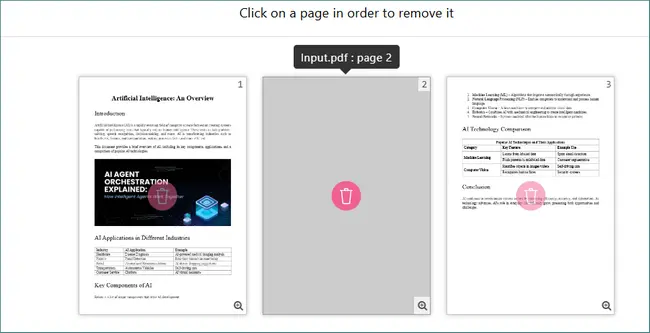
Online PDF tools offer a quick solution for deleting blank pages without installing software. Most platforms allow users to upload a PDF, preview pages, and remove unwanted ones directly in the browser.
Steps
-
Open an online PDF editing website (for example, PDF24).
-
Click “Choose files” or drag and drop your PDF file to upload it.

-
Enter preview or page management mode, then select and delete the blank pages.
-
Apply the changes by clicking “Create PDF” (or a similar confirmation button).
-
Download the cleaned PDF file.
Pros
- No software installation required.
- Works on any operating system.
- Convenient for one-time or occasional tasks.
Cons
- File size and usage limitations.
- Privacy and security concerns.
- Not suitable for confidential or sensitive documents.
Method 3: Delete Blank Pages via PDF Preview (macOS)
macOS includes a built-in application called Preview, which supports basic PDF editing features such as page deletion. It’s a simple and free option for macOS users.
Steps
-
Open the PDF file with Preview.
-
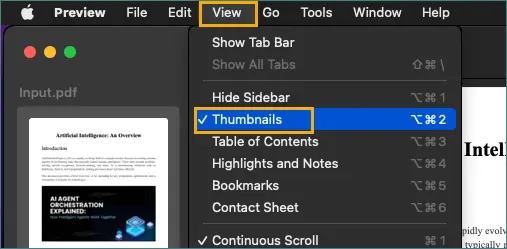
Enable the thumbnail sidebar by selecting View → Thumbnails.
-
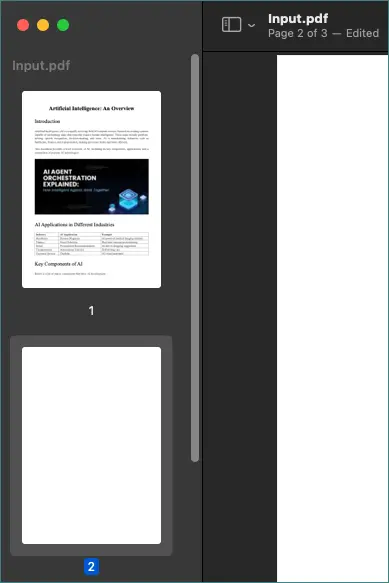
Select the blank pages in the thumbnail panel.
-
Press the Delete key.
-
Save the modified PDF.
Pros
- Free and pre-installed on macOS.
- Offline and easy to use.
- No third-party tools required.
Cons
- macOS-only solution.
- Manual process that doesn’t scale.
- Limited advanced PDF features.
When Manual Methods Are Not Enough
Manual methods become inefficient when:
- Processing many PDF files.
- Cleaning automatically generated reports.
- Performing recurring document maintenance.
- Integrating PDF cleanup into applications or services.
In these scenarios, automation is the most practical and reliable approach.
Part 2: Automatically Delete Blank Pages in PDF Using Python
Automation allows you to remove blank pages consistently and efficiently without human intervention. Python is particularly well-suited for this task due to its simplicity, cross-platform support, and extensive library ecosystem.
Why Use Python for PDF Automation?
With Python, you can:
- Process PDFs programmatically.
- Handle large files and batch operations.
- Integrate PDF cleanup into backend systems.
- Ensure consistent detection logic across documents.
Automation significantly reduces manual effort and minimizes the risk of human error.
Introduction to Spire.PDF for Python
Spire.PDF for Python is a robust library for creating, editing, and processing PDF documents. It provides fine-grained control over PDF structure and content, making it ideal for tasks such as blank page detection and removal.
For this solution, Spire.PDF offers:
- Page-level access
- Built-in blank page detection
- PDF-to-image conversion
- Safe page removal
Python Code: Automatically Detect and Remove Blank Pages from PDF
Below is a complete Python example using Spire.PDF for Python and Pillow (PIL).
import io
from spire.pdf import PdfDocument
from PIL import Image

# Custom function: Check if the image is blank (all pixels are white)
def is_blank_image(image):
    # Convert the image to RGB mode
    img = image.convert("RGB")
    # Define a white pixel
    white_pixel = (255, 255, 255)
    # Check whether all pixels are white
    return all(pixel == white_pixel for pixel in img.getdata())

# Load the PDF document
doc = PdfDocument()
doc.LoadFromFile("Input.pdf")

# Iterate through pages in reverse order
# This avoids index shifting issues when deleting pages
for i in range(doc.Pages.Count - 1, -1, -1):
    page = doc.Pages[i]

    # First check: built-in blank page detection
    if page.IsBlank():
        doc.Pages.RemoveAt(i)
    else:
        # Second check: convert the page to an image
        with doc.SaveAsImage(i) as image_data:
            image_bytes = image_data.ToArray()
            pil_image = Image.open(io.BytesIO(image_bytes))

            # Check whether the image is visually blank
            if is_blank_image(pil_image):
                doc.Pages.RemoveAt(i)

# Save the cleaned PDF file
doc.SaveToFile("RemoveBlankPages.pdf")
doc.Close()
How Blank Page Detection Works in This Solution
To improve accuracy, this approach uses two complementary detection methods:
-
Logical detection: The script first checks whether a page is logically empty using page.IsBlank(). This detects pages with no text or image objects.
-
Visual detection: If a page is not logically blank, it is converted to an image and analyzed pixel by pixel. If all pixels are white, the page is considered visually blank.
This combined strategy ensures that both technically empty pages and visually blank pages with hidden content are removed.
Extending the Automation Solution
This script can be easily extended to:
- Process all PDFs in a directory
- Run as a scheduled cleanup task
- Integrate into document management systems
- Log removed pages for auditing or debugging
With minor adjustments, it can support enterprise-scale PDF workflows. For more advanced PDF operations, refer to the Spire.PDF Programming Guide to further expand and customize your automation logic.
Manual vs Automated Blank Page Removal
| Aspect | Manual Methods | Python Automation |
|---|---|---|
| Ease of use | High | Medium |
| Accuracy | High | High |
| Batch processing | x | √ |
| Scalability | x | √ |
| Best use case | Small PDFs | Large or recurring tasks |
Best Practices for Removing Blank Pages from PDFs
- Always keep a backup of original files.
- Test detection logic on sample documents.
- Be cautious with scanned PDFs.
- Combine automation with manual review for critical files.
Final Thoughts
Removing blank pages from PDFs is a small but important step toward producing clean, professional documents. Manual methods work well for quick edits and small files, but they don’t scale efficiently.
For larger or recurring tasks, automation is the clear solution. By using Spire.PDF for Python and combining logical and visual detection techniques, you can reliably remove both technically and visually blank pages. This approach saves time, improves consistency, and integrates seamlessly into modern document workflows.
FAQs
Q1: Why do blank or unwanted pages appear in PDF files?
Blank or extra pages often appear due to formatting issues during document conversion, incorrect page breaks, scanning artifacts, or exporting files from Word, Excel, or reporting tools.
Q2: Can I delete pages from a PDF without using paid software?
Yes. You can delete pages using free options such as built-in tools like macOS Preview, online PDF editors, or free desktop PDF readers that support basic page management.
Q3: Will deleting pages affect the content or layout of the remaining PDF?
Deleting pages does not change the layout or formatting of the remaining pages. However, it’s recommended to review the final document to ensure page numbering, bookmarks, or references still make sense.
Q4: Is it safe to delete pages from a PDF?
Yes, as long as you keep a backup of the original file. Deleting pages is a non-destructive operation when saved as a new file, making it easy to restore the original if needed.