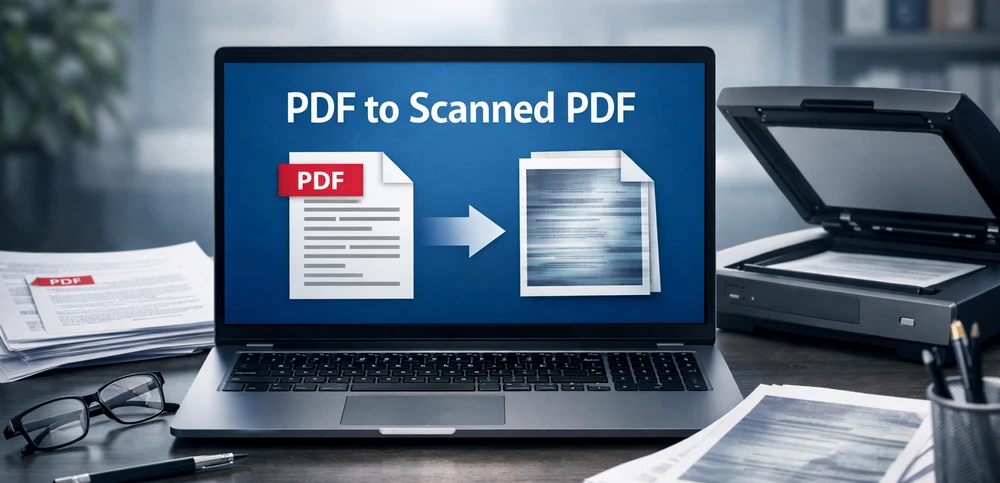
PDF files are widely used for document exchange, but not all PDFs behave like scanned documents. Many PDFs contain editable text layers, vector graphics, and selectable content, which makes them easy to modify, copy, or reuse.
In real-world scenarios—such as archiving, public distribution, or document finalization—you may want a PDF to look and behave like a scanned file. Converting a PDF to a scanned PDF removes its editable structure and turns each page into an image-based representation.
This guide explains what a scanned PDF is, why you might need one, and how to convert a PDF into a scanned document using online tools or Python automation.
Quick Navigation
- What Is a Scanned PDF?
- Why Convert PDF to Scanned PDF?
- Method 1: Convert PDF to Scanned PDF Using an Online Tool
- Method 2: Convert PDF to Scanned PDF with Python
- PDF vs. Scanned PDF: Key Differences
- Can Scanned PDFs Still Be Edited?
- Frequently Asked Questions
What Is a Scanned PDF?
A scanned PDF is a PDF document in which each page is stored as an image rather than editable text or vector objects. It closely resembles a document created by scanning paper with a physical scanner.
Key characteristics of scanned PDFs include:
- Text is not selectable or editable
- Pages are image-based
- Layout and appearance are visually fixed
- File size is usually larger than text-based PDFs
- Text search is unavailable unless OCR is applied
When you convert a PDF to a scanned PDF, you are essentially flattening its content and removing its internal structure.
Why Convert PDF to Scanned PDF?
Turning a PDF into a scanned document is useful in many situations:
- Prevent casual editing or content reuse
- Prepare documents for archiving
- Distribute finalized reports or notices
- Simulate paper-based workflows
- Standardize document appearance across platforms
Compared with permission-based protection, scanned PDFs rely on structural conversion rather than viewer-enforced rules, making them more resistant to casual modification.
Method 1: Convert PDF to Scanned PDF Using an Online Tool
Online PDF converters are suitable for quick, one-time conversions of non-sensitive documents.
Steps:
-
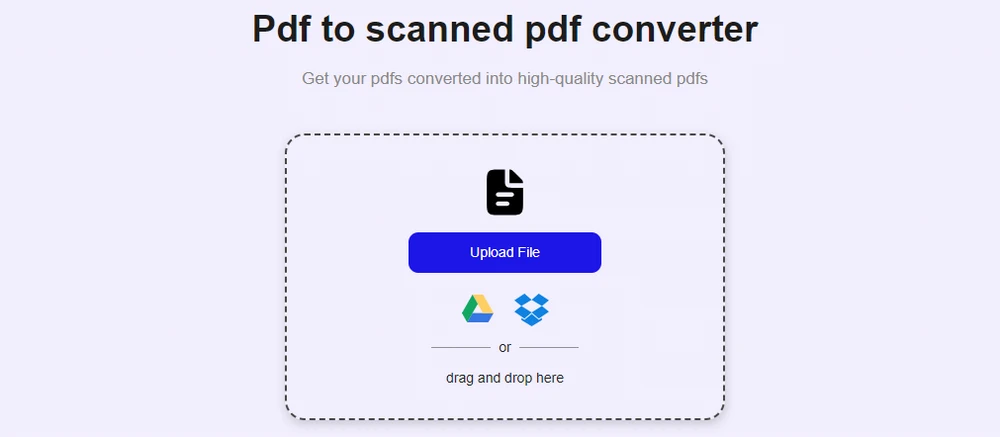
Open a trusted PDF to scanned PDF converter website (for example, SafePDFKit).
-
Upload the PDF file you want to convert.
-
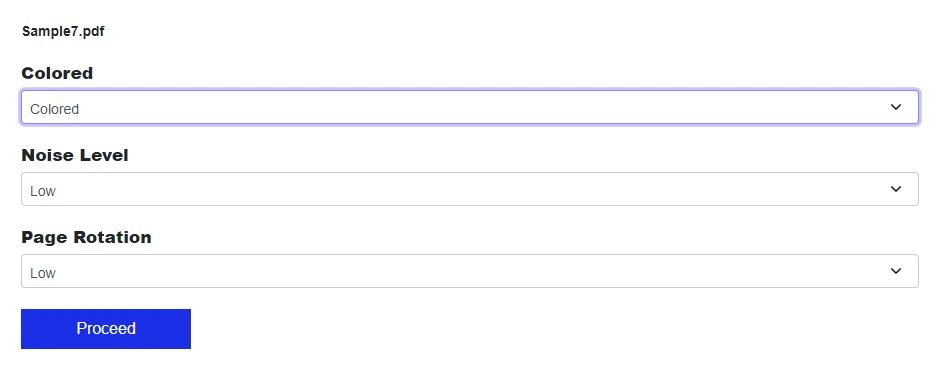
Configure the settings, such as color mode, noise level, and page rotation.
-
Convert and download the scanned PDF.
Best for:
- Occasional conversions
- Public or low-risk documents
- Users who prefer browser-based tools
Note: Avoid uploading confidential files unless the service clearly explains how uploaded documents are handled and deleted.
If you want to restrict editing, copying, or printing via password protection, you can refer to how to encrypt PDFs for a detailed guide.
Method 2: Convert PDF to Scanned PDF with Python
For batch processing or automated workflows, Python offers a reliable way to convert PDFs into scanned, image-based documents.
Libraries such as Spire.PDF for Python allow you to render each PDF page as an image and rebuild a new PDF using those images.
Step 1: Install the library
pip install spire.pdf
You can also download Spire.PDF for Python and add it to your project manually.
Step 2: Convert PDF pages into images and rebuild the PDF
from spire.pdf import *

# Load the original PDF
pdf = PdfDocument()
pdf.LoadFromFile("Sample.pdf")

# Create a new PDF for the scanned output
scanned_pdf = PdfDocument()

# Convert each page to an image
for i in range(pdf.Pages.Count):
    image_stream = pdf.SaveAsImage(i)
    image = PdfImage.FromStream(image_stream)

    page = scanned_pdf.Pages.Add(
        SizeF(float(image.Width), float(image.Height)),
        PdfMargins(0.0, 0.0)
    )
    page.Canvas.DrawImage(
        image,
        RectangleF.FromLTRB(0.0, 0.0, float(image.Width), float(image.Height))
    )

# Save the scanned PDF
scanned_pdf.SaveToFile("ScannedPDF.pdf")

pdf.Dispose()
scanned_pdf.Dispose()
Preview of the converted scanned PDF:
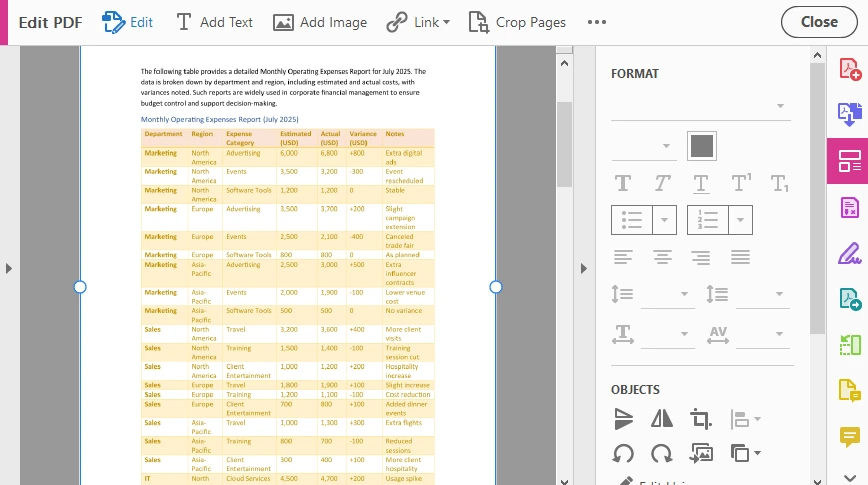
In this scanned PDF, every page is rendered and embedded as a full-page image. This conversion removes the original text layer and document structure, making the content non-editable and non-selectable.
Advantages of programmatic conversion:
- Consistent output quality
- Batch processing support
- No manual intervention
- Easy integration into document pipelines
For more flexible batch workflows, Python also supports converting PDFs directly to images or encrypting PDFs to further reduce the risk of editing and content reuse.
PDF vs. Scanned PDF: Key Differences
| Feature | Standard PDF | Scanned PDF |
|---|---|---|
| Editable text | Yes | No |
| Text selection | Yes | No |
| Searchable content | Yes | No (without OCR) |
| File size | Smaller | Larger |
| Best use case | Editing & reuse | Distribution & archiving |
Quick tip: If users should only view the document—not reuse or modify its content—a scanned PDF is often the better choice.
Can Scanned PDFs Still Be Edited?
Scanned PDFs are significantly harder to edit than standard PDFs, but they are not absolutely uneditable.
- Advanced editors can replace images
- OCR tools can extract text
- Content can be manually retyped
However, for most users and everyday workflows, scanned PDFs effectively discourage editing and content reuse.
Best practice:
- Keep original editable PDFs securely
- Use scanned PDFs for distribution or archiving
- Combine with OCR only if text search is required
Conclusion
Converting a PDF to a scanned PDF is a practical way to turn editable documents into visually fixed, image-based files. By removing the text structure and flattening each page into an image, scanned PDFs are better suited for sharing finalized content and preserving document integrity.
Whether you use an online PDF to scanned PDF converter for quick tasks or Python automation for large-scale workflows, choosing the right approach ensures your documents remain consistent, professional, and resistant to casual modification.
FAQ
Does converting a PDF to a scanned PDF remove searchable text?
Yes. When a PDF is converted into a scanned PDF, each page is stored as an image, so the original text layer is removed. As a result, text cannot be searched or selected unless OCR is applied afterward.
Will converting a PDF to a scanned document increase the file size?
In most cases, yes. Scanned PDFs are image-based, and image data usually requires more storage than text and vector content. The final file size depends on factors such as image resolution and compression settings.
What is the difference between a scanned PDF and exporting a PDF as images?
Exporting a PDF as images produces separate image files, while a scanned PDF embeds those images back into a single PDF document. A scanned PDF preserves the PDF container format, making it easier to share, view, and archive.
Can scanned PDFs completely prevent editing or copying?
Scanned PDFs significantly reduce casual editing and copying because they contain no editable text. However, advanced tools or OCR software can still extract content, so scanned PDFs should be seen as a practical deterrent rather than absolute protection.