When sharing a contract, invoice, report, or confidential file, you may want to ensure the content cannot be modified. That’s why making a PDF read only is so important. A “read-only PDF” protects your content from unwanted edits, unauthorized changes, or accidental modification. In practice, setting editing permissions and flattening PDFs are the two effective ways to make a PDF non-editable.
Both methods work, but they apply to different scenarios. Below, we will walk through each method step-by-step using tools like Adobe Acrobat, Free Spire.PDF, and online services.
- Make a PDF Read Only by Setting Editing Permissions
- Make a PDF Non Editable by Flattening It
- Comparing the 2 Methods
- Choose the Best Method
- Conclusion
Method 1: Make a PDF Read Only by Setting Editing Permissions
Setting permissions is the most common way to lock a PDF from editing. The method keeps the file fully searchable and selectable while preventing others from making changes.
1. Use Adobe Acrobat to Make a PDF Read Only
Adobe Acrobat includes built-in security settings that let you apply a permissions password to control what others can do with your PDF—such as editing, printing, or copying its content. To make a PDF read only, simply set a permissions password that blocks any changes to the document.
Steps to make a PDF non-editable using Adobe Acrobat:
-
Open your PDF in Adobe Acrobat.
-
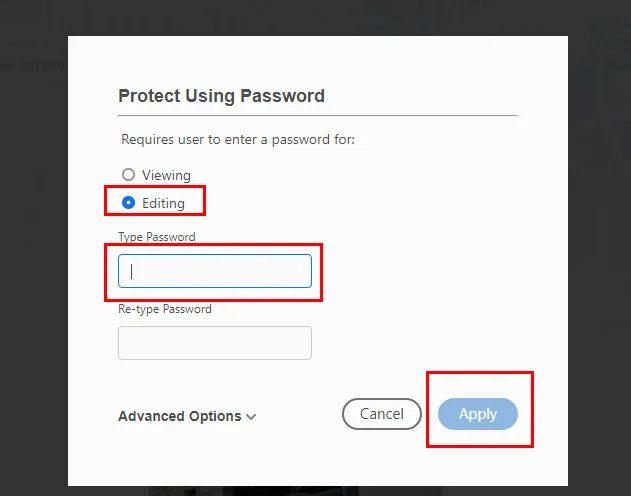
Navigate to Tools → Protect → Protect Using Password.
-
In the dialog box, select Editing as the restriction option, then enter and confirm your permissions password.
-
Save the file to apply the read-only settings.
This method is quick and convenient, especially for users who already have Adobe Acrobat installed. While permission protection can sometimes be bypassed by advanced tools, it is still sufficient for most everyday office scenarios.
If you want more control over what users can or cannot do with your PDF, you can go to File → Properties → Security, where Adobe Acrobat provides a full list of detailed permission settings. Here, you can set restrictions such as printing, content copying, form filling, commenting, and more.
2. Use Free Spire.PDF to Set Read-Only Permissions (for Automation & Systems)
If you have a large number of PDFs that need to be locked from editing, automating the process with Python is far more efficient than opening each file manually in Adobe Acrobat. Free Spire.PDF for Python, a powerful library for protecting PDF documents, makes it easy to process multiple files in a single workflow. Below is the general process for making a PDF read only with this tool: 
- Install Free Spire.PDF and import essential modules.
- Create a PdfDocument and load a PDF from file.
- Make the PDF file read only by setting a permission password for it with the PdfDocument.Security.Encrypt() method.
- Save the non-editable PDF as a new one.
The following code demonstrates how to make a PDF non-editable with Python:
from spire.pdf.common import *
from spire.pdf import *

# Create a PdfDocument object
doc = PdfDocument()

# Load a sample PDF file
doc.LoadFromFile("/input/Booklet.pdf")

# Set only a permission password and disable editing
doc.Security.Encrypt(
    "",
    "permissionPsd",
    PdfPermissionsFlags.none,
    PdfEncryptionKeySize.Key128Bit
)

# Save the result file
doc.SaveToFile("/output/ReadOnly.pdf", FileFormat.PDF)
This approach is ideal for companies that need automated PDF protection in their workflows, as it helps improve efficiency while reducing errors caused by manual operations. It can also be used together with features like adding a digital signature to further enhance document security.
When to Use Permission-Based Protection
Choose this method if:
- You need the PDF to remain searchable and selectable.
- You want basic protection without changing the visual appearance.
- You prefer a reversible, lightweight locking method.
- You need to batch-process PDFs through code.
For most knowledge workers, this is the simplest answer to make a PDF read only.
Method 2: Make a PDF Non Editable by Flattening It
Flattening converts every page into static elements, such as images or outlines, creating a truly non-editable PDF; this process is irreversible, so once flattened, no text, forms, stamps, annotations, or layers can be modified.
1. Use Adobe Acrobat to Flatten a PDF
Adobe Acrobat provides built-in tools to flatten PDFs. This feature is available in Adobe Acrobat Pro, which is a paid version; it is not fully available in the free Acrobat Reader.
Flattening can be done through the following steps:
-
Open your PDF in Adobe Acrobat Pro.
-
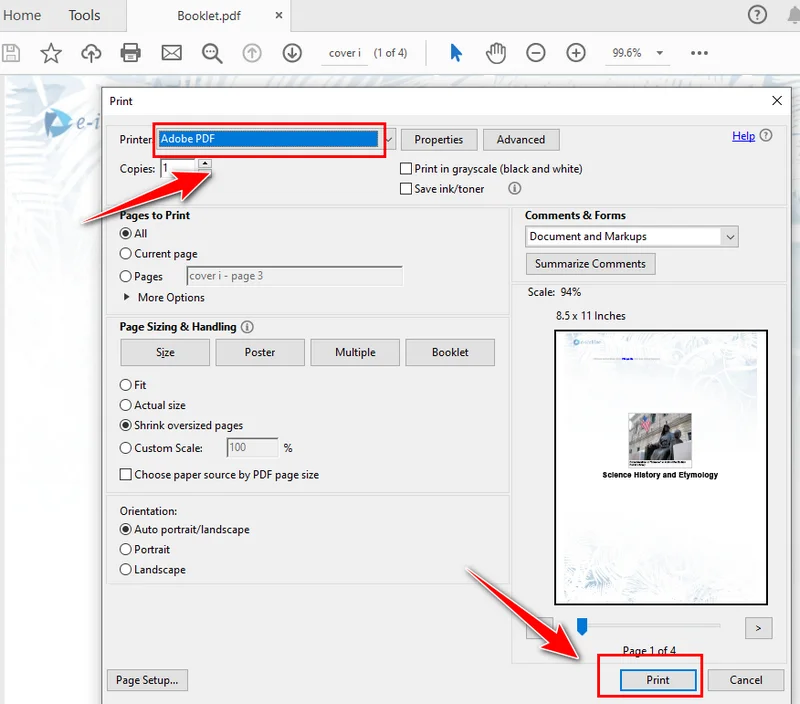
Go to File → Print.
-
Select Adobe PDF as the printer.
-
Click Print and choose a location to save the new file.
-
The resulting PDF is a flattened version—visually identical but non-editable.
Flattening ensures the content is locked and cannot be modified, making it ideal for documents that require high security or legal compliance.
2. Use Online Tools to Flatten a PDF (Fast & No Installation)
If you only need a quick solution, online PDF flatteners can be very convenient. Simply upload your file, and the tool will convert it into a static layout, and then you download the read-only version.
Online tools are especially helpful when you don’t have Adobe Acrobat installed and when you only have a few documents to deal with. Although than that, uploading PDF files to the Internet may cause a data leakage.
When to Use PDF Flattening
Flattening is the best method when:
- You need maximum protection.
- You’re sharing signed contracts or legal documents.
- You must ensure absolutely no one can edit the content.
- You are submitting a PDF to a government or business portal that requires a “read-only” version.
If security is your priority, this method is far more robust than permissions.
Method 1 vs. Method 2 — What’s the Best Way to Make a PDF Read Only?
| Feature | Permissions (Adobe, Free Spire.PDF) | Flattening (Adobe, Online Tools) |
|---|---|---|
| Editable | Potentially | Almost impossible |
| Text selectable/searchable | Yes | Usually No |
| Security level | Medium | High |
| Ease of use | Easy | Easy |
| Best for | Office files, internal sharing | Contracts, legal files, external sharing |
Both methods solve the problem of how to make a PDF read only effectively, but they suit different needs. Some organizations even combine both: flattening and permission protection.
How to Choose the Best Method
If you’re unsure which method is best for your situation, refer to the quick guide below:
-
Need quick protection?
→ Set permissions in Adobe. -
Need automation for multiple files?
→ Use Free Spire.PDF. -
Need strong protection or locking a signed PDF?
→ Flatten the file. -
No software installed?
→ Use an online flattening tool.
Conclusion
When it comes to making a PDF read only, you can either set editing permissions to keep the text searchable or flatten the file for maximum, permanent security. Using tools like Adobe Acrobat, Free Spire.PDF, or online services, it’s easy to create a read-only PDF that fits your workflow, security needs, and preference for manual or automated processing.
Also Read: