In today’s digital workflow, the ability to create fillable PDF files is more than a convenience—it’s a necessity. Whether you're distributing surveys, application forms, contracts, or worksheets, fillable PDFs allow recipients to enter information directly, reduce manual handling, and deliver a clean, professional experience.
This comprehensive guide will walk you through the most effective ways to create editable PDFs, from user-friendly free tools and professional software to automated scripting for developers. You’ll learn:
- What a fillable PDF is and why it’s useful
- Create an Editable PDF Using Adobe Acrobat Pro
- Free Online Tools to Make PDF Fillable
- Programmatically Create a Fillable PDF in Python
By the end of this guide, you’ll be able to choose the best method for your needs and start creating professional, interactive PDF forms in minutes.
What is a Fillable PDF?
A fillable PDF (also known as an interactive PDF form) is a document that contains editable fields—such as text boxes, checkboxes, radio buttons, and dropdown lists—that users can complete digitally without needing to print anything. Unlike a static PDF, a fillable form guides the user, ensures all necessary information is collected, and often includes features like data validation and digital signatures.
Why Use Fillable PDFs?
- Professionalism: Presents a clean, branded interface for business or personal use
- Efficiency: Saves time for both sender and recipient. Data can be auto-filled, exported, or shared instantly.
- Accuracy: Reduces errors from illegible handwriting or incorrect data entry.
- Accessibility: Can be used on any device (desktop, mobile, tablet) from anywhere.
1. Create an Editable PDF Using Adobe Acrobat Pro (The Industry Standard)
Adobe Acrobat is the gold standard for creating interactive PDFs—it’s trusted by businesses worldwide for its robust features, including automatic form field detection, e-signature integration, and data collection tools. It’s ideal if you need advanced functionality (e.g., calculations, data validation).
Steps to create a fillable form:
- Open Adobe Acrobat and select “Tools” > “Prepare Form” from the toolbar.
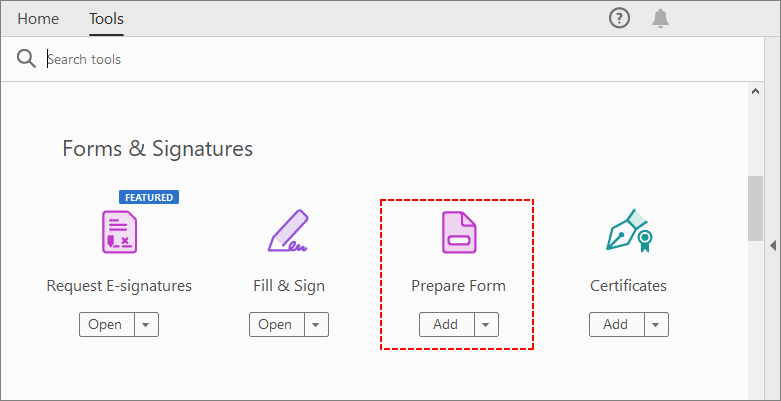
- Choose a Document: You can start from a blank PDF, upload an existing PDF, or even scan a paper form. Acrobat will automatically detect static fields and convert them to fillable text fields.
-
Customize Form Fields: Use the right pane to add or edit fields:
- Text Fields: For names, emails, addresses, or free-form text.
- Checkboxes/Radio Buttons: For yes/no questions or single/multiple-choice answers.
- Dropdown List: For presenting a set of pre-defined options.
- Signature Fields: Let users add digital signatures.
- Button: For submit actions, resetting the form, or hyperlinks.
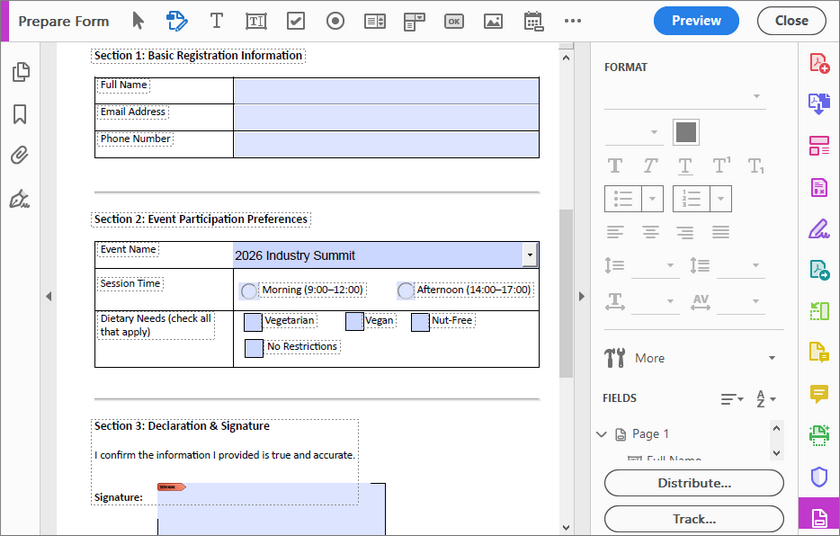
- Preview & Test: Click “Preview” to test the form—ensure fields are correctly sized, labeled, and functional.
- Save & Distribute: Save the PDF, then use Acrobat’s “Distribute” feature to send it via email, share a link, or collect responses in a spreadsheet.
Pro Tip: Once your fillable PDF is created and filled out, flattening the PDF becomes essential. Flattening turns all editable parts into static text and images. This stops anyone from changing the content by accident.
2. Free Online Tools to Make PDF Fillable (No Installation Required)
If you don’t want to pay for software, some online PDF editors let you create a fillable PDF for free—no downloads, no technical skills needed. Tools like Sejda, PDFescape, and Formize provide web-based interfaces for adding PDF form fields. These are user-friendly but may have file size or privacy limitations.
Steps to create a fillable PDF online:
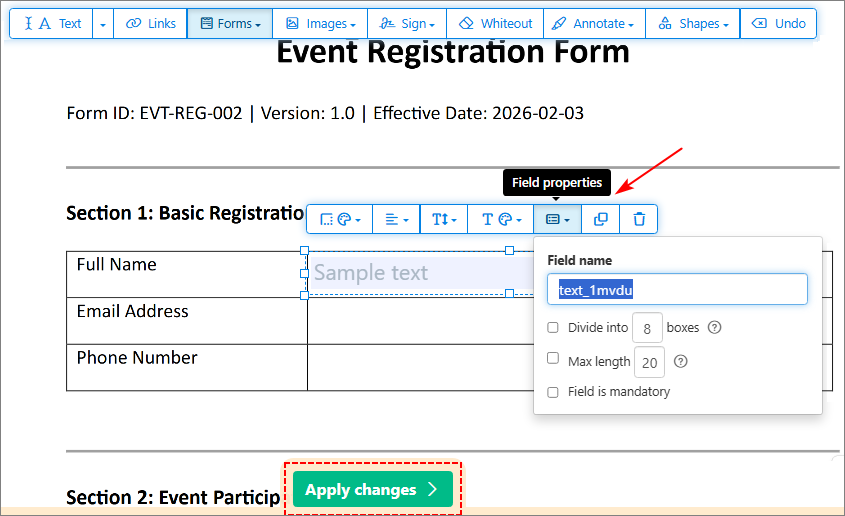
Here we use Sejda as an example to add fillable fields. It works on all browsers and lets you edit existing PDFs or start from scratch.
- Go to Sejda’s PDF Editor and upload your PDF.
- Select “Form Fields” from the toolbar and add the desired fields.
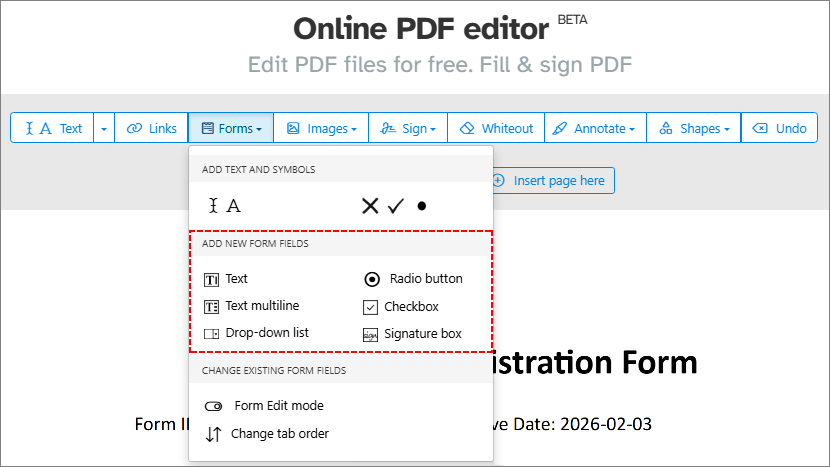
- Customize field layout and properties (e.g., field name, required status).
- Click “Apply changes” and download the fillable PDF.
Important: Be mindful of sensitive data. Read the privacy policy of free online tools before uploading confidential information.
3. Programmatically Create a Fillable PDF in Python (Advanced, For Developers)
If you’re a developer, you can create editable PDFs via code using the Free Spire.PDF library. This is ideal for integrating form creation into apps or automating workflows.
Free Spire.PDF for Python is a robust, free library that supports creating, editing, and manipulating PDFs. Unlike some Python alternatives, it provides:
- No cost for both personal and commercial use (with certain page limitations).
- Comprehensive form field support (text fields, buttons, combo boxes, etc.).
- Easy integration with Python scripts.
Python code to add PDF fillable forms
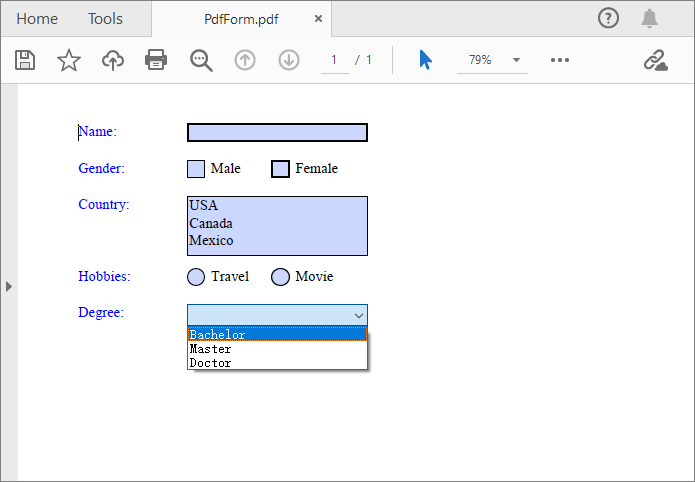
The code below creates a fillable PDF with 5 common form fields:
- Text box (for name input)
- Checkboxes (for gender selection)
- List box (for country selection)
- Radio buttons (for hobby selection)
- Combobox/dropdown (for education degree selection)
from spire.pdf.common import *
from spire.pdf import *

# Create a PdfDocument object (blank PDF)
doc = PdfDocument()

# Add a blank page to the document (default A4 size)
page = doc.Pages.Add()

# Initialize x and y coordinates to position form fields
baseX = 100.0
baseY = 30.0

# Create brush objects for text color (blue for labels, black for options)
brush1 = PdfSolidBrush(PdfRGBColor(Color.get_Blue()))
brush2 = PdfSolidBrush(PdfRGBColor(Color.get_Black()))

# Create a font object (Times Roman, 12pt, regular style)
font = PdfFont(PdfFontFamily.TimesRoman, 12.0, PdfFontStyle.Regular)

# --------------------------
# 1. Add a Text Box (Name)
# --------------------------
# Draw label for the text box (blue color)
page.Canvas.DrawString("Name:", font, brush1, PointF(10.0, baseY))
# Define bounds (position + size) for the text box
tbxBounds = RectangleF(baseX, baseY, 150.0, 15.0)
# Create text box field with unique name "name"
textBox = PdfTextBoxField(page, "name")
textBox.Bounds = tbxBounds
textBox.Font = font
# Add text box to the PDF form
doc.Form.Fields.Add(textBox)
# Move y-coordinate down to avoid overlapping fields
baseY += 30.0

# --------------------------
# 2. Add Checkboxes (Gender)
# --------------------------
# Draw label for gender selection
page.Canvas.DrawString("Gender:", font, brush1, PointF(10.0, baseY))
# Checkbox 1: Male
checkboxBound1 = RectangleF(baseX, baseY, 15.0, 15.0)
checkBoxField1 = PdfCheckBoxField(page, "male")
checkBoxField1.Bounds = checkboxBound1
checkBoxField1.Checked = False  # Unchecked by default
page.Canvas.DrawString("Male", font, brush2, PointF(baseX + 20.0, baseY))

# Checkbox 2: Female
checkboxBound2 = RectangleF(baseX + 70.0, baseY, 15.0, 15.0)
checkBoxField2 = PdfCheckBoxField(page, "female")
checkBoxField2.Bounds = checkboxBound2
checkBoxField2.Checked = False
page.Canvas.DrawString("Female", font, brush2, PointF(baseX + 90.0, baseY))

# Add checkboxes to the form
doc.Form.Fields.Add(checkBoxField1)
doc.Form.Fields.Add(checkBoxField2)
baseY += 30.0

# --------------------------
# 3. Add a List Box (Country)
# --------------------------
# Draw label for country selection
page.Canvas.DrawString("Country:", font, brush1, PointF(10.0, baseY))
# Define bounds for the list box
listboxBound = RectangleF(baseX, baseY, 150.0, 50.0)
# Create list box field with unique name "country"
listBoxField = PdfListBoxField(page, "country")
# Add options (display text + internal value)
listBoxField.Items.Add(PdfListFieldItem("USA", "usa"))
listBoxField.Items.Add(PdfListFieldItem("Canada", "canada"))
listBoxField.Items.Add(PdfListFieldItem("Mexico", "mexico"))
listBoxField.Bounds = listboxBound
listBoxField.Font = font
# Add list box to the form
doc.Form.Fields.Add(listBoxField)
baseY += 60.0

# --------------------------
# 4. Add Radio Buttons (Hobbies)
# --------------------------
# Draw label for hobby selection
page.Canvas.DrawString("Hobbies:", font, brush1, PointF(10.0, baseY))
# Create radio button group (unique name "hobbies" ensures mutual exclusivity)
radioButtonListField = PdfRadioButtonListField(page, "hobbies")

# Radio button 1: Travel
radioItem1 = PdfRadioButtonListItem("travel")
radioBound1 = RectangleF(baseX, baseY, 15.0, 15.0)
radioItem1.Bounds = radioBound1
page.Canvas.DrawString("Travel", font, brush2, PointF(baseX + 20.0, baseY))

# Radio button 2: Movie
radioItem2 = PdfRadioButtonListItem("movie")
radioBound2 = RectangleF(baseX + 70.0, baseY, 15.0, 15.0)
radioItem2.Bounds = radioBound2
page.Canvas.DrawString("Movie", font, brush2, PointF(baseX + 90.0, baseY))

# Add radio buttons to the group and group to the form
radioButtonListField.Items.Add(radioItem1)
radioButtonListField.Items.Add(radioItem2)
doc.Form.Fields.Add(radioButtonListField)
baseY += 30.0

# --------------------------
# 5. Add a Combobox (Degree)
# --------------------------
# Draw label for education degree
page.Canvas.DrawString("Degree:", font, brush1, PointF(10.0, baseY))
# Define bounds for the combobox
cmbBounds = RectangleF(baseX, baseY, 150.0, 15.0)
comboBoxField = PdfComboBoxField(page, "degree")
comboBoxField.Bounds = cmbBounds
# Add degree options (display text + internal value)
comboBoxField.Items.Add(PdfListFieldItem("Bachelor", "bachelor"))
comboBoxField.Items.Add(PdfListFieldItem("Master", "master"))
comboBoxField.Items.Add(PdfListFieldItem("Doctor", "doctor"))
comboBoxField.Font = font
# Add combobox to the form
doc.Form.Fields.Add(comboBoxField)
baseY += 30.0

# --------------------------
# Save the fillable PDF
# --------------------------
doc.SaveToFile("PdfForm.pdf", FileFormat.PDF)
Key Code Explanations
- PDF Document Setup: PdfDocument() creates a blank PDF, and Pages.Add() adds a default A4 page (no need to explicitly define size).
-
Layout & Styling:
- baseX/baseY: Coordinates to control field positioning (avoids overlapping and ensures clean layout).
- PdfSolidBrush: Defines text colors (blue for labels, black for options) to improve form readability.
- PdfFont: Sets a standard Times Roman 12pt font for consistent text styling across all fields.
-
Form Field Types:
- PdfTextBoxField: Single-line text input with font alignment to the input text.
- PdfCheckBoxField: Binary selection with unchecked default state.
- PdfListBoxField: Multi-line selectable list with taller bounds to show multiple options.
- PdfRadioButtonListField: Mutually exclusive selection – grouping under one name ensures only one can be selected.
- PdfComboBoxField: Dropdown selection with human-readable labels and machine-friendly internal values.
- File Saving: The PDF is saved to specified path with explicit FileFormat.PDF for compatibility.
The generated fillable PDF looks like:
Beyond creating fillable PDFs, a critical real-world requirement for developers building automated workflows is the ability to read the form field values and export collected PDF form data into standard formats for further analyzing.
Frequently Asked Questions (FAQ)
Q1: Can I create a fillable PDF for free?
Yes. Free online tools like PDFescape or Sejda allow basic form creation without payment or installation. Python libraries like Free Spire.PDF also offer a free, programmatic approach for developers.
Q2: Are fillable PDFs compatible with all devices and PDF readers?
Most modern PDF readers (Adobe Acrobat Reader, Preview on Mac, Chrome, Edge) support filling out forms. However, creating or editing form fields typically requires specialized tools.
Q3: Can fillable PDFs include digital signatures?
Yes. Many tools, including Adobe Acrobat and several online editors, allow you to add signature fields where users can draw, type, or upload a digital signature.
Q4: Which method is best for batch creating fillable PDFs?
For batch generation, a programmatic approach using Python is most efficient. You can automate the creation of hundreds of forms with similar layouts but unique data.
Final Thoughts
Creating a fillable PDF doesn’t have to be complicated—whether you’re a beginner or a developer, there’s a tool that fits your workflow. For casual use, free online tools like PDFescape or Sejda are perfect. For professional forms (e.g., contracts, invoices), invest in Adobe Acrobat for advanced features. And for automated, scalable solutions, Python with Free Spire.PDF offers a powerful and free alternative.
By following the steps in this guide, you’ll create fillable PDFs that save time, reduce errors, and improve the user experience