HEIC (High Efficiency Image Container) is the default image format used by Apple devices such as iPhone and iPad. While HEIC offers high image quality with smaller file sizes, it is not universally supported across platforms and applications. This often leads to compatibility issues when sharing, printing, or archiving images.
Converting HEIC files to PDF is a common and effective solution. PDF is a widely accepted format that ensures consistent display across devices and operating systems. In this article, we will explore several ways to convert HEIC to PDF, including free methods and an automated approach using Python code.
Quick Navigation
- What Is a HEIC File and Why Convert HEIC to PDF?
- Method 1: Convert HEIC to PDF Using Online Tools
- Method 2: Convert HEIC to PDF Using Desktop Software
- Method 3: Convert HEIC to PDF Using Python
- How to Choose the Right HEIC to PDF Conversion Method
- Frequently Asked Questions
What Is a HEIC File and Why Convert HEIC to PDF?
HEIC is an image container format based on HEVC (High Efficiency Video Coding). It allows Apple devices to store photos with better compression and high visual quality. However, HEIC files are not natively supported by many Windows applications, web browsers, or document management systems, which can create friction when you try to open or share them.
Typical situations where converting HEIC to PDF becomes useful include:
- Improving compatibility across platforms
- Combining multiple HEIC images into a single document
- Preparing images for printing or submission
- Archiving images in a stable, non-editable format
Because of these limitations, converting HEIC to PDF is often less about preference and more about ensuring accessibility and consistency across different environments.
Method 1: Convert HEIC to PDF Using Online Tools (Free)
Online converters are often the fastest way to convert HEIC to PDF, especially when you need a quick result without installing additional software.
Steps:
-
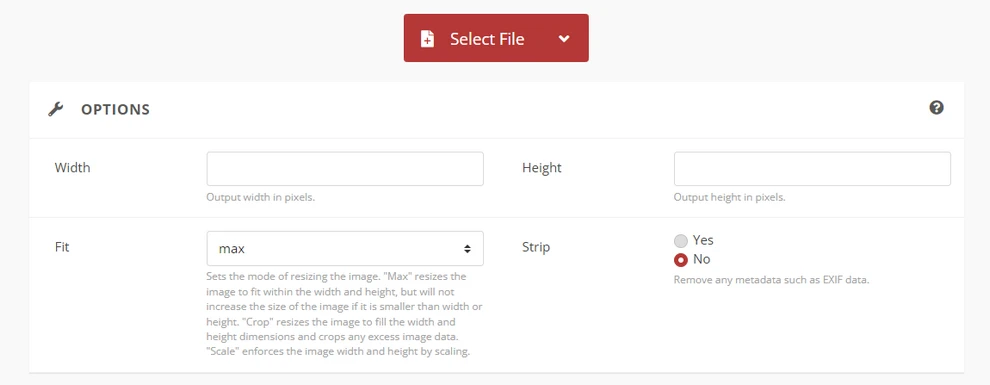
Open an online HEIC to PDF converter (such as CloudConvert).
-
Upload your HEIC file.
-
Select PDF as the output format.
-
Download the converted PDF file.
Pros:
- Free and easy to use
- No installation required
Cons:
- File size and batch limits
- Potential privacy and data security concerns
- Limited control over output quality
This method is suitable for one-time or occasional conversions.
For converting other images formats to PDF, you can check How to Convert Images to PDF on Various Platforms.
Method 2: Convert HEIC to PDF Using Desktop Software
Desktop software provides a more stable and private way to convert HEIC to PDF, especially if you frequently work with local files or prefer not to upload images to third-party platforms. Many modern operating systems already include built-in tools that can handle this task without requiring additional downloads.
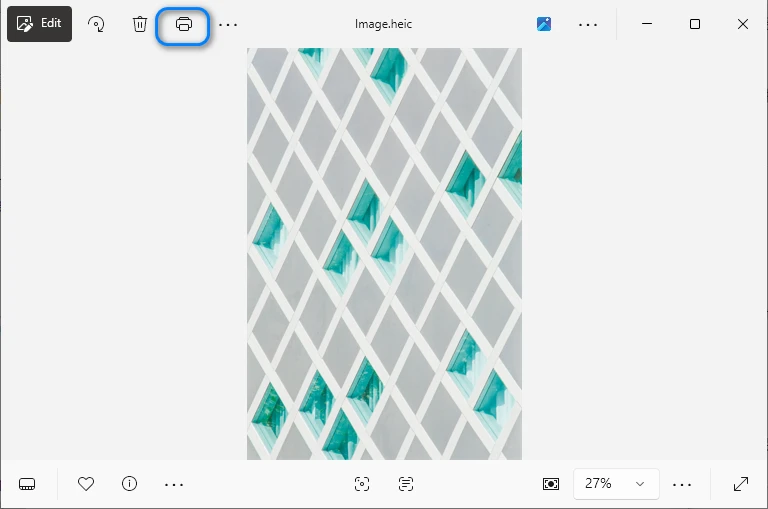
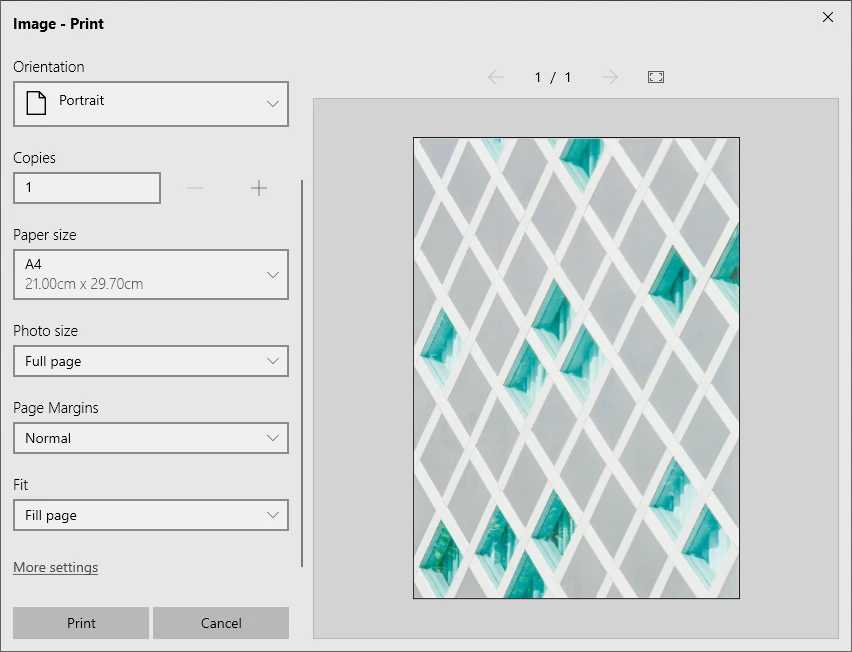
For example, Microsoft Photos on Windows and macOS Preview allow you to open HEIC files and export or print them as PDF documents. Compared to online tools, desktop solutions typically offer better reliability and fewer file size restrictions.
Steps:
-
Open the HEIC file using a compatible image viewer (e.g., Microsoft Photos).
-
Choose the export or print option.
-
Select PDF as the output format.
-
Save the PDF file.
Pros:
- Better privacy than online tools
- No coding required
Cons:
- Manual operation
- Inefficient for batch processing
This approach works well for users who need basic conversion with minimal technical effort.
If the result PDF file is too large, you can try compressing the PDF file to avoid transmission and sharing issues.
Method 3: Convert HEIC to PDF Using Python (Recommended for Automation)
If you need to convert HEIC files to PDF regularly, handle large image collections, or integrate conversion into an existing workflow, manual tools can quickly become inefficient. In these scenarios, automation offers a significant advantage.
Python enables you to build a repeatable conversion process that runs with minimal human intervention. Instead of converting images one by one, you can process entire folders, standardize output settings, and integrate the workflow into backend services or data pipelines.
Required Libraries
To implement this solution, you will need:
- pillow – for image processing
- pillow-heif – to enable HEIC image support
- Spire.PDF for Python – to create and manage PDF documents
You can install these libraries using pip:
pip install pillow pillow-heif spire.pdf
This combination allows you to read HEIC images, process them, and generate high-quality PDF files programmatically.
Step-by-Step: Convert HEIC to PDF with Python
Below is a general workflow for converting a HEIC file to PDF using Python:
- Register HEIC support and open the HEIC image with Pillow.
- Convert the image to RGB and save it as JPEG or PNG in memory.
- Create a PDF document and load the image from a byte stream.
- Render the image onto a PDF page and save the PDF file.
Python Example: Convert HEIC to PDF
from spire.pdf import PdfDocument, PdfImage, PointF, Stream, SizeF, PdfMargins
from PIL import Image
import pillow_heif
import io

# Register the HEIF support
pillow_heif.register_heif_opener()

# Open the HEIC image and convert to RGB (HEIC images may be RGBA)
img = Image.open("Image.heic")
img = img.convert("RGB")

# Save the image to JPEG or PNG bytes (for Spire.PDF support)
buffer = io.BytesIO()
img.save(buffer, format="JPEG")  # Or "PNG"
image_bytes = buffer.getvalue()

# Load the image from bytes
stream = Stream(image_bytes)
image = PdfImage.FromStream(stream)

# Create a PDF document
pdf = PdfDocument()

# Set the page size to the image size and margins to 0
# This will make the image fill the page
pdf.PageSettings.Size.Width = image.Width
pdf.PageSettings.Size.Height = image.Height
pdf.PageSettings.Margins.All = 0

# Add a page to the document
page = pdf.AppendPage()

# Draw the image on the page
page.Canvas.DrawImage(image, PointF(0.0, 0.0))

# Save the PDF document
pdf.SaveToFile("output/HEICToPDF.pdf")
pdf.Close()
Below is a preview of the generated PDF file:
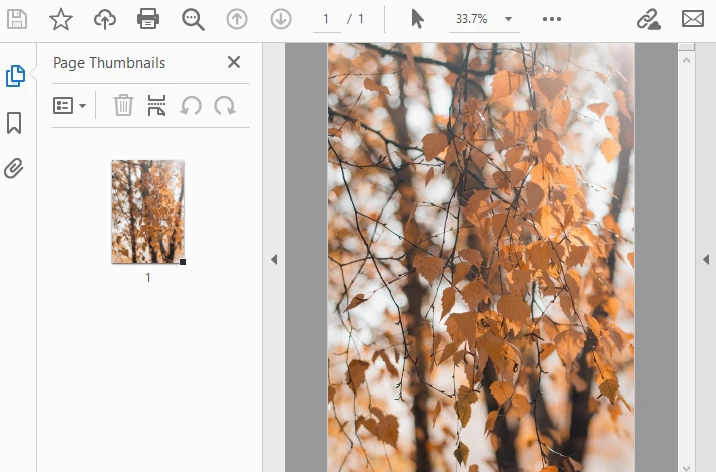
This approach supports batch processing and can be extended to merge multiple images into a single PDF. For more advanced image-to-PDF conversions, including other formats and options like page size, margins, and image quality, you can check out our Python guide on converting images to PDF.
How to Choose the Right HEIC to PDF Conversion Method
The best method depends less on technical preference and more on your actual usage scenario. Instead of assuming that one approach fits all situations, consider how often you perform conversions and how much control you need over the output.
Choose an Online Tool if:
- You only need to convert a few files occasionally
- You want the fastest possible solution
- Installing software is not convenient
Online converters are ideal for quick, low-effort tasks. However, they may not be suitable for sensitive images or large batches.
Choose Desktop Software if:
- You prefer working offline
- Privacy is important
- You want a simple, no-code experience
Desktop tools strike a balance between ease of use and reliability. They are often the most practical choice for everyday office workflows.
Choose Python if:
- You regularly convert large numbers of HEIC files
- The process needs to be automated
- You want precise control over layout, resolution, or document structure
- Conversion is part of a larger system or application
While this approach requires some technical knowledge, it becomes significantly more efficient at scale.
Overall, online tools suit quick tasks, desktop software supports everyday workflows, and Python is ideal for automated or large-scale conversions.
Conclusion
Converting HEIC files to PDF is a practical solution for improving compatibility and usability. While free online tools and desktop software are suitable for simple tasks, they often fall short when automation, privacy, or batch processing is required.
For developers and advanced users, converting HEIC to PDF using Python provides the most flexibility. With libraries such as pillow-heif and Spire.PDF for Python, you can build an efficient and professional conversion workflow tailored to your needs.
FAQ: HEIC to PDF Conversion
What are the free ways to convert HEIC to PDF?
Yes, many online tools offer free HEIC to PDF conversion, but they may have limitations on file size or usage.
Will converting HEIC to PDF affect image quality?
Image quality depends on the conversion method. Programmatic solutions allow better control over resolution and compression.
How can I merge multiple HEIC files into one PDF?
Yes. Using a programming approach, multiple HEIC images can be merged into a single PDF document.
Is it possible to convert HEIC to PDF for free with Spire.PDF?
Yes, Free Spire.PDF for Python allows you to convert HEIC files to PDF at no charge.