Adding notes to your PowerPoint slides is a simple yet powerful way to enhance your presentations. Whether you are preparing for a live talk, creating teaching materials, or sharing slides with colleagues, speaker notes help you stay organized, remember key points, and deliver your message with confidence.
In this article, we will cover two practical ways to add notes to PowerPoint: manually using PowerPoint Desktop and programmatically using Python with Spire.Presentation.
What Are PowerPoint Notes?
Speaker notes are additional text linked to each slide that only the presenter can see during a presentation. They help you:
- Remember key points without cluttering the slides
- Provide handouts with extra details
- Collaborate with teammates by adding comments or instructions
Notes complement slide content rather than duplicate it, keeping your presentation clear and engaging.
Method 1: Add Notes Using PowerPoint Desktop
The most common way to add notes is manually in PowerPoint Desktop. This method is intuitive, beginner-friendly, and works for both Windows and Mac users.
Step-by-Step Guide
-
Open your presentation in PowerPoint Desktop.
-
Switch to Normal View if it isn’t already enabled. You can do this from the View tab or the bottom-right icons.

-
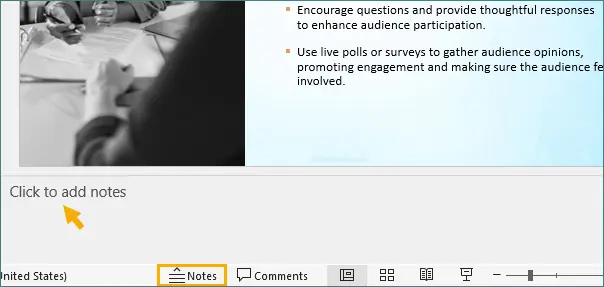
At the bottom of each slide, you will see a Notes pane. If the pane is hidden, click Notes at the bottom of the window to reveal it.
-
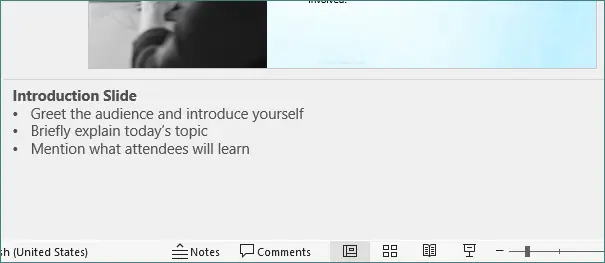
Click inside the Notes pane and type your speaker notes. You can include bullet points, short paragraphs, or reminders.
-
Save your presentation once you finish adding notes.
Tips and Best Practices
- Keep notes concise: Avoid writing full paragraphs. Focus on key points and cues.
- Use bullet points: Helps you scan notes quickly during a presentation.
- Align with slide content: Make sure notes correspond to the slide visuals for smoother delivery.
- Formatting: You can apply basic formatting such as bold, italics, or font size adjustments to emphasize important points.
Advantages
- Works offline, no additional tools needed.
- Allows full formatting flexibility for notes.
- Beginner-friendly and widely supported across all PowerPoint versions.
Optional Tip
During presentations, you can use Presenter View (Alt + F5) to view these notes privately while your audience sees only the slides. This feature is invaluable when presenting in live settings or online meetings.
Method 2: Add Notes Programmatically Using Python
For developers, educators, or enterprises working with multiple presentations, adding notes manually can be time-consuming. Using Python with Spire.Presentation allows you to automate the addition of speaker notes to one or more slides, saving time and maintaining consistency.
Why Automate Notes?
- Bulk updates: Quickly add or modify notes across many slides or presentations.
- Consistency: Standardize notes format, style, and bullet points.
- Integration: Works with other Python workflows, such as data processing or automated report generation.
Step-by-Step Guide
Below is an example Python workflow using Spire.Presentation:
from spire.presentation.common import *
from spire.presentation import *

# Create a Presentation object
ppt = Presentation()

# Load an existing PowerPoint presentation
ppt.LoadFromFile("input.pptx")

# Get the first slide
slide = ppt.Slides[0]

# Add a notes slide
notesSlide = slide.AddNotesSlide()

# Add paragraphs to the notes slide
paragraph = TextParagraph()
paragraph.Text = "Summary Slide:"
paragraph.FirstTextRange.IsBold = TriState.TTrue
notesSlide.NotesTextFrame.Paragraphs.Append(paragraph)

paragraph = TextParagraph()
paragraph.Text = "Recap the three main points"
notesSlide.NotesTextFrame.Paragraphs.Append(paragraph)

paragraph = TextParagraph()
paragraph.Text = "Reinforce the core message"
notesSlide.NotesTextFrame.Paragraphs.Append(paragraph)

paragraph = TextParagraph()
paragraph.Text = "Prepare for the conclusion"
notesSlide.NotesTextFrame.Paragraphs.Append(paragraph)

# Apply numbering style to specific paragraphs
for i in range(2, notesSlide.NotesTextFrame.Paragraphs.Count):
    notesSlide.NotesTextFrame.Paragraphs[i].BulletType = TextBulletType.Numbered
    notesSlide.NotesTextFrame.Paragraphs[i].BulletStyle = NumberedBulletStyle.BulletArabicPeriod

# Save the resulting presentation
ppt.SaveToFile("AddSpeakerNotes.pptx", FileFormat.Pptx2016)
ppt.Dispose()
Output:

Explanation of the Code
- Load Presentation: ppt.LoadFromFile("input.pptx") opens an existing PowerPoint file.
- Access Slide: slide = ppt.Slides[0] retrieves the first slide.
- Add Notes Slide: slide.AddNotesSlide() creates a dedicated notes area for the slide.
-
Add Paragraphs: Each TextParagraph object is added to the
NotesTextFrame. - Format Bullets: Numbered bullet style is applied to all paragraphs except the first one.
- Save File: ppt.SaveToFile() saves the updated presentation with the new notes.
Read further: Add, Read or Delete Speaker Notes in PowerPoint Using Python
Advantages
- Automates repetitive tasks, saving time on large presentations.
- Maintains a consistent format across all slides.
- Can be integrated into data pipelines, report generation systems, or batch processing scripts.
- Works for both existing presentations and newly created files.
Use Cases
- Educational institutions preparing lecture slides with standardized notes.
- Companies generating recurring reports or training materials.
- Developers creating tools for PowerPoint automation.
For more advanced usage, such as editing slide content, managing layouts, or working with multiple slides, refer to the Spire.Presentation documentation. It provides detailed API references and examples for different PowerPoint automation scenarios.
Comparison of the Two Methods
| Feature | PowerPoint Desktop | Python + Spire.Presentation |
|---|---|---|
| Ease of use | Easy | Medium |
| Editing flexibility | High | Medium |
| Automation | × | √ |
| Ideal users | General users | Developers / Enterprises |
| Scalability | Low | High |
Best Practices for Speaker Notes
Regardless of the method, good notes share common characteristics:
- Short and actionable: Avoid long paragraphs.
- Use bullet points: Makes scanning easy.
- Highlight key points: Bold or underline important items.
- Match slide content: Notes should complement, not duplicate, visuals.
- Review and rehearse: Ensure your notes help, not hinder, your delivery.
Conclusion
Adding notes to PowerPoint is a simple way to make presentations more effective and organized. For most users, PowerPoint Desktop is the easiest way to add and manage notes. It allows full formatting, offline editing, and seamless integration with Presenter View.
For developers or anyone handling multiple presentations, Python + Spire.Presentation provides a powerful, automated way to add notes programmatically. This method is especially useful for bulk updates, maintaining consistency, and integrating with automated workflows.
By combining clear slide visuals with thoughtful speaker notes, you can deliver presentations confidently, keep your audience engaged, and ensure that important points are never missed.
FAQs
Q1. Can the audience see my notes?
No. Speaker notes are visible only to the presenter in Presenter View.
Q2. Can notes be printed with slides?
Yes. PowerPoint allows printing of slides with notes pages for handouts.
Q3. Will Python-added notes appear in Presenter View?
Yes. Notes added programmatically using Spire.Presentation appear exactly like manually added notes in Presenter View.
Q4. Can I edit notes later after programmatic addition?
Yes. After generating the presentation with Python, you can open it in PowerPoint Desktop or PowerPoint Online and make edits as needed.