If you want to share your slides with others, preserve the formatting, or make your presentation easier to view across different devices, converting your PowerPoint to PDF is a great choice. Luckily, there are several ways to save PowerPoint as PDF, from using built-in Office features to online tools and specialized software. In this guide, we’ll walk you through all 4 options, including how to save PowerPoint as PDF on Windows, Mac, or even Google Slides.
- Save as PDF Directly in Microsoft PowerPoint
- Convert PowerPoint to PDF Using Online Tools
- Batch Convert PowerPoint to PDF with Code
- Convert Google Slides to PDF
- The Conclusion
1. Save as PDF Directly in Microsoft PowerPoint
The easiest and fastest way to convert a PowerPoint file to PDF is by using the built-in "Save As" feature provided by Microsoft PowerPoint. This method doesn’t require any additional software and works perfectly for single presentations.
Steps to save a PowerPoint presentation as a PDF in Microsoft PowerPoint:
- Open your PowerPoint file.
- Go to File → Save As.
- Choose PDF as the file format.
- Optionally, select whether you want to include speaker notes or hidden slides.
- Click Save, and your PDF is ready.
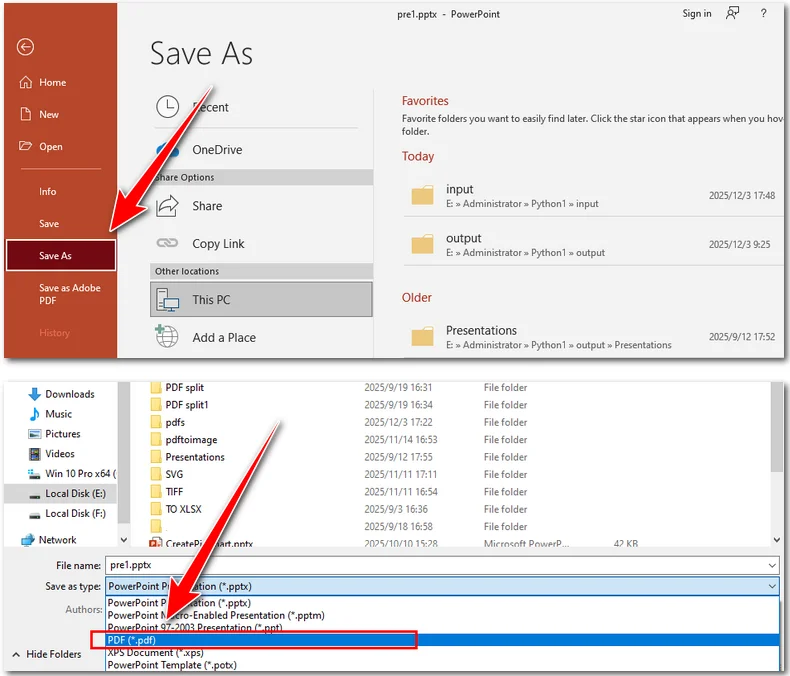
This method is ideal if you want a quick solution and don’t need to batch process multiple files. It works on both Windows and Mac, covering basic needs like saving a PowerPoint slide as a PDF or preserving your presentation with notes.
2. Convert PowerPoint to PDF Using Online Tools
If you don’t have PowerPoint installed, online tools are a convenient alternative. Websites like iLovePDF or CLOUDXDOCS allow you to convert your PPT or PPTX files to PDF quickly, without installing any software. In the following instructions, we use CLOUDXDOCS to demonstrate how online tools work.
Steps to save a PowerPoint presentation as a PDF with CLOUDXDOCS:
- Navigate to the Powerpoint-to-PDF converter.
- Upload your PowerPoint file, and the tool will automatically convert it to PDF.
- Click View to check out the converted PDF document, or click Download to save the PDF to your device.
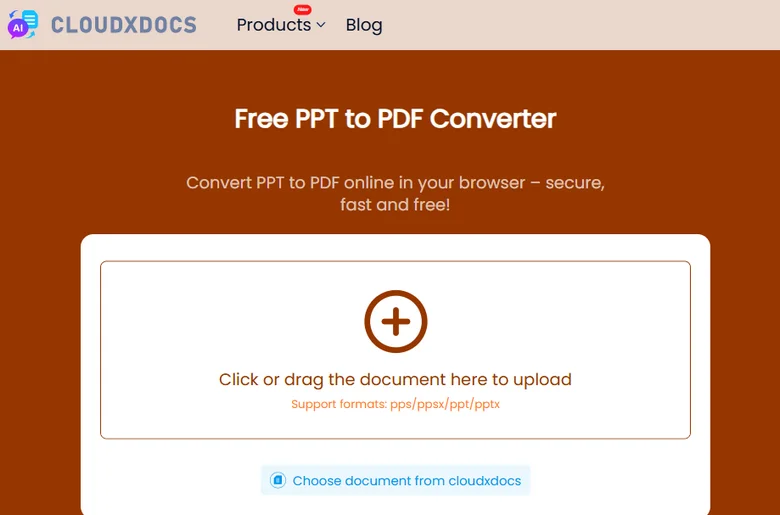
Online tools are especially useful when you need to convert a file on the go or when using a device without Office installed, such as a Mac, a smartphone, or other devices that don’t have Microsoft PowerPoint.
3. Batch Convert PowerPoint to PDF with Free Spire.Presentation
For larger projects or when you need to convert multiple presentations all at once, Free Spire.Presentation is a reliable choice. It preserves your slides’ original formatting, including fonts, charts, and layouts, while allowing automated batch conversion. It also lets you convert a specified PowerPoint slide to PDF, giving you more control over the output.
Why use Free Spire.Presentation:
- Supports PPT and PPTX formats.
- Maintains original design and formatting.
- Handles batch conversions, saving time on large projects.
- Free and easy to install.
To convert PowerPoint files to PDF using Free Spire.Presentation, you can choose your preferred programming language, such as Python, Java, or C#. Below is an example using Python.
Steps to convert PowerPoint presentations to PDF using Python:
- Download and install Free Spire.Presentation.
- Import the necessary modules in your code editor.
- Create a Presentation object and load your PowerPoint file.
- Use the SaveToFile() method to save the PowerPoint file as a PDF.
Below is a complete code example:
import os
from spire.presentation import *

# Specify the directory containing the PPT/PPTX files
input_dir = r"/input/pptx"

# Get all files in the directory (since there are only the PPT/PPTX files)
ppt_files = os.listdir(input_dir)

# Loop through each file and convert to PDF
for ppt_file in ppt_files:
    ppt_path = os.path.join(input_dir, ppt_file)

    # Create a Presentation object
    presentation = Presentation()

    # Load the PowerPoint file
    presentation.LoadFromFile(ppt_path)

    # Generate output PDF file name based on input file name
    output_pdf = os.path.join("/output/pdfs", os.path.splitext(ppt_file)[0] + ".pdf")

    # Save as PDF
    presentation.SaveToFile(output_pdf, FileFormat.PDF)

    # Release resources
    presentation.Dispose()
This method is perfect for professionals managing multiple presentations or needing consistent, high-quality PDFs for sharing or archiving.
Tip: This component is capable of exporting PowerPoint to images, Word documents, and more.
4. Extra Tip: Convert Google Slides to PDF
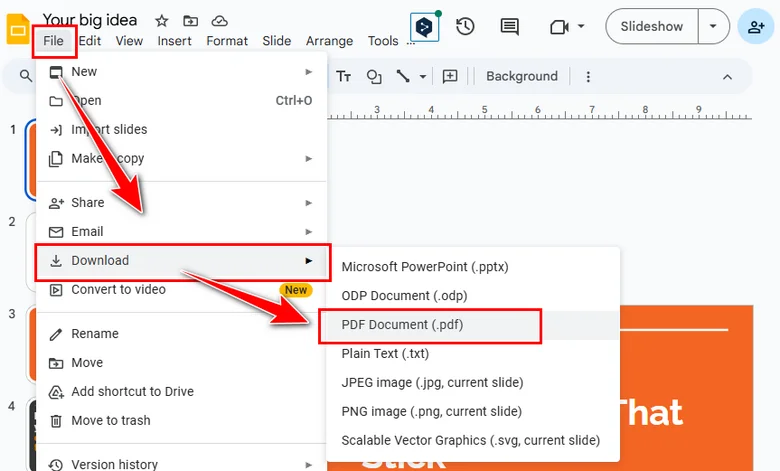
Besides using applications like Microsoft PowerPoint, many people also use Google Slides to create and manage presentations. This raises a common question: how can you save a Google Slides presentation as a PDF? Fortunately, it’s quite simple. You can easily do it by following the steps below.
Steps to save a presentation from Google Slides as a PDF:
- Open your Google Slides file.
- Click File → Download → PDF Document (.pdf).
- Save the PDF to your computer.
This method is especially useful for remote collaboration or when you are tring to save a PowerPoint as PDF on Mac—without Microsoft PowerPoint installed.
The Conclusion
Converting PowerPoint to PDF is simpler than you might think. Whether you prefer the built-in Office method, online converters, or Free Spire.Presentation for batch projects, there’s a solution for every need. Even Google Slides can be easily exported to PDF. With these methods, you can easily share, archive, and preserve your presentations without worrying about formatting or compatibility issues.