Formatting data manually in Excel can quickly become tedious, especially when you’re working with large datasets or generating recurring reports. Applying styles, adjusting layouts, and keeping everything consistent often takes more time than expected. However, these complex tasks can be simplified with Excel auto formatting features.
Excel includes several built-in ways to automatically aplly formatting and layout adjustments. By using table styles, cell styles, and automatic layout adjustments, you can format data more efficiently and maintain a clean, professional structure.
In this guide, we will explore how to auto format in Excel using these features—and how to scale the process further with automation workflows.
Quick Navigation
- What Is Auto Format in Excel and What Can It Do?
- Auto Format Tables in Excel Using Built-in Styles
- How to Auto Format Cells in Excel with Cell Styles
- Auto Format Column Width and Row Height in Excel
- How to Auto Format Excel Using Python Automation Workflows
- Best Practices for Auto Formatting Excel Data
- FAQ
What Is Auto Format in Excel and What Can It Do?
Auto format in Excel is not a single button in modern versions of Excel, but a combination of features designed to apply formatting automatically. Instead of manually setting fonts, colors, borders, and layout properties, you can use predefined styles and auto-adjustment tools.
These capabilities generally fall into three categories:
Table Formatting
You can quickly convert a data range into a formatted table with a built-in style. This automatically applies:
- Header formatting
- Alternating row colors
- Filtering and sorting controls
This is one of the most efficient ways to structure raw data for analysis or reporting.
Cell Formatting
Excel also provides predefined cell styles that combine multiple formatting properties, such as font, color, and borders. These styles make it easier to format cells consistently without repeating the same steps.
They are especially useful when you need to highlight headings, inputs, or calculated results.
Layout Adjustment
In addition to styling, Excel can automatically adjust layout elements:
- Column width expands to fit content
- Row height adjusts for wrapped or multi-line text
These layout features help ensure that your data remains readable without manual resizing.
Together, these tools cover most everyday formatting needs—but they still rely on manual interaction, which can become inefficient when applied repeatedly.
How to Auto Format Tables in Excel Using Built-in Styles
Using table styles is one of the most straightforward ways to apply formatting automatically.
Steps:
- Select your data range
- Go to the Home tab
- Click Format as Table
- Choose a predefined style
- Confirm the selected range
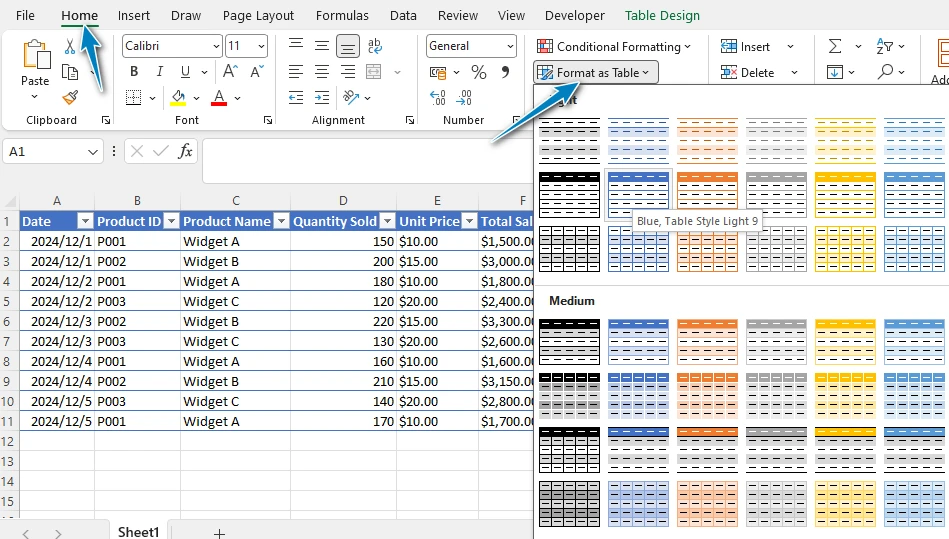
Once applied, Excel immediately transforms the data:
- A consistent visual style is applied
- Headers are clearly distinguished
- Filtering and sorting become available
This approach works particularly well for structured datasets such as reports, lists, or exported data, where clarity and consistency are important.
Compared to manually formatting each column or row, using a table ensures that formatting is applied uniformly across the entire dataset.
How to Auto Format Cells in Excel with Cell Styles
When formatting needs to be applied more selectively, cell styles provide a flexible alternative.
Steps:
- Select the target cells
- Go to the Home tab
- Click Cell Styles
- Choose a predefined style
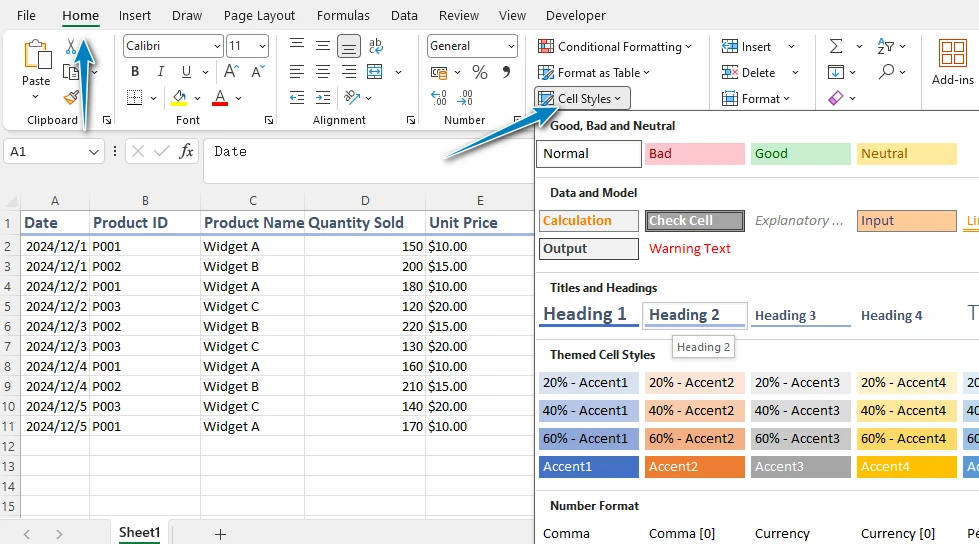
Each style includes a combination of formatting settings, such as font weight, background color, and borders.
This is useful in scenarios where:
- Specific values need to stand out
- Sections of a worksheet need clear visual separation
- Formatting needs to remain consistent across multiple sheets
Unlike table formatting, which is applied to entire datasets, cell styles allow you to focus on individual cells or smaller ranges.
How to Auto Format Column Width and Row Height in Excel
Even well-styled data can be difficult to read if the layout is not properly adjusted. Excel provides automatic options to resize columns and rows based on their content.
Auto Format Column Width
- Double-click the right edge of a column header
- Or go to Home → Format → AutoFit Column Width
Auto Format Row Height
- Double-click the bottom edge of a row
- Or go to Home → Format → AutoFit Row Height
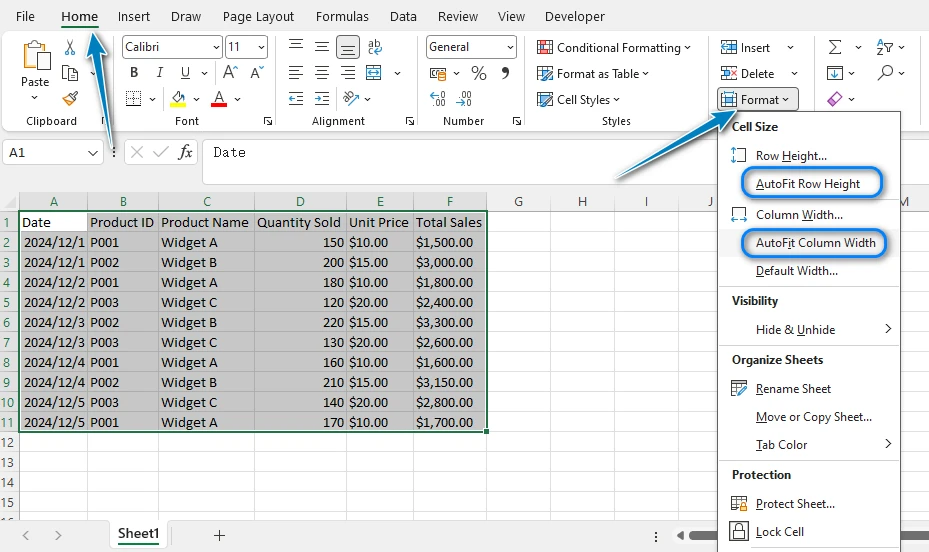
These features are especially helpful when working with:
- Imported data
- Text-heavy cells
- Dynamically generated content
By automatically fitting content, Excel reduces the need for manual adjustments and helps maintain a clean layout.
However, it’s worth noting that very long text can sometimes result in excessively wide columns, so minor adjustments may still be needed.
For more detailed methods, including VBA and programming approaches to automatically adjust column widths, you can check out Advanced Techniques to Auto Format Column Width in Excel.
Limitations of Auto Format in Excel
While Excel’s built-in formatting tools are effective for everyday use, they have limitations when applied at scale.
-
Manual repetition The same formatting steps need to be repeated for each file or dataset
-
Limited scalability Formatting multiple files or large datasets can become time-consuming
-
No automation workflow There is no built-in way to automatically apply formatting when new data is generated
-
Consistency challenges Maintaining the same formatting standards across different files or teams can be difficult
These limitations become more noticeable in workflows such as:
- Generating periodic reports
- Processing large numbers of Excel files
- Standardizing output formats across projects
In these situations, relying solely on manual formatting is often not efficient.
How to Auto Format Excel Using Python (Fully Automated Solution)
When formatting needs to be applied repeatedly or across multiple files, automation becomes a more practical solution.
Instead of manually applying table styles, adjusting column widths, and formatting cells each time, you can define these rules once and reuse them programmatically. This is especially useful for reporting workflows, data pipelines, or batch processing scenarios.
Using Spire.XLS for Python, you can automate many of the same tasks that Excel performs manually.
Setting Up Your Python Environment
Before running the examples, you need to install Spire.XLS for Python. This library allows you to manipulate Excel files without relying on Excel itself.
To install the package via pip, run:
pip install spire.xls
Once installed, you can import it in your scripts and start automating Excel formatting tasks immediately.
Auto Format Excel Cells with Cell Styles in Python
You can use Python to automatically format Excel cells by applying both custom-defined styles and built-in cell styles. This approach gives you flexibility to define your own formatting rules while also leveraging Excel’s predefined styling options.
from spire.xls import *

# Load the workbook
workbook = Workbook()
workbook.LoadFromFile("sample.xlsx")

# Get the first sheet
sheet = workbook.Worksheets.get_Item(0)

# Create and apply a custom style to the header row
style = workbook.Styles.Add("headerStyle")
style.Font.FontName = "Arial"
style.Font.Size = 12
style.Font.Color = Color.get_DarkBlue()
style.Font.IsBold = True
style.Color = Color.get_LightGray()
style.Borders.get_Item(BordersLineType.EdgeBottom).LineStyle = LineStyleType.Thick

# Apply custom style to the first row (header)
sheet.Range.get_Item(1, 1, 1, sheet.LastColumn).Style = style

# Apply built-in cell styles to data rows (alternating style)
start_row = 2
end_row = sheet.LastRow
last_col = sheet.LastColumn

for i in range(start_row, end_row + 1):
    if i % 2 == 0:
        sheet.Range.get_Item(i, 1, i, last_col).BuiltInStyle = BuiltInStyles.Accent1_40
    else:
        sheet.Range.get_Item(i, 1, i, last_col).BuiltInStyle = BuiltInStyles.Accent1_60

# Save the Excel file
workbook.SaveToFile("AutoFormatCells.xlsx", ExcelVersion.Version2016)
workbook.Dispose()
Below is a preview of the formatted Excel file:
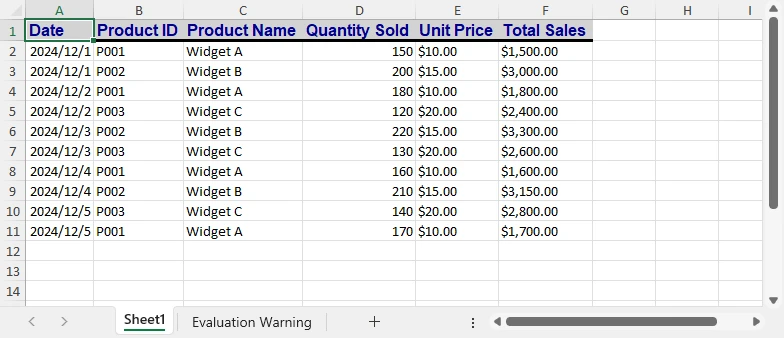
This example demonstrates a common pattern in automated formatting workflows:
- A custom style is applied to highlight the header row
- Built-in styles are used to format data rows with alternating colors
By combining these two approaches, you can create clear, consistent, and visually structured spreadsheets without manual formatting.
If you also need to control how numbers are displayed, such as dates, percentages, or currency formats, you can further customize cell formatting using Python.
Auto Adjust Column Width and Row Height Automatically
# Auto fit column width and row height
sheet.AllocatedRange.AutoFitColumns()
sheet.AllocatedRange.AutoFitRows()
Instead of manually resizing columns and rows, layout adjustments can be handled automatically as part of your workflow.
Apply Table Styles in Excel Using Python
You can automatically format structured data in Excel by creating a table and applying a built-in table style. This approach allows you to convert raw data into a well-formatted table with consistent styling, similar to using the “Format as Table” feature in Excel.
from spire.xls import *

# Load the workbook
workbook = Workbook()
workbook.LoadFromFile("sample.xlsx")

# Get the first sheet
sheet = workbook.Worksheets.get_Item(0)

# Define the data range (used to create the table)
table_range = sheet.AllocatedRange

# Create a table based on the data range
table = sheet.ListObjects.Create("Data", table_range)

# Apply a built-in table style
table.BuiltInTableStyle = TableBuiltInStyles.TableStyleLight2

# Save file
workbook.SaveToFile("AutoFormatTable.xlsx", ExcelVersion.Version2016)
workbook.Dispose()
Below is a preview of the formatted Excel table:
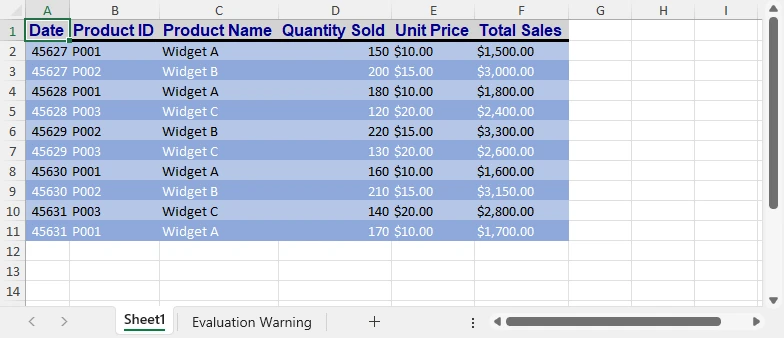
This approach automatically applies:
- A consistent table layout
- Header formatting and row styling
- Built-in filtering and sorting functionality
It is particularly useful when working with structured datasets such as reports, exports, or data pipelines, where consistent formatting needs to be applied across multiple files.
For more advanced scenarios, such as customizing number formats, conditional formatting, or other complex formatting rules, you can explore additional Python techniques in Advanced Excel Formatting with Python.
Best Practices for Auto Formatting Excel Data
To make the most of auto formatting features, it’s important to use them thoughtfully.
-
Keep formatting consistent Use the same styles across similar datasets to maintain a professional appearance
-
Avoid excessive styling Too many colors or formats can reduce readability
-
Choose the right method Use tables for structured data and cell styles for targeted formatting
-
Be mindful of auto-fit behavior Automatically adjusted columns may need fine-tuning for long text
-
Automate repetitive tasks If formatting steps are repeated frequently, consider using a programmatic approach
FAQ About Auto Format in Excel
What is auto format in Excel?
It refers to a set of features that automatically apply formatting styles and layout adjustments to improve the appearance of data.
How to auto format in Excel?
You can use tools like Format as Table, Cell Styles, and AutoFit options to apply formatting quickly without manual adjustments.
How to auto format cells in Excel?
Select the cells and apply a predefined cell style to instantly format them with consistent settings.
How to Auto Format Column Width and Row Height in Excel?
You can automatically adjust both column width and row height using Excel’s AutoFit feature:
- AutoFit Column Width – Select the column(s) and double-click the right boundary of any selected column header, or use the AutoFit Column Width option in the menu.
- AutoFit Row Height – Select the row(s) and double-click the bottom boundary of any selected row header, or use the AutoFit Row Height option in the menu.
This ensures that your cells adjust to fit the content automatically, keeping your spreadsheet neatly organized.
Can Excel formatting be automated?
Yes. By using Python libraries such as Spire.XLS, you can automate formatting tasks and apply them across multiple files efficiently.
Conclusion
Excel offers several practical ways to apply formatting automatically, making it easier to create clean and structured spreadsheets. Whether you’re working with tables, cells, or layout adjustments, these tools can significantly reduce manual effort.
However, as your workload grows, manual formatting becomes harder to maintain. By introducing automation with Python, you can streamline repetitive tasks, ensure consistency, and build more efficient workflows for handling Excel data.