Markdown (MD) is a favorite tool for writers, developers, and project managers due to its simplicity. But when you need to analyze data, generate reports, or collaborate with teams, Markdown can fall short-especially when it comes to tables. Converting Markdown tables to Excel unlocks the power of Excel's features like sorting, filtering, and complex calculations.
In this guide, we'll explore 3 practical methods to quickly and easily convert Markdown to Excel, whether you're working with a single table or need to automate the process for large datasets.
- Use Cases: When You Should Convert Markdown to Excel
- Method 1: Copy Markdown Table and Paste into Excel
- Method 2: Use an Online Markdown to Excel Converter
- Method 3: Batch Convert MD to Excel with C# Automation
- Comparison: Which Markdown to Excel Method is Right for You
- Troubleshooting Common Markdown to Excel Issues
Use Cases: When You Should Convert Markdown to Excel
Markdown is excellent for documentation, but Excel excels at data manipulation. Converting Markdown tables to Excel is useful in scenarios such as:
- Data Analysis: You have survey results, research data, or metrics in Markdown format and need to perform statistical analysis in Excel.
- Team Collaboration: You need to share structured data with teammates who prefer working in Excel for editing, commenting, or collaborating on datasets.
- Reporting: Convert Markdown tables into professional Excel reports, complete with charts, pivot tables, and graphs for data visualization.
- Database Migration: Preparing Markdown data for importing into databases or CRM systems that accept Excel or CSV formats.
Method 1: Copy Markdown Table and Paste into Excel
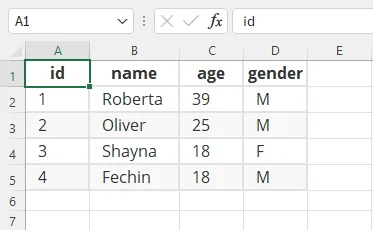
A simple way to convert Markdown table to Excel is to copy the table from a Markdown editor's preview mode and paste it directly into Excel. This approach works best for small tables or quick, one-off conversions and preserves the table's structure for easy editing in Excel.
Quick Conversion Steps:
-
Open your Markdown file in a Markdown editor that supports table rendering (e.g., Typora).
-
Switch to Preview Mode so the table appears as a formatted grid.

-
Select the table and copy it (Ctrl+C on Windows, Cmd+C on Mac).
-
Open Excel and select the starting cell for the table.
-
Paste the table (Ctrl+V on Windows, Cmd+V on Mac).
-
Adjust column widths and row heights if needed.
Important Notes:
- Ensure your editor allows copying as a table. Some editors only copy plain text.
- If the layout looks off, try using "Match Destination Formatting" or "Paste Special" in Excel to ensure the data aligns correctly.
Pros & Cons:
- ✅ Pros: Maintains table structure without complex steps; quick for small datasets.
- ❌ Cons: Not suitable for very large or complex tables; manual copy-paste is inefficient for repetitive tasks.
Method 2: Use an Online Markdown to Excel Converter
If you prefer a fast, software-free approach, an online Markdown to Excel converter is the fastest solution. These tools are perfect for cross-platform users who need to convert MD files quickly without installing a dedicated editor.
Recommended Online Free Markdown to Excel Converters:
- TableConvert: A versatile tool that supports Markdown to Excel, JSON, CSV, PDF with a live preview.
- Markdown to Excel Converter: A service specifically optimized for Markdown to Excel.
- CoolUtils MD to Excel Converter: Supports Markdown to XLSX with advanced options like custom headers and footers.
How to Convert Markdown to Excel Online:
-
Open a trusted online Markdown to Excel converter (e.g., TableConvert).
-
Paste your Markdown table into the input area, or upload your .md file.

-
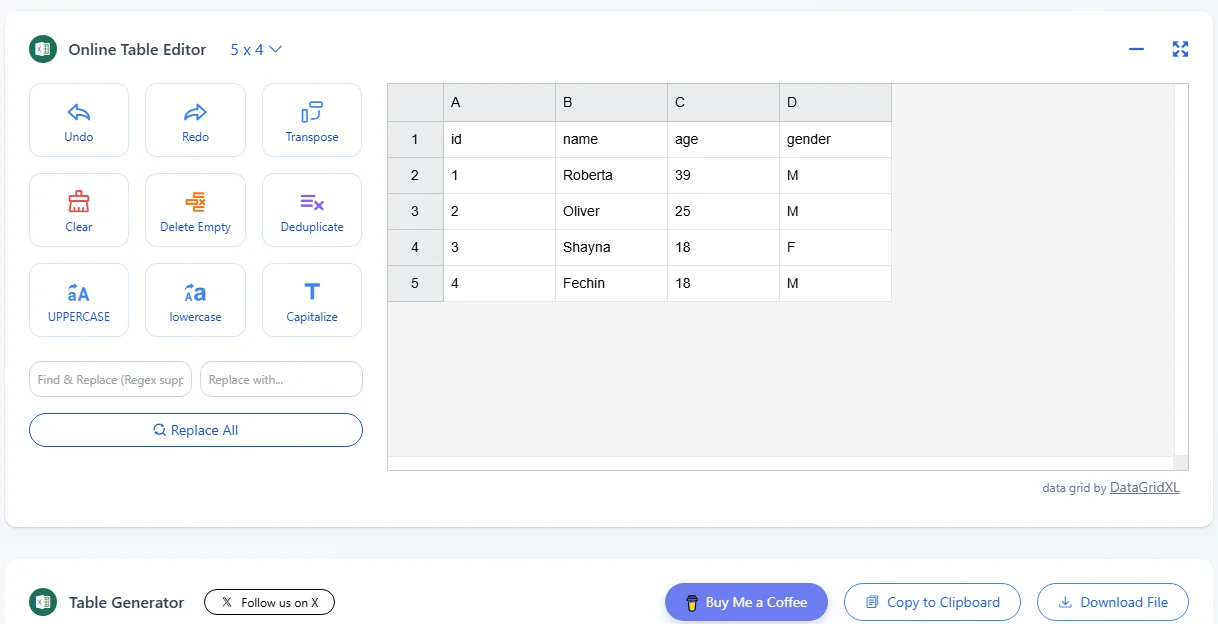
The tool will automatically parse the data and show a spreadsheet preview.
-
Download the Excel file or copy the generated table to your clipboard.
Security Tip: While convenient, avoid uploading sensitive or confidential data to third-party online converters to protect your privacy.
Pros & Cons:
- ✅ Pros: Zero setup; works on any device (Windows, Mac, Mobile).
- ❌ Cons: Privacy risks for sensitive data; free versions may have file size limits.
Method 3: Batch Convert MD to Excel with C# Automation
For developers or organizations that frequently need to convert multiple Markdown files to Excel, an automated solution using C# can save significant time. By leveraging libraries like Spire.XLS for .NET, you can automatically convert hundreds of Markdown files to Excel in seconds.
Prerequisites:
- C# IDE: Visual Studio.
- Framework: .NET Framework or .NET Core / .NET 5+.
- Library: Spire.XLS (available via NuGet)
Step-by-Step Guide:
-
Install the Library: Open your NuGet Package Manager Console and run the following command:
PM> Install-Package Spire.XLS -
Write the Conversion Code: Use the following example to batch convert MD files to Excel:
using Spire.Xls; using System; using System.IO; namespace MarkdownToExcel { class Program { static void Main(string[] args) { // Path to your Markdown directory string mdDir = @"C:\MarkdownFiles\"; string[] files = Directory.GetFiles(mdDir, "*.md"); foreach (var file in files) { // Initialize a new Workbook Workbook workbook = new Workbook(); // Load the Markdown file workbook.LoadFromMarkdown(file); // Optional: Auto-fit sheet to one page workbook.ConverterSetting.SheetFitToPage = true; // Define the output path string output = Path.Combine(mdDir, Path.GetFileNameWithoutExtension(file) + ".xlsx"); // Save as Excel (Version 2016 or higher) workbook.SaveToFile(output, ExcelVersion.Version2016); Console.WriteLine($"Successfully converted: {file}"); } } } } -
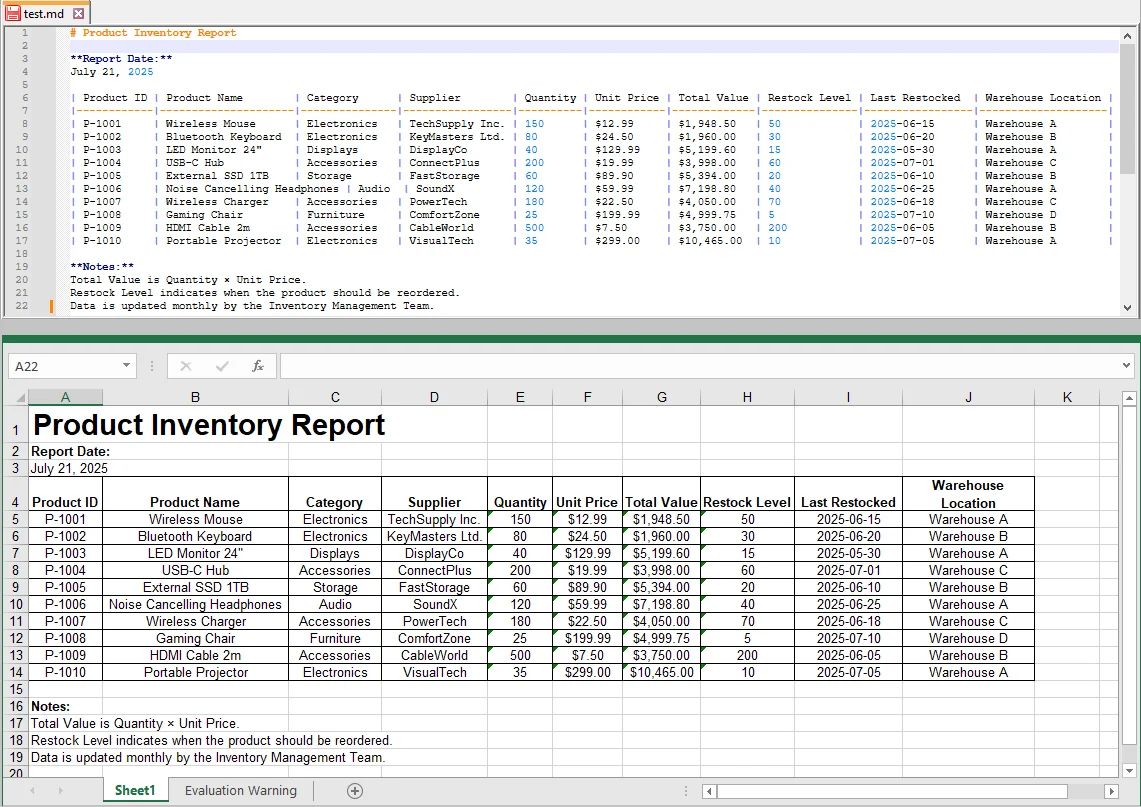
Run the Script: The application will iterate through all .md files in the folder, parse the Markdown syntax, and generate corresponding .xlsx files automatically.
Advanced Customization Options:
- Version Compatibility: You can easily change the Excel version by modifying the SaveToFile method, for example, ExcelVersion.Version97to2003 for legacy systems.
- Adjust Page Setup: If you need more specific formatting adjustments, such as margins, column widths, or row heights, Spire.XLS provides a range of page setup options that can be configured programmatically.
- Data Cleaning: You can add extra logic to remove blank rows or handle empty cells programmatically.
Pros & Cons:
- ✅ Pros: High-speed batch processing; fully customizable formatting; ideal for enterprise-level automation.
- ❌ Cons: Requires programming knowledge (C#); initial environment setup takes more time than manual methods.
Comparison: Which Markdown to Excel Method is Right for You?
To help you choose the best approach, here's a quick comparison of the three Markdown to Excel methods:
| Feature | Copy & Paste | Online Converters | C# Automation |
|---|---|---|---|
| Difficulty | Easy | Easy | Moderate |
| Batch Support | No | No | Yes |
| Customization | Low | Limited | High |
| Security | High | Low | High |
How to Choose the Right Conversion Method?
- For simple, small-scale table conversion → Copy & Paste
- For quick, software-free conversions → Online Converters
- For a large volume of files or automated workflows → C# Automation
Troubleshooting Common Markdown to Excel Issues
- Table Misalignment: Ensure your Markdown uses the standard pipe syntax (|---|) with a header separator row.
- Missing Images: Excel does not natively embed Markdown images; manually reinsert them or use relative file paths to link images in Excel.
- Garbled Characters: Always save your source Markdown file with UTF-8 encoding before conversion to avoid font issues.
FAQs about Markdown to Excel
Q1: Can I convert Markdown to Excel on my mobile device?
A1: Yes. Online converters like TableConvert let you convert Markdown to Excel directly from a mobile browser. However, avoid uploading sensitive or confidential data to public websites.
Q2: Why does my Excel table show extra or missing columns after conversion?
A2: This often happens when the Markdown table contains inconsistent pipes (|) or missing header separators. Ensure each row has the same number of columns, and the header row uses proper pipe syntax (|---|).
Q3: How do I convert multiple Markdown files to Excel at once?
A3: Manual copy-paste is inefficient for batch operations. Use C# automation with libraries like Spire.XLS to batch convert Markdown files to Excel, saving time and preserving formatting.
Q4: Can I preserve table headers and formatting when converting Markdown to Excel?
A4: Yes, basic headers and table structure are preserved when using Copy-Paste or online converters. For advanced formatting, like custom column widths or page setup, using C# with libraries like Spire.XLS gives full control over the Excel output.